



Summarize this blog post with:


In this article, you’ll learn what a robots.txt file is, how to write one without breaking your site, and how to manage the new wave of AI crawlers that now decide whether your pages show up in ChatGPT, Perplexity, Gemini, and Copilot.
Table of Contents
What is a robots.txt file?
A robots.txt file tells crawlers where they can and cannot go on your site.
It lives in the root directory of your domain and lists the content you want to keep off-limits. You can also use it to point crawlers to your sitemap and to set different rules for different bots.
Two nuances matter. First, most search engine and AI crawlers respect robots.txt, but a few ignore it. Second, robots.txt controls crawling, not indexing. A blocked page can still appear in Google search results if other sites link to it. We will come back to that later.
What does a robots.txt file look like?
Every robots.txt file follows the same pattern.
Sitemap: [URL location of sitemap]
User-agent: [bot identifier]
[directive 1]
[directive 2]
User-agent: [another bot identifier]
[directive 1]
[directive 2]
You declare a user-agent, then list the rules that apply to it. You repeat the pattern for each bot you want to give different instructions to.
![[Screenshot: A real robots.txt file viewed in the browser, e.g. ahrefs.com/robots.txt or nytimes.com/robots.txt]](https://www.datocms-assets.com/164164/1777646129-blobid1.png?auto=format,compress&w=1248&fit=max)
User-agents
Every crawler identifies itself with a user-agent string. You can write rules for specific bots, or use the wildcard * to apply rules to all of them.
Here are the user-agents most teams care about in 2026.
|
Crawler |
User-agent |
What it does |
|---|---|---|
|
Google search |
Googlebot |
Indexes pages for Google search |
|
Google AI |
Google-Extended |
Trains and powers Gemini and AI Overviews |
|
Bing search |
Bingbot |
Indexes pages for Bing and Copilot |
|
OpenAI training |
GPTBot |
Crawls pages OpenAI uses for model training |
|
OpenAI live answers |
OAI-SearchBot |
Fetches pages ChatGPT cites in live answers |
|
Anthropic |
ClaudeBot |
Crawls pages Anthropic uses for Claude |
|
Perplexity |
PerplexityBot |
Fetches pages Perplexity cites in live answers |
User-agents are case sensitive. A rule for googlebot is not the same as a rule for Googlebot.
When you declare rules for multiple user-agents, each declaration acts as a clean slate. Crawlers only follow the block of rules that most specifically applies to them. A bot will ignore the wildcard * block if it sees a block addressed to it by name.
![[Screenshot: Visual showing a robots.txt with two user-agent blocks (one for *, one for Googlebot), with arrows indicating that Googlebot only follows its own block]](https://www.datocms-assets.com/164164/1777646136-blobid2.png?auto=format,compress&w=1248&fit=max)
This matters for AI search. If you write a strict rule under User-agent: * and then add a permissive rule under User-agent: Googlebot, the AI crawlers fall under the strict one because there is no specific block for them.
Directives
Directives are the rules you give to a user-agent. Google supports three.
Disallow
Tells crawlers not to access files or pages under a given path.
User-agent: *
Disallow: /blog
This blocks every URL that starts with /blog. If you fail to add a path after Disallow:, the directive is ignored.
Allow
Lets you carve out exceptions inside a disallowed path.
User-agent: *
Disallow: /blog
Allow: /blog/allowed-post
Every blog URL is blocked except /blog/allowed-post.
When Allow and Disallow rules conflict, Google and Bing follow the rule with the most characters. Other crawlers follow the first rule that matches, which is usually Disallow. The safer move is to write rules that don’t overlap in the first place.
Sitemap
Points crawlers to your XML sitemap.
Sitemap: https://www.example.com/sitemap.xml
User-agent: *
Disallow: /admin/
Sitemap directives are not tied to a specific user-agent, so put them at the top or bottom of the file. You can list as many sitemaps as you have. Bing, Yahoo, and Ask all read this directive, even though Google often gets sitemap data from Search Console.
Unsupported directives
Three older directives are worth flagging because you will see them in old guides and outdated robots.txt files.
Crawl-delay once let you slow bots down by a number of seconds. Google ignores it. Bing and Yandex still respect it, so it has narrow value if you are protecting a small server from those two crawlers.
Noindex and Nofollow were never officially supported by Google, and Google made that explicit in 2019. To prevent indexing, use a meta robots tag or the x-robots-tag HTTP header. To control how links are followed, use rel="nofollow" on the link itself.
Do you need a robots.txt file?
For a small site that wants every page indexed, no. For everything else, yes.
A well-written robots.txt file helps you:
-
Keep crawlers out of duplicate content, internal search results, and faceted navigation that has no SEO value
-
Hide staging areas, admin pages, and gated content from crawl attempts
-
Reduce server load by preventing bots from hammering parameterized URLs
-
Save crawl budget for the pages that actually matter
-
Document your crawling policy in a single, version-controlled file
Robots.txt now also doubles as an editorial decision about AI. Blocking GPTBot tells OpenAI not to use your pages for model training. Blocking OAI-SearchBot stops ChatGPT from fetching your pages when answering live questions, which means your brand will not be cited in those answers. Allowing them does the opposite. Neither choice is objectively right. It depends on whether you treat AI engines as a distribution channel or a competitor for the same click. We will get to how to decide below.
One caveat. Robots.txt does not guarantee that a page stays out of Google’s index. If other sites link to a blocked page, Google can still list the URL, often without a description. To truly exclude a page, use a noindex meta tag and let Google crawl the page so it can see the tag.
How to find your robots.txt file
If you have one, it sits at yourdomain.com/robots.txt. Type the URL into your browser. If you see a plain text file with User-agent lines, you have one.
![[Screenshot: Browser tab showing a robots.txt file at a real URL like tryanalyze.ai/robots.txt]](https://www.datocms-assets.com/164164/1777646137-blobid3.png?auto=format,compress&w=1248&fit=max)
If you get a 404, you don’t have one.
You can also pull the robots.txt of any competitor by visiting their /robots.txt URL. This is a fast way to benchmark how other sites in your space handle AI crawlers.
How to create a robots.txt file
Open a blank text file. Add your directives. Save it as robots.txt. Upload it to the root directory of your domain.
For example, if you want to block crawlers from your /admin/ directory and point them to your sitemap, your file would look like this.
Sitemap: https://www.example.com/sitemap.xml
User-agent: *
Disallow: /admin/
![[Screenshot: A code editor or text editor showing a freshly typed robots.txt file with sitemap and disallow lines]](https://www.datocms-assets.com/164164/1777646142-blobid4.png?auto=format,compress&w=1248&fit=max)
If you are on WordPress, most SEO plugins (Yoast, Rank Math, AIOSEO) include a robots.txt editor in the dashboard. You don’t need to FTP into your server to make changes.
![[Screenshot: WordPress admin showing the robots.txt editor inside Yoast or Rank Math]](https://www.datocms-assets.com/164164/1777646143-blobid5.jpg?auto=format,compress&w=1248&fit=max)
Where to put your robots.txt file
The root directory of the subdomain it controls.
Robots.txt only governs crawling on the subdomain where it lives. If your main site is on example.com and your blog is on blog.example.com, you need two robots.txt files. One at example.com/robots.txt, one at blog.example.com/robots.txt.
Robots.txt best practices
These are the practices that prevent the mistakes which cause the most damage.
One directive per line
Every rule belongs on its own line. Crawlers cannot parse stacked rules.
# Bad
User-agent: * Disallow: /admin/ Disallow: /private/
# Good
User-agent: *
Disallow: /admin/
Disallow: /private/
Use wildcards to keep things short
Wildcards (*) match any sequence of characters, including none. Use them to write one rule that covers many URLs.
User-agent: *
Disallow: /products/*?
That rule blocks every URL under /products/ that contains a query string, which is the cleanest way to stop crawlers from wasting time on filtered category URLs.
Use $ to mark the end of a URL
The dollar sign anchors a rule to the end of a URL. To block every PDF on your site:
User-agent: *
Disallow: /*.pdf$
That blocks /whitepaper.pdf but not /whitepaper.pdf?ref=newsletter.
Use each user-agent block once
Google merges duplicate user-agent blocks into one set of rules, but humans get confused when they audit them. Keep each user-agent in a single block to make the file easier to read.
Be specific to avoid wiping out the wrong directory
Disallow: /de blocks every URL that starts with /de, including /designer-jeans/, /delivery/, and /department-info/. If you only meant to block your German subfolder, write Disallow: /de/ with the trailing slash. This single mistake has hidden entire product catalogs from Google.
Comment your file
Hash marks (#) tell crawlers to ignore the rest of the line. Use comments to explain why a rule exists, especially the AI crawler decisions you and the team will revisit.
# Allow Googlebot full access for SEO
User-agent: Googlebot
Allow: /
# Block GPTBot from training data, allow OAI-SearchBot for live answers
User-agent: GPTBot
Disallow: /
User-agent: OAI-SearchBot
Allow: /
Decide on AI crawlers deliberately
Most off-the-shelf robots.txt files were written before AI crawlers existed. If yours has not been updated recently, you are making a default choice without realizing it. Ask three questions before you write a rule for an AI bot.
-
Is the crawler training a model, or fetching pages live to answer queries?
-
Do my buyers use the AI engine that bot belongs to?
-
Would a citation in an AI answer drive qualified traffic, or summarize my content for free?
Training crawlers (GPTBot, ClaudeBot) absorb your content into a model. Live crawlers (OAI-SearchBot, PerplexityBot) fetch your page in the moment, and the AI cites you with a clickable link in its answer. Many teams allow live crawlers and block training crawlers, because that keeps the citation traffic and removes the training risk.
To answer the second and third questions, you need data. The AI Traffic Analytics dashboard in Analyze AI shows how much traffic you already get from each AI engine, which pages they land on, and how those visitors engage.
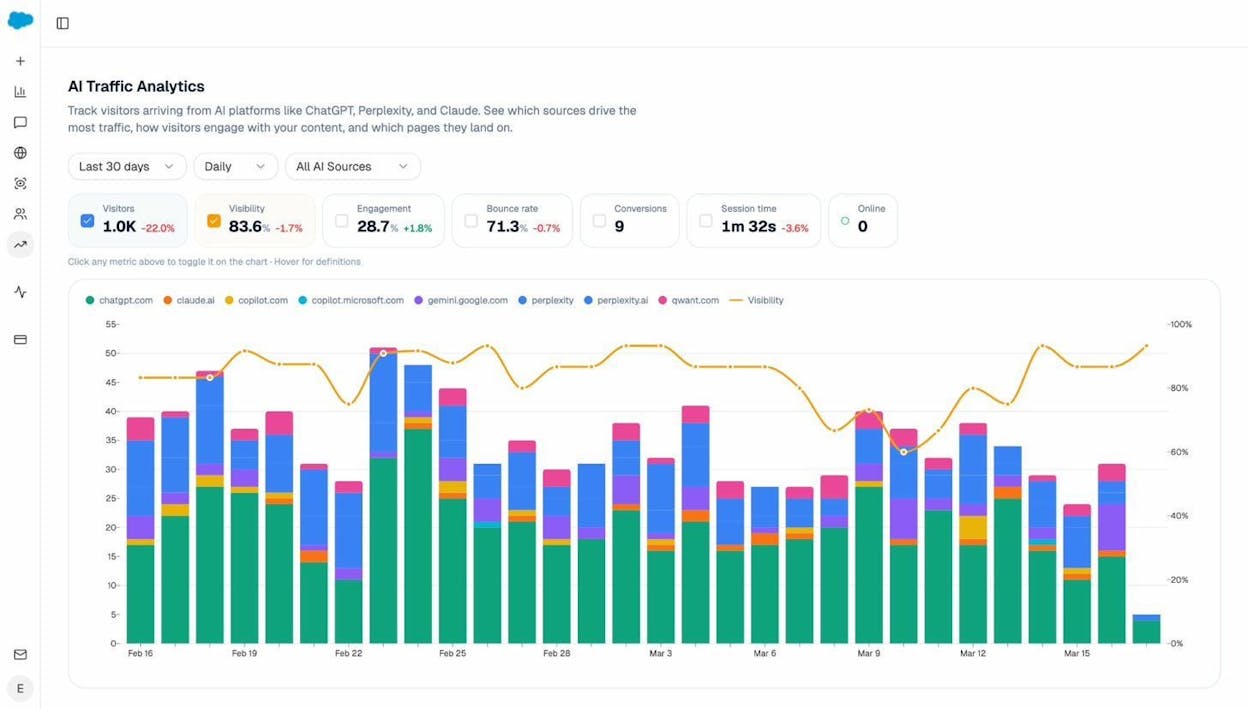
If a crawler is sending you qualified traffic, blocking it has a real cost. If it isn’t, you can experiment without much downside.
Use a separate robots.txt for each subdomain
example.com/robots.txt does not control blog.example.com. Each subdomain needs its own file in its own root directory.
Robots.txt vs llms.txt: what is the difference?
You will hear about a newer file called llms.txt. It is not a replacement for robots.txt. The two solve different problems.
|
File |
Purpose |
Who reads it |
|---|---|---|
|
robots.txt |
Tells crawlers which URLs they can or cannot access |
Search engine and AI crawlers |
|
llms.txt |
Curates the most useful content on your site for an LLM to read |
Large language models (when they support it) |
Robots.txt is a fence. Llms.txt is a guided tour. Robots.txt restricts. Llms.txt recommends.
If you want LLMs to understand your product, your pricing, and your most useful documentation without crawling thousands of irrelevant pages, an llms.txt file gives them a clean reading list. Most AI engines do not officially fetch llms.txt yet, but adoption is climbing, and the cost of having one is essentially zero.
You can generate one in a few minutes with the Analyze AI LLMs.txt Generator, or compare options in our roundup of the best LLMs.txt generator tools.
Example robots.txt files
Copy any of these into a text file, save it as robots.txt, and upload it to your root directory.
Allow everything
User-agent: *
Disallow:
Block everything
User-agent: *
Disallow: /
Block one subdirectory
User-agent: *
Disallow: /private/
Block one file type
User-agent: *
Disallow: /*.pdf$
Block all parameterized URLs for Googlebot
User-agent: Googlebot
Disallow: /*?
Allow search engines, block AI training, allow live AI answers
Sitemap: https://www.example.com/sitemap.xml
User-agent: *
Allow: /
User-agent: GPTBot
Disallow: /
User-agent: ClaudeBot
Disallow: /
User-agent: Google-Extended
Disallow: /
User-agent: OAI-SearchBot
Allow: /
User-agent: PerplexityBot
Allow: /
This is a common 2026 setup. It keeps your content out of model training, lets ChatGPT and Perplexity fetch your pages live so they can cite you, and leaves Google search untouched.
Block AI crawlers entirely
User-agent: *
Allow: /
User-agent: GPTBot
Disallow: /
User-agent: ClaudeBot
Disallow: /
User-agent: Google-Extended
Disallow: /
User-agent: OAI-SearchBot
Disallow: /
User-agent: PerplexityBot
Disallow: /
User-agent: anthropic-ai
Disallow: /
Allow AI crawlers everywhere except sensitive sections
User-agent: *
Disallow: /admin/
Disallow: /checkout/
Disallow: /account/
When you don’t write a specific block for AI bots, they fall under the wildcard rules. So this file welcomes both Google and AI crawlers to everything except admin, checkout, and account pages.
How to audit your robots.txt file for errors
Robots.txt mistakes hide well. A page that disappears from Google because of a bad rule looks identical to a page that disappears for any other reason. The same is true in AI search. Run these three checks regularly.### Check Google Search Console
Open the Pages report in Search Console. Look for errors labeled “Blocked by robots.txt” and “Indexed, though blocked by robots.txt.”
![[Screenshot: Google Search Console Pages report showing the “Why pages aren’t indexed” section with robots.txt-related rows highlighted]](https://www.datocms-assets.com/164164/1777646149-blobid7.png?auto=format,compress&w=1248&fit=max)
The first means Google found the URL but cannot crawl it. If that is intentional, ignore it. If it isn’t, find the rule that is blocking the URL and fix it.
The second means Google indexed a URL despite your block, usually because other sites link to it. If you genuinely want the URL out of Google, remove the robots.txt block (so Google can crawl the page), then add a noindex meta tag. Google needs to crawl the page to see the tag.
Test specific URLs
Paste any URL into the URL Inspection tool in Search Console. If it is blocked, the report tells you exactly which line of robots.txt is responsible.
![[Screenshot: Search Console URL Inspection tool showing a “Blocked by robots.txt” status with the specific blocking rule highlighted]](https://www.datocms-assets.com/164164/1777646154-blobid8.jpg?auto=format,compress&w=1248&fit=max)
Before you change a rule that opens up a previously blocked section, run the affected pages through the Analyze AI Broken Link Checker. A robots.txt edit that exposes broken internal links can damage your rankings instead of restoring them.
Check whether your robots.txt is hurting your AI visibility
This is the check most teams skip. A robots.txt rule can quietly suppress your brand in AI answers without affecting Google rankings at all. The way to catch it is to monitor citations and AI-referred traffic, not just Google rankings.
The Sources view in Citation Analytics shows every URL on your site that AI engines cite, broken down by content type and engine.
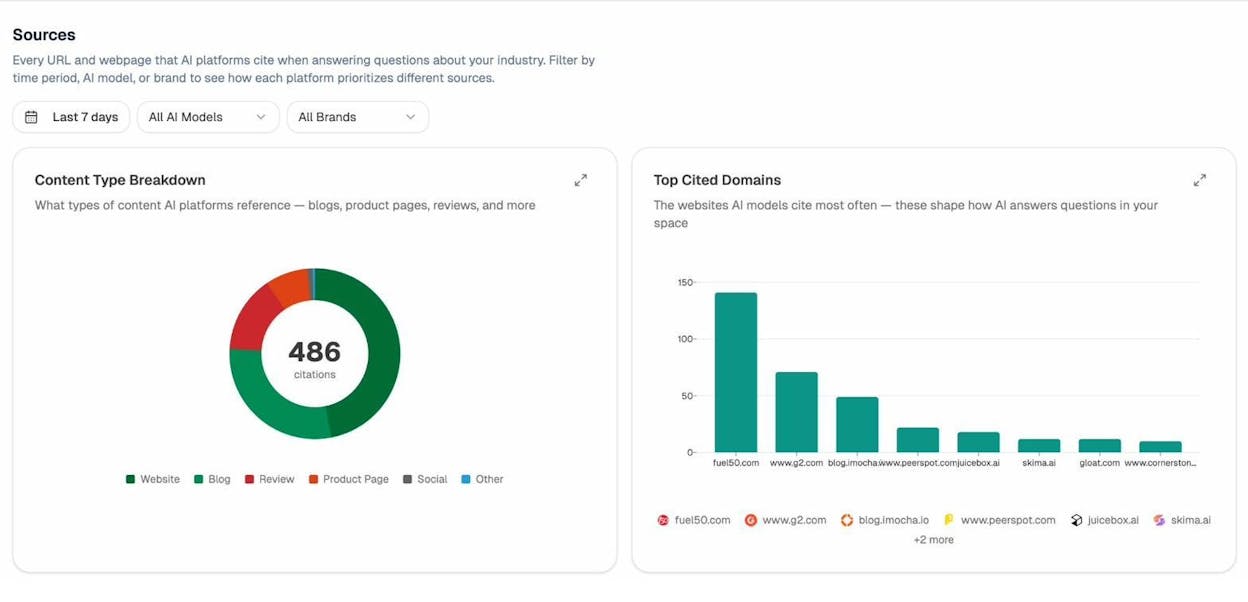
Drill into the URL view to see exactly which of your pages are cited and which competitors are mentioned alongside you in those answers.
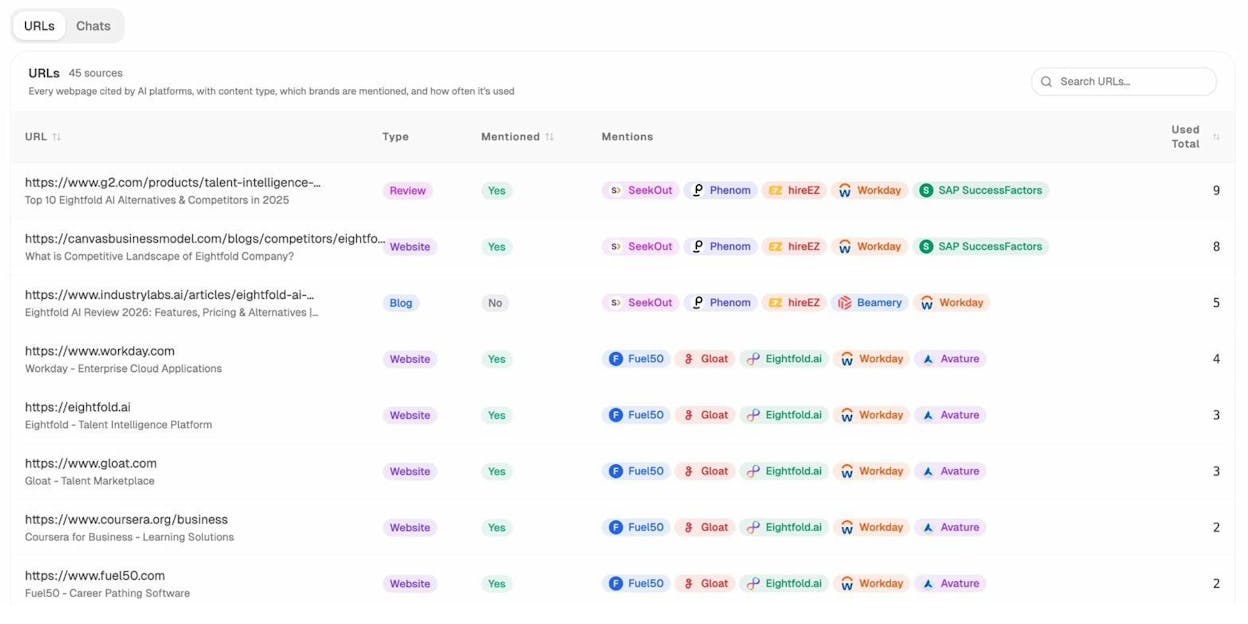
If a page that drove citations last month suddenly drops to zero, a recent robots.txt change is one of the first things to check. Compare the URL against your current Disallow rules and your AI bot blocks.
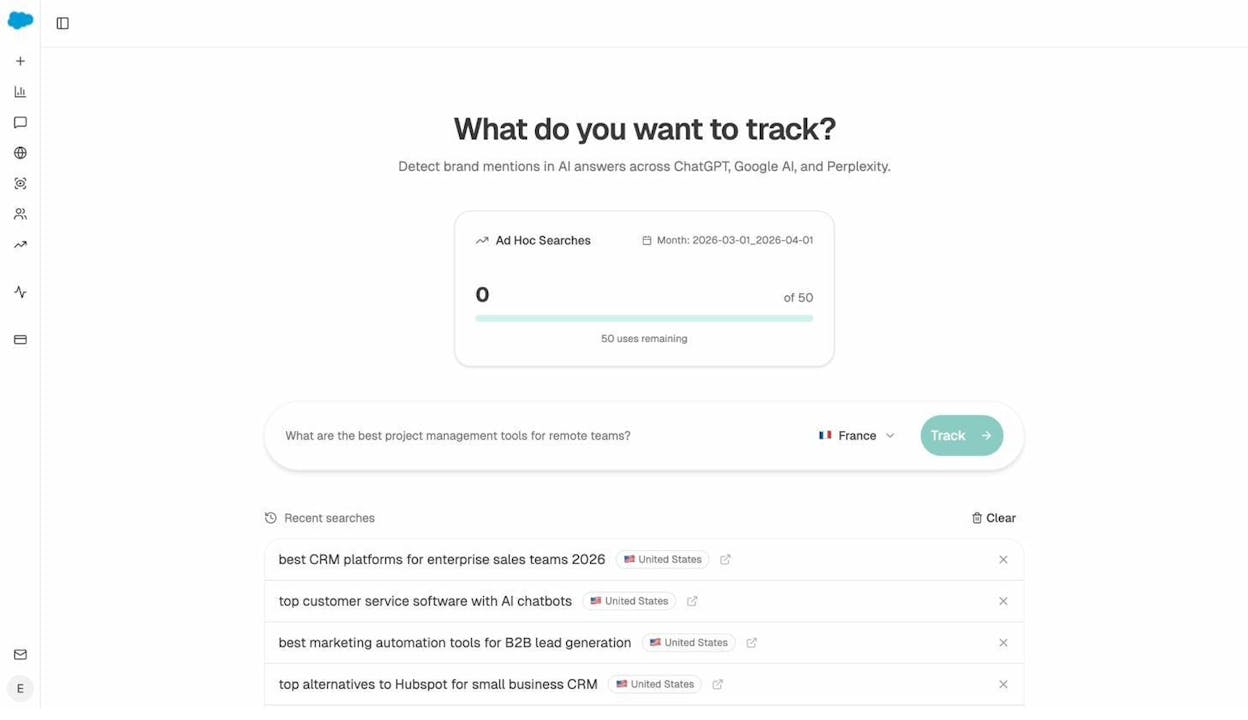
You can also run a one-off check by typing the prompt that should surface your page into the Ad Hoc Prompt Searches tool. If your domain shows up, the AI engines are still reaching you. If it doesn’t and used to, your robots.txt is a likely suspect.
FAQs
What is the maximum size of a robots.txt file?
500 kilobytes. Google ignores anything beyond that.
Where is robots.txt in WordPress?
At yourdomain.com/robots.txt. WordPress generates a virtual file by default. Most SEO plugins let you replace it with a custom one from the dashboard.
What happens if I disallow a noindexed page in robots.txt?
Google never crawls the page, so it never sees the noindex tag. The page can stay indexed indefinitely. Always let Google crawl pages you want out of the index.
Should I block AI crawlers in robots.txt?
That depends on whether AI engines send you traffic and citations worth keeping. Check your AI traffic and citation data first. If ChatGPT, Perplexity, or Gemini are already driving qualified visitors, blocking those crawlers is an own goal.
Does Google honor Crawl-delay?
No. Bing and Yandex still respect it.
Can I have more than one sitemap in robots.txt?
Yes. List one sitemap per line. Many large sites split sitemaps by content type or language and reference all of them in robots.txt.
Final thoughts
Robots.txt is small, plain, and easy to ignore until something breaks. Treat it as part of your technical SEO and your AI visibility strategy at the same time. Audit it twice a year, after every major site migration, and any time you ship a new section of the site.
The teams that win in both Google and AI search are not the ones with the cleverest rules. They are the ones who understand what their robots.txt is doing today, who know what they want it to do tomorrow, and who measure both sides of the result.

Ernest

Ibrahim


