



Summarize this blog post with:


In this article, you’ll learn what an SEO score is, what it actually measures, how to check yours using free tools, and step-by-step instructions for improving it. You’ll also learn why a strong SEO score is only one piece of the visibility puzzle—and how to measure your presence in AI search engines like ChatGPT, Perplexity, and Google AI Mode, where a growing share of your audience now finds answers.
Table of Contents
What Is an SEO Score?
An SEO score is a number assigned by an SEO auditing tool that reflects the technical health of your website. Most tools express it as a percentage between 0 and 100. The higher the score, the fewer technical errors the tool found during its crawl.
The exact name varies depending on the tool. Some call it a “Health Score,” others call it a “Site Score” or “SEO Rating.” But the concept is the same: the tool crawls your site, checks every internal URL against a list of known technical SEO issues, and calculates what percentage of your pages are error-free.
Here is the formula most tools use:
SEO Score = (Internal URLs without errors ÷ Total internal URLs) × 100
So if your site has 500 pages and 50 of them have errors, your SEO score would be 90%. That means 90% of your internal URLs are clean.
It is worth understanding what an SEO score is not. It is not a ranking factor. Google does not look at any third-party SEO score and decide where to place your pages. But many of the issues that lower your score—broken links, slow pages, missing meta tags, crawl errors—are things Google does care about. Fixing them removes friction between your site and search engines.
Think of your SEO score like a car inspection. A passing grade does not guarantee you’ll win a race. But a failing grade means something is mechanically wrong, and that problem will eventually cost you.
What Factors Contribute to an SEO Score?
Not all SEO issues are equally important. Most audit tools categorize them into three levels of severity: errors, warnings, and notices.
Errors are critical problems that need immediate attention. These include broken pages (404s), redirect loops, pages blocked from indexing that should be indexed, and missing canonical tags on duplicate content.
Warnings are less urgent but still worth fixing. Duplicate title tags, missing H1 headings, slow-loading pages, and images without alt text fall into this category.
Notices are minor items. Missing meta descriptions, low word count on certain pages, or pages with a single inbound internal link are typical examples.
Here is a breakdown of the most common factors that affect your score:
|
Factor |
Category |
Why It Matters |
|---|---|---|
|
Broken internal links (404s) |
Error |
Users and crawlers hit dead ends. Link equity is wasted. |
|
Redirect chains and loops |
Error |
Slow crawling, diluted link value, and potential indexing failures. |
|
Missing or duplicate title tags |
Warning |
Title tags are one of the strongest on-page ranking signals. Duplicates confuse search engines. |
|
Missing H1 tags |
Warning |
The H1 tells search engines (and users) what the page is about. |
|
Duplicate content without canonicals |
Error |
Search engines may index the wrong version or split ranking signals between copies. |
|
Slow page load speed |
Warning |
Core Web Vitals are a confirmed ranking factor. Slow pages frustrate users and increase bounce rates. |
|
Missing meta descriptions |
Notice |
Not a ranking factor, but a strong meta description improves click-through rate from search results. |
|
Broken images |
Warning |
Hurts user experience and wastes crawl budget. |
|
Missing alt text on images |
Notice |
Reduces accessibility and removes a signal that helps search engines understand page content. |
|
Orphan pages |
Warning |
Pages with no internal links pointing to them are hard for crawlers to discover. |
|
Hreflang issues |
Error |
Incorrect language or regional tags send users to the wrong version of your site. |
|
Mixed content (HTTP on HTTPS pages) |
Warning |
Browsers flag mixed content as insecure, which erodes user trust. |
|
Missing robots.txt or sitemap |
Warning |
These files help search engines crawl your site efficiently. Without them, important pages may be missed. |
The weight each tool gives to these factors varies. Some tools treat all errors equally. Others weigh critical crawlability issues more heavily than cosmetic problems like missing meta descriptions.
The important thing is not to chase a perfect 100. Focus on fixing errors first, then warnings, then notices—in that order.
How to Check Your SEO Score for Free
Several free tools let you audit your site’s SEO health. Below are the most reliable options, with step-by-step instructions for each.
Option 1: Google Search Console
Google Search Console (GSC) is the closest thing to hearing directly from Google about your site’s health. It does not give you a single numerical “SEO score,” but it reports on the exact issues Google encounters when crawling and indexing your site.
Here is how to use it:
Step 1. Go to Google Search Console and sign in with your Google account.
![[Screenshot: Google Search Console login page]](https://www.datocms-assets.com/164164/1776703017-blobid1.png?auto=format,compress&w=1248&fit=max)
Step 2. Add your website as a property if you haven’t already. You can verify ownership via DNS record, HTML file upload, or Google Analytics.
![[Screenshot: GSC property verification options]](https://www.datocms-assets.com/164164/1776703022-blobid2.png?auto=format,compress&w=1248&fit=max)
Step 3. Once verified, navigate to the “Pages” report under “Indexing” in the left sidebar. This report shows how many of your pages are indexed and how many are not—along with the specific reasons.
![[Screenshot: GSC Pages report showing indexed vs. not-indexed breakdown]](https://www.datocms-assets.com/164164/1776703023-blobid3.jpg?auto=format,compress&w=1248&fit=max)
Step 4. Check the “Core Web Vitals” report under “Experience.” This tells you how fast your pages load and whether they meet Google’s performance thresholds.
![[Screenshot: GSC Core Web Vitals report showing mobile and desktop assessments]](https://www.datocms-assets.com/164164/1776703027-blobid4.png?auto=format,compress&w=1248&fit=max)
Step 5. Review the “Enhancements” section for structured data errors, mobile usability issues, and breadcrumb problems.
![[Screenshot: GSC Enhancements section with structured data validation results]](https://www.datocms-assets.com/164164/1776703032-blobid5.png?auto=format,compress&w=1248&fit=max)
Google Search Console is limited in scope—it only shows issues Google has actually encountered during its crawls. It will not find everything a dedicated crawler would. But its data is authoritative because it comes directly from Google’s own systems.
Option 2: Analyze AI’s Free SEO Audit Tools
If you want a faster snapshot without setting up a full crawl, Analyze AI offers several free tools that check specific aspects of your site’s SEO health:
The Broken Link Checker scans your site for dead links—one of the most common issues that drag SEO scores down. Enter your URL, and it returns a list of every broken internal and external link it finds.
![[Screenshot: Analyze AI Broken Link Checker results page showing a list of broken URLs with status codes]](https://www.datocms-assets.com/164164/1776703033-blobid6.png?auto=format,compress&w=1248&fit=max)
The Website Authority Checker shows your domain’s authority score relative to competitors. While authority is not part of a technical SEO score, it gives you context for how much trust search engines associate with your domain.
The SERP Checker lets you see who currently ranks for any keyword—so you can benchmark your SEO performance against the competition.
These tools work well for quick checks. If you want a full technical audit with a crawl, the options below are better suited for that.
Option 3: Ahrefs Webmaster Tools
Ahrefs offers a free Site Audit tool through its Webmaster Tools product. It crawls your site, flags issues by severity, and calculates a “Health Score” based on the percentage of error-free URLs.
Here is how to set it up:
Step 1. Create a free Ahrefs Webmaster Tools account at ahrefs.com/webmaster-tools.
![[Screenshot: Ahrefs Webmaster Tools signup page]](https://www.datocms-assets.com/164164/1776703038-blobid7.png?auto=format,compress&w=1248&fit=max)
Step 2. Add your website as a project. You can import it directly from Google Search Console or verify ownership manually.
![[Screenshot: Ahrefs project import from GSC]](https://www.datocms-assets.com/164164/1776703039-blobid8.png?auto=format,compress&w=1248&fit=max)
Step 3. Configure your audit settings. Set the crawl frequency (daily, weekly, or monthly) and adjust the crawl limit if your site has more than 10,000 pages.
![[Screenshot: Ahrefs Site Audit crawl settings page showing schedule and crawl limit options]](https://www.datocms-assets.com/164164/1776703044-blobid9.jpg?auto=format,compress&w=1248&fit=max)
Step 4. Run the crawl. Once it finishes, you will see your Health Score on the audit overview page.
![[Screenshot: Ahrefs Site Audit overview showing the Health Score circle, chart, and issue summary]](https://www.datocms-assets.com/164164/1776703045-blobid10.png?auto=format,compress&w=1248&fit=max)
Step 5. Click into the “All Issues” tab in the left sidebar to see every problem the crawler found, organized by severity (errors in red, warnings in yellow, notices in blue).
Each issue includes a “Why and how to fix” button that explains what the problem is and how to resolve it.
Option 4: Screaming Frog (Free Version)
Screaming Frog’s SEO Spider is a desktop crawler you can download and run locally. The free version crawls up to 500 URLs, which is enough for most small-to-medium sites.
Step 1. Download Screaming Frog from screamingfrog.co.uk and install it.
Step 2. Enter your website URL in the top bar and click “Start.”
![[Screenshot: Screaming Frog interface with URL entered and crawl starting]](https://www.datocms-assets.com/164164/1776703050-blobid11.png?auto=format,compress&w=1248&fit=max)
Step 3. Once the crawl finishes, review the tabs at the top: “Internal,” “Response Codes,” “Page Titles,” “Meta Description,” “H1,” and “Images.” Each tab shows issues specific to that category.
![[Screenshot: Screaming Frog crawl results overview with tabs highlighted]](https://www.datocms-assets.com/164164/1776703055-blobid12.png?auto=format,compress&w=1248&fit=max)
Step 4. Filter by issues. Click the “Issues” tab to see broken links, duplicate content, missing tags, and other problems in one place.
![[Screenshot: Screaming Frog Issues tab showing filtered results]](https://www.datocms-assets.com/164164/1776703060-blobid13.png?auto=format,compress&w=1248&fit=max)
Screaming Frog does not give you a single score. Instead, it gives you raw data that you (or your developer) can act on directly. It is the most granular free option available.
Which Tool Should You Use?
It depends on your situation:
|
Scenario |
Best Tool |
|---|---|
|
You want Google’s own perspective on your site’s health |
Google Search Console |
|
You need a quick check for broken links or keyword rankings |
|
|
You want a full automated audit with a single health score |
Ahrefs Webmaster Tools |
|
You need granular, URL-level crawl data for developer handoff |
Screaming Frog |
For the most complete picture, use Google Search Console as your baseline and supplement it with a dedicated crawler like Ahrefs or Screaming Frog.
How to Improve Your SEO Score
Checking your score is the easy part. Fixing the issues is where the work happens. Here is a practical, prioritized approach.
Step 1: Fix Crawlability Errors First
Crawlability errors prevent search engines from accessing your pages at all. These have the highest impact on your SEO score and your rankings.
Start with these:
Broken internal links (404s). Find every internal link that points to a page that no longer exists. Either restore the page, redirect it to a relevant alternative, or remove the link. You can use the Analyze AI Broken Link Checker to find these quickly.
![[Screenshot: Analyze AI Broken Link Checker showing a list of 404 URLs with the linking pages]](https://www.datocms-assets.com/164164/1776703061-blobid14.png?auto=format,compress&w=1248&fit=max)
Redirect chains. A redirect chain is when page A redirects to page B, which redirects to page C. Each hop adds latency and dilutes link equity. Update the original link to point directly to the final destination.
![[Screenshot: Example of a redirect chain in an SEO audit tool showing A → B → C → D]](https://www.datocms-assets.com/164164/1776703066-blobid15.png?auto=format,compress&w=1248&fit=max)
Blocked pages that should be indexed. Check your robots.txt file and on-page meta robots tags. If a page you want Google to index has a noindex tag or is blocked by robots.txt, remove the restriction.
![[Screenshot: Audit tool showing a page with a noindex tag that receives organic traffic]](https://www.datocms-assets.com/164164/1776703071-blobid16.png?auto=format,compress&w=1248&fit=max)
Step 2: Fix On-Page Issues
Once your pages are crawlable, make sure they are properly structured.
Duplicate title tags. Each page should have a unique title tag that describes its content. If two pages share the same title, search engines cannot easily differentiate them. Use your audit tool’s export to find duplicates and rewrite them.
Missing or duplicate H1 tags. Every page should have exactly one H1 tag. It should describe the main topic of the page and ideally include your primary keyword.
Missing canonical tags. If your site produces duplicate versions of the same page (e.g., with and without trailing slashes, or with URL parameters), set a canonical tag to tell search engines which version is the original.
Step 3: Improve Page Speed
Slow pages hurt both user experience and rankings. Google has confirmed that Core Web Vitals are a ranking factor.
The three metrics to focus on are Largest Contentful Paint (LCP), which measures how fast the main content loads; Interaction to Next Paint (INP), which measures responsiveness; and Cumulative Layout Shift (CLS), which measures visual stability.
Common fixes include compressing images, enabling browser caching, minifying CSS and JavaScript, and using a content delivery network (CDN). Run your pages through Google PageSpeed Insights to get specific recommendations.
![[Screenshot: Google PageSpeed Insights results for a sample URL showing Core Web Vitals scores]](https://www.datocms-assets.com/164164/1776703072-blobid17.png?auto=format,compress&w=1248&fit=max)
Step 4: Clean Up Content Issues
Thin content. Pages with very little text offer little value to users or search engines. Either expand them with useful information or consolidate them into a stronger page.
Duplicate content. If multiple pages on your site contain the same (or nearly the same) content, search engines may only index one of them—and it might not be the one you prefer. Consolidate duplicates using canonical tags or 301 redirects.
Missing alt text. Add descriptive alt text to every image. This helps visually impaired users, improves your chances of appearing in image search results, and gives search engines more context about your page content.
Step 5: Strengthen Internal Linking
Internal links help search engines discover and understand the structure of your site. They also distribute link equity across your pages.
Look for orphan pages—pages with no internal links pointing to them. These are effectively invisible to crawlers unless they appear in your sitemap. Add contextual internal links from relevant pages to bring them into your site’s link graph.
You can use the Analyze AI Keyword Rank Checker to find which pages rank for which keywords, then strategically interlink them to reinforce topical relevance.
Step 6: Monitor Progress Over Time
Fixing issues once is not enough. New pages get published, old pages break, plugins update and introduce new problems. Schedule recurring audits—weekly if your site changes often, monthly if it is relatively stable—to catch regressions before they compound.
Google Search Console sends email alerts for critical issues like spikes in 404 errors or drops in Core Web Vitals. Turn those on.
Why Your SEO Score Only Tells Half the Story
Your SEO score measures how well your site is built for traditional search engine crawlers. That still matters. Google processes billions of queries every day, and organic search remains the largest source of traffic for most websites.
But the landscape is changing. A growing number of users now get answers directly from AI-powered search engines—ChatGPT, Perplexity, Google AI Mode, Claude, and Microsoft Copilot. These platforms do not crawl your site the way Googlebot does. They synthesize answers from multiple sources and present them in a conversational format.
This means your site can have a perfect SEO score and still be invisible in AI search. The technical health of your website matters for traditional crawlers, but AI engines evaluate your content differently. They look at whether your content is cited by authoritative sources, how often your brand is mentioned in context, and whether your pages provide the kind of structured, in-depth information that large language models prefer to reference.
This is not about abandoning SEO. It is about recognizing that SEO is evolving—and AI search is now another organic channel worth measuring and optimizing for.
How to Check Your AI Search Visibility Score
Just as you audit your site for technical SEO issues, you can now audit how your brand appears across AI search engines. Analyze AI is built specifically for this.
Here is how to use it:
Check Your AI Visibility Score
When you log into Analyze AI, the Overview dashboard gives you a top-level picture of your brand’s visibility across all tracked AI models. It shows two key metrics: your visibility percentage (how often your brand is mentioned in AI responses to relevant prompts) and your sentiment score (how positively AI engines describe your brand).
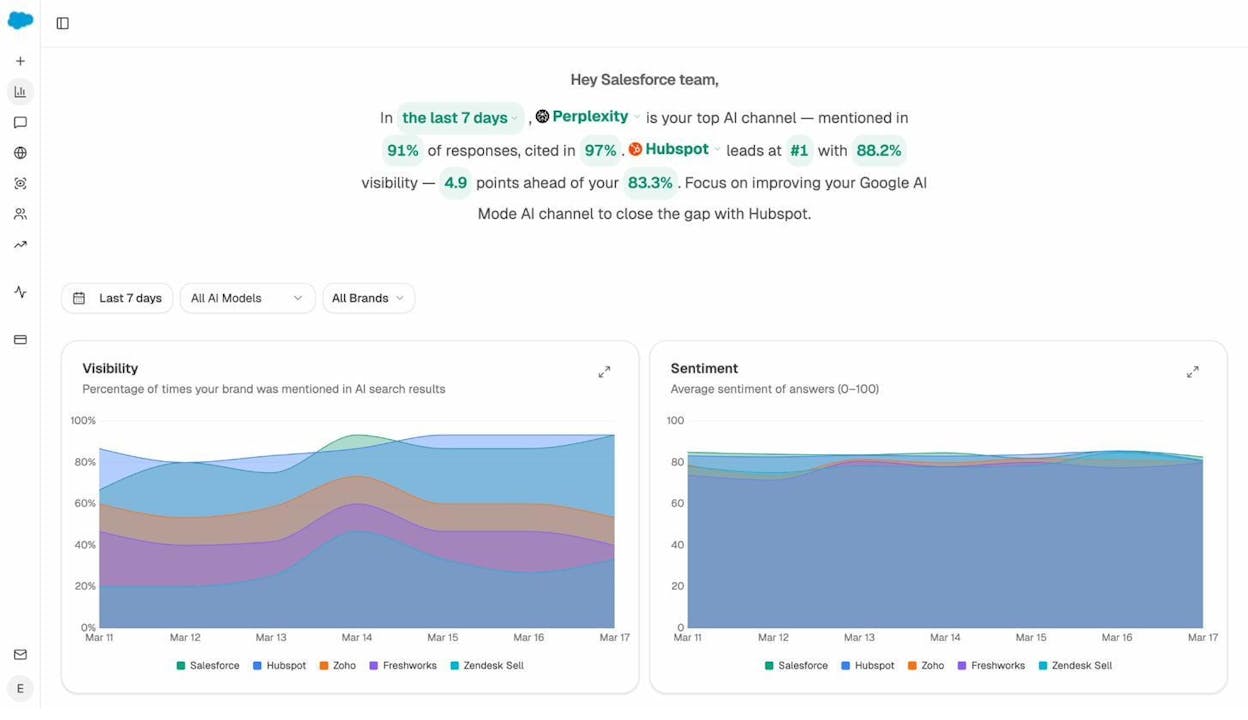
This is, in effect, your “AI search score.” Where a traditional SEO score tells you what percentage of your pages are error-free, the Analyze AI visibility score tells you what percentage of relevant AI responses mention your brand.
See Which AI Engines Drive Real Traffic
The AI Traffic Analytics report connects to your Google Analytics account and shows you exactly how many visitors arrive from AI platforms—broken down by engine (ChatGPT, Perplexity, Claude, Gemini, Copilot) and tracked over time.
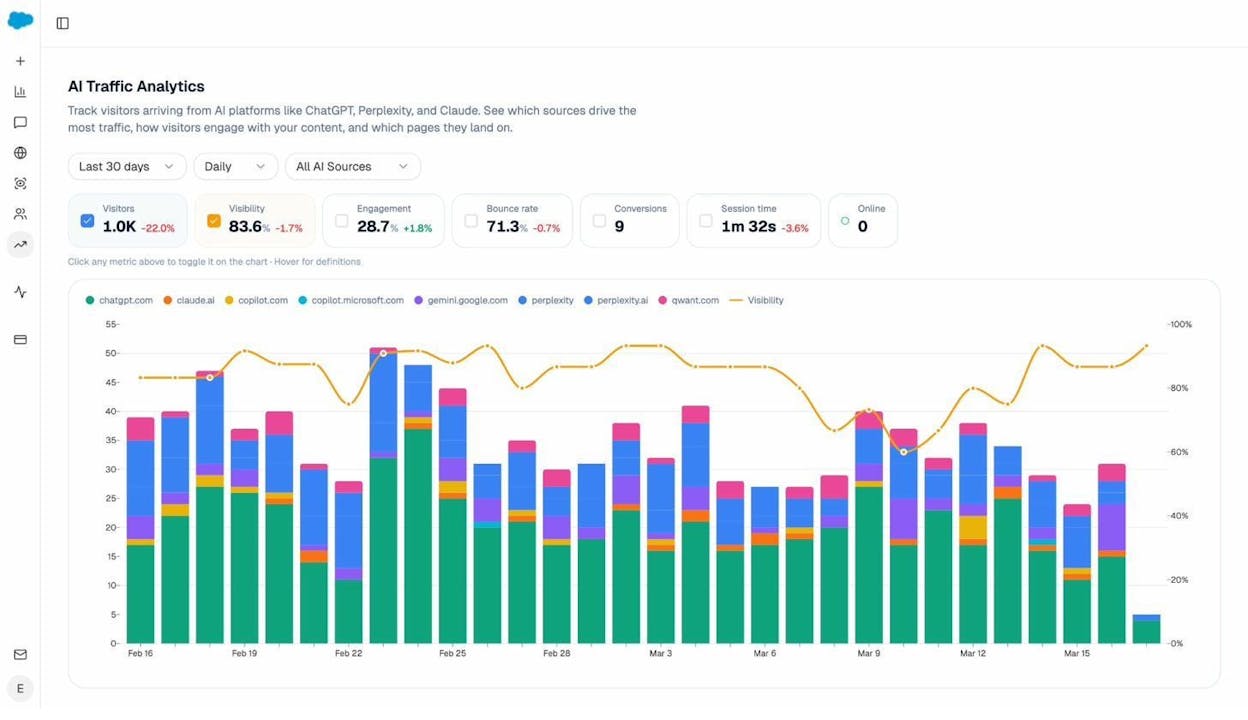
This is something no traditional SEO audit tool provides. You can see not just whether your brand is mentioned in AI search, but whether those mentions actually drive sessions, engagement, and conversions to your site.
Identify Which Pages Get AI Traffic
The Landing Pages report drills down to the page level. It shows which specific URLs on your site receive traffic from AI search engines, along with the referring platform, session count, bounce rate, and conversion data.
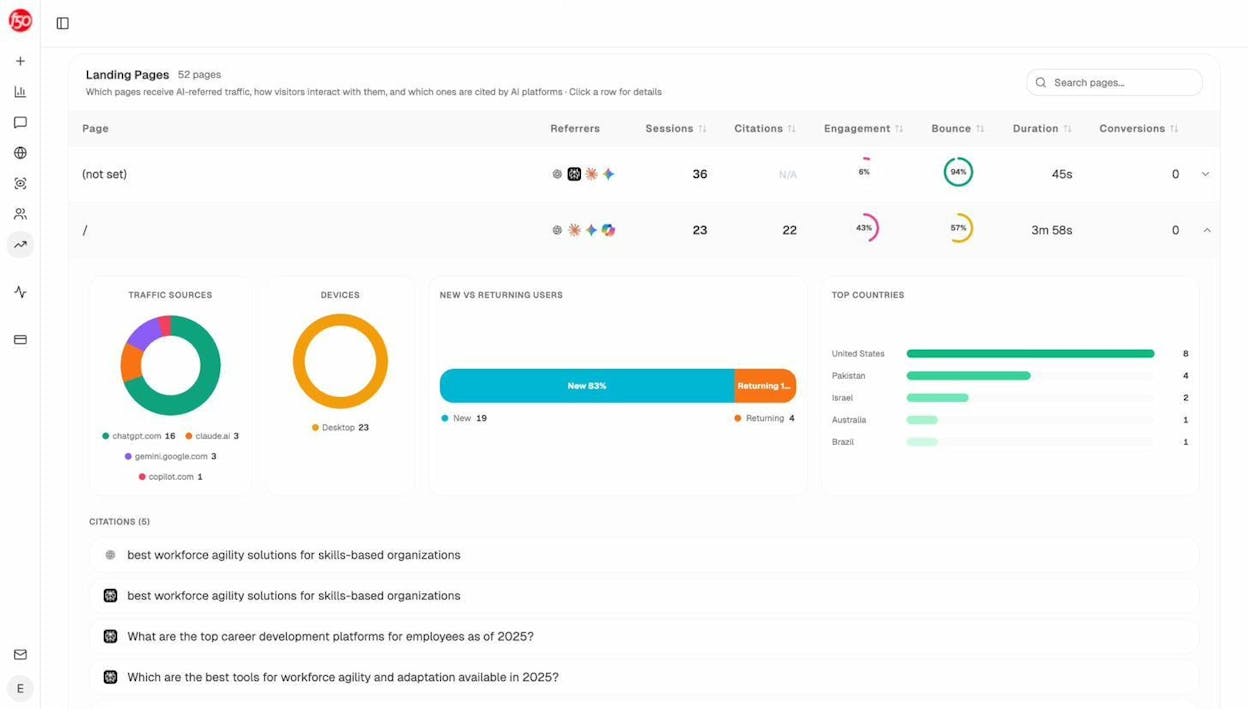
This data is gold for content strategy. If you see that your comparison pages or in-depth guides receive disproportionate AI traffic, you can double down on those formats. If product pages get cited but don’t convert, you can optimize their landing experience.
Track the Prompts That Mention Your Brand
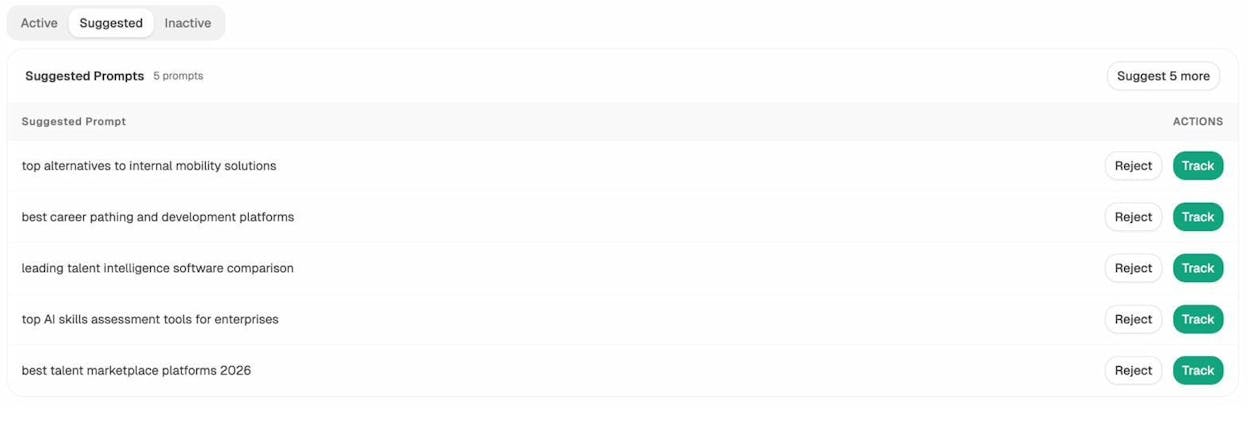
The Prompts dashboard lets you track specific prompts—the questions users ask AI engines—and see whether your brand appears in the response. Each tracked prompt shows your visibility percentage, sentiment score, position, and which competitors also appear.
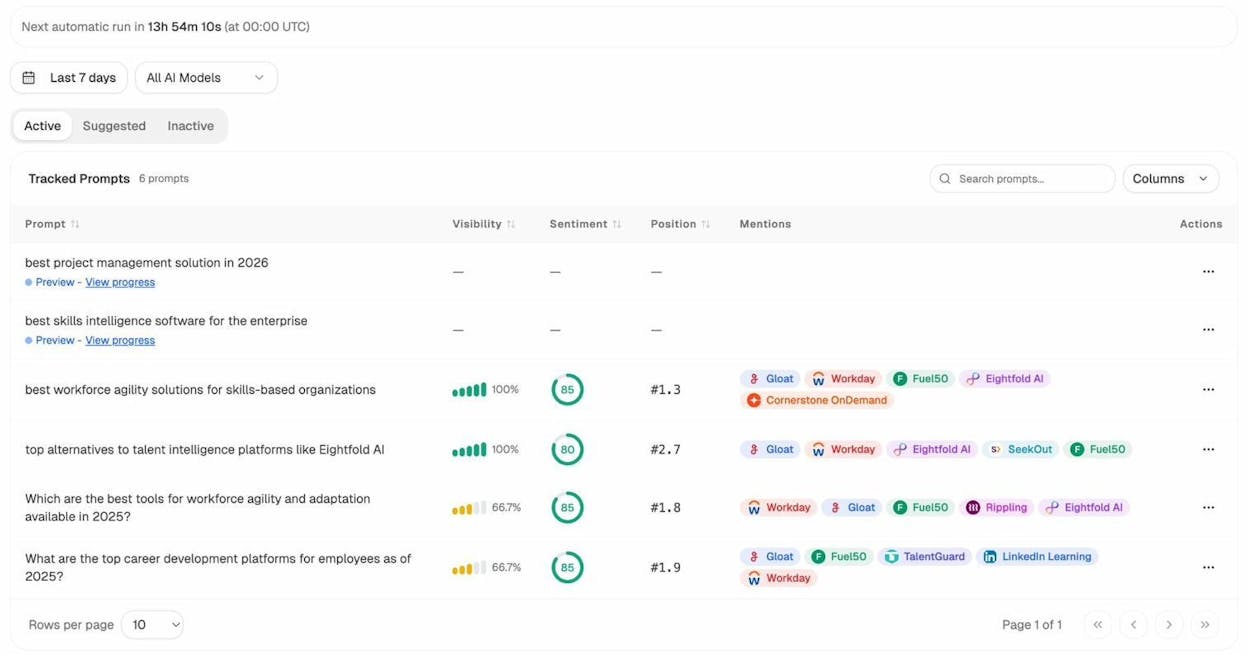
Analyze AI also suggests prompts you should track based on your industry and competitors. You can accept them with one click to start monitoring automatically.
Find Where Competitors Win and You Don’t
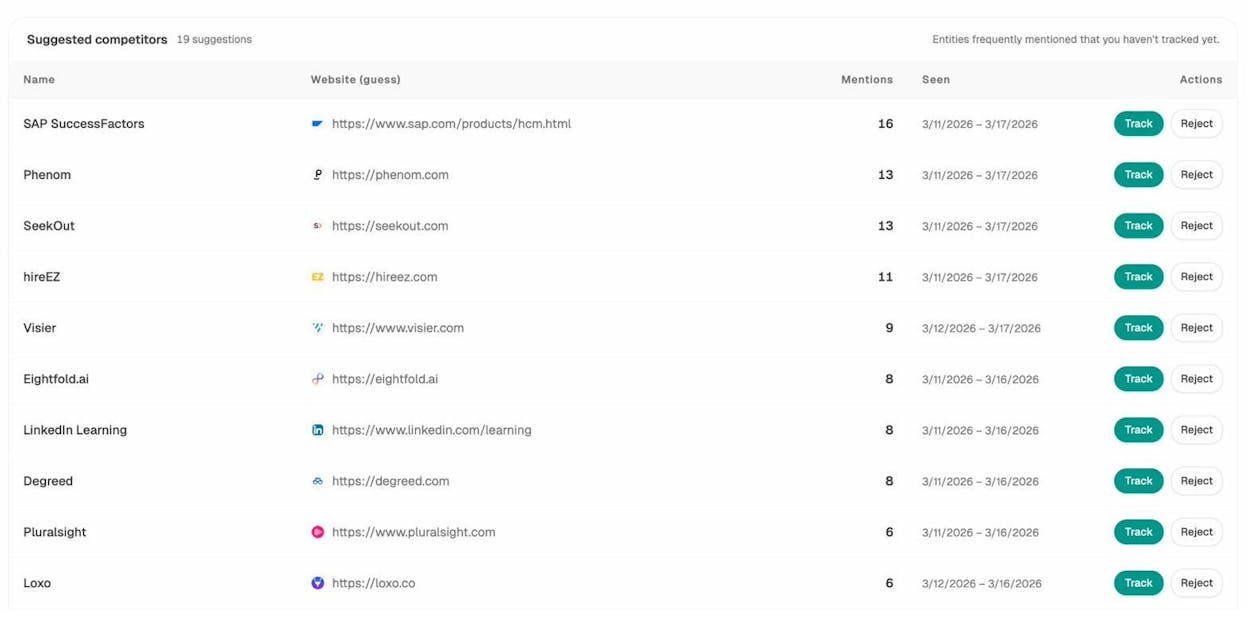
The Competitors view shows which brands appear alongside yours in AI responses. It tracks their mention count, surfaces suggested competitors you may not have considered, and lets you monitor their visibility over time.
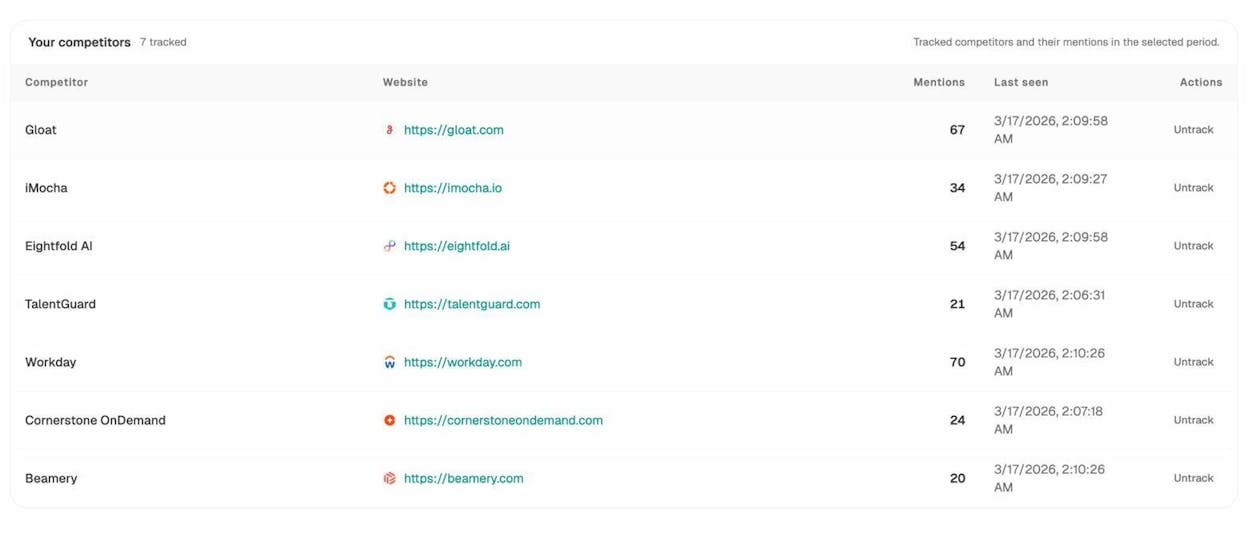
If a competitor consistently appears in prompts where you’re absent, that is a content gap you can fill. The Suggested Competitors tab also surfaces brands that AI engines mention frequently in your space but that you have not started tracking yet.
Audit the Sources AI Engines Cite
The Sources report reveals which websites and content types AI models rely on when answering questions in your industry. It shows the top cited domains, the content type breakdown (blogs, product pages, reviews, documentation), and the specific URLs being referenced.
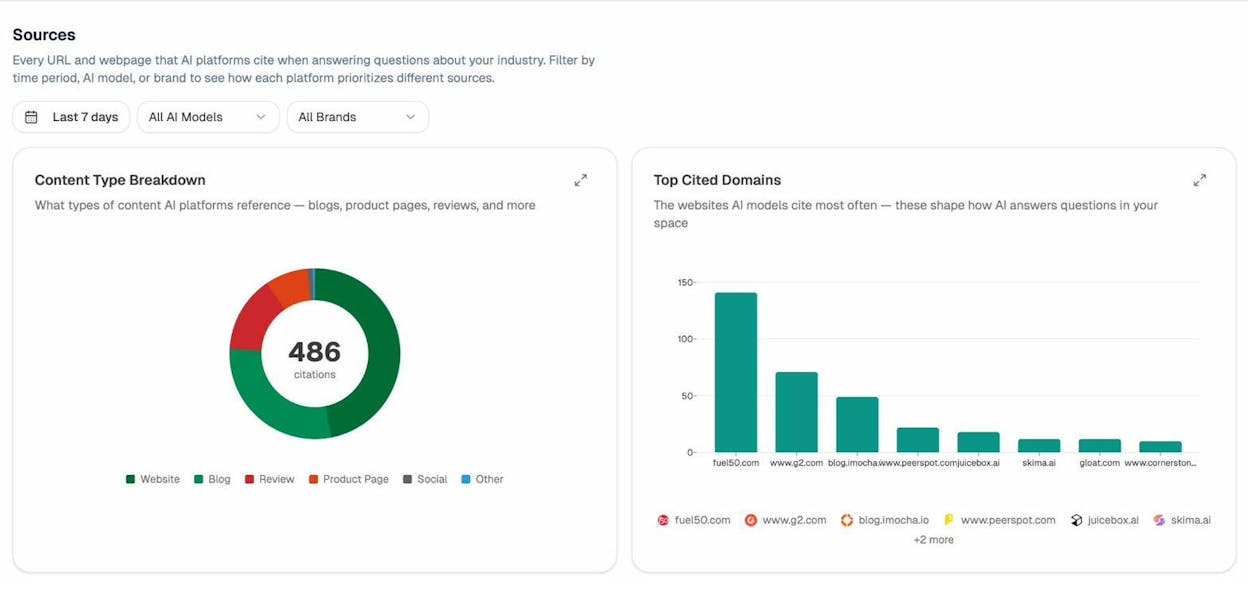
This is actionable intelligence. If review sites or documentation pages dominate citations in your category, you know where to focus your content and PR efforts. If a competitor’s blog post is being cited for a topic you could cover better, you have a clear target to outperform.
Understand Your Brand’s Position in the AI Landscape
The Perception Map plots your brand and competitors on a two-axis chart: visibility (how often you appear) versus narrative strength (how positively and compellingly AI engines describe you).
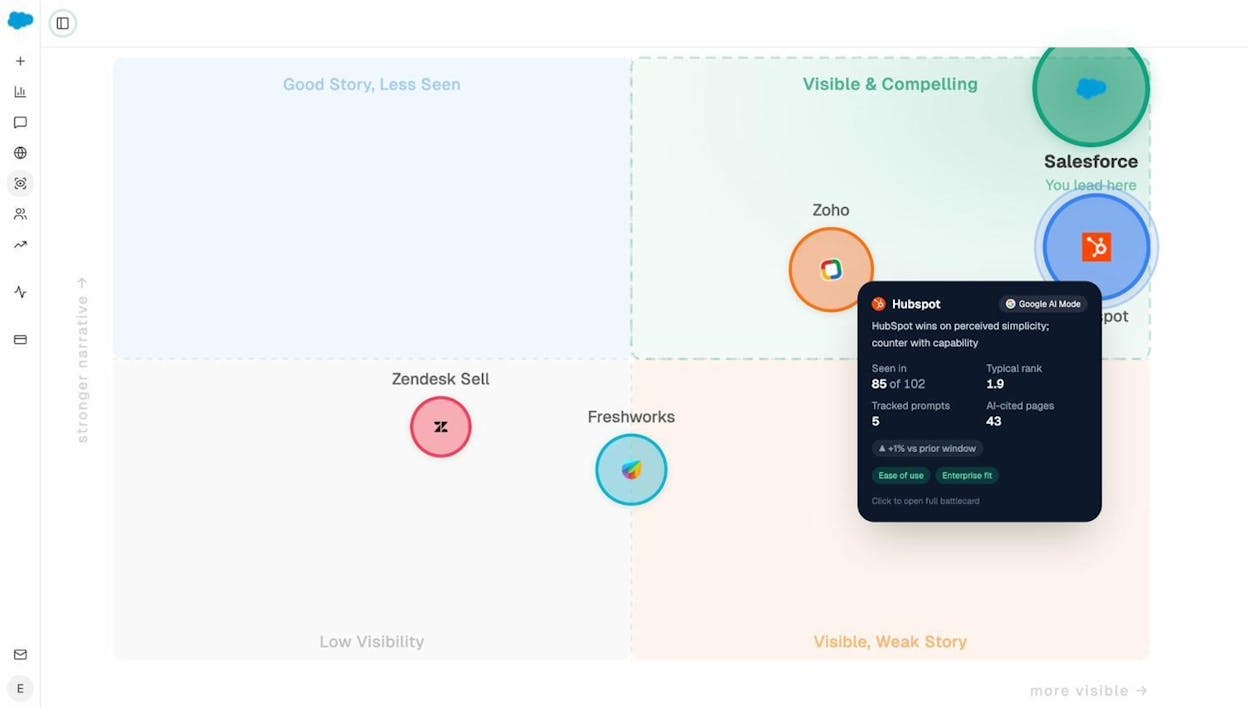
Brands in the top-right quadrant (“Visible & Compelling”) are winning in AI search. Brands in the bottom-left are invisible. The map gives you a strategic overview of where you stand and where you need to move.
Run Ad Hoc Prompt Searches
If you want to quickly check whether your brand appears in a specific AI prompt without setting up ongoing tracking, use the Ad Hoc Search feature. Type any prompt, select a region, and Analyze AI runs it across major AI engines and shows you the result.
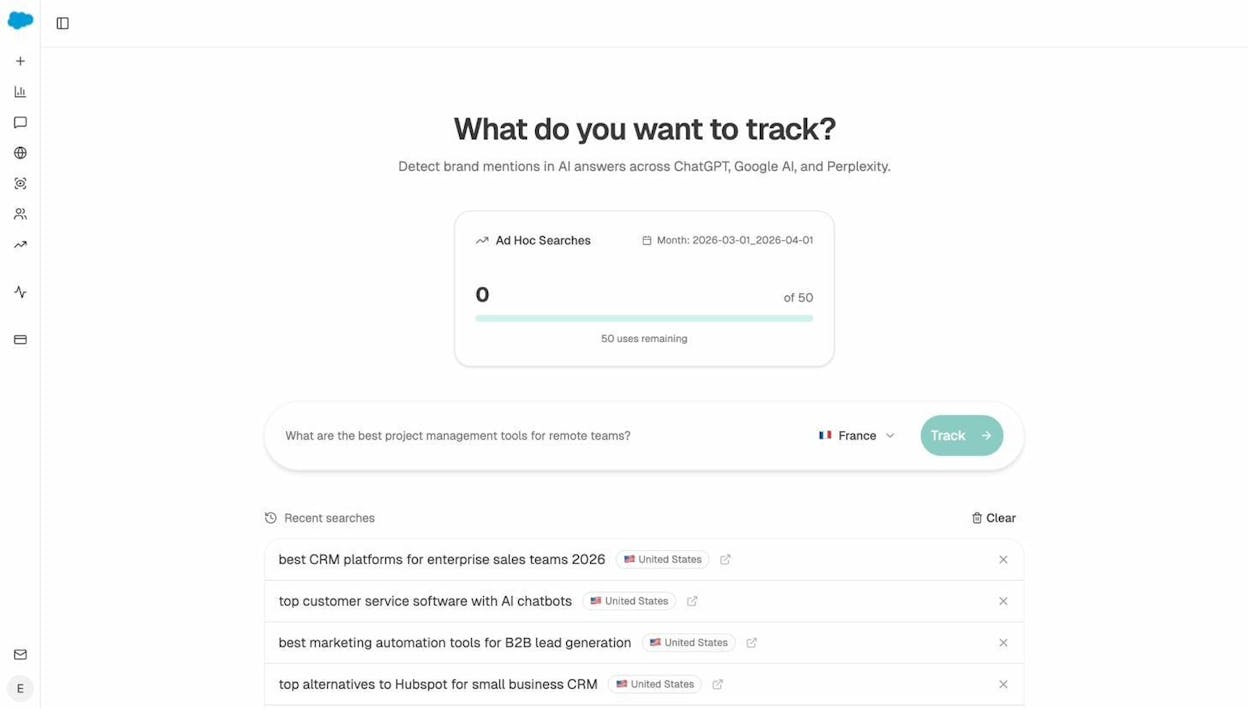
This is useful for testing new keyword ideas, checking how AI engines respond to prompts around new product launches, or validating whether recent content updates have changed your AI visibility.
Get Weekly Intelligence Reports
Analyze AI sends automated weekly email reports summarizing your brand’s AI visibility changes: citation gains and losses, pages improving, competitor movements, and actionable priorities for the week ahead.
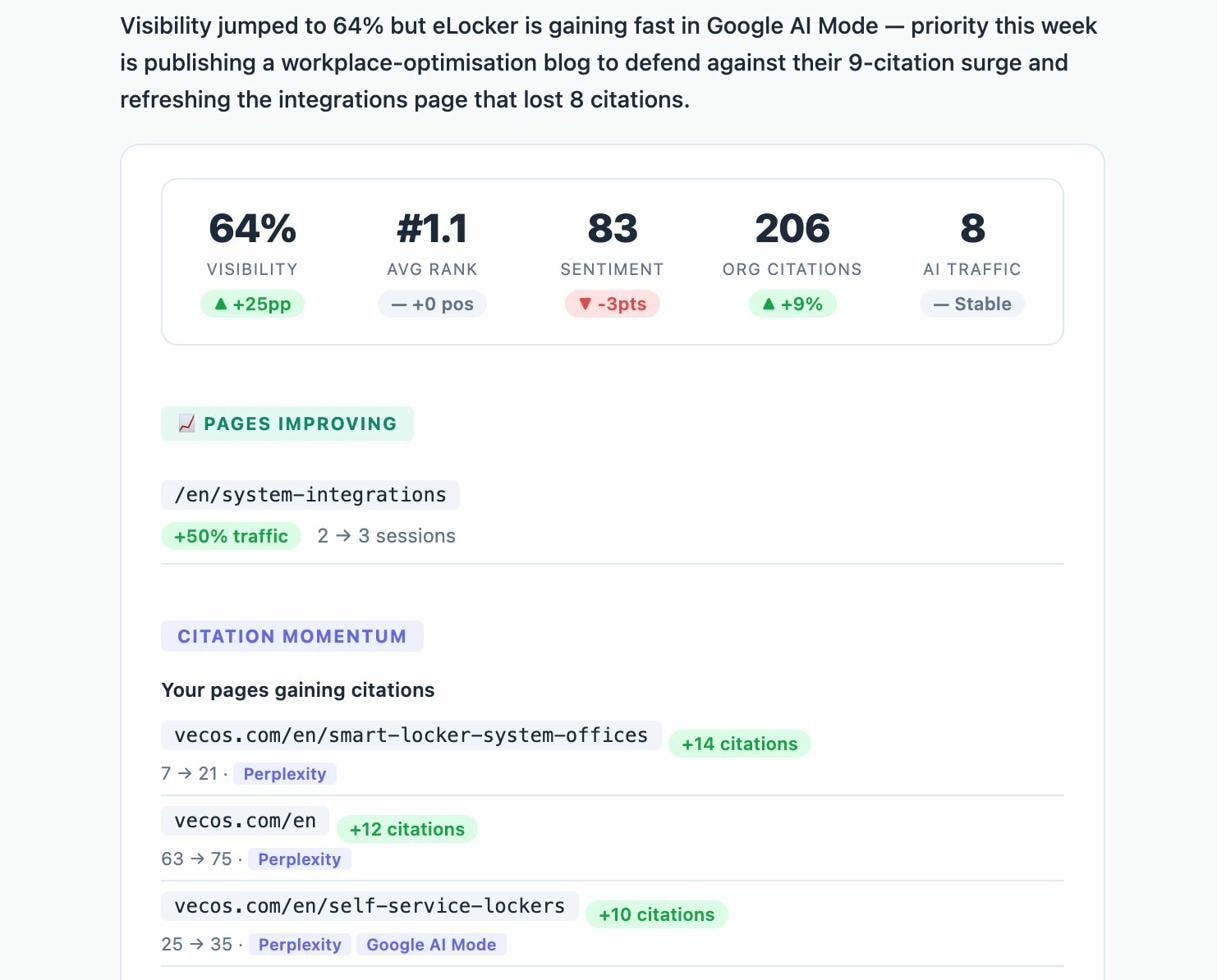
These reports are designed so that even if you don’t log into the dashboard every day, you still catch the shifts that matter.
What Is a Good SEO Score?
For traditional SEO audit scores, here are general benchmarks:
|
Score Range |
Rating |
What It Means |
|---|---|---|
|
90–100 |
Excellent |
Very few technical issues. Your site is in strong shape. |
|
80–89 |
Good |
Minor issues exist but nothing critical. Typical for well-maintained sites. |
|
60–79 |
Needs Work |
A meaningful number of issues are dragging down your score. Prioritize errors. |
|
Below 60 |
Poor |
Significant technical debt. Likely affecting crawlability, indexing, and potentially rankings. |
A score above 80 is generally considered good. But context matters. A site with 50 pages and a score of 75 probably has different problems than an enterprise site with 500,000 pages and a score of 75. The absolute number matters less than the trajectory—are you improving over time, or are issues accumulating?
For AI search visibility, the benchmarks are less established because the channel is newer. But the same principle applies: track your visibility percentage over time, compare it to competitors, and watch the trend line. If competitors are gaining citations while yours are flat, that is a signal to act—regardless of the absolute number.
Does Your SEO Score Affect Rankings?
Google does not use any third-party SEO score as a ranking factor. No amount of improving your score in a particular tool will directly influence where your pages appear in search results.
However, the issues that lower your SEO score often overlap with factors Google does consider. Broken pages, slow load times, missing structured data, and poor mobile usability all hurt user experience—and Google has confirmed that page experience signals influence rankings.
Think of it this way: your SEO score is a proxy, not a cause. A low score does not cause bad rankings. But a low score usually means your site has problems that are independently making it harder to rank.
The same logic applies to AI search. AI engines do not look at your website’s Health Score. But they do evaluate whether your content is well-structured, whether authoritative sources cite you, and whether your brand has a strong presence in the information ecosystem they draw from. A site with deep technical debt is unlikely to produce the kind of content that AI engines prefer to reference.
The takeaway: fix your SEO issues because they make your site better for users and easier for both traditional crawlers and AI models to understand—not because a number on a dashboard told you to.
How to Build a Visibility Strategy That Covers Both
The most effective approach treats traditional SEO and AI search visibility as complementary channels, not competing ones. Here is a practical framework:
Audit your technical SEO health using the free tools described earlier in this article. Fix errors first, then warnings, then notices. Set up recurring audits to prevent regression.
Audit your AI search visibility using Analyze AI. Track the prompts that matter to your business, monitor which competitors appear, and identify citation gaps.
Identify content gaps where you are invisible in both channels. Use the Keyword Generator and Keyword Difficulty Checker to find topics worth targeting. Then check whether AI engines already cite competitors for those topics—if they do, your new content needs to be more comprehensive, better structured, and more useful than theirs.
Double down on what works. If Analyze AI’s Landing Pages report shows that your in-depth comparison guides drive disproportionate AI traffic, create more of them. If your product documentation is getting cited by Perplexity but your blog posts are not, investigate why and adjust your editorial approach.
Measure both channels continuously. Traditional SEO scores track your technical foundation. AI visibility scores track your brand’s presence in the next generation of search. You need both to understand the full picture.
This is what we mean when we say SEO is evolving, not dying. The fundamentals—quality content, technical excellence, and authority—still compound. What’s new is where those fundamentals need to be visible.
FAQ
What is an SEO score?
An SEO score is a percentage calculated by an SEO audit tool that reflects the technical health of your website. It is based on the ratio of error-free internal URLs to total internal URLs. A higher score means fewer technical issues.
What is a good SEO score?
Any score above 80 is generally considered good, meaning at least 80% of your internal pages are free of technical errors. Scores above 90 are excellent. But the number alone is less important than fixing the specific issues the audit finds—especially errors that affect crawlability and indexing.
How can I check my SEO score for free?
You can use Google Search Console for Google’s own assessment of your site’s health, Ahrefs Webmaster Tools for an automated Health Score, Screaming Frog (free up to 500 URLs) for granular crawl data, or Analyze AI’s free tools for quick checks on broken links, keyword rankings, and site authority.
Does my SEO score affect my Google rankings?
Not directly. Google does not use any third-party SEO score as a ranking factor. But the technical issues that lower your score—broken pages, slow load times, crawlability problems—are things Google’s algorithms do evaluate independently. Fixing them improves your ranking potential.
What is an AI search visibility score?
An AI search visibility score measures how often your brand appears in responses from AI-powered search engines like ChatGPT, Perplexity, Google AI Mode, Claude, and Copilot. Tools like Analyze AI track this by running relevant prompts across AI engines and calculating what percentage of responses mention your brand.
How do I improve my AI search visibility?
Start by tracking the prompts that matter to your business. Identify where competitors appear and you don’t. Create content that is comprehensive, well-structured, and citable. Earn references from authoritative sources that AI models draw from. Monitor your visibility over time and adjust based on what the data shows.
Can I track both SEO health and AI visibility in one place?
Analyze AI tracks your brand’s presence across AI search engines—including visibility, sentiment, citations, competitor mentions, and actual traffic from AI referrals. For traditional SEO audits, pair it with Google Search Console or another site auditing tool. Together, they give you a complete view of your organic visibility across both traditional and AI-powered search.

Ernest

Ibrahim


