



Summarize this blog post with:


In this article, you’ll learn what sitelinks are, how they show up across different types of search results, why they matter for your brand’s visibility, and exactly how to influence which pages Google chooses to display beneath your main listing. You’ll also learn how to track sitelink performance, troubleshoot unwanted sitelinks, and apply the same visibility principles to the emerging world of AI search results.
Table of Contents
What Are Sitelinks?
Sitelinks are additional links that appear below a website’s main listing in Google search results. They point to other pages — or specific sections within a page — that Google considers relevant to the searcher’s query.
![[Screenshot: Google search for a well-known brand showing full organic sitelinks beneath the main result, with 4-6 sitelinks visible]](https://www.datocms-assets.com/164164/1776974838-blobid1.png?auto=format,compress&w=1248&fit=max)
Google introduced sitelinks in 2005 and officially announced them in 2006. Since then, they’ve become one of the most common SERP features in search. They appear in roughly 1.8% of all SERPs in major SEO databases, and nearly every branded search query triggers them.
To put that in perspective: almost 67% of all organic keywords for Wikipedia.org display sitelinks. If you search for any major brand — Nike, Spotify, HubSpot — you’ll likely see sitelinks underneath the homepage result.
The purpose is simple. Sitelinks help users skip the homepage and jump straight to the page they want. If someone searches “Shopify” and wants the pricing page, a sitelink saves them a click. That benefits both the user (faster navigation) and the website (more targeted traffic from organic search).
The Different Types of Sitelinks
Sitelinks have evolved over the years. Google frequently adjusts how many appear, how they look, and when they show up. Here are the main types you’ll encounter today.
Organic Sitelinks (Full)
These are the most recognizable type. They appear below the top organic result — almost always for branded searches — and show up to six links to key pages on your site.
![[Screenshot: Mobile search showing full organic sitelinks for a well-known SaaS brand, with 4-6 sitelinks visible beneath the main result]](https://www.datocms-assets.com/164164/1776974851-blobid2.png?auto=format,compress&w=1248&fit=max)
Each sitelink typically includes a page title and a short description. Google picks them algorithmically based on your site structure, internal linking, and how useful it thinks each page is for the query.
Full organic sitelinks only appear on the first result. You won’t see them on position two or below.
One-Line Sitelinks (Inline)
One-line sitelinks — sometimes called inline sitelinks — appear as a horizontal row of links beneath a search result. Unlike full sitelinks, they can appear for a wider range of queries, not just branded ones.
![[Screenshot: Google search result with one-line/inline sitelinks appearing horizontally beneath the main result for an informational query]](https://www.datocms-assets.com/164164/1776974857-blobid3.png?auto=format,compress&w=1248&fit=max)
These links often correspond to headings or sections within a page. If your article has a table of contents with anchor links, Google may pull those into one-line sitelinks. They can also link to other pages on your site.
One-line sitelinks typically show two to four links and can appear on results beyond position one.
Paid Sitelinks (Google Ads)
Sitelink assets can also appear on Google Ads. The key difference from organic sitelinks is control: with paid sitelinks, you choose the text and URLs that display with your ads.
![[Screenshot: A Google Ads result with paid sitelink extensions showing beneath the ad]](https://www.datocms-assets.com/164164/1776974862-blobid4.png?auto=format,compress&w=1248&fit=max)
This article focuses on organic sitelinks. But it’s worth noting that paid sitelinks are one of the few areas where you can directly dictate what appears. If you’re running search ads, sitelink assets are one of the simplest ways to increase your ad’s click-through rate.
Sitelinks Search Box (Deprecated)
Google used to show a search box beneath some branded results that let users search a website directly from the SERP. This feature was sunset in November 2024.
![[Screenshot: Archived example of a sitelinks search box appearing beneath a branded Google search result, if available]](https://www.datocms-assets.com/164164/1776974864-blobid5.jpg?auto=format,compress&w=1248&fit=max)
If you previously added structured data for the sitelinks search box on your homepage, you can remove it. The markup no longer has any effect.
Why Sitelinks Matter
Sitelinks aren’t just a nice visual in the search results. They have direct, measurable effects on your organic performance.
More SERP real estate. A result with sitelinks takes up significantly more vertical space on the page. That pushes competitors further down and increases the likelihood that a searcher clicks your listing instead of scanning to the next result.
Higher click-through rates. Sitelinks give users multiple entry points into your site from a single search result. According to Google Search Console data shared by Ahrefs, 12.9% of clicks on their branded search went to sitelinks rather than the homepage. That’s traffic that might have bounced if users had to navigate from the homepage manually.
Better user navigation. Sitelinks act like shortcuts. A user searching for “your brand + pricing” can click the pricing sitelink directly, skipping the homepage entirely. This reduces friction and improves the user experience.
Brand authority signals. Sitelinks only appear when Google considers your site well-structured, authoritative, and useful. Their presence is an implicit signal of quality — both to users and to your team as a health check for site organization.
Competitive advantage. Since full organic sitelinks only appear on the first result, having them means your competitors don’t. You’re occupying the premium SERP position with maximum visibility.
|
Benefit |
What It Means in Practice |
|---|---|
|
More SERP real estate |
Your result takes up 2-3x the space, pushing competitors down |
|
Higher CTR |
Users get multiple page options, increasing total clicks to your site |
|
Faster navigation |
Users skip the homepage and go directly to the page they need |
|
Brand authority |
Sitelinks signal to users that Google trusts your site structure |
|
Competitive moat |
Only the #1 result gets full sitelinks — competitors are pushed below the fold |
How to Influence Your Sitelinks
You cannot directly choose which sitelinks Google shows. They’re generated algorithmically. Google used to offer a demotion feature in Search Console, but that option was removed.
What you can do is optimize the signals Google uses to decide which pages deserve sitelink treatment. Here’s how, step by step.
1. Build a Clear Website Structure
Your website structure is the single most important factor in sitelink generation. Google needs to understand how your pages relate to one another — what’s important, what’s secondary, and how everything connects.
A flat architecture, where every page sits one level below the homepage, makes it harder for Google to identify which pages are most important. A clear hierarchy does the opposite.
Here’s what a strong site structure looks like in practice:
Homepage → Main category pages → Subcategory or individual pages
For example, a SaaS company might structure its site like this:
-
Homepage
-
/products/ (links to individual product pages)
-
/pricing/
-
/blog/ (links to individual articles)
-
/about/
-
/contact/
Each main section is accessible from the homepage navigation. Each section has its own internal hierarchy. And every page is reachable within two or three clicks from the homepage.
![[Screenshot: Example of a well-structured website navigation showing clear hierarchy — homepage linking to Products, Pricing, Blog, About, Contact]](https://www.datocms-assets.com/164164/1776974870-blobid6.png?auto=format,compress&w=1248&fit=max)
Action steps:
-
Map out your site’s current architecture. Use a tool like Screaming Frog to crawl your site and see how pages are organized.
-
Ensure your most important pages (pricing, product, contact, key landing pages) are linked from the main navigation.
-
Keep your URL structure clean and logical. Use paths like /products/feature-name/ rather than /page?id=12345.
-
Implement breadcrumbs so both users and Google can trace the hierarchy from any page back to the homepage.
![[Screenshot: Screaming Frog crawl visualization showing site architecture depth — how many clicks from homepage to deepest pages]](https://www.datocms-assets.com/164164/1776974870-blobid7.png?auto=format,compress&w=1248&fit=max)
2. Strengthen Your Internal Linking
Internal links are how Google discovers the relationships between your pages. The more internal links a page receives, the more important Google considers it. And the anchor text you use in those links tells Google what the page is about.
This directly affects sitelinks. Pages with strong internal linking are more likely to be selected.
How to audit and improve your internal linking:
Start by identifying your most important pages — the ones you’d want to show as sitelinks. Then check how many internal links each of those pages currently receives.
![[Screenshot: Site audit or crawl report showing internal link counts per page — e.g., Screaming Frog or a similar tool’s internal linking report]](https://www.datocms-assets.com/164164/1776974878-blobid8.png?auto=format,compress&w=1248&fit=max)
Next, look for opportunities to add contextual links from high-authority pages (like popular blog posts or your homepage) to the pages you want Google to prioritize.
Key principles:
-
Link to important pages from multiple places across your site, not just the navigation menu. Footer links, in-content links, sidebar widgets, and related-page sections all count.
-
Use descriptive anchor text. If you want your pricing page to appear as a sitelink, link to it with anchor text like “pricing plans” or “see our pricing,” not “click here.”
-
Add breadcrumb navigation if you haven’t already. Breadcrumbs create a structured internal link path on every page.
-
Check for orphan pages — pages with no internal links pointing to them. These are invisible to sitelink selection.
![[Screenshot: Example of breadcrumb navigation on a website, showing the path Home > Products > Feature Name]](https://www.datocms-assets.com/164164/1776974883-blobid9.jpg?auto=format,compress&w=1248&fit=max)
3. Optimize Title Tags and Headings
Google uses title tags as one of its primary signals for understanding what a page is about. Since sitelinks display the page title, a clear and descriptive title tag directly affects how useful your sitelinks look to searchers.
![[Screenshot: HTML source code showing a well-optimized title tag in the head section of a webpage]](https://www.datocms-assets.com/164164/1776974892-blobid10.png?auto=format,compress&w=1248&fit=max)
Best practices:
-
Keep title tags between 50-60 characters to avoid truncation.
-
Include a relevant keyword that describes the page’s content.
-
Make each title tag unique. Duplicate or vague titles confuse Google’s sitelink selection.
-
Write headings (H1, H2, H3) that clearly describe each section of your content. On long-form pages, these headings may become one-line sitelinks.
If you add a table of contents at the top of your articles with anchor links to each section, Google can use those anchors as one-line sitelinks. This is especially effective for how-to guides, FAQ pages, and pillar content.
![[Screenshot: A blog post with a table of contents at the top, and corresponding anchor links to each H2 section]](https://www.datocms-assets.com/164164/1776974900-blobid11.jpg?auto=format,compress&w=1248&fit=max)
4. Use Structured Data Markup
While structured data doesn’t guarantee sitelinks, it gives Google additional signals about your site’s organization. Two types of schema are particularly relevant.
WebSite schema on your homepage tells Google the basics about your site — its name, URL, and search functionality. Although the sitelinks search box is deprecated, WebSite schema still helps Google understand your site identity.
SiteNavigationElement schema marks up your main navigation links, giving Google explicit signals about which pages are most important in your site hierarchy.
Here’s an example of SiteNavigationElement markup:
{
"@context": "https://schema.org",
"@type": "SiteNavigationElement",
"name": "Products",
"url": "https://www.example.com/products/"
}
![[Screenshot: Google’s Rich Results Test tool showing validated structured data for a website’s navigation elements]](https://www.datocms-assets.com/164164/1776974907-blobid12.jpg?auto=format,compress&w=1248&fit=max)
You can test your structured data using Google’s Rich Results Test or the schema validation tool in Google Search Console.
5. Consider Hreflang for International Sites
If your site serves multiple countries or languages, hreflang tags help Google show the right sitelinks to the right users.
Without hreflang, Google might display English sitelinks to a French-speaking user searching for your brand, or show your US pricing page to a UK visitor. Hreflang ensures that sitelinks match the searcher’s language and location preferences.
Implementation checklist:
-
Add hreflang annotations to every page that has a localized equivalent.
-
Include a self-referencing hreflang tag on each page.
-
Use the x-default value for your fallback page.
-
Validate your hreflang implementation using a tool like Screaming Frog’s hreflang validation or Google Search Console’s international targeting report.
6. Use Noindex Strategically
If a page keeps appearing as a sitelink and you don’t want it there — say, a thank-you page or an internal resource — noindexing that page will remove it from sitelinks entirely.
But be careful. Noindexing removes the page from all search results, not just sitelinks. Only use this approach when you’re confident the page doesn’t need organic visibility at all.
Add the following tag to the page’s <head> section:
<meta name="robots" content="noindex">
A less drastic approach is to reduce the page’s internal link prominence. Remove it from the main navigation, reduce the number of internal links pointing to it, and strengthen links to the pages you’d prefer to see as sitelinks instead.
7. Earn Brand Authority
Full organic sitelinks almost always appear for branded searches, and they only appear on the #1 result. If you don’t rank first for your own brand name, you won’t get sitelinks.
For most established businesses, this isn’t an issue. But for newer brands or companies with generic names, ranking for your brand can require intentional effort.
Steps to build brand authority for sitelinks:
-
Register your brand name as a domain and use it consistently across all online profiles.
-
Build citations on directories, social profiles, and industry listings with your exact brand name.
-
Earn backlinks with branded anchor text from reputable sites.
-
Create a Google Business Profile if you have a physical location.
-
Ensure your brand name appears in your homepage title tag, meta description, and H1.
Use a website authority checker to benchmark your domain’s authority against competitors who already have sitelinks.
How to Check Which Keywords Trigger Your Sitelinks
You can’t control sitelinks, but you can monitor which keywords trigger them and which pages Google selects.
Using Google Search Console
Google Search Console is the simplest way to see sitelinks data. Navigate to the Performance report, then filter by search appearance and select “Sitelinks.”
![[Screenshot: Google Search Console Performance report with the “Search Appearance” filter open, showing the Sitelinks option selected]](https://www.datocms-assets.com/164164/1776974907-blobid13.png?auto=format,compress&w=1248&fit=max)
This shows you which queries trigger sitelinks for your site, how many impressions and clicks each sitelink receives, and which pages appear as sitelinks.
![[Screenshot: Google Search Console data showing branded query with sitelinks — impressions, clicks, CTR, and position columns]](https://www.datocms-assets.com/164164/1776974915-blobid14.png?auto=format,compress&w=1248&fit=max)
If you notice a page appearing as a sitelink that you’d rather replace, use the internal linking and noindex strategies from the previous section to shift Google’s selection.
Using a SERP Checker
For a quick spot-check, use a SERP checker to search your brand name and see which sitelinks currently appear. This is faster than waiting for Search Console data to update, and it lets you see exactly what your users see.
![[Screenshot: Analyze AI’s SERP Checker tool showing search results for a branded query with visible sitelinks]](https://www.datocms-assets.com/164164/1776974917-blobid15.png?auto=format,compress&w=1248&fit=max)
You can also use a keyword rank checker to verify that you’re ranking #1 for your brand name — a prerequisite for full sitelinks.
How to Track Sitelink Performance
Knowing which sitelinks appear is one thing. Knowing whether they’re driving clicks and engagement is another.
In Google Search Console
Filter the Performance report by “Sitelinks” under Search Appearance. Then check the Pages tab to see which specific URLs get clicks as sitelinks. Look for pages with high impressions but low CTR — these might benefit from better title tags or meta descriptions.
![[Screenshot: GSC Pages report filtered to Sitelinks, showing individual URLs with click and impression data]](https://www.datocms-assets.com/164164/1776974922-blobid16.jpg?auto=format,compress&w=1248&fit=max)
In Google Analytics 4
GA4 doesn’t label sitelink traffic specifically, but you can analyze the landing pages that receive traffic from branded organic queries. If a page like /pricing/ gets disproportionate organic traffic from branded searches, that traffic is likely coming from sitelinks.
Set up a segment in GA4 for branded organic traffic to isolate this data and track it over time.
Can You Remove or Change Sitelinks?
Short answer: not directly.
Google removed the sitelink demotion tool from Search Console several years ago. Today, you have two indirect options:
Reduce a page’s sitelink eligibility by removing it from your main navigation, reducing internal links to it, and strengthening links to the pages you’d prefer.
Noindex the page to remove it from search results entirely (and therefore from sitelinks). This is the nuclear option — only use it for pages that genuinely shouldn’t appear in search at all.
Replace unwanted sitelinks. Rather than trying to remove a sitelink you don’t want, focus on making the page you do want more prominent. Increase internal links to it, improve its title tag, and link to it from your homepage. Over time, Google will recalculate and swap the sitelink.
In practice, most sitelink issues resolve themselves when you fix the underlying site structure and internal linking problems that caused them.
Beyond Google: How Your Brand Appears in AI Search Results
Sitelinks are about controlling how your brand appears on a Google results page. But search is evolving. Today, millions of users ask questions in ChatGPT, Perplexity, Claude, Gemini, and Copilot — and the answers these platforms generate include brand mentions and citations that function like a new form of sitelinks.
Think about it this way: when someone asks ChatGPT “best project management tools for remote teams,” the answer will mention specific brands, often with links to their websites. That citation is your brand’s equivalent of a sitelink — it’s a clickable entry point that drives real traffic.
The principles are similar. Just as Google picks sitelinks based on site structure, authority, and relevance, AI models pick citations based on content depth, source authority, and topical match. The difference is that you can’t see this happening unless you actively monitor it.
This is where AI search visibility tracking becomes essential — not as a replacement for SEO, but as a complementary organic channel.
Monitor Which AI Prompts Mention Your Brand
Just like you’d use Google Search Console to see which queries trigger sitelinks, you can use Analyze AI to see which prompts trigger mentions of your brand across AI platforms.
The Prompts dashboard shows every tracked prompt with your brand’s visibility score, sentiment, average position, and which competitors also appear in the response.
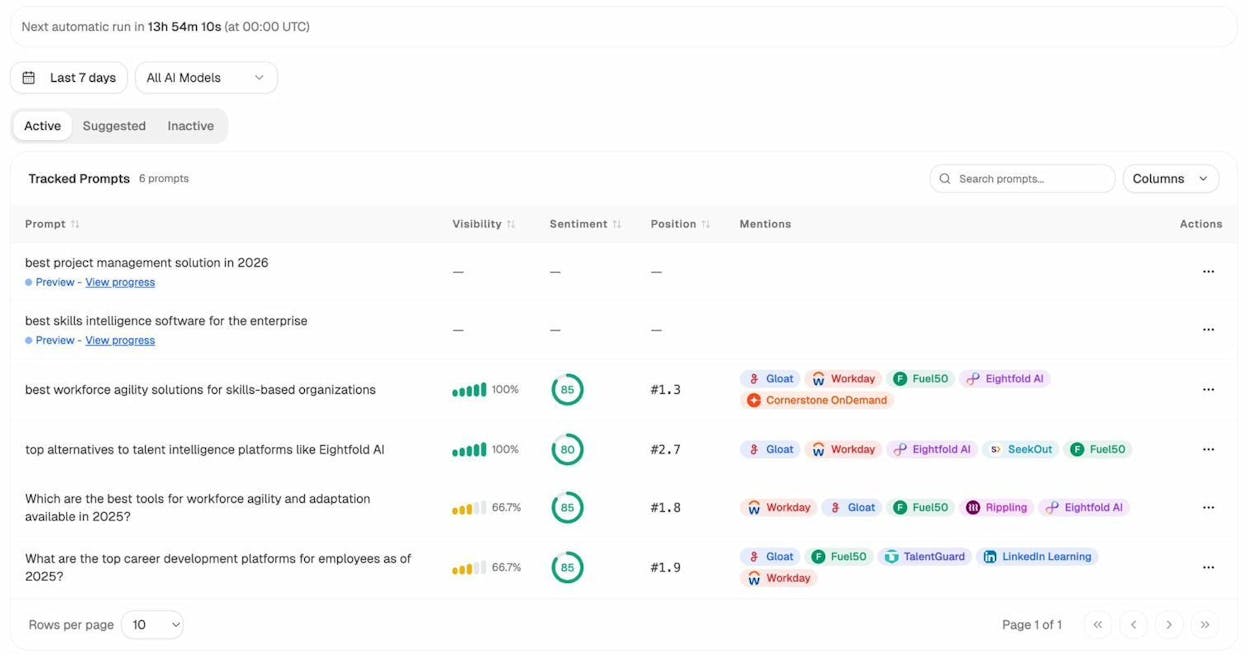
If a prompt shows 0% visibility for your brand but 100% for a competitor, that’s a gap — the same way a missing sitelink is a gap.
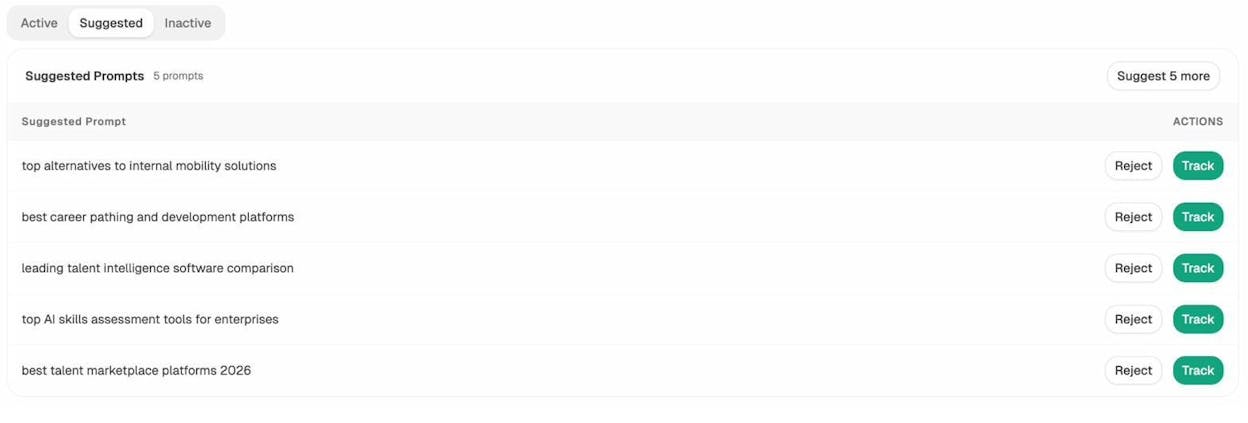
Analyze AI also suggests prompts you should be tracking based on your industry and competitive landscape. One click adds them to your tracked set.
See Where Competitors Win and You Don’t
In traditional SEO, you’d use a competitor analysis to find keywords where competitors rank and you don’t. In AI search, the same concept applies — but instead of keywords, you’re looking at prompts and citations.
Analyze AI’s Competitors view shows which brands are mentioned alongside yours, how often, and where they’re gaining ground.
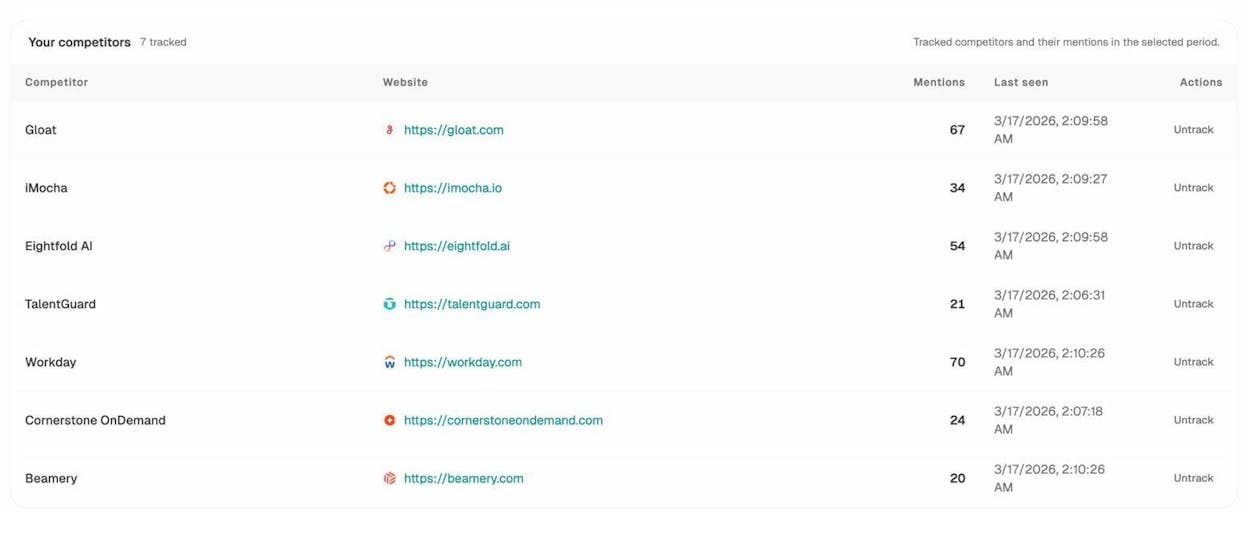
This is the AI equivalent of checking who else gets sitelinks for queries in your space. If a competitor is gaining citations in prompts where you’re absent, you know exactly where to focus your content efforts.
Audit the Sources AI Models Cite
When AI models answer a question about your industry, they pull from specific web sources — blogs, product pages, review sites, Wikipedia entries. These sources shape the answer the same way your site structure shapes sitelinks.
The Sources dashboard in Analyze AI reveals which domains and URLs get cited most frequently by each AI model.
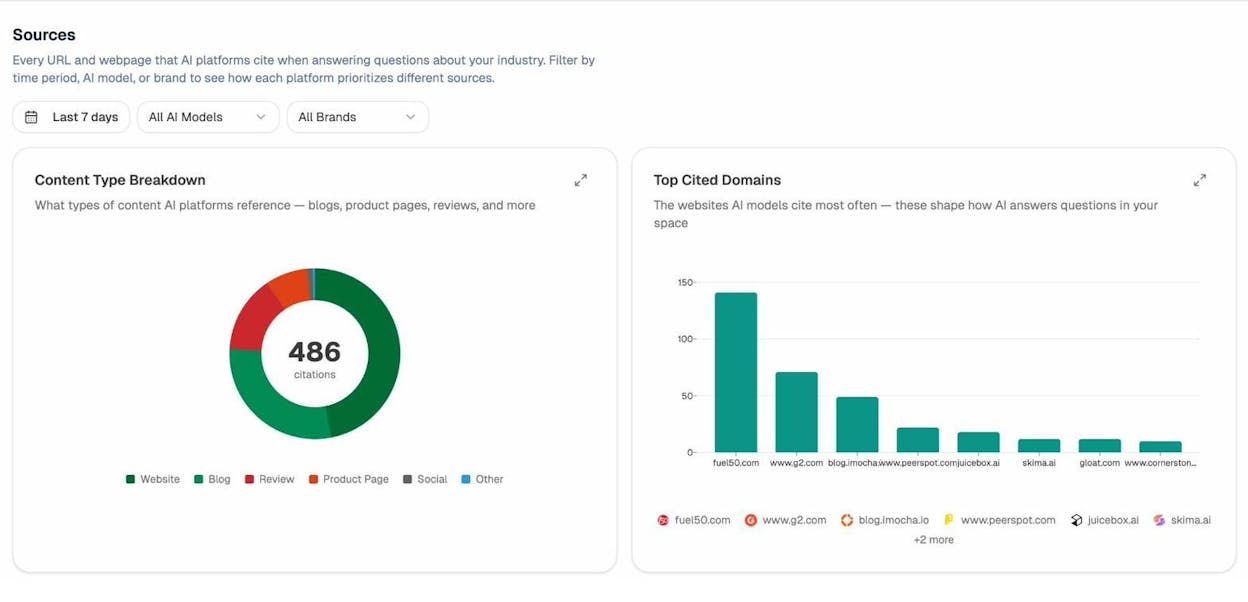
If your competitors’ domains are heavily cited and yours isn’t, you have a clear action item: create or improve content on the topics those prompts address, structured for the content types AI models prefer (comprehensive guides, comparison pages, FAQ-style formats).
Track the Pages That Actually Receive AI Traffic
Just as you’d track sitelink performance in Google Search Console, you should track which of your pages receive traffic from AI search platforms.
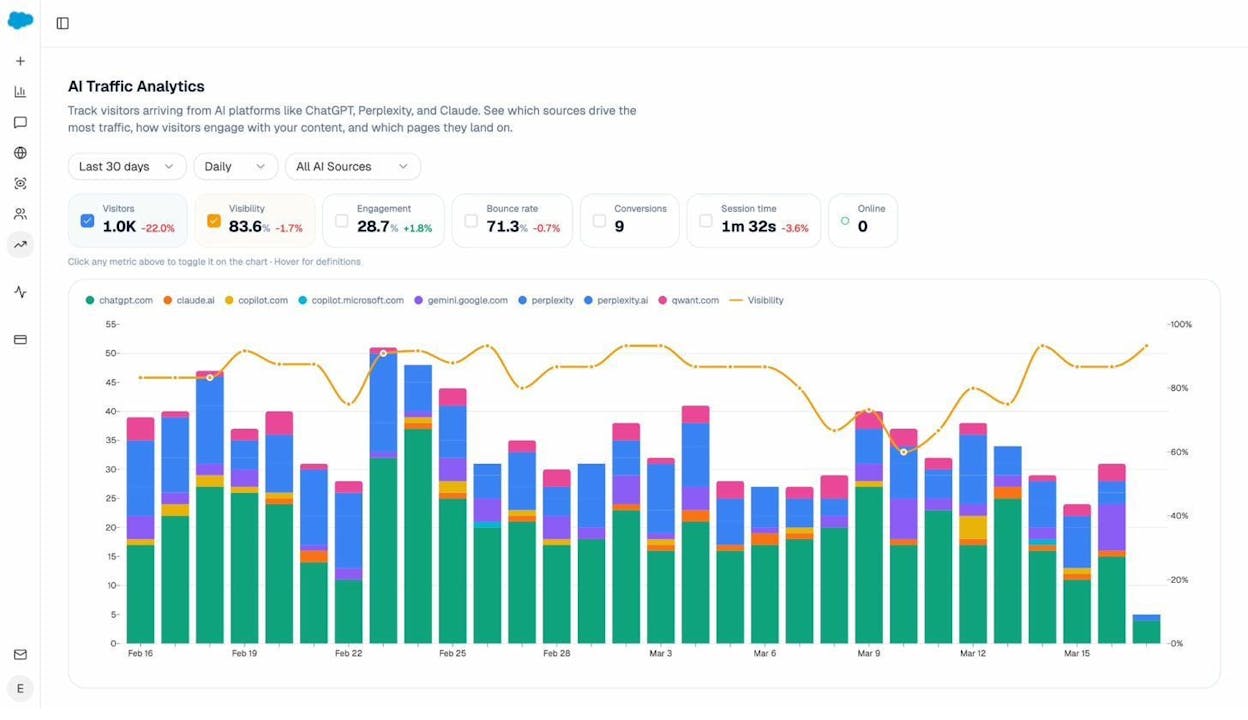
Analyze AI’s AI Traffic Analytics connects to your GA4 data and shows exactly which pages receive visitors from ChatGPT, Perplexity, Claude, Gemini, Copilot, and other AI sources — broken down by sessions, engagement, bounce rate, and conversions.
The Landing Pages report drills into which specific pages receive AI traffic, how visitors interact with them, and which AI platforms send the most visitors.
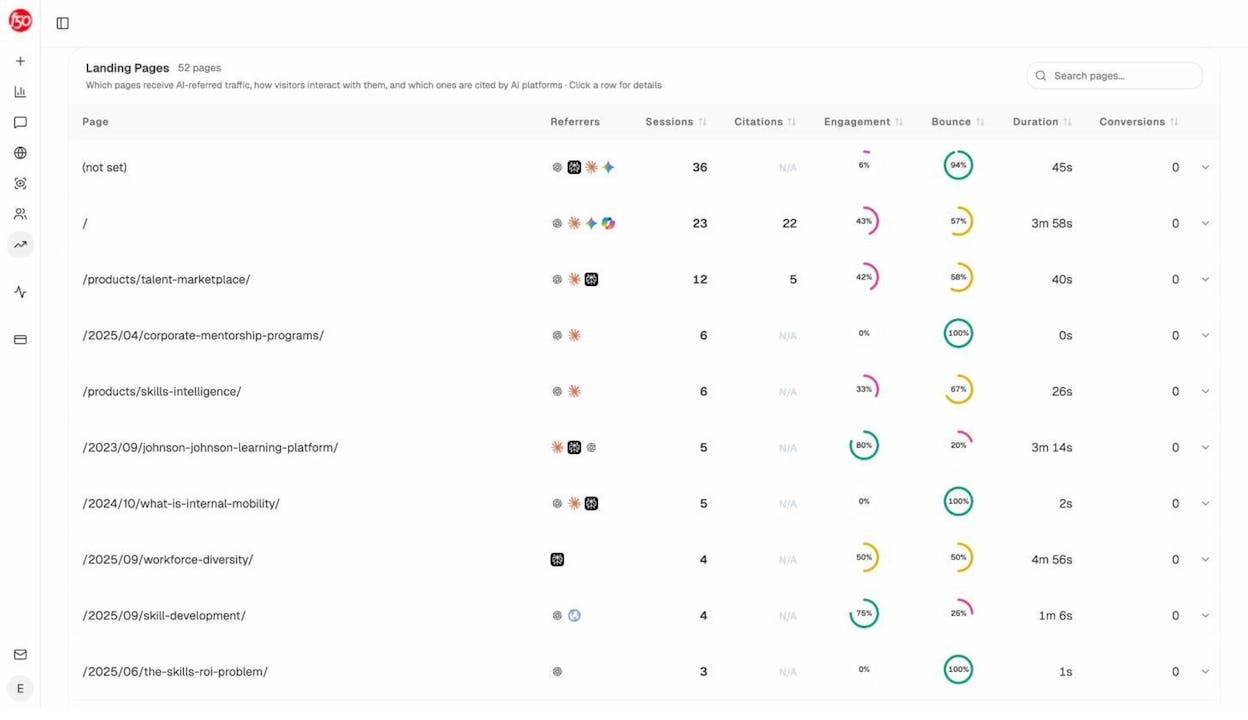
This data tells you which page formats and topics resonate with AI engines. Double down on what works. If your product comparison pages receive strong AI traffic while your generic blog posts don’t, that’s a signal to invest more in comparison content.
Use the Perception Map to See Your Brand’s Position
Sitelinks tell you how Google presents your brand to searchers. Analyze AI’s Perception Map does something analogous for AI search — it shows where your brand sits relative to competitors on two axes: visibility (how often AI mentions you) and narrative strength (how positively AI describes you).
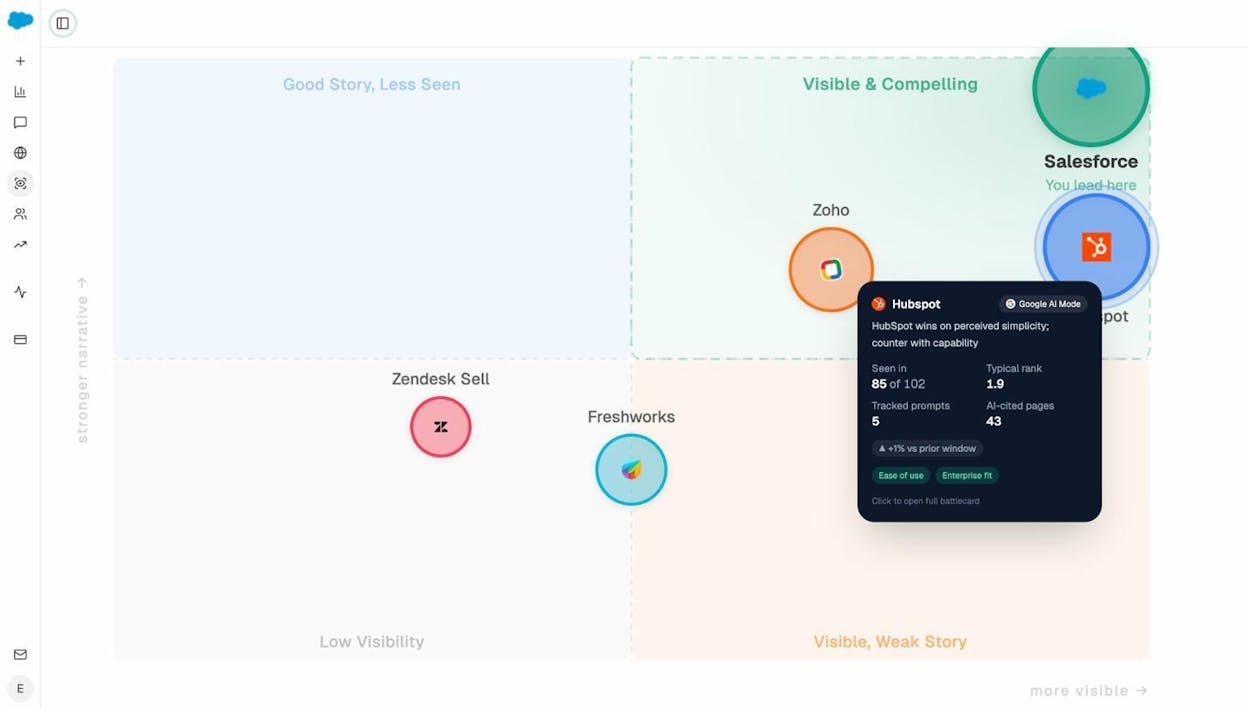
A brand in the “Visible & Compelling” quadrant is the AI equivalent of having prominent, well-optimized sitelinks in Google. A brand in the “Low Visibility” quadrant has work to do — the same way a site without sitelinks needs to improve its structure and authority.
Get Actionable Weekly Updates
Monitoring sitelinks in Google Search Console requires you to log in and check manually. Analyze AI sends weekly email digests that summarize your brand’s AI visibility changes, flag competitor movements, and highlight which of your pages are gaining or losing citations.
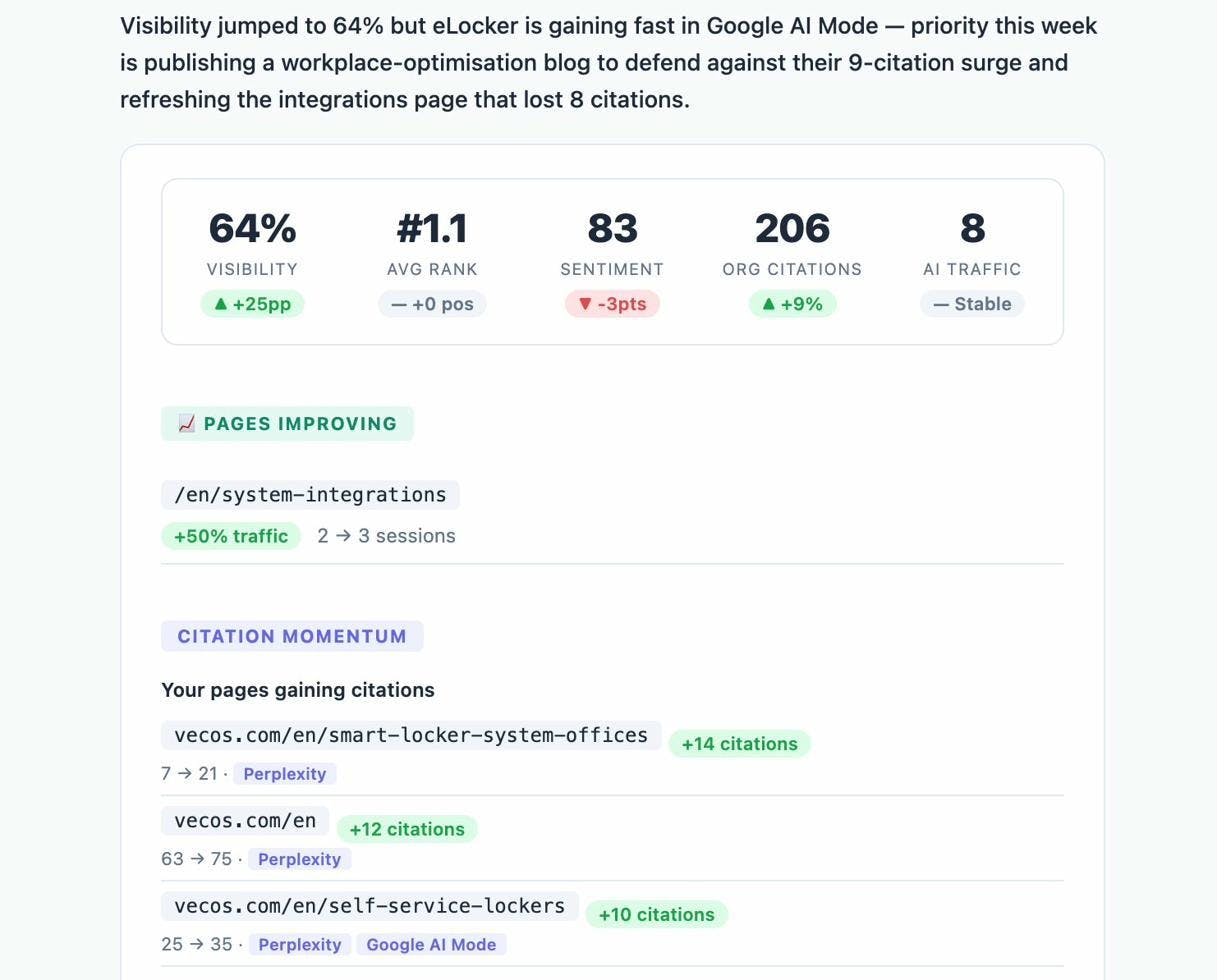
These emails surface the data you need to act on without requiring a daily dashboard check — similar to automated sitelink monitoring but for the AI search channel.
Final Thoughts
Sitelinks give your brand more real estate in Google’s search results, help users find what they need faster, and signal that Google trusts your site structure. You can’t control them directly, but you can influence them through clear site architecture, strong internal linking, optimized title tags, and brand authority.
The same principles — structure, authority, relevance, and usefulness — now apply to how your brand appears in AI-generated answers. As search evolves from ten blue links to multi-modal, prompt-shaped responses, the brands that invest in both traditional SEO and AI search visibility will compound their organic reach across every channel where customers ask questions.
Analyze AI helps you track, measure, and improve your brand’s presence across ChatGPT, Perplexity, Claude, Gemini, and Copilot — so you can treat AI search the way you treat Google: as an organic channel worth monitoring and optimizing.

Ernest

Ibrahim


