



Summarize this blog post with:


In this article, you’ll learn what the “Discovered - currently not indexed” status means in Google Search Console, why Google puts pages in this state, and how to fix it step by step. You’ll also learn how to prioritize which pages to fix first, how indexing issues can silently hurt your visibility in AI search engines like ChatGPT and Perplexity, and what to do to prevent this problem from happening again.
Table of Contents
What Does “Discovered - Currently Not Indexed” Mean?
“Discovered - currently not indexed” is a status in Google Search Console’s Page Indexing report. It means Google knows a URL exists but hasn’t crawled or indexed it yet.
Think of it like a to-do list. Google found a link to your page somewhere (your sitemap, an internal link, an external link) and added it to the queue. But it hasn’t gotten around to actually visiting, reading, and storing that page in its index.
Until Google crawls and indexes the page, it won’t appear in search results. No impressions. No clicks. No traffic.
This is different from “Crawled - currently not indexed,” where Google has already visited the page and decided not to index it. With “Discovered - currently not indexed,” Google hasn’t even looked at the content yet. It’s still waiting in line.
![[Screenshot: Google Search Console Page Indexing report showing “Discovered - currently not indexed” status with the number of affected pages highlighted]](https://www.datocms-assets.com/164164/1776865225-blobid1.png?auto=format,compress&w=1248&fit=max)
Here’s a quick comparison of the two statuses:
|
Status |
What Google Did |
What It Means |
|---|---|---|
|
Discovered - currently not indexed |
Found the URL but hasn’t crawled it |
Google knows the page exists but hasn’t visited it yet |
|
Crawled - currently not indexed |
Visited the URL but chose not to index it |
Google saw the content and decided it wasn’t worth indexing |
The fix for each status is different. “Crawled - currently not indexed” is usually a content quality problem. “Discovered - currently not indexed” is typically a crawl priority or technical issue.
This article focuses on the “Discovered” status.
Why Does Google Discover But Not Index Pages?
Google doesn’t crawl every URL it finds. It uses a prioritization system based on several signals: how authoritative your site is, how often your content changes, how fast your server responds, and how many other URLs are competing for Googlebot’s attention.
When Google discovers a URL but doesn’t crawl it, one or more of these factors is telling Google the page isn’t worth visiting right now.
Here are the most common reasons:
Crawl budget constraints. Your site has more crawlable URLs than Google is willing to crawl. This is more common on large sites (100k+ pages), but poor technical setups can cause it on smaller sites too.
Low perceived page importance. Google uses signals like internal links, backlinks, and content patterns to guess whether a page is worth crawling. If the page has no internal links, sits deep in your site structure, or follows a pattern Google has learned to deprioritize (like paginated archives), it may sit in the queue indefinitely.
Server capacity issues. If your server is slow or returns errors during Googlebot’s crawl, Google will back off and reschedule. According to Google’s own documentation, the most common reason for pages staying in “Discovered” status is that Googlebot expected its requests to overload the site.
Duplicate or near-duplicate content signals. If Google suspects a page is similar to others it has already crawled on your site, it may skip crawling it entirely. This happens often with faceted navigation, URL parameters, and staging environments.
Sitemap-only discovery. Pages that are only found through your XML sitemap (with no internal links pointing to them) send a weak signal. Google may treat these as lower priority because no other page on your site links to them.
Nofollow internal links. If the only internal links pointing to a page use the rel="nofollow" attribute, Google interprets this as a signal that the page isn’t important.
How to Find Pages With This Status
Before you can fix the problem, you need to know which pages are affected and how many there are.
Step 1. Open Google Search Console and select your property.
![[Screenshot: Google Search Console home screen with the property selector visible]](https://www.datocms-assets.com/164164/1776865232-blobid2.png?auto=format,compress&w=1248&fit=max)
Step 2. Click “Indexing” in the left sidebar, then click “Pages.”
![[Screenshot: Google Search Console sidebar showing “Indexing” > “Pages” navigation path]](https://www.datocms-assets.com/164164/1776865232-blobid3.png?auto=format,compress&w=1248&fit=max)
Step 3. Scroll down to the “Why pages aren’t indexed” table. Look for “Discovered - currently not indexed” and click it.
![[Screenshot: The “Why pages aren’t indexed” table in GSC with “Discovered - currently not indexed” row highlighted, showing the number of affected URLs]](https://www.datocms-assets.com/164164/1776865238-blobid4.png?auto=format,compress&w=1248&fit=max)
Step 4. You’ll see a list of all affected URLs. Export this list by clicking the export button in the top right.
![[Screenshot: The list of “Discovered - currently not indexed” URLs in GSC with the export button highlighted]](https://www.datocms-assets.com/164164/1776865239-blobid5.png?auto=format,compress&w=1248&fit=max)
You now have a spreadsheet of every page Google knows about but hasn’t crawled. This is your working list for the steps that follow.
Tip: If you see a small number of affected pages (under 10), the fix might be as simple as requesting indexing. If you see hundreds or thousands, there’s almost certainly a deeper issue with crawl budget, site architecture, or content quality that you’ll need to address.
How to Fix “Discovered - Currently Not Indexed”
Follow these steps in order. Start with the quick wins, then work through the more complex fixes.
Step 1: Request Indexing via Google Search Console
If only a few pages are stuck in “Discovered - currently not indexed,” try requesting indexing manually. This pushes the URL to the front of Google’s crawl queue.
Here’s how:
-
In Google Search Console, click “URL Inspection” in the left sidebar.
-
Paste the affected URL into the inspection bar at the top.
-
Wait for Google to check the URL’s current status.
-
If the URL is not indexed, click the “Request Indexing” button.
![[Screenshot: URL Inspection tool in Google Search Console showing a URL that is “not indexed” with the “Request Indexing” button visible]](https://www.datocms-assets.com/164164/1776865245-blobid6.png?auto=format,compress&w=1248&fit=max)
If the request goes through, you’ll see a confirmation message that the URL was added to the priority crawl queue.
![[Screenshot: The “Indexing requested” success message in Google Search Console]](https://www.datocms-assets.com/164164/1776865248-blobid7.png?auto=format,compress&w=1248&fit=max)
A few things to keep in mind:
-
There’s a daily limit on indexing requests. Google doesn’t publish the exact number, but you can typically submit 10 to 15 URLs per day before hitting the cap.
-
Requesting indexing is not a guarantee. It tells Google to prioritize the URL, but if there are underlying issues (crawl budget, content quality, weak internal linking), Google may still not index it.
-
If you request indexing and the page remains stuck after a few weeks, stop re-requesting. There’s an underlying issue you need to fix first.
For bulk requests, Google offers an Indexing API that lets you submit multiple URLs programmatically. It was originally designed for job postings and livestream content, but many SEOs have reported it works for other page types too. Use it carefully and follow Google’s rate limits.
Step 2: Fix Crawl Budget Issues
Crawl budget is how many pages Googlebot is willing to crawl on your site within a given timeframe. If your crawlable URLs exceed your crawl budget, pages get stuck in the “Discovered” queue.
According to Google’s Gary Illyes, most sites don’t need to worry about crawl budget. But certain technical setups can cause crawl waste on sites of any size. Here’s what to check.
Remove unnecessary redirects
Every redirect chain that Googlebot follows is a wasted crawl. If you’ve removed a page and added a redirect, check whether the redirect is actually needed.
Ask yourself: Does the redirected URL have backlinks or traffic? If not, there’s no reason to redirect it. Instead, remove or update the internal links that point to it and let it return a 404.
Here’s a decision framework:
|
Does the old URL have backlinks or organic traffic? |
What to do |
|---|---|
|
Yes, it has backlinks |
Keep the redirect to preserve link equity |
|
Yes, it has traffic |
Keep the redirect so visitors reach the right page |
|
No backlinks, no traffic |
Remove the redirect, update internal links, return a 404 |
To find redirects on your site, use a crawling tool like Screaming Frog or run a site audit. Look for redirect chains (URL A → URL B → URL C) and eliminate them by pointing directly to the final destination.
![[Screenshot: A crawl audit tool showing redirect chains with the number of hops and internal linking data for each URL]](https://www.datocms-assets.com/164164/1776865251-blobid8.png?auto=format,compress&w=1248&fit=max)
You can also use the Analyze AI Broken Link Checker to find broken links and redirects on any page of your site for free.
Eliminate duplicate content
Duplicate content wastes crawl budget because Google has to crawl multiple versions of the same page. Common causes include:
-
The same content accessible at both www.example.com and example.com
-
HTTP and HTTPS versions both live
-
URL parameters creating multiple versions of the same page (e.g., ?sort=price, ?ref=email)
-
Staging or development environments accidentally left open to Googlebot
Fix duplicates by picking one canonical version of each page and using 301 redirects, canonical tags, or URL parameter handling in GSC to tell Google which version to index.
![[Screenshot: Google Search Console “URL Parameters” tool or a canonical tag example in page source HTML]](https://www.datocms-assets.com/164164/1776865254-blobid9.png?auto=format,compress&w=1248&fit=max)
Reduce crawlable URL space
Large sites often have thousands of URLs that don’t need to be in Google’s index. Faceted navigation pages, internal search results, empty tag pages, and paginated archives all take up crawl budget without adding value.
Use your robots.txt file to block Googlebot from crawling these URL patterns. Or add a noindex meta tag if you want Google to know the pages exist but not index them.
Here’s a list of common URL types that waste crawl budget:
|
URL Type |
Example |
Recommended Action |
|---|---|---|
|
Internal search results |
/search?q=shoes |
Block in robots.txt |
|
Faceted navigation |
/shoes?color=red&size=10 |
Block in robots.txt or use canonical tags |
|
Empty tag/category pages |
/blog/tag/uncategorized |
Delete or noindex |
|
Paginated archives |
/blog/page/47 |
Allow crawling but noindex beyond page 1 |
|
Print-friendly versions |
/article?print=true |
Block in robots.txt or use canonical |
|
Session ID URLs |
/?sessionid=abc123 |
Fix your CMS to not generate these |
Check your server response time
If your server is slow or times out during Googlebot’s crawl, Google will reduce its crawl rate and leave more pages in “Discovered” status.
Check your server logs for 5xx errors during Googlebot visits. You can also check the Crawl Stats report in Google Search Console:
-
Go to Settings (gear icon) in the left sidebar.
-
Click “Crawl Stats” under “Crawling.”
-
Look at the “Average response time” and “Host status” sections.
![[Screenshot: Google Search Console Crawl Stats report showing average response time, crawl requests over time, and host status details]](https://www.datocms-assets.com/164164/1776865256-blobid10.png?auto=format,compress&w=1248&fit=max)
If your average response time is over 500ms, or if you see spikes in 5xx errors, talk to your hosting provider. Googlebot may be backing off because your server can’t handle the load.
Check for subdomain crawl budget conflicts
If you serve content from subdomains (e.g., blog.example.com, cdn.example.com, shop.example.com), be aware that Google may group subdomains together for crawl budget purposes.
This means your CDN subdomain (which might serve thousands of asset files) could be consuming crawl budget that your blog subdomain needs. Consider serving static assets from a separate domain or a CDN with its own robots.txt that blocks Googlebot from crawling asset URLs directly.
Step 3: Improve Content Quality
Google doesn’t index everything it discovers. It prioritizes pages that offer high-quality, unique, and compelling content.
Now, Google hasn’t actually crawled the pages stuck in “Discovered” status. So how can it judge quality before visiting? It uses signals from the rest of your site. If Google has already crawled similar pages on your site and found them thin or low-quality, it may deprioritize crawling new pages that follow the same pattern.
Here are the content types most likely to get stuck:
Thin content. Pages with very little unique text. Product pages with only a title and a price. Category pages with nothing but a list of links. Blog posts that are just a few sentences long.
The fix: Merge thin pages with related content to create something more useful, or delete them if they don’t serve a purpose. If a thin page exists for a valid business reason but isn’t meant for search, add a noindex tag so Google can focus its crawl budget on pages that matter.
Machine-translated content. Auto-translating your site using Google Translate or similar APIs produces content that’s often awkward, inaccurate, or unhelpful. Google can detect machine-translated content and may choose not to crawl additional pages in the same language version.
The fix: Use professional translation or, at minimum, have a native speaker review and edit machine-translated pages before publishing.
AI-generated content without human oversight. Raw AI output often lacks originality, depth, and accuracy. If Google has crawled some of your AI-generated pages and found them generic, it may deprioritize crawling the rest.
The fix: Use AI as a drafting tool, not a publishing tool. Every AI-generated page should be reviewed, edited, fact-checked, and enriched with original insights before going live.
Spun or scraped content. If you’re using software to rewrite existing content or scraping content from other sites, Google will likely deprioritize (or penalize) your entire site.
The fix: Stop spinning and scraping. Create original content.
Here’s a decision framework for fixing content quality issues:
|
Content type |
Is it useful to searchers? |
Fix |
|---|---|---|
|
Thin content |
Could be, if expanded |
Merge with related content or add depth |
|
Thin content |
No |
Delete or noindex |
|
Machine-translated |
Yes, with editing |
Have a native speaker review and improve |
|
AI-generated |
Yes, with editing |
Review, fact-check, add original insights |
|
Spun/scraped |
Never |
Delete and create original content |
Step 4: Strengthen Internal Linking
Internal links are one of the strongest signals Google uses to determine which pages matter on your site. A page with zero or few internal links is essentially invisible to Google. It may discover the URL through your sitemap, but without internal links confirming its importance, Google is unlikely to prioritize crawling it.
Find pages with weak internal linking
You need to know which of your “Discovered - currently not indexed” pages lack internal links. Here’s how to check:
-
Export your “Discovered - currently not indexed” URLs from Google Search Console (you did this earlier).
-
Run a site crawl using a tool like Screaming Frog, Sitebulb, or a free tool like Analyze AI’s Website Traffic Checker.
-
Cross-reference the two lists. Look for URLs that appear in both your GSC export and your “zero internal links” list.
![[Screenshot: Screaming Frog or Sitebulb showing a list of URLs with their internal link counts, filtered to show pages with 0 inlinks]](https://www.datocms-assets.com/164164/1776865260-blobid11.jpg?auto=format,compress&w=1248&fit=max)
These orphan pages are your top priority for internal linking.
Find orphan pages
An orphan page is a page with no internal links pointing to it at all. The only way Google can find it is through your sitemap or an external link. Orphan pages almost always get stuck in “Discovered - currently not indexed.”
To find them:
-
Run a full site crawl.
-
Cross-reference crawled URLs against your sitemap and GSC export.
-
Any URL that appears in your sitemap or GSC but not in the crawl is likely an orphan page.
![[Screenshot: A site audit tool showing the “Orphan pages” report with a list of pages that have no incoming internal links]](https://www.datocms-assets.com/164164/1776865263-blobid12.png?auto=format,compress&w=1248&fit=max)
For a complete picture, you may also need to check your server logs. A crawling tool can only find orphan pages if it already knows about them. True orphan pages (no internal links, not in the sitemap) will only show up in logs.
Add contextual internal links
Once you’ve identified pages that need more internal links, the next step is to find relevant pages on your site that should link to them. Here’s a simple process:
-
Pick a page from your “Discovered - currently not indexed” list.
-
Identify the primary topic of that page (e.g., “email marketing tools”).
-
Search your own site for pages that mention that topic: use site:yourdomain.com "email marketing" in Google.
-
Add a contextual link from each relevant page to the page you want indexed.
![[Screenshot: Google search results for site:yourdomain.com “email marketing” showing pages that could be internal link sources]](https://www.datocms-assets.com/164164/1776865266-blobid13.png?auto=format,compress&w=1248&fit=max)
The link should appear naturally within the content. Don’t force it into a footer or sidebar. Contextual links within body copy carry more weight.
Use an HTML sitemap for large sites
If you have a large site with hundreds or thousands of pages, an HTML sitemap can reduce crawl depth and give every page at least one internal link. Unlike XML sitemaps (which are for search engines), HTML sitemaps are user-facing pages that list your site’s structure with clickable links.
For very large sites, split your HTML sitemap into logical sections so no single page has thousands of links. LinkedIn’s people directory is a good example of this approach.
Important: Make sure your internal links use proper <a href> tags, not JavaScript-based navigation like onClick(). Googlebot can follow standard HTML links reliably, but JavaScript-based navigation can cause crawling issues, especially on sites built with frameworks like React, Angular, or Vue.
Step 5: Build Backlinks
Backlinks tell Google that other websites consider your content valuable. Pages with more high-quality backlinks get crawled more frequently and are more likely to be indexed.
If your “Discovered - currently not indexed” pages have few or no backlinks, that’s another signal to Google that they aren’t worth prioritizing.
Check existing backlinks
Use a backlink checker to see how many backlinks your affected pages have. You can use Analyze AI’s Website Authority Checker to check your domain’s overall authority, or the SERP Checker to see how your pages stack up against competitors.
![[Screenshot: A backlink analysis tool showing the number of referring domains and backlinks for a specific URL]](https://www.datocms-assets.com/164164/1776865268-blobid14.png?auto=format,compress&w=1248&fit=max)
If an important page has zero backlinks, consider these strategies:
Create linkable content. Pages that earn backlinks naturally are typically original research, data studies, comprehensive guides, free tools, or visual assets like infographics. If the page you want indexed is a generic product page, you’re unlikely to earn links to it directly. Instead, create supporting content (like a blog post or guide) that earns links and passes authority to the product page through internal links.
Build relationships. Reach out to sites in your niche that have linked to similar content. If they linked to a competitor’s version, they may be interested in yours too, especially if yours is more comprehensive or more up to date.
Promote on relevant channels. Share your content on industry forums, communities, newsletters, and social media. Not every share will result in a backlink, but increased visibility leads to more opportunities.
For a full breakdown of link building tools and strategies, check our detailed guide.
Step 6: Resolve Technical Issues
Sometimes the reason Google isn’t crawling your pages has nothing to do with content or links. It’s a technical problem that prevents Googlebot from accessing the page.
Check robots.txt
Your robots.txt file tells search engine crawlers which parts of your site they can and can’t access. If a page is blocked by robots.txt, Google will discover it (through sitemaps or links) but won’t crawl it.
Check your robots.txt by visiting yourdomain.com/robots.txt. Look for Disallow rules that might be blocking important pages.
![[Screenshot: A robots.txt file in a browser showing Disallow rules]](https://www.datocms-assets.com/164164/1776865272-blobid15.png?auto=format,compress&w=1248&fit=max)
Common mistakes include blocking entire directories that contain important content, or using overly broad wildcard rules that accidentally block pages you want indexed.
Note: If a page is blocked by robots.txt but also has a noindex tag, Google won’t be able to see the noindex tag (because it can’t crawl the page). The page may still appear in search results with no snippet. Either remove the robots.txt block or use the noindex tag. Don’t use both at the same time.
Check for noindex tags
A noindex meta tag or X-Robots-Tag HTTP header tells Google not to index a page even after crawling it. But if Google detects these signals from similar pages on your site, it may deprioritize crawling new pages that follow the same URL pattern.
Check your pages for accidental noindex tags:
-
View the page source (right-click → “View Page Source”).
-
Search for noindex in the HTML.
-
Also check the HTTP response headers using your browser’s developer tools (Network tab).
![[Screenshot: Browser developer tools showing the HTTP response headers for a page, with X-Robots-Tag highlighted]](https://www.datocms-assets.com/164164/1776865275-blobid16.png?auto=format,compress&w=1248&fit=max)
Common causes of accidental noindex tags: staging environment settings that weren’t removed before going live, CMS plugins that add noindex to certain page types by default, and CDN or caching configurations that inject headers.
Check JavaScript rendering
If your site relies heavily on JavaScript to render content (common with React, Angular, Vue, and other SPA frameworks), Google may struggle to see your content. Googlebot uses a headless Chrome browser to render JavaScript, but this is resource-intensive and happens in a separate queue from the initial crawl.
Test how Google renders your page:
-
Use the “URL Inspection” tool in Google Search Console.
-
Click “Test Live URL.”
-
Click “View Tested Page” and then “Screenshot” to see how Googlebot rendered the page.
![[Screenshot: Google Search Console URL Inspection showing the rendered screenshot of a page, compared to the live page]](https://www.datocms-assets.com/164164/1776865278-blobid17.png?auto=format,compress&w=1248&fit=max)
If the rendered version is missing content, your JavaScript isn’t being properly rendered for Googlebot. Consider implementing server-side rendering (SSR) or pre-rendering for important pages.
Validate your XML sitemap
Your XML sitemap tells Google about the pages you want indexed. But if your sitemap contains errors, Google may ignore it entirely.
Common sitemap issues:
-
Including URLs that return 4xx or 5xx errors
-
Including URLs that redirect to other pages
-
Including URLs with noindex tags
-
Having a sitemap that’s too large (over 50MB or 50,000 URLs per file)
-
Not listing the sitemap in your robots.txt file
Validate your sitemap by submitting it in Google Search Console under “Sitemaps” and checking for errors.
![[Screenshot: Google Search Console Sitemaps report showing submitted sitemaps and their status]](https://www.datocms-assets.com/164164/1776865281-blobid18.png?auto=format,compress&w=1248&fit=max)
How to Prioritize Which Pages to Fix First
If you have hundreds of pages stuck in “Discovered - currently not indexed,” you can’t fix them all at once. You need a system for prioritizing.
Here’s a framework:
Priority 1: Revenue pages. Product pages, pricing pages, service pages, and landing pages that directly drive conversions. If these aren’t indexed, you’re losing money.
Priority 2: High-traffic potential pages. Blog posts and guides targeting keywords with significant search volume. Use a keyword research tool like the Analyze AI Keyword Generator or the Keyword Difficulty Checker to estimate the traffic opportunity for each page.
Priority 3: Pages with existing backlinks. If a page has earned backlinks but isn’t indexed, you’re wasting link equity. Fix these so the backlinks can pass authority.
Priority 4: Supporting content. Pages that exist primarily to support other pages through internal linking or topical coverage. These are important but not urgent.
Lowest priority: Pages that shouldn’t be indexed. Some “Discovered - currently not indexed” pages are correctly not indexed. Pagination pages, filter pages, outdated content. For these, add a noindex tag or remove them from your sitemap so they stop cluttering your GSC reports.
Pages Not Indexed in Google? Check Your AI Search Visibility Too
Here’s something most guides on indexing issues miss: if your pages aren’t being indexed by Google, they’re probably also invisible in AI search engines.
AI search platforms like ChatGPT, Perplexity, Claude, Gemini, and Microsoft Copilot rely heavily on web content to generate their answers. When a user asks ChatGPT a question about your industry, ChatGPT looks at web sources to formulate its response. If your pages aren’t indexed, they can’t be cited.
This matters because AI search is a growing organic channel. It doesn’t replace traditional SEO. But it adds a second layer of visibility that compounds over time. Pages that rank well in Google tend to get cited more often in AI search. And pages that AI search engines cite tend to earn more backlinks and social shares, which reinforces their Google rankings.
So fixing your “Discovered - currently not indexed” pages isn’t just about Google. It’s about making your content available to every search surface where your audience is looking for answers.
How to track your AI search visibility
Once your pages are indexed and ranking in Google, you can start tracking whether AI search engines are also picking them up. Analyze AI lets you do this across ChatGPT, Perplexity, Claude, Gemini, Copilot, and Google AI Mode from a single dashboard.
Here’s what to look at:
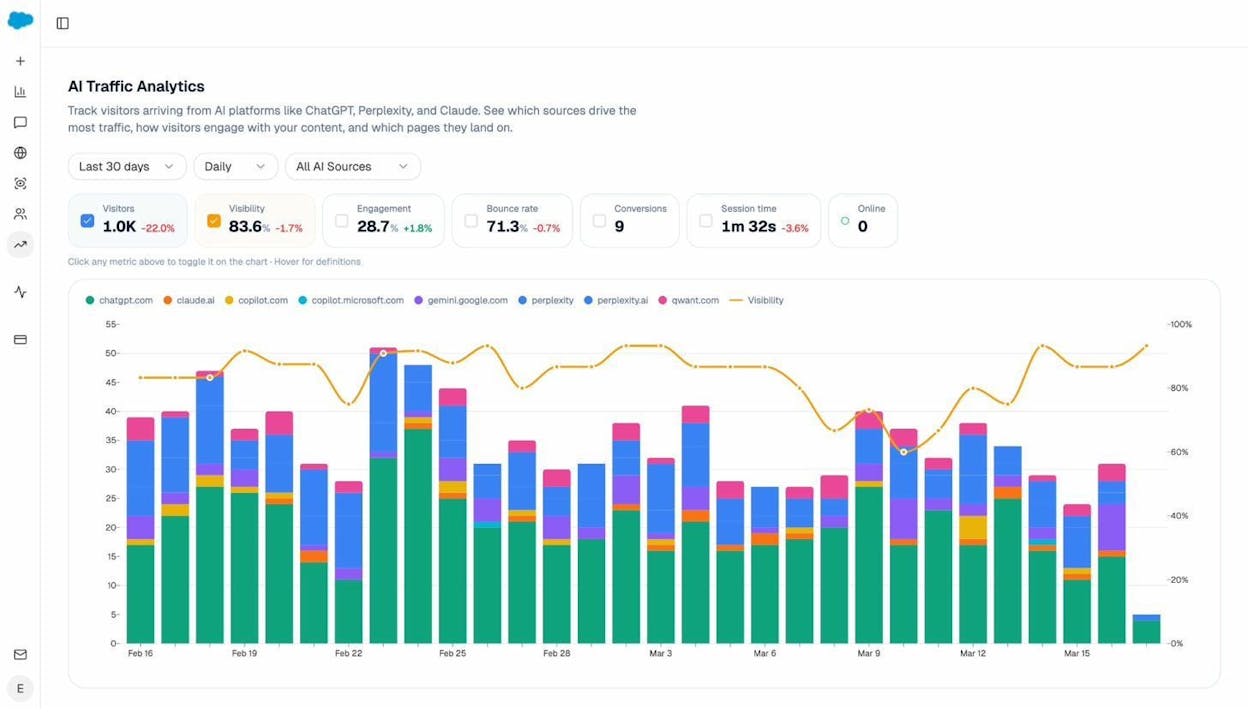
AI Traffic Analytics. Connect your GA4 to see how many sessions are coming from AI platforms, which engines are driving the most traffic, and which landing pages receive the most AI-referred visitors. This tells you which of your indexed pages are actually being cited by AI search engines and sending traffic.
Landing Pages report. See exactly which pages on your site receive AI-referred traffic, along with engagement metrics like bounce rate, session duration, and conversions. This helps you identify patterns. Pages that get AI traffic tend to share certain characteristics: they’re comprehensive, well-structured, and answer specific questions directly.
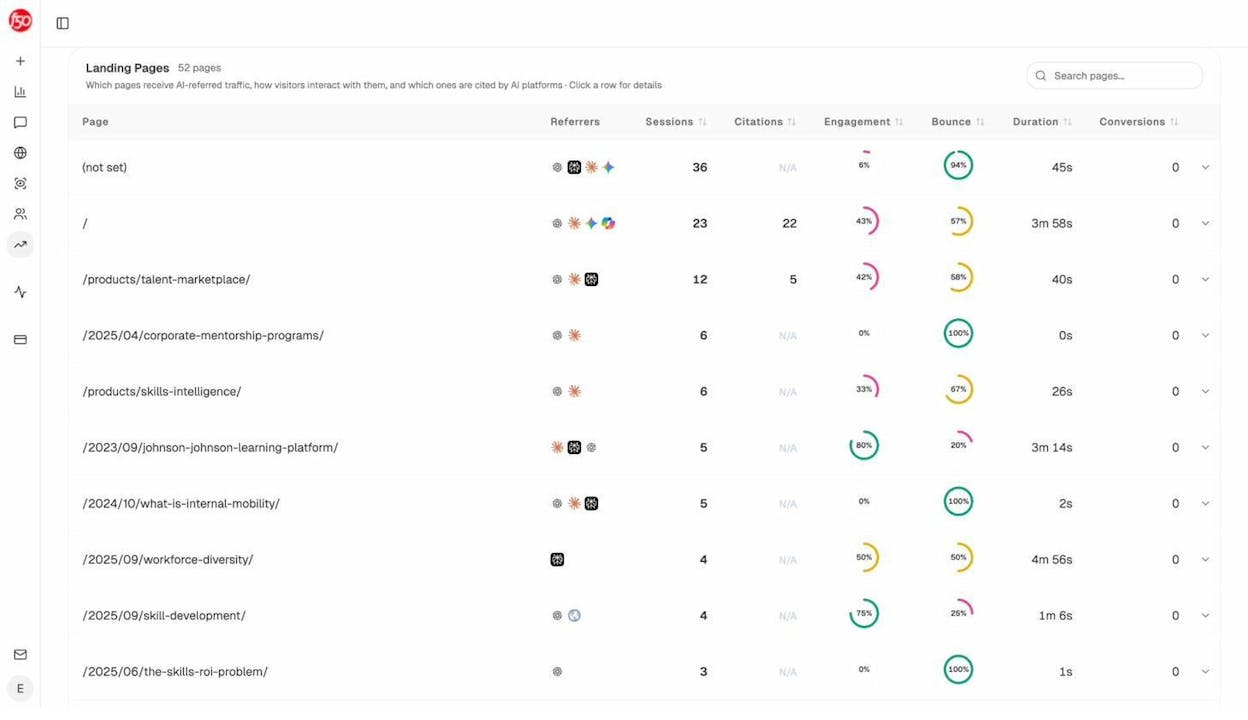
Use these patterns to optimize the pages you’re working to get indexed. If your indexed pages that get AI traffic all have a certain structure or content depth, make sure the pages you’re trying to get indexed meet the same bar.
How to find pages competitors are winning in AI search
When you’re fixing indexing issues, it’s also worth checking what your competitors are doing in AI search. If a competitor’s page on the same topic is being cited by ChatGPT and Perplexity while yours isn’t indexed at all, that’s a gap you need to close.
Analyze AI’s Competitors report shows you which brands appear alongside yours in AI answers, how often they’re mentioned, and which of their pages are being cited.
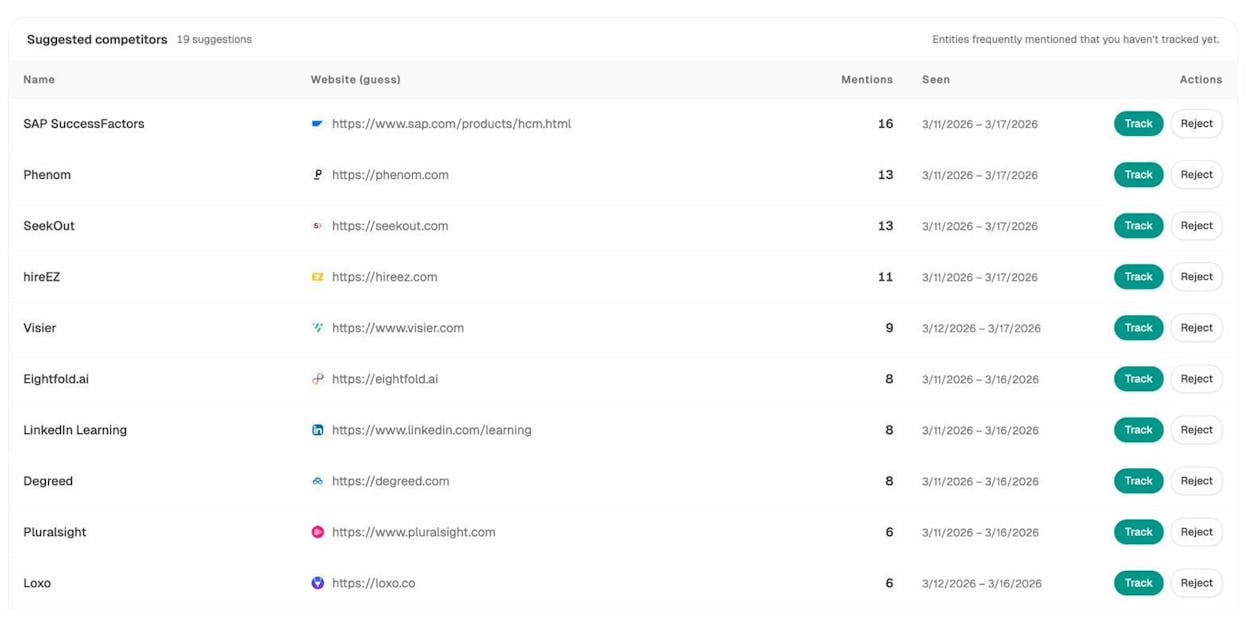
And the Sources dashboard shows you exactly which domains and URLs AI models are citing most often in your industry. If a competitor’s blog post is being cited 20+ times across AI platforms while your equivalent page isn’t even indexed by Google, that’s a clear signal of where to focus your efforts.
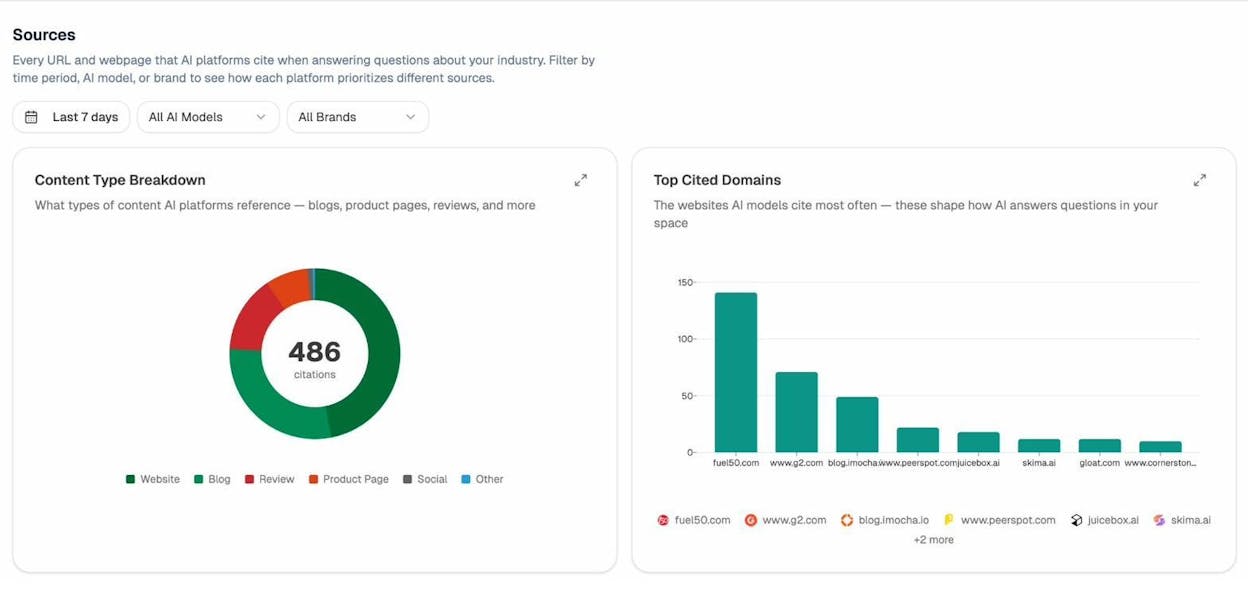
The key insight: fixing “Discovered - currently not indexed” isn’t just a technical SEO housekeeping task. It’s a competitive visibility issue that affects both traditional search and AI search.
How to Prevent “Discovered - Currently Not Indexed” in the Future
Fixing the problem once is good. Preventing it from coming back is better. Here’s a checklist of practices that keep your pages out of the “Discovered” queue.
Maintain a clean site architecture. Every important page should be reachable within 3 clicks from your homepage. Use logical category structures and navigation menus. Don’t let pages pile up without internal links.
Add internal links at publish time. When you publish a new page, immediately add 3 to 5 internal links from existing pages on your site. Don’t wait for Google to discover the page through your sitemap alone. Use contextual links within body copy, not just navigation or sidebar links.
Keep your sitemap clean. Only include pages in your sitemap that you actually want indexed. Remove redirected URLs, noindexed pages, and pages that return errors. Review your sitemap quarterly.
Monitor crawl health regularly. Check the Crawl Stats report in Google Search Console monthly. Watch for increases in crawl errors, response times, or “Discovered - currently not indexed” counts. Catch problems before they affect hundreds of pages.
Invest in site speed. Fast servers mean more efficient crawling. Googlebot can crawl more pages per visit when your server responds quickly. Aim for a server response time under 200ms.
Use the Analyze AI Keyword Rank Checker to monitor your rankings. If a page drops out of the index, your rankings will disappear. Catching this early lets you fix the issue before it compounds.
Track your AI search visibility alongside your Google rankings. As AI search grows as an organic channel, you want to know whether your pages are being cited by AI platforms. Tracking both Google indexation status and AI search visibility gives you a complete picture of your content’s discoverability. Tools like Analyze AI can help you monitor both from one place.
In a world where search is expanding from ten blue links to prompt-shaped answers, making sure your content is indexed is the bare minimum. Once it’s indexed, the next step is making sure it’s good enough to be cited by every search surface your audience uses: Google, ChatGPT, Perplexity, Claude, and whatever comes next.
Key Takeaways
-
“Discovered - currently not indexed” means Google knows about your page but hasn’t crawled it yet. It won’t appear in search results until Google crawls and indexes it.
-
Start by requesting indexing for a few pages. If that doesn’t work, look for deeper issues with crawl budget, content quality, internal linking, backlinks, or technical setup.
-
Prioritize fixing pages that drive revenue or target high-volume keywords.
-
Pages that aren’t indexed in Google are also invisible to AI search engines. Fixing indexing issues improves your visibility across both traditional and AI search.
-
Prevent the problem by maintaining clean site architecture, adding internal links at publish time, keeping your sitemap clean, and monitoring crawl health regularly.

Ernest

Ibrahim


