



Summarize this blog post with:


In this article, you’ll learn how to set up Google Alerts in under two minutes, even if you’ve never used it before. You’ll also learn ten practical ways to use it for brand monitoring, competitor research, link building, and reputation management. And because brand monitoring now extends beyond Google into AI search engines like ChatGPT, Perplexity, and Gemini, you’ll see how to track your brand across those channels too.
Table of Contents
What Is Google Alerts?
Google Alerts is a free notification service from Google. You give it a word or phrase, and it emails you whenever Google indexes new content matching that term.
That’s it. No login beyond your Google account. No pricing tiers. No setup wizard.
You might use it to track mentions of your name, your company, a competitor, or any topic you care about. When Google’s crawler finds a new page that matches your alert, you get an email like this:
![[Screenshot: A Google Alerts email notification showing a list of new web results matching a search term, with titles, snippets, and source links]](https://www.datocms-assets.com/164164/1776707789-blobid1.png?auto=format,compress&w=1248&fit=max)
The tool has been around since 2003, and its simplicity is both its greatest strength and its biggest limitation. It catches a decent number of web mentions, but it misses a lot too. We’ll get into that later.
For now, the important thing to know is that Google Alerts only monitors traditional web content, meaning blog posts, news articles, and forum threads that Google indexes. It does not monitor AI search engines, social media, or any content behind a login wall.
If you want a complete picture of how your brand appears online, you’ll need to pair Google Alerts with other tools. But as a free starting point, it’s hard to beat.
How to Set Up Google Alerts (Step by Step)
Setting up your first alert takes less than 60 seconds. Here’s how:
Step 1: Go to google.com/alerts.
![[Screenshot: The Google Alerts homepage showing the main search bar with “Create an alert about…” placeholder text]](https://www.datocms-assets.com/164164/1776707798-blobid2.jpg?auto=format,compress&w=1248&fit=max)
Step 2: Type a search term into the box at the top. Google will show a preview of recent results as you type.
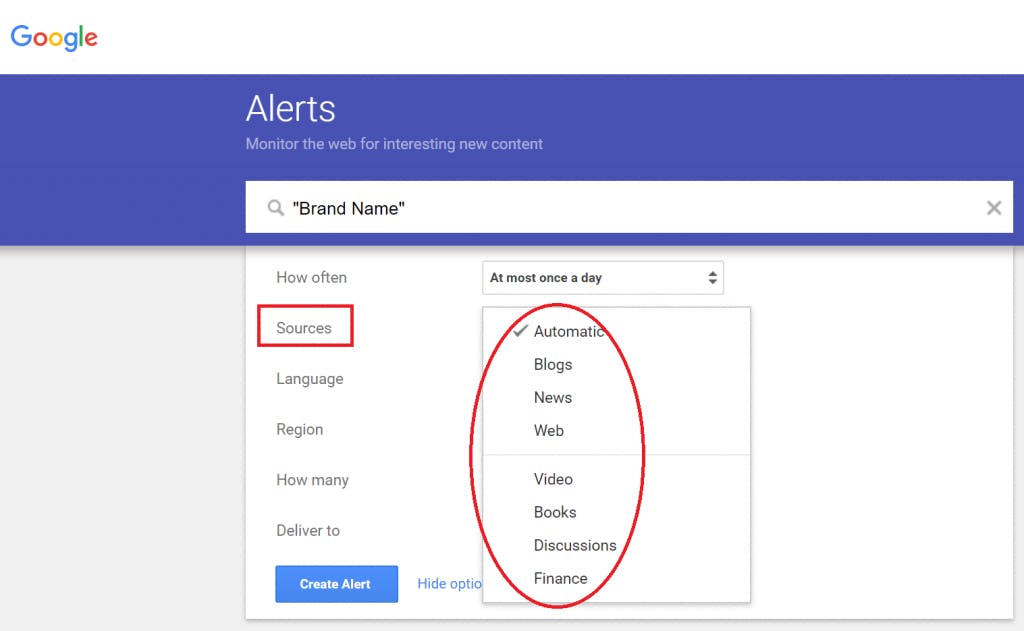
Step 3: Click “Show options” below the search box. This expands a panel with six settings:
|
Setting |
What it does |
Recommended choice |
|---|---|---|
|
How often |
Frequency of alert emails |
“As-it-happens” for brand mentions; “Once a day” for most other alerts |
|
Sources |
Limits results to specific types (news, blogs, web, etc.) |
Leave on “Automatic” unless you only want news |
|
Language |
Filters by content language |
Choose your primary language |
|
Region |
Filters by geographic region |
“Any region” for broad monitoring |
|
How many |
“Only the best results” vs. “All results” |
“All results” to catch more mentions |
|
Deliver to |
Your email address or an RSS feed |
Your primary email |
![[Screenshot: The Google Alerts “Show options” panel expanded, showing all six dropdown settings including frequency, sources, language, region, how many, and delivery options]](https://www.datocms-assets.com/164164/1776707806-blobid4.png?auto=format,compress&w=1248&fit=max)
Step 4: Click “Create Alert.”
That’s it. You now have a working Google Alert.
Here’s an important detail most guides skip: you’re not limited to one alert. You can create as many as you want, and you should. A single alert for your company name won’t catch misspellings, product names, or key personnel. Set up separate alerts for each.
For example, if you run a SaaS company called Acme Analytics, you’d want alerts for: “Acme Analytics,” “acmeanalytics.com,” your CEO’s name, your main product name, and common misspellings like “Acme Analytic” (without the s).
How to Edit or Delete Google Alerts
To manage your existing alerts, go to google.com/alerts. You’ll see a list of all active alerts. Click the pencil icon to edit settings, or the trash icon to delete.
Google Alerts Search Operators You Should Know
Google Alerts supports the same search operators you’d use in a regular Google search. These let you create far more targeted alerts than a simple keyword.
Here are the most useful ones:
|
Operator |
What it does |
Example |
|---|---|---|
|
"exact phrase" |
Matches the exact phrase only |
"Acme Analytics" |
|
site: |
Limits results to a specific website |
site:reddit.com "your brand" |
|
-site: |
Excludes a specific website |
"your brand" -site:yourdomain.com |
|
OR |
Matches either term |
"Acme Analytics" OR "acmeanalytics" |
|
intitle: |
Term must appear in the page title |
intitle:review "your brand" |
|
- |
Excludes a term |
"your brand" -jobs -careers |
These operators are what turn Google Alerts from a basic notification tool into a proper monitoring system. Every use case below relies on them.
10 Ways to Use Google Alerts to Grow Your Business
1. Find Unlinked Brand Mentions and Turn Them Into Backlinks
When someone mentions your brand on their website without linking to you, that’s an unlinked mention. It happens all the time. A blogger writes a roundup, name-drops your product, and forgets (or doesn’t bother) to add a hyperlink.
This matters for two reasons. First, backlinks are a major ranking factor in Google. Every unlinked mention is a missed opportunity to strengthen your search visibility. Second, links help readers actually reach your site. Without one, they’d have to Google you separately. Most won’t.
The good news: unlinked mentions are the easiest links to earn. The author already knows your brand. They’ve already written about you. All you need to do is ask.
Here’s how to set it up:
Create a Google Alert for your brand name, domain, and key product names. Use “All results” so you don’t miss anything.
"Acme Analytics" OR "acmeanalytics.com"
![[Screenshot: A Google Alert set up with a brand name and domain using the OR operator, with “All results” selected]](https://www.datocms-assets.com/164164/1776707806-blobid5.png?auto=format,compress&w=1248&fit=max)
When you receive an alert, visit the page and check whether there’s a link. The fastest way: right-click the page, select “View Page Source,” and search for your domain using Ctrl+F (or Cmd+F on Mac).
No results means no link. At that point, send a short email to the author. Keep it simple: thank them for the mention, and ask if they’d be willing to add a link. Most will say yes because it’s a small ask and it improves their content for readers.
Don’t limit this to your company name alone. Create additional alerts for your founder’s name, your flagship product, and even your most popular blog posts or tools. Each of these can generate unlinked mentions worth pursuing.
Pro tip: If your brand name is a common word (like “Notion” or “Slack”), add extra terms to filter out noise. For example: "Slack" + "project management" or "Notion" + "productivity app".
2. Monitor Your Competitors’ Every Move
Keeping tabs on your competitors reveals what’s working for them, where they’re getting press coverage, and which sites might also be willing to cover you.
Set up alerts for each competitor’s brand name, domain, and key people:
"Competitor Name" OR "competitorname.com"
![[Screenshot: A Google Alert configured to track a competitor’s brand name and domain]](https://www.datocms-assets.com/164164/1776707811-blobid6.png?auto=format,compress&w=1248&fit=max)
When you get an alert, look at the context. Is the competitor being mentioned in a product roundup you’re not included in? That’s an outreach opportunity. Is a blog reviewing their product? Reach out and offer yours for review too. Is an industry publication quoting their CEO? Pitch your own expert for a future article.
You can go further by monitoring for pages that mention multiple competitors but exclude you. This reveals listicles, comparison articles, and roundups where you should be included but aren’t:
"Competitor A" + "Competitor B" -"Your Brand"
If a page lists three of your competitors but not you, the author may not have heard of you. A polite email introducing your product and explaining why it fits their article can land you a mention, a link, and new referral traffic.
How to Monitor Competitors in AI Search
Google Alerts tracks mentions on traditional websites. But your competitors also appear in AI search answers — the responses people get from ChatGPT, Perplexity, Google AI Mode, and Gemini.
When someone asks an AI chatbot “What are the best project management tools?” and your competitor gets mentioned but you don’t, that’s a visibility gap you can’t detect with Google Alerts.
Analyze AI tracks this. In the Competitors dashboard, you can see which brands appear alongside yours in AI responses, how often they get mentioned, and where you’re losing share of voice.
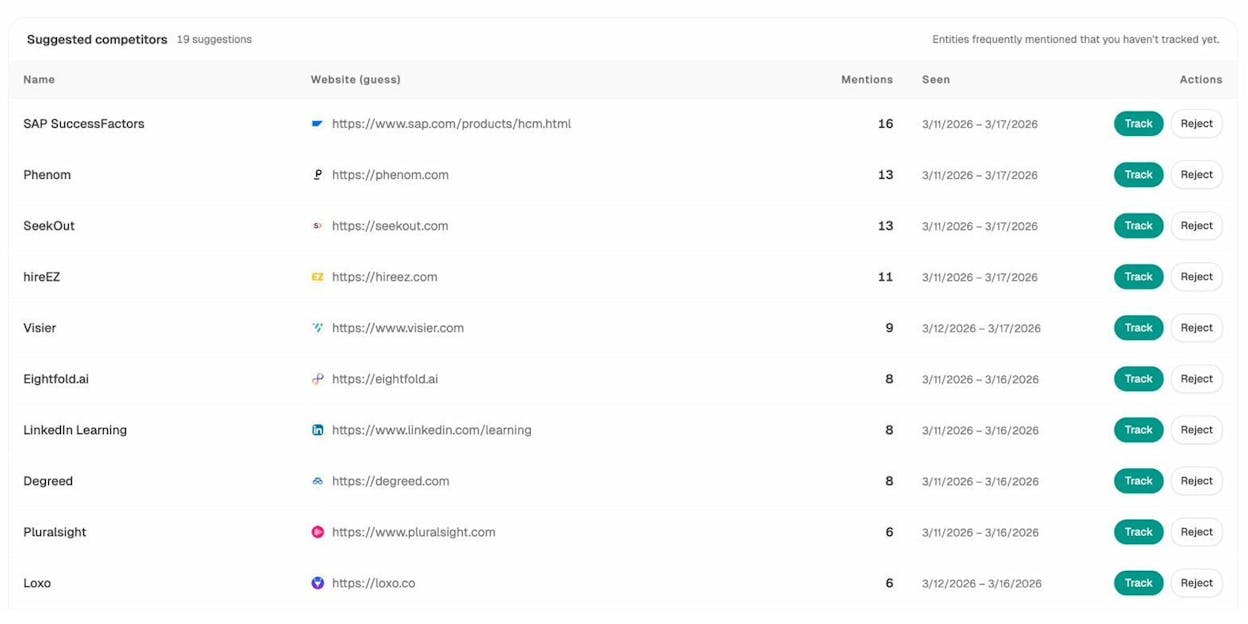
The “Suggested Competitors” tab shows entities that AI engines frequently mention in your category, even ones you hadn’t considered tracking. You can add them in one click and start monitoring the gap.
This is the AI equivalent of the Google Alerts competitor hack above — except instead of tracking web mentions, you’re tracking AI mentions across every major model.
3. Protect Your Site from Link Injection Hacks
Link injection is when a hacker breaks into your site and inserts hidden links pointing to spammy websites. It’s one of the most common forms of website compromise, and it can tank your search rankings if Google catches it.
The tricky part is that these injected links are often invisible to you. They’re buried in your site’s code, sometimes hidden with CSS, and they don’t show up when you browse your own pages normally.
Google Alerts can serve as an early warning system. Set up an alert that monitors your own site for keywords commonly associated with link spam:
site:yourdomain.com (viagra OR casino OR "payday loan" OR pharmacy OR "cheap jerseys")
If you get an alert from this query, investigate immediately. Go to the flagged page, view the source code, and search for the trigger keyword. Sometimes it will be a false positive — for example, a legitimate blog post that mentions one of these words in a different context. But if you find an actual injected link, you’ll be glad you caught it early.
Use Analyze AI’s free Broken Link Checker to scan your site for suspicious outbound links as a complementary check.
4. Find a Steady Stream of Guest Post Opportunities
Most people find guest post opportunities by Googling footprints like [topic] + "write for us". The problem is that every other marketer in your niche uses the same approach, which means those inboxes are flooded with pitches.
A smarter approach: find sites that have already published guest posts, then pitch them directly. These sites accept outside contributions but don’t advertise it with a “write for us” page.
Set up a Google Alert using footprints that identify published guest content:
"guest post by" + [your topic]
or:
"this is a guest contribution" + [your topic]
![[Screenshot: A Google Alert using the “guest post by” footprint combined with a topic keyword]](https://www.datocms-assets.com/164164/1776707817-blobid8.png?auto=format,compress&w=1248&fit=max)
Every time Google finds a new guest post in your niche, you’ll get an alert. Visit the page, note the site, and pitch them a relevant topic.
You can take this further. When you spot a prolific guest author in your space — someone whose name keeps showing up across multiple sites — set up an alert for their name. Wherever they publish next is another site that accepts guest posts. Exclude their own domain so you only see mentions on other sites:
"Author Name" -site:authorwebsite.com
5. Discover Local NAP Citation Opportunities
If you run a local business, NAP citations — mentions of your name, address, and phone number on other websites — are critical for local SEO. The more consistent, high-quality citations you have, the better your chances of ranking in Google’s local pack.
One of the fastest ways to find citation opportunities is to monitor your competitors’ citations and replicate them. Search Google for your competitor’s business name, phone number, and address together:
"Competitor Business Name" + "555-123-4567" + "123 Main Street"
Any directory that lists your competitor likely accepts new business listings. Add yours to each one.
To stay ahead, create a Google Alert using the same query. You’ll be notified whenever your competitor gets a new citation, so you can match it quickly:
"Competitor Business Name" + "competitor phone number" + "competitor street address"
Repeat this for each of your top three to five local competitors. Over time, you’ll build a citation profile that matches or exceeds theirs.
6. Answer Industry Questions and Build Authority
Answering relevant questions on forums, Q&A sites, and community platforms does two things: it positions you as an expert, and it drives targeted referral traffic to your site when you link to helpful resources in your answers.
The challenge is finding these questions consistently. Google Alerts solves that.
Set up an alert that combines your topic with question-focused operators and specific sites:
[topic] + site:quora.com + intitle:(how|what|why|best)
Every time Google indexes a new question thread on Quora that matches your topic, you’ll get an email. Jump in, write a thoughtful answer, and link to a relevant resource on your site where appropriate. The key word is relevant. Forum moderators and readers can spot self-promotional answers from a mile away.
If you’re active in multiple communities, bundle them into a single alert:
[topic] + (site:quora.com OR site:reddit.com OR site:stackexchange.com) + intitle:(how|what|why)
This gives you a single daily digest of every new question across your key platforms.
Pro tip: Quora answers that rank in Google can drive traffic for months or even years. Prioritize questions with high search potential — those that read like search queries themselves (e.g., “What is the best CRM for small businesses?”).
7. Track What Your Competitors Are Publishing
Knowing what your competitors are publishing helps you spot content gaps, get ideas for your own editorial calendar, and respond quickly if they publish something that directly competes with your content.
RSS feeds can do this, but they’re limited to sites that still offer them and they don’t integrate well with email workflows. Google Alerts is more flexible.
Set up an alert that tracks new content on a competitor’s blog:
site:competitor.com/blog
Set the frequency to “as-it-happens” or “once a day” so you catch new content quickly. If you want to monitor multiple competitor blogs at once:
site:competitor1.com/blog OR site:competitor2.com/blog OR site:competitor3.com/blog
You can also narrow this to specific topics. If you only care when a competitor publishes about a specific subject, add a keyword:
site:competitor.com/blog + "content marketing"
Monitoring Competitor Content Performance in AI Search
Google Alerts tells you when a competitor publishes something new. But it doesn’t tell you which of their pages AI search engines are citing as sources.
This distinction matters. A competitor might publish a mediocre blog post that Google ignores — but that Perplexity or ChatGPT consistently references when answering questions in your category. Traditional monitoring would miss that entirely.
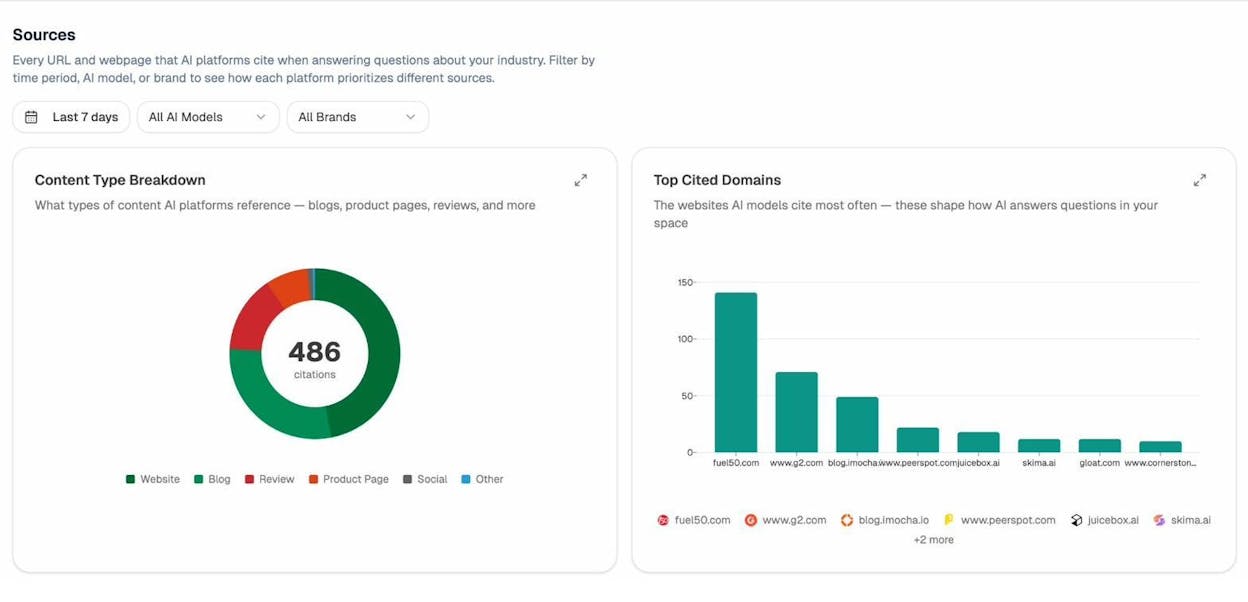
In Analyze AI’s Sources dashboard, you can see which URLs — yours and your competitors’ — are being cited across AI engines. This shows you which specific pages are winning in AI search, so you can study what makes them citation-worthy and create competing content.
8. Catch Indexation Errors Before They Become Problems
Google sometimes indexes pages you don’t want in search results. Parameterized URLs, staging pages, internal search results, and PDF files can all end up in the index if your technical SEO isn’t airtight.
This is especially common on ecommerce sites where faceted navigation and pagination create thousands of URL variations.
Google Alerts can warn you when unwanted pages get indexed. First, identify a URL pattern common to the pages you don’t want indexed. Then create an alert for it:
site:yourdomain.com inurl:page= inurl:sort=
You can also catch specific file types entering the index when they shouldn’t:
site:yourdomain.com filetype:pdf
If you receive an alert, check whether the indexed page should actually be blocked. If it shouldn’t be indexed, add a noindex tag, update your robots.txt, or use Google Search Console’s URL removal tool.
9. Detect Theft of Your Digital Products
If you sell courses, ebooks, templates, or software, piracy is a reality you’ll deal with. Torrent sites, file-sharing platforms, and unauthorized resellers can distribute your paid products within days of release.
Google Alerts can detect some of this by monitoring for your product name alongside piracy-related keywords:
"Your Product Name" + (download OR torrent OR "free download" OR crack) -site:yourdomain.com
The -site:yourdomain.com exclusion prevents your own legitimate download pages from triggering false alerts.
When you find an unauthorized distribution page, you have several options: file a DMCA takedown notice with the hosting provider, submit a URL removal request to Google, or contact the site owner directly. The faster you act, the less damage is done.
10. Monitor for Negative Reviews and Reputation Threats
Negative reviews happen to every business. The difference between a reputation crisis and a minor bump is how quickly you respond.
Google Alerts can surface new reviews of your business by combining your brand name with review-related keywords:
"Your Brand" + intitle:review
or:
"Your Brand" + (review OR complaint OR "worst experience" OR scam)
![[Screenshot: A Google Alert configured with a brand name and review/complaint keywords using the OR operator]](https://www.datocms-assets.com/164164/1776707821-blobid10.png?auto=format,compress&w=1248&fit=max)
When you spot a negative review, respond quickly and professionally. Acknowledge the issue, offer a resolution, and take the conversation offline if needed. A thoughtful response to a negative review can actually improve your brand perception more than a dozen positive reviews with no engagement.
For a more comprehensive approach, check out our guide on competitor monitoring tools that can supplement your Google Alerts setup.
The Biggest Limitation of Google Alerts (and How to Work Around It)
Google Alerts is free, simple, and useful. But it has a significant blind spot: it misses a lot of mentions.
Despite Google crawling more of the web than any other search engine, Google Alerts applies heavy filtering to what it reports. Independent tests have consistently shown that it catches only a fraction of actual brand mentions.
There are a few likely reasons. Google Alerts seems to prioritize “quality” over completeness, filtering out results it considers low-value. It also appears to deprioritize certain types of content like forum posts and comments. And its crawl-to-alert pipeline has noticeable delays, sometimes taking days or even weeks to report a mention.
This means you should never rely on Google Alerts as your only monitoring tool. Treat it as one layer in a broader monitoring strategy.
Here’s what a more complete setup looks like:
|
Monitoring layer |
What it catches |
Cost |
|---|---|---|
|
Google Alerts |
Web mentions indexed by Google |
Free |
|
Social listening tools (e.g., Mention, Brand24) |
Social media mentions, forums, blogs |
Paid |
|
Backlink monitoring (e.g., Ahrefs Alerts, Moz) |
New and lost backlinks |
Paid |
|
Google Search Console |
Indexation issues, search performance changes |
Free |
|
Brand mentions in AI search (ChatGPT, Perplexity, Gemini, Google AI Mode, Copilot) |
Freemium |
The last layer is one most businesses overlook entirely.
Why You Need to Monitor AI Search Too (Not Just Google)
Google Alerts monitors the traditional web. But the way people search is changing.
More people now get answers directly from AI assistants like ChatGPT, Perplexity, Gemini, and Google’s AI Overviews. When someone asks an AI “What’s the best CRM for small businesses?” or “Which project management tools are worth paying for?”, the AI generates an answer and may or may not mention your brand.
This isn’t a niche behavior anymore. AI search is a growing channel that sits alongside traditional Google search, not replacing it. As we explain in the Analyze AI manifesto: quality content still wins. The brands that show up in AI answers are the ones with clear, original, and useful content. The difference is that your content now needs to work for AI models too, not just Google.
Google Alerts tells you nothing about this channel. You won’t know if ChatGPT recommends a competitor over you. You won’t know if Perplexity cites your competitor’s blog but ignores yours. You won’t know if the sentiment of AI responses about your brand is positive or negative.
Analyze AI was built to fill this gap. Here’s how it works in practice:
Track Your Brand Visibility Across AI Engines
The Overview dashboard shows how your brand performs across all major AI search engines in one view. You can see your visibility percentage, average rank position, sentiment score, total citations, and AI-referred traffic — alongside the same metrics for your competitors.
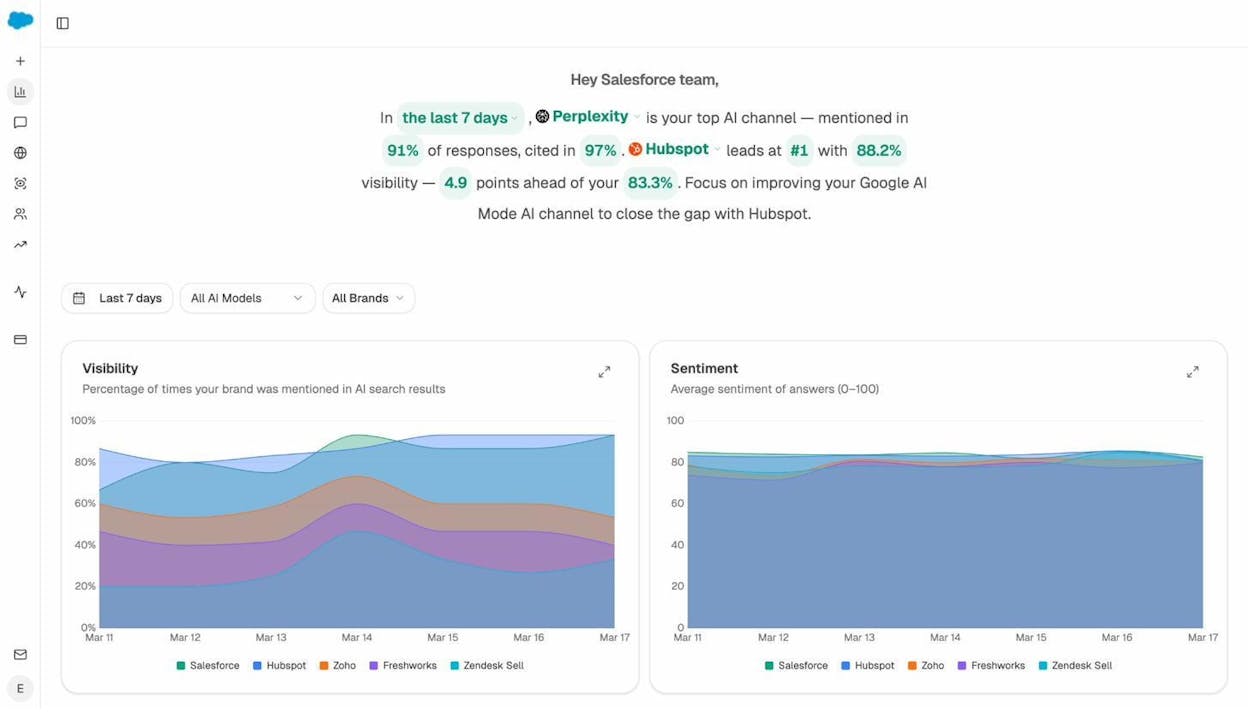
Think of it as the AI search equivalent of checking your Google search rankings. Except instead of tracking keyword positions, you’re tracking how often AI engines mention your brand when users ask questions in your category.
See Which Prompts Mention You (and Which Don’t)
The Prompts dashboard is where things get actionable. It shows the specific questions and prompts people are asking AI engines, whether your brand appears in the response, what position you rank in, and the sentiment of each mention.
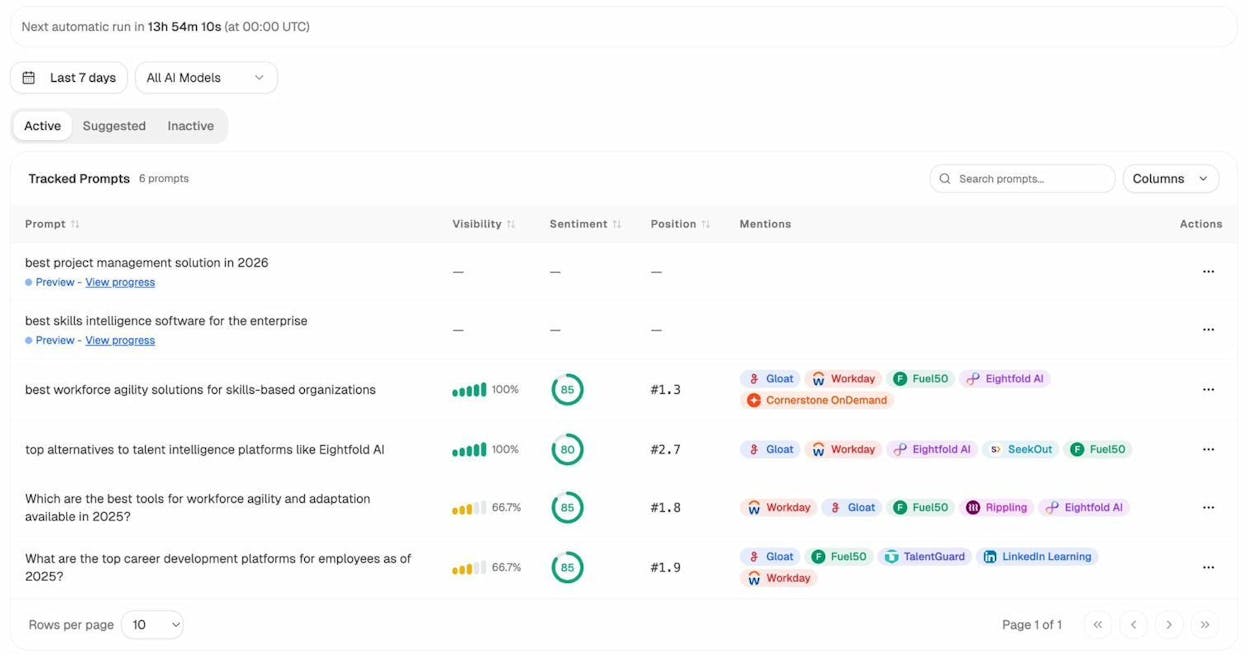
You can track prompts you care about, and Analyze AI also suggests prompts based on your industry. The “Suggested” tab surfaces questions that are relevant to your category but that you haven’t started tracking yet.
This is a direct parallel to the Google Alerts use case of “monitoring questions in your niche.” But instead of monitoring questions on Quora and forums, you’re monitoring the questions people are asking AI engines — and whether your brand is part of the answer.
Run Ad Hoc Searches to Spot-Check Your Visibility
Want to know right now whether ChatGPT mentions your brand for a specific query? The Ad Hoc Searches feature lets you run one-off queries across multiple AI models and see the results instantly.
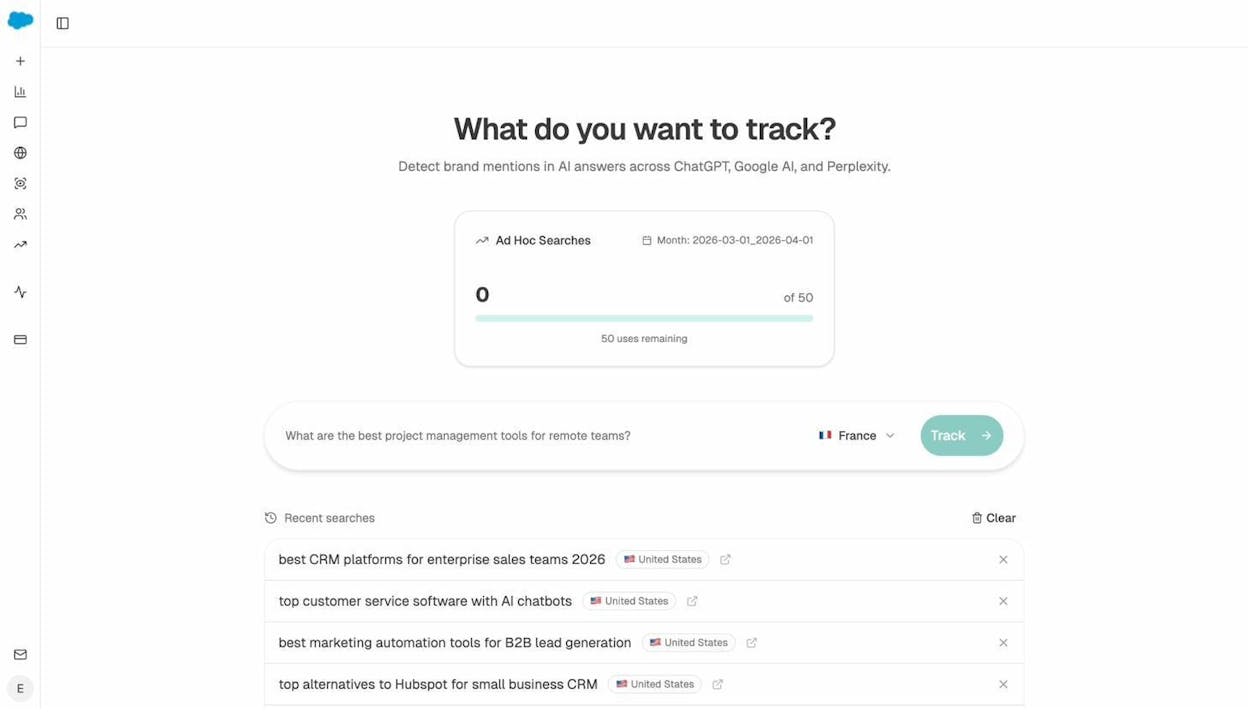
This is useful for quick competitive checks. Type in a prompt like “best email marketing platforms for ecommerce” and see which brands the AI mentions, in what order, and with what sentiment. If your competitor shows up and you don’t, you’ve identified a visibility gap to close.
Get Weekly AI Visibility Digests
Google Alerts sends you email notifications about web mentions. Analyze AI does the same for AI search with its Weekly Email digests.
Each week, you receive a summary of your AI search performance: changes in visibility, sentiment shifts, pages gaining or losing citations, and competitor movements. It’s a passive way to stay on top of your AI search presence without logging into the dashboard daily.
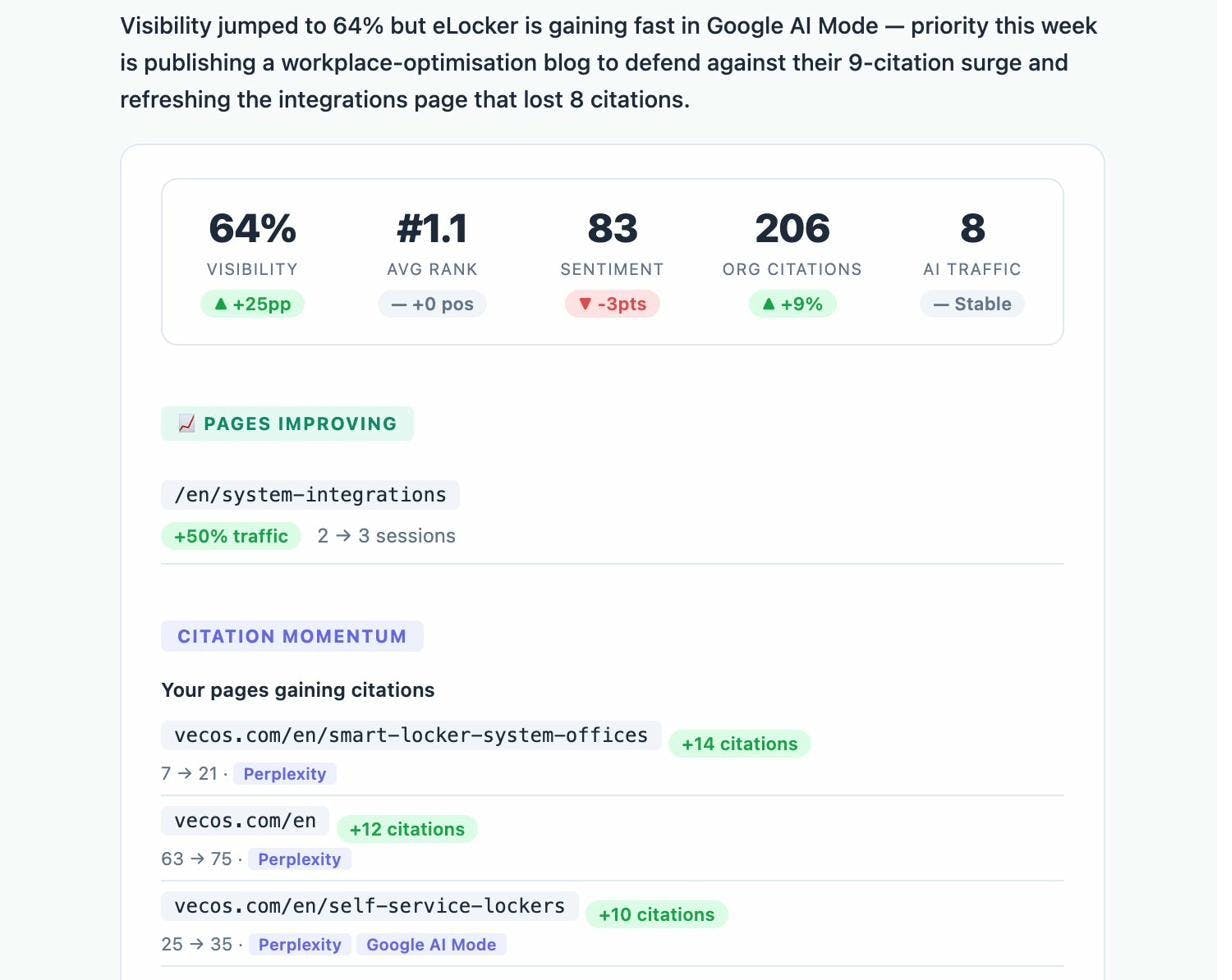
The digest highlights which of your pages are gaining citations (equivalent to gaining backlinks in traditional SEO) and which are losing them. This tells you what content resonates with AI engines and where you might need to refresh or improve.
Understand How AI Engines Perceive Your Brand
Beyond mentions and citations, Analyze AI’s Perception Map shows how AI models describe your brand relative to competitors. This is the AI equivalent of a brand perception study, except it’s built from actual AI-generated descriptions rather than survey data.
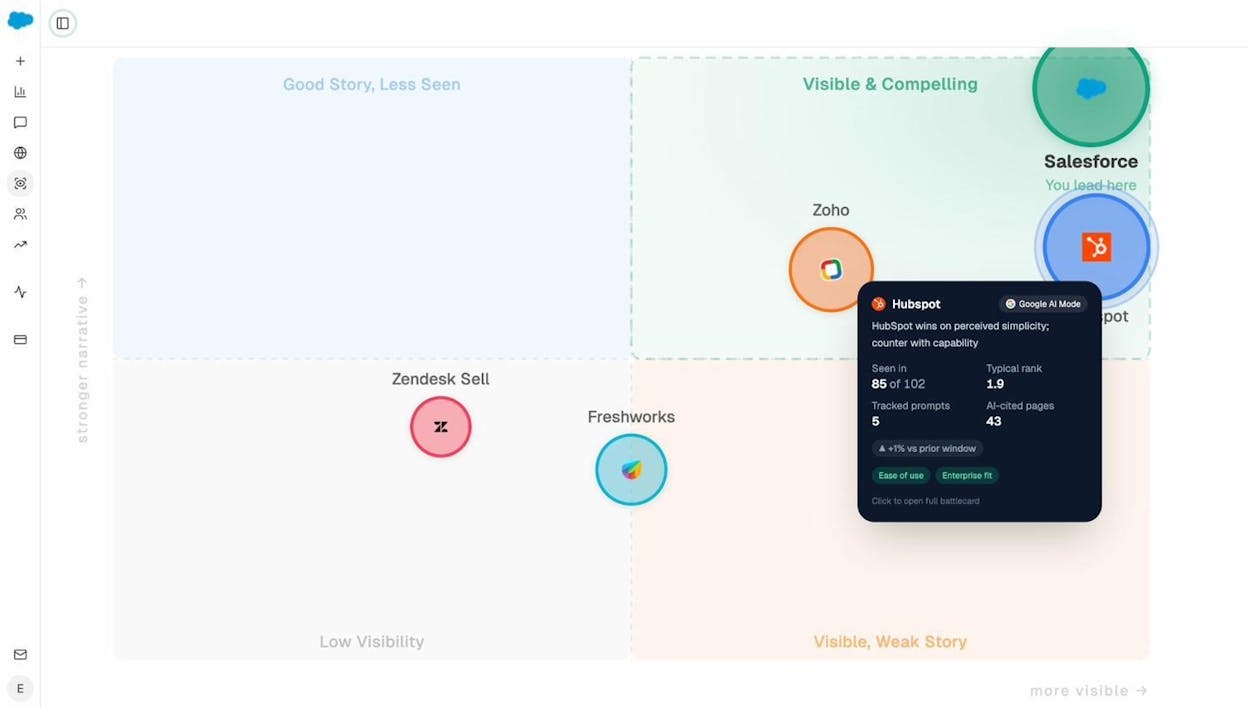
If AI engines consistently describe your competitor as “the most innovative solution” but describe you as “a reliable alternative,” that tells you something about how your content, your PR, and your market position are being interpreted by the models. You can then adjust your content strategy to shift that perception.
Google Alerts Best Practices
Before you go set up your alerts, here are a few tips to get the most out of them:
Use “All results” instead of “Only the best results.” Google’s filtering is already aggressive. Setting it to “Only the best” makes it even more so. You want maximum coverage, and you can always ignore irrelevant results.
Create separate alerts for each variant. Don’t try to cram everything into one alert. Create individual alerts for your brand name, domain, product names, key people, and common misspellings. This makes it easier to manage and troubleshoot later.
Exclude your own site. For most use cases, you don’t need to be alerted about your own content. Add -site:yourdomain.com to your alerts to reduce noise.
Set the right frequency. Use “as-it-happens” for time-sensitive alerts like brand mentions and competitor monitoring. Use “once a day” for less urgent things like content tracking. Use “once a week” for slow-moving alerts like NAP citation monitoring.
Review and prune regularly. Check your alert settings every quarter. Delete alerts you no longer need, adjust keywords for ones that are too noisy, and add new ones as your business evolves.
Don’t stop at Google Alerts. As we’ve covered, Google Alerts catches only a portion of web mentions and nothing from AI search. Use it as a foundation, then add AI search monitoring and social listening tools to fill the gaps.
Final Thoughts
Google Alerts is one of the most underrated free tools available to marketers. With the right search operators, it becomes a lightweight monitoring system for brand mentions, competitor activity, link building opportunities, and content ideas.
But it only covers one part of the picture. Your brand now lives across traditional search, social media, and AI search engines. A mention on Google is valuable. But so is being the brand that ChatGPT recommends when someone asks for the best solution in your category.
Pair Google Alerts with Analyze AI to cover both channels. Google Alerts handles the traditional web. Analyze AI handles the AI search layer. Together, they give you a comprehensive view of your brand’s visibility across every place people are looking for answers.
You can use Analyze AI’s free tools to start researching your brand’s search visibility today, including the Keyword Generator, SERP Checker, Keyword Rank Checker, and Website Traffic Checker.

Ernest

Ibrahim


