



Summarize this blog post with:


One thing to get straight right away: you cannot control indexation with robots.txt. Robots.txt controls which URLs crawlers can access. But it says nothing about whether a page should appear in search results. That’s a common misconception, and Google formally deprecated the unofficial noindex directive in robots.txt back in July 2019.
If you want to keep a page out of search results, or control how its snippet appears, you need a robots meta tag or an X-Robots-Tag HTTP header.
In this article, you’ll learn what the robots meta tag and X-Robots-Tag are, how they control what search engines (and AI crawlers) can do with your pages, every directive you can use, how to implement them on your site, and how to avoid the most common mistakes that silently tank your organic traffic.
Table of Contents
What Is a Robots Meta Tag?
A robots meta tag is an HTML snippet placed in the <head> section of a webpage. It tells search engine crawlers what they can and cannot do with that specific page — whether to index it, follow its links, display a snippet, show a cached version, and more.
Here’s what one looks like:
<meta name="robots" content="noindex, nofollow">
This tag has two parts: the name attribute (which specifies which crawler the instruction is for) and the content attribute (which contains the actual directives). We’ll break both down in detail below.
The key difference between this and robots.txt is scope. Robots.txt applies rules at the URL level before a crawler even accesses the page. The robots meta tag applies rules after the crawler has already fetched the page content. That means a crawler must be able to reach the page in order to see and obey the meta tag.
This distinction matters. If you block a URL in robots.txt and also add a noindex meta tag to that page, the crawler will never see the noindex directive because it can’t access the page in the first place. More on this mistake later.
Why Is the Robots Meta Tag Important for SEO?
The most common use of the robots meta tag is to keep pages out of search results. But it also controls how search engines display your content in SERPs — snippets, cached copies, image previews, and more.
Here are the types of pages you’d typically want to prevent search engines from indexing:
-
Thin pages with little value to users (empty tag pages, parameter-driven filter pages)
-
Staging or development environments that accidentally become crawlable
-
Admin pages, login pages, and thank-you pages that serve no purpose in search
-
Internal search results pages (Google considers indexing these a quality issue)
-
PPC landing pages designed for paid traffic, not organic
-
Duplicate content where a canonical tag would normally handle the preferred version
-
Time-sensitive pages like upcoming promotions or product launches that aren’t ready yet
The bigger your site, the more you’ll deal with these scenarios. On large sites with hundreds of thousands of pages, improperly managed indexation leads to crawl budget waste, duplicate content issues, and thin pages diluting your site’s overall quality signals.
Getting robots meta tags right — in combination with robots.txt and sitemaps — is foundational to technical SEO.
What Are the Values and Attributes of a Robots Meta Tag?
Every robots meta tag has two attributes: name and content. You must set both for the tag to work. Let’s walk through them.
The Name Attribute (User-Agent)
The name attribute specifies which crawler should follow the instructions. The most common value is robots, which applies to all crawlers. But you can also target specific bots.
For example, if you want to prevent your images from appearing in Google Images and Bing image search:
<meta name="googlebot-image" content="noindex">
<meta name="MSNBot-Media" content="noindex">
You can add as many robots meta tags to the <head> section as you need — one for each user-agent you want to control.
Both the name and content attributes are case-insensitive. So Googlebot-Image, googlebot-image, and GOOGLEBOT-IMAGE all work the same way.
Common Search Engine User-Agents
|
User-Agent |
Search Engine |
|---|---|
|
robots |
All crawlers (universal) |
|
googlebot |
Google Search |
|
bingbot |
Bing Search |
|
googlebot-image |
Google Images |
|
googlebot-news |
Google News |
|
MSNBot-Media |
Bing Images/Media |
|
slurp |
Yahoo |
|
yandexbot |
Yandex |
The Content Attribute (Directives)
The content attribute contains the actual instructions. If no robots meta tag exists on a page, crawlers interpret it as index, follow — meaning they’ll index the page and follow all links on it.
Here is every directive Google supports, with what it does and when to use it.
all
The default behavior. Equivalent to index, follow. You never need to add this explicitly.
<meta name="robots" content="all">
noindex
Tells search engines not to include this page in search results. This is the most commonly used directive.
<meta name="robots" content="noindex">
Use it on any page you don’t want appearing in Google, Bing, or other search engines. The page can still be crawled. Links on it can still pass value. The page just won’t show up in results.
nofollow
Tells crawlers not to follow any links on the page. This doesn’t prevent the linked URLs from being indexed — they can still appear in search results if other pages link to them or if they’re in your sitemap.
<meta name="robots" content="nofollow">
This is different from the rel="nofollow" link attribute, which applies to individual links. The meta robots nofollow directive applies to all links on the page at once.
none
A shorthand for noindex, nofollow. However, some search engines like Bing don’t support this directive. Stick with writing out noindex, nofollow explicitly to ensure compatibility.
<meta name="robots" content="none">
noarchive
Prevents the search engine from showing a “Cached” link for this page in the SERP.
<meta name="robots" content="noarchive">
notranslate
Prevents Google from offering a translation of the page in search results.
<meta name="robots" content="notranslate">
noimageindex
Prevents Google from indexing images that are embedded on this page. The images can still be indexed if they appear on other pages without this directive.
<meta name="robots" content="noimageindex">
unavailable_after
Tells Google to stop showing the page in search results after a specific date and time. It’s essentially a noindex directive with a timer. You must use the RFC 850 date format.
<meta name="robots" content="unavailable_after: Sunday, 01-Sep-24 12:00:00 GMT">
This is useful for event pages, limited-time promotions, or job postings that expire on a known date.
nosnippet
Prevents Google from showing any text or video snippet for this page in search results. It also acts as noarchive at the same time.
<meta name="robots" content="nosnippet">
max-snippet
Sets a maximum character count for the text snippet Google can display. Use 0 to opt out of text snippets entirely. Use -1 for no limit.
<meta name="robots" content="max-snippet:160">
max-image-preview
Controls whether and how large an image preview Google can show. Three possible values:
-
none — no image preview
-
standard — a default-sized image preview
-
large — the largest possible image preview
<meta name="robots" content="max-image-preview:large">
Using large along with images that are at least 1200px wide increases your chances of appearing in Google Discover.
max-video-preview
Sets the maximum number of seconds for a video snippet preview. Use 0 to disable video snippets. Use -1 for no limit.
<meta name="robots" content="max-video-preview:15">
nositelinkssearchbox
Prevents Google from showing a search box within your sitelinks in the SERP.
<meta name="robots" content="nositelinkssearchbox">
![[Screenshot: Google SERP showing sitelinks with a search box for a major brand]](https://www.datocms-assets.com/164164/1776793480-blobid1.png?auto=format,compress&w=1248&fit=max)
indexifembedded
Allows Google to index content embedded through iframes or similar HTML tags on a page that otherwise has a noindex directive. Both directives must be present for this to work.
<meta name="robots" content="noindex, indexifembedded">
This is useful when you syndicate content through embeds but don’t want the host page itself to appear in search results.
Using the data-nosnippet HTML Attribute
Alongside the snippet directives, Google also supports the data-nosnippet HTML attribute. This lets you exclude specific parts of a page’s text from being used as a snippet, without affecting the rest of the page.
You can apply it to div, span, and section elements:
<p>This text can appear in a snippet
<span data-nosnippet>but this part will not</span></p>
<div data-nosnippet>Nothing in this block will appear in a snippet</div>
Combining Directives
You can use multiple directives together in a single meta tag by separating them with commas:
<meta name="robots" content="noindex, nofollow">
<meta name="robots" content="max-snippet:160, max-image-preview:large, max-video-preview:-1">
When directives conflict (like noindex, index) or when one is a subset of another (like noindex, noarchive), Google uses the most restrictive interpretation. In both cases, the result would be noindex.
Directive Support Across Search Engines
Most SEOs only need noindex and nofollow, but it’s worth knowing what other search engines support. Here’s how directive support compares between Google and Bing:
|
Directive |
|
Bing |
|---|---|---|
|
noindex |
✅ |
✅ |
|
nofollow |
✅ |
✅ |
|
none |
✅ |
❌ |
|
noarchive |
✅ |
✅ |
|
nosnippet |
✅ |
❌ |
|
max-snippet |
✅ |
❌ |
|
max-image-preview |
✅ |
❌ |
|
max-video-preview |
✅ |
❌ |
|
noimageindex |
✅ |
❌ |
|
unavailable_after |
✅ |
❌ |
|
notranslate |
✅ |
❌ |
|
nositelinkssearchbox |
✅ |
❌ |
|
indexifembedded |
✅ |
❌ |
Bing supports the basics — noindex, nofollow, and noarchive — but doesn’t support the newer snippet control directives that Google introduced in 2019.
How to Set Up the Robots Meta Tag
Robots meta tags go in the <head> section of your HTML. If you’re editing code directly, you simply add the line:
<head>
<meta name="robots" content="noindex, nofollow">
</head>
But most websites run on a CMS, so let’s look at the most common implementation methods.
In WordPress Using Yoast SEO
In the WordPress editor, scroll to the Yoast SEO section below your post content. Click the “Advanced” tab. From there, you can set whether the page should be indexed and whether search engines should follow its links.
![[Screenshot: Yoast SEO Advanced tab in WordPress editor showing the noindex/nofollow dropdown options]](https://www.datocms-assets.com/164164/1776793498-blobid2.png?auto=format,compress&w=1248&fit=max)
To set noindex or nofollow, simply change the dropdown from the default to your preferred setting.
You can also apply these directives sitewide. Go to Yoast → Search Appearance in your WordPress dashboard. There you can set robots meta tags for all posts, pages, categories, tags, or any other taxonomy.
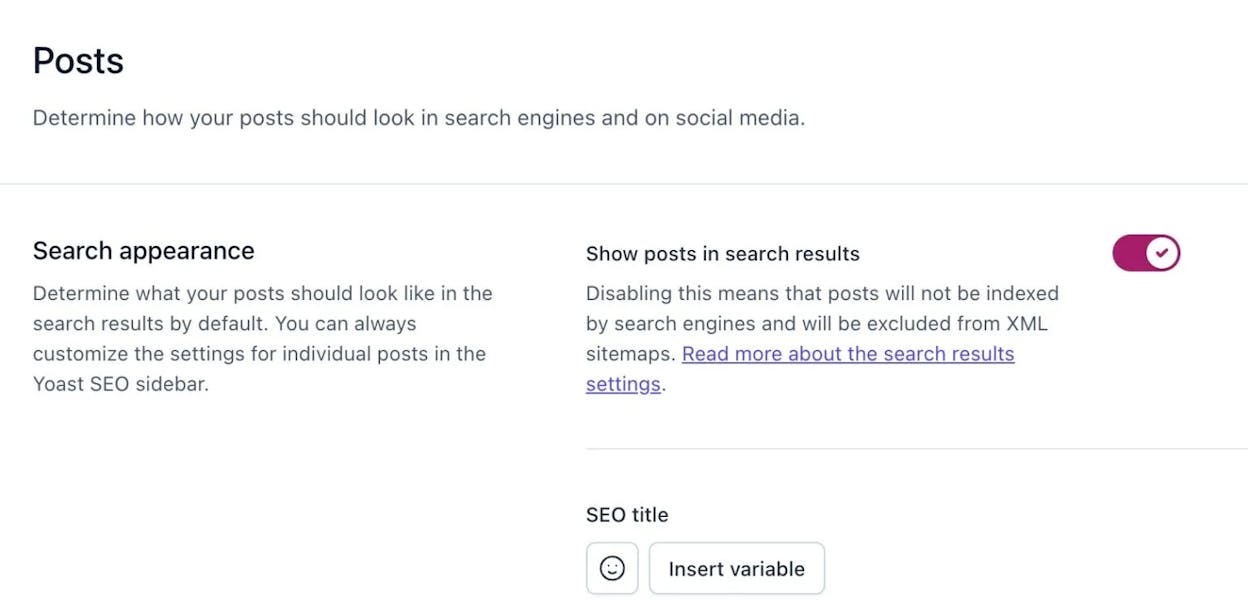
Other WordPress SEO plugins — like Rank Math and All in One SEO — offer the same functionality with slightly different interfaces.
In Other CMS Platforms
Most modern CMS platforms have built-in or plugin-based options for managing robots meta tags:
-
Shopify: Edit the theme.liquid file or use an SEO app that adds per-page controls
-
Wix: Use the Wix SEO settings per page (under “Advanced SEO”)
-
Squarespace: Toggle “Hide this page from search results” in page settings
-
Webflow: Use the page’s SEO settings to toggle indexing
If your CMS doesn’t offer a native option, you can usually add the tag through a custom code injection feature or by editing your theme’s header template.
What Is an X-Robots-Tag?
The robots meta tag works perfectly for HTML pages. But what about files that don’t have HTML — PDFs, images, spreadsheets, or other non-HTML resources?
That’s what the X-Robots-Tag is for.
The X-Robots-Tag is an HTTP response header sent by your web server. It carries the same directives as the robots meta tag, but because it’s a header rather than an HTML element, it can be applied to any file type your server delivers.
Here’s what it looks like in HTTP response headers:
HTTP/1.1 200 OK
X-Robots-Tag: noindex, nofollow
Content-Type: application/pdf
You can check whether a page or file has an X-Robots-Tag by inspecting its HTTP response headers. Most browser developer tools show these under the Network tab. You can also use browser extensions like the Ahrefs SEO Toolbar or any HTTP header inspection tool.
![[Screenshot: Browser developer tools showing HTTP response headers with an X-Robots-Tag present]](https://www.datocms-assets.com/164164/1776793510-blobid4.jpg?auto=format,compress&w=1248&fit=max)
How to Set Up the X-Robots-Tag
The setup depends on your web server. Here’s how to do it on the most common server types.
Apache (.htaccess)
Add the header to your .htaccess file or your server’s main configuration file (httpd.conf):
Header set X-Robots-Tag "noindex, nofollow"
To apply it only to specific file types (like PDFs):
<Files ~ "\.pdf$">
Header set X-Robots-Tag "noindex"
</Files>
To apply it to an entire directory:
<Directory /var/www/html/staging/>
Header set X-Robots-Tag "noindex, nofollow"
</Directory>
Nginx
Add the header inside the relevant server or location block in your Nginx configuration:
location ~* \.pdf$ {
add_header X-Robots-Tag "noindex";
}
For an entire subdirectory:
location /staging/ {
add_header X-Robots-Tag "noindex, nofollow";
}
Using a CDN (Edge SEO)
If your site uses a CDN like Cloudflare, Fastly, or AWS CloudFront, you can often modify HTTP headers at the edge server without touching your origin codebase. This is especially useful for large-scale changes where modifying server configuration files directly is impractical or risky.
Cloudflare’s Transform Rules, for example, let you add response headers based on URL patterns — giving you the same control as .htaccess rules without the deployment risk.
When to Use Robots Meta Tag vs. X-Robots-Tag
Both tools serve the same purpose — controlling crawler behavior at the page level. The difference is where they work and what they can apply to.
Use the robots meta tag when:
-
You’re working with HTML pages
-
You want page-by-page control through your CMS
-
You need to set snippet directives (max-snippet, max-image-preview, etc.)
-
You’re managing a small to medium number of pages
Use the X-Robots-Tag when:
-
You need to control indexation of non-HTML files (PDFs, images, Word docs)
-
You want to apply directives at scale across entire directories, subdomains, or file types
-
You need bulk changes using URL pattern matching (regex)
-
Your CMS doesn’t offer per-page robots meta tag controls
Can you use both at the same time?
Yes. If a page has both a robots meta tag and an X-Robots-Tag, search engines process both and apply the most restrictive combination. So if your meta tag says index, follow but the HTTP header says noindex, the result is noindex.
Robots Directives and AI Crawlers
Here’s something the original conversation around robots meta tags didn’t anticipate: AI crawlers.
Search engine crawlers like Googlebot and Bingbot have clear, well-documented behavior around robots directives. AI crawlers — the bots that feed content into large language models like ChatGPT, Claude, and Perplexity — are a different story.
AI Crawler User-Agents You Should Know
Every major AI platform has its own crawler, and each uses a distinct user-agent string:
|
AI Platform |
User-Agent |
Purpose |
|---|---|---|
|
OpenAI (ChatGPT) |
GPTBot |
Training data and ChatGPT search |
|
OpenAI |
ChatGPT-User |
Live browsing in ChatGPT |
|
Anthropic (Claude) |
ClaudeBot |
Training data |
|
Anthropic |
Claude-Web |
Live web retrieval |
|
Perplexity |
PerplexityBot |
Live search and answer generation |
|
Google (Gemini) |
Google-Extended |
Gemini training (not Google Search) |
|
Meta |
Meta-ExternalAgent |
AI model training |
|
Apple |
Applebot-Extended |
Apple Intelligence features |
|
Microsoft (Copilot) |
Bingbot |
Uses Bingbot (shared with Bing search) |
|
Common Crawl |
CCBot |
Open web dataset used by many LLMs |
Do AI Crawlers Obey Robots Meta Tags?
This is where things get nuanced.
Most AI crawlers respect robots.txt directives. If you block GPTBot in robots.txt, OpenAI’s crawler generally won’t access your pages. The same goes for ClaudeBot, PerplexityBot, and others.
But whether AI crawlers respect robots meta tags and X-Robots-Tags varies by platform. Google’s Google-Extended crawler follows Google’s established standards. Other AI crawlers may or may not check for meta-level directives depending on their implementation.
The safest approach: use robots.txt to block AI crawlers you want to keep out entirely, and use robots meta tags for more granular control on pages where you want to allow some crawling but restrict indexation.
The Strategic Question: Should You Block AI Crawlers?
Blocking AI crawlers has tradeoffs. If you block GPTBot, your content won’t be used to train OpenAI’s models — but it also won’t appear when users ask ChatGPT questions that your content could answer. The same logic applies to every AI platform.
This is an increasingly important strategic decision. AI-driven search is a growing traffic channel. When someone asks Perplexity “best CRM for startups” and your page gets cited, that’s a referral visit to your site. Block the crawler, and you lose that visibility entirely.
The smart play isn’t to block everything or allow everything. It’s to be selective:
-
Allow AI crawlers on your high-value content (product pages, guides, comparisons) where being cited drives traffic and brand visibility
-
Consider blocking AI crawlers on proprietary datasets, gated content, or resources you don’t want scraped for model training
-
Monitor which AI platforms are actually sending traffic to your site and make decisions based on data, not fear
How to Track AI Crawler Access with Analyze AI
This is where traditional SEO tools fall short. They’ll tell you what Googlebot is doing, but they won’t show you whether GPTBot, ClaudeBot, or PerplexityBot are accessing your pages — or what happens after they do.
Analyze AI tracks your brand’s visibility across AI search engines like ChatGPT, Perplexity, Claude, and Gemini. The AI Traffic Analytics dashboard shows you exactly which AI platforms are driving visitors to your site, how those visitors engage, and which pages they land on.
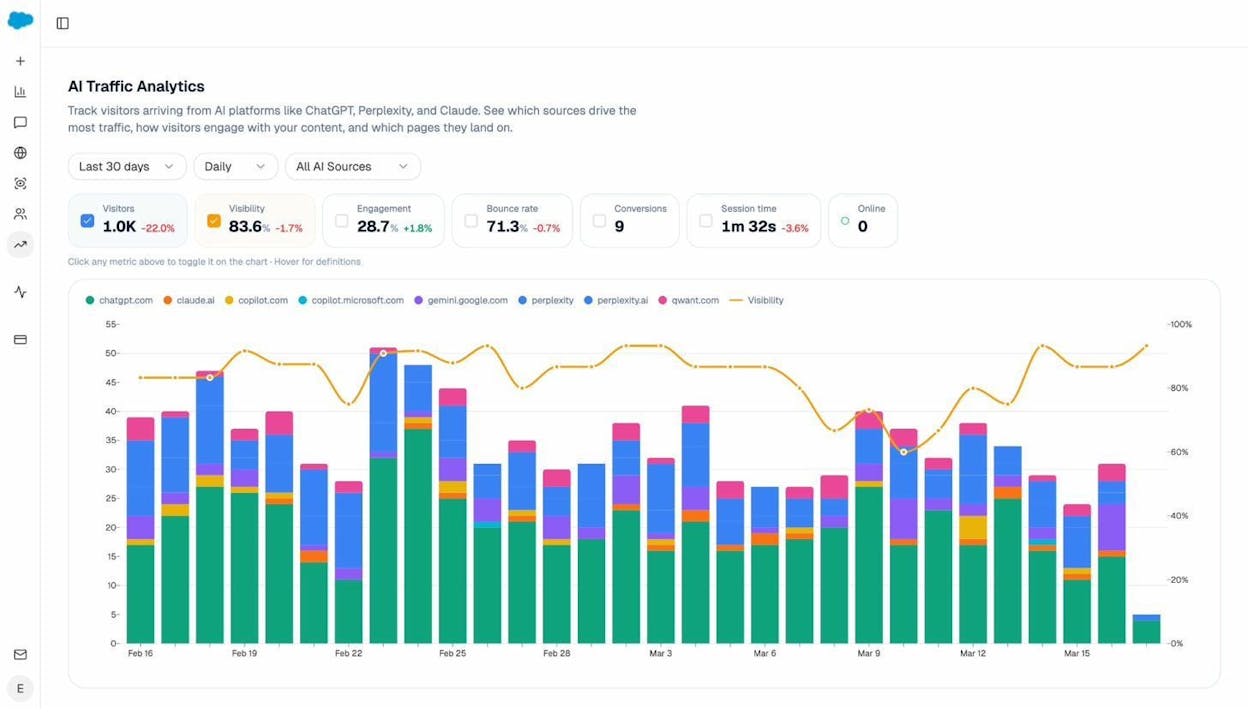
This data turns the “should I block AI crawlers?” question from a guess into an informed decision. If Perplexity is sending you 200 visitors a month and those visitors convert at 3%, you know exactly what you’d lose by blocking PerplexityBot.
You can also use the Sources dashboard to see which of your pages AI engines cite most frequently when answering questions in your space.
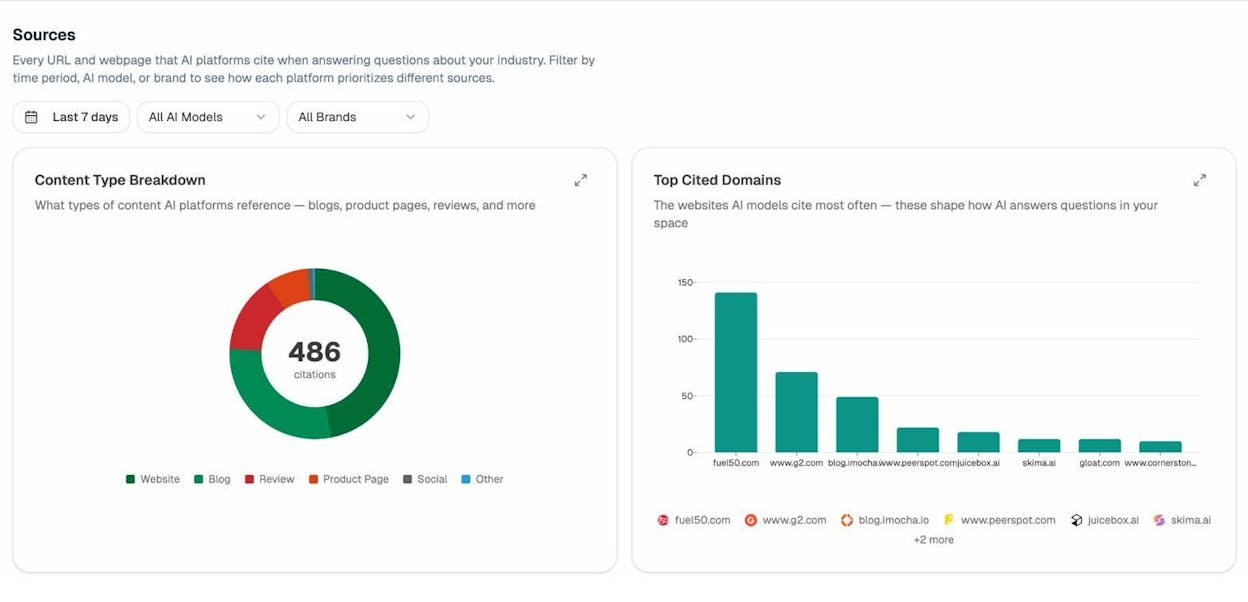
If a page is frequently cited by AI engines and driving traffic, removing it from AI crawlers’ reach would be a costly mistake. On the other hand, if AI engines are scraping content from pages you’d rather keep proprietary, you now have the data to justify blocking specific bots on those pages.
How to Avoid Common Crawlability and Indexation Mistakes
Getting robots directives right isn’t hard in theory. But in practice, these are the mistakes that trip up even experienced SEO teams.
Mistake #1: Noindexing Pages That Are Blocked in Robots.txt
This is the most common and most damaging mistake. If you add a noindex meta tag to a page but also block that page in robots.txt, the crawler can never reach the page to see the noindex directive. The page stays indexed.
The fix: if you want a page deindexed, make sure it’s not blocked in robots.txt. The crawler needs to access the page, read the noindex tag, and process it.
To find pages where this conflict exists, run a site audit using a crawler like Screaming Frog or Sitebulb. Look for pages that have a noindex tag but are also disallowed in robots.txt. You can also check Google Search Console’s page indexing report for pages that are “Blocked by robots.txt” but still appearing in search results.
![[Screenshot: Google Search Console page indexing report showing “Blocked by robots.txt” status for pages that should be noindexed]](https://www.datocms-assets.com/164164/1776793527-blobid7.png?auto=format,compress&w=1248&fit=max)
Mistake #2: Poor Sitemap Management During Deindexing
When you add a noindex tag to a page, don’t immediately remove it from your sitemap. Google uses sitemaps as a crawl signal — keeping the page in the sitemap encourages Google to recrawl it, discover the noindex directive, and process it faster.
Once the page has been successfully deindexed (verify this in Google Search Console), then remove it from your sitemap.
You can also speed up the process by updating the <lastmod> date in your sitemap to the date you added the noindex tag. This signals to Google that the page has changed and encourages faster recrawling.
Long-term rule: Never keep noindex pages in your sitemap permanently. Once deindexed, remove them.
Mistake #3: Leaving Noindex Directives After a Migration
Preventing indexation in a staging environment is standard practice. The problem happens when those staging directives get pushed to production during a site migration, a redesign, or a deployment — and nobody catches it.
The traffic drop might not even be obvious at first. If you’re migrating with 301 redirects, the old URLs will still carry traffic for a while. By the time Google processes the new URLs and sees the noindex tags, you’ve lost weeks of organic traffic.
Prevention checklist for deployments:
-
Verify robots meta tags are removed from all production templates before going live
-
Check the <head> section of key pages immediately after deployment
-
Set up automated alerts in your site audit tool for any noindex directives on pages that should be indexed
-
Include “remove staging noindex tags” as a mandatory step in your deployment checklist
![[Screenshot: A site audit tool showing noindex warnings in an indexability report]](https://www.datocms-assets.com/164164/1776793527-blobid8.png?auto=format,compress&w=1248&fit=max)
Mistake #4: Hiding “Secret” URLs in Robots.txt Instead of Noindexing Them
Developers sometimes try to hide upcoming promotion pages or secret product launch URLs by adding them to robots.txt. The problem: robots.txt is a publicly accessible file. Anyone can view it at yourdomain.com/robots.txt.
If you put a URL path in your robots.txt, you’re essentially publishing a list of pages you don’t want found. That defeats the purpose entirely.
Instead, use noindex meta tags on the pages themselves and skip robots.txt entirely. The pages won’t appear in search results, and their URLs won’t be broadcasted to anyone who checks your robots.txt.
Mistake #5: Forgetting About AI Crawlers in Your Robots Configuration
This is a newer mistake, but it’s becoming more common. Many sites have well-configured robots.txt files for Googlebot and Bingbot but haven’t added any rules for AI crawlers like GPTBot, ClaudeBot, or PerplexityBot.
If you have content you want to protect from AI model training — proprietary research, premium guides, gated resources — and you haven’t explicitly addressed AI crawlers in your robots configuration, those crawlers are free to access and ingest everything.
Review your robots.txt and add rules for AI user-agents where appropriate:
# Allow Google Search but block AI training
User-agent: Google-Extended
Disallow: /
# Block OpenAI's training crawler but allow ChatGPT browsing
User-agent: GPTBot
Disallow: /premium/
Disallow: /research/
# Block Anthropic's crawler
User-agent: ClaudeBot
Disallow: /premium/
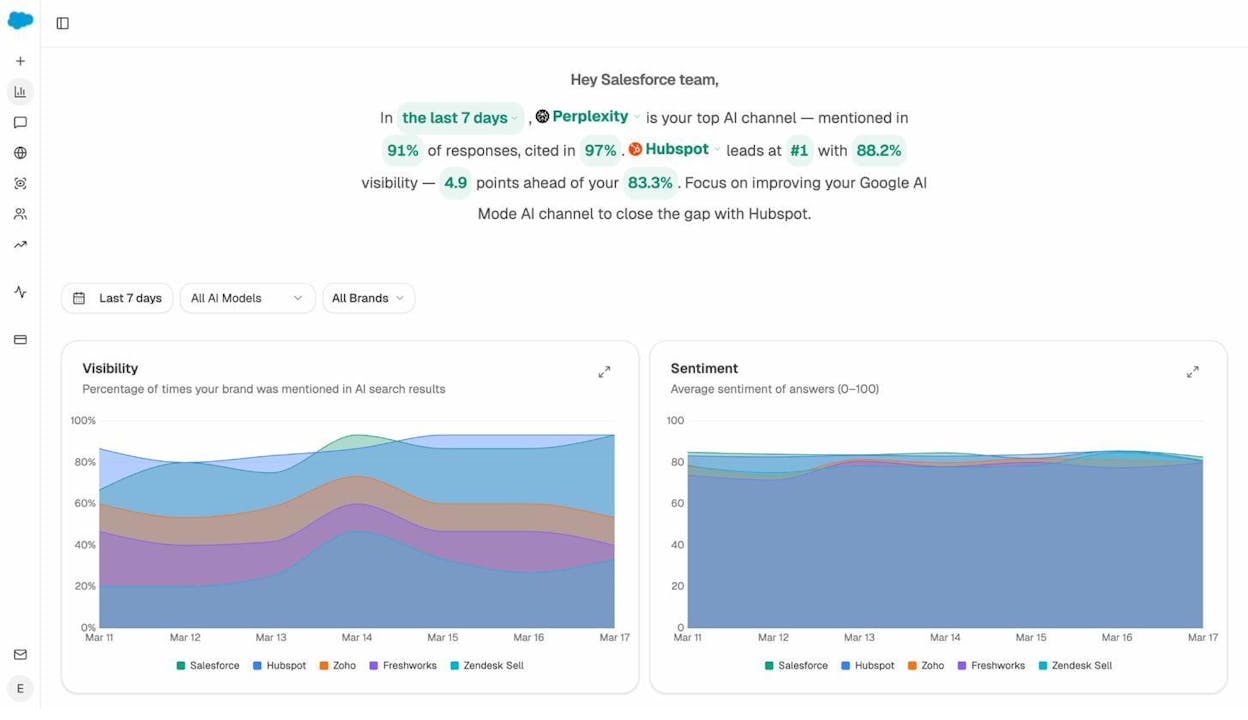
The key is being intentional. Don’t blanket-block all AI crawlers unless you’ve decided that AI search visibility has no value for your brand. And if you’re unsure, use Analyze AI to see which AI platforms are already citing your content and driving traffic before making that call.
Quick Reference: Robots Meta Tag vs. X-Robots-Tag vs. Robots.txt
|
Feature |
Robots Meta Tag |
X-Robots-Tag |
Robots.txt |
|---|---|---|---|
|
Where it lives |
HTML <head> section |
HTTP response header |
Text file at root (/robots.txt) |
|
What it controls |
Indexation, snippets, caching |
Indexation, snippets, caching |
Crawl access (allow/disallow) |
|
Applies to |
HTML pages only |
Any file type (PDF, images, etc.) |
URL paths and patterns |
|
Granularity |
Per-page |
Per-page or per-file type |
Per-directory or per-URL pattern |
|
Can block indexation? |
Yes (noindex) |
Yes (noindex) |
No (only blocks crawling) |
|
Can control snippets? |
Yes |
Yes |
No |
|
Works for AI crawlers? |
Varies by platform |
Varies by platform |
Yes (most respect it) |
|
Needs server access? |
No (CMS plugins work) |
Yes |
Depends (often CMS-managed) |
Final Thoughts
Robots meta tags and X-Robots-Tags are two of the most practical tools in technical SEO. They let you control what gets indexed, what gets displayed in search results, and — increasingly — what gets ingested by AI models.
The fundamentals haven’t changed. Use noindex to keep pages out of search results. Use X-Robots-Tags for non-HTML files and bulk changes. Don’t block pages in robots.txt if you need crawlers to see your meta directives.
What has changed is the landscape. AI crawlers are a new variable in the equation, and the decision of what to allow and what to block now carries implications beyond Google’s search results. Your content visibility in ChatGPT, Perplexity, Claude, and Gemini depends on whether those platforms’ crawlers can access your pages.
The smartest approach is to treat AI search as another organic channel — not a replacement for traditional SEO, but an extension of it. Keep your robots directives clean, monitor what’s working across both search and AI, and make decisions based on data.
If you want to see exactly how your content performs across AI search engines — which pages get cited, which platforms drive traffic, and where your brand appears in AI-generated answers — Analyze AI gives you that visibility in a single dashboard.

Ernest

Ibrahim


