



Summarize this blog post with:


Content marketing can become complicated fast. Between ideation, writing, editing, publishing, and performance tracking, even a small content team juggles dozens of moving pieces every week. And every manual handoff is a place where things slow down, fall through the cracks, or just waste time.
Smart content leads solve this with automation. Not by replacing the creative work, but by eliminating the repetitive, operational tasks that surround it.
In this article, you’ll learn nine content automations used by experienced content marketers, including step-by-step breakdowns of how to set each one up. You’ll also learn how to extend these automations beyond traditional SEO workflows to cover AI search, a growing organic channel that most content teams still track manually.
Table of Contents
1. Centralize your entire content workflow in one base
Every content automation starts with a single source of truth. Without one, you’re stitching together spreadsheets, Slack threads, and Google Docs, and nothing talks to anything else.
Most experienced content leads build this base in Airtable, though Notion and Monday.com work too. The point is to have one place that holds your topic ideas, keyword data, briefs, article drafts, contributor assignments, statuses, and deadlines.
Here’s what a well-structured content base typically includes:
|
Field |
Purpose |
|---|---|
|
Topic / Working Title |
The article’s subject |
|
Target Keyword |
The primary SEO keyword |
|
Search Volume + Difficulty |
From your keyword research tool |
|
Status |
Draft, Writing, Reviewing, Editing, Published |
|
Writer |
Assigned contributor |
|
Editor |
Assigned reviewer |
|
Brief Link |
Google Doc or Notion link |
|
Draft Link |
Google Doc link to the article |
|
Publish Date |
Scheduled or actual date |
|
URL |
Live article URL once published |
![[Screenshot: Airtable content base with columns for topic, keyword, status, writer, editor, brief link, and publish date]](https://www.datocms-assets.com/164164/1776707251-blobid1.png?auto=format,compress&w=1248&fit=max)
The power of this setup is that every automation you build later connects back to this base. When a status changes, things happen. When a new row is added, things happen. The base is the engine.
How to set it up:
-
Create a new Airtable base with the fields above. Use Single Select for your Status field so automations can trigger on specific values.
-
Add a Calendar view so your team can see upcoming deadlines at a glance.
-
Add a Kanban view grouped by Status so you can visually track where every article sits in the pipeline.
-
Create a Form view that lets other teams (sales, product, support) submit content requests without touching your base directly.
![[Screenshot: Airtable kanban view showing articles grouped by status columns like “Writing,” “Reviewing,” “Editing,” “Published”]](https://www.datocms-assets.com/164164/1776707258-blobid2.png?auto=format,compress&w=1248&fit=max)
Tip: If you use a keyword research tool to find topics, export your keyword list and import it directly into Airtable. This saves you from copying and pasting individual keywords. If you want keywords already grouped by intent, use keyword clustering before importing so you don’t have to sort them later.
Add AI search data to your content base
Most content bases only track SEO metrics like search volume and keyword difficulty. But if you want a complete picture of where your content shows up, you should also track whether a topic triggers AI-generated answers.
In Analyze AI, you can see which prompts your brand appears in across ChatGPT, Perplexity, Gemini, Claude, and Copilot. You can use this data to add an “AI Visibility” column to your content base.
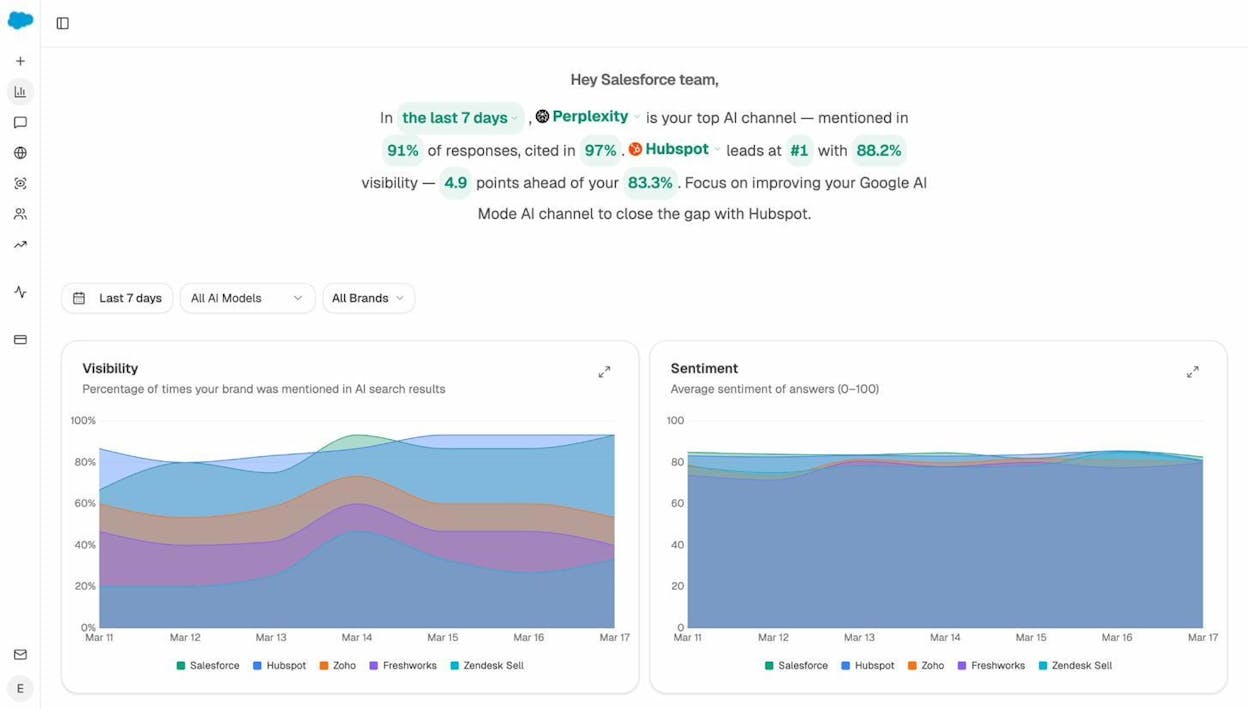
Here’s how to do it:
-
In Analyze AI, go to your Prompts dashboard. This shows every tracked prompt along with your brand’s visibility percentage, sentiment score, and position.
-
For each topic in your content base, check if you’re visible in AI search results for related prompts.
-
Add a column to your Airtable called “AI Visibility Status” with options like “Visible,” “Not Visible,” or “Competitor Wins.”
-
Prioritize topics where competitors appear in AI answers but you don’t. These are gaps worth closing.
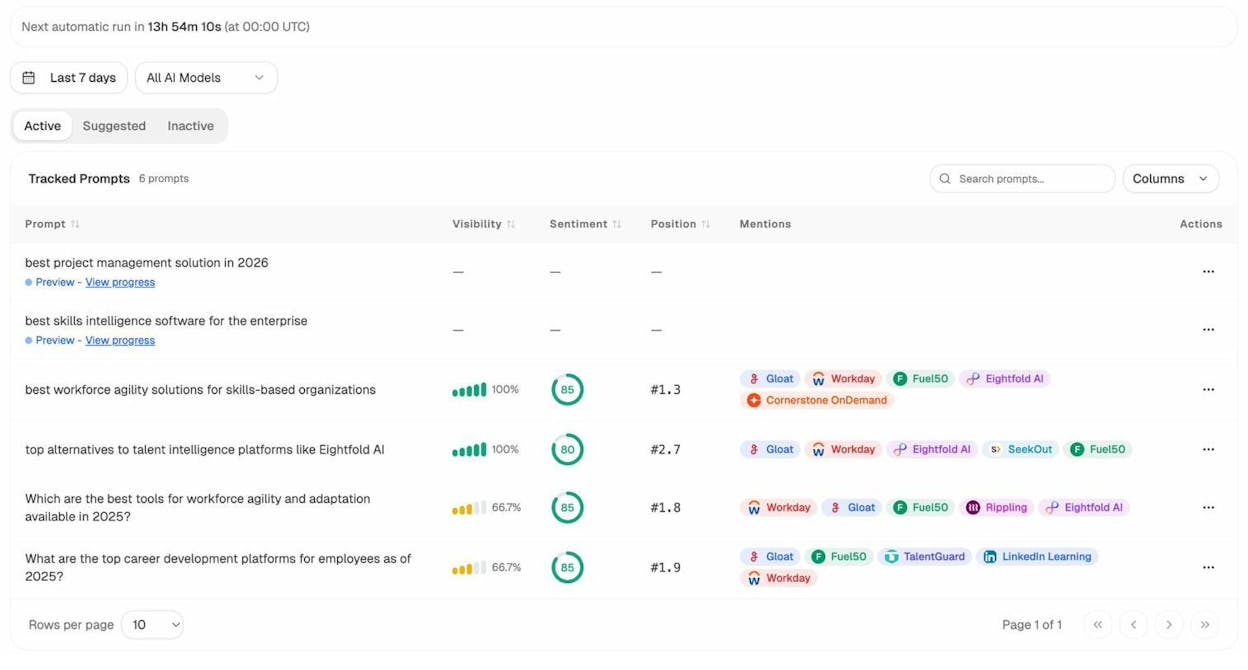
This gives your content calendar a dimension most teams don’t have: visibility across both traditional search and AI search in one view.
2. Automate article assignments, reviews, and handoffs
The most time-consuming part of managing a content team isn’t the writing. It’s the coordination: assigning articles, sending reminders, routing drafts to reviewers, and tracking who’s done what.
You can automate all of this with a combination of Airtable automations and Zapier (or Make).
Here’s the workflow, broken into stages:
Stage 1: Assign the article to a writer
When you change an article’s status to “Writing” in your Airtable base, this triggers two things:
-
An Airtable automation adds the brief link to the writer’s Google Sheet (their personal task list).
-
A Zapier Zap detects the new row in Google Sheets and sends the writer an email with their assignment details: topic, deadline, brief link.
![[Screenshot: Airtable automation setup showing the trigger “When Status changes to Writing” and the action “Create a row in Google Sheets”]](https://www.datocms-assets.com/164164/1776707268-blobid5.png?auto=format,compress&w=1248&fit=max)
Stage 2: Notify the content lead when the draft is done
When the writer marks their row as “Done” in their Google Sheet, a Zap triggers a Slack message to the content lead: “Writer X has submitted [Article Title]. Ready for review.”
![[Screenshot: Slack notification showing a writer submission alert with article title and link]](https://www.datocms-assets.com/164164/1776707274-blobid6.png?auto=format,compress&w=1248&fit=max)
Stage 3: Route the article to a subject matter expert
The content lead changes the status to “Reviewing.” This triggers an automation that adds the draft link and brief to the reviewer’s Google Sheet and sends them an email.
Here’s a detail worth getting right: make the email template conditional. If it’s the reviewer’s first pass on this article, the email says “New article for review.” If it’s a second review after the writer made revisions, the email says “Revised article ready for your second review.” You can set this up in Zapier using a Filter step that checks whether the article’s review count is greater than 1.
![[Screenshot: Zapier workflow showing conditional email logic based on review count]](https://www.datocms-assets.com/164164/1776707274-blobid7.png?auto=format,compress&w=1248&fit=max)
Stage 4: Handle revisions
If the reviewer flags changes, the content lead sets the status to “Writer is updating.” This triggers an automation that updates the writer’s Google Sheet and sends them an email saying their article needs revisions, with the reviewer’s comments attached.
Stage 5: Route to the editor
Once the article passes review, the content lead sets the status to “Editing.” Same pattern: a row is added to the editor’s Google Sheet, and they receive an email with the article link.
![[Screenshot: Airtable automation setup showing the trigger “When Status changes to Editing” and the action “Create a row in Editor’s Google Sheet”]](https://www.datocms-assets.com/164164/1776707280-blobid8.png?auto=format,compress&w=1248&fit=max)
When the editor finishes, they mark it done, and the content lead gets a Slack message confirming the article is ready to publish.
Why this matters: At scale, this automation eliminates dozens of manual emails per week. One content lead reported managing 20-30 articles per month across multiple writers and reviewers without sending a single manual assignment email. Every handoff happens automatically when a status changes.
3. Auto-generate content briefs with keyword data
If you create briefs using the same template every time, you can automate the setup. Instead of copying a Google Doc template and manually filling in the keyword, topic, and format, let the automation do it.
How to set it up:
-
In your Airtable base, create an automation with two trigger conditions: the article’s status must be “Brief Needed,” and the Brief Link field must be empty (so the automation doesn’t run twice).
-
Set the action to create a Google Doc from a template. Pass in variables from Airtable: the target keyword, topic name, content format (guide, listicle, comparison), and any notes.
-
After the doc is created, update the Airtable row with the new doc’s link.
![[Screenshot: Airtable automation showing the trigger conditions “Status = Brief Needed” AND “Brief Link is empty” with action “Create Google Doc from template”]](https://www.datocms-assets.com/164164/1776707280-blobid9.png?auto=format,compress&w=1248&fit=max)
Your brief template should include sections like:
|
Section |
What to include |
|---|---|
|
Target Keyword |
Primary keyword and any secondary keywords |
|
Search Intent |
What the searcher is trying to accomplish |
|
Audience |
Who this article is for |
|
Angle |
What makes this article different from existing results |
|
Outline |
Suggested H2s and H3s |
|
Competitors to beat |
URLs of the top-ranking articles for this keyword |
|
Internal links |
Relevant pages on your site to link to |
|
Word count target |
Based on what’s ranking |
Tip: You can make your briefs stronger by pulling in subtopic data before you write. Go to your keyword research tool, enter your target keyword, and look at the keywords that top-ranking articles also rank for. These are subtopics worth covering.
![[Screenshot: Keyword research tool showing the SERP overview with top-ranking articles and a “Content gap” feature highlighting subtopics]](https://www.datocms-assets.com/164164/1776707285-blobid10.png?auto=format,compress&w=1248&fit=max)
If you already have a published article and want to optimize it, you can run it through a content grading tool that compares your article’s coverage against the top results and flags missing subtopics.
![[Screenshot: Content grading tool showing a score and a list of missing subtopics to add]](https://www.datocms-assets.com/164164/1776707288-blobid11.png?auto=format,compress&w=1248&fit=max)
Enrich your briefs with AI search data
Here’s where most content teams stop. They research what’s ranking in Google and build the brief around that. But the same topic may also trigger AI-generated answers in ChatGPT, Perplexity, or Google AI Mode, and those answers might prioritize different angles, sources, or formats.
Before finalizing your brief, check Analyze AI’s Prompts dashboard for related prompts. Look at which competitors appear in AI answers, what sources are cited, and what angles the AI models emphasize.
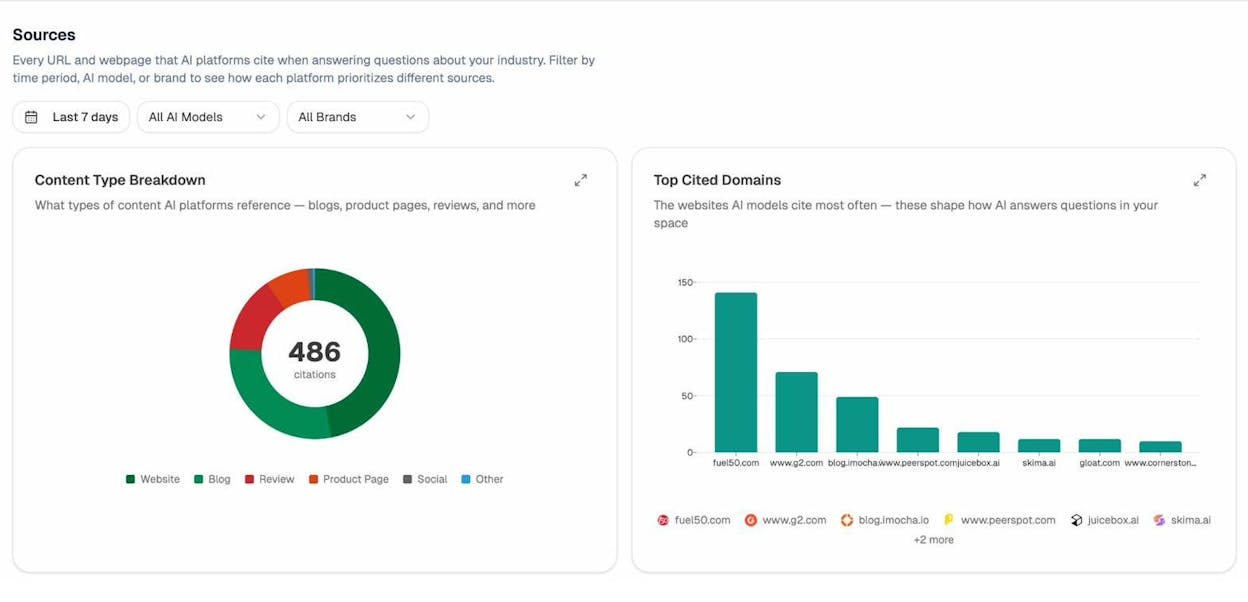
The Sources view shows you exactly which domains and URLs are being cited by AI models in your category. If a competitor’s blog post is getting cited by ChatGPT for a topic you’re writing about, that’s a signal to study that piece and create something more comprehensive.
You can also use the Suggested Prompts tab in Analyze AI to discover related prompts you hadn’t considered. These often reveal long-tail questions that make great H2s or FAQ sections.
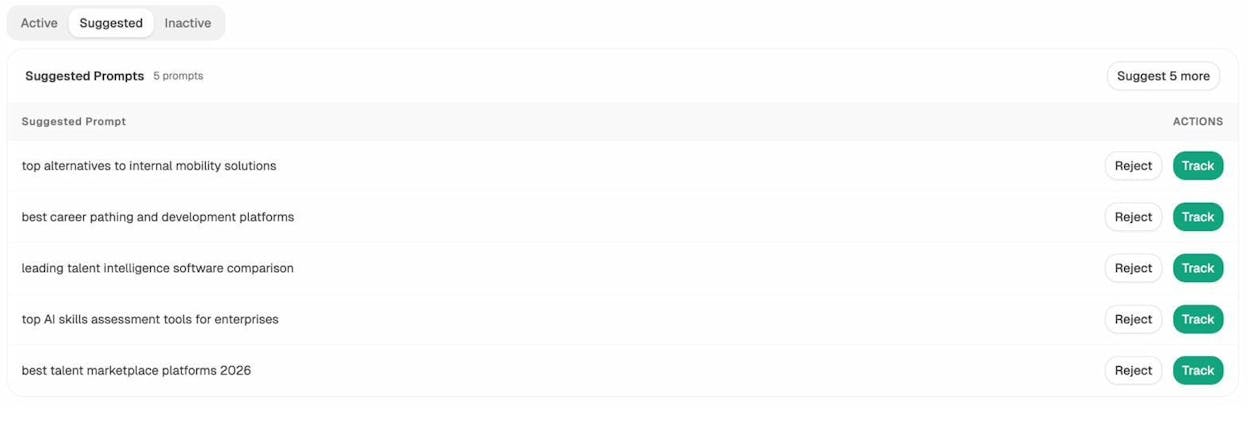
Add a “Key AI Prompts” section to your brief template. Include the prompts where competitors are visible and your brand is not. This gives the writer a clear picture of what the article needs to cover to perform in both channels.
4. Capture content ideas from anywhere in seconds
Content ideas show up at inconvenient times. You’re in a meeting, scrolling Slack, reading a customer support ticket, or talking to a sales rep. If you have to open your Airtable base every time to log an idea, many of them will slip through the cracks.
The solution: build a lightweight capture system that feeds into your content base automatically.
Option 1: Slack to Airtable
-
Create a dedicated Slack channel called #content-ideas.
-
Set up a Zapier Zap that triggers when a new message is posted in that channel.
-
The Zap creates a new row in your Airtable content base with the message text as the topic and a status of “Idea.”
-
Add a Slack bot confirmation that replies to the message with a link to the Airtable row.
![[Screenshot: Slack channel showing a content idea message and the bot’s confirmation reply with an Airtable link]](https://www.datocms-assets.com/164164/1776707296-blobid14.jpg?auto=format,compress&w=1248&fit=max)
Option 2: Email to Airtable
If your team prefers email, set up a Zap that watches a specific email address (like [email protected]) and creates Airtable rows from incoming emails. The subject line becomes the topic, and the body becomes a notes field.
Option 3: Browser extension
Use a tool like Bardeen or the Airtable Web Clipper to save articles, SERP results, or social posts directly into your base while browsing.
Tip: Once an idea lands in your base, don’t let it sit forever. Set up a weekly automation that sends you a digest of all rows with status “Idea” so you can triage them during your planning session. Decide whether each idea moves to “Approved” or “Rejected.” This keeps your pipeline clean.
Use AI search data to source content ideas
Most content idea systems rely on keyword research, customer feedback, or team brainstorming. But there’s another source of ideas hiding in plain sight: the questions people are asking AI models.
In Analyze AI, the Prompts dashboard shows the exact prompts your brand is being searched for across ChatGPT, Perplexity, Claude, Gemini, and Copilot. Some of these prompts won’t match any keyword in your SEO pipeline because they’re phrased as conversational questions, not search queries.
For example, a prompt like “What’s the best way to automate content publishing for a small team?” might not show up as a high-volume keyword, but it’s a real question that real people are asking AI models. If your brand isn’t appearing in the answer, that’s a content gap worth filling.
Check the Suggested Prompts tab regularly and add relevant ones to your content idea pipeline.
5. Share published content across your organization automatically
The more content you publish, the harder it gets for other teams to keep up. Sales doesn’t know about the new case study. Customer success missed the product update post. The CEO didn’t see the thought leadership piece that went live last week.
You can solve this with a simple automation:
-
In Airtable, set up an automation that triggers when an article’s status changes to “Published.”
-
The action sends a Slack message to a #content-published channel with the article title, URL, and a one-line summary.
-
Optionally, send an email to specific stakeholders (your CMO, head of sales, etc.) with the same information.
![[Screenshot: Slack message in a #content-published channel showing a new article notification with title, URL, and summary]](https://www.datocms-assets.com/164164/1776707300-blobid15.png?auto=format,compress&w=1248&fit=max)
Take it further with AI summaries:
If you want to make your content library searchable and useful for other teams, add an AI-generated summary to each published article’s Airtable row. Set up a Zap that runs when an article is published:
-
The Zap fetches the article content from its URL.
-
It sends the content to an AI step (Zapier has a built-in ChatGPT integration) with a prompt like: “Summarize this article in 2-3 sentences for a sales team member who needs to know if it’s relevant to share with prospects.”
-
The summary is written back to a “Summary” field in Airtable.
Now your sales team can scan Airtable for relevant content without reading every article.
6. Automate keyword research and clustering
Keyword research is one of those tasks that feels manual by nature: you type seed terms into a keyword tool, export results, filter them, group them, and then decide what to write. But several parts of this process can be automated or at least streamlined.
Step 1: Generate keyword ideas at scale
Start with a seed keyword in a tool like Analyze AI’s Keyword Generator. Enter your core topic and generate a list of related keywords with search volume and difficulty data.
You can also use the Bing Keyword Tool, the YouTube Keyword Tool, or the Amazon Keyword Tool depending on the platform you’re targeting.
![[Screenshot: Analyze AI Keyword Generator tool showing a seed keyword input and a list of generated keywords with volume and difficulty]](https://www.datocms-assets.com/164164/1776707302-blobid16.png?auto=format,compress&w=1248&fit=max)
Step 2: Cluster keywords by intent
Once you have a list of 50-200 keywords, you need to group them. Keywords like “content automation” and “automate content marketing” likely have the same search intent, which means they should be targeted by the same article, not two separate ones.
Keyword clustering groups keywords that share the same intent based on SERP overlap: if the same pages rank for two keywords, those keywords belong in the same cluster.
You can do this in your keyword tool by using a “Cluster by Parent Topic” feature, or by exporting your keyword list and using a clustering tool. Either way, import the clustered results into your Airtable base so each content piece targets a cluster, not a single keyword.
Step 3: Check keyword difficulty before committing
Not every keyword is worth pursuing. Use a Keyword Difficulty Checker to see how hard it will be to rank for a given term. Cross-reference this with the SERP Checker to see who currently ranks and how strong their pages are.
![[Screenshot: Analyze AI Keyword Difficulty Checker showing a keyword with its difficulty score, search volume, and top-ranking pages]](https://www.datocms-assets.com/164164/1776707306-blobid17.png?auto=format,compress&w=1248&fit=max)
Step 4: Automate keyword tracking
Once you’ve chosen your target keywords and published content for them, set up automated rank tracking. Use a Keyword Rank Checker to monitor your positions over time. Set up weekly email alerts so you know immediately when a page gains or loses rankings.
7. Monitor AI search visibility changes automatically
Most content teams track Google rankings and organic traffic. Few track whether their content appears in AI-generated answers. This is a blind spot because AI search is a growing channel that drives real traffic, conversions, and revenue.
The challenge is that AI search results change constantly. A prompt that cited your brand last week might not cite you this week. A competitor might gain citations in a model that previously ignored them. You need to track these shifts, but doing it manually is impossible.
How to automate AI search monitoring
Analyze AI runs your tracked prompts daily across ChatGPT, Perplexity, Claude, Gemini, Copilot, and Google AI Mode. Every morning, you get updated data on your visibility, position, sentiment, and citations without doing anything.
Here’s what the automated monitoring gives you:
Visibility trends. The Overview dashboard shows your brand’s visibility percentage over time, broken out by AI model. You can spot trends before they become problems.
Prompt-level detail. The Prompts dashboard shows every tracked prompt with your current visibility, position, and the competitors who appear alongside you. If a competitor suddenly appears in a prompt where you used to be the only answer, you’ll see it here.
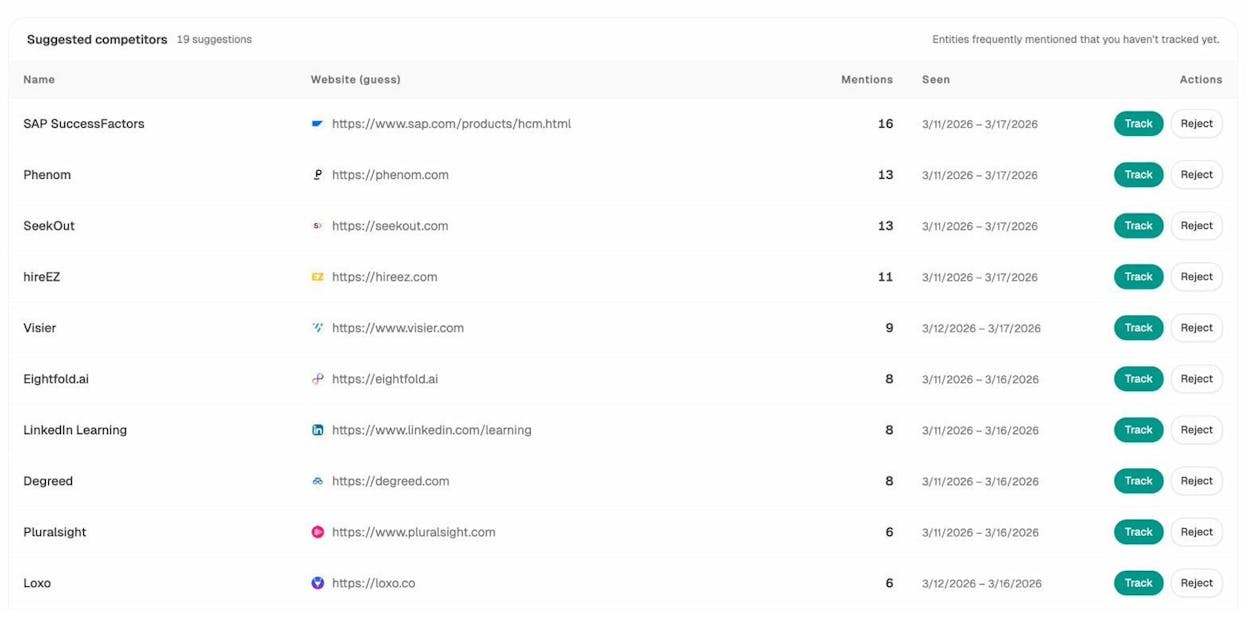
Competitor movements. The Competitors view shows which brands are gaining or losing visibility in your space. If a competitor is trending up, you can investigate which pages and content are driving their AI citations.
Weekly digest emails. Analyze AI sends you a weekly email summary with your key metrics: visibility change, citation momentum, pages gaining or losing AI traffic, and competitor alerts. You don’t need to log into the platform to stay informed.
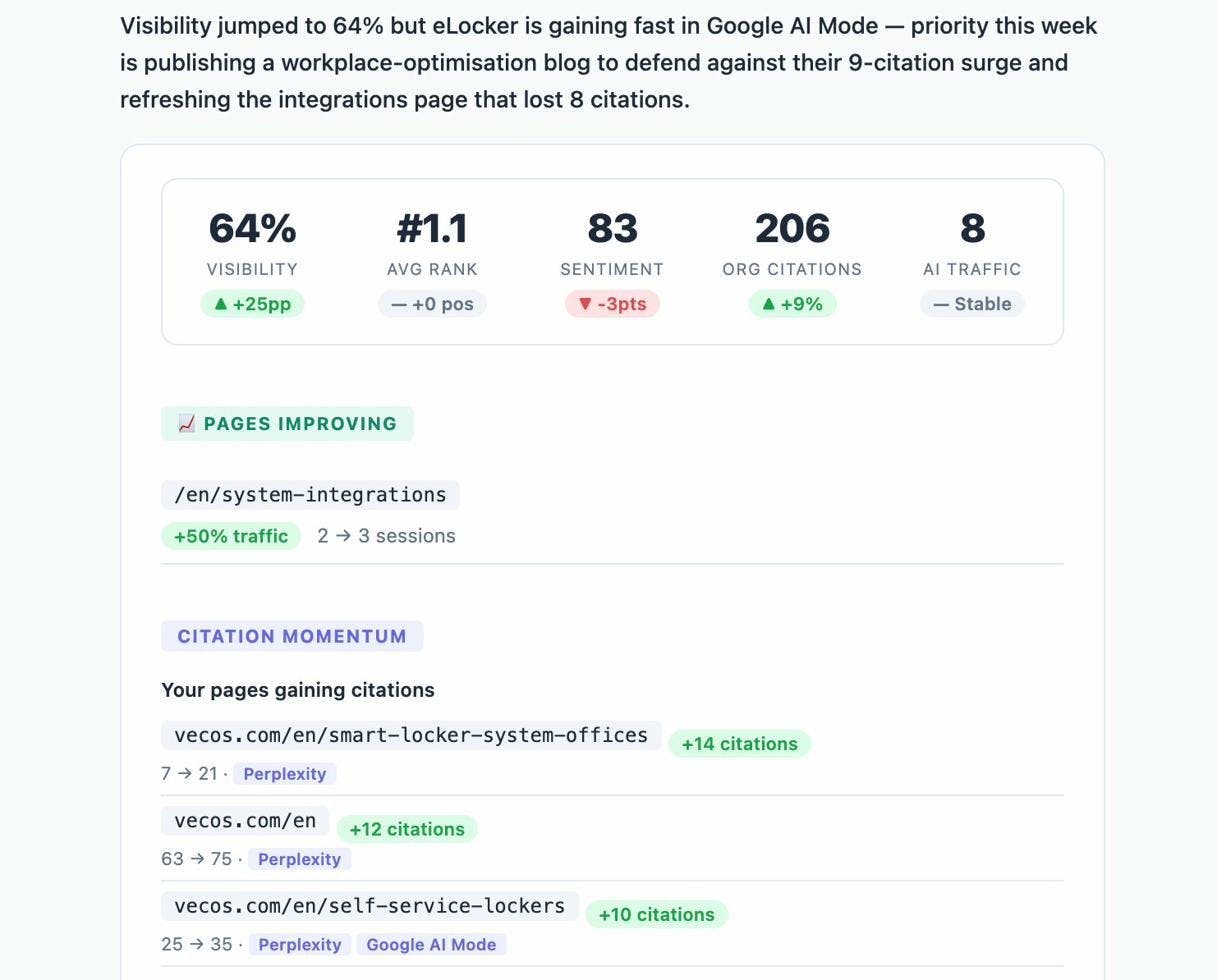
This is the AI search equivalent of rank tracking for SEO. Instead of checking manually, you get automated alerts whenever something meaningful changes.
Act on visibility changes
When Analyze AI shows you a visibility drop for a specific prompt, you can dig into the Sources view to see which domains and URLs are being cited instead of yours.
From there, you know exactly what content to create or improve. Maybe a competitor published a comprehensive guide that’s now getting cited. Maybe a third-party review site is being cited and you need to get listed there. The data tells you what to do next.
This fits naturally into your content workflow. When your weekly digest shows a gap, create a task in your Airtable base to address it. The gap becomes a content brief, the brief becomes an article, and the article closes the gap. That’s the loop.
8. Track content performance across SEO and AI search channels
After an article is published, you need to know if it’s working. Most teams track organic traffic and keyword rankings. But if you’re publishing content that also appears in AI-generated answers, you’re leaving performance data on the table if you only look at Google Analytics and Search Console.
The SEO performance layer
Set up automated reporting for your core SEO metrics. You can do this with SEO reporting tools that pull data from Google Search Console and Google Analytics and send you weekly or monthly reports.
Track these metrics for every published article:
|
Metric |
What it tells you |
|---|---|
|
Organic sessions |
How much Google traffic the article drives |
|
Keyword rankings |
Where you rank for target and secondary keywords |
|
Click-through rate |
Whether your title and meta description are compelling |
|
Bounce rate |
Whether the content matches search intent |
|
Conversions |
Whether the article drives signups, demos, or purchases |
![[Screenshot: Google Analytics report showing organic sessions, bounce rate, and conversions for a blog article]](https://www.datocms-assets.com/164164/1776707316-blobid20.jpg?auto=format,compress&w=1248&fit=max)
Use the Website Traffic Checker to benchmark your site’s overall organic performance and the Website Authority Checker to monitor your domain’s authority score over time.
The AI search performance layer
Here’s where most teams have no visibility at all. Analyze AI’s AI Traffic Analytics dashboard connects to your Google Analytics (GA4) and shows you exactly how much traffic AI platforms are sending to your site.
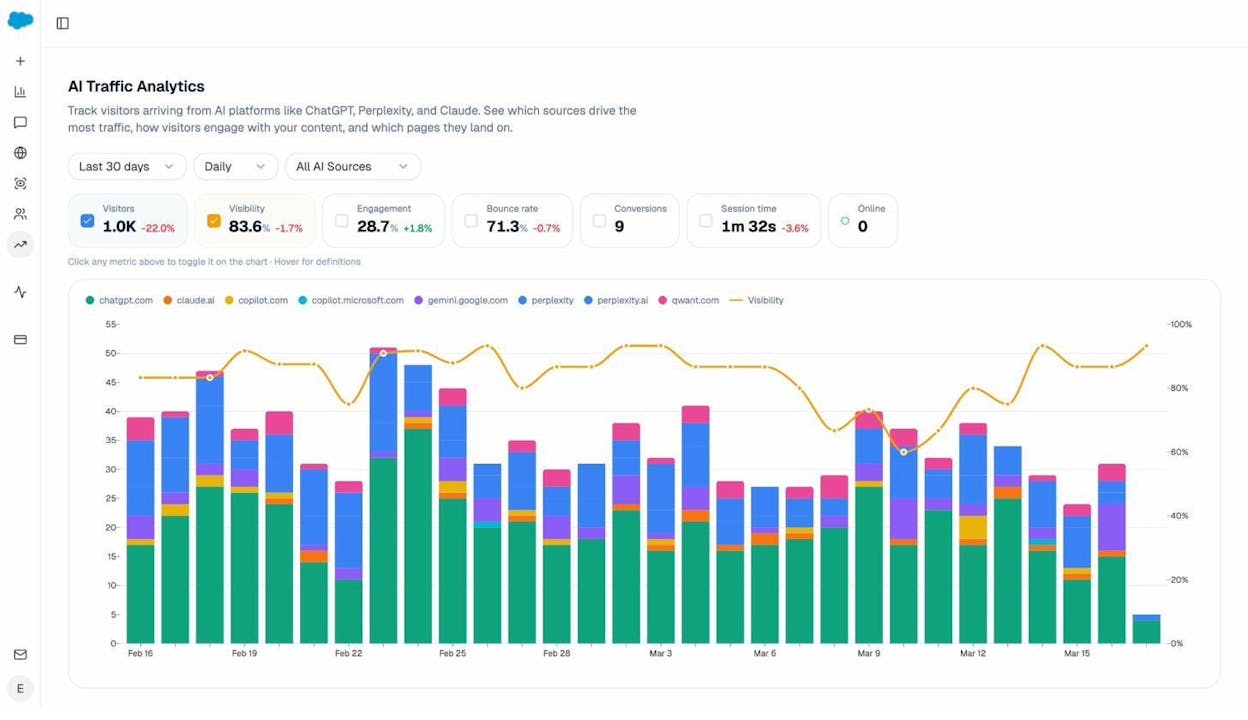
You can filter by AI source (ChatGPT, Perplexity, Claude, Copilot, Gemini, and others) and see which engine sends the most sessions, which pages receive AI traffic, and how that traffic converts compared to Google organic traffic.
This is critical data. It tells you whether your content is performing in both channels or just one. An article might rank #1 on Google but not appear in any AI answers. Another article might drive more conversions from Perplexity traffic than from Google. Without this data, you’re making decisions with half the picture.
Combine both layers into a single dashboard
Add AI traffic data to your content base in Airtable. For each published article, include columns for:
|
Column |
Source |
|---|---|
|
Google Organic Sessions (monthly) |
Google Analytics |
|
AI Search Sessions (monthly) |
Analyze AI |
|
Top AI Engine |
Analyze AI (which platform sends the most traffic) |
|
AI Visibility % |
Analyze AI (percentage of prompts where you appear) |
|
Keyword Rank |
Your rank tracking tool |
Now you have a complete picture. You can sort by AI traffic to find your best-performing AI content and double down on what works. You can sort by visibility gaps to find content that ranks on Google but doesn’t appear in AI answers. And you can spot articles that drive AI traffic but not Google traffic, which tells you something about how AI models evaluate content differently than Google’s algorithm.
9. Automate podcast and video production pipelines
If your content program includes podcasts or video, the production logistics can eat up hours every week. Guest scheduling, folder creation, asset collection, transcription, and repurposing all involve repetitive steps that are perfect for automation.
Here’s a production pipeline you can automate with Airtable, Zapier, and a few specialized tools:
Step 1: Guest books a time slot
Use Calendly (or Cal.com) for guest scheduling. When a guest books a time, a Zapier Zap creates a new record in your Airtable base with the guest’s name, email, booking date, and any pre-screening answers from your Calendly form.
![[Screenshot: Calendly booking form with fields for name, email, and pre-screening questions about episode topics]](https://www.datocms-assets.com/164164/1776707324-blobid22.jpg?auto=format,compress&w=1248&fit=max)
Step 2: Create a production folder automatically
The same Zap creates a new folder in Google Drive named after the guest and episode number. Inside, it creates two subfolders: one for the guest to upload their headshot and bio, and one for your team’s production files (audio, video, show notes).
![[Screenshot: Google Drive showing an auto-created episode folder with subfolders for “Guest Assets” and “Production Files”]](https://www.datocms-assets.com/164164/1776707328-blobid23.jpg?auto=format,compress&w=1248&fit=max)
Step 3: Send the guest their prep instructions
A follow-up Zap sends the guest an automated email with:
-
A link to their Google Drive folder (for headshot and bio uploads).
-
A link to a pre-recording questionnaire.
-
Technical instructions for the recording (mic recommendations, software setup).
Step 4: Get notified when assets arrive
When the guest uploads their headshot to the Google Drive folder, a Zap notifies your designer in Slack so they can start creating episode artwork. No manual check-ins needed.
Step 5: Transcribe and repurpose
After the episode is recorded and published, the audio or video goes through a transcription tool like Castmagic or Descript. From the transcript, you can automatically generate:
-
Show notes for your website.
-
Social media quotes.
-
A blog post summary.
-
An email newsletter blurb.
Some of these repurposing steps can be automated with AI. For example, a Zap can take the transcript, send it to ChatGPT with a prompt like “Extract the 5 most quotable moments from this podcast transcript,” and post the results to a Slack channel for your social media team.
Step 6: Publish across platforms
Use a tool like Castmagic to push the episode to your RSS feed, and connect your CMS (WordPress, Webflow, etc.) to Airtable so that changing the episode status to “Published” automatically creates a blog post with the show notes.
Bonus: Get notified when contributors drop new files
This one’s simple but surprisingly useful. Google Drive doesn’t notify you when someone uploads a file to a shared folder. So if a designer drops a finished graphic, a writer uploads their draft, or a guest uploads their headshot, you won’t know unless you check manually.
How to set it up:
-
Create a Zapier Zap with the trigger “New File in Folder” in Google Drive.
-
Set the action to send you an email (or a Slack message) with the contributor’s name and a direct link to the file.
That’s it. Two steps, and you never have to manually check a shared folder again.
FAQs
What’s the difference between content automation and automated (AI) content?
These terms sound similar but mean different things. Content automation uses tools to streamline the operational parts of content marketing: project management, assignments, notifications, publishing, and reporting. The content itself is still created by humans.
Automated content, on the other hand, refers to content generated entirely (or mostly) by AI, often without meaningful human review. This is a different practice with different trade-offs. You can have content automation without using any AI-generated content.
Is automating content good for SEO?
Content automation (streamlining workflows) is great for SEO because it helps you publish more consistently, brief writers more effectively, and track performance more accurately.
Automated content (AI-generated articles) is a different story. Google’s guidelines don’t penalize AI content per se, but they do penalize low-quality content that exists only to manipulate rankings. In practice, fully automated content with no human review tends to perform poorly over time because it lacks the depth, experience, and specificity that search engines and readers reward.
The content automation experts who shared their workflows in this article don’t use AI for content generation. They might use AI for outlines, subtopic research, or summaries, but the actual writing is done by humans. That’s a good benchmark to follow.
Is content automation for all team sizes?
Yes. The value changes depending on size, but the benefit is there for everyone.
For small teams (1-3 people), automation saves time. Instead of spending 30 minutes on operational tasks for every article, you spend 30 seconds changing a status. That time adds up fast.
For large teams (10+ people), automation keeps information flowing. When you have 20 writers, 5 reviewers, and 3 editors, you can’t coordinate by sending individual emails. Automation ensures everyone gets the right information at the right time without the content lead becoming a bottleneck.
What are the common pitfalls of content automation?
Two main ones.
Infinite loops. This happens when an automation triggers another automation that triggers the first one again. For example, changing a status in Airtable triggers a Zap that updates a Google Sheet, and the Google Sheet change triggers another Zap that updates Airtable, which triggers the first Zap again. Most automation tools have safeguards, but test your workflows before you go live.
Automating too early. Don’t automate a process you’ve only done once or twice. Do it manually a few times first. This helps you understand whether the process actually works before you lock it in. It’s much easier to change a manual process than to debug an automated one.
Can you automate content optimization for AI search?
You can’t automate the optimization itself. Writing content that AI models want to cite requires human judgment, original thinking, and subject-matter expertise. No automation can replace that.
But you can automate the monitoring and feedback loop. With a tool like Analyze AI, you get daily visibility data, weekly email digests, and automated tracking of your citations, competitors, and AI traffic. This tells you what’s working and what’s not so you can focus your optimization efforts where they’ll have the most impact.
The workflow looks like this: Analyze AI monitors your visibility across AI search engines on autopilot. When it surfaces a gap (a prompt where you’re not appearing, a competitor gaining citations, a page losing AI traffic), you create a task in your content base. From there, your standard content workflow takes over: brief, write, edit, publish. Then Analyze AI measures whether the new content closed the gap. That’s the loop.
It’s not about replacing human work with automation. It’s about using automation to surface the right work to do and track whether it worked. That’s the same principle behind all nine automations in this article: automate the operational overhead so you can focus on the creative and strategic work that actually moves the needle.
Final thoughts
Content automation isn’t about doing less work. It’s about doing less of the wrong work. Every minute you spend copying a link into an email, checking a Google Drive folder, or manually updating a spreadsheet is a minute you’re not spending on strategy, writing, or analysis.
Start small. Pick the one workflow that eats the most time every week and automate it. For most teams, that’s either article assignments (#2) or capturing ideas (#4). Once that’s running smoothly, add the next one.
And if you’re not tracking your content’s performance in AI search yet, that’s a gap worth closing. AI search is not replacing SEO, but it is becoming a meaningful organic channel alongside it. The teams that track both channels today will have a compounding advantage over those who wait.

Ernest

Ibrahim


