



Summarize this blog post with:


In this article, you’ll learn what redirects are, when to use them, and how each of the 11 types affects your SEO performance. You’ll also learn how to implement each type, when to choose permanent over temporary, and how to audit your redirects so that both search engines and AI answer engines can follow the right path to your content.
Table of Contents
What Is a Redirect?
A redirect sends users and bots to a new URL when they request an old one.
Think of it like mail forwarding. When you move to a new address, the postal service looks at the forwarding rules and delivers your mail to the new location instead of the old one. Redirects work the same way. A user or bot requests the old URL, and the server forwards them to the new one.
For example, if a company moves its blog from blog.example.com to example.com/blog, anyone who visits the old URL gets automatically forwarded to the new one. The user never sees an error page. The transition is invisible.
This matters for SEO because search engines like Google use redirects as signals to consolidate ranking factors between the old and new URLs. When done correctly, a redirect transfers link equity, canonicalization signals, and indexing status from the old page to the new one. When done incorrectly, you lose traffic, backlinks, and authority.
When to Use Redirects
You should use redirects when you need to:
-
Move a page or website to a new URL. You’ve redesigned your site and the URL structure changed.
-
Consolidate duplicate pages. Two URLs serve the same content and you want to merge their signals.
-
Merge two websites. You’ve acquired a company and want to bring their content under your domain.
-
Delete a page and point users somewhere useful. You removed an outdated blog post but want visitors to land on a relevant replacement.
-
Switch from HTTP to HTTPS. You’ve installed an SSL certificate and need to redirect insecure traffic.
-
Fix www vs. non-www issues. Both versions of your domain are live and you need to pick one as the canonical version.
-
Change your URL structure. You’re cleaning up your URL slugs or reorganizing your site architecture.
The goal in every case is the same. You want users and search engines to reach the right page without hitting a dead end.
Types of Redirects and Their SEO Impact
Redirects break down along two axes. The first is whether the redirect is permanent or temporary. The second is whether it happens on the server side or the client side.
The permanent vs. temporary distinction determines how search engines treat the redirect. A permanent redirect tells Google to transfer ranking signals to the new URL. A temporary redirect tells Google to keep the original URL indexed.
The server-side vs. client-side distinction determines reliability. Server-side redirects happen before any content loads, which makes them fast and dependable. Client-side redirects require the browser to load the page first, which makes them slower and riskier.
Here are reference tables that categorize each redirect type.
|
Permanent Redirects |
||
|---|---|---|
|
Server-Side |
Client-Side |
No Actual Redirect |
|
HTTP 301 |
Meta refresh (0 seconds) |
Crypto redirect |
|
HTTP 308 |
HTTP refresh (0 seconds) |
|
|
JavaScript redirects |
For permanent redirects, the preferred order is: 308 / 301 > Meta refresh 0 / HTTP refresh 0 > JavaScript > Crypto.
|
Temporary Redirects |
|
|---|---|
|
Server-Side |
Client-Side |
|
HTTP 302 |
Meta refresh (>0 seconds) |
|
HTTP 303 |
HTTP refresh (>0 seconds) |
|
HTTP 307 |
For temporary redirects, the preferred order is: 307 / 302 / 303 > Meta refresh > HTTP refresh.
Server-side redirects do not have to happen on your hosting server. They can also happen on a CDN like Cloudflare or at the DNS level with your domain registrar. Client-side redirects always fire inside the user’s browser, but they can be added in multiple ways.
|
Where You Might Find Redirects |
|
|---|---|
|
Server-Side |
Client-Side |
|
Server-level (hosting, CMS plugins) |
HTML (meta refresh, JavaScript) |
|
DNS-level (domain registrar) |
HTTP header response |
|
CDN-level (Cloudflare, Fastly) |
CDN-level (in specific edge cases) |
Now let’s look at each redirect type in detail.
Permanent Redirects
A permanent redirect tells search engines that a page has moved to a new location for good. Use a permanent redirect when you:
-
Change the URL of a page and do not plan to change it back.
-
Migrate to a new domain.
-
Switch from HTTP to HTTPS.
-
Fix duplicate content caused by www vs. non-www or trailing slash inconsistencies.
-
Merge two or more pages or websites.
-
Restructure your entire URL architecture.
Permanent redirects are a strong canonicalization signal. They tell Google to consolidate ranking signals (backlinks, page authority, anchor text) from the old URL to the new one. The new URL inherits those signals and replaces the old URL in search results.
![[Screenshot: Diagram showing permanent redirect signal flow. Old URL with 10 backlinks redirects to new URL. New URL inherits all 10 backlinks.]](https://www.datocms-assets.com/164164/1777127687-blobid1.png?auto=format,compress&w=1248&fit=max)
Say you redirect site1.com/x to site2.com/x without changing the content. The backlinks pointing to site1.com/x now benefit site2.com/x as if they pointed there directly.
There is one exception. If the redirect is irrelevant, Google treats it as a soft 404. For example, if you redirect a detailed blog post about email marketing to your homepage, Google may not consolidate link signals because the two pages have nothing in common.
Rare edge case: Google may occasionally treat a permanent redirect as if it were temporary. If that happens, the old URL stays indexed instead of the new one. This is uncommon, but it means you should always verify how Google is handling your redirects.
To check, open Google Search Console, go to Links > External Links > Top linked pages, find the new URL, and filter by referring domains that linked to the old URL. If Google is consolidating links correctly, you will see the old URL in the “Target URL” column. If you see no matches for several referring domains, Google may be treating the redirect as a soft 404.
![[Screenshot: Google Search Console showing the Top linked pages report with external links filtered by referring domain to verify redirect consolidation]](https://www.datocms-assets.com/164164/1777127697-blobid2.png?auto=format,compress&w=1248&fit=max)
HTTP 301
A 301 redirect is the most common type of permanent redirect. It happens on the server side and tells both users and search engines that the page has permanently moved.
Every major search engine supports 301 redirects. They are the default choice for most redirect scenarios.
HTTP 308
A 308 redirect works the same as a 301 for SEO purposes. The only difference is that a 308 preserves the HTTP method (GET or POST) of the original request when performing the redirect.
This matters when you have forms that submit data via POST. A 301 redirect can change a POST request to a GET request, which could cause the form submission to fail. A 308 prevents that.
For pages that don’t involve forms, 301 and 308 are interchangeable.
JavaScript Redirects
A JavaScript redirect uses client-side code to instruct the browser to navigate to a different URL. Here is how the code looks in the HTML:
<script>
window.location.href = "https://example.com/new-page";
</script>
Google renders every page before indexing it, which means JavaScript redirects do work for SEO. But rendering is a separate step that can fail. If Google’s renderer doesn’t execute your JavaScript correctly, the redirect never fires and Google indexes the old page instead.
JavaScript redirects can also appear in framework configuration files. For example, Next.js has a built-in redirect function in its config file. Other frameworks handle them through their routers.
Bottom line: Use JavaScript redirects only when you cannot implement a server-side redirect. They work, but they are less reliable than 301s or 308s.
Meta Refresh (0 Seconds)
A meta refresh redirect tells the browser to navigate to a new URL after a specified number of seconds. When the delay is set to zero, Google treats it as a permanent redirect.
The meta refresh tag must be placed in the <head> section of the HTML:
<meta http-equiv="refresh" content="0; url=https://example.com/new-page">
Because it fires in the browser, a meta refresh is a client-side redirect. It requires the page to load before the redirect happens, which means it is slower than a server-side redirect.
HTTP Refresh (0 Seconds)
An HTTP refresh works like a meta refresh, but it lives in the HTTP header response instead of the HTML. It can be configured on the server, but it fires on the client side.
Refresh: 0; url=https://example.com/new-page
When the delay is zero, Google treats it as a permanent redirect, just like a meta refresh with zero delay.
Crypto Redirect
A crypto redirect is not a redirect in the traditional sense. It is a page that contains a message about moving to a new domain, along with a link to the new location, but no automatic redirect occurs.
<a href="https://new-domain.com/">We've moved! Visit our new site.</a>
Google treats this as a permanent redirect and will consolidate signals forward to the new URL. But other search engines and bots may not support it. If you have any other option available, use a proper redirect instead.
Temporary Redirects
A temporary redirect tells search engines that a page has moved to a new location, but only for now. Use a temporary redirect when you:
-
Redirect users to a localized version of your site based on their location or language.
-
Run an A/B test on a page’s design or content.
-
Temporarily send visitors to a promotional or seasonal page.
-
Take a page offline for maintenance and want to show an alternative in the meantime.
Temporary redirects are a weak canonicalization signal. In most cases, Google keeps the original URL indexed and consolidates ranking signals there, not at the redirect target.
![[Screenshot: Diagram showing temporary redirect signal flow. Old URL redirects to new URL but signals consolidate back to the old URL.]](https://www.datocms-assets.com/164164/1777127698-blobid3.png?auto=format,compress&w=1248&fit=max)
However, if a temporary redirect stays in place long enough, Google may start treating it as permanent. There is no fixed timeline for this. It can take days, weeks, or months. When the switch happens, Google drops the original URL from its index and replaces it with the new URL.
![[Screenshot: Diagram showing how signals eventually consolidate forward on long-standing temporary redirects]](https://www.datocms-assets.com/164164/1777127714-blobid4.png?auto=format,compress&w=1248&fit=max)
Google also seems quicker to make this switch when the redirect target is an established page with its own history and authority.
How to check whether Google treats your temporary redirect as permanent: Paste the redirected URL into Search Console’s URL Inspection tool. If the tool shows “URL is not on Google,” then Google is treating the redirect as permanent. If the URL is still indexed, Google considers it temporary. Make sure to check the last crawl date. If it predates your redirect, request re-indexing and check again later.
![[Screenshot: Google Search Console URL Inspection tool showing the indexing status of a redirected URL]](https://www.datocms-assets.com/164164/1777127718-blobid5.png?auto=format,compress&w=1248&fit=max)
HTTP 302
A 302 redirect is the most common type of temporary redirect. It tells search engines that the page has temporarily moved. Many CMS platforms default to 302 when you set up a redirect through their admin interface, so double-check that you’re using the correct status code for your intent.
HTTP 307
A 307 redirect works the same as a 302 for SEO purposes. The difference is that a 307 preserves the HTTP method (GET or POST) of the original request, just like a 308 does for permanent redirects.
There is a second version of a 307 that you may encounter when troubleshooting. It is related to HSTS (HTTP Strict Transport Security) and happens entirely inside the browser. When a server has an HSTS policy, the browser caches a 307 redirect that forces all HTTP requests to HTTPS. Google never sees this cached 307 because it only exists in the browser. To see the actual server response code, open a fresh Incognito window and navigate to the URL.
HTTP 303
A 303 redirect forwards the user to a similar resource and is temporary by nature. It is most commonly used to prevent form resubmissions when a user hits the back button. You will rarely see 303 redirects used for SEO purposes, but if you do, Google treats them the same as a 302 or 307.
Meta Refresh (Greater Than 0 Seconds)
When the delay in a meta refresh tag is greater than zero, Google treats the redirect as temporary.
<meta http-equiv="refresh" content="5; url=https://example.com/new-page">
This tells the browser to wait five seconds, then redirect. The delay makes it clear that the redirect is not permanent.
HTTP Refresh (Greater Than 0 Seconds)
Same as a meta refresh with a delay greater than zero, but set in the HTTP header response:
Refresh: 5; url=https://example.com/new-page
Google treats this as a temporary redirect.
Where Redirects Can Live
Beyond the permanent vs. temporary distinction, it helps to know where redirects are actually configured. This matters when you need to troubleshoot or when you want to choose the fastest implementation.
Server-Level Redirects
These are redirects configured directly on your web server. How you implement them depends on your server environment.
If you use Apache (common with WordPress), redirects go in your .htaccess file, which lives in your site’s root directory:
Redirect 308 "/old-page" "https://example.com/new-page"
![[Screenshot: Server file directory showing the .htaccess file in the root folder]](https://www.datocms-assets.com/164164/1777127721-blobid6.png?auto=format,compress&w=1248&fit=max)
You can also redirect using PHP:
header('HTTP/1.1 308 Moved Permanently');
header('Location: https://www.example.com/new-page');
exit();
If you use Nginx, redirects go in your server configuration file:
server {
location /old-page {
return 301 https://example.com/new-page;
}
}
Most CMS platforms like WordPress, Shopify, Wix, Squarespace, and Drupal have built-in redirect features or plugins that write these rules for you. On WordPress, plugins like Redirection and Yoast SEO handle redirects through the admin panel and write the rules to your .htaccess file behind the scenes.
Some systems work as error catchers rather than proactive redirectors. You set up the redirect rule, but it does not fire until the old page actually returns a 404. This adds an extra step but is less prone to accidental redirects.
DNS-Level Redirects
Your domain registrar or DNS provider can handle redirects before traffic ever reaches your server. This is common during domain migrations when you need to redirect an entire old domain to a new one.
Most DNS providers let you specify the status code (301 or 302) for the redirect. Some now support redirecting HTTPS URLs as well, which was not technically possible at this level in the past.
CDN-Level Redirects
CDNs like Cloudflare offer several ways to configure redirects at the edge, before requests reach your origin server. On Cloudflare specifically, you can use single redirects, bulk redirects, page rules, or Workers scripts.
Redirects at the CDN level are often the fastest because they fire at the edge server closest to the user. This reduces latency compared to server-level redirects, especially for global audiences.
Client-Side Redirects
Client-side redirects fire in the user’s browser. A user may briefly see the old page before the redirect happens. You should avoid client-side redirects unless they are your only option.
The two main client-side methods are meta refresh tags in the HTML and JavaScript redirects, both covered in detail above. The HTTP refresh header is technically set on the server, but it fires client-side in the browser.
In rare cases, you could use a CDN worker to rewrite HTML on the edge and inject a client-side redirect like a meta refresh. But this is uncommon and unnecessary when better server-side options exist.
How Redirects Affect AI Search Visibility
Redirects do not just affect traditional search engines. They also affect how AI answer engines like ChatGPT, Perplexity, Gemini, and Copilot find and cite your content.
AI models build their responses by pulling from sources they have crawled and indexed. If those sources have moved and the redirects are broken or misconfigured, the AI model may lose track of your content entirely. Here is what can go wrong.
Broken redirect chains cause lost citations. AI engines cite specific URLs. If that URL redirects through a long chain and eventually fails, the AI model stops citing it. Unlike Google, which will attempt to follow up to 10 hops, most AI crawlers are less forgiving. A clean, single-hop redirect keeps your citations intact.
Redirect loops kill AI crawlers. AI crawlers that hit a redirect loop will abandon the URL. The content behind it becomes invisible to the model, which means it will never appear in AI-generated answers.
Mismatched redirects confuse AI models. If you redirect a detailed product page to your homepage, Google may treat it as a soft 404. AI models do something similar. They evaluate whether the redirect target is relevant to the original URL. If it is not, they drop the citation.
Domain migrations break AI visibility if not handled properly. When you move to a new domain, AI models that previously cited your old domain need to re-crawl and re-index your content at the new URLs. If your redirects are broken during this window, you can lose months of AI visibility.
The takeaway is simple. Every redirect best practice that applies to Google also applies to AI search. Clean redirects, short chains, no loops, and relevant redirect targets protect your visibility in both channels.
How to Monitor AI Search Traffic After a Redirect
If you have recently implemented a batch of redirects or migrated to a new domain, you should monitor whether AI engines are still sending traffic to the right pages. Analyze AI tracks visitors arriving from ChatGPT, Perplexity, Gemini, Claude, Copilot, and other AI platforms so you can see exactly which pages they land on.
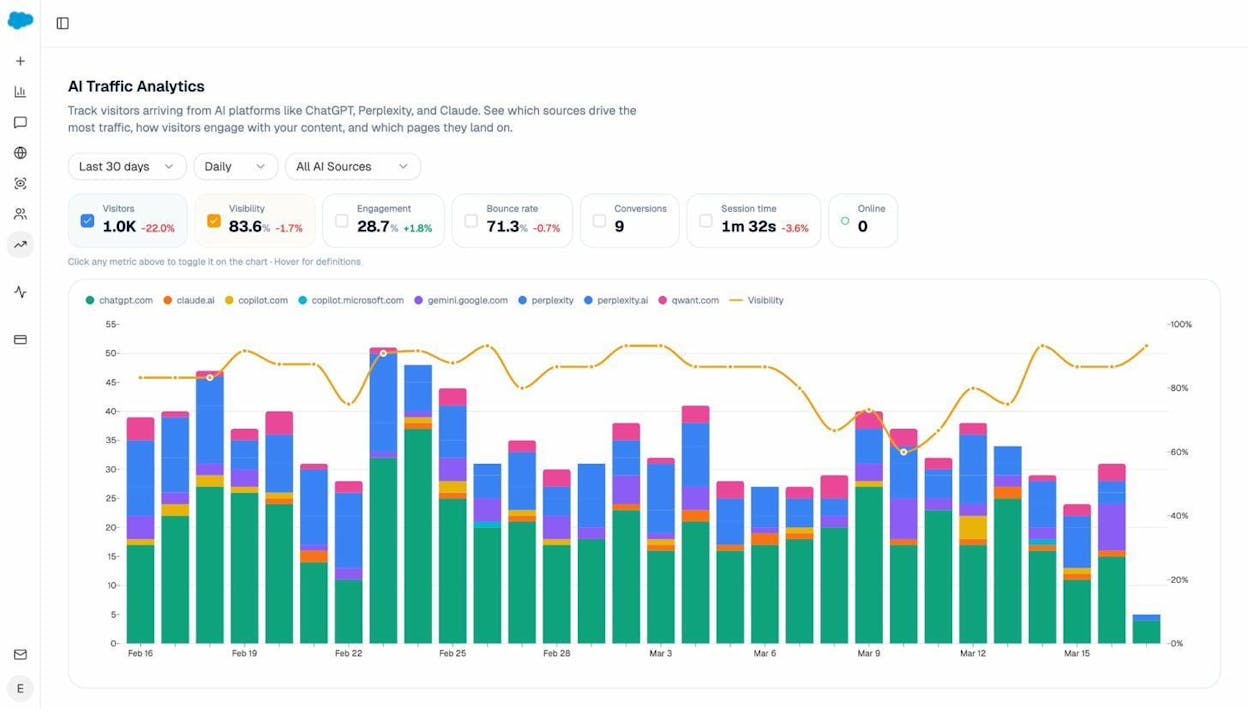
After a redirect, look for two things in the AI Traffic Analytics dashboard. First, check whether total AI-referred sessions dropped after the redirect went live. A sudden drop suggests that AI crawlers hit a broken redirect and stopped citing your content. Second, drill into the landing page report to see which URLs are receiving AI traffic.
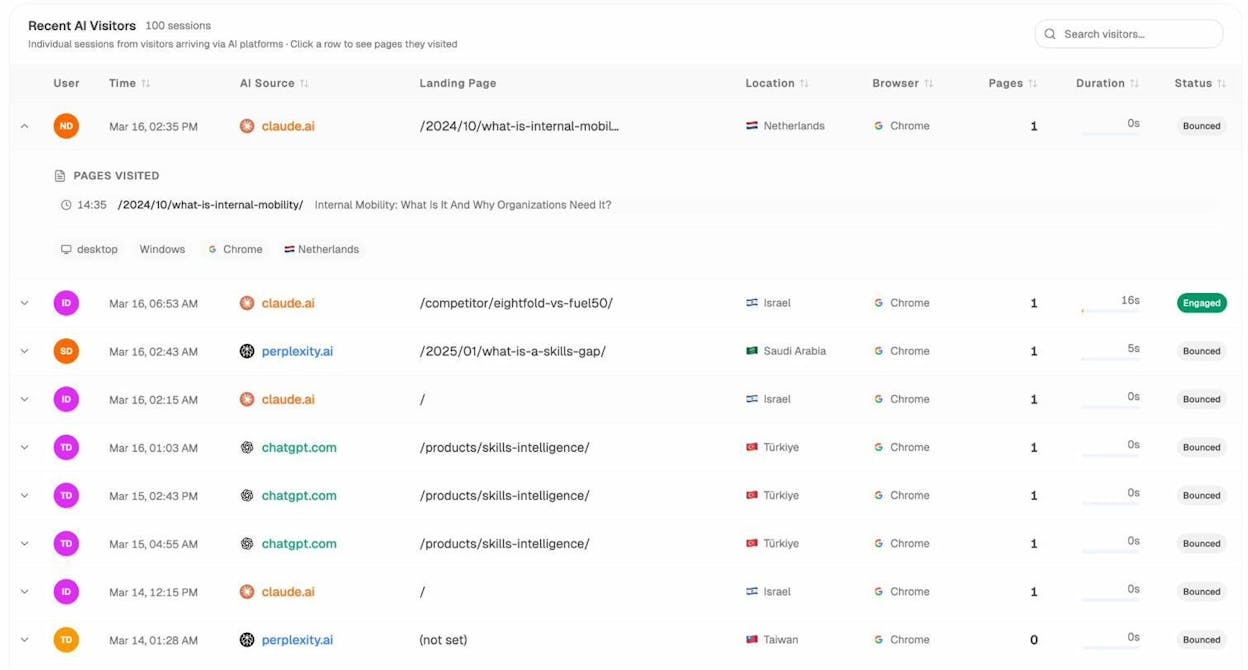
If you see AI-referred visitors landing on pages that should have been redirected, your redirect may not be working for AI crawlers. Fix the redirect and then monitor the Sources dashboard to confirm that AI models are citing the new URLs.
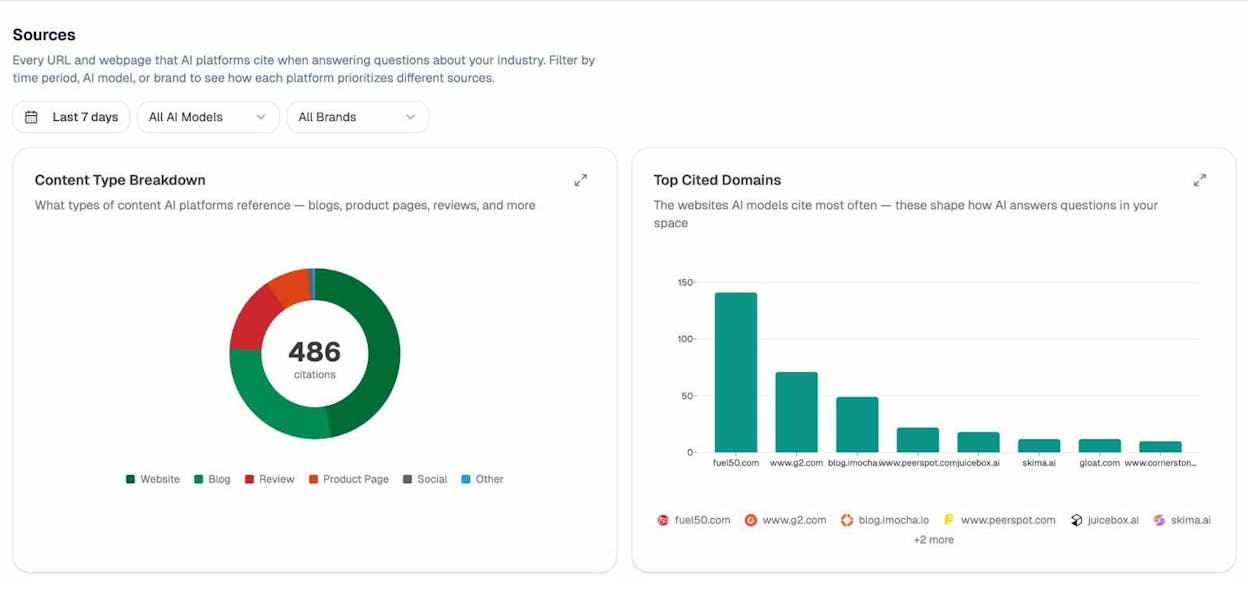
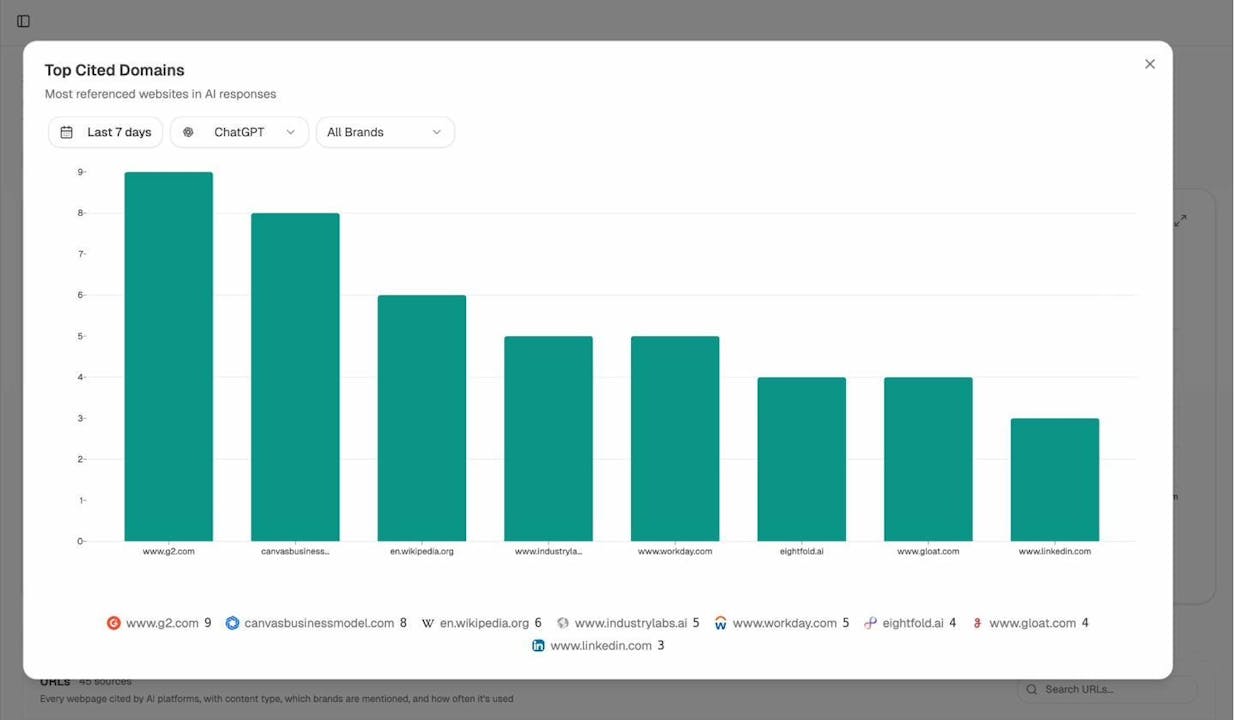
The Sources dashboard in Analyze AI shows every URL and domain that AI platforms cite when answering questions in your industry. After a migration or URL change, filter by your domain and check whether AI models are citing the old URLs or the new ones. If they are still citing old URLs weeks after the redirect, the redirect may not be working for AI crawlers.
Best Practices for Redirects
Getting redirects right is not difficult, but getting them wrong is expensive. Here are the practices that matter most.
Redirect HTTP to HTTPS
Every site should use HTTPS. If your site is still accessible via HTTP, you are splitting your authority across two versions of every URL and exposing your users to security risks.
To check whether your site properly redirects from HTTP to HTTPS, try navigating to the HTTP version of your homepage in your browser. You should see a 301 or 308 redirect to the HTTPS version. You can verify this using browser developer tools (Network tab) or a free tool like httpstatus.io.
Here is what to look for:
-
Open your browser’s developer tools (F12 or right-click > Inspect).
-
Go to the Network tab.
-
Navigate to http://yourdomain.com (without the “s”).
-
Look at the first request in the list. The status code should be 301 or 308 and the Location header should point to the HTTPS version.
![[Screenshot: Browser developer tools showing the Network tab with a 301 redirect from HTTP to HTTPS, highlighting the status code and Location header]](https://www.datocms-assets.com/164164/1777127736-blobid10.png?auto=format,compress&w=1248&fit=max)
If you see a 302, change it to a 301 or 308. This redirect should always be permanent.
Use HSTS to Enforce HTTPS
HSTS (HTTP Strict Transport Security) tells browsers that your server only accepts secure connections. Once a browser sees the HSTS header, it will automatically redirect all future HTTP requests to HTTPS inside the browser, without ever contacting your server.
This creates a 307 redirect in the browser. Google’s crawlers do not see this 307 because it happens locally. They see the underlying server response, which should be a 301 or 308.
After implementing HSTS, submit your site to the HSTS preload list. This enables HSTS for every visitor, even first-time visitors who have never seen your HSTS header before.
Redirect Relevant Old Content
Sites change constantly. Pages get deleted, URLs get restructured, and content gets consolidated. Over time, this leaves behind old URLs that still have backlinks pointing to them. If those URLs return a 404 instead of redirecting, you lose all the link equity those backlinks carried.
Here is how to find and fix these opportunities.
Step 1: Find 404 pages with backlinks.
Use a site audit tool to crawl your site and identify URLs that return a 404 status code. Then cross-reference those URLs against your backlink profile to find the ones with referring domains.
You can also use Analyze AI’s Broken Link Checker to scan your site for broken links. Enter your domain and the tool will identify pages that return 404 errors, including those with inbound links from other sites.
![[Screenshot: Analyze AI Broken Link Checker tool showing a scanned domain with a list of broken URLs, their HTTP status codes, and the number of referring pages]](https://www.datocms-assets.com/164164/1777127741-blobid11.png?auto=format,compress&w=1248&fit=max)
Step 2: Match old URLs to relevant new pages.
For each 404 page with backlinks, identify the most relevant page on your current site. The goal is a 1:1 match. If you deleted a blog post about “email marketing benchmarks,” redirect that URL to your updated post on the same topic. Do not redirect it to your homepage or a generic category page.
Step 3: Implement 301 redirects.
Set up a 301 redirect from each old URL to its matched replacement. If you are on Apache, add the redirect rules to your .htaccess file. If you are on a CMS like WordPress, use a plugin like Redirection.
Step 4: Verify the redirects.
After implementing, crawl your site again to confirm that the old URLs now return a 301 status code and point to the correct destination.
Avoid Long Redirect Chains
A redirect chain occurs when a URL redirects to another URL, which redirects to another URL, and so on before reaching the final destination.
![[Screenshot: Diagram showing a redirect chain where URL A redirects to URL B, which redirects to URL C, which redirects to URL D (the final destination)]](https://www.datocms-assets.com/164164/1777127747-blobid12.png?auto=format,compress&w=1248&fit=max)
Google will follow up to 10 redirect hops, processing 5 in one session and resuming in the next. So chains shorter than 5 hops are rarely a problem for Google. But there are two reasons to keep chains short anyway.
First, each hop adds latency. A chain of 3 redirects takes three times as long as a single redirect. For users on slow connections, this delay is noticeable.
Second, AI crawlers and other bots may not be as tolerant as Google. Keeping chains to a single hop ensures compatibility with every crawler that visits your site.
To find redirect chains on your site, crawl it with a site audit tool and look for the “redirect chain too long” warning. Fix them by updating each redirect in the chain to point directly to the final destination.
Avoid Redirect Loops
A redirect loop happens when URL A redirects to URL B, which redirects back to URL A. Or when a longer chain eventually circles back to an earlier URL.
Redirect loops are harmful in three ways:
-
For users. The browser shows a “too many redirects” error and the page never loads.
-
For search engine and AI crawlers. The crawl budget gets wasted following an infinite loop, and the content behind those URLs becomes inaccessible.
-
For your server. Bots stuck in a loop generate repeated requests that consume server resources.
To find redirect loops, crawl your site with a site audit tool and look for the “redirect loop” error. The fix depends on the situation.
If the last URL in the chain before the loop is the intended destination, remove the redirect from that URL and make sure the page loads with a 200 status code. If the last URL is not the intended destination, change the looping redirect to point directly to the correct final URL.
In both cases, update any internal links that point to URLs in the loop so they link directly to the final destination.
Avoid Overly Broad Redirect Rules
Broad redirect rules match more URLs than you intend. For example, a rule that redirects everything under /old-blog/ to your new blog homepage might also catch URLs that should go somewhere else entirely.
Test this by appending a random string to your domain, like yourdomain.com/asfkljlkdfs. Also try your main folders, like yourdomain.com/blog/asfkljlkdfs. If these return a 404, your rules are fine. If they redirect to a real page, you have an overly broad rule that needs tightening.
Overly broad rules can also cause unintended SEO harm. If your site was previously hacked and the attacker built spammy links to URLs under a certain folder, redirecting that entire folder to a real page tells Google those spam links belong to you.
The fix is always the same. Match redirects 1:1 whenever possible. If you need pattern-based rules, make them as specific as you can and test edge cases before deploying.
Watch Out for Expired SSL Certificates
If you migrated to a new domain and your old site used HTTPS, the SSL certificate on the old domain will eventually expire. When it does, users who visit the old domain will see a security warning in their browser and never reach the redirect.
Bots may still follow the redirect because they often ignore SSL errors. But users will not. To prevent this, use a multi-domain SSL certificate that covers both your old and new domains. Or use a DNS provider that supports HTTPS redirects at the DNS level.
Keep Redirects Active for at Least One Year
Google has stated that you should keep redirects active for at least one year. After that, signals should permanently transfer to the new URL.
In practice, keeping redirects active for as long as possible is the safer approach. Before you remove any redirect, check your analytics to see if users or bots are still hitting the old URL. If they are, keep the redirect.
Removing a redirect too early means any backlinks still pointing to the old URL will suddenly lead to a 404. You lose the link equity those backlinks were passing.
Redirect Images, PDFs, and Other Files During a Migration
When migrating to a new domain or restructuring your URLs, do not forget about non-HTML resources. Images, PDFs, whitepapers, and other files that have been indexed by search engines should be redirected too.
This is especially important if those files drive meaningful traffic. A PDF guide that ranks in Google and gets cited by AI engines deserves a redirect just as much as a blog post does.
Do not worry about redirecting CSS, JavaScript, or font files. Focus on resources that get indexed by search engines and cited by AI models.
How to Audit Your Redirects
A redirect audit should be part of your regular SEO maintenance. Here is a step-by-step process you can follow.
Step 1: Crawl your site.
Use a crawling tool like Screaming Frog, Sitebulb, or a similar site auditor to crawl your entire website. Configure the crawl to follow redirects and flag any issues.
Step 2: Check for redirect chains.
Look at the crawl report for any URLs that go through more than one hop before reaching the final destination. Update those to point directly to the final URL.
Step 3: Check for redirect loops.
Look for any URLs flagged as redirect loops. Fix them by either removing the looping redirect or correcting the redirect target.
Step 4: Check for 404 pages with backlinks.
Cross-reference your crawl data with your backlink profile. Any 404 pages with referring domains should be redirected to the most relevant live page.
Use the Broken Link Checker from Analyze AI to quickly identify broken URLs on your site.
Step 5: Verify HTTP-to-HTTPS redirects.
Spot-check your homepage and several important pages by navigating to the HTTP version. Every page should redirect to HTTPS with a 301 or 308 status code.
Step 6: Verify www vs. non-www consistency.
Pick one version (www or non-www) and make sure the other redirects to it with a permanent redirect.
Step 7: Check for mixed redirect types.
Look for pages where you used a 302 when you meant to use a 301, or vice versa. This is one of the most common redirect mistakes, especially on CMS platforms that default to 302.
Step 8: Monitor AI traffic after redirects.
After implementing or fixing redirects, use Analyze AI’s AI Traffic Analytics to track whether AI-referred traffic patterns change. A sudden drop in AI sessions after a redirect batch often means AI crawlers hit a broken redirect.
Check the Sources dashboard to confirm that AI models are citing the correct (new) URLs for your content rather than the old ones.
Troubleshooting Redirects
When redirects do not behave as expected, here are common issues and how to diagnose them.
Figuring Out Which System Fired the Redirect
In complex setups, redirects can be configured at multiple levels: the server, the CDN, a CMS plugin, and DNS. When something goes wrong, you need to know which system is responsible.
Check the HTTP response headers for clues. Many redirect plugins add a custom header that identifies them. For example, the WordPress Redirection plugin adds an X-Redirected-By header. You can inspect these headers using your browser’s developer tools (Network tab) or a command-line tool like curl -I.
curl -I https://example.com/old-page
Look for headers like X-Redirected-By, Server, or Via that indicate which layer handled the redirect.
Redirects That Fire Only for Specific User Agents
Redirects can use conditional logic, which means they fire only for certain user agents. This is sometimes done intentionally (for example, to redirect mobile users to a mobile subdomain) but can also be a sign of cloaking, which violates Google’s guidelines.
To test for user-agent-specific redirects, use a tool that lets you change your user agent, or run curl with a custom user agent:
curl -A "Googlebot" -I https://example.com/page
curl -A "Mozilla/5.0" -I https://example.com/page
If the redirect behavior differs between user agents, investigate whether this is intentional.
Redirects That Show the Wrong Status Code
Do not assume the status code you see is accurate. A page can return a 200 OK status code while still redirecting you to a different URL via JavaScript or a meta refresh tag. And a page intended to be a 301 redirect might be misconfigured as a 302.
Always verify the redirect type by checking the HTTP response headers directly. Use curl -I or your browser’s Network tab to confirm the actual status code returned by the server.
HSTS 307s That Mask the Real Redirect
If your site uses HSTS, your browser may cache a 307 redirect from HTTP to HTTPS. When you inspect the redirect in your browser’s Network tab, you see a 307. But the actual server response is a 301 or 308 that Google sees.
To see the real server response, open a fresh Incognito window (to bypass the HSTS cache) and inspect the redirect again. Or use curl -I, which does not cache HSTS policies.
Using Regular Expressions for Bulk Redirects
If you need to redirect hundreds or thousands of URLs that follow a pattern, regular expressions (regex) will save you significant time.
For example, if you moved all blog posts from /articles/ to /blog/, a single regex redirect rule handles every URL:
Apache (.htaccess):
RedirectMatch 301 ^/articles/(.*)$ /blog/$1
Nginx:
rewrite ^/articles/(.*)$ /blog/$1 permanent;
The (.*) captures everything after /articles/ and passes it through to the new URL pattern.
If you are not comfortable with regex, use a testing tool like regex101 to build and verify your patterns before deploying them. A single misplaced character in a regex rule can create overly broad redirects or redirect loops, both of which will damage your SEO.
Key Takeaways
Redirects are a foundational part of technical SEO that directly affects how search engines and AI answer engines access, index, and cite your content. Getting them right preserves your link equity, protects your rankings, and ensures that both Google and AI models can find the content you want them to find.
Use permanent redirects (301 or 308) when a page has moved for good. Use temporary redirects (302 or 307) when the move is not permanent. Always prefer server-side redirects over client-side ones. Keep redirect chains short, eliminate loops, and audit your redirects regularly.
And as AI search becomes a meaningful traffic channel alongside traditional search, the stakes for clean redirects get higher. A broken redirect does not just cost you a Google ranking. It costs you AI citations, AI-referred traffic, and the compounding visibility that comes from being a trusted source across every engine.
Use Analyze AI to track how your content performs across both search and AI channels, and catch redirect issues before they cost you visibility.

Ernest

Ibrahim
![The Ultimate SEO Contract Template [100% Free]](/_next/image?url=https%3A%2F%2Fwww.datocms-assets.com%2F164164%2F1777123455-blobid0.png&w=3840&q=75)


