



Summarize this blog post with:


In this article, you’ll learn how to use Google Keyword Planner to find keywords for SEO, evaluate them for traffic potential and difficulty, spy on competitor keywords, and—because search is evolving beyond ten blue links—use your keyword research to inform your AI search visibility strategy too.
Here’s what we’ll cover:
-
What Google Keyword Planner actually is (and what it’s not)
-
How to get access without spending a dollar
-
How to discover, filter, and evaluate keyword ideas step by step
-
How to spy on competitors’ keywords using the URL feature
-
How to turn your keyword research into an AI search advantage
-
Seven lesser-known tips and tricks most SEOs miss
-
The tool’s key limitations and how to work around them
Let’s get into it.
Table of Contents
What Is Google Keyword Planner?
Google Keyword Planner is a free keyword research tool built into Google Ads. It was designed for advertisers who want to plan paid search campaigns, but it’s also one of the most useful tools for organic keyword research—if you know how to use it right.
Here’s what it can do:
-
Generate keyword ideas from seed terms or competitor URLs
-
Show estimated monthly search volume ranges for any keyword
-
Display competition levels, cost-per-click (CPC) data, and bid estimates
-
Reveal year-over-year and three-month search trends
-
Break down search volume by location, device, and language
-
Forecast impressions and clicks for specific keywords
The tool pulls data directly from Google’s own search index. That’s its biggest advantage over third-party tools: you’re getting data from the source. No estimation models. No extrapolation from clickstream panels.
But Google Keyword Planner also has real limitations. The biggest one: it groups search volumes into broad ranges (like 1K–10K) instead of showing exact numbers. It also doesn’t show organic ranking difficulty, search intent, or traffic potential—metrics that matter when you’re choosing keywords for content, not ads.
That’s why most SEOs use Keyword Planner alongside other tools rather than as their only research method. Throughout this guide, we’ll show you where it shines, where it falls short, and what to do about it.
And here’s what most guides won’t tell you: the keywords you find in Google Keyword Planner aren’t just useful for ranking on Google’s traditional search results. They also tell you what people are asking AI search engines like ChatGPT, Perplexity, and Gemini. Understanding those overlaps is how you build visibility across both channels. We’ll cover that too.
Step 1. Get Access to Google Keyword Planner
Google Keyword Planner is free. You just need a Google Ads account to access it.
If you don’t have one yet, Google will ask you to set up a campaign first. You can skip that entirely—but the process has a few steps that trip people up. Here’s exactly how to do it.
Go to ads.google.com, click “Start now,” and sign in with your Google account. On the first screen, enter your website URL and click “Next.”
![[Screenshot: Google Ads setup screen with website URL field and “Next” button]](https://www.datocms-assets.com/164164/1777120252-blobid1.png?auto=format,compress&w=1248&fit=max)
On the next few screens, Google will try to walk you through campaign setup. Keep clicking “Skip” on each one. You don’t need to create a campaign to use Keyword Planner.
![[Screenshot: Google Ads campaign setup screen showing the “Skip” option]](https://www.datocms-assets.com/164164/1777120259-blobid2.png?auto=format,compress&w=1248&fit=max)
Eventually, you’ll see a pop-up asking if you want to leave campaign creation. Click “Leave campaign creation.”
![[Screenshot: Pop-up dialog with “Leave campaign creation” button highlighted]](https://www.datocms-assets.com/164164/1777120259-blobid3.jpg?auto=format,compress&w=1248&fit=max)
Google will then ask for your billing country, time zone, and currency. Fill these in accurately—they affect the data you see later.
![[Screenshot: Billing information form with country, time zone, and currency fields]](https://www.datocms-assets.com/164164/1777120265-blobid4.png?auto=format,compress&w=1248&fit=max)
Finally, you’ll need to enter payment information. Google may place a small temporary hold on your card (usually a few dollars). As long as you don’t actually run any ads, you won’t be charged beyond that, and the hold is typically refunded within a week.
![[Screenshot: Payment authorization screen showing temporary hold notice]](https://www.datocms-assets.com/164164/1777120265-blobid5.png?auto=format,compress&w=1248&fit=max)
Once that’s done, ignore everything else in the Google Ads interface. Go directly to Keyword Planner by clicking that link or navigating to Tools > Keyword Planner in the top menu. If the link doesn’t work, just Google “keyword planner” and click the first official Google Ads result.
You’re in.
Step 2. Discover New Keywords
When you open Keyword Planner, you’ll see two options:
-
Discover new keywords – Find new keyword ideas based on seed terms or a URL.
-
Get search volume and forecasts – See volume data and ad forecasts for keywords you already have.
For keyword research, click “Discover new keywords.”
![[Screenshot: Keyword Planner home screen showing both options — “Discover new keywords” and “Get search volume and forecasts”]](https://www.datocms-assets.com/164164/1777120270-blobid6.png?auto=format,compress&w=1248&fit=max)
From there, you have two ways to discover keywords:
Method 1: Start With Seed Keywords
Enter up to 10 words or phrases related to your business. These are your “seed keywords”—broad terms that describe what you do, sell, or write about.
For example, if you run a project management software company, you might enter: “project management tool,” “task management,” “team collaboration software.”
![[Screenshot: Keyword Planner “Start with keywords” tab with example seed keywords entered]](https://www.datocms-assets.com/164164/1777120271-blobid7.png?auto=format,compress&w=1248&fit=max)
Keyword Planner will return a list of related keyword ideas along with their estimated monthly search volume ranges, competition levels, and bid estimates.
One thing that makes Keyword Planner genuinely useful: it surfaces related keyword ideas that don’t necessarily contain the seed terms you entered. For instance, entering “SEO” as a seed might surface terms like “backlink checker,” “website audit,” or “domain authority”—keywords you’d miss if you were only looking at exact-match variations.
Most third-party keyword research tools require you to think of those additional seed terms yourself. Keyword Planner does some of that thinking for you.
Method 2: Start With a URL
This is the feature most people overlook—and it’s one of the most powerful.
Instead of entering seed keywords, enter a competitor’s URL. You can use their homepage for broad ideas, or a specific blog post or landing page for more targeted suggestions.
Keyword Planner will analyze the page content and return keyword ideas based on what it finds.
![[Screenshot: Keyword Planner “Start with a website” tab with a competitor URL entered, showing “Use the entire site” vs. “Use only this page” radio options]](https://www.datocms-assets.com/164164/1777120277-blobid8.png?auto=format,compress&w=1248&fit=max)
For example, if you enter a competitor’s blog post about “remote team management,” Keyword Planner will show you the keywords that page could rank for—essentially reverse-engineering their keyword strategy.
This is particularly useful when you’re doing SEO competitor analysis and want to find gaps in your own content.
Pro tip: Try entering multiple competitor URLs one at a time and comparing the keyword ideas you get. You’ll often find keywords that overlap (high-priority terms in your space) and keywords unique to each competitor (potential gaps you can fill).
Step 3. Refine and Filter Your Keyword Ideas
Once you have a list of keyword ideas, the next step is to cut the noise. Keyword Planner often returns hundreds or thousands of ideas, and most of them won’t be relevant to you.
Start with the built-in refinement tools.
Use the “Refine Keywords” Feature
Click “Refine keywords” in the upper right corner of the results page. This lets you quickly include or exclude keywords by attributes like brand, type, style, and other categories that Google auto-detects.
![[Screenshot: “Refine keywords” panel showing brand, type, and style categories with checkboxes]](https://www.datocms-assets.com/164164/1777120277-blobid9.png?auto=format,compress&w=1248&fit=max)
For example, if you’re researching keywords for an ebike store and you see lots of brand names you don’t carry, you can exclude those brands in one click. This saves a lot of manual filtering.
Important note: This feature only works when you start keyword research with seed keywords. It doesn’t work if you started with a URL.
Use Keyword Filters
For more granular filtering, use the built-in keyword filters at the top of the results table:
-
Keyword text – Filter by “contains” or “does not contain” specific words. Use this to exclude irrelevant modifiers (like “near me” if you’re not doing local SEO, or brand names of competitors).
-
Avg. monthly searches – Set a minimum or maximum range to focus on keywords of a certain popularity.
-
Competition – Filter by low, medium, or high. (But remember: this is ad competition, not organic ranking difficulty. More on that later.)
-
Top of page bid – Set a minimum CPC if you’re looking for keywords with proven commercial value.
![[Screenshot: Keyword filters bar showing “does not contain” filter with example term entered]](https://www.datocms-assets.com/164164/1777120281-blobid10.png?auto=format,compress&w=1248&fit=max)
Exclude What Doesn’t Match Your Business
Here’s a practical workflow for filtering:
First, scan the list and identify patterns of irrelevant keywords. Are there brand names you don’t sell? Location-specific terms that don’t apply? Product categories outside your scope?
Second, add those patterns to your “does not contain” filters one at a time. Each filter you add will shrink the list down to more relevant ideas.
Third, sort and review what’s left. You should now have a cleaner list of keywords that actually make sense for your business.
Step 4. Evaluate Keywords Worth Targeting
Having a filtered list of keywords is just the starting point. Now you need to decide which ones are worth creating content for. Here’s how to evaluate them.
Find Low-Competition Long-Tail Keywords
Long-tail keywords are specific, lower-volume search terms. They typically have three or more words and get fewer monthly searches—but they’re also easier to rank for and often convert better because they reflect more specific intent.
Keyword Planner doesn’t show exact search volumes, but it does show average monthly search ranges. Sort your keyword ideas by “Avg. monthly searches” from low to high to find long-tail opportunities.
For example, if you sell ebikes, you might find terms like “best ebike for commuting under 2000” or “folding electric bike for apartment” in the 10–100 search range. These are specific, lower-competition terms that attract people who know exactly what they want.
But here’s the critical caveat: don’t use Keyword Planner’s “competition” column to judge organic ranking difficulty. That metric is about advertiser competition in Google Ads—how many advertisers are bidding on that keyword. It tells you nothing about how hard it would be to rank organically.
To estimate organic difficulty, you need a keyword difficulty checker. Plug your keyword ideas into a tool that analyzes the backlink profiles of current top-ranking pages. That gives you a realistic picture of whether you can compete.
You should also check the traffic potential of a keyword before committing to it. The easiest way: look at how much organic traffic the current top-ranking page gets for that keyword. If the #1 result only gets 50 visits a month, the keyword probably isn’t worth a 3,000-word guide. Use a website traffic checker to get that data.
Find Trending Keywords
Keyword Planner has a “YoY change” column that shows how a keyword’s search volume has changed compared to the same month last year. Sort by this column from highest to lowest to spot breakout topics.
![[Screenshot: Keyword Planner results sorted by YoY change showing a keyword with +900% increase]](https://www.datocms-assets.com/164164/1777120281-blobid11.jpg?auto=format,compress&w=1248&fit=max)
A keyword with a +900% year-over-year increase isn’t just trending—it’s exploding. These spikes usually happen when a new product launches, a brand goes viral, or an industry shift creates sudden demand.
If you run an affiliate site or a review blog, this is one of the best ways to find products or topics worth covering before your competitors catch on. You can even cross-reference trending keywords with Analyze AI’s Keyword Generator to expand on the ideas and find related terms.
Find Seasonal Keywords
The “three month change” column shows how a keyword’s search volume has shifted in the last three months compared to the previous period. Sorting by this from highest to lowest helps you identify seasonal opportunities.
For example, if you’re researching ebike keywords in October, you’ll see terms like “ebike black friday deals” and “electric bike cyber monday” spiking. If you plan content around these seasonal patterns in advance—publishing two to three months before the spike—you’ll have time to rank before the demand peaks.
Seasonal keyword planning is one of the most underused strategies in content marketing. Most teams only think about it when the season has already arrived, which is too late to rank organically.
Find High-Value Commercial Keywords
Keyword Planner shows a “top of page bid (high range)” column. This tells you the highest amount advertisers have historically paid per click for that keyword.
Why does this matter for SEO? Because if advertisers are willing to pay $15 or $20 for a single click on a keyword, that keyword drives real revenue. If you can rank organically for it, every click you get is essentially free traffic that others are paying premium prices for.
Sort your keyword list by top of page bid from high to low. Look for keywords where the CPC is high, the search volume is reasonable, and the keyword aligns with your product or service.
![[Screenshot: Keyword Planner results sorted by top of page bid (high range) showing high-CPC keywords]](https://www.datocms-assets.com/164164/1777120288-blobid12.png?auto=format,compress&w=1248&fit=max)
For example, a keyword like “best project management software for enterprises” might show a $25 CPC. That tells you every organic visitor you capture from this query is worth serious money—and that the people searching this term are likely in a buying mindset.
Assess Search Intent Before You Commit
This is the step most keyword research guides skip, and it’s arguably the most important one.
Before you target a keyword, check what already ranks for it. Open an incognito window, search the keyword on Google, and look at the top 10 results. Ask yourself:
-
What type of content ranks? Blog posts? Product pages? Tools? Videos? If the top results are all product pages and you’re planning a blog post, you’ll have a hard time ranking.
-
What format do they use? Listicles? Step-by-step guides? Comparisons? Match your format to what Google is already rewarding.
-
What angle do they take? Beginner-focused? Expert-level? Budget-conscious? Understanding the dominant angle helps you decide whether to match it or differentiate.
You can speed this up with a SERP checker that shows you the top results for any keyword along with their metrics.
If you’re building a content strategy for SEO, intent alignment is the single biggest factor in whether your page ranks or not. A perfectly optimized page that doesn’t match intent will not rank. A roughly optimized page that nails intent often will.
Step 5. Spy on Your Competitors’ Keywords
One of Keyword Planner’s most underrated features is its ability to show you the keywords your competitors are targeting—for free.
Here’s how to do it:
Go to “Discover new keywords,” select “Start with a website,” and enter a competitor’s URL. Choose “Use the entire site” for broad research or “Use only this page” for page-level insights.
Keyword Planner will return a list of keywords related to that competitor’s content. This isn’t the same as seeing exactly which keywords they rank for (you’d need a dedicated SEO tool for that), but it gives you a solid directional view of their keyword strategy.
Here’s a workflow that makes this even more useful:
-
Identify your top 3–5 direct competitors. These are the companies that appear alongside you in search results consistently.
-
Enter each competitor’s URL into Keyword Planner one at a time. Save each list of keyword ideas.
-
Compare the lists. Keywords that appear across multiple competitors are the high-priority terms in your space. Keywords unique to one competitor represent potential gaps or niche angles.
-
Cross-reference with your own content. Which of these keywords do you already rank for? Which ones are you missing entirely?
This process is a lightweight version of a full SEO competitor analysis, and it costs nothing.
Pro tip: Don’t limit yourself to competitor homepages. Enter specific blog posts or landing pages that rank well for keywords you care about. The more targeted the input URL, the more targeted the keyword suggestions.
Step 6. Turn Your Keyword Research Into an AI Search Strategy
Here’s what most keyword research guides won’t cover: the keywords you find in Google Keyword Planner aren’t just for ranking on Google’s traditional results. They also reflect the types of questions people are asking AI search engines like ChatGPT, Perplexity, Claude, Gemini, and Copilot.
Think about it. When someone searches Google for “best CRM for small business,” they’re expressing a need. That same person might also ask ChatGPT: “What’s the best CRM for a small business with a team of five?” The intent is identical. The phrasing shifts from keyword-style to conversational—but the underlying demand is the same.
This is why we believe SEO isn’t dying—it’s evolving. AI search is a new organic channel that runs on the same content fundamentals: depth, authority, structure, and usefulness. The keywords you find in Keyword Planner are your starting point for both channels.
Here’s how to connect the two:
Turn High-Value Keywords Into AI Prompt Tracking
Once you’ve identified the keywords worth targeting, translate them into the kinds of prompts people are asking AI engines.
For example, if Google Keyword Planner surfaces “project management tool for remote teams” as a strong keyword, the corresponding AI prompt might be: “What are the best project management tools for remote teams in 2026?”
With Analyze AI, you can track these prompts across ChatGPT, Perplexity, Claude, Gemini, and Copilot. The platform runs them daily and shows you where your brand appears—or doesn’t.
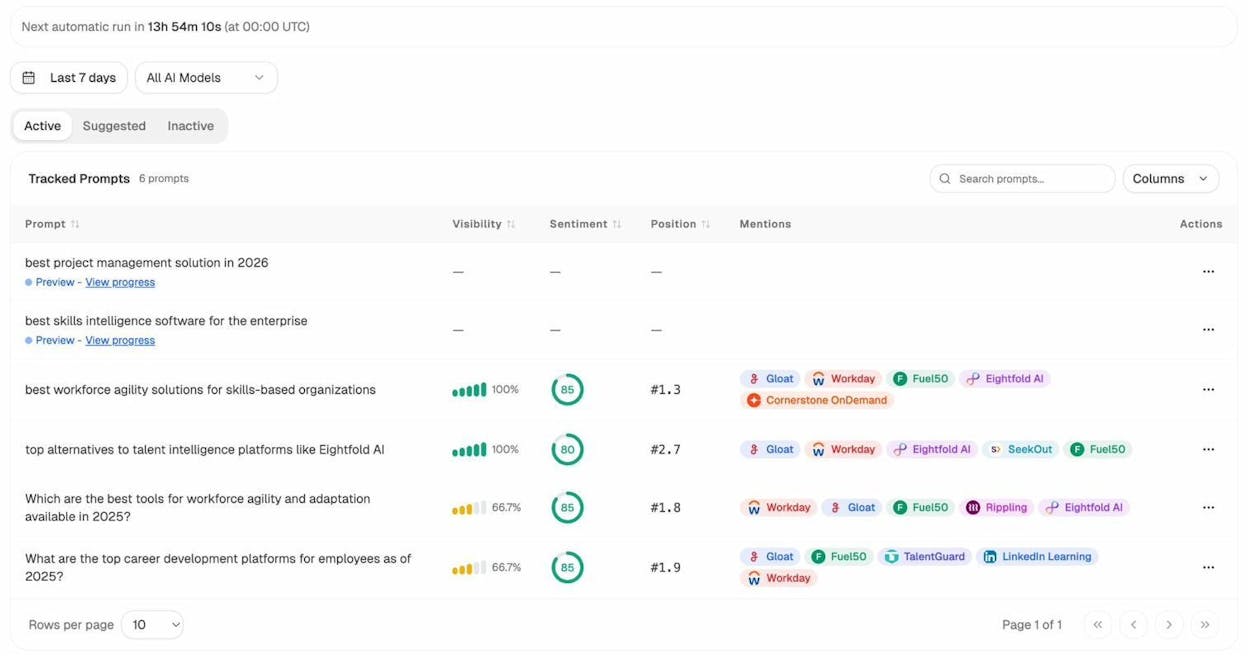
You’ll see your visibility percentage, sentiment score, average position, and which competitors show up alongside you for each prompt. This tells you exactly where you’re winning in AI search and where you’re losing.
Use Suggested Prompts to Expand Your Research
Just like Google Keyword Planner surfaces keyword ideas you wouldn’t have thought of, Analyze AI suggests prompts based on your industry and tracked competitors. These are prompts that AI engines are answering in your space—prompts where you could be showing up but currently aren’t.
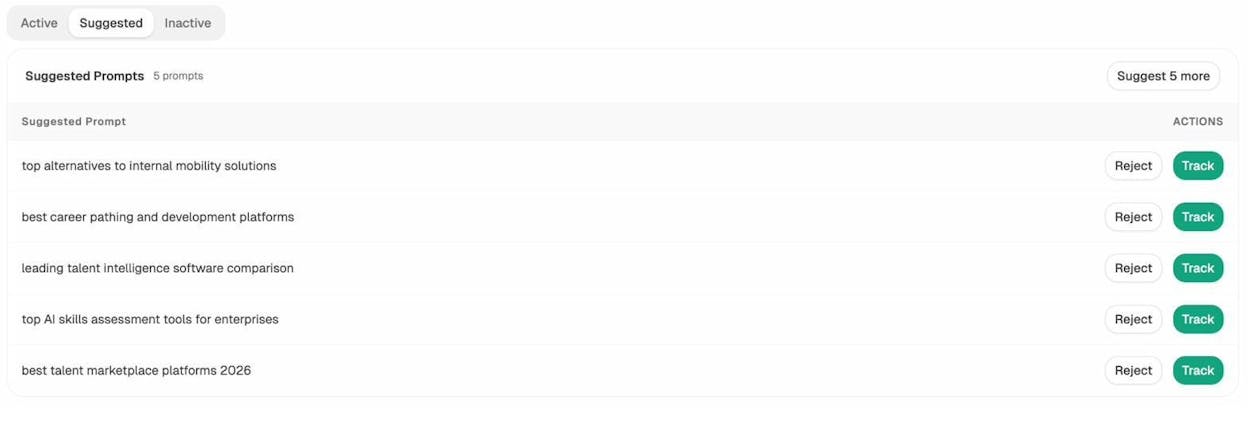
Click “Track” on any relevant prompt and it gets added to your daily monitoring. Click “Reject” on prompts that aren’t relevant to keep your data clean. This is the AI search equivalent of finding new keyword opportunities.
Use Ad Hoc Searches to Test Specific Keywords
If you find a promising keyword in Google Keyword Planner and want to see how AI engines handle it right now, use Analyze AI’s Ad Hoc Prompt Search feature. Type in the keyword as a natural-language question, select a country, and hit “Track.”
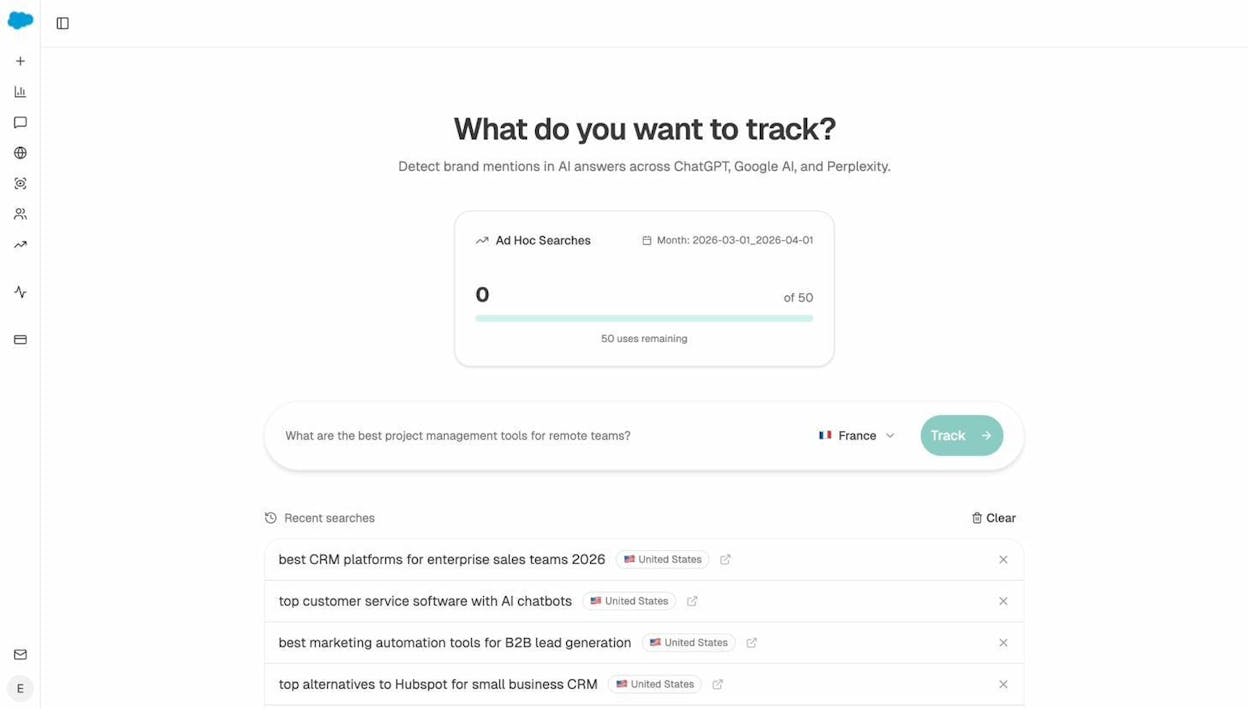
Within minutes, you’ll see which brands AI models mention, which sources they cite, and whether your brand appears at all. This is the fastest way to validate whether a keyword opportunity in traditional search also represents an opportunity in AI search.
Find Where Competitors Win in AI Search
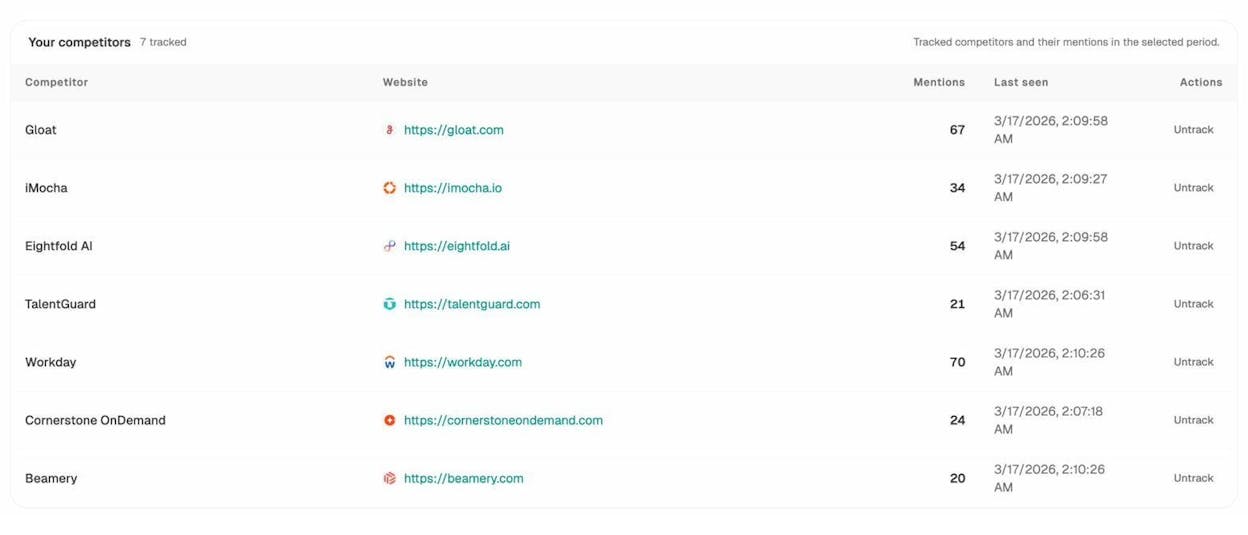
In Google Keyword Planner, you can spy on competitors by entering their URLs. In Analyze AI, you can go a step further: see exactly which competitors AI engines recommend instead of you—and how often.
The Competitors dashboard shows every brand that gets mentioned alongside yours in AI responses. You can see suggested competitors that AI models frequently reference (even ones you haven’t thought of as competitors) and track them with one click.
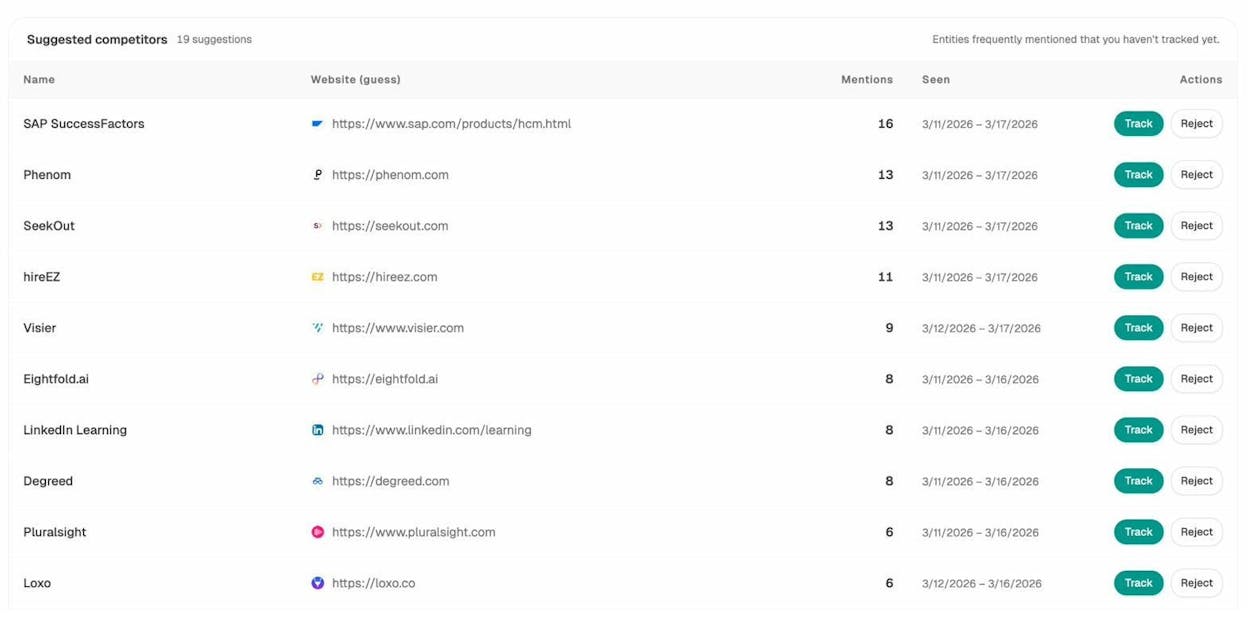
Once you’re tracking competitors, you get a rolling comparison of who’s winning on each prompt. If a competitor consistently outranks you on a high-value prompt, you know exactly where to focus your content efforts.
See Which Content AI Engines Actually Cite
Here’s an insight you can’t get from any traditional keyword tool: which of your pages are being cited by AI models, and which external sources are influencing AI answers in your space.
Analyze AI’s Sources dashboard shows you the content types AI engines reference most (blogs, product pages, reviews, documentation) and the specific domains they cite most often. This data tells you what kind of content to create if you want AI engines to reference you.
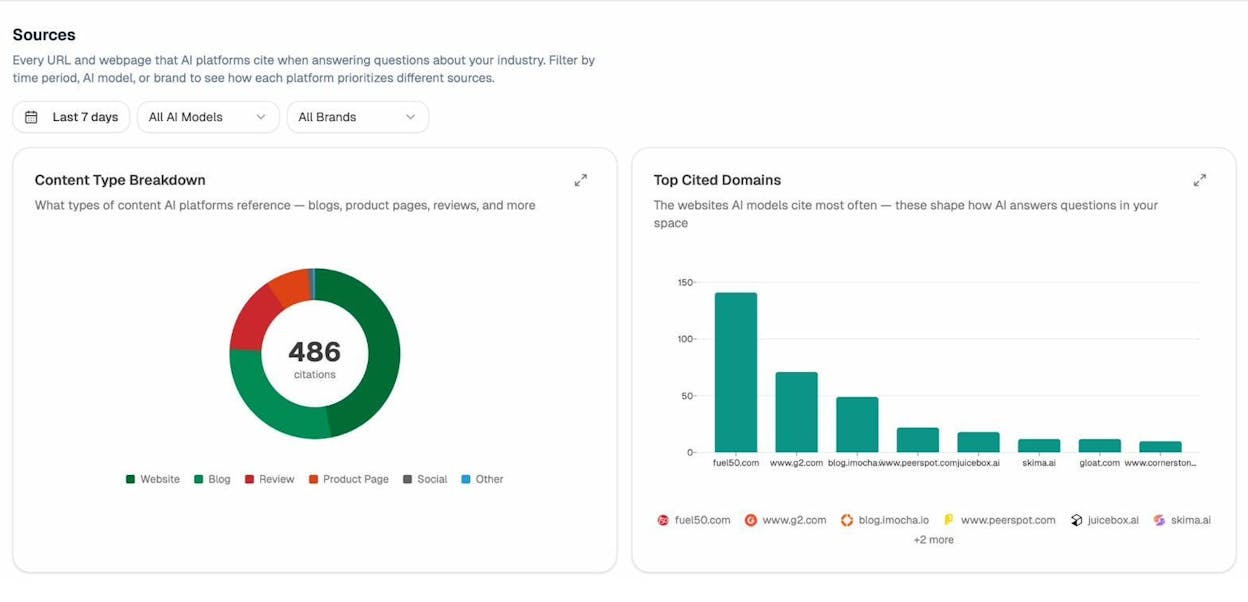
If you find that AI engines heavily cite a competitor’s blog in your space, that’s a signal to create deeper, more authoritative content on the same topics—content that AI models will prefer to cite instead.
Validate Keywords With Real AI Traffic Data
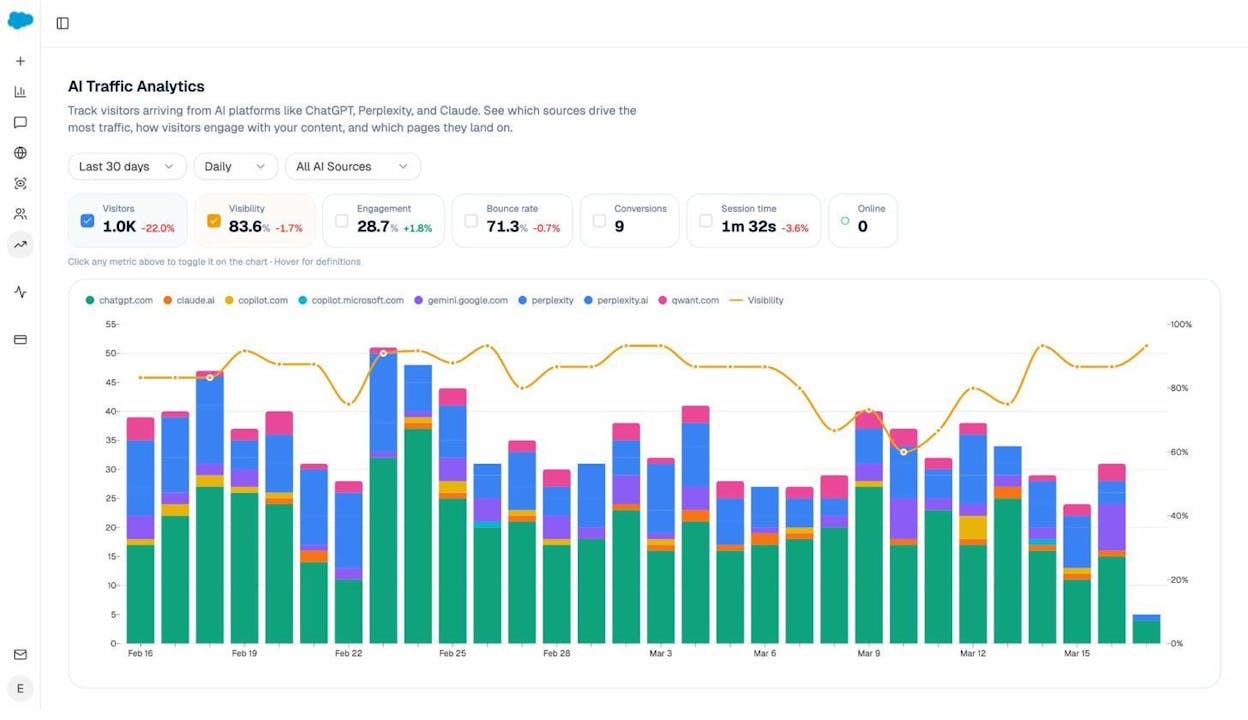
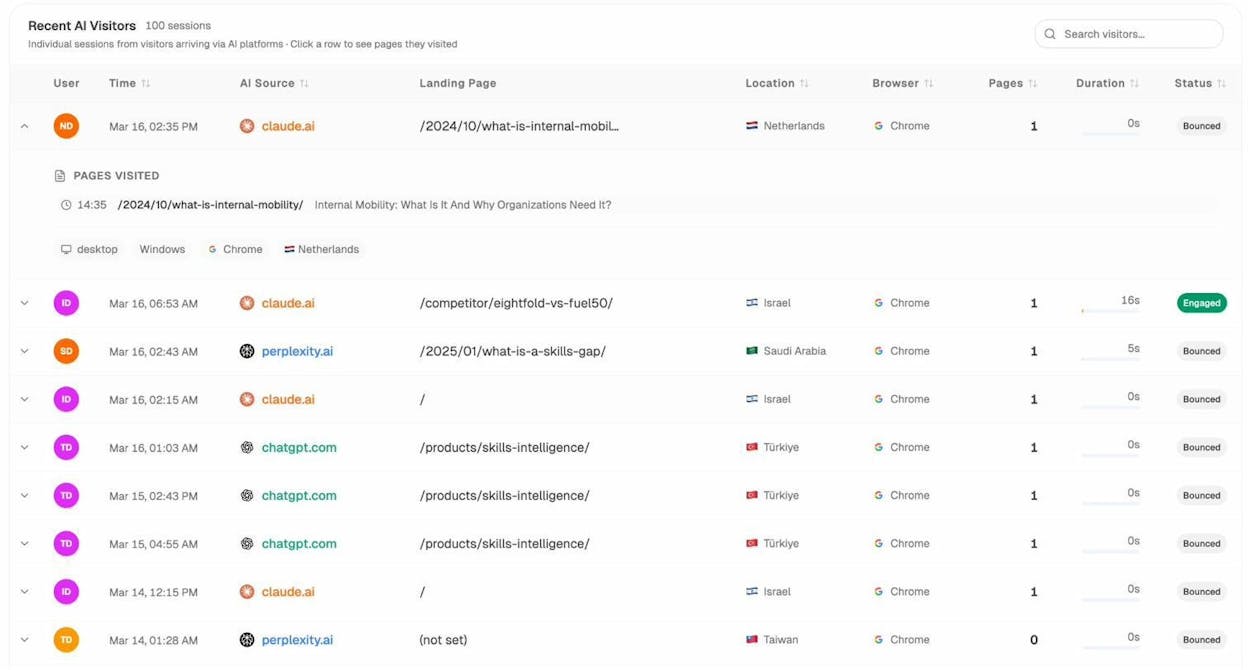
The ultimate test of any keyword strategy is whether it drives actual traffic. Analyze AI connects to your Google Analytics 4 account and shows you exactly how much traffic you’re getting from AI search engines—broken down by source, landing page, engagement, and conversions.
The Landing Pages report is especially useful. It shows you which pages on your site are receiving AI-referred traffic, how visitors from AI engines interact with those pages, and whether they convert.
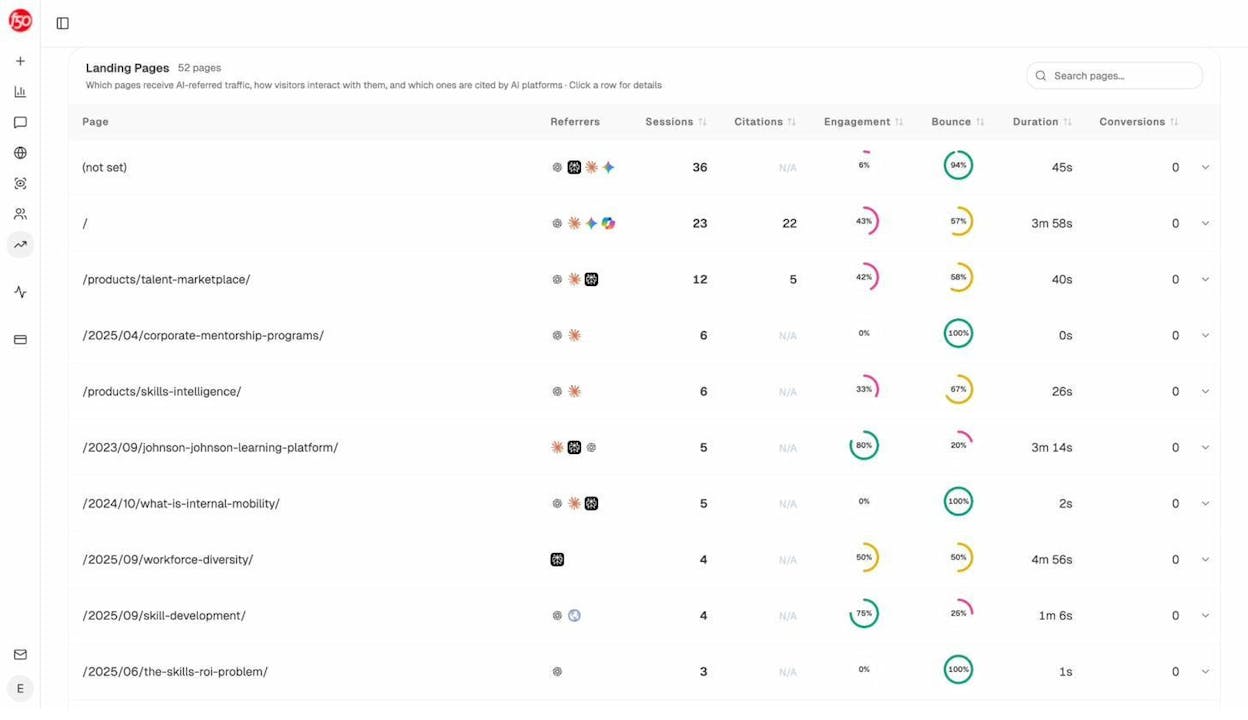
This data closes the loop on your keyword research. If you targeted a keyword in Google Keyword Planner, created content for it, and that content is now attracting visitors from both Google and AI search engines—you’ve proven the keyword’s value across both channels.
You can even drill down to individual visitor sessions to see exactly which AI engine referred them, what page they landed on, and how they behaved on your site.
Map Your Competitive Position With the Perception Map
After you’ve done keyword research and started tracking your brand across AI engines, the Perception Map gives you a bird’s-eye view of where you stand relative to competitors in AI search.
The map plots brands on two axes: visibility (how often AI engines mention you) and narrative strength (how compelling the story AI tells about you is). Your goal is to land in the upper-right quadrant: Visible and Compelling.
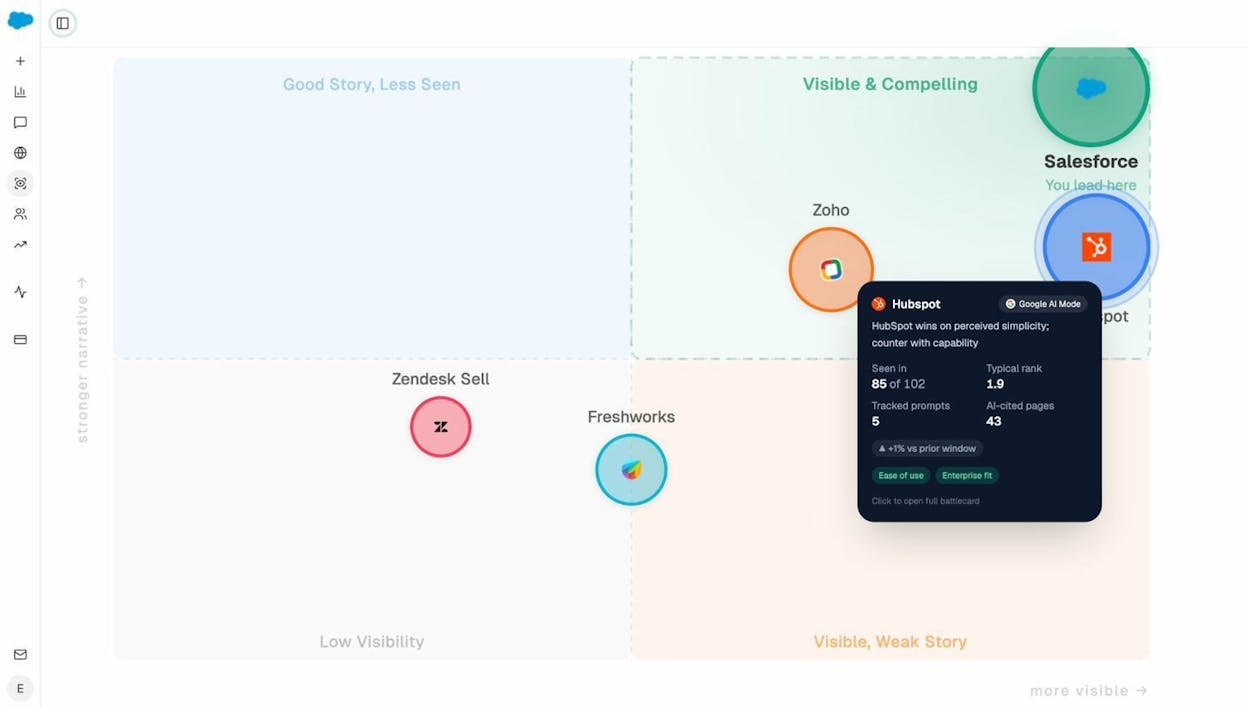
Hovering over any competitor shows their details: how many prompts they appear in, their typical rank, their AI-cited pages, and the themes AI associates with them. This contextualizes your keyword research. You’re not just targeting keywords anymore—you’re building a position in the AI-mediated conversation around your industry.
Bonus: Google Keyword Planner Tips and Tricks
Now that you know the fundamentals, here are seven techniques that most SEOs don’t know about.
1. Unlock More Precise Search Volumes
Google’s reluctance to show exact search volumes is Keyword Planner’s biggest frustration. Two keywords might both show a range of “1K–10K,” but one might get 1,200 searches and the other 8,500. That’s a massive difference when you’re planning content.
Here’s a workaround that gets you closer to exact numbers:
-
Go to “Get search volume and forecasts.”
-
Enter your keyword in square brackets (e.g., [seo specialist]).
-
Go to the Forecast tab.
-
Click the arrow to expand the graph.
-
Drag the CPC slider to its maximum value.
![[Screenshot: Forecast tab in Google Keyword Planner showing graph with CPC slider dragged to maximum]](https://www.datocms-assets.com/164164/1777120315-blobid23.png?auto=format,compress&w=1248&fit=max)
Now look at the “Impressions” column. This shows how many times your ad would appear in a month if you set your bid to the maximum. Because the bid is so high, you’d theoretically win every available impression—which makes the impressions number very close to the actual monthly search volume.
![[Screenshot: Impressions column showing estimated number close to actual search volume]](https://www.datocms-assets.com/164164/1777120322-blobid24.png?auto=format,compress&w=1248&fit=max)
This trick tends to be most accurate for commercial-intent keywords. For purely informational queries, the impressions can be off because Google shows fewer ads for those searches. Keep that in mind.
If you need reliable, precise search volumes consistently, a dedicated keyword research tool is the better investment. But for quick spot-checks, this workaround is surprisingly effective.
2. See Local Search Volumes
Most keyword tools only show search volumes at the country level. That’s fine if you’re running a national business, but it’s useless if you’re a plumber in Birmingham, Alabama, or a restaurant in Austin, Texas.
Google Keyword Planner lets you change your location to any country, state, city, or even metro area. Just click the location filter at the top and type in the area you want data for.
![[Screenshot: Location filter in Keyword Planner changed to a specific city, showing adjusted search volume ranges]](https://www.datocms-assets.com/164164/1777120322-blobid25.png?auto=format,compress&w=1248&fit=max)
For example, “plumber” might show 100K–1M monthly searches nationally, but only 100–1K in a specific city. That city-level data is far more useful for local SEO planning.
You can also combine this with the exact volume trick from Tip 1. Set your location to a specific city, max out your bid, and check the impressions for a local estimate that’s closer to the real number.
3. See Popular Search Locations
Keyword Planner can also tell you where people are searching for a term. Go to the Forecasts tab for your keyword, then scroll to the bottom. You’ll see a location breakdown showing which countries, states, or cities drive the most impressions.
![[Screenshot: Location breakdown in the Forecasts tab showing top countries by impressions]](https://www.datocms-assets.com/164164/1777120327-blobid26.png?auto=format,compress&w=1248&fit=max)
This is useful for prioritizing your content localization efforts. If 60% of searches for your target keyword come from the U.S. and 15% from the U.K., you know where to focus your content.
You can go deeper by setting your location to a specific country and then viewing the state-level breakdown. Set it to a state and you’ll see city-level data. Set it to a city and you’ll see ZIP/postal code data.
![[Screenshot: Location breakdown showing top states by impressions after filtering by country]](https://www.datocms-assets.com/164164/1777120327-blobid27.png?auto=format,compress&w=1248&fit=max)
4. See What Devices Searchers Use
Understanding whether people search for your keyword on desktop or mobile affects how you create content for it.
Add a keyword to your plan, go to the Forecasts tab, and look at the device breakdown. It shows the percentage of impressions on computers, mobile phones, and tablets.
![[Screenshot: Device breakdown in the Forecasts tab showing percentage split between computers and mobile]](https://www.datocms-assets.com/164164/1777120334-blobid28.png?auto=format,compress&w=1248&fit=max)
For example, a keyword like “free keyword research tool” might show 80%+ desktop usage. That makes sense—people use tools like that at their computers. For this keyword, optimizing your page for desktop (clear screenshots, side-by-side comparisons) matters more than squeezing everything into a mobile layout.
On the other hand, a keyword like “best restaurant near me” might show 90%+ mobile usage. If you’re a restaurant targeting this keyword, a mobile-first design is non-negotiable.
5. Export and Organize Your Keyword Lists
Keyword Planner lets you download your keyword ideas as a CSV or Google Sheets file. Click the download icon in the upper right corner of the results page.
![[Screenshot: Download button in Keyword Planner results with CSV and Google Sheets options]](https://www.datocms-assets.com/164164/1777120334-blobid29.png?auto=format,compress&w=1248&fit=max)
Once exported, organize your keywords into topic clusters. Group related keywords under a single parent topic and assign each group a priority based on search volume, difficulty, and business relevance.
For example, all keywords related to “ebike accessories” could form one cluster, while “ebike reviews” could be another. Each cluster becomes a content theme—and each keyword within the cluster becomes a potential page or a secondary keyword to weave into existing content.
This approach aligns with how Google evaluates topical authority. A site that covers a topic cluster comprehensively tends to rank better than a site with scattered, unrelated pages. The same principle applies to how AI engines evaluate your authority: comprehensive coverage of a topic makes AI models more likely to cite you.
6. Use the Forecasts Tab to Estimate Total Keyword Potential
Instead of evaluating keywords one at a time, add a batch of related keywords to your plan and check the combined forecast. The Forecasts tab will show you the total estimated impressions, clicks, and cost across all keywords.
![[Screenshot: Forecasts tab showing combined metrics for a group of related keywords]](https://www.datocms-assets.com/164164/1777120338-blobid30.png?auto=format,compress&w=1248&fit=max)
This gives you a rough picture of the total addressable search demand for a topic—not just a single keyword. If you’re deciding between two content topics, comparing the combined forecast for each topic’s keywords helps you prioritize the one with higher overall potential.
7. Filter by Language for Multilingual Markets
If you’re targeting international markets, Keyword Planner lets you filter keyword ideas by language. Click the language filter at the top and select the language you want.
![[Screenshot: Language filter in Keyword Planner showing available language options]](https://www.datocms-assets.com/164164/1777120338-blobid31.png?auto=format,compress&w=1248&fit=max)
This is helpful when you’re doing keyword research for a multilingual site. For example, if you target both English and Spanish speakers in the U.S., you can run separate keyword research sessions for each language and build content plans for both.
For international keyword research beyond what Keyword Planner offers, tools like the Bing Keyword Tool can supplement your data with search volume from Microsoft’s search engine, which has meaningful market share in some regions.
Google Keyword Planner Limitations (And How to Work Around Them)
Google Keyword Planner is free and pulls data from the best possible source (Google itself). But it has real limitations that you should understand before relying on it too heavily.
|
Limitation |
Impact |
Workaround |
|---|---|---|
|
Grouped search volume ranges (1K–10K instead of exact numbers) |
Hard to compare keywords accurately or prioritize between them |
Use the impressions trick in Tip 1, or use a dedicated keyword research tool for precise data |
|
No organic difficulty metric |
The “competition” column is about ad competition, not SEO difficulty. Easy to misinterpret |
Use Analyze AI’s free Keyword Difficulty Checker or a similar tool to assess organic ranking difficulty |
|
Limited keyword volume |
Returns far fewer keyword ideas than paid tools (often 3K vs. 200K+ for the same seed) |
Use multiple seed keywords, combine with URL-based research, and supplement with free tools like Google Search Console and the Keyword Generator |
|
No search intent data |
Doesn’t tell you whether a keyword is informational, navigational, or transactional |
Manually check the SERP for each keyword or use a SERP Checker to see what content types currently rank |
|
No traffic potential data |
Doesn’t show how much traffic top-ranking pages actually get from a keyword |
Use a Website Traffic Checker to estimate the traffic potential of top-ranking pages |
|
No backlink data |
Doesn’t show how many links top-ranking pages have, a key factor in ranking difficulty |
Use a Website Authority Checker to assess the authority of competing domains |
|
No AI search visibility data |
Doesn’t show how keywords translate into AI search responses or which brands AI engines recommend |
Use Analyze AI to track prompt visibility, competitor mentions, and AI-referred traffic |
None of these limitations make Keyword Planner useless. Far from it—it’s still one of the best free tools for keyword discovery, trend analysis, and local keyword research. But understanding where it falls short helps you build a more complete research workflow.
The strongest keyword research process uses Google Keyword Planner for what it does best (free keyword discovery, trend data, local volumes, CPC insights) and supplements it with other tools for what it doesn’t cover (exact volumes, organic difficulty, search intent, AI visibility).
Final Thoughts
Google Keyword Planner is one of the most valuable free tools in any marketer’s toolkit. It gives you direct access to Google’s keyword data, surfaces ideas you wouldn’t find on your own, and provides trend and location insights that paid tools often don’t match.
But it’s one tool in a workflow, not the entire workflow.
The smartest approach: use Keyword Planner to discover and explore keywords, then validate your choices with tools that cover its blind spots—organic difficulty, search intent, traffic potential, and AI search visibility.
Because here’s the thing: the organic search landscape in 2026 isn’t just Google’s ten blue links anymore. People are asking questions to ChatGPT, Perplexity, Claude, and Gemini—and the brands that show up in those answers are capturing demand that never touches a traditional SERP. The keywords you find in Google Keyword Planner tell you what people care about. How you use that insight across both SEO and AI search determines whether you capture the full value of that demand.
Start with Keyword Planner. Validate with tools that fill its gaps. Then extend your keyword strategy into AI search with Analyze AI to make sure you’re visible wherever your customers are looking—whether they’re typing into Google or asking an AI.
Want to see where your brand shows up in AI search? Check your AI visibility for free with Analyze AI’s free AI Website Audit tool, or explore our full suite of free marketing tools to strengthen your keyword research workflow.

Ernest

Ibrahim


