



Summarize this blog post with:


Canonical tags are one of those technical SEO elements that seem simple on the surface but cause serious headaches when they’re wrong. A single misconfigured tag can split your link equity across duplicate pages, confuse search engines about which URL to rank, and—increasingly—cause AI models to cite the wrong page entirely.
In this article, you’ll learn what canonical tags are, why they’re critical for both SEO and AI search visibility, when to use them, how to implement them on every major platform, and how to audit your site for canonical issues that quietly sabotage your rankings.
Table of Contents
What Is a Canonical Tag?
A canonical tag (also written as rel="canonical") is a snippet of HTML code that tells search engines which version of a page is the “main” one. When you have the same or very similar content accessible at multiple URLs, the canonical tag points search engines to the version you want indexed and ranked.
Here’s what a canonical tag looks like in your page’s <head> section:
<link rel="canonical" href="https://example.com/blue-widgets/" />
![[Screenshot: HTML source code showing a canonical tag in the ]](https://www.datocms-assets.com/164164/1774862348-blobid0.png?auto=format,compress&w=1248&fit=max)
That single line says: “This is the master version of this page. Index this URL. Consolidate all ranking signals here.”
Without it, search engines have to guess which version matters. And they don’t always guess right.
How Canonical Tags Work
When Googlebot crawls a page with a canonical tag, it treats the tag as a strong signal (not a directive) about which URL should appear in search results. It then consolidates the ranking signals—backlinks, internal links, engagement metrics—from all duplicate versions toward the canonical URL.
Think of it this way: if five different URLs serve the same content and three of them earn backlinks, those links are scattered. A canonical tag funnels all that value to one URL, giving it a stronger chance of ranking.
![[Screenshot: Diagram showing multiple duplicate URLs with backlinks all pointing to one canonical URL through consolidation]](https://www.datocms-assets.com/164164/1774862348-blobid1.png?auto=format,compress&w=1248&fit=max)
Self-Referencing Canonical Tags
A self-referencing canonical is a canonical tag on a page that points to itself. For example:
<!-- On the page https://example.com/seo-guide/ -->
<link rel="canonical" href="https://example.com/seo-guide/" />
This might seem pointless—why would a page declare itself as canonical? Because it eliminates ambiguity. If someone links to your page with URL parameters (like ?utm_source=newsletter), the self-referencing canonical makes it clear that the clean URL is the master version.
Google’s John Mueller has recommended using self-referencing canonicals to make your indexing preferences explicit.
Bottom line: Add self-referencing canonical tags to every page on your site. Most CMS platforms and SEO plugins handle this automatically, but it’s worth verifying.
When Should You Use Canonical Tags?
You should use canonical tags whenever the same or similar content is accessible at multiple URLs. This happens far more often than most site owners realize.
Here are the most common scenarios:
1. URL Parameters
This is the biggest culprit. Tracking codes, session IDs, sorting filters, and product facets all create new URLs that serve the same content.
For example, these URLs might all show the same page:
-
example.com/blue-widgets/
-
example.com/blue-widgets/?utm_source=newsletter
-
example.com/blue-widgets/?ref=homepage
-
example.com/blue-widgets/?sort=price
Without a canonical tag, search engines may try to index all four. That dilutes your ranking signals across four URLs instead of concentrating them on one.
2. HTTP vs. HTTPS Versions
If your site is accessible at both http://example.com and https://example.com, you have duplicate content. The canonical should always point to the HTTPS version (and you should also set up a redirect).
3. WWW vs. Non-WWW
Same problem. www.example.com/page/ and example.com/page/ are technically different URLs to search engines, even though they serve the same content.
4. Trailing Slash Variations
example.com/blog and example.com/blog/ are different URLs. Pick one format and canonicalize to it.
5. Mobile Subdomains
If you serve desktop content at example.com and mobile content at m.example.com, you need canonical tags pointing from the mobile version to the desktop version (and rel="alternate" tags going the other way).
6. Syndicated or Republished Content
If you republish your content on Medium, LinkedIn, or a partner site, ask them to add a canonical tag pointing back to your original URL. Without it, Google might treat the syndicated version as the original and rank it instead of your page.
This also applies to press releases and guest posts that reuse portions of your content.
7. E-Commerce Product Variations
Online stores often have products accessible through multiple category paths:
-
example.com/shoes/nike-air-max/
-
example.com/running/nike-air-max/
-
example.com/sale/nike-air-max/
All three show the same product. The canonical tag should point to whichever URL you want to rank—usually the one under the most relevant category.
8. Paginated Content
Blog archives, category pages, and search results often create paginated URLs like /blog/page/2/, /blog/page/3/, etc. Each paginated page should have a self-referencing canonical—not a canonical pointing to page 1. Google explicitly says not to canonicalize paginated pages to the first page in the series.
Why Canonical Tags Matter for SEO
Canonical tags solve three problems that directly affect your search rankings:
1. They Consolidate Link Equity
Backlinks are a confirmed Google ranking factor. When links are spread across multiple versions of the same page, each version looks weaker individually. A canonical tag tells Google to combine all link signals toward one URL, giving it the full weight of every backlink.
For example, if your product page has earned 50 backlinks but they’re split across three URL variations, each variation only “gets credit” for a portion. Canonicalization consolidates all 50 toward a single URL.
2. They Prevent Duplicate Content Confusion
Google doesn’t penalize duplicate content in the traditional sense—they won’t manually demote your site for having it. But they will choose which version to index, and it might not be the one you want. The wrong version in search results means the wrong title tag, the wrong meta description, and potentially a worse user experience.
3. They Preserve Crawl Budget
Every time Googlebot crawls a duplicate page, it’s spending resources it could use discovering and indexing new content. For small sites, this rarely matters. But for large sites with thousands of product pages, faceted navigation, or parameterized URLs, wasted crawl budget can mean important pages go unindexed for weeks or months.
Google will eventually learn to stop re-crawling duplicates, but it has to crawl them at least once to figure that out—and that initial crawl is what eats into your budget.
![[Screenshot: Diagram showing Googlebot wasting crawl budget on duplicate pages before eventually learning to skip them]](https://www.datocms-assets.com/164164/1774862354-blobid2.png?auto=format,compress&w=1248&fit=max)
Why Canonical Tags Also Matter for AI Search
Here’s something most SEO guides miss: canonical tags don’t just affect traditional search rankings. They affect how AI search engines—ChatGPT, Perplexity, Claude, Gemini, Copilot—reference your content.
AI models pull from indexed web pages to generate answers. When a user asks a question and an AI model cites your site, it links to whatever URL it found in its training data or live search index. If your canonical tags are misconfigured, the AI might cite a parameterized URL, a duplicate page, or a version without your full content.
This matters for three reasons:
-
Attribution accuracy. If an AI cites example.com/product?ref=old-campaign instead of example.com/product/, users who click through land on a URL that may not track properly in your analytics.
-
Citation consolidation. Just like backlinks, AI citations are fragmented when multiple URLs exist for the same content. A clean canonical setup ensures AI models consistently cite your preferred URL.
-
Content quality signals. AI models evaluate which pages to cite based on content depth, structure, and authority. The canonical version of your page is typically the one with the strongest signals, so making sure it’s properly declared helps your content surface in AI answers.
You can track which of your pages get cited in AI answers using Analyze AI’s Sources dashboard. It shows every URL and domain that AI platforms cite when answering questions in your industry, broken down by AI model, time period, and brand.
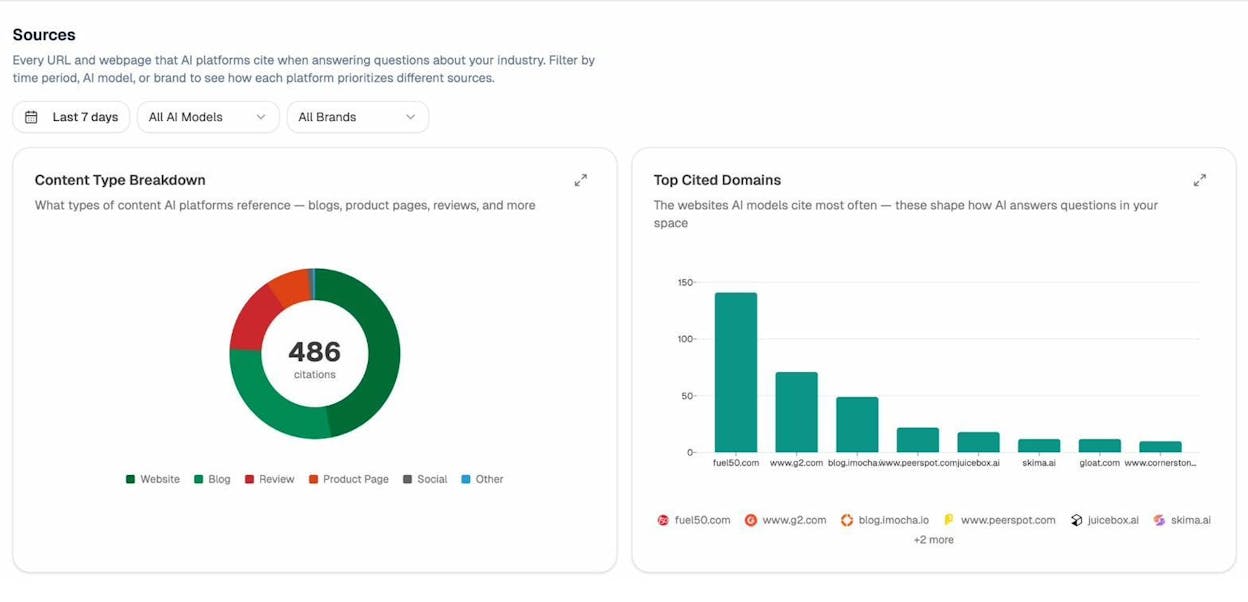
If you notice AI models citing non-canonical versions of your pages, that’s a sign your canonical tags need attention.
How to Add Canonical Tags to Your Site
You can add canonical tags manually by inserting <link rel="canonical" href="https://example.com/your-page/"/> into the <head> section of your HTML. But in practice, nobody does this by hand for every page. It’s easier and safer to use your CMS or a plugin.
Whatever method you use, follow these three rules:
Rule 1: Use absolute URLs. Google recommends absolute URLs (e.g., https://example.com/page/) over relative URLs (e.g., /page/). Relative URLs are technically supported, but absolute URLs remove any ambiguity.
Rule 2: Use the correct protocol. If your site runs on HTTPS (it should), make sure every canonical tag uses https://. An HTTP canonical on an HTTPS page sends conflicting signals.
Rule 3: One canonical per page. If a page has two canonical tags, Google will ignore both. This happens more often than you’d think—especially when your CMS, theme, and SEO plugin all try to insert their own canonical tag.
Here’s how to set canonical tags on the most popular platforms:
WordPress
Install the Yoast SEO plugin (or Rank Math). In the post or page editor, scroll to the plugin’s “Advanced” section. You’ll see a field labeled “Canonical URL.”
Leave this field blank to use the default self-referencing canonical (which Yoast adds automatically). Only fill it in when you need to point the canonical to a different URL—for example, if you’ve syndicated this content and want to canonical it to the original.
![[Screenshot: Yoast SEO Advanced section in WordPress post editor showing the Canonical URL field]](https://www.datocms-assets.com/164164/1774862360-blobid4.png?auto=format,compress&w=1248&fit=max)
If you’re using Rank Math instead, the process is identical: open the post editor, find the “Advanced” tab in the Rank Math panel, and enter the canonical URL.
![[Screenshot: Rank Math Advanced tab showing the Canonical URL field]](https://www.datocms-assets.com/164164/1774862360-blobid5.jpg?auto=format,compress&w=1248&fit=max)
Shopify
Shopify handles canonical tags automatically for most pages. Product pages, collection pages, and blog posts all get self-referencing canonicals out of the box.
Where Shopify gets tricky is with product variants and collection-filtered URLs. For example, Shopify often generates URLs like /collections/shoes/products/nike-air-max alongside the main product URL /products/nike-air-max. Shopify’s default canonical should point to the standalone product URL, but it’s worth verifying.
If you need to override a canonical tag on Shopify, you’ll need to edit your theme’s Liquid files directly. This typically means modifying the <head> section in your theme.liquid file. Unless you’re comfortable with Liquid templating, get a developer’s help.
![[Screenshot: Shopify theme.liquid file showing canonical tag code in the ]](https://www.datocms-assets.com/164164/1774862366-blobid6.png?auto=format,compress&w=1248&fit=max)
Wix
Wix adds self-referencing canonical tags automatically. To customize them:
-
Go to Site & Mobile App > Website & SEO > SEO & GEO
-
Scroll to Tools & Settings and select Go to SEO Settings
-
For individual pages, open the editor, go to Pages & Menu, select a page, click the three-dot icon, and choose SEO Basics
-
Under Advanced SEO > Additional Tags, add or modify the canonical tag
![[Screenshot: Wix SEO settings panel showing the canonical tag configuration option]](https://www.datocms-assets.com/164164/1774862366-blobid7.png?auto=format,compress&w=1248&fit=max)
Squarespace
In Squarespace, navigate to the page you want to edit, open Settings > Advanced, and you’ll find a code injection field for the <head>. Add your canonical tag there:
<link rel="canonical" href="https://example.com/your-page/" />
![[Screenshot: Squarespace page settings showing the Advanced code injection field with a canonical tag]](https://www.datocms-assets.com/164164/1774862372-blobid8.png?auto=format,compress&w=1248&fit=max)
Custom HTML Sites
For static HTML sites or custom builds, add the canonical tag directly to the <head> section of each page:
<!DOCTYPE html>
<html>
<head>
<title>Your Page Title</title>
<link rel="canonical" href="https://example.com/your-page/" />
<!-- other head elements -->
</head>
<body>
<!-- page content -->
</body>
</html>
If you’re using a static site generator like Hugo, Next.js, or Gatsby, you can typically configure canonical tags through your site’s configuration or a plugin. Most modern frameworks support this natively.
Comparison: Canonical Tag Setup by Platform
|
Platform |
Auto Self-Referencing |
How to Customize |
Developer Needed? |
|---|---|---|---|
|
WordPress (Yoast) |
Yes |
Plugin’s “Advanced” section |
No |
|
WordPress (Rank Math) |
Yes |
Plugin’s “Advanced” tab |
No |
|
Shopify |
Yes |
Edit theme.liquid files |
Usually yes |
|
Wix |
Yes |
SEO Settings > Additional Tags |
No |
|
Squarespace |
Partial |
Code injection in page settings |
No |
|
Custom HTML |
No (manual) |
Edit <head> directly |
Depends on setup |
Other Ways to Declare Canonical URLs
Canonical tags aren’t the only canonicalization method. You have three other options, each suited to different situations.
1. 301 Redirects
A 301 redirect permanently sends users and search engines from one URL to another. Unlike a canonical tag, a redirect removes the duplicate page entirely—visitors never see it.
When to use it: When you’re deprecating a page and want all traffic and link equity to flow to the new URL. This is the best option for consolidating HTTP/HTTPS duplicates, www/non-www duplicates, or old URLs after a site migration.
Example: Redirecting http://example.com/old-page/ to https://example.com/new-page/.
A canonical tag says “this is the preferred version.” A redirect says “this page no longer exists; go here instead.” Use redirects when you don’t need the duplicate URL to remain accessible.
Further reading: Types of SEO covers how technical elements like redirects fit into your broader SEO strategy.
2. rel=“canonical” HTTP Header
For non-HTML documents—PDFs, images, or other files where you can’t insert a <head> section—you can declare a canonical through the HTTP response header.
Here’s what it looks like:
HTTP/1.1 200 OK
Content-Type: application/pdf
Link: <https://example.com/guide/>; rel="canonical"
This tells search engines that the PDF’s canonical is the HTML page at https://example.com/guide/. You’ll need server access to configure this—it’s typically set in your .htaccess file (Apache) or nginx.conf (Nginx).
When to use it: When you have a PDF or non-HTML resource that duplicates content from an HTML page and you want search engines to index the HTML version.
3. Sitemap
Your XML sitemap should only include canonical URLs. Google treats the inclusion of a URL in your sitemap as a weak canonicalization signal—not as strong as a canonical tag, but still a signal.
If your sitemap contains non-canonical URLs, it sends mixed signals. Google expects sitemaps to list only the pages you want indexed.
When to use it: As a supporting signal alongside canonical tags, not as your primary canonicalization method.
4. Internal Links (Supporting Signal)
The URLs you use in your internal links also act as a canonicalization signal. If you consistently link to https://example.com/page/ (not https://example.com/page or http://example.com/page/), you’re reinforcing which version is the master.
This isn’t a standalone canonicalization method, but it supports your canonical tags. Make sure all internal links point directly to canonical URLs.
Quick Comparison: Canonicalization Methods
|
Method |
Signal Strength |
Best For |
Duplicate Remains Accessible? |
|---|---|---|---|
|
rel="canonical" tag |
Strong |
Most duplicate content situations |
Yes |
|
301 redirect |
Strongest |
Deprecating pages, protocol/domain consolidation |
No |
|
HTTP header canonical |
Strong |
Non-HTML files (PDFs, images) |
Yes |
|
Sitemap inclusion |
Weak |
Supporting signal only |
Yes |
|
Internal linking |
Weak |
Supporting signal only |
Yes |
What if none of these are used? Google will rely on other signals—like hreflang tags, internal link patterns, and URL length—to choose a canonical for you. The result may not be the version you want.
Common Canonical Tag Mistakes (and How to Avoid Them)
Canonicalization is deceptively simple. The tag itself takes 30 seconds to add, but the ways it can go wrong are nearly endless. Here are the most common mistakes—and each one can quietly undermine your rankings.
Mistake 1: Blocking the Canonical URL with robots.txt
If you block a URL in your robots.txt file, Google can’t crawl it. That means it can’t see the canonical tag on that page. And if it can’t see the canonical tag, it can’t transfer link equity from the duplicate to the canonical.
The fix: Never block a URL that’s the target of a canonical tag. If you need to prevent indexation, use a noindex tag on the duplicate page, not a robots.txt block on the canonical.
Mistake 2: Combining noindex with rel=“canonical”
These two directives contradict each other. A canonical tag says “index the page at this URL.” A noindex tag says “don’t index this page.” When both appear on the same page, Google has to make a judgment call—and there’s no guarantee it’ll choose correctly.
Google’s John Mueller has said that Google generally prioritizes the canonical tag, but the official documentation states noindex will fully remove the page. Don’t rely on conflicting signals. Pick one approach and be consistent.
The fix: Use canonical tags to consolidate duplicates. Use noindex only when you genuinely don’t want a page indexed at all (not just as a secondary signal).
Mistake 3: Canonicalizing to a Broken URL
If your canonical tag points to a 4XX (page not found) or 5XX (server error) URL, search engines can’t index the canonical page. They’ll either ignore the canonical tag entirely or leave the duplicate unindexed.
The fix: Regularly audit your canonical tags to make sure every target URL returns a 200 status code. If a canonical target gets deleted, update every page that references it.
Mistake 4: Canonicalizing to a Redirect
Your canonical tag should point to the final destination URL, not to a URL that redirects. If page A’s canonical points to page B, and page B redirects to page C, you’ve created unnecessary complexity for search engines.
The fix: Always set canonical tags to the ultimate, non-redirecting URL.
Mistake 5: Canonicalizing All Paginated Pages to Page 1
This is a common mistake on blogs and e-commerce sites. If you have /blog/page/1/, /blog/page/2/, and /blog/page/3/, each page should have a self-referencing canonical—not a canonical pointing to page 1.
Why? Because pages 2 and 3 have unique content (different posts or products). Canonicalizing them to page 1 tells Google to ignore that content entirely.
The fix: Use self-referencing canonical tags on each paginated page.
Mistake 6: Missing Canonical Tags with Hreflang
If you use hreflang tags for multilingual content, Google expects the canonical tag and hreflang annotations to align. Specifically, each hreflang tag should point to the canonical version of the page in that language.
If your English page canonicals to /en/guide/ but your hreflang points to /en/guide?v=2, you’re sending conflicting signals about which English URL is the master.
The fix: Make sure every URL referenced in your hreflang annotations is the canonical version of that page.
Mistake 7: Multiple Canonical Tags on One Page
If a page has two or more canonical tags, Google will likely ignore all of them. This often happens when your CMS inserts one, your SEO plugin inserts another, and your theme adds a third.
The fix: Inspect your page source (Ctrl+U or Cmd+U in most browsers) and search for rel="canonical". If you find more than one, figure out which source is adding the extra tag and disable it.
Mistake 8: Canonical Tag in the <body> Instead of <head>
A canonical tag placed inside the <body> section of your HTML will be ignored by search engines. It must appear in the <head>.
This can happen even when your source code looks correct. If an unclosed tag, a JavaScript injection, or an <iframe> in the <head> causes the browser (or Googlebot’s renderer) to close the <head> prematurely, your canonical tag might end up in the rendered <body>.
The fix: Check both your source code and the rendered DOM. In Chrome, open DevTools (F12), go to the Elements tab, and verify the canonical tag appears inside <head>. If it doesn’t, investigate what’s pushing it into <body>.
Mistake 9: Using Canonical Tags on Non-Duplicate Pages
Canonical tags are designed for duplicate or near-duplicate content. Using them to point unrelated pages to each other—like canonicalizing a blog post to your homepage—confuses search engines and can cause the wrong page to be deindexed.
The fix: Only use canonical tags between pages with identical or nearly identical content.
How to Find and Fix Canonical Tag Issues
Even with careful setup, canonical tag issues creep in over time. Pages get deleted, URLs change, plugins get updated, and developers make configuration changes. Regular auditing is essential.
Step 1: Crawl Your Site
Use a site auditing tool to crawl your entire website and flag canonical tag issues. Popular options include Screaming Frog (desktop crawler), Google Search Console (free), or a paid SEO platform’s site audit feature.
![[Screenshot: A site audit tool showing a list of canonical tag issues found during a crawl]](https://www.datocms-assets.com/164164/1774862372-blobid9.png?auto=format,compress&w=1248&fit=max)
When you run a crawl, look for the following issues:
Step 2: Check for These 14 Canonical Issues
Here’s a complete checklist of canonical problems to look for, along with how to fix each one:
1. Canonical points to a 4XX page
The canonical target is dead. Search engines won’t index a dead page, so they’ll ignore the canonical and potentially index the wrong version.
Fix: Replace the dead canonical URL with a working (200) page.
2. Canonical points to a 5XX page
The canonical target has a server error. This may be temporary (maintenance, server overload) or permanent (misconfiguration).
Fix: Check the server. If the 5XX is temporary, re-crawl after it’s resolved. If it’s permanent, fix the server issue or update the canonical URL.
3. Canonical points to a redirect
The canonical target redirects to another URL. This creates unnecessary overhead for search engines.
Fix: Update the canonical to point directly to the final destination URL (the one that returns a 200 status code).
4. Canonical URL has no incoming internal links
You’ve declared a canonical URL, but nothing on your site links to it. That means users can’t reach it by browsing your site, and internal links—a canonicalization signal—aren’t supporting it.
Fix: Update your site’s navigation and internal links to point directly to the canonical URL.
5. Duplicate pages without a canonical
You have two or more pages with the same or very similar content, but none of them declare a canonical. Google will pick one, but it might not be the one you want.
Fix: Choose the version you want indexed. Add a canonical tag to every duplicate pointing to the chosen version, and add a self-referencing canonical to the chosen version itself.
6. Hreflang points to a non-canonical URL
Your hreflang annotations reference a URL that’s not the canonical version of the page. This sends conflicting signals about which URL Google should index for that language.
Fix: Update the hreflang tags to reference the canonical URL for each language.
7. Non-canonical page in your sitemap
Your sitemap includes URLs that have canonical tags pointing somewhere else. Google expects sitemaps to contain only the pages you want indexed.
Fix: Remove non-canonical URLs from your sitemap. Keep only canonical URLs.
8. Canonical chain (A → B → C)
Page A’s canonical points to page B, but page B’s canonical points to page C. This creates a chain that search engines may not follow.
Fix: Update page A’s canonical to point directly to page C (the final canonical).
9. Open Graph URL doesn’t match canonical
The og:url tag (used for social sharing) specifies a different URL than the canonical tag. This won’t hurt your Google rankings, but it means the wrong version of your page gets shared on social media.
Fix: Make sure og:url and rel="canonical" reference the same URL.
10. HTTPS page canonicals to HTTP
An HTTPS page declares an HTTP URL as its canonical. Since HTTPS is a ranking signal, you always want the secure version to be canonical.
Fix: Update the canonical to use HTTPS. Redirect the HTTP version to HTTPS.
11. HTTP page canonicals to HTTPS
An HTTP page declares the HTTPS version as canonical. This isn’t a major issue, but it’s logically backwards—if you have an HTTPS version, redirect the HTTP page there instead of relying solely on a canonical tag.
Fix: Implement a 301 redirect from HTTP to HTTPS.
12. Canonical URL changed since last crawl
The canonical URL on a page changed between audits. This could be intentional (you updated the canonical during a migration) or accidental (a plugin update changed the behavior).
Fix: Review the change. If it’s intentional, no action needed. If it’s accidental, revert it.
13. Non-canonical page receives organic traffic
A page with a canonical tag pointing elsewhere is still showing up in search results and receiving traffic. This means Google chose to ignore your canonical.
Fix: First, verify the canonical tag is implemented correctly. Then, use Google Search Console’s URL Inspection tool to see what Google considers the canonical. If there’s a mismatch, investigate other signals (redirects, internal links, sitemaps) that might be contradicting your canonical tag.
14. Multiple canonical tags on one page
The page has two or more rel="canonical" tags. Google will ignore all of them.
Fix: Identify which system is adding the extra tags (CMS, plugin, theme, JavaScript) and remove the duplicates. Keep only one canonical tag per page.
Step 3: Verify with Google Search Console
After fixing issues, use Google Search Console’s URL Inspection tool to confirm Google sees the correct canonical for your important pages.
-
Enter the URL you want to check
-
Look at the “Canonical URL” field under “Coverage”
-
If it says “Google-selected canonical” and shows a different URL than your declared canonical, investigate why
![[Screenshot: Google Search Console URL Inspection tool showing the declared canonical vs. Google-selected canonical]](https://www.datocms-assets.com/164164/1774862378-blobid10.png?auto=format,compress&w=1248&fit=max)
This tool is the definitive answer to “Does Google agree with my canonical tag?” If Google consistently overrides your canonical, it usually means other signals (redirects, internal links, sitemap) are contradicting it.
How Canonical Tags Affect Your AI Search Visibility
Most guides stop at traditional SEO when discussing canonical tags. But if you’re tracking how your brand appears in AI search—and you should be—canonical tags play a role there too.
AI search engines like ChatGPT, Perplexity, Claude, and Gemini generate answers by pulling from web content. When they cite a source, they link to the URL they found. If your site has duplicate content issues, AI models might cite a non-canonical URL—one that doesn’t track properly, doesn’t represent your best content, or dilutes your brand’s presence across multiple URL variations.
Here’s how to make sure your canonical setup supports your AI search visibility:
1. Check Which URLs AI Models Are Citing
Use Analyze AI to see exactly which of your URLs get cited in AI-generated answers. The Sources dashboard shows every URL that AI platforms reference, broken down by AI model and time period.
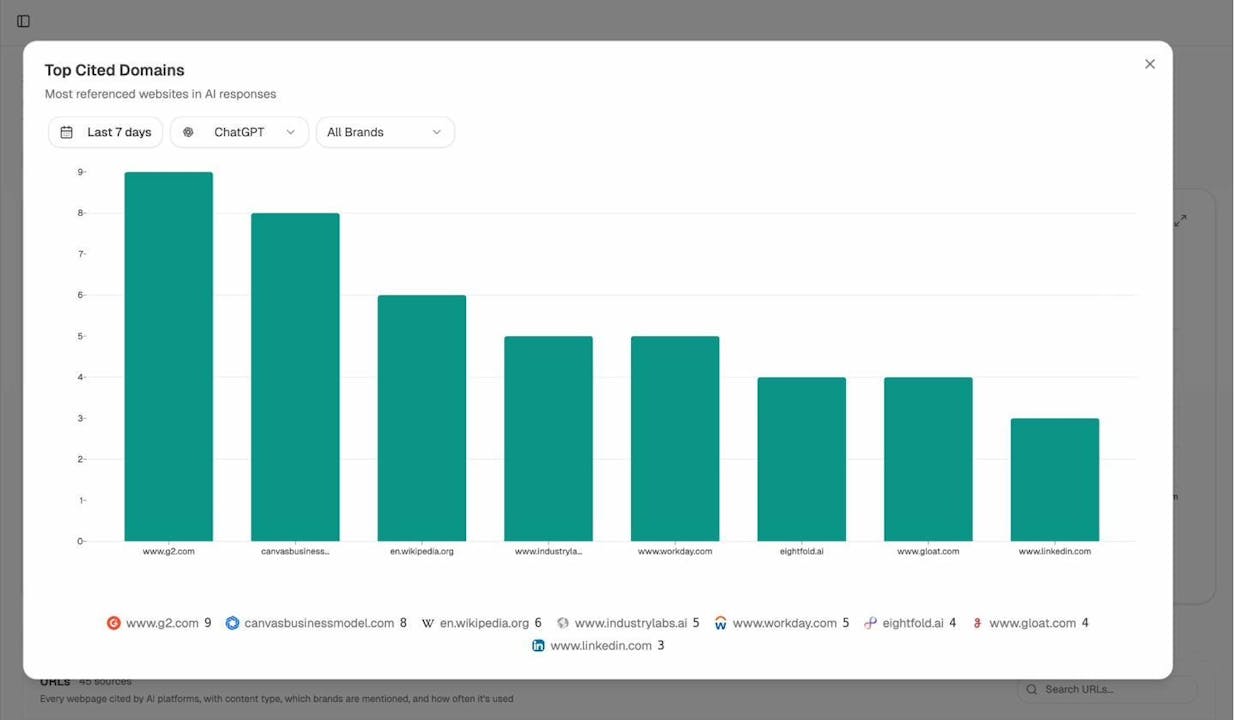
If you see AI models citing parameterized URLs, non-HTTPS versions, or pages that should be canonicalized elsewhere, that’s a direct signal to fix your canonical tags.
2. Monitor Your AI Traffic by Landing Page
Analyze AI’s AI Traffic Analytics connects to your Google Analytics and shows which pages receive traffic from AI platforms like ChatGPT, Perplexity, Claude, Copilot, and Gemini.
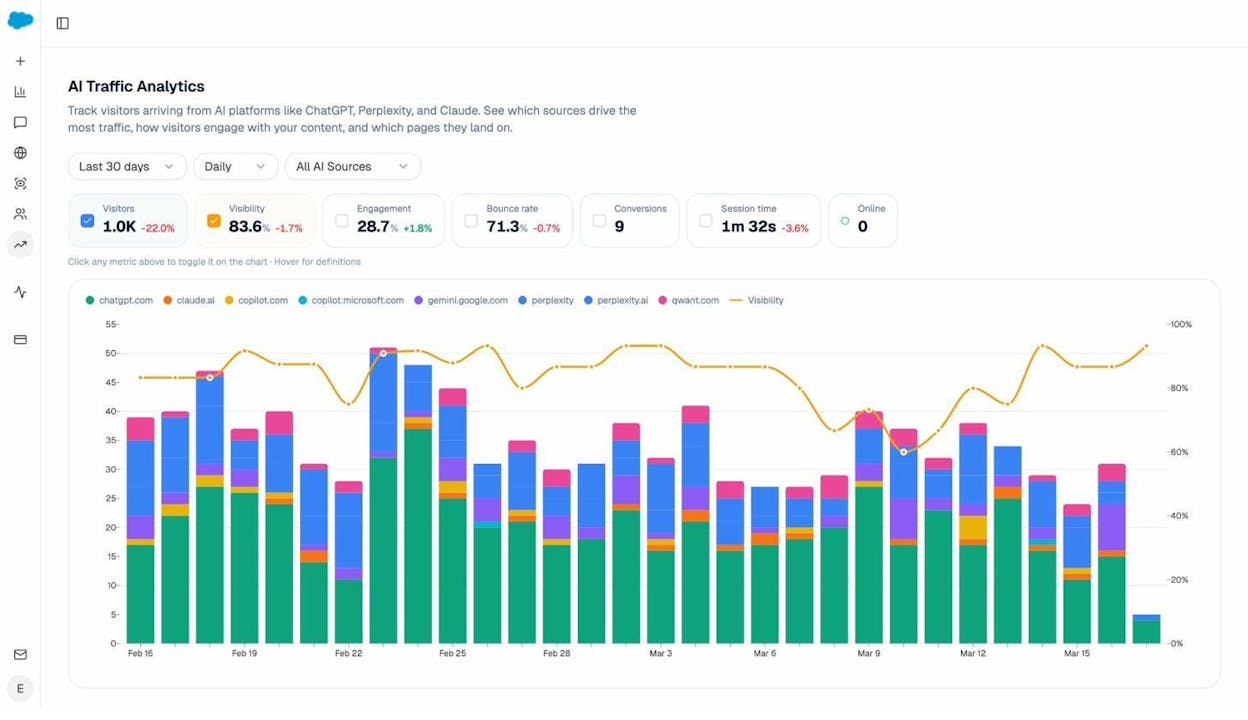
If AI traffic is landing on non-canonical URLs, those visits may not count toward the right page in your analytics. Worse, if the non-canonical page has a different conversion path or weaker content, you’re losing potential customers.
3. Track Competitor Citations for Comparison
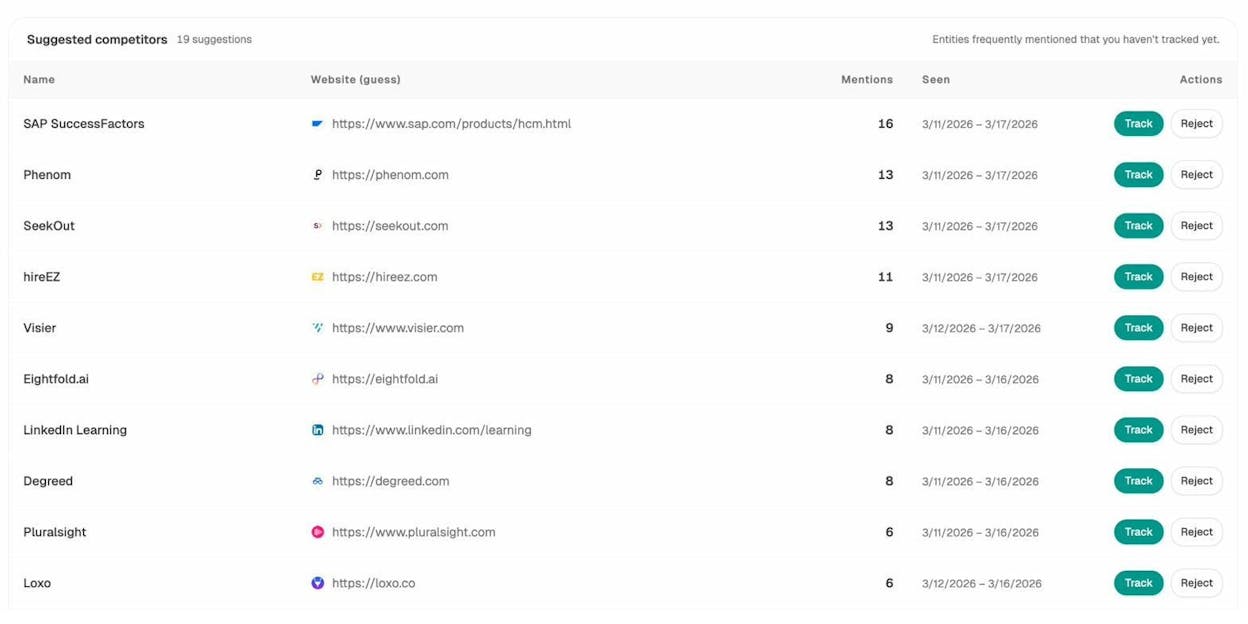
Canonical issues don’t just affect your own site. If your competitors have cleaner URL structures, AI models may prefer citing their content over yours—simply because their canonical setup provides clearer, more authoritative signals.
Use Analyze AI’s Competitors dashboard to see how your brand’s citation share compares to competitors across AI platforms.
4. Align Your Content for Both Search Engines and AI Models
The same principles that make canonical tags important for SEO apply to AI search: clean URL structures, consolidated link equity, and clear signals about which page is authoritative. AI models increasingly rely on the same crawled web data that search engines use, so a well-canonicalized site is easier for both Google and AI models to understand.
For a deeper look at optimizing for AI search engines, see our guide on answer engine optimization.
Canonical Tags Checklist
Before you move on, run through this checklist to make sure your site’s canonicalization is airtight:
|
Checklist Item |
Status |
|---|---|
|
Every page has exactly one canonical tag |
☐ |
|
All canonical tags use absolute URLs |
☐ |
|
All canonical tags use HTTPS |
☐ |
|
Self-referencing canonicals are on all non-duplicate pages |
☐ |
|
No canonical tags point to 4XX or 5XX pages |
☐ |
|
No canonical tags point to redirecting URLs |
☐ |
|
Paginated pages use self-referencing canonicals (not page 1) |
☐ |
|
Hreflang annotations reference canonical URLs |
☐ |
|
Sitemap contains only canonical URLs |
☐ |
|
og:url matches rel="canonical" on every page |
☐ |
|
No pages have multiple canonical tags |
☐ |
|
Internal links point to canonical URLs |
☐ |
|
Syndicated content canonicals back to your original |
☐ |
|
AI search tools show citations to canonical URLs |
☐ |
Use Analyze AI’s Free Tools for Quick Checks
While auditing your canonical tags, a few of Analyze AI’s free tools can help you with related checks:
-
Broken Link Checker: Find broken links on your site, including canonical tags that point to dead pages.
-
Website Authority Checker: Check the domain authority of your site—the canonical version of your domain should carry all the authority.
-
SERP Checker: See which version of your page Google actually ranks. If a non-canonical URL appears in results, your canonical tag isn’t working.
-
Keyword Rank Checker: Verify that your target keywords are ranking for the canonical URL, not a duplicate.
Key Takeaways
Canonical tags are a small piece of HTML with outsized impact. They tell search engines—and increasingly, AI models—which version of your content matters. When they’re right, your link equity consolidates, your crawl budget is preserved, and the correct pages show up in both search results and AI answers.
When they’re wrong, ranking signals scatter, the wrong URLs get indexed, and your content strategy works against itself.
The good news: canonical tags are straightforward to implement. Add self-referencing canonicals to every page, point duplicates to the version you want ranked, and audit regularly. If you’re also tracking AI search visibility, use Analyze AI to monitor which URLs get cited in AI answers and make sure they’re the canonical ones.
Your next step: run a site audit, check for the 14 issues listed above, and fix anything that’s off. Your rankings—and your AI visibility—will thank you.

Ernest

Ibrahim


