



Summarize this blog post with:


Most SEO audit guides stop at Google. That’s a mistake. AI engines like ChatGPT, Perplexity, Claude, and Gemini now drive real referral traffic—and the pages that rank well in traditional search aren’t always the ones AI models cite. A modern SEO audit needs to account for both channels.
In this article, you’ll learn how to run a complete SEO audit that covers technical health, on-page optimization, content performance, and—critically—your brand’s visibility across AI search engines. Each step includes the exact tools to use, what to look for, and how to fix whatever you find.
Table of Contents
What Is an SEO Audit?
An SEO audit is a systematic review of your website’s ability to rank in search engines. It identifies technical problems, on-page gaps, content weaknesses, and missed opportunities—then gives you a clear list of what to fix and in what order.
Think of it like a vehicle inspection. Your car might run fine today, but a worn brake pad or a slow oil leak can turn into a serious problem if left unchecked. An SEO audit catches these issues before they cost you traffic, conversions, and revenue.
A thorough SEO audit answers five questions:
-
Can search engines crawl and index your site? Technical issues like broken redirects, noindex tags, or orphaned pages prevent Google from seeing your content at all.
-
Is your site fast and usable? Core Web Vitals, mobile-friendliness, and page speed directly affect rankings and user experience.
-
Are your pages optimized for the right keywords? Missing title tags, thin content, and poor internal linking leave ranking potential on the table.
-
Is your content still performing? Rankings decay over time. Pages that drove traffic six months ago might be bleeding clicks today.
-
Are you visible where search is going? AI search engines are a growing traffic source. If your brand isn’t being cited by ChatGPT, Perplexity, or Gemini, you’re missing an emerging organic channel.
That last question is what separates a modern SEO audit from an outdated one.
What Tools Do You Need for an SEO Audit?
You don’t need a $500/month tool stack to run a solid audit. Here’s what covers the essentials:
|
Tool |
What It’s For |
Cost |
|---|---|---|
|
Indexing status, mobile usability, Core Web Vitals, organic performance |
Free |
|
|
Site crawling, broken links, on-page issues, backlink data |
Free (AWT) / Freemium |
|
|
Traffic trends, engagement metrics, conversion tracking |
Free |
|
|
Core Web Vitals and performance scoring |
Free |
|
|
AI search visibility, prompt tracking, citation analytics, AI referral traffic |
Paid |
|
|
Quick AI visibility health check |
Free |
|
|
Find broken links across your site |
Free |
Google Search Console and a site crawler handle the traditional SEO audit. Analyze AI adds the layer most audit guides miss: understanding how AI models see, cite, and recommend your brand.
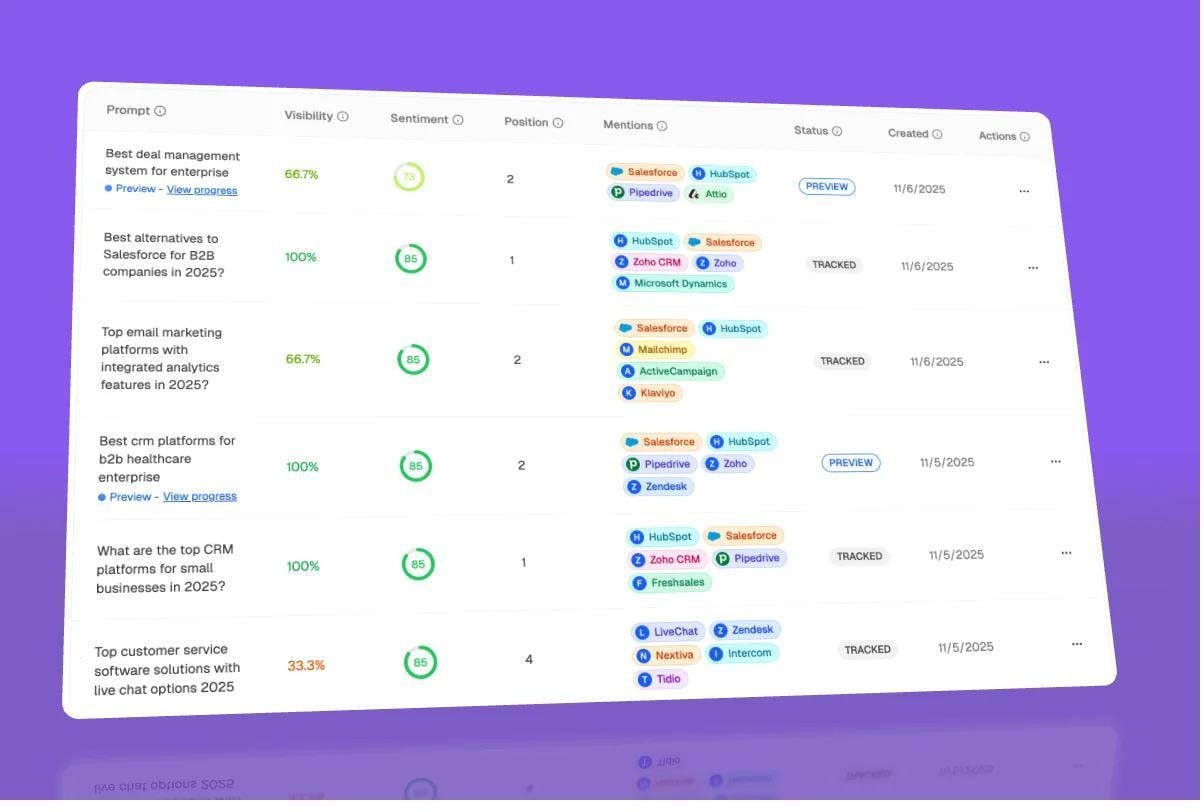
Here’s what the Analyze AI dashboard looks like in practice — tracking prompts, visibility, and competitor mentions across AI engines:
How to Do an SEO Audit (16 Steps)
1. Crawl Your Website
Every SEO audit starts with a crawl. A crawler visits every page on your site—just like Googlebot does—and flags technical issues that could hurt your rankings.
You have two solid free options for this:
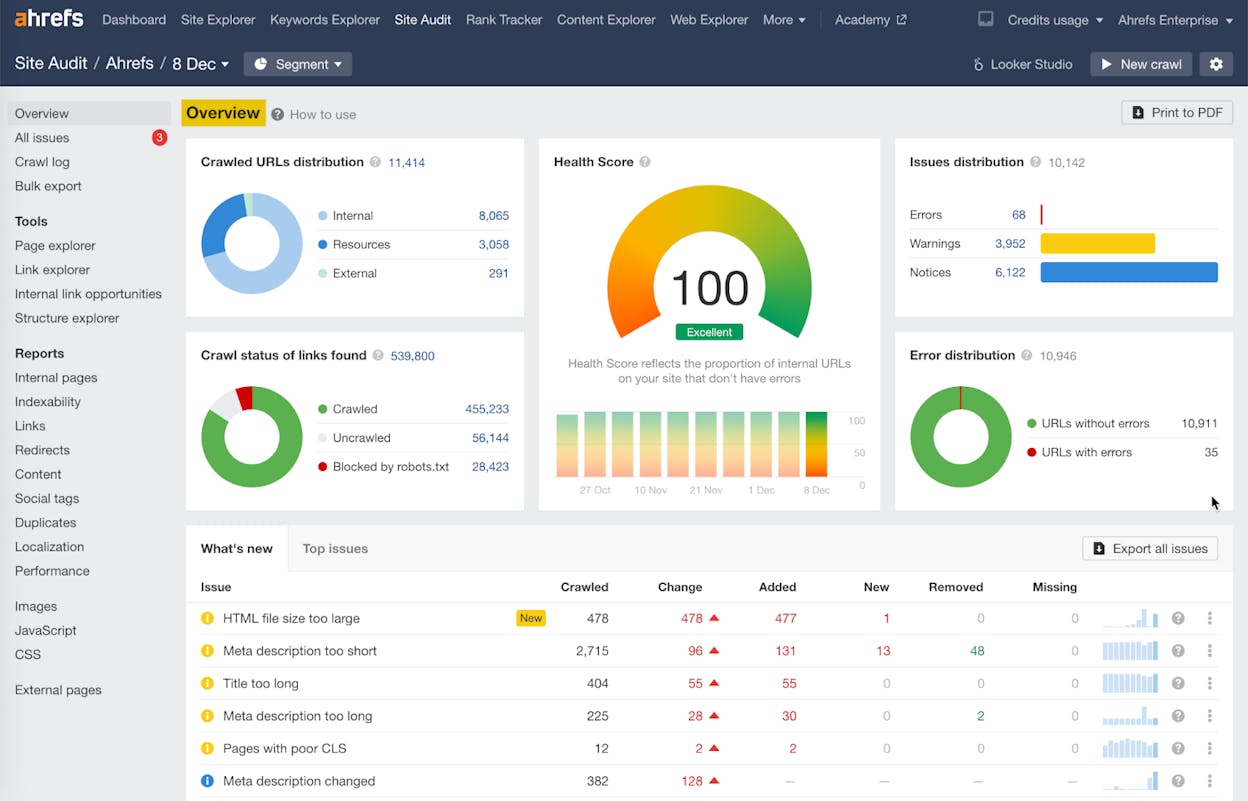
Option A: Ahrefs Webmaster Tools (AWT)
Head to Site Audit, click + New project, and connect your Google Search Console account. AWT will crawl your site and produce a report covering 100+ potential issues.
Option B: Screaming Frog
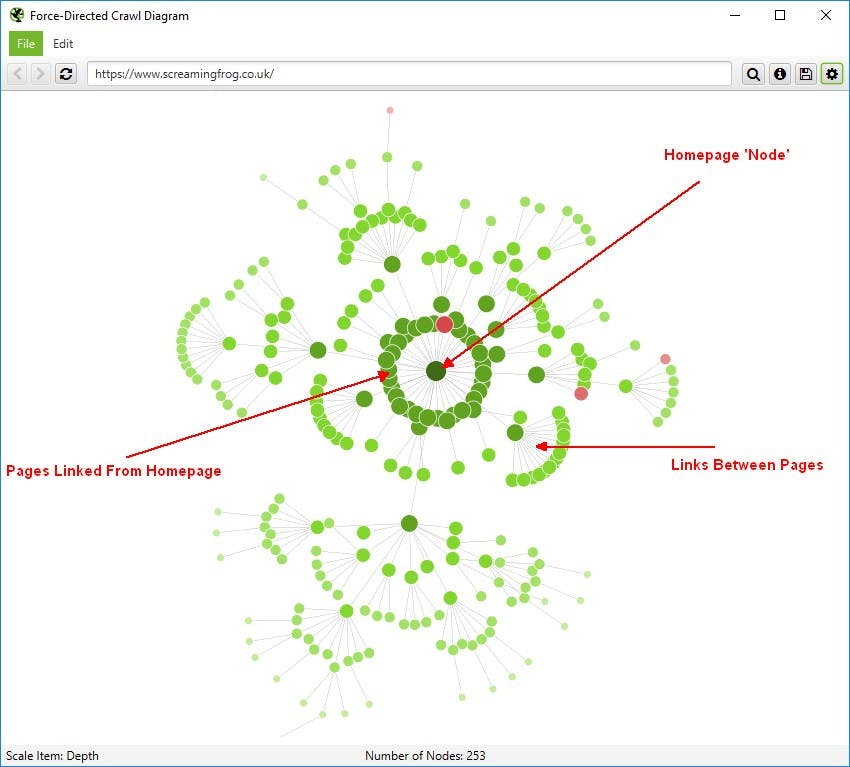
Download Screaming Frog SEO Spider, paste your domain URL, and hit Start. The free version crawls up to 500 URLs, which is enough for most small-to-medium sites.
The crawl results form the foundation of your audit. You’ll reference them throughout the steps below.
A quick note on scope: If the crawl surfaces 100+ issues, don’t try to fix everything at once. The steps below are ordered by impact. Work through them in sequence, and you’ll address the highest-priority problems first.
2. Check for Manual Actions and Penalties
Before you spend time optimizing anything, confirm that Google hasn’t penalized your site. A manual action means a human reviewer at Google flagged your site for violating Google’s spam policies. If you have one, nothing else in this audit matters until it’s resolved.
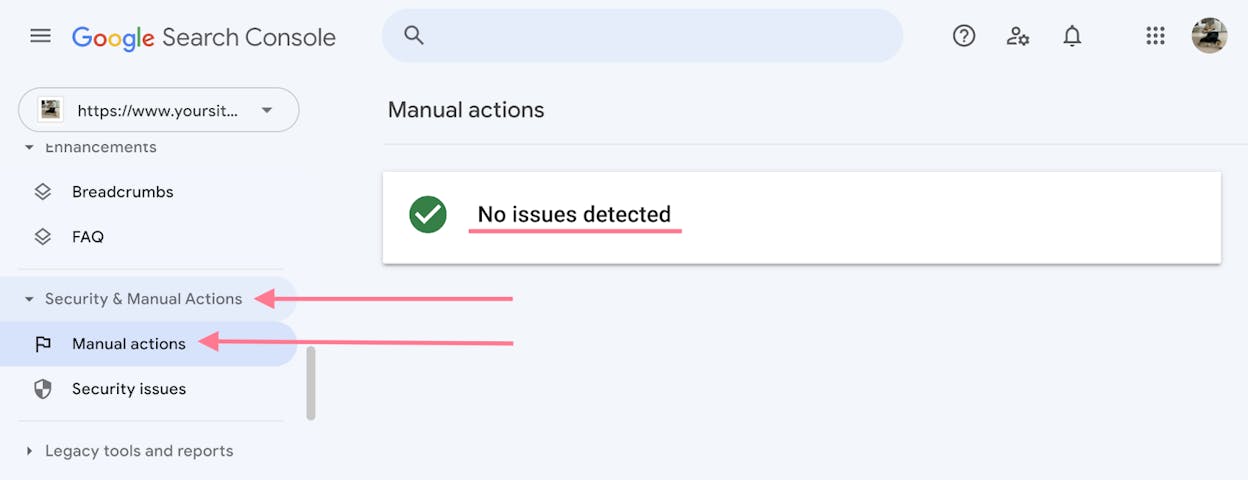
Here’s how to check:
-
Open Google Search Console.
-
In the left sidebar, click Security & Manual Actions > Manual actions.
-
If you see “No issues detected,” you’re clear.
If you do see a manual action, it’ll tell you the specific violation—things like unnatural links, thin content, or cloaking. Google provides documentation for each type, including how to fix it and submit a reconsideration request.
Manual actions are rare. But skipping this check is like starting a renovation without checking if the building has been condemned.
3. Identify Organic Traffic Drops
Open Google Search Console and go to the Search results report. Set the date range to the last 16 months (the maximum GSC allows). Look for any sharp drops in clicks or impressions.
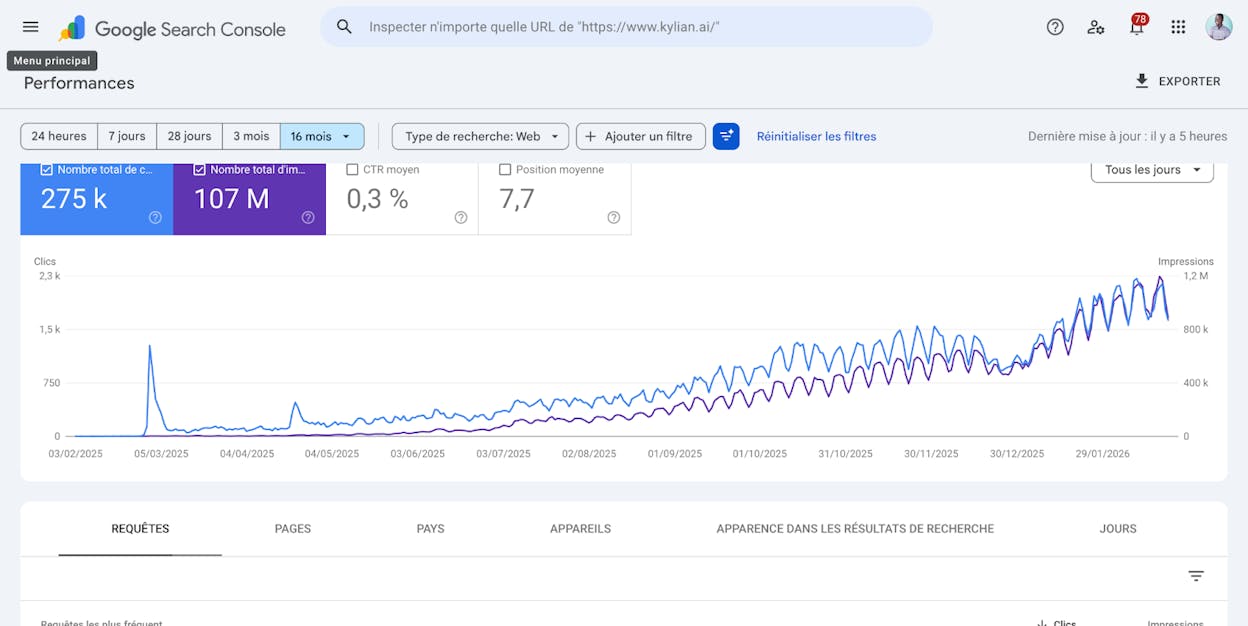
If you spot a drop, your next job is figuring out what caused it. The three most common culprits:
Google algorithm updates. Cross-reference the date of your traffic drop with Google’s confirmed algorithm updates. If they align, the update likely hit your site. Each update targets different things—content quality, link spam, site experience—so the specific update tells you where to focus your fixes.
You can also plug your domain into Ahrefs Site Explorer to see traffic estimates overlaid with algorithm update dates. This makes it easy to spot correlations at a glance.
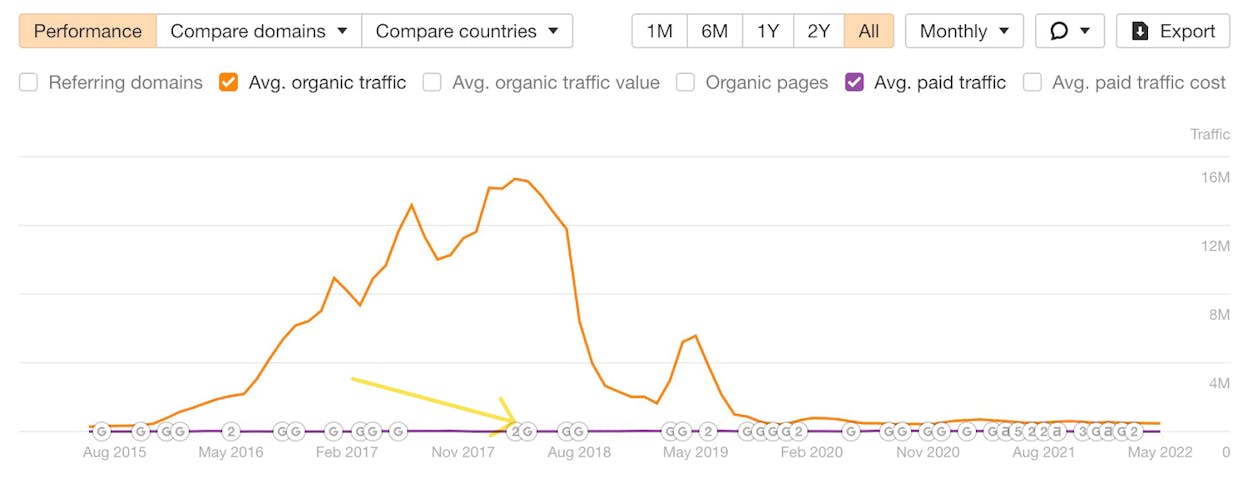
Technical issues. A botched migration, a new noindex tag on important pages, or a broken redirect chain can tank traffic overnight. If the drop doesn’t align with an algorithm update, check your crawl report and server logs for anything that changed around that date.
Seasonal or market shifts. Some drops are natural. If you sell skiing equipment, expect traffic to fall in May. Use Google Trends to check whether search demand for your core topics has changed.
4. Check for Duplicate Site Versions
Your site should be accessible at exactly one URL. But in practice, four versions of your domain might exist:
-
http://domain.com
-
http://www.domain.com
-
https://domain.com
-
https://www.domain.com
If more than one of these loads your site without redirecting, Google treats them as separate websites. This splits your crawl budget, dilutes your link equity, and can cause duplicate content issues.
How to check: Type each version into your browser and watch the address bar. All four should redirect to one canonical version (ideally the https:// version, with or without www—just pick one and stick with it).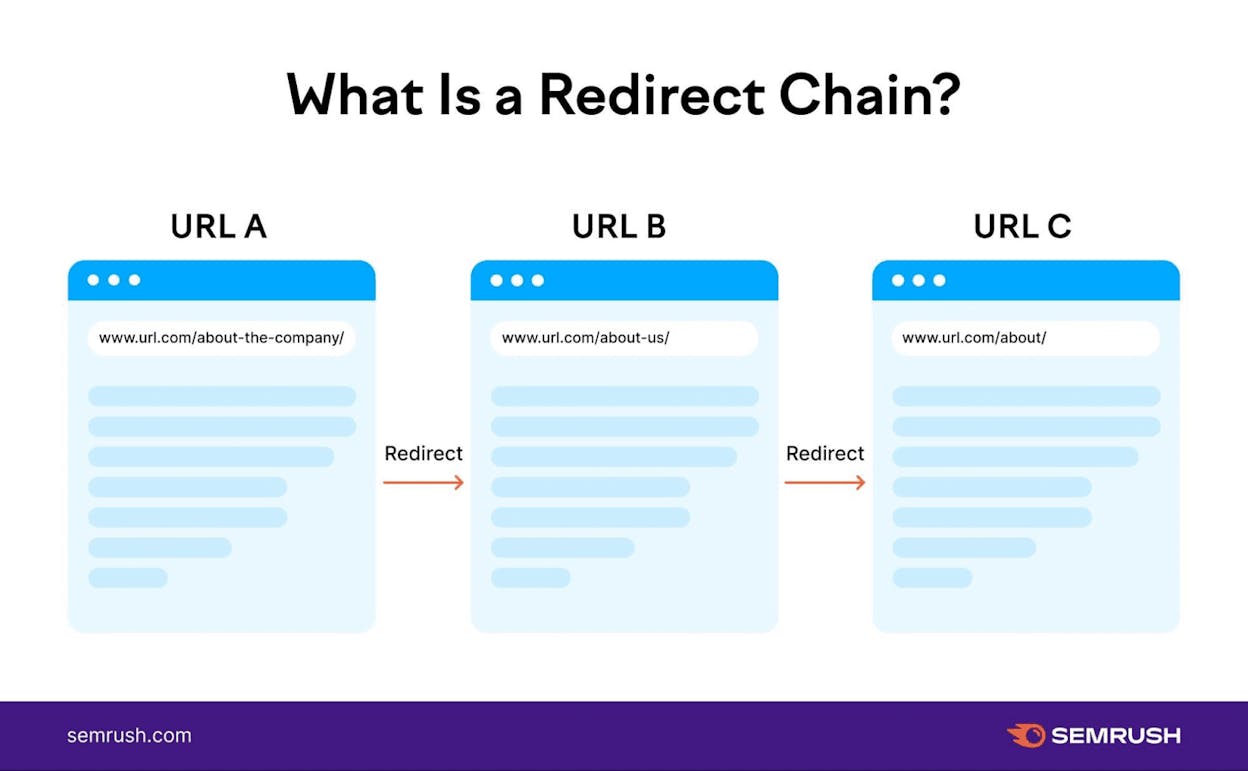
Source: Semrush
If they don’t all redirect, talk to your developer about implementing 301 redirects from the non-canonical versions to your preferred one.
Also check that your <link rel="canonical"> tag on your homepage points to the correct version. You can view this in your page source or in any SEO toolbar extension.
5. Find and Fix Indexability Issues
Google can only rank pages that are in its index. If your important pages aren’t indexed, they’re invisible in search results.
Step 1: Check the Indexability report in your crawler.
In Ahrefs Site Audit, go to the Indexability report and look for “Noindex page” warnings. These are pages with a noindex meta tag or HTTP header—Google is explicitly told not to index them.
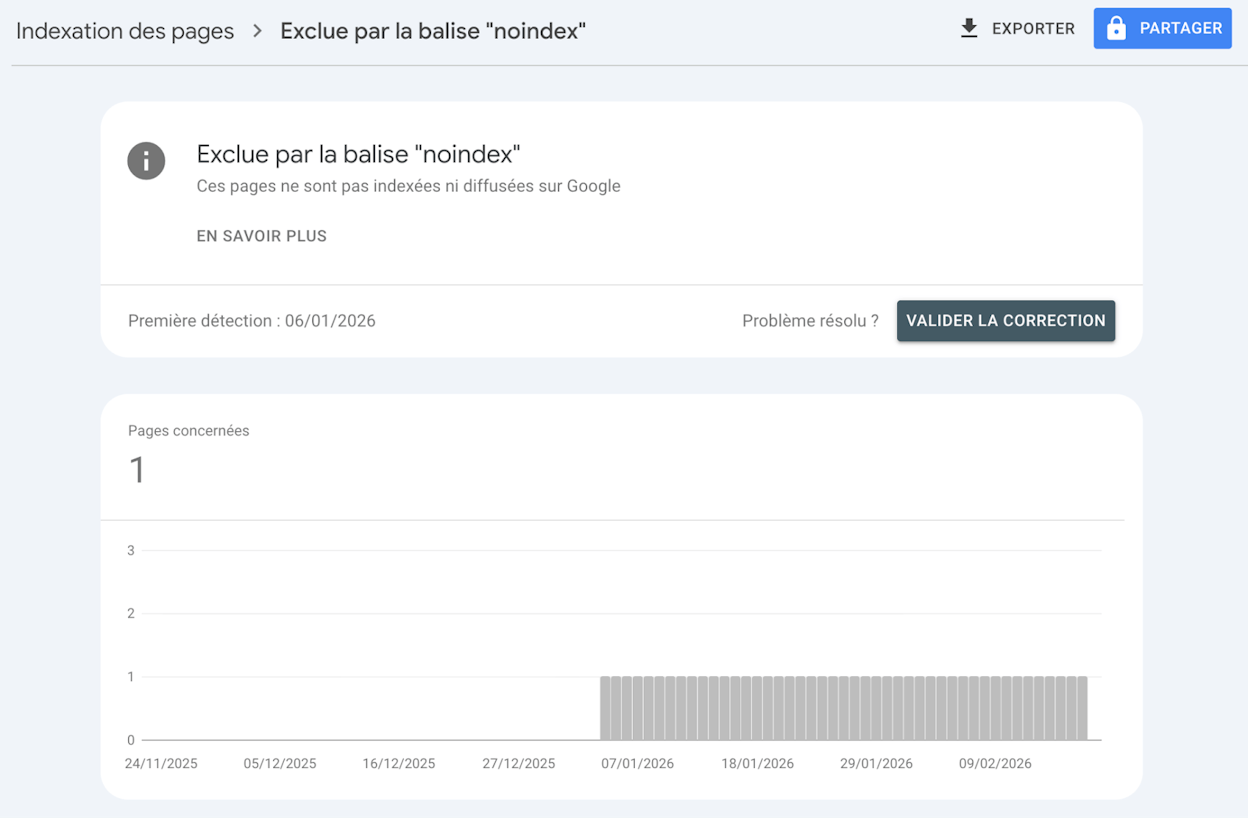
Some noindex tags are intentional (thank-you pages, internal search results, staging pages). But if you see important landing pages or blog posts with noindex tags, that’s a problem. Remove the tag or update your robots directives.
Step 2: Check the Pages report in Google Search Console.
Go to Indexing > Pages. This report shows you every URL Google knows about and why certain pages aren’t indexed. Common reasons include:
-
“Crawled – currently not indexed”: Google found the page but chose not to index it. This often signals quality issues.
-
“Discovered – currently not indexed”: Google knows the URL exists but hasn’t crawled it yet. Often a crawl budget issue.
-
“Blocked by robots.txt”: Your robots.txt file is preventing Google from accessing the page.
-
“Duplicate without user-selected canonical”: Google found duplicates and chose a different canonical than the one you specified.
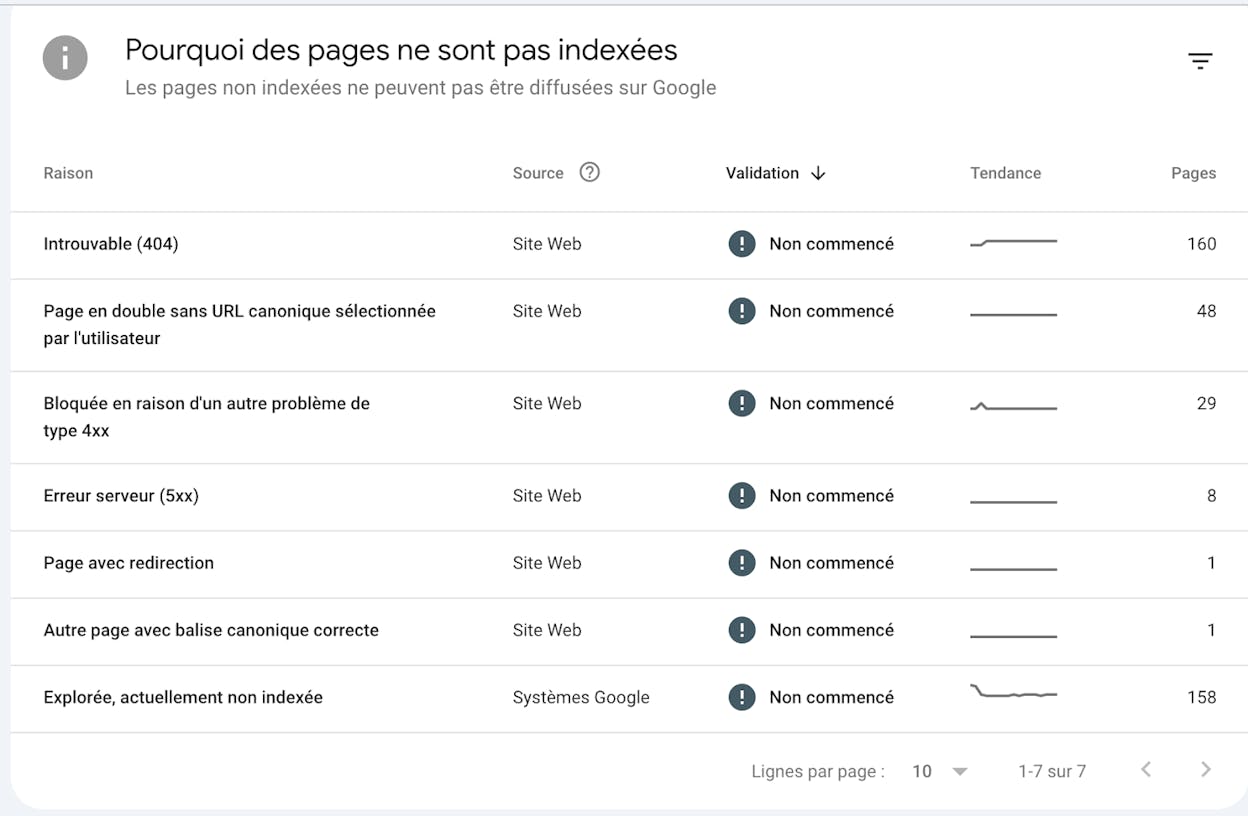
Focus on fixing issues that affect your most important pages first. A noindexed blog post with 50 monthly visits is lower priority than a noindexed product page that should be driving conversions.
6. Ensure Your Site Is Mobile-Friendly
Google uses mobile-first indexing, which means the mobile version of your site is what Google primarily crawls and indexes. If your site is hard to use on a phone, you’re likely losing rankings.
How to check:
Go to the Mobile Usability report in Google Search Console. It flags pages with issues like text that’s too small, clickable elements placed too close together, or content wider than the screen.
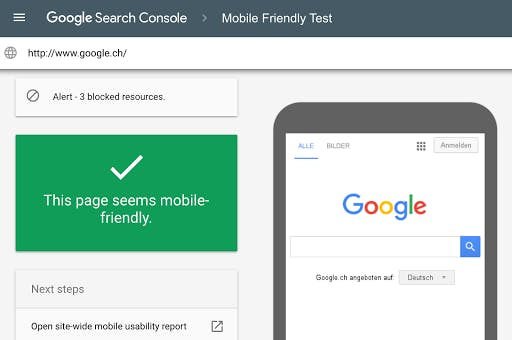
For a quick spot-check, open your site on your phone and try to complete a common user task—reading an article, finding a product, submitting a form. If anything requires pinching, zooming, or horizontal scrolling, fix it.
Common mobile issues and their fixes:
|
Issue |
Fix |
|---|---|
|
Text too small to read |
Set body font size to at least 16px |
|
Clickable elements too close |
Add at least 8px padding between tap targets |
|
Content wider than screen |
Use responsive CSS and avoid fixed-width elements |
|
Viewport not set |
Add <meta name="viewport" content="width=device-width, initial-scale=1"> |
7. Benchmark Your Core Web Vitals
Core Web Vitals are Google’s metrics for measuring page experience. They’re a confirmed ranking factor, and they affect how users perceive your site.
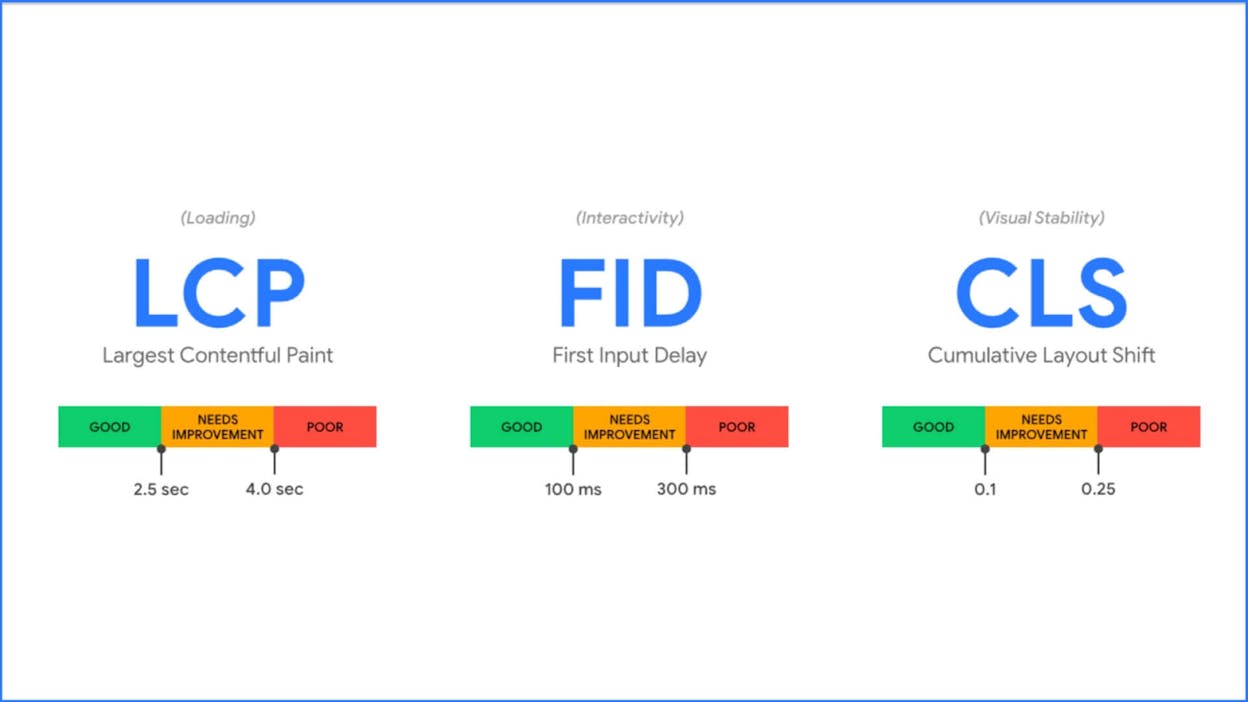
The three metrics that matter:
|
Metric |
What It Measures |
Good Threshold |
|---|---|---|
|
Largest Contentful Paint (LCP) |
How fast the main content loads |
Under 2.5 seconds |
|
Interaction to Next Paint (INP) |
How quickly the page responds to user input |
Under 200 milliseconds |
|
Cumulative Layout Shift (CLS) |
How much the page layout shifts while loading |
Under 0.1 |
Where to check your scores:
Start with the Core Web Vitals report in Google Search Console. It uses real user data (called “field data”) to show which URLs pass or fail. This is the most authoritative source because it reflects actual visitor experience.
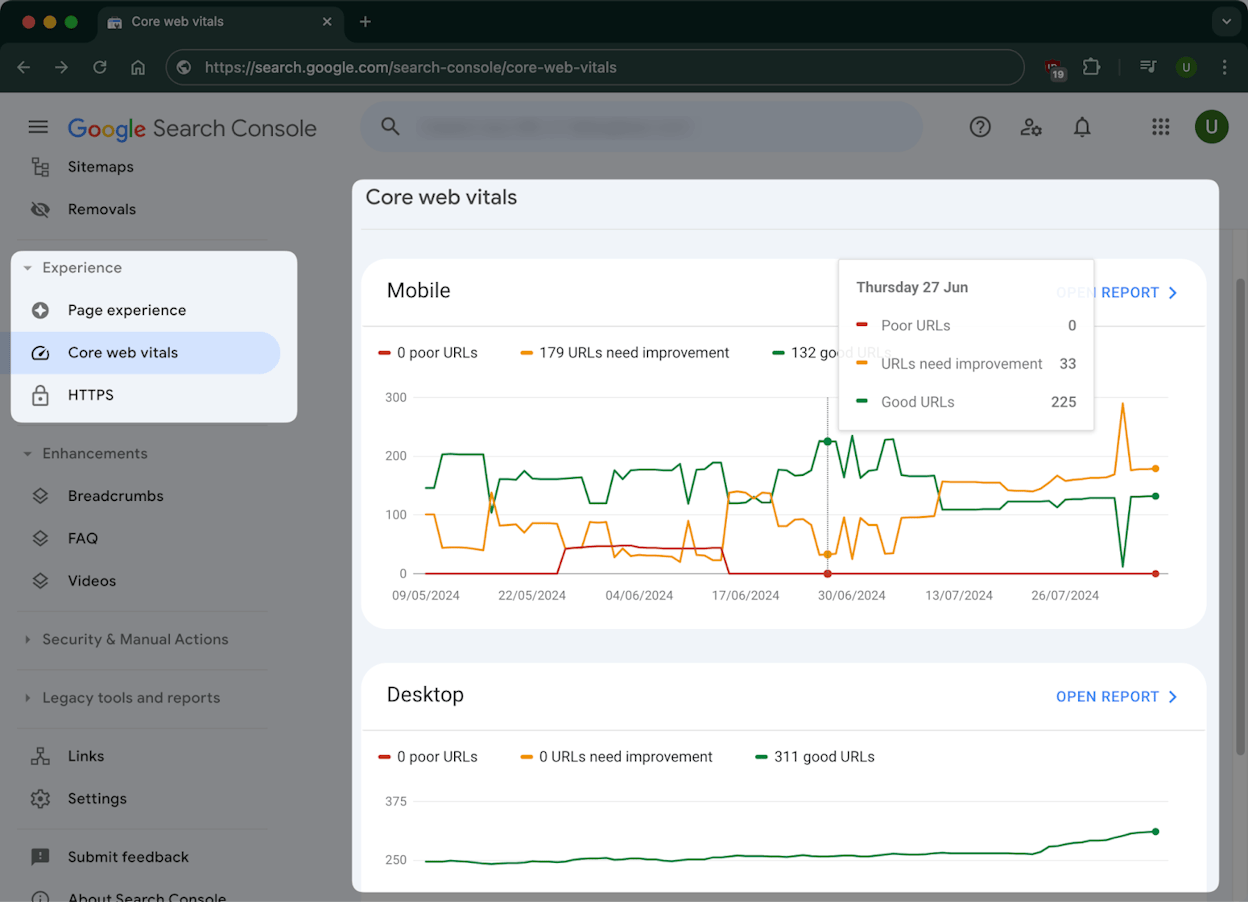
For page-level diagnostics, use PageSpeed Insights. It shows both field data and lab data (simulated tests), along with specific recommendations for improvement.
Common fixes:
-
Slow LCP: Compress images, serve them in WebP or AVIF format, implement lazy loading for below-the-fold images, and use a CDN.
-
High INP: Reduce JavaScript execution time, break up long tasks, and defer non-critical scripts.
-
High CLS: Set explicit width and height attributes on images and videos, and avoid injecting content above existing content after the page loads.
8. Fix Broken Pages and Reclaim Link Equity
Broken pages (404 errors) waste crawl budget and create dead ends for users. Worse, if those broken pages have backlinks pointing to them, you’re losing link equity that should be flowing to your live pages.
How to find broken pages:
Your site crawl from Step 1 will flag 404 errors. In Ahrefs Site Audit, look for “4xx page” errors in the Links report.
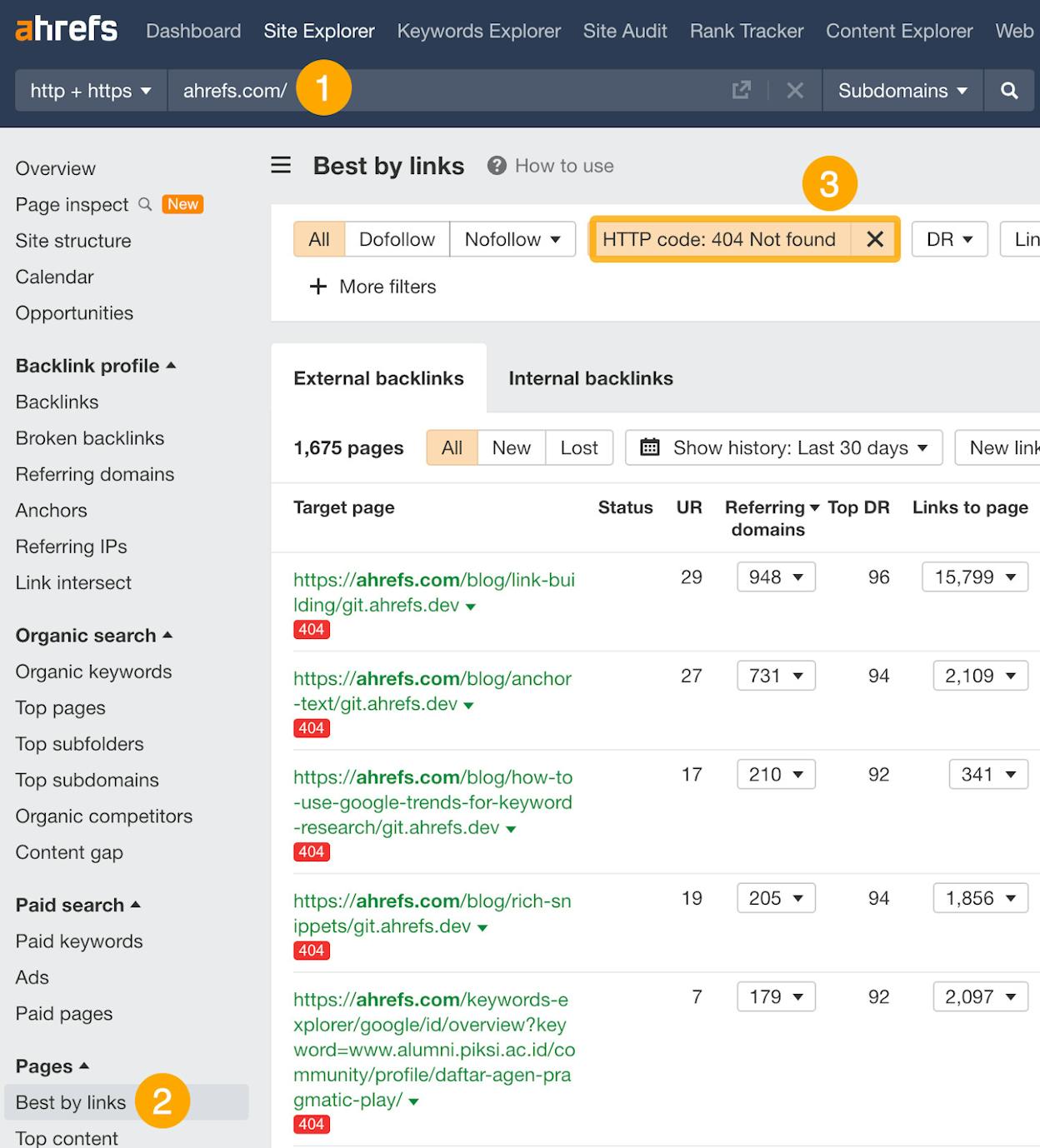
To prioritize which broken pages to fix first, check which ones have backlinks. In Ahrefs Site Explorer, go to the Best by links report and add a “404 not found” HTTP code filter. Sort by referring domains from high to low.
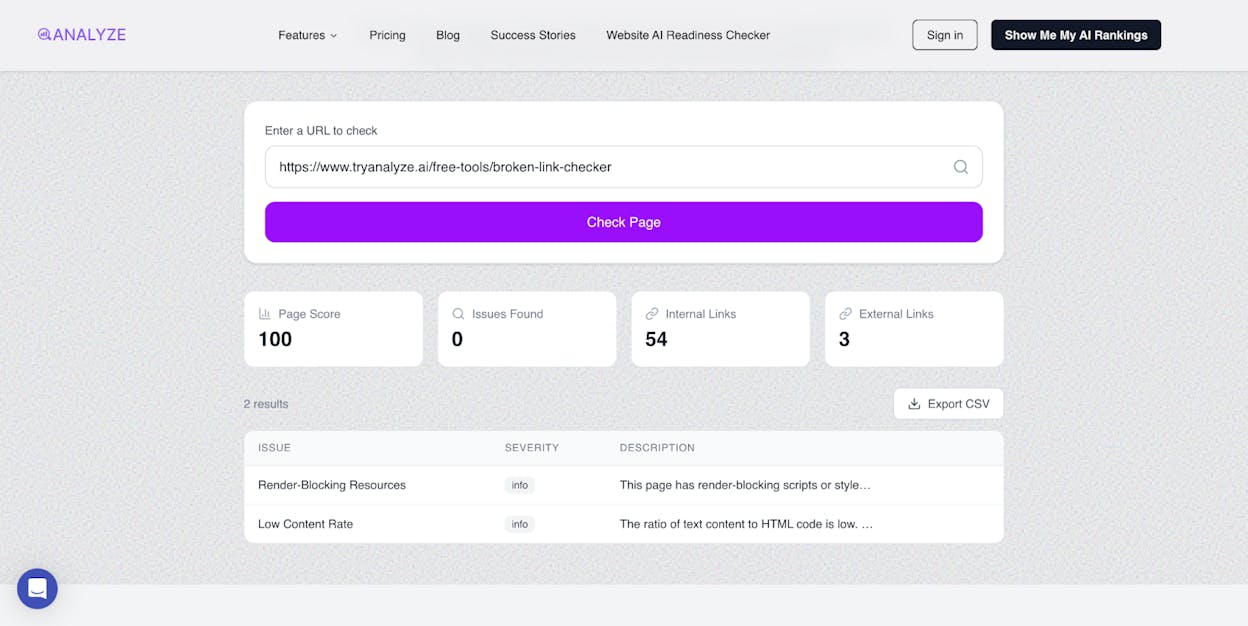
You can also run a quick check with the free Analyze AI Broken Link Checker to scan your site for broken links without needing a paid tool.
How to fix them:
For each broken URL, decide:
-
Does a relevant replacement page exist? → 301 redirect the broken URL to it.
-
Can you restore the original content? → Republish the page at the same URL.
-
Is the page irrelevant or outdated? → Let it 404, but reach out to the sites linking to it and ask them to update their links.
The first option—redirecting—handles most cases. It instantly recovers the link equity and stops users from hitting dead ends.
9. Audit Your XML Sitemap
Your XML sitemap tells search engines which pages you want indexed. A clean sitemap helps Google crawl efficiently. A messy one sends mixed signals.
Common sitemap problems to check for:
-
Redirected URLs in the sitemap. If a URL in your sitemap 301-redirects to another page, remove it from the sitemap and add the destination URL instead.
-
Noindexed URLs in the sitemap. If you’re telling Google not to index a page, don’t also tell it the page is important enough to be in your sitemap. Pick one.
-
404 URLs in the sitemap. Dead pages don’t belong in your sitemap. Remove them.
-
Missing important pages. If a high-value page isn’t in your sitemap, add it. This is especially common with newly published pages or pages deep in your site architecture.
How to check:
In Google Search Console, go to Indexing > Sitemaps. Submit your sitemap URL (usually yourdomain.com/sitemap.xml) if you haven’t already. GSC will show you the number of discovered URLs and any errors.
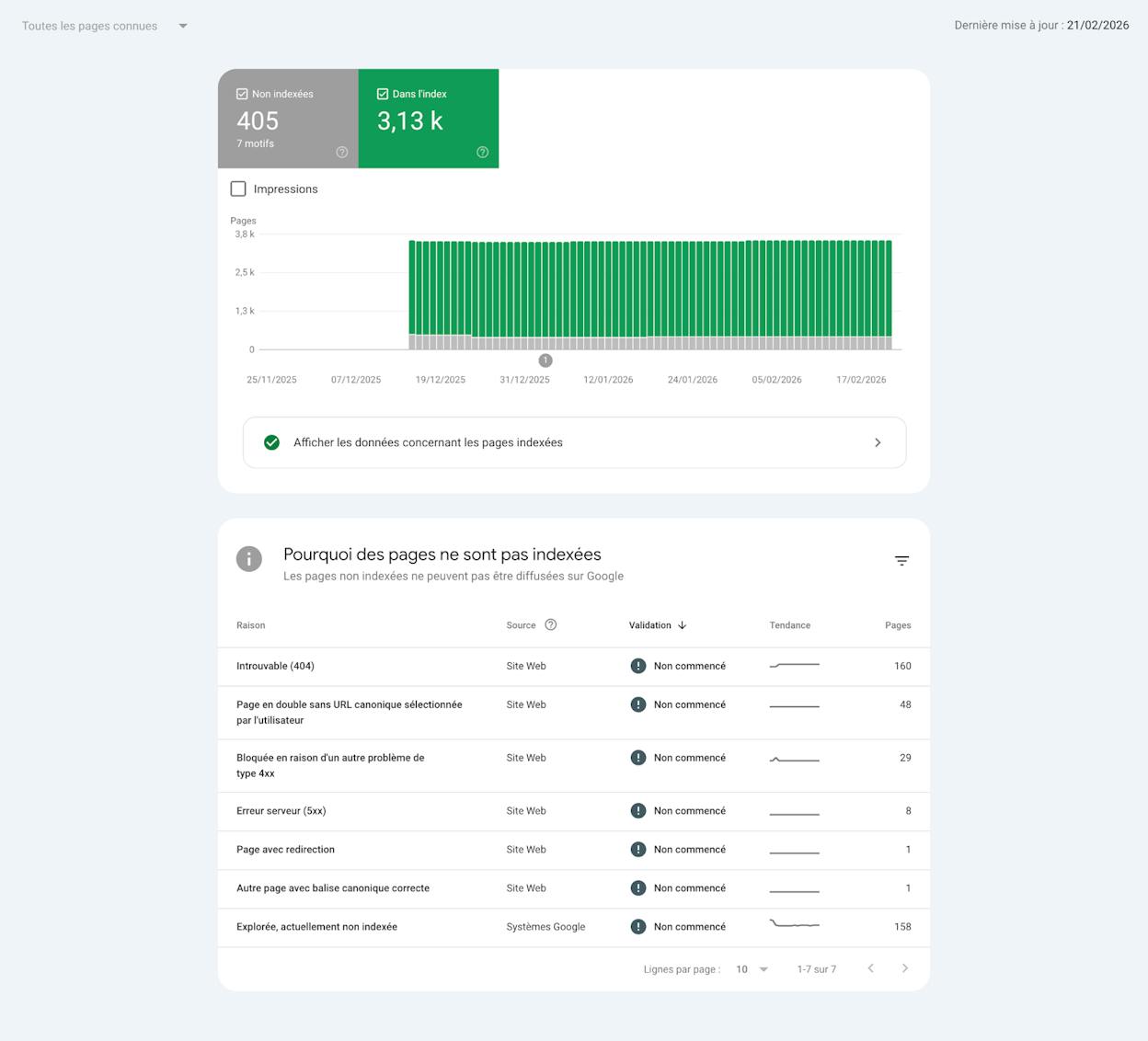
Cross-reference the URLs in your sitemap with your crawl data from Step 1. If your crawler found pages that return 301s, 404s, or have noindex tags, check whether those same URLs appear in your sitemap—and remove them if they do.
10. Audit On-Page SEO Elements
Every indexable page on your site should have three things: a unique title tag, a meta description, and an H1 heading. These are basic, but they’re frequently missing or poorly written—especially on sites with hundreds or thousands of pages.
What to check for:
In Ahrefs Site Audit, go to the Content report and click the Issues tab. You’ll see a breakdown of on-page problems across your site.
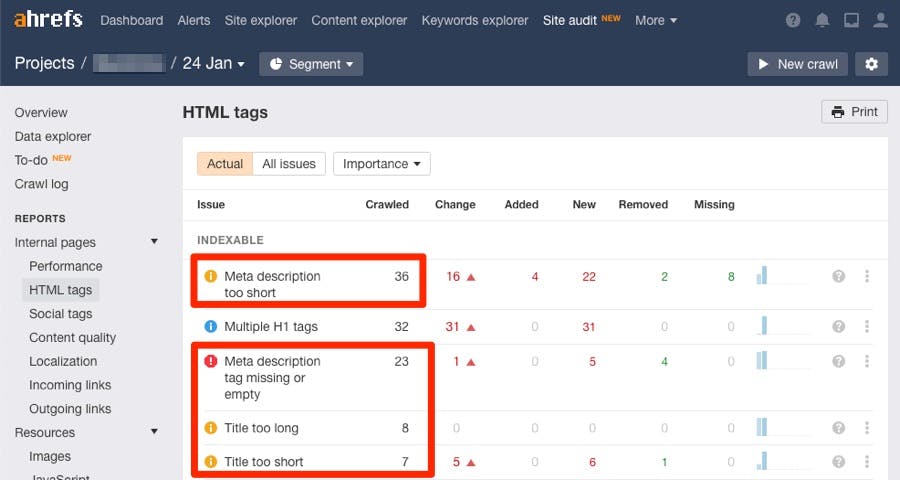
The most impactful issues to fix first:
Missing or duplicate title tags. Title tags are what appear as the blue clickable link in search results. A missing title tag means Google will auto-generate one (often poorly). A duplicate title tag means two pages are competing with each other for the same impression. Check for these issues using Analyze AI’s SERP Checker to see how your titles appear in real search results.
Missing or thin meta descriptions. Meta descriptions don’t directly affect rankings, but they heavily influence click-through rates. Google shows them in search results, and a compelling description can be the difference between a click and a scroll-past.
Missing H1 tags. Every page should have one (and only one) H1 tag that clearly describes the page’s topic. Multiple H1 tags or missing H1 tags usually indicate theme or template issues.
Keyword optimization. Use Analyze AI’s Keyword Rank Checker to verify that your target pages are actually ranking for the keywords you intended. If a page targeting “best CRM software” ranks for “CRM features” instead, your on-page optimization needs work. For deeper keyword analysis, the Keyword Generator Tool can help you discover related terms to work into your content.
To prioritize fixes, sort the affected URLs by estimated organic traffic (highest first). This ensures you’re improving the pages that drive the most value before working on lower-traffic pages.
11. Review Your Internal Linking Structure
Internal links are one of the most underused levers in SEO. They help Google discover new pages, understand site hierarchy, and distribute link equity across your domain. They also guide users to related content, which improves engagement.
What to look for in your audit:
Orphan pages. These are pages with zero internal links pointing to them. Google may struggle to find and index them. Your crawler will flag these—in Ahrefs Site Audit, check the Links report for “Orphan page” warnings.
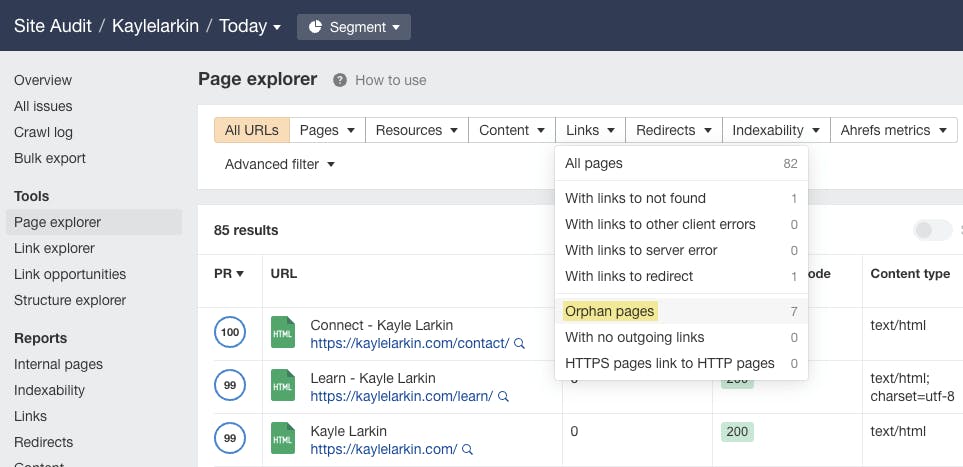
Pages with only one internal link. Even if a page isn’t technically orphaned, having just one internal link pointing to it signals to Google that it’s not very important. High-priority pages should have multiple internal links from relevant context.
Broken internal links. Links that point to 404 pages within your own site waste equity and create frustrating user experiences. Fix them by updating the link to point to the correct URL.
Internal link opportunities. Look for pages that mention a topic you’ve written about but don’t link to the relevant page. In Ahrefs Site Audit, the Internal Link Opportunities report automates this—it scans your pages for keyword mentions and suggests where to add links.
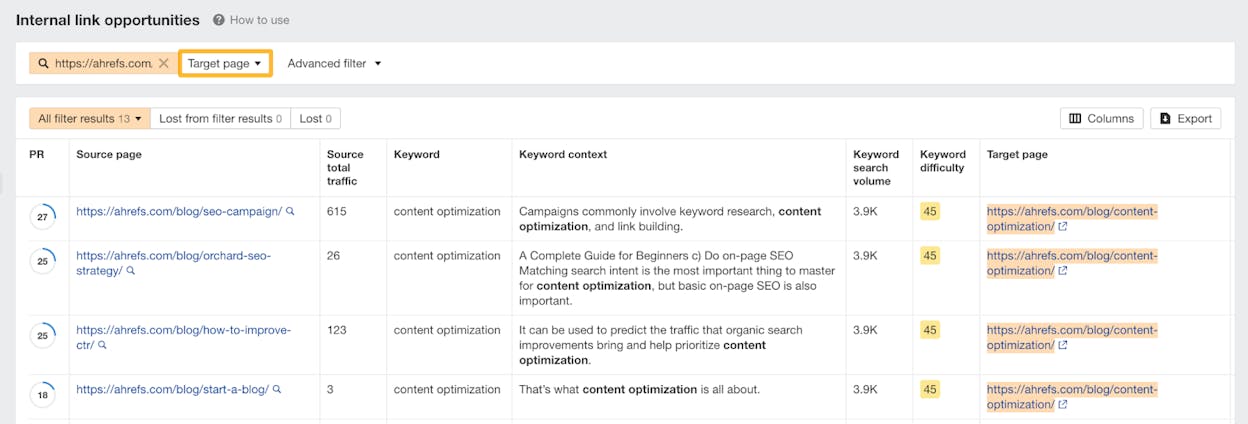
Anchor text variety. If every internal link to your “SEO tools” page uses the exact anchor text “SEO tools,” diversify it. Use natural variations like “tools for SEO auditing,” “these SEO platforms,” or “the tools we recommend.”
12. Audit Your Backlink Profile
Backlinks remain one of Google’s strongest ranking signals. An audit of your backlink profile helps you understand the quality and quantity of external links pointing to your site—and whether any could be hurting you.
What to check:
Open Ahrefs Site Explorer, enter your domain, and review the Backlinks and Referring Domains reports.
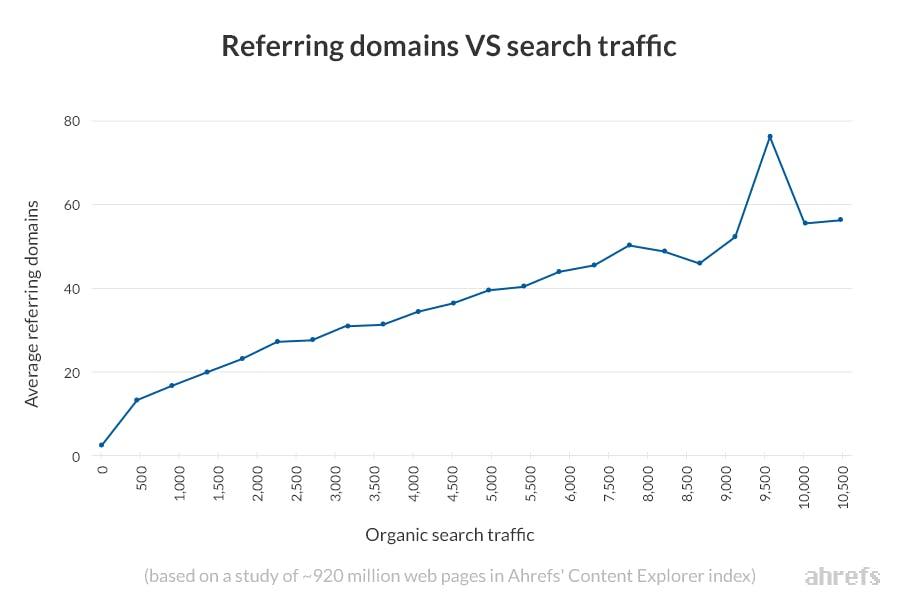
Look at these key areas:
Toxic or spammy links. If you see links from directories with names like “best-free-links-2024.com” or from sites in completely unrelated niches (gambling, pharma, adult content), those could be toxic. Google’s algorithms usually ignore spammy links automatically, but in extreme cases you may need to disavow them.
Lost backlinks. In Ahrefs, check the Lost filter on the Backlinks report to see links that disappeared recently. If you’ve lost links from high-authority sites, it’s worth investigating why and trying to recover them.
Link distribution. Are all your backlinks going to your homepage? That’s common but not ideal. Your most important inner pages—product pages, pillar content, comparison guides—should also be earning links. If they’re not, consider creating more linkable assets or running outreach campaigns.
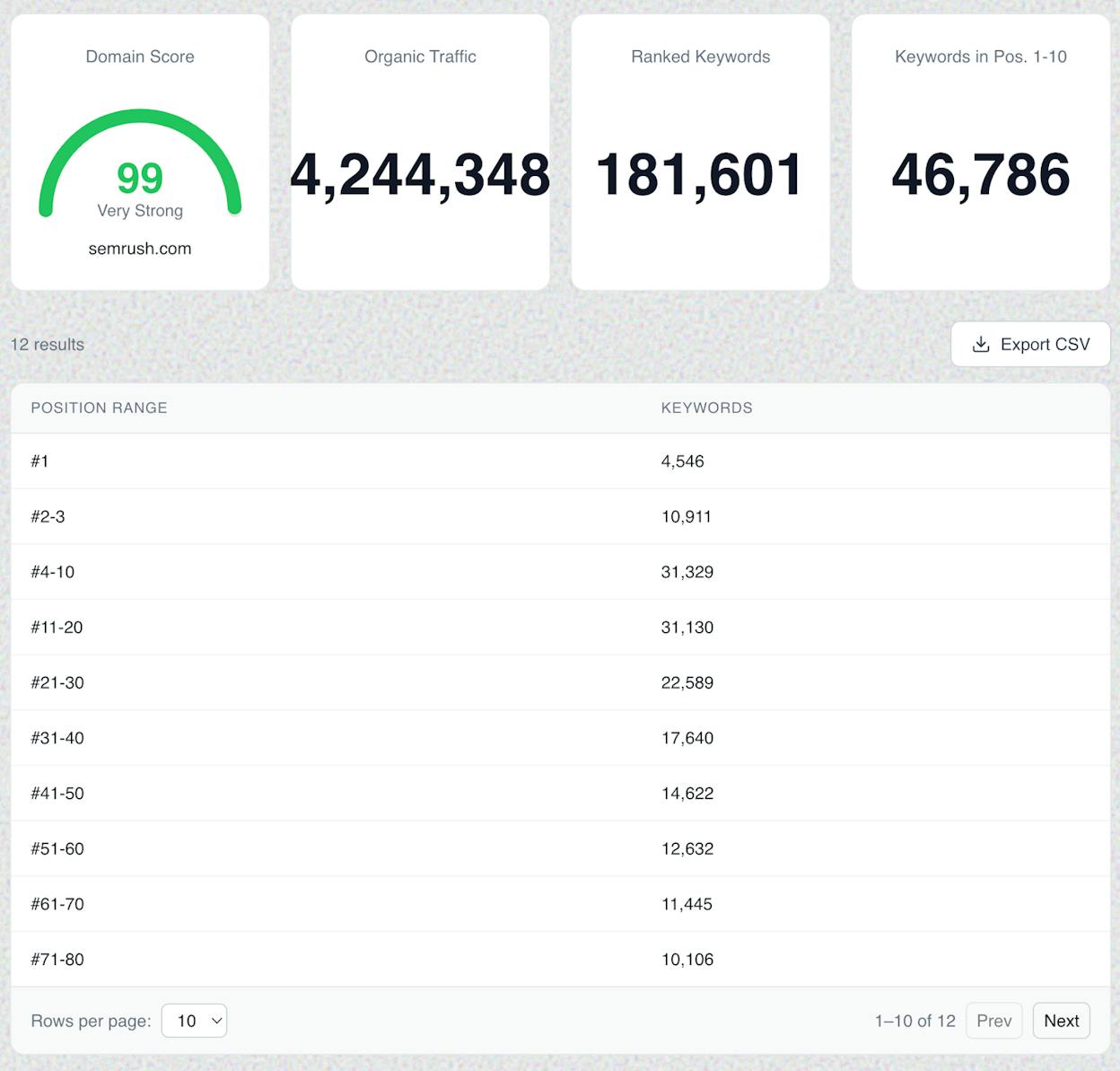
Use the free Analyze AI Website Authority Checker to quickly benchmark your domain authority against competitors.
13. Find Declining Content and Refresh It
Rankings don’t last forever. Search intent shifts, competitors publish better content, and data becomes outdated. Pages that drove strong traffic six months ago may be slowly bleeding clicks right now.
How to find declining content:
In Google Search Console, go to the Search results report. Set the date filter to Compare mode and select “Compare last 6 months to previous period.” Click the Pages tab and sort by Clicks Difference from low to high.
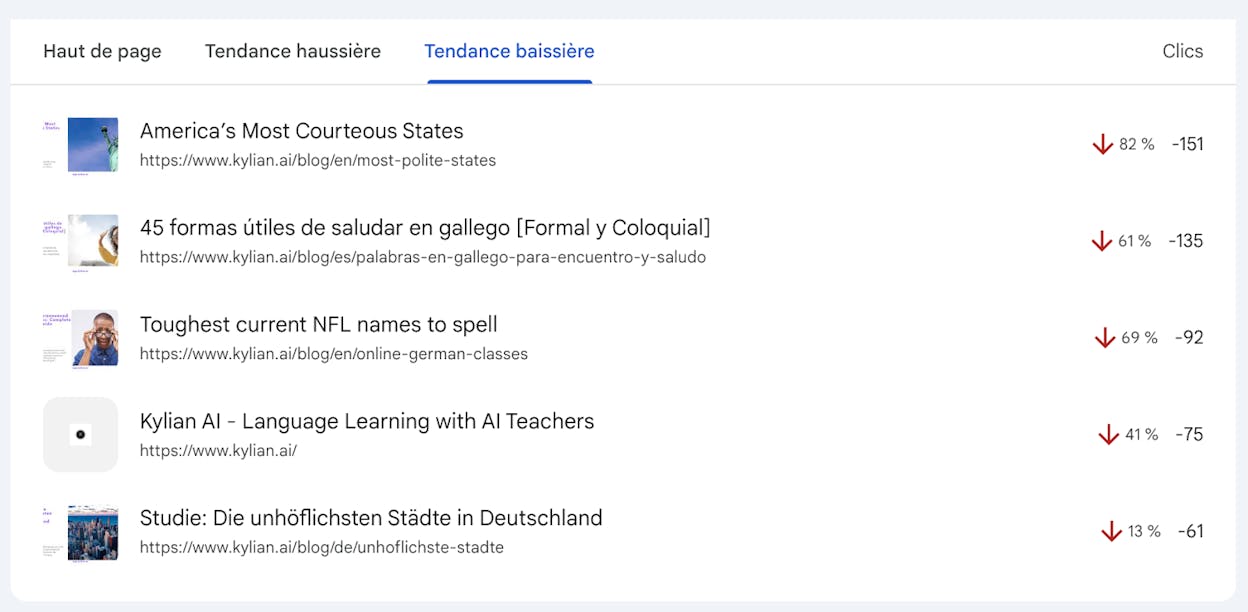
The pages at the top of this list are your biggest decliners. These are your refresh candidates.
Before refreshing, diagnose the cause:
Not every declining page deserves a refresh. Ask these questions:
-
Did an algorithm update cause the drop? If the decline aligns with a confirmed update, understand what that update targeted (content quality, link spam, etc.) before making changes.
-
Has search intent shifted? Check the current SERP for your target keyword. If the top results look fundamentally different from your page (e.g., the SERP now shows product pages instead of blog posts), you may need to rethink the page entirely.
-
Is demand declining? If the keyword’s search volume is falling, there may be diminishing returns in updating the page. Check Google Trends or Analyze AI’s Keyword Difficulty Checker for volume trends.
-
Are SERP features stealing clicks? AI Overviews, featured snippets, and knowledge panels can reduce organic click-through rates even when your ranking hasn’t changed.
How to refresh effectively:
For pages worth updating, focus on substantive improvements—not just changing the publication date. Update outdated statistics, add new sections that cover gaps the competitors have filled, replace broken links, refresh screenshots, and improve readability.
For a deeper walkthrough of content refreshing strategies, see our guide on SEO content strategy.
14. Run a Content Gap Analysis Against Competitors
A content gap analysis reveals keywords your competitors rank for that you don’t. These are topics your audience is searching for where your competitors are capturing traffic and you’re invisible.
How to do it:
In Ahrefs Site Explorer, enter your domain and go to the Content Gap report. Add two or three of your top SEO competitors. Click Show keywords.
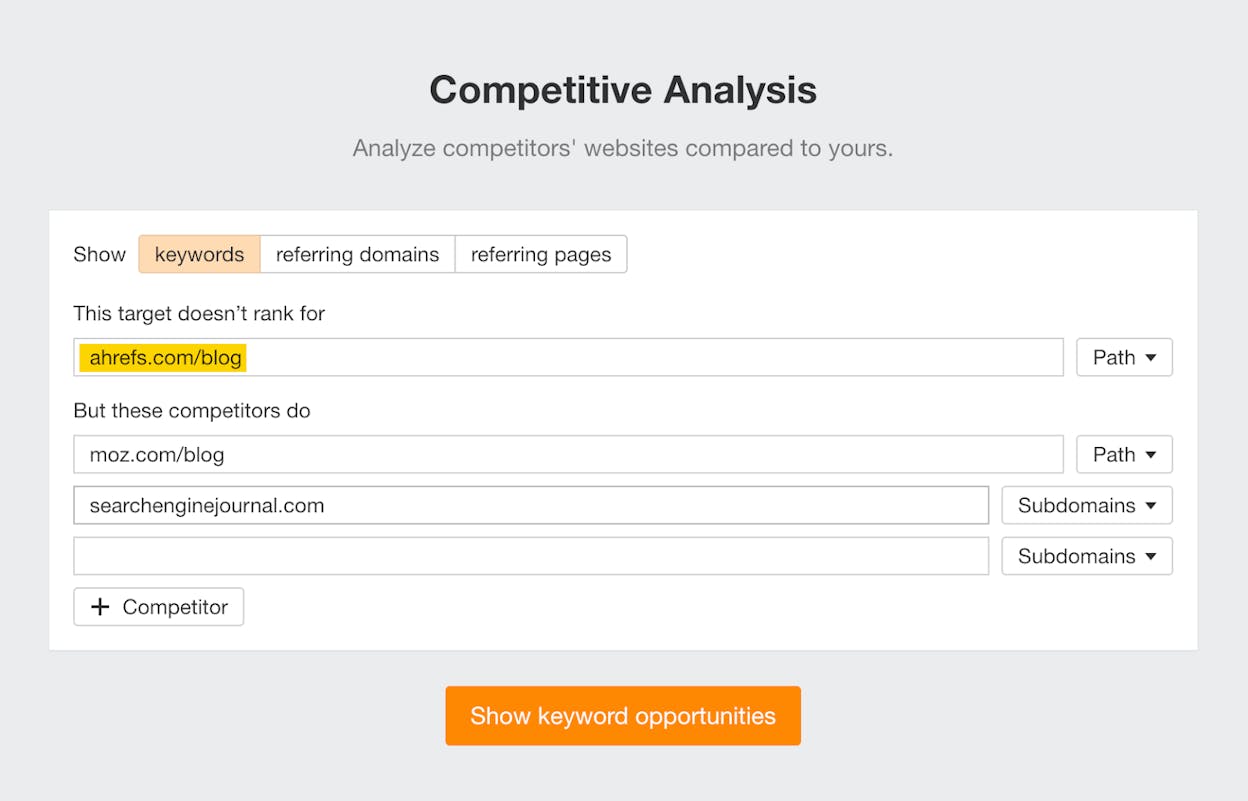
You’ll see a list of keywords where at least one competitor ranks but you don’t. Filter by volume, keyword difficulty, and traffic potential to find the best opportunities.
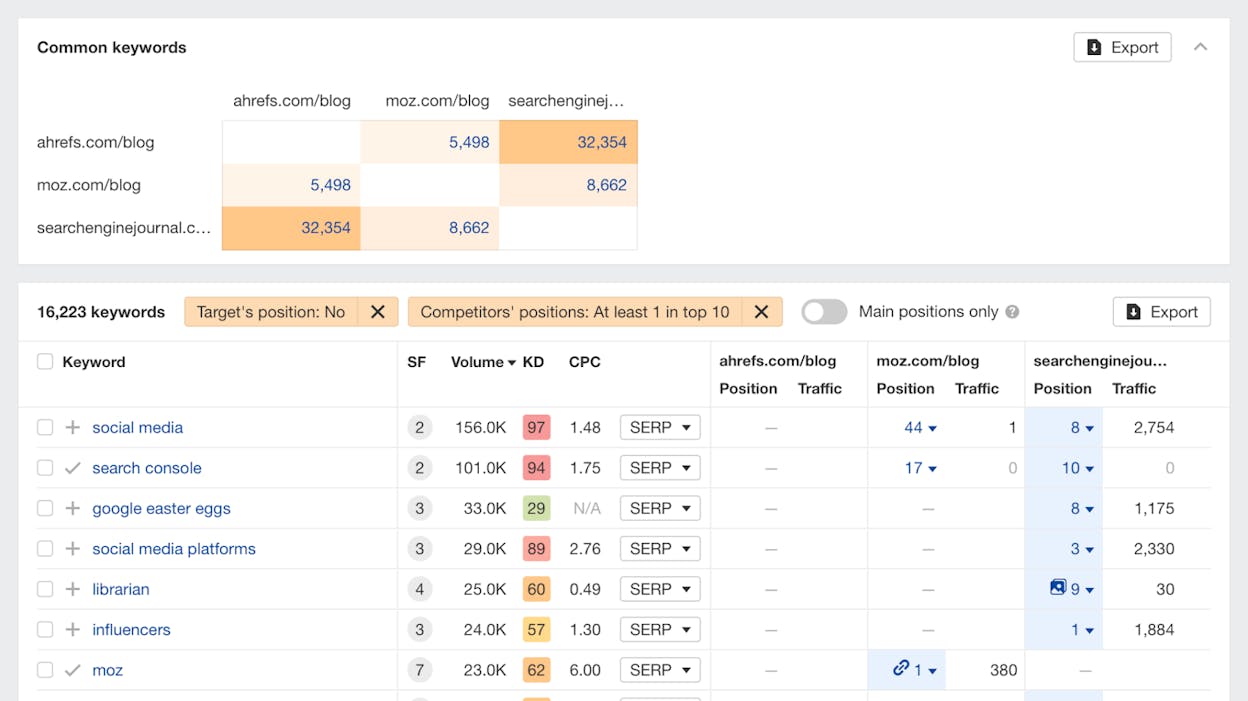
Not every content gap is worth filling. Prioritize keywords that:
-
Align with your product or service (high business potential)
-
Have enough search volume to justify the effort
-
Are within realistic reach given your domain authority—check with Analyze AI’s Keyword Difficulty Checker
This is also where your SEO competitor analysis feeds directly into content planning. The gaps you find here become your content roadmap for the next quarter.
But content gaps in traditional search are only half the picture. Your competitors may also be getting cited by AI engines for prompts where your brand is invisible. Analyze AI’s Competitor Overview shows exactly where competitors win across AI search — and which prompts they own that you don’t:
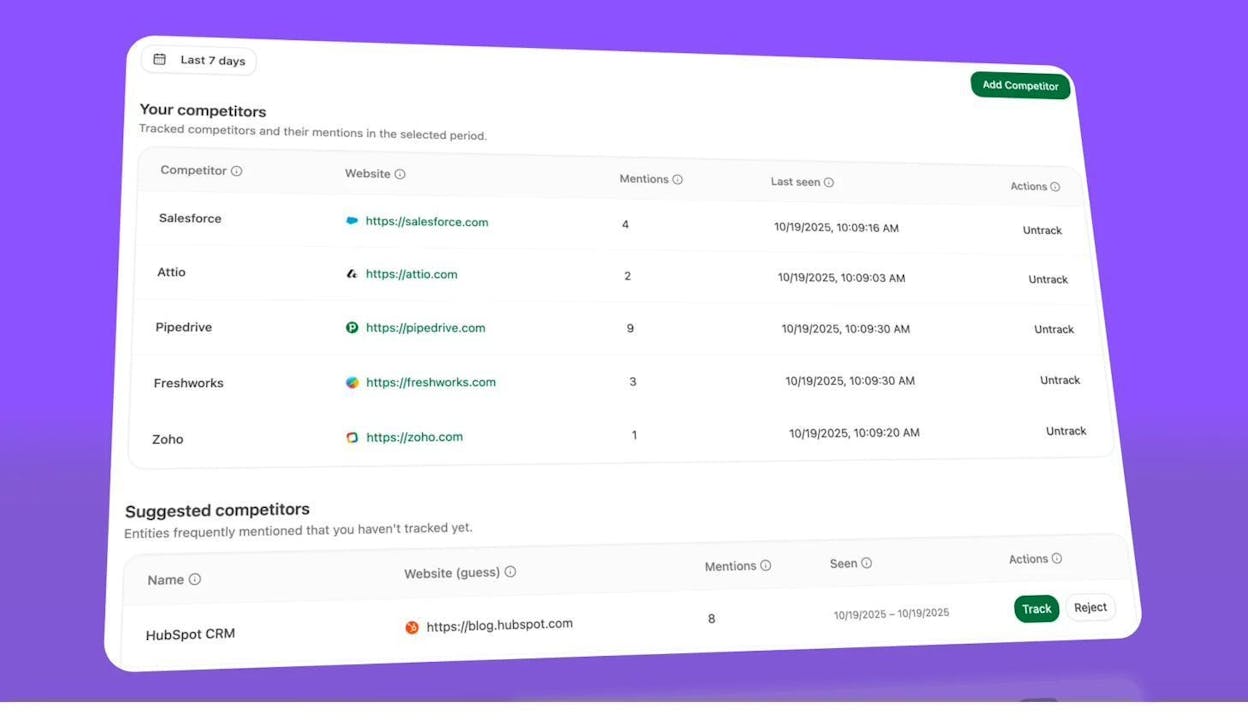
This gives you an AI-specific content gap analysis to pair with your traditional keyword gap. More on this in Step 16.
15. Optimize for AI Overviews and Featured Snippets
AI Overviews appear at the top of Google results for an increasing number of queries. Research shows that informational keywords trigger an AI Overview 99.2% of the time. Featured snippets, meanwhile, capture an outsized share of clicks—and they’re closely linked to AI Overviews. SERPs with AI Overviews contain featured snippets at a much higher rate than those without.
Landing a featured snippet often means getting cited in the AI Overview too. So optimizing for one helps with both.
How to audit your current presence:
In Ahrefs Site Explorer, go to the Organic Keywords report. Use the SERP Feature filter and check “AI Overview” and “Featured Snippet.” This shows you which of your keywords trigger these features and whether you own the featured snippet.
How to win featured snippets:
Featured snippets pull from pages that directly and concisely answer a question—usually in a paragraph, list, or table format. To optimize for them:
-
Identify the question the searcher is asking.
-
Answer it clearly within the first 40–60 words of the relevant section.
-
Use the appropriate format: paragraphs for “what is” queries, numbered lists for “how to” queries, and tables for comparison queries.
-
Use an H2 or H3 that matches or closely mirrors the query.
For more on optimizing for answer engines, including emerging AI search platforms, read our AEO guide.
16. Audit Your AI Search Visibility
This is the step most SEO audit guides skip entirely—and it’s the one that will matter most over the next 12 months.
AI search engines like ChatGPT, Perplexity, Claude, Gemini, and Microsoft Copilot are generating real referral traffic to websites right now. Analyze AI’s research across 83,670 citations shows that the sources AI models cite are not random—they follow patterns based on authority, content structure, and recency.
If your SEO audit doesn’t include AI search, you’re optimizing for only part of the visibility landscape.
Here’s how to audit your AI search presence using Analyze AI:
Check whether AI engines mention your brand
In Analyze AI’s Discover dashboard, you can see which prompts mention your brand across ChatGPT, Perplexity, Claude, Gemini, and Copilot. The platform tracks your visibility percentage, position, and sentiment for every prompt you’re monitoring.
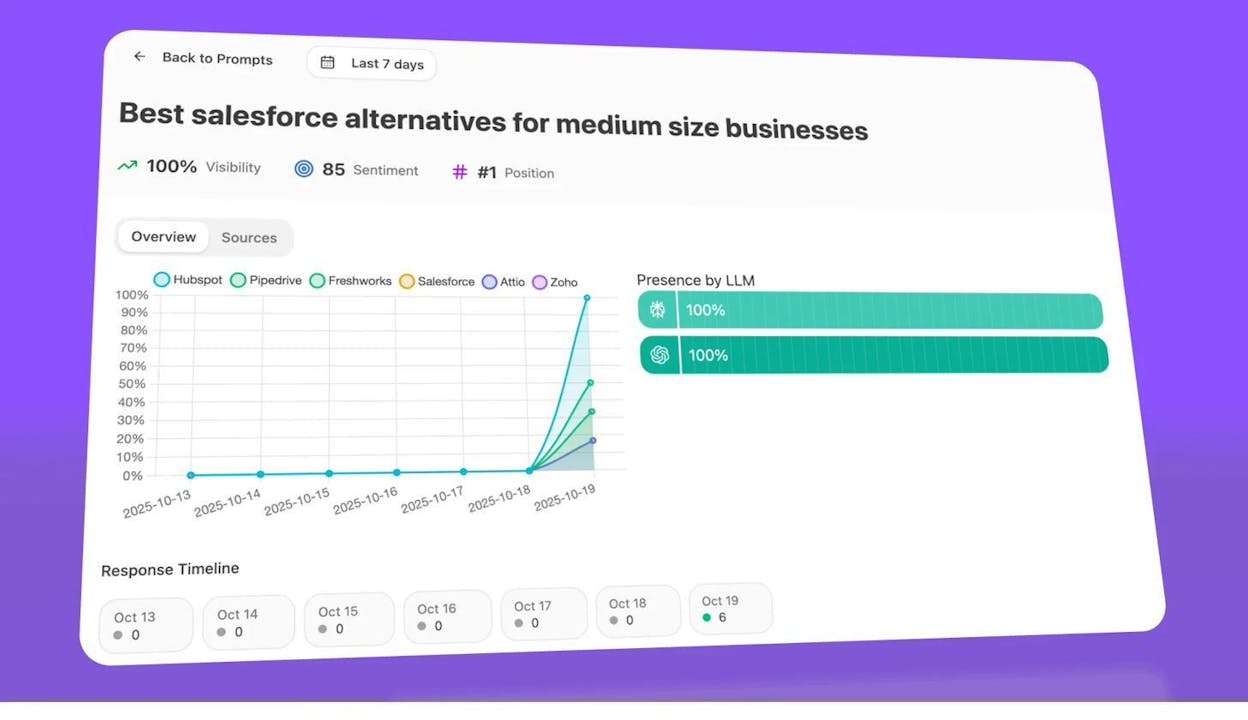
If your visibility is low or zero for prompts relevant to your industry, that’s a content gap—but for AI search instead of Google.
Identify competitor wins in AI search
Analyze AI’s Opportunities report shows prompts where competitors are being cited but your brand is not. This is the AI search equivalent of a content gap analysis.
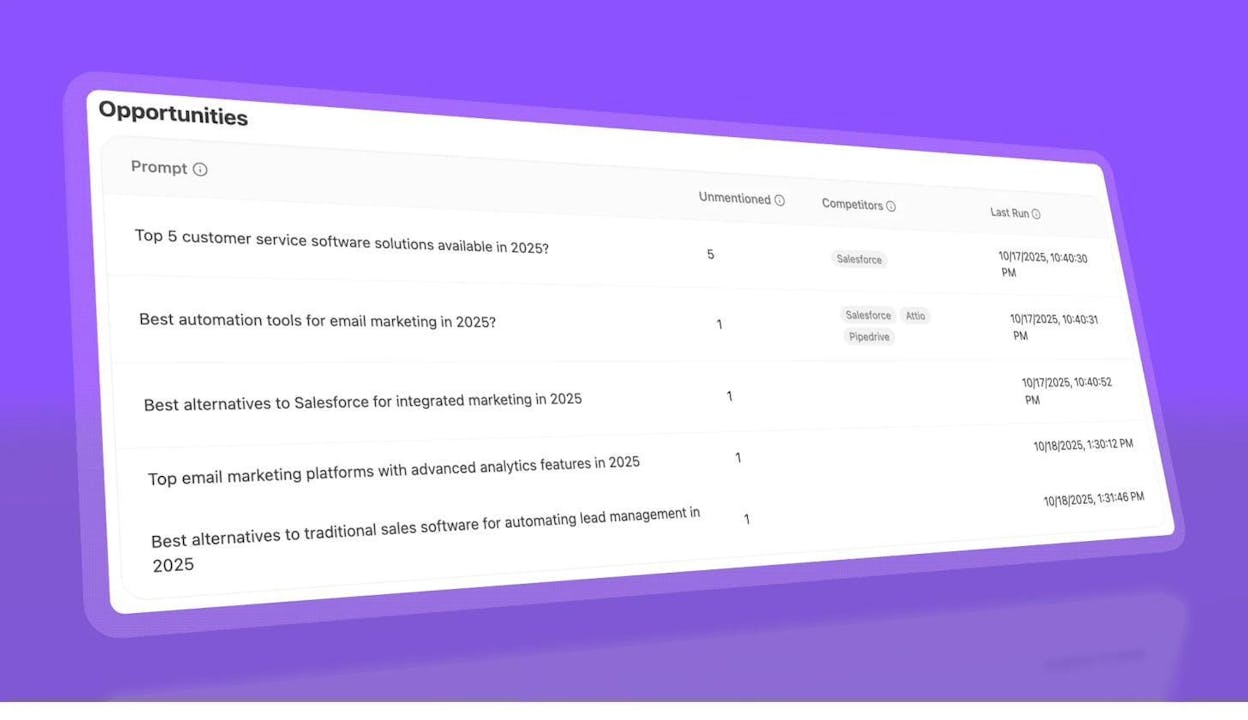
For example, if ChatGPT recommends three of your competitors for “best project management tools” and doesn’t mention you, that’s a specific, actionable gap to close.
Audit the sources AI models cite
The Citation Analytics report shows which of your URLs AI models cite, how often, and in which engines. It also shows which external domains are being cited in your topic space.
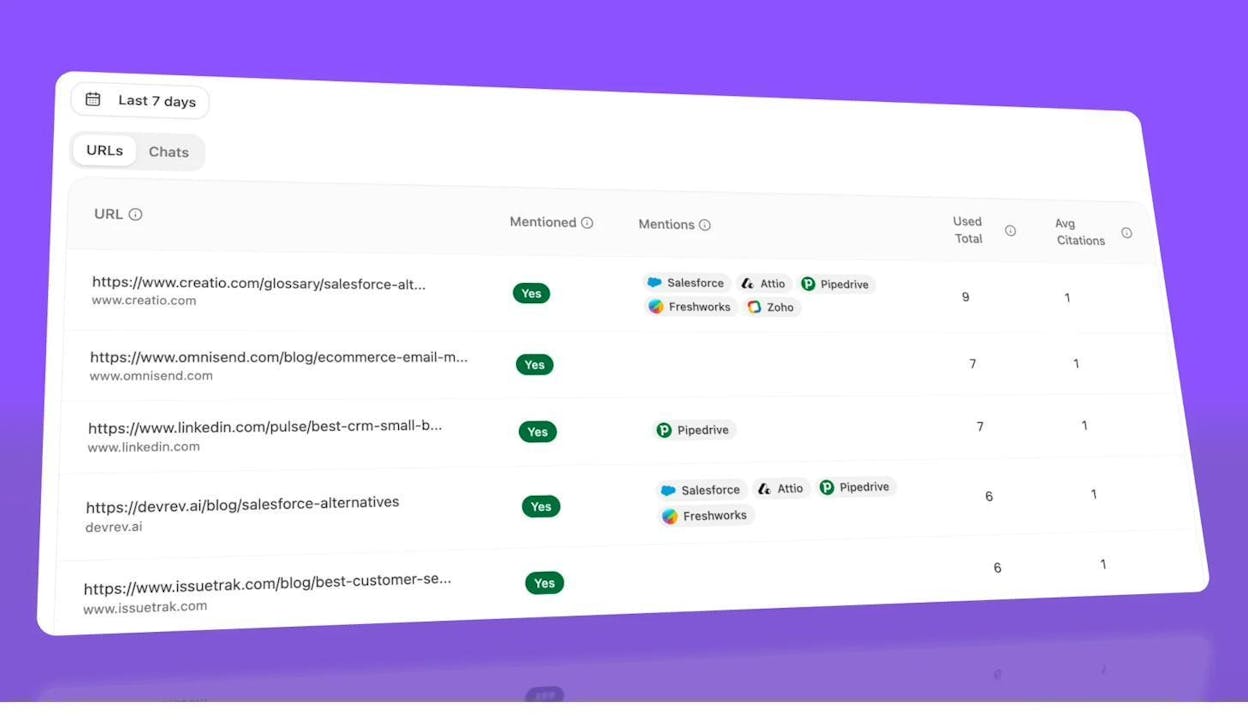
This tells you two things: which of your existing pages are already earning AI citations (double down on these), and which external sources are dominating the citations in your space (study what they’re doing differently).
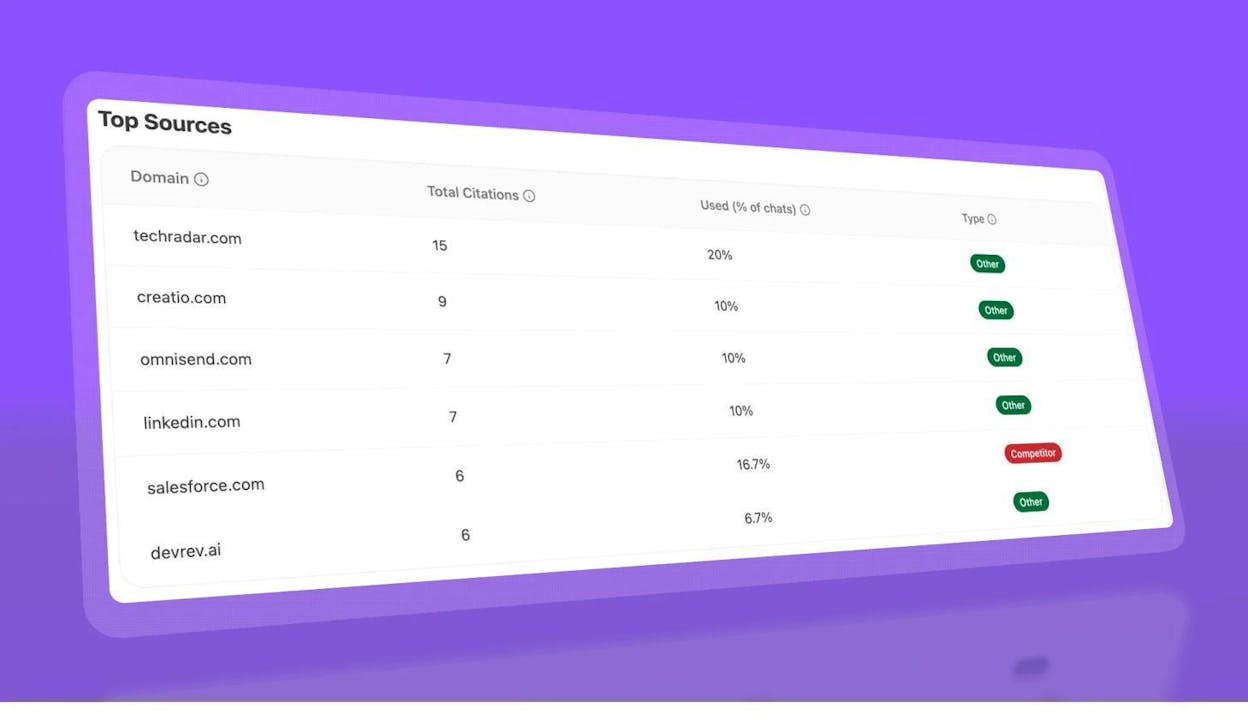
You can also view the top domains shaping AI answers in your category, including competitor domains, to identify citation wins:
Measure actual AI referral traffic
Connect your Google Analytics to Analyze AI to see how much traffic AI engines are sending to your site. The AI Referral Traffic dashboard shows total sessions from AI search, broken down by engine and trended over time.
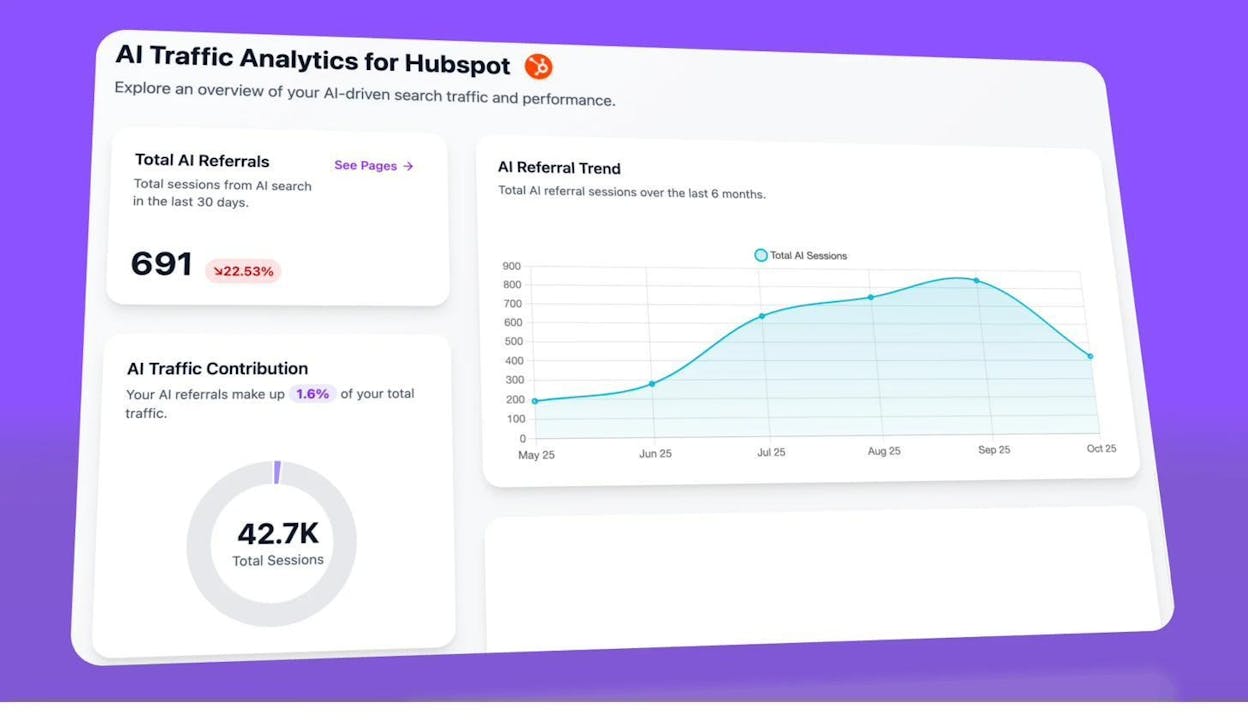
Find which pages receive AI traffic—and why
Analyze AI’s Landing Pages from AI Search report shows exactly which pages on your site are receiving visits from AI engines, along with the referring engine and session count.
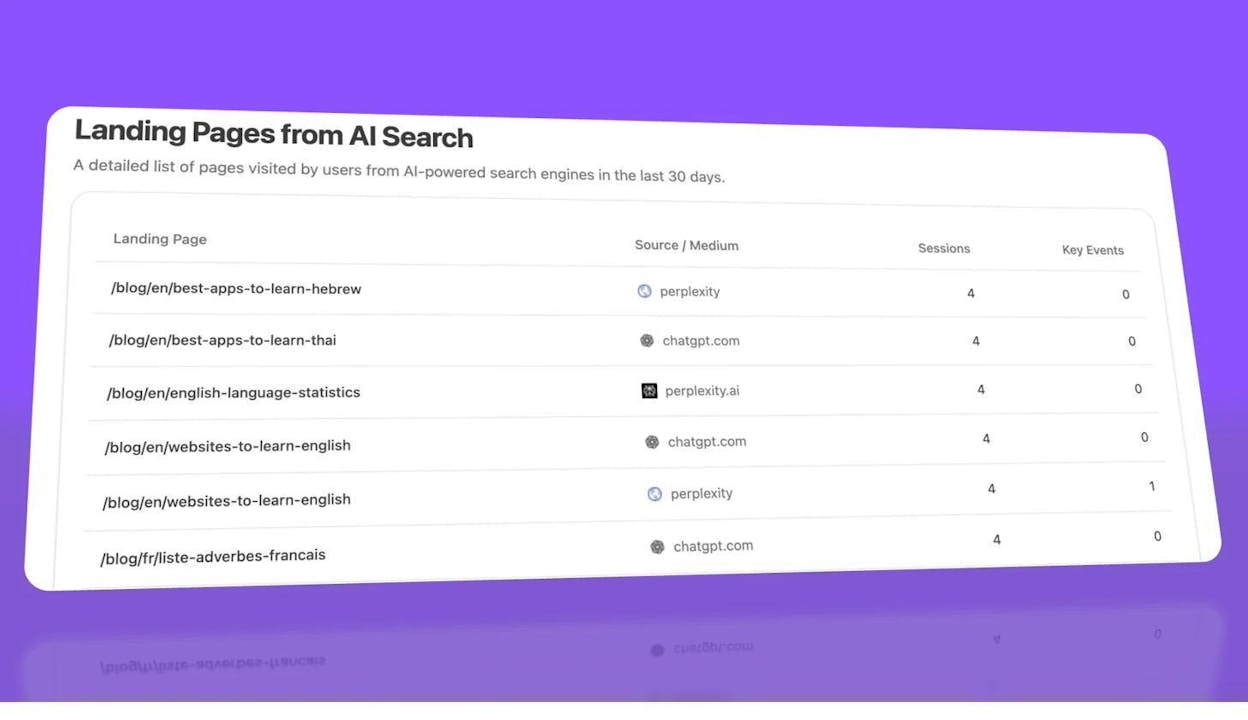
This is gold for your content strategy. If you notice that listicle-format pages or detailed comparison pages get disproportionately more AI traffic, you know what format to prioritize in future content. If certain topics drive AI traffic but others don’t, that tells you where AI engines find your content most authoritative.
Compare performance across AI engines
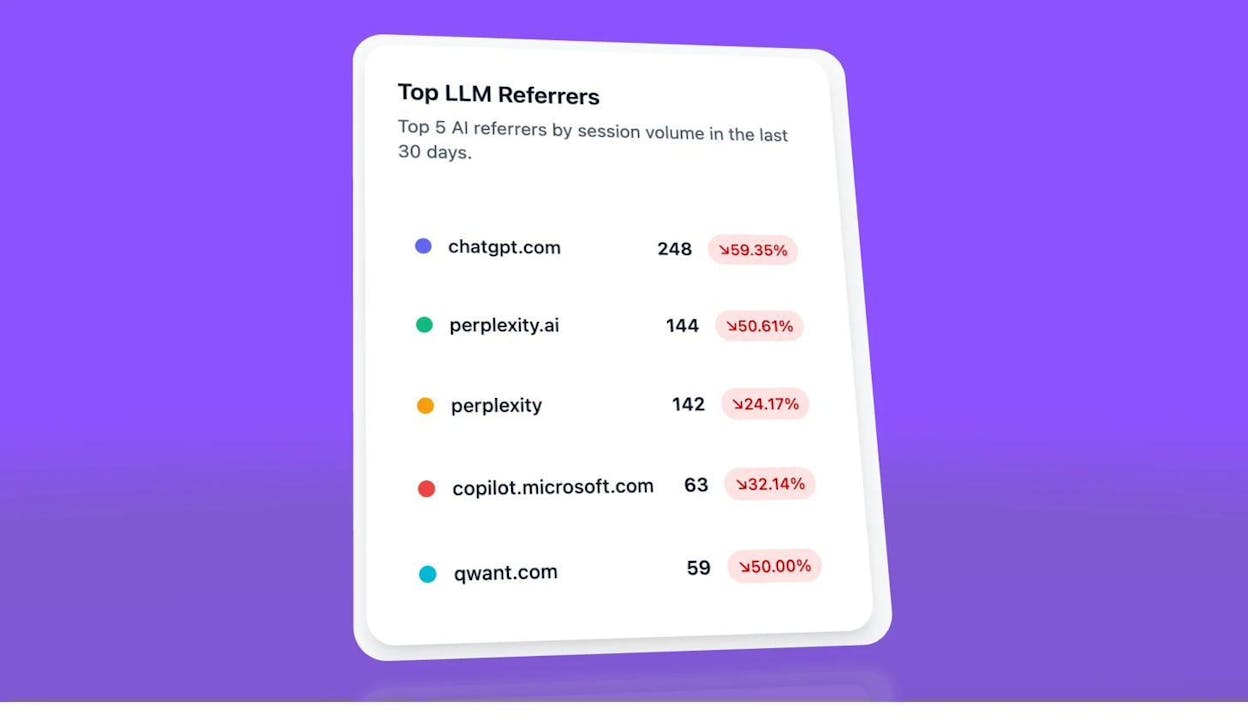
Not all AI engines work the same way. Perplexity might cite you heavily while ChatGPT ignores you, or vice versa. Analyze AI’s Analytics by Engine report lets you compare your performance across providers so you can focus optimization on the engines that matter most for your audience.
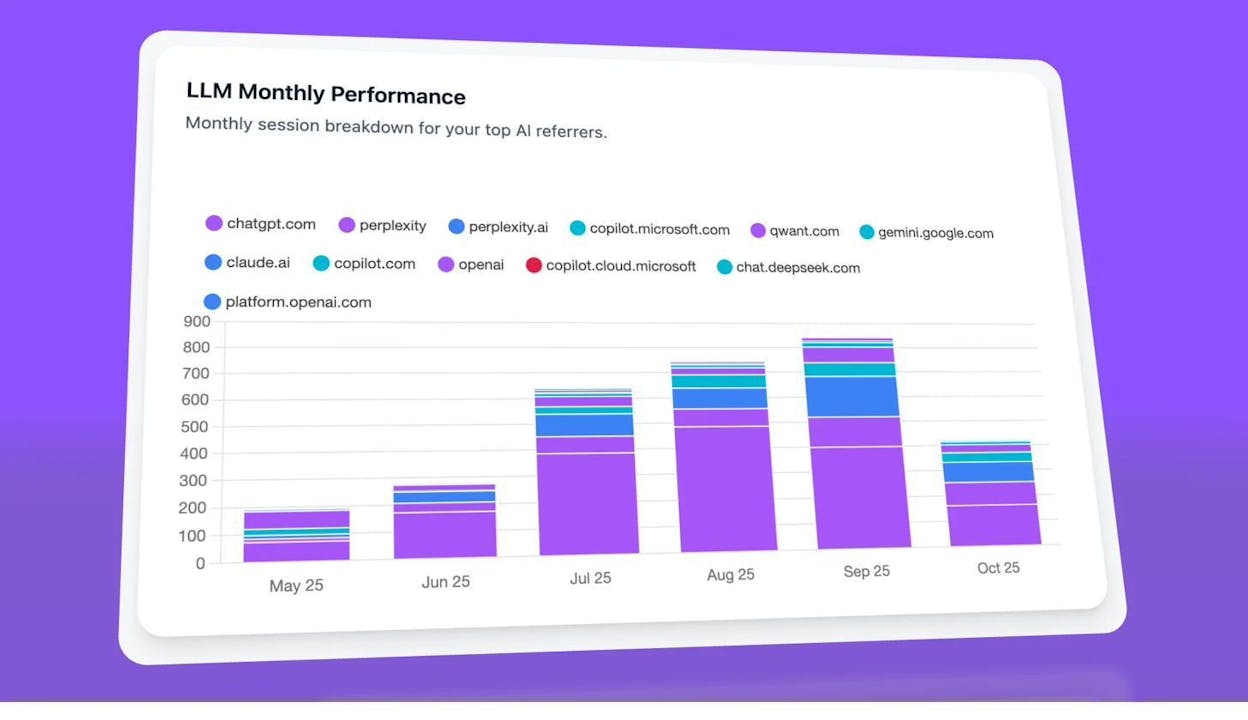
You can also track trends by engine over time to see which platforms are growing fastest for your brand:
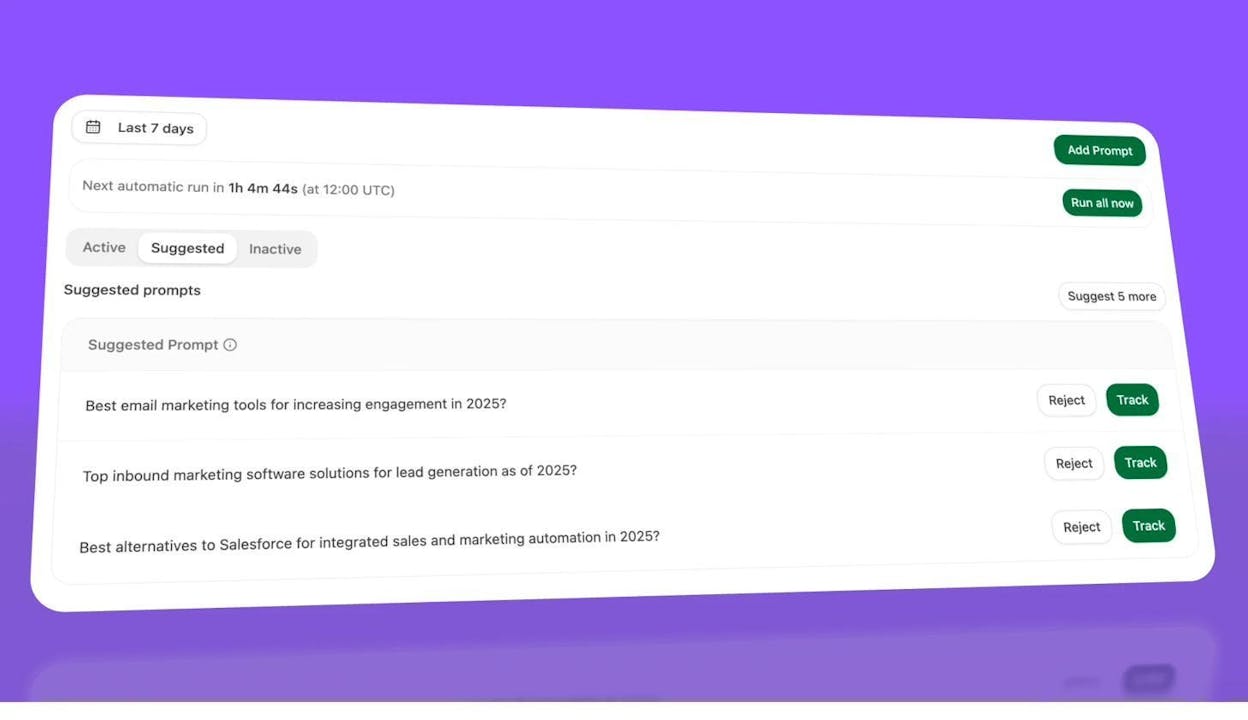
Use prompt suggestions to expand your coverage
Analyze AI suggests prompts you should track based on your existing clusters. These are prompts your audience is likely asking AI engines that you may not be monitoring yet. One-click tracking lets you start measuring visibility for these prompts immediately.
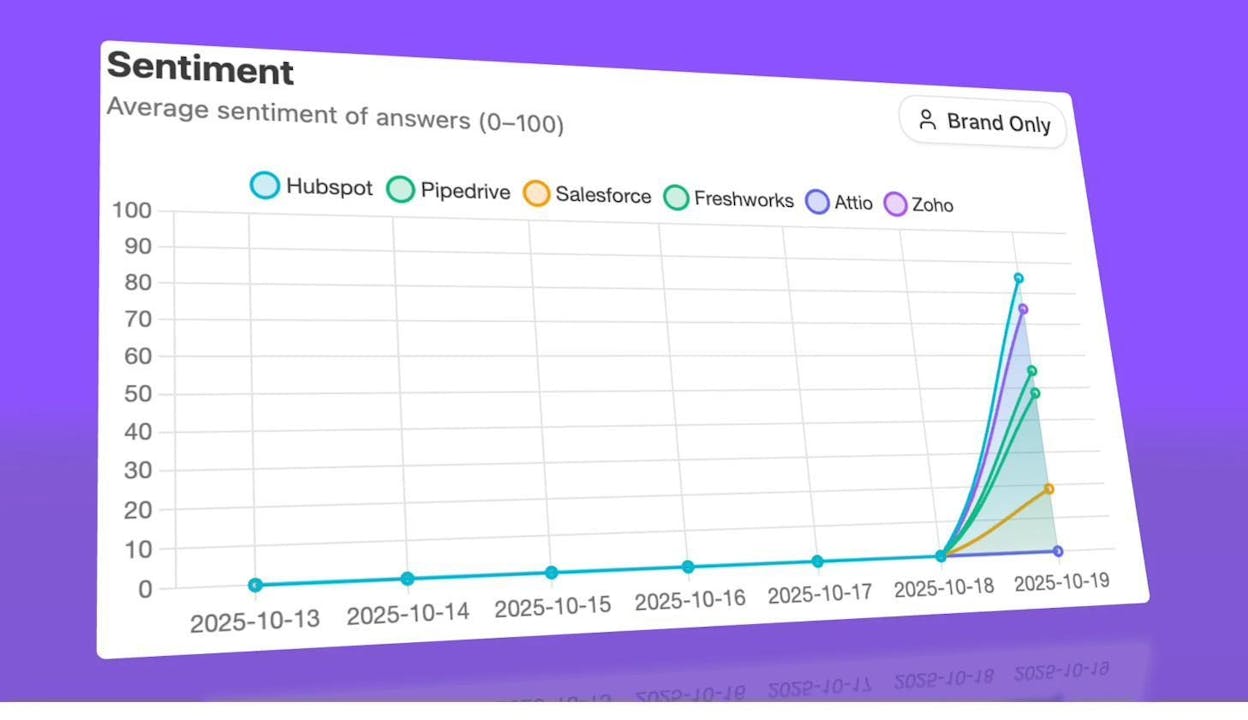
Monitor sentiment
It’s not just about being mentioned—it matters how you’re mentioned. Analyze AI’s sentiment analysis tracks whether AI engines describe your brand positively, neutrally, or negatively. A negative sentiment signal across multiple prompts is a reputation issue that needs addressing in your content and messaging.
This eight-step AI search audit takes about 30 minutes once you have your Analyze AI account set up. It surfaces a completely different category of insights than traditional SEO tools provide—and it ensures your audit covers where search is actually headed, not just where it’s been.
For a deeper dive into optimizing for AI search platforms specifically, see our guides on how to rank on ChatGPT, how to rank on Perplexity, and how to outrank competitors in AI search.
How to Prioritize Your SEO Audit Findings
Running the audit is the first half of the job. The second half is acting on what you found—in the right order.
Here’s a prioritization framework based on effort and impact:
|
Priority |
Issue Type |
Why It’s Urgent |
Examples |
|---|---|---|---|
|
P0 — Fix immediately |
Penalties and access blocks |
Your site is partially or fully invisible |
Manual actions, noindex on key pages, broken redirects, site-wide 5xx errors |
|
P1 — Fix this week |
Indexing and crawling issues |
Pages can’t rank if they can’t be found |
Orphan pages, sitemap errors, robots.txt blocks, duplicate site versions |
|
P2 — Fix this sprint |
Performance and usability |
Affects rankings and user experience |
Failed Core Web Vitals, mobile usability errors, slow LCP |
|
P3 — Fix this month |
On-page and content issues |
Leaving ranking potential on the table |
Missing title tags, thin meta descriptions, declining content, content gaps |
|
P4 — Ongoing |
Authority and visibility building |
Compounds over time |
Backlink recovery, internal linking improvements, AI search visibility, featured snippet optimization |
Don’t try to fix everything at once. Work through priorities in order, and schedule recurring audits (quarterly is a good cadence for most sites) to catch new issues before they become problems.
Next Steps
This 16-step audit gives you a complete picture of your site’s health—across traditional search and AI search. The fixes fall into three categories:
Technical fixes (Steps 1–9) remove blockers that prevent your site from being crawled, indexed, and rendered properly. These are the foundation.
Content and on-page fixes (Steps 10–15) improve the quality, relevance, and competitiveness of your individual pages. These drive ranking improvements.
AI search visibility (Step 16) ensures you’re not ignoring the fastest-growing organic channel. This is where most companies are behind—and where the early movers have the biggest advantage.
If you want to get started on the AI search piece today, Analyze AI’s free AI website audit tool gives you a quick snapshot of your AI visibility in under two minutes. For the full picture, see our pricing or talk to our team.
For more on building a comprehensive SEO strategy that accounts for both traditional and AI search, explore our full guide on the types of SEO and how they work together.

Ernest

Ibrahim


