



Summarize this blog post with:


In this article, you’ll learn what orphan pages are, why they hurt both your SEO performance and your visibility in AI search engines, how to find every orphan page on your site using free tools, and how to fix each one with the right strategy—so you stop wasting crawl budget on pages nobody can reach.
Table of Contents
What Are Orphan Pages?
Orphan pages are live pages on your website that have zero internal links pointing to them from any other page on your site.
Think of it this way: every page on your site should be reachable by following links from other pages. When a page has no incoming internal links, it’s “orphaned”—it exists on your server, but there’s no path for users or search engine crawlers to reach it through normal navigation.
That distinction matters. An orphan page isn’t the same as a page with few internal links (that’s a thin link profile, which is a different problem). An orphan page has none.
Search engines can still discover orphan pages through two other channels: your XML sitemap and external backlinks. But if a page isn’t in your sitemap and has no backlinks, it’s invisible to Google entirely. It might as well not exist.
Users, meanwhile, can only reach an orphan page if they know the exact URL and type it into their browser. That’s almost never how people browse the web.
How Orphan Pages Differ from Dead Pages and Broken Links
These three issues often get lumped together, but they’re different problems with different fixes:
|
Issue |
What It Is |
HTTP Status |
User Experience |
|---|---|---|---|
|
Orphan page |
A live page with no internal links pointing to it |
200 (OK) |
Page works fine, but nobody can find it |
|
Dead page (404) |
A URL that no longer resolves to any content |
404 (Not Found) |
User sees an error page |
|
Broken link |
A link on your site that points to a dead page |
N/A (the link itself) |
User clicks a link and hits a dead end |
An orphan page is technically functional. It returns a 200 status code, serves content, and may even rank for something. The problem is purely structural: nothing on your site connects to it.
You can use Analyze AI’s free broken link checker to identify broken links on your site—but finding orphan pages requires a different approach, which we’ll cover in the “how to find” section below.
What Causes Orphan Pages?
Orphan pages rarely happen on purpose. They’re almost always the byproduct of changes to your site that nobody fully accounted for. Here are the most common causes:
Site migrations and redesigns
This is the number one source of orphan pages. During a migration, you move content from one URL structure to another. If a page doesn’t get properly redirected or re-linked in the new site architecture, it becomes orphaned. The old URL might still resolve, but no page on the new site links to it.
This happens frequently when teams migrate from one CMS to another (say, WordPress to Webflow) and don’t audit every internal link for each page.
Navigation and menu changes
When you reorganize your site’s navigation—removing categories, consolidating dropdown menus, or changing your footer links—some pages lose their only source of internal links. If a page was only accessible through a menu item that you removed, it’s now orphaned.
Deleted or restructured hub pages
If you delete a category page, a topic hub, or a resource center that linked to multiple sub-pages, all of those sub-pages lose their internal link source at once. This can create dozens of orphan pages in a single action.
Out-of-stock or discontinued products
E-commerce sites are particularly vulnerable. When a product goes out of stock, some CMS platforms automatically remove it from category listings and search filters. The product page still exists, but nothing links to it anymore.
Test, staging, and dev pages that went live
Developers create test pages during QA cycles. Sometimes these pages get published to production accidentally—or intentionally for testing—and never get removed or linked into the site structure.
Old campaign and landing pages
Paid advertising landing pages are designed to be standalone. They’re often intentionally unlinked from the rest of the site. But when the campaign ends, these pages linger. If they have backlinks or rank for anything, they’re wasting potential link equity.
CMS pagination and tag pages
Some content management systems auto-generate pagination pages (e.g., /blog/page/47/) or tag archives that end up with no internal links after you restructure your blog’s taxonomy. These pages accumulate quietly.
Content that was simply forgotten
Sometimes a page gets published, someone forgets to add it to the relevant category or link to it from related posts, and it sits there. This is more common on large sites with multiple content contributors and no editorial checklist.
Why Orphan Pages Are Bad for SEO (and AI Search)
Orphan pages create three distinct problems: they waste crawl budget, they bleed PageRank, and they fragment your content strategy. Let’s break down each one.
They waste crawl budget
Google allocates a finite crawl budget to each website. Every time Googlebot spends resources discovering and crawling an orphan page (via a sitemap or backlink), that’s budget it could have spent crawling pages that actually matter to your business.
On small sites (under 1,000 pages), crawl budget isn’t a major concern. But on sites with tens of thousands of pages—especially e-commerce sites with product variants, filtered pages, and seasonal content—orphan pages can consume a meaningful share of your crawl budget.
The math is simple: if 15% of your indexed pages are orphaned, that’s up to 15% of your crawl budget going to pages that aren’t part of your site architecture.
They can’t receive PageRank
Google’s PageRank algorithm distributes authority through links. When a page has no internal links pointing to it, it receives zero PageRank from the rest of your site. Even if the content is excellent, it has no authority signal flowing to it from your own domain.
External backlinks can still pass PageRank to an orphan page, but that’s a one-way street. Without internal links from other pages to the orphan, the authority flowing into that orphan page stays trapped—it doesn’t flow back into your site’s link graph.
This means orphan pages with backlinks are doubly wasteful: they have authority that your site can’t distribute to other important pages.
They fragment your topical authority
Search engines evaluate your site’s expertise on a topic by looking at how your pages interlink around that topic. A comprehensive cluster of interlinked pages on “project management software,” for example, signals topical authority.
An orphan page about “project management templates” breaks that signal. It covers a related topic, but because it’s disconnected from the rest of your project management content, it doesn’t contribute to your topical authority—and the cluster is weaker without it.
They create duplicate content risks
Orphan pages sometimes contain content that overlaps with other pages on your site. Without internal links tying them together, Google may treat them as competing pages, leading to keyword cannibalization issues. Neither page ranks as well as a single, consolidated version would.
They can surface unexpectedly in search results
Here’s the counterintuitive part: some orphan pages do get indexed and do rank—especially if they have backlinks or appear in your sitemap. But because you’re not actively managing them, they might rank for the wrong keywords, display outdated information, or compete with pages you actually want to rank.
How to Find Orphan Pages
Finding orphan pages requires comparing two lists: all the URLs that exist on your site (from analytics and server data) against all the URLs your crawler can discover by following links. Any URL that appears in the first list but not the second is an orphan.
Here’s how to do it in three steps.
Step 1: Gather All Known URLs (Your “Hits” List)
Start by collecting every URL on your site that has ever received traffic or appeared in search results. You want a comprehensive list because these are the pages that exist—whether or not your crawler can find them.
Use as many data sources as you have access to. More sources means fewer orphan pages slipping through the cracks.
From Google Analytics (GA4):
-
Open Google Looker Studio (formerly Data Studio) and create a new blank report.
-
Connect your GA4 property as a data source.
-
Add a basic table to your report.
-
Set the dimension to Page path + query string (or Page path if you want to exclude query parameters).
-
Set the metric to Sessions.
-
Sort by Sessions in descending order.
-
Expand the rows per page to show all results (Looker Studio supports up to 5,000 rows per page, unlike GA4’s native export which caps at lower limits).
-
Set the date range to cover at least the past 12 months—longer is better, since some orphan pages may only get occasional traffic.
-
Export the table as a CSV.
![[Screenshot: Looker Studio with GA4 data source connected, showing Page path dimension and Sessions metric in a table]](https://www.datocms-assets.com/164164/1774873433-blobid1.png?auto=format,compress&w=1248&fit=max)
Since GA4 exports page paths (e.g., /blog/orphan-pages/) rather than full URLs, you’ll need to prepend your domain. In Google Sheets, import the CSV and use this formula in column A:
=IFERROR(ARRAYFORMULA(IF(ISBLANK(B:B),"",IF(B:B="Page path","","https://yourdomain.com" & B:B))))
Replace yourdomain.com with your actual domain.
![[Screenshot: Google Sheets with the ARRAYFORMULA applied, showing full URLs in column A and page paths in column B]](https://www.datocms-assets.com/164164/1774873438-blobid2.png?auto=format,compress&w=1248&fit=max)
From Google Search Console (GSC):
GSC shows you every URL Google knows about—including pages it has indexed but that don’t get clicks.
-
In the same Looker Studio report, add a new page (Cmd+M or Ctrl+M).
-
Go to Resource > Manage added data sources > Add a Data Source.
-
Select Search Console and choose your site property.
-
Choose URL impression and Web.
-
Add a table with Landing page as the dimension and Impressions as the metric.
-
Expand to 5,000 rows and export.
![[Screenshot: Looker Studio with Search Console data source, showing Landing page dimension and Impressions metric]](https://www.datocms-assets.com/164164/1774873443-blobid3.png?auto=format,compress&w=1248&fit=max)
From server log files (optional but powerful):
If you have access to your server’s log files, they provide the most complete picture because they record every URL request—including URLs that bots crawl but GA never tracks.
Access varies by server type:
-
Apache: Log files are typically at /var/log/apache2/access.log
-
Nginx: Usually at /var/log/nginx/access.log
-
IIS (Windows): Configure through IIS Manager under Logging
Extract URLs from log files using a command like:
awk '{print $7}' access.log | sort | uniq -c | sort -rn > url_list.csv
From your XML sitemap:
Your sitemap lists every URL you’ve explicitly told Google about. Download it from yourdomain.com/sitemap.xml (or check robots.txt for the sitemap location).
If your sitemap is a sitemap index (containing links to multiple sub-sitemaps), download and combine all of them.
Combine and deduplicate:
Once you have URLs from all sources, combine them into a single spreadsheet and remove duplicates. In Google Sheets, paste all URLs into column A, then go to Data > Remove duplicates.
![[Screenshot: Google Sheets with combined URL list and the Remove duplicates dialog open]](https://www.datocms-assets.com/164164/1774873443-blobid4.png?auto=format,compress&w=1248&fit=max)
This combined list is your “hits” list—every URL that has ever shown signs of life on your site.
Step 2: Crawl Your Site to Find Linked URLs
Now you need a list of every URL a crawler can discover by following internal links, starting from your homepage. This is your “crawl” list.
Use a site crawling tool. Here are solid options:
Screaming Frog (free up to 500 URLs):
-
Open Screaming Frog and enter your homepage URL.
-
Go to Configuration > Spider > Crawl and make sure “Follow Internal Links” is checked.
-
Under Configuration > Spider > Limits, uncheck “Limit crawl depth” so the crawler goes as deep as possible.
-
Start the crawl.
-
When finished, go to Bulk Export > All Inlinks and export as CSV.
![[Screenshot: Screaming Frog crawl configuration screen with “Follow Internal Links” highlighted]](https://www.datocms-assets.com/164164/1774873448-blobid5.png?auto=format,compress&w=1248&fit=max)
Sitebulb, Lumar (formerly DeepCrawl), or similar tools:
These tools follow the same general process: start from your homepage, follow every internal link, and export the full list of discovered URLs.
The key setting in any crawler: make sure it’s following only internal links (not external) and that it includes URLs discovered through sitemaps and backlinks as data points (not just link-following).
![[Screenshot: Screaming Frog crawl results showing the Internal tab with URL list]](https://www.datocms-assets.com/164164/1774873452-blobid6.jpg?auto=format,compress&w=1248&fit=max)
When the crawl finishes, export the list of all internal URLs found. This is your “crawl” list.
Important detail: Some crawlers (including Screaming Frog) can also use your sitemap and backlink data as URL sources. If you enable this, the crawler will also crawl those URLs—but it will flag which ones it found through links versus sitemaps versus backlinks. This is useful because it means the crawler can identify orphan pages directly.
If your crawler supports this, look for a report labeled “orphan pages” or “URLs not found by crawl.” That’s a shortcut to the same result we’re building manually.
Step 3: Cross-Reference to Find Orphans
Create a Google Sheet with three tabs: crawl, hits, and cross-reference.
Tab 1 – crawl: Paste the URLs from your crawl export (Step 2). These are the pages your crawler found by following links. Before pasting, filter out any URLs that had zero incoming internal links—if your crawl tool found them only through sitemaps or backlinks, they’re already orphans, and including them here would hide them in the cross-reference step.
![[Screenshot: Google Sheets “crawl” tab with a column of URLs]](https://www.datocms-assets.com/164164/1774873453-blobid7.png?auto=format,compress&w=1248&fit=max)
Tab 2 – hits: Paste the combined, deduplicated URL list from Step 1. These are all the pages that have ever received traffic, appeared in search results, or been listed in your sitemap.
![[Screenshot: Google Sheets “hits” tab with a column of URLs]](https://www.datocms-assets.com/164164/1774873456-blobid8.png?auto=format,compress&w=1248&fit=max)
Tab 3 – cross-reference: In cell A1, enter this formula:
=UNIQUE(FILTER(hits!A:A, ISNA(MATCH(hits!A:A, crawl!A:A, 0))))
Press Enter. The formula returns every URL from your “hits” list that does not appear in your “crawl” list. These are your orphan pages.
![[Screenshot: Google Sheets “cross-reference” tab showing the formula result—a list of orphan URLs]](https://www.datocms-assets.com/164164/1774873458-blobid9.png?auto=format,compress&w=1248&fit=max)
The formula works by checking each URL in your hits list against your crawl list. If a URL from “hits” has no match in “crawl,” it means no crawler found it by following internal links—so it’s orphaned.
Validating Your Results
Before you start fixing orphan pages, clean up false positives:
-
Remove non-HTML resources. PDFs, images, CSS files, and JavaScript files will often show up. They’re not orphan pages.
-
Remove redirect URLs. If a URL redirects to another page, it’s not truly orphaned—it’s a redirect. Filter these out by checking HTTP status codes (look for 301 and 302).
-
Remove intentionally unlinked pages. Some pages—like PPC landing pages, thank-you pages, or login screens—are supposed to be unlinked. Mark these separately so you don’t waste time “fixing” them.
-
Remove parameterized duplicates. URLs with tracking parameters (?utm_source=...) or session IDs might show up as separate entries. Normalize your URLs before cross-referencing.
After cleanup, you’ll have a validated list of genuine orphan pages that need attention.
How to Fix Orphan Pages
The worst thing you can do is blindly add internal links to every orphan page. Some orphan pages should be deleted. Others should be merged. Some should stay orphaned.
Use this decision framework to choose the right fix for each orphan page:
The Orphan Page Decision Framework
For each orphan page, ask these questions in order:
1. Is this page intentionally unlinked?
Examples: PPC landing pages, A/B test variants, thank-you pages, internal tools.
→ If yes: Leave it orphaned but add a noindex tag so it doesn’t waste crawl budget. Add this to the page’s <head>:
<meta name="robots" content="noindex" />
Make sure the page is still crawlable in your robots.txt. If you block crawling and add noindex, search engines won’t see the noindex directive.
2. Does this page have traffic, rankings, or backlinks?
Check GA4 for traffic, GSC for impressions and clicks, and a backlink checker (Analyze AI’s website authority checker can help here) for referring domains.
→ If yes: This page has value. Skip to question 4.
→ If no: Move to question 3.
3. Does this page serve any purpose?
Does it contain unique content that visitors would find useful? Does it target a keyword you care about? Is it part of a content hub or product category?
→ If no: Delete it. Remove the page entirely. It will return a 404, and Google will eventually deindex it.
→ If yes: Move to question 4.
4. Is there another page on your site covering the same topic?
→ If yes: Merge and redirect. Take any unique information from the orphan page, add it to the existing page, then 301 redirect the orphan URL to the consolidated page. This preserves any backlink equity the orphan page had.
→ If no: Add internal links. This page deserves to be part of your site architecture. Find relevant pages on your site and add contextual internal links to the orphan page.
How to Add Internal Links to Orphan Pages
When you decide an orphan page should be reintegrated, you need to add internal links to it from relevant pages. Here’s how to find the right pages to link from:
Method 1: Search your own site
Use Google’s site: operator to find pages on your site that mention the orphan page’s topic:
site:yourdomain.com "orphan page's topic keyword"
For example, if the orphan page is about “email deliverability best practices,” search:
site:yourdomain.com "email deliverability"
![[Screenshot: Google search results using the site: operator, showing pages on the same domain that mention the topic]](https://www.datocms-assets.com/164164/1774873461-blobid10.png?auto=format,compress&w=1248&fit=max)
Any page in the results is a candidate for adding an internal link.
You can learn more Google search operator techniques in our guide on searching websites for keywords.
Method 2: Use a crawler’s “Page Text” search
If you used Screaming Frog or a similar crawler, you can search the crawl data for pages that mention the orphan page’s topic in their body text. Sort results by organic traffic so you prioritize adding links from pages Google is already crawling frequently.
![[Screenshot: Screaming Frog Page Explorer with a search term entered in the Page Text filter, results sorted by organic traffic]](https://www.datocms-assets.com/164164/1774873462-blobid11.png?auto=format,compress&w=1248&fit=max)
Method 3: Check your site’s topic clusters
Look at your site’s content hubs, category pages, and pillar pages. If the orphan page fits within an existing topic cluster, add a link from the cluster’s hub page and from 2–3 related articles in the cluster.
This is where a solid internal linking strategy pays off. If you’ve already mapped your topic clusters, slotting an orphan page back in is straightforward.
How to Merge and Redirect Orphan Pages
When an orphan page covers the same ground as another page on your site, merge them:
-
Identify the stronger page. Check which page has more traffic, better rankings, and more backlinks. That’s the page you’ll keep.
-
Audit the orphan page for unique content. Read through the orphan page and pull out any information, data, examples, or media that don’t exist on the stronger page.
-
Add the unique content to the stronger page. Integrate it naturally—don’t just paste it at the bottom.
-
Set up a 301 redirect. Point the orphan page’s URL to the stronger page. This tells Google that the content has permanently moved and transfers any backlink equity.
-
Remove internal links to the old URL. If any pages still link to the old (now redirected) URL, update them to link directly to the new URL. This avoids redirect chains.
How to Delete Orphan Pages Safely
If an orphan page has no traffic, no rankings, no backlinks, and no useful content, delete it:
-
Check one more time for backlinks. Use Analyze AI’s website authority checker or a backlink checking tool. If the page has even one quality backlink, consider redirecting instead of deleting.
-
Remove the page. This results in a 404 (or 410 if your server supports it). A 410 tells Google the page is permanently gone, which can speed up deindexing.
-
Remove it from your sitemap. If the page was listed in your XML sitemap, remove it.
-
Check for internal links to the deleted URL. Any remaining internal links to the deleted page are now broken links. Fix them by either removing the link or pointing it to a relevant alternative. Use Analyze AI’s free broken link checker to audit this.
How Orphan Pages Affect Your AI Search Visibility
Here’s something most guides on orphan pages miss entirely: orphan pages don’t just hurt your Google rankings. They also undermine your visibility in AI search engines like ChatGPT, Perplexity, Claude, and Gemini.
AI search engines work differently from Google. Instead of showing ten blue links, they synthesize answers from sources they trust—and cite those sources in their responses. The pages they cite tend to share specific characteristics: strong topical authority, clear structure, and robust internal linking patterns.
Orphan pages fail on all three counts.
AI models rely on content structure to determine authority
Large language models (LLMs) assess content partly based on how well it fits within a site’s broader knowledge graph. A well-interlinked cluster of pages about “CRM software” signals to an LLM that your site has deep expertise on the topic. An orphan page about “CRM implementation best practices” that floats disconnected from that cluster doesn’t benefit from—or contribute to—that authority signal.
This is similar to how Google evaluates topical authority, but the stakes are different. In traditional search, a page can still rank on its own strength (backlinks, keyword optimization). In AI search, the model is more likely to pull from sources it perceives as comprehensive and authoritative across an entire topic—not just on a single page.
Fixing orphan pages can improve your AI citation rate
When you reintegrate orphan pages into your site architecture—adding internal links, connecting them to topic clusters, and ensuring they’re crawlable—you do two things that help with AI search:
-
You strengthen your site’s topical graph. More interlinked pages on a topic = stronger authority signal for LLMs.
-
You make more of your content discoverable to AI crawlers. AI search engines use their own crawlers (GPTBot for OpenAI, PerplexityBot, etc.). If a page can’t be discovered through links, these crawlers may miss it entirely.
How to check if orphan pages are costing you AI visibility
You can use Analyze AI to see exactly which pages on your site are already receiving AI referral traffic—and which aren’t.
In Analyze AI’s AI Traffic Analytics dashboard, go to the Landing Pages view. This shows you every page on your site that has received traffic from AI search engines like ChatGPT, Perplexity, Claude, Copilot, and Gemini.
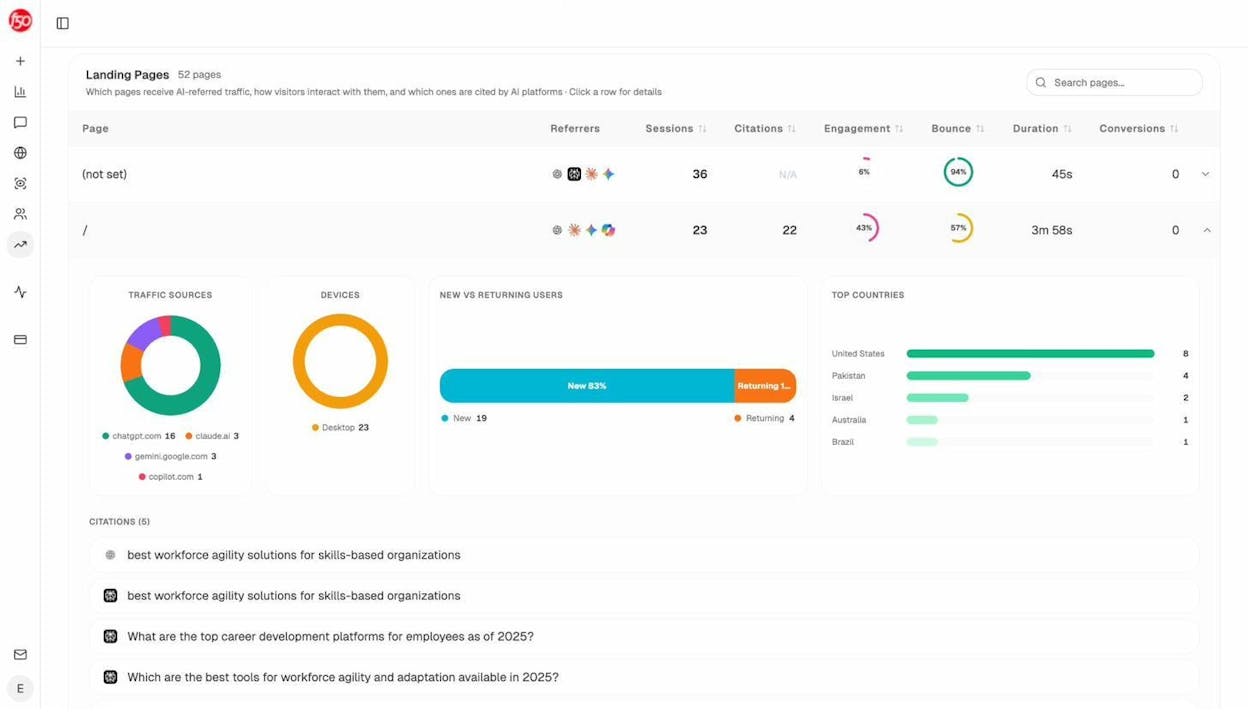
Cross-reference this with your orphan page list. If any of your orphan pages are receiving AI referral traffic (meaning AI models are already citing them), that’s a strong signal to prioritize reintegrating those pages—they’re already valuable to AI search engines, and internal links will make them even more visible.
Conversely, look at which pages on your site get the most AI referral traffic. These high-performing pages are good candidates for linking to your orphan pages, since AI crawlers are already visiting them frequently.
You can also use Analyze AI’s Sources dashboard to see which of your URLs are being cited by AI models. If an orphan page shows up as a cited source, it’s contributing to your AI visibility despite being disconnected from your site structure. Imagine how much more it could contribute with proper internal linking.
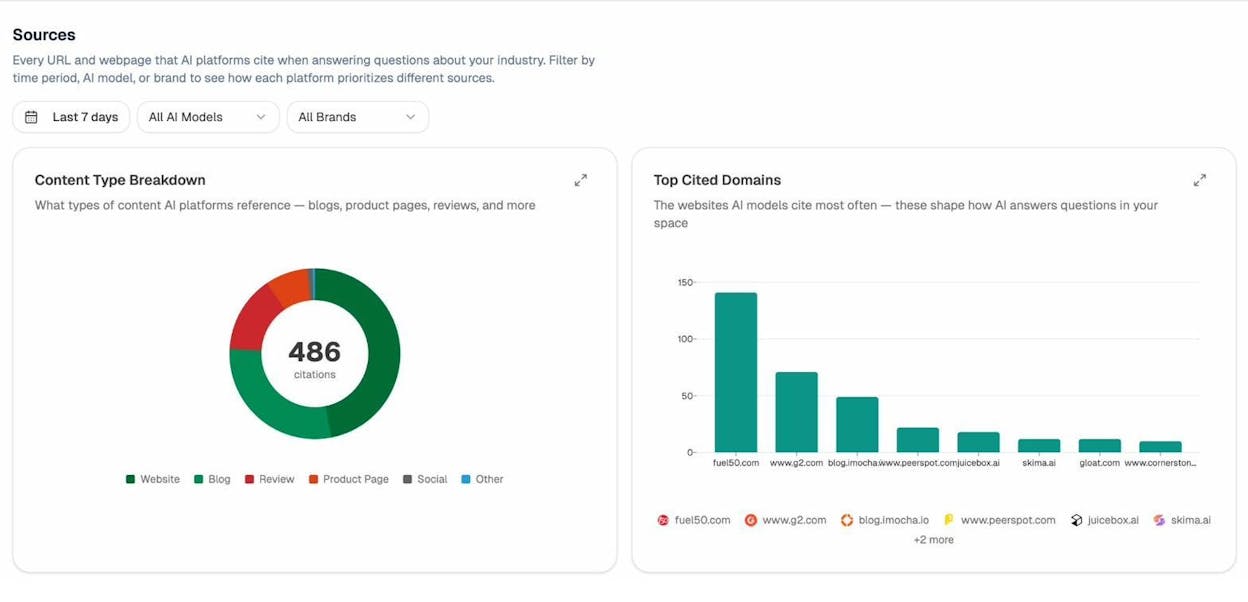
Use AI traffic data to prioritize which orphan pages to fix first
Not all orphan pages are equally important. Analyze AI’s AI Traffic Analytics helps you prioritize by showing you:
-
Which pages already convert AI traffic. If an orphan page is getting AI referral visits and those visits convert, fix it immediately.
-
Which AI engines drive traffic to your site. The breakdown by engine (ChatGPT, Perplexity, Gemini, etc.) helps you understand which models value your content—and which orphan pages might be getting missed.
-
Traffic trends over time. If AI referral traffic is growing to certain pages, those pages’ topic clusters are becoming more important in AI search. Any orphan pages in those clusters deserve priority attention.
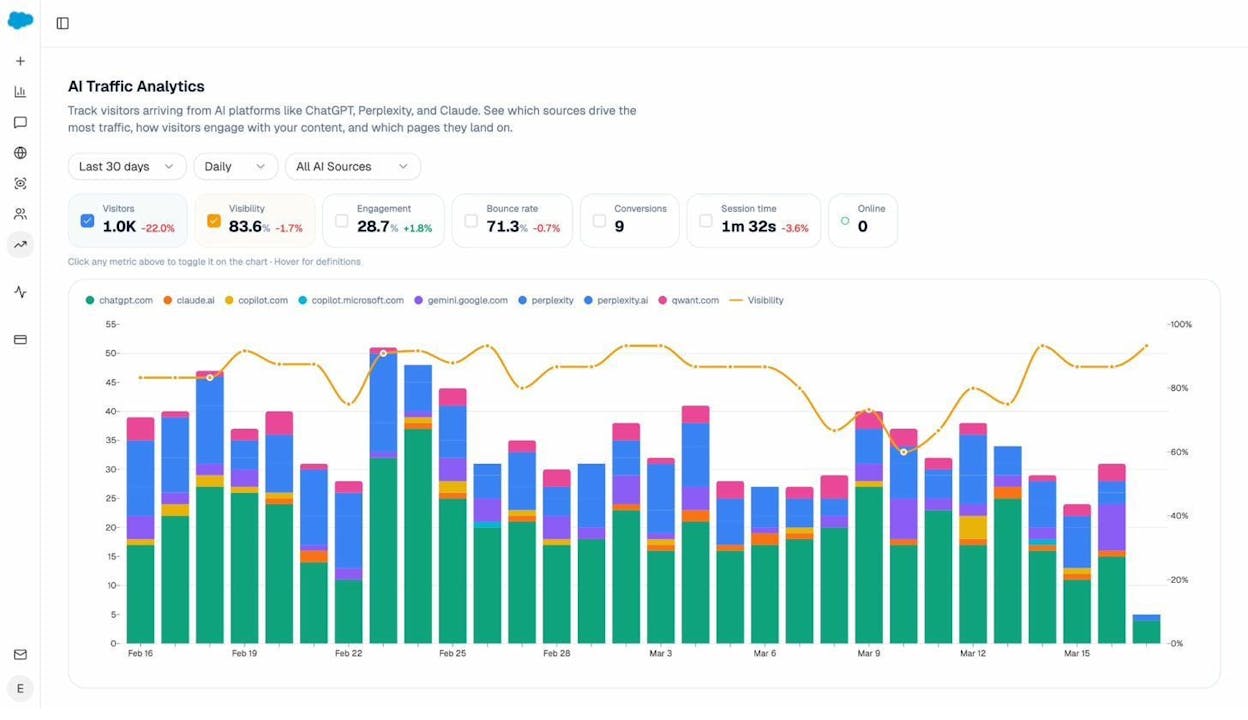
This is the kind of data-driven prioritization that separates a basic orphan page audit from a strategic one. You’re not just fixing a technical SEO problem—you’re building visibility across both traditional and AI search channels.
How to Prevent Orphan Pages from Coming Back
Fixing orphan pages is a project. Preventing them is a process. Here are five systems to put in place so orphan pages stop accumulating on your site.
Create a page launch checklist
Every new page published on your site should go through a checklist that includes:
-
Add the page to at least two relevant internal link sources (a hub page and a related article).
-
Verify the page appears in your XML sitemap.
-
Confirm the page is accessible via your site’s navigation or breadcrumb structure.
-
Check that the page returns a 200 status code.
This takes five minutes per page and prevents the most common cause of orphan pages: forgetting to link to new content.
Build a migration redirect map before every migration
Before any site migration, redesign, or URL restructure, create a complete URL mapping document. Every old URL should map to a new URL with a 301 redirect. Every internal link should be updated to point to the new URL directly (avoiding redirect chains).
Test the migration in a staging environment and crawl the staging site to verify that all pages are reachable. This catches orphan pages before they go live.
Use a CMS that auto-generates internal links
Most modern CMS platforms (WordPress, Shopify, Webflow) automatically add internal links to new content through category pages, tag archives, related post sections, and blog homepages. If your CMS doesn’t do this, build it.
At minimum, your CMS should automatically link to new content from its parent category or section page. This single link prevents the page from being orphaned even if nobody manually adds additional internal links.
Handle discontinued products correctly
E-commerce sites need a clear process for products that go out of stock or get discontinued:
-
Temporarily out of stock: Keep the page live. Add a “notify me when back in stock” option. Keep all internal links in place.
-
Permanently discontinued (with a replacement): 301 redirect the old URL to the replacement product page.
-
Permanently discontinued (no replacement): 301 redirect to the parent category page. If the page has strong backlinks, consider keeping it live with a note explaining the product is discontinued and linking to alternatives.
The key: never just remove a product from your navigation without also dealing with its URL. That’s how orphan pages pile up.
Run a monthly orphan page audit
Set a recurring calendar reminder to check for new orphan pages every month. You don’t need to repeat the full three-step process each time. Most crawling tools can be scheduled to run automatically and flag new orphan pages.
Set up a monthly crawl in Screaming Frog, Sitebulb, or your preferred tool, and compare the results to the previous month’s crawl. Any new orphan pages should be addressed within that month’s maintenance cycle.
If you’re also tracking AI search performance, check Analyze AI’s AI Traffic Analytics dashboard at the same time. Look for pages where AI referral traffic is dropping—a sudden drop can sometimes indicate that a page has lost its internal links (effectively becoming orphaned) and AI crawlers are deprioritizing it.
Use Analyze AI to monitor your content’s discoverability across AI engines
Beyond fixing orphan pages, you should be tracking whether your pages are showing up in AI-generated answers at all. Analyze AI’s Prompts dashboard lets you track specific queries across ChatGPT, Perplexity, Claude, Gemini, and Copilot to see if your brand appears in the responses.
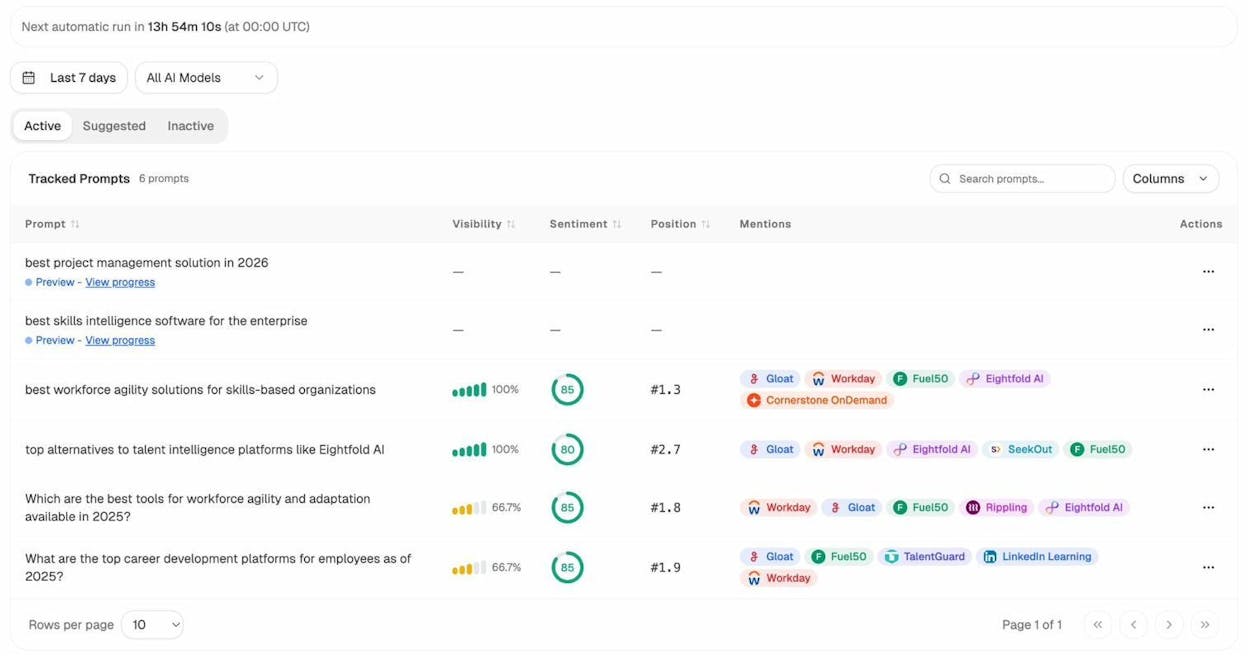
If you notice that pages you recently reintegrated (fixed from orphan status) start appearing as cited sources in AI answers, that’s direct evidence that your orphan page cleanup is improving your AI visibility.
You can also use Analyze AI’s Competitor Overview to see where competitors appear in AI answers and you don’t. Sometimes the gap isn’t your content quality—it’s that your content is orphaned and theirs isn’t.
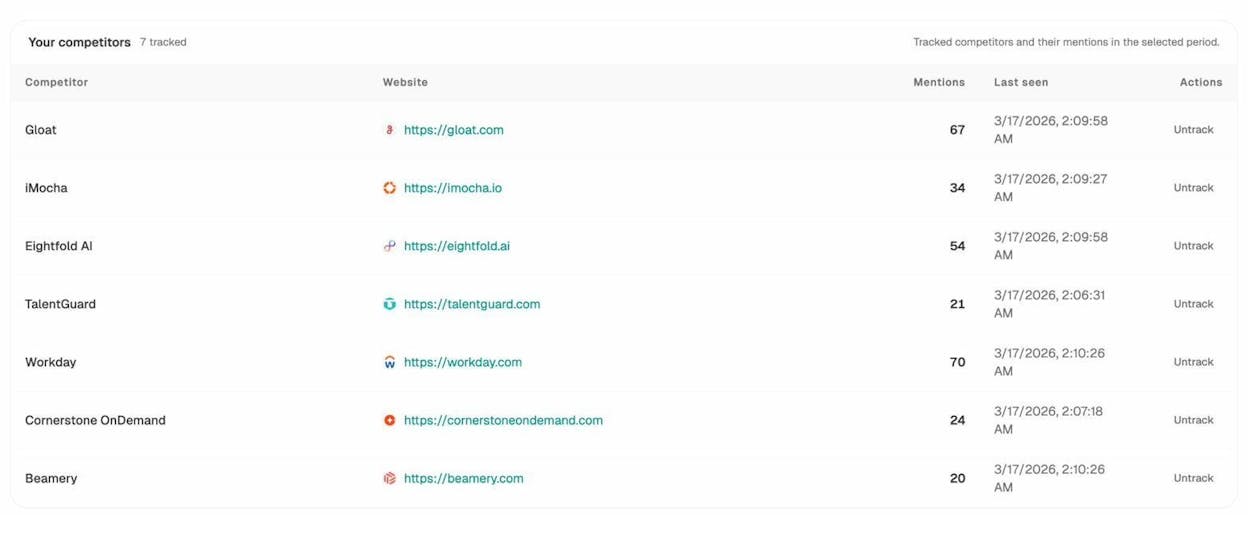
This is the compounding effect of treating SEO and AI search as complementary channels rather than separate silos. A page that’s properly linked in your site architecture doesn’t just rank better in Google—it also becomes more discoverable to AI models that crawl and cite web content. Every orphan page you fix strengthens both channels simultaneously.
Further reading:
-
10 Internal Linking Tips for SEO Explained – The foundation of preventing orphan pages.
-
2026 SEO Content Strategy: 10-Step Breakdown – How to build a content architecture that orphan-proofs your site.
-
What Is Generative Engine Optimization (GEO)? – How AI search engines discover and cite your content.
-
5 Best SEO Audit Tools to Grow Traffic Fast – Tools that include orphan page detection in their site audits.
-
18 Types of SEO: 40+ Techniques to Rank Higher – Where orphan page audits fit in the broader SEO landscape.

Ernest

Ibrahim


![Link Building Outreach: A Step-by-Step Guide [With Templates]](/_next/image?url=https%3A%2F%2Fwww.datocms-assets.com%2F164164%2F1774864954-blobid0.png&w=3840&q=75)


