



Summarize this blog post with:


In this article, you’ll learn what technical SEO is, why it’s the foundation that makes every other SEO effort possible, and how to fix the most common technical issues on your site. You’ll also learn why technical SEO now matters just as much for AI search engines like ChatGPT, Perplexity, and Google AI Mode—and what you can do about it today.
Table of Contents
What Is Technical SEO?
Technical SEO is the practice of optimizing your website so search engines (and now AI platforms) can find, crawl, understand, and index your pages.
Think of it this way: you can write the best content in the world, but if Google can’t access or understand your page, nobody will find it through search. Technical SEO removes those barriers.
It covers everything from how fast your pages load, to whether search engines can reach your content, to how your site communicates what each page is about through structured data and clean code.
How Technical SEO Differs from Other Types of SEO
Technical SEO is one of several pillars in a complete SEO strategy. Here’s how it fits alongside the others:
|
Type of SEO |
What It Focuses On |
Example |
|---|---|---|
|
Technical SEO |
Site infrastructure, crawlability, indexability, speed |
Fixing broken links, improving page speed, adding schema markup |
|
On-page SEO |
Content and HTML elements on individual pages |
Optimizing title tags, headers, keyword usage |
|
Off-page SEO |
External signals like backlinks and brand mentions |
Link building, digital PR, off-page SEO strategies |
|
Content SEO |
Creating content that satisfies search intent |
Blog posts, guides, SEO content strategy |
Each type matters, but technical SEO is where it all starts. If your technical foundation is broken, nothing else works.
For a deeper look at how all these types work together, see our guide to the 18 types of SEO.
How Complicated Is Technical SEO?
It depends on your site. The fundamentals—making sure your pages are crawlable, indexable, and fast—aren’t difficult for most websites. A small business site on WordPress can handle most technical SEO basics in an afternoon.
But technical SEO gets complex fast on larger sites. If your site has thousands of pages, uses JavaScript frameworks, serves content in multiple languages, or runs a large ecommerce catalog with faceted navigation, the technical challenges multiply.
The good news: you don’t need to master everything at once. Start with the fundamentals covered in this guide, and tackle advanced topics as your site grows.
Does Technical SEO Matter for AI Search?
Yes—more than most people realize.
AI search engines like ChatGPT, Perplexity, Claude, and Google AI Mode still rely on web content to generate their answers. They crawl the web (or pull from indexes built by crawling), and they need to access, read, and understand your pages just like traditional search engines do.
If your site blocks AI crawlers, loads critical content only through JavaScript that LLMs can’t render, or has a confusing site structure, you’re invisible in AI search responses too.
At Analyze AI, we believe SEO isn’t dead—it’s evolving. AI search is a complementary organic channel, not a replacement for traditional SEO. The technical foundation that helps you rank in Google also helps your content get cited by AI platforms. The sites doing well in both channels are the ones with solid technical fundamentals.
We’ll cover what this means practically throughout this guide—not as a separate add-on, but woven into each section. Because AI search visibility starts with the same technical basics.
Understanding Crawling
Before any search engine or AI platform can show your content to users, it first has to find it. That process is called crawling.
How Crawling Works
Search engine crawlers (also called spiders or bots) visit web pages, download their content, and follow the links on those pages to discover new URLs. Google’s main crawler is called Googlebot. Bing uses Bingbot.
AI platforms have their own crawlers too. ChatGPT uses GPTBot, Anthropic (Claude) uses ClaudeBot, and Perplexity uses PerplexityBot. These crawlers work similarly—they need to access your pages to include your content in their models or in real-time search results.
The crawling process works like this:
-
The crawler starts with a list of known URLs (from sitemaps, previous crawls, or links from other sites).
-
It visits each URL and downloads the page content.
-
It extracts all the links on that page.
-
It adds those new links to its list of URLs to crawl.
-
It repeats the process.
Your job is to make sure this process goes smoothly. That means giving crawlers a clear path to your important pages and keeping them away from pages that don’t matter.
Robots.txt: Your First Line of Control
A robots.txt file sits at the root of your website (e.g., yoursite.com/robots.txt) and tells crawlers which parts of your site they can and can’t access.
Here’s a basic example:
User-agent: *
Allow: /
Disallow: /admin/
Disallow: /staging/
Sitemap: https://yoursite.com/sitemap.xml
This tells all crawlers they can access your site, except for the /admin/ and /staging/ directories. It also points crawlers to your sitemap.
How to check your robots.txt:
-
Open your browser and go to yoursite.com/robots.txt.
-
Review what’s being blocked.
-
Make sure you’re not accidentally blocking important pages or entire sections of your site.
![[Screenshot: Example of a robots.txt file in the browser]](https://www.datocms-assets.com/164164/1774870058-blobid1.png?auto=format,compress&w=1248&fit=max)
A common mistake is blocking CSS and JavaScript files in robots.txt. This prevents search engines from rendering your pages properly, which means they can’t understand your content. If you’re using WordPress, check that your theme and plugin files aren’t blocked.
Robots.txt and AI crawlers:
Most AI crawlers respect robots.txt. If you want to control AI access specifically, you can add rules for individual bots:
User-agent: GPTBot
Disallow: /proprietary-research/
User-agent: ClaudeBot
Disallow: /proprietary-research/
User-agent: PerplexityBot
Allow: /
This blocks ChatGPT and Claude from crawling your proprietary research pages while allowing Perplexity full access.
There’s a trade-off here worth understanding: if you block AI crawlers entirely, your content won’t appear in AI search responses. That’s lost visibility. If your business benefits from appearing in AI-generated answers (and most do), you’ll want to keep your valuable content accessible to these crawlers.
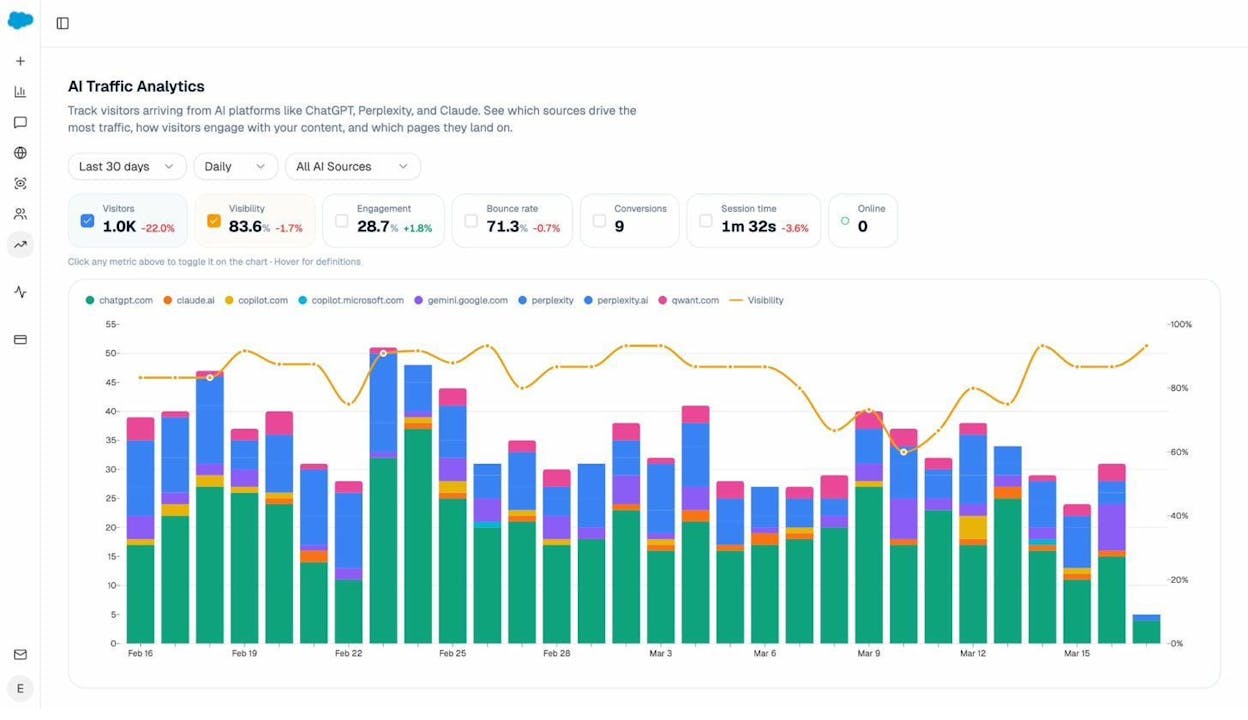
You can use Analyze AI’s AI Traffic Analytics to see which AI platforms are already sending traffic to your site. If a particular engine drives meaningful visits, blocking its crawler would cut off that channel.
LLMs.txt
LLMs.txt is a newer, voluntary standard that aims to give large language models a concise, machine-readable summary of your site. The file lives at yoursite.com/llms.txt and typically contains a brief description of your organization plus links to your most important content.
Should you create one? There’s no strong evidence yet that LLMs.txt improves how AI models surface your content. But it takes five minutes to set up, and it doesn’t hurt.
If you want to create one quickly, Analyze AI offers a free LLM.txt Generator Tool that builds the file for you automatically.
XML Sitemaps: Helping Crawlers Find Your Pages
An XML sitemap is a file that lists the important pages on your website. It helps search engines discover URLs they might not find through crawling alone—especially on large sites or sites where some pages aren’t well-linked internally.
Here’s what a basic sitemap entry looks like:
<url>
<loc>https://yoursite.com/blog/technical-seo-guide/</loc>
<lastmod>2026-03-15</lastmod>
<changefreq>monthly</changefreq>
<priority>0.8</priority>
</url>
Best practices for XML sitemaps:
-
Include only pages you want indexed. Don’t add pages you’ve set to noindex, redirected URLs, or error pages.
-
Keep each sitemap under 50,000 URLs or 50MB. Use a sitemap index file for larger sites.
-
Update the <lastmod> date only when the content actually changes, not automatically on every build.
-
Submit your sitemap in Google Search Console under Sitemaps in the left sidebar.
-
Also submit it in Bing Webmaster Tools for Bing visibility.
![[Screenshot: Google Search Console sitemap submission page showing the “Add a new sitemap” input field]](https://www.datocms-assets.com/164164/1774870065-blobid3.png?auto=format,compress&w=1248&fit=max)
Most CMS platforms (WordPress, Shopify, Webflow) generate sitemaps automatically. For WordPress, plugins like Yoast SEO or Rank Math handle this.
Crawl Rate and Crawl Budget
Every website has a crawl budget—the number of pages a search engine will crawl on your site within a given timeframe. Google determines this based on two factors: how often it wants to crawl your site (based on popularity and freshness) and how much crawling your server allows before showing strain.
For most small to medium websites, crawl budget isn’t a concern. Google will find and crawl your important pages without issue.
Crawl budget becomes a real problem on sites with 10,000+ pages, especially when many of those pages are low-value (parameter URLs, filters, paginated archive pages). In those cases, crawlers waste time on unimportant pages and might not reach your best content.
How to improve crawl efficiency:
-
Block low-value pages in robots.txt (admin areas, search result pages, filter URLs).
-
Fix redirect chains so crawlers don’t waste requests following multiple redirects.
-
Remove or noindex thin or duplicate content.
-
Improve internal linking so your most important pages are easy to reach.
-
Keep your site fast—slow servers cause crawlers to back off.
How to See Crawl Activity
For Google:
Go to Google Search Console → Settings → Crawl stats. This report shows:
-
Total crawl requests per day
-
Average response time
-
Crawl status codes (how many requests returned 200, 301, 404, etc.)
![[Screenshot: Google Search Console Crawl Stats report showing daily crawl requests and response times]](https://www.datocms-assets.com/164164/1774870068-blobid4.png?auto=format,compress&w=1248&fit=max)
If you see a sudden drop in crawl activity, it usually means Google encountered server errors or your robots.txt is blocking more than you intended.
For AI crawlers:
You’ll need to check your server access logs. Look for user agents like GPTBot, ClaudeBot, PerplexityBot, and Google-Extended. If your hosting uses cPanel, you can find raw access logs under Metrics → Raw Access.
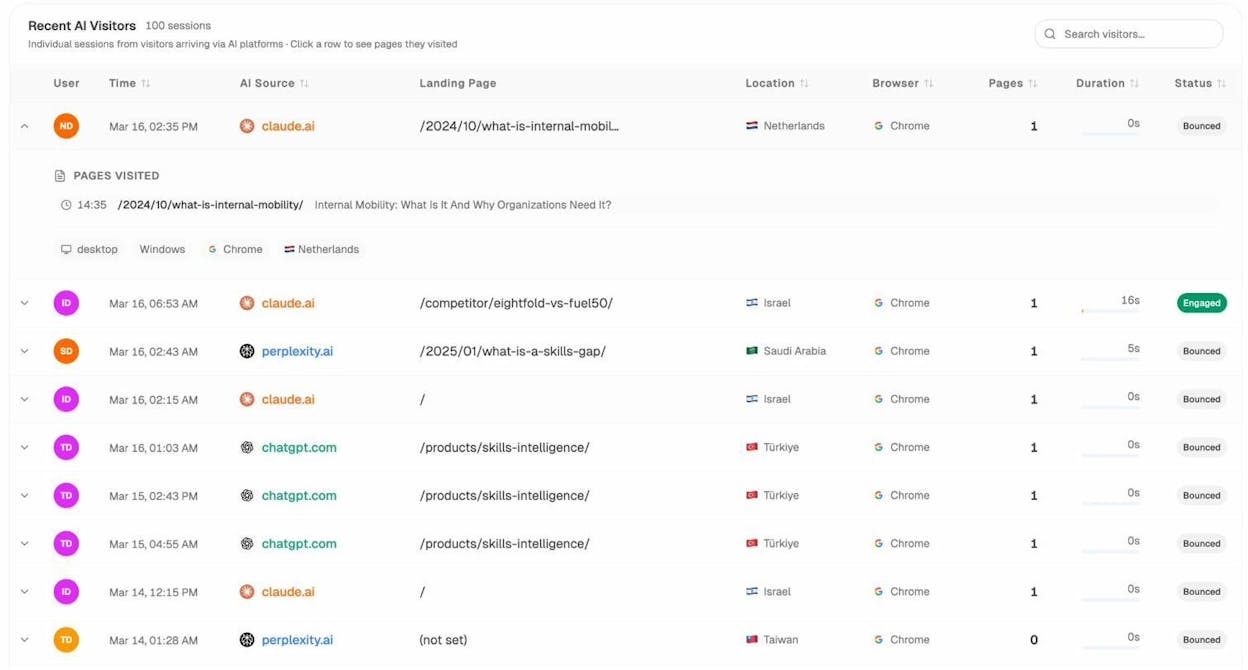
To see which AI platforms are actively sending traffic (not just crawling), connect your Google Analytics to Analyze AI. The AI Traffic Analytics dashboard shows exactly which AI engines drive visitors and which pages they land on.
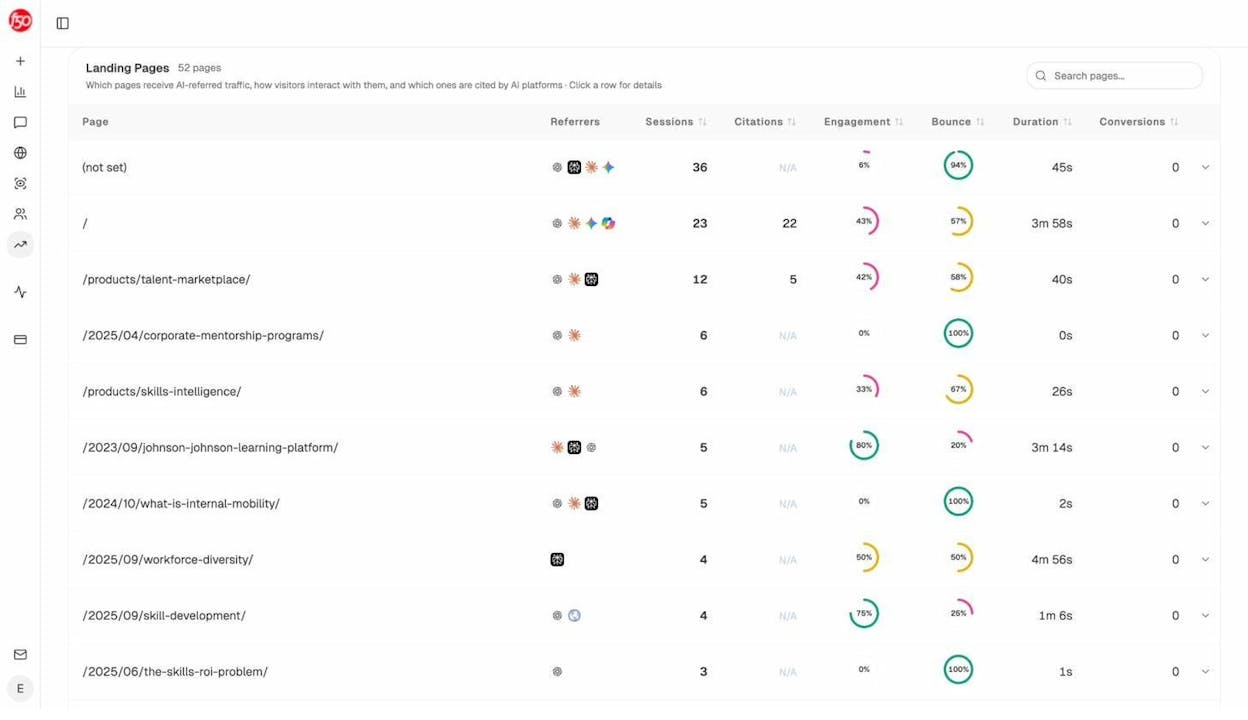
This tells you which AI platforms have already indexed your content successfully—a direct signal that your technical setup is working for AI crawlers.
Access Restrictions
Sometimes you need to keep certain pages away from both search engines and the public. Examples include staging environments, internal tools, or member-only content.
Your options:
-
Login systems: Require user authentication to view pages. Search engines can’t log in, so they won’t index the content.
-
HTTP authentication: Add a password prompt at the server level. Useful for staging sites.
-
IP whitelisting: Only allow specific IP addresses to access certain pages. Good for internal networks.
Don’t rely on robots.txt alone for sensitive content. Robots.txt is a suggestion, not a security measure. Some crawlers ignore it, and the URLs you list in robots.txt are visible to anyone who reads the file—which could actually draw attention to pages you want hidden.
Understanding Indexing
After a search engine crawls a page, the next step is indexing—deciding whether to store that page in its database so it can be returned in search results.
Not every crawled page gets indexed. Google may skip pages that are too similar to others, too thin on content, or explicitly marked as “don’t index.”
Robots Meta Tags: Controlling Indexing
While robots.txt controls crawling (whether a bot visits a page), robots meta tags control indexing (whether a page appears in search results after being crawled).
You add a robots meta tag in the <head> section of your HTML:
<meta name="robots" content="noindex, follow">
Common directives include:
|
Directive |
What It Does |
|---|---|
|
index |
Allows the page to appear in search results (default behavior) |
|
noindex |
Prevents the page from appearing in search results |
|
follow |
Allows the crawler to follow links on the page |
|
nofollow |
Prevents the crawler from following links on the page |
|
noindex, follow |
Keeps the page out of search results but still follows its links |
When to use noindex:
-
Thank-you pages after form submissions
-
Internal search results pages
-
Tag and category archive pages with thin content
-
Paginated pages (page 2, 3, etc. of blog archives)
-
Staging or test pages that accidentally went live
How to check if a page is noindexed:
-
Right-click on the page → View Page Source.
-
Search for noindex in the code.
-
Or check the HTTP response headers (some sites use an X-Robots-Tag header instead of a meta tag).
![[Screenshot: Browser “View Page Source” with a search highlighting the robots meta tag]](https://www.datocms-assets.com/164164/1774870073-blobid6.png?auto=format,compress&w=1248&fit=max)
Canonicalization: Handling Duplicate Content
Duplicate content is one of the most common technical SEO issues, especially on ecommerce sites. It happens when the same (or very similar) content exists at multiple URLs.
For example, these might all show the same page:
https://yoursite.com/shoes/
https://yoursite.com/shoes/?color=red
https://yoursite.com/shoes/?sort=price
http://yoursite.com/shoes/
https://www.yoursite.com/shoes/
When Google finds duplicate pages, it picks one as the “canonical” version—the one it shows in search results. You can influence this choice with a canonical tag:
<link rel="canonical" href="https://yoursite.com/shoes/" />
This tells Google: “If you find this content at other URLs, treat this URL as the main version.”
Best practices for canonical tags:
-
Every page should have a self-referencing canonical tag pointing to itself.
-
Use absolute URLs in canonical tags (include https:// and your domain).
-
Make sure all versions of a page (HTTP, HTTPS, www, non-www) resolve to one canonical version through redirects.
-
Don’t canonical pages that have substantially different content—Google will ignore the tag.
How to check canonical tags on your site:
-
Visit a page on your site.
-
Right-click → View Page Source.
-
Search for rel="canonical" in the code.
-
Verify the URL points to the correct version of the page.
You can also run a site-wide check using an SEO audit tool that crawls your entire site and flags canonical issues.
![[Screenshot: View Page Source showing the canonical tag in the HTML head section]](https://www.datocms-assets.com/164164/1774870075-blobid7.png?auto=format,compress&w=1248&fit=max)
How to Check Your Index Status
Google Search Console’s Pages report (under Indexing in the left sidebar) shows which of your pages are indexed and which aren’t—along with the reasons why.
![[Screenshot: Google Search Console Indexing report showing indexed vs. not-indexed pages with reasons listed]](https://www.datocms-assets.com/164164/1774870078-blobid8.png?auto=format,compress&w=1248&fit=max)
Common reasons a page isn’t indexed:
-
“Crawled - currently not indexed”: Google found the page but didn’t think it was valuable enough to index. Usually means the content is too thin or duplicative.
-
“Discovered - currently not indexed”: Google knows the URL exists but hasn’t crawled it yet. Often a crawl budget issue.
-
“Blocked by robots.txt”: Your robots.txt file prevents crawling.
-
“Excluded by noindex tag”: The page has a noindex meta tag.
-
“Duplicate without user-selected canonical”: Google found duplicate content and chose a different URL as the canonical.
To check a specific URL, use the URL Inspection tool at the top of Google Search Console. Paste any URL from your site and it’ll show whether it’s indexed, which canonical Google selected, and when it was last crawled.
Technical SEO Quick Wins
If you’re just getting started with technical SEO, these are the projects that deliver the most value for the least effort. Tackle these first before moving to more advanced topics.
1. Make Sure Your Important Pages Are Indexed
This is the single most important technical SEO task. If your pages aren’t indexed, they can’t rank—period.
Step-by-step:
-
Go to Google Search Console.
-
Navigate to Indexing → Pages.
-
Review the “Not indexed” section.
-
For each important page that’s not indexed, click through to see the reason.
-
Fix the issue (remove noindex tags, update robots.txt, add internal links, improve thin content).
-
Use the URL Inspection tool to request re-indexing after fixing.
![[Screenshot: Google Search Console Pages report with the “Why pages aren’t indexed” breakdown expanded]](https://www.datocms-assets.com/164164/1774870080-blobid9.png?auto=format,compress&w=1248&fit=max)
Pro tip: Don’t try to index everything. Pages like filter results, tag archives, and internal search pages usually shouldn’t be indexed. Focus on pages that matter for your business—product pages, service pages, blog posts, and landing pages.
2. Submit Your Sitemap
If you haven’t submitted an XML sitemap to Google Search Console, do it now.
-
Go to Google Search Console → Sitemaps.
-
Enter the URL of your sitemap (usually yoursite.com/sitemap.xml).
-
Click Submit.
![[Screenshot: Google Search Console Sitemaps page showing a submitted sitemap with “Success” status]](https://www.datocms-assets.com/164164/1774870083-blobid10.jpg?auto=format,compress&w=1248&fit=max)
Check that the number of discovered URLs matches what you expect. If your site has 500 pages but the sitemap only shows 50, something is wrong with your sitemap generation.
3. Reclaim Lost Links Through Redirects
Over time, websites change their URL structures, remove old pages, or rebrand. When this happens, any backlinks pointing to the old URLs become worthless—they lead to 404 error pages instead of passing authority to your current pages.
Redirecting these old URLs to their current equivalents reclaims that lost link equity. It’s essentially free link building.
How to find broken URLs with backlinks:
-
Use an SEO tool (like Site Explorer or a similar backlink analysis tool) to find 404 pages on your site that have referring domains.
-
Sort by the number of referring domains to prioritize the biggest opportunities.
-
For each broken URL, figure out where it should redirect. (Check the Internet Archive’s Wayback Machine at web.archive.org to see what the page used to be.)
-
Set up 301 redirects from the old URLs to their relevant current pages.
![[Screenshot: SEO tool showing 404 pages sorted by referring domains, with the top result having 59 referring domains]](https://www.datocms-assets.com/164164/1774870086-blobid11.png?auto=format,compress&w=1248&fit=max)
You can also find broken links on your own site using Analyze AI’s free Broken Link Checker. Paste your URL and it’ll flag all broken internal and external links.
What is a 301 redirect?
A 301 redirect is a permanent redirect that tells search engines “this page has moved permanently to a new location.” It passes the SEO value (link equity) from the old URL to the new one. You set them up in your server configuration file (.htaccess for Apache, nginx.conf for Nginx) or through your CMS.
Example .htaccess redirect:
Redirect 301 /old-page/ https://yoursite.com/new-page/
4. Fix Internal Linking Gaps
Internal links are links from one page on your site to another page on your site. They help search engines discover pages, understand your site structure, and distribute page authority across your site.
Pages with few or no internal links pointing to them are called “orphan pages.” They’re harder for search engines to find and typically rank poorly.
How to find internal linking opportunities:
-
Run a site crawl with an SEO audit tool.
-
Look for pages with few internal links (fewer than 3-5 from other pages).
-
Find relevant mentions of those page topics elsewhere on your site.
-
Add contextual links from those mentions to the under-linked pages.
For example, if you have a blog post about “keyword research” and another post mentions keyword research in passing without linking to it, that’s a missed opportunity.
![[Screenshot: SEO audit tool showing internal link opportunities—a page mentioning “keyword research” that could link to the keyword research guide]](https://www.datocms-assets.com/164164/1774870089-blobid12.png?auto=format,compress&w=1248&fit=max)
Strong internal linking also helps AI search. AI models often follow link structures to understand content relationships. A well-interlinked site signals topical depth, which increases the chance your content gets cited in AI-generated answers.
5. Add Schema Markup
Schema markup (also called structured data) is code you add to your pages to help search engines understand your content more precisely. It can also help your pages qualify for rich results—the enhanced listings in Google that show star ratings, FAQ dropdowns, product prices, and more.
Common schema types and where to use them:
|
Schema Type |
Best For |
Rich Result |
|---|---|---|
|
Article |
Blog posts, news articles |
Article headline and date in search |
|
FAQ |
FAQ pages, help centers |
Expandable Q&A dropdowns in search results |
|
Product |
Product pages |
Price, availability, and ratings in search |
|
LocalBusiness |
Local business sites |
Business info in Maps and local results |
|
HowTo |
Tutorial and how-to content |
Step-by-step instructions in search |
|
BreadcrumbList |
Any page |
Breadcrumb navigation in search results |
|
Organization |
Homepage |
Company info panel in search |
How to add schema markup:
The easiest way is with JSON-LD, a script format that goes in the <head> section of your HTML:
<script type="application/ld+json">
{
"@context": "https://schema.org",
"@type": "Article",
"headline": "The Beginner's Guide to Technical SEO",
"author": {
"@type": "Person",
"name": "Your Name"
},
"datePublished": "2026-03-15",
"dateModified": "2026-03-15"
}
</script>
After adding schema, validate it using Google’s Rich Results Test. Paste your URL and it’ll show whether your schema is valid and which rich results you’re eligible for.
![[Screenshot: Google Rich Results Test showing valid Article schema with eligible rich results highlighted]](https://www.datocms-assets.com/164164/1774870092-blobid13.png?auto=format,compress&w=1248&fit=max)
Schema and AI search:
Schema markup helps AI models interpret your content accurately. When an AI platform processes your page, structured data provides clear signals about what the content covers, who wrote it, and how it’s organized. This reduces the chance of misinterpretation and can increase the likelihood that your content gets cited in AI responses.
For instance, Organization schema helps AI platforms associate your brand name with the correct entity—important when LLMs are trying to determine whether to cite your content for a brand-related query.
Making Your Site Visible in AI Search
Technical SEO for traditional search engines and AI search platforms overlaps heavily. But there are a few areas where AI search has unique technical requirements worth addressing.
Ensure AI Crawlers Can Access Your Content
Most AI platforms now use web crawlers similar to search engine bots. Here’s a quick reference:
|
AI Platform |
Crawler Name |
Respects robots.txt? |
|---|---|---|
|
OpenAI (ChatGPT) |
GPTBot |
Yes |
|
Anthropic (Claude) |
ClaudeBot |
Yes |
|
Perplexity |
PerplexityBot |
Yes |
|
Google (Gemini/AI Mode) |
Google-Extended |
Yes |
|
Microsoft (Copilot) |
Bingbot |
Yes |
|
Apple |
Applebot-Extended |
Yes |
Check if you’re blocking AI crawlers:
-
Open yoursite.com/robots.txt.
-
Search for the crawler names listed above.
-
If you see Disallow: / for any of them, your content is blocked from that platform.
Some website security tools (like Cloudflare’s bot management) block AI crawlers by default. If you use Cloudflare, go to Security → Bots → AI Crawlers and check your settings. If the default is set to block, you’re invisible to those platforms.
![[Screenshot: Cloudflare bot management settings showing the AI Crawlers toggle with options to block or allow]](https://www.datocms-assets.com/164164/1774870095-blobid14.png?auto=format,compress&w=1248&fit=max)
JavaScript rendering matters more for AI:
Most AI crawlers don’t render JavaScript. If your site relies on JavaScript frameworks (React, Angular, Vue) to load content, AI crawlers may see a blank page. This is a bigger issue for AI search than for Google, because Google has a rendering engine that processes JavaScript (though not perfectly).
To check if your content is accessible without JavaScript:
-
Open Chrome DevTools (F12).
-
Press Ctrl+Shift+P (or Cmd+Shift+P on Mac) to open the command palette.
-
Type “Disable JavaScript” and select it.
-
Reload the page.
-
Check if your main content is still visible.
![[Screenshot: Chrome DevTools command palette with “Disable JavaScript” highlighted]](https://www.datocms-assets.com/164164/1774870098-blobid15.png?auto=format,compress&w=1248&fit=max)
If your content disappears, you have a JavaScript rendering problem. Consider implementing server-side rendering (SSR) or static site generation (SSG) to make content available in the initial HTML.
Monitor Your AI Search Visibility
Unlike traditional search where you can check rankings in Google Search Console, AI search visibility isn’t tracked by default. You need dedicated tools to understand how your brand appears across AI platforms.
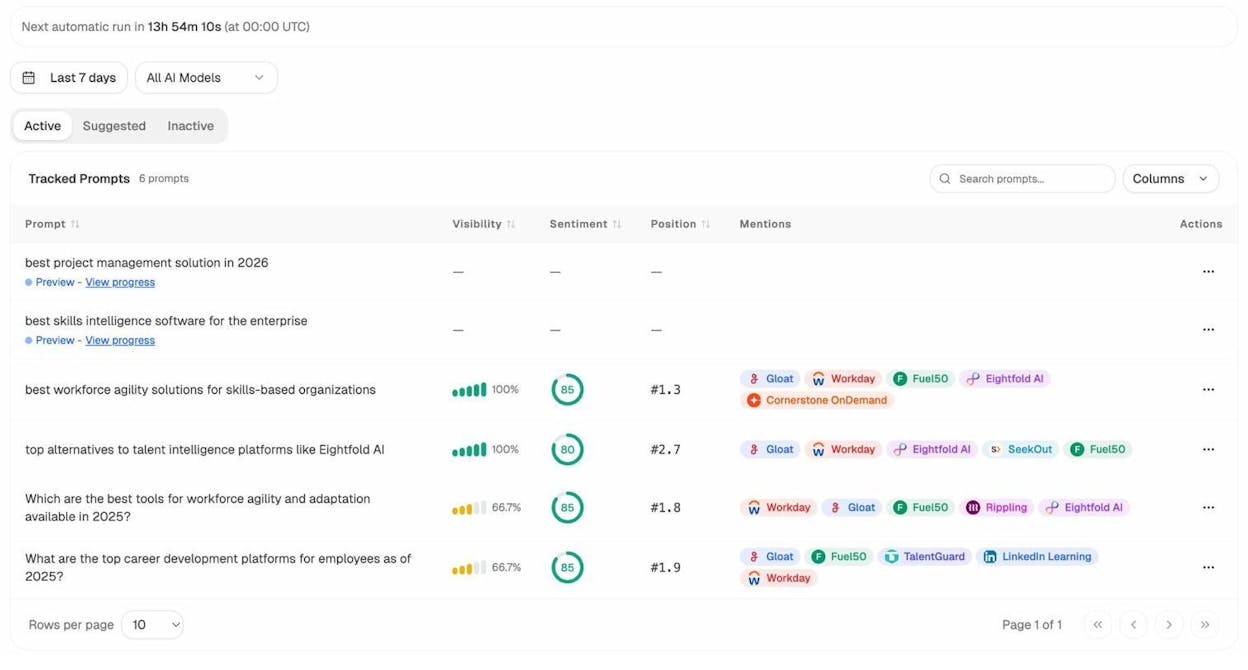
Analyze AI is built specifically for this. It tracks how your brand is mentioned across ChatGPT, Perplexity, Claude, Gemini, Copilot, and other AI platforms. You can see:
-
Visibility over time: What percentage of relevant AI responses mention your brand.
-
Sentiment: Whether AI platforms describe your brand positively or negatively.
-
Competitor comparison: How your visibility stacks up against competitors.
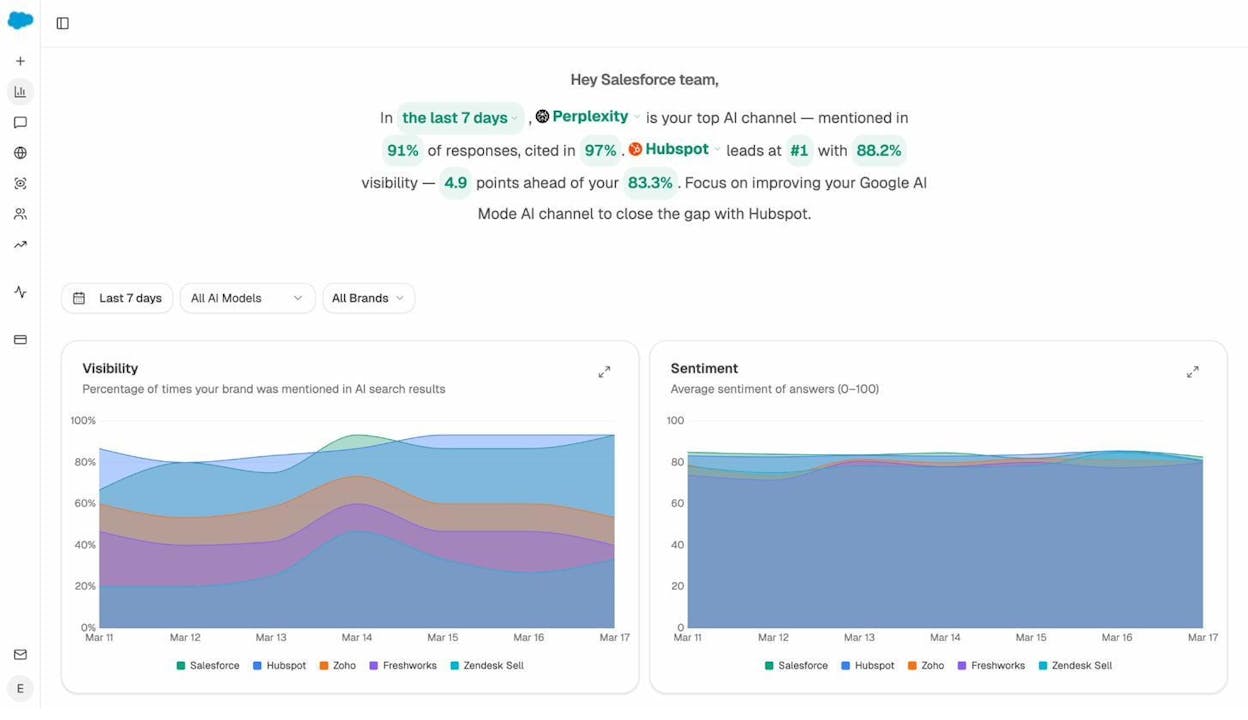
This data directly ties back to technical SEO. If your visibility drops, it might signal a technical issue—maybe a crawl block was accidentally added, JavaScript rendering broke, or a site migration disrupted your URL structure.
Track Which Pages AI Platforms Cite
When an AI platform mentions your brand, it often pulls from specific pages on your site. Understanding which pages get cited helps you identify what’s working and double down on it.
Analyze AI’s Sources dashboard shows exactly which of your URLs get cited in AI responses, which external domains are cited alongside you, and what types of content AI models prefer.
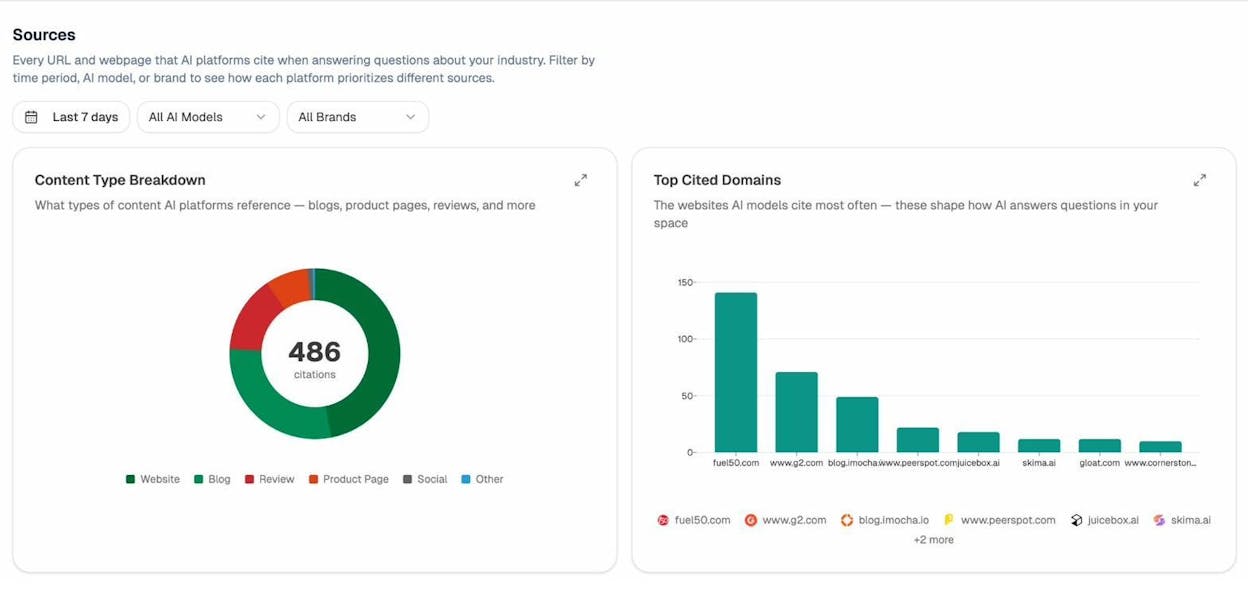
If you notice certain page formats consistently get cited—say, in-depth guides outperform thin product pages—that’s actionable intelligence. You can prioritize creating more content in the format AI models prefer.
Spot Competitor Wins in AI Search
Technical SEO isn’t just about fixing your own site. Understanding where competitors outperform you in AI search reveals gaps you can close.
Analyze AI’s Competitors feature shows which brands appear alongside yours in AI responses, how often they’re mentioned, and where they win prompts you don’t.
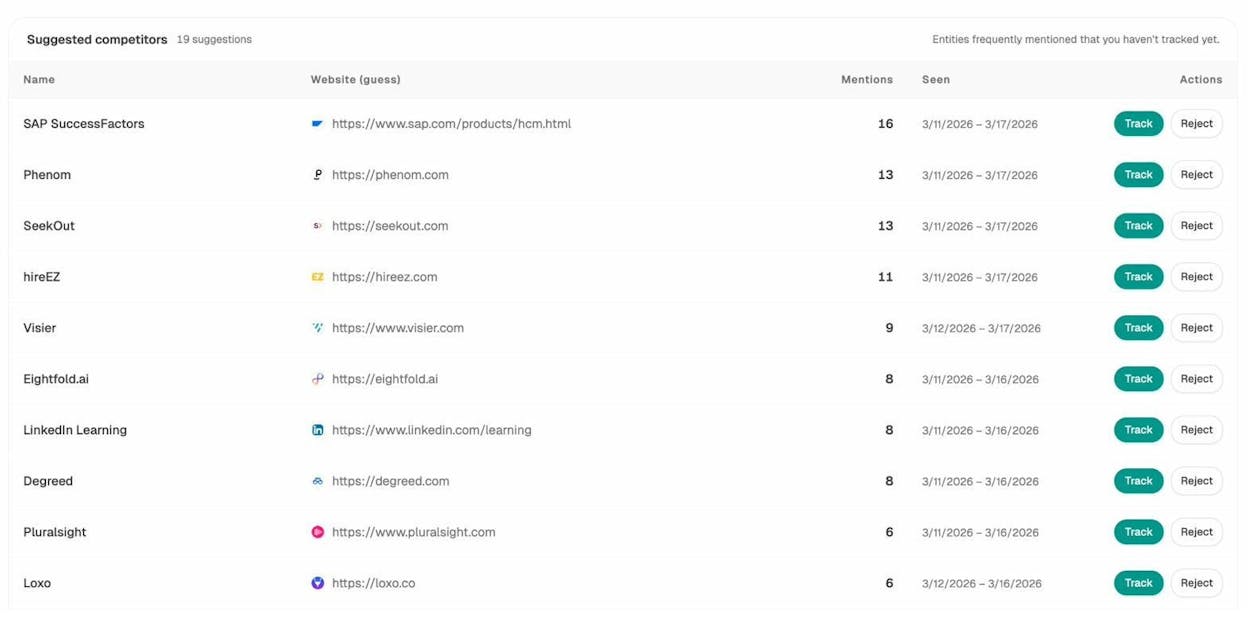
If a competitor consistently appears in AI responses for queries relevant to your business while you don’t, the fix is often technical: they might have better-structured content, more comprehensive schema markup, or simply a faster, more crawlable site.
For a full methodology, see our guide to SEO competitor analysis with AI search tracking.
Handle Hallucinated URLs
AI models sometimes cite URLs on your domain that don’t actually exist. These are “hallucinated” URLs—the AI generates a plausible URL based on your domain structure, but the page doesn’t exist.
This matters because users who click these links hit a 404 error. That’s a poor experience and a missed opportunity.
How to find hallucinated URLs:
-
Check your analytics for 404 pages that receive traffic from AI referrers (look for traffic sources containing chatgpt.com, perplexity.ai, etc.).
-
In Analyze AI, check your AI Traffic Analytics to see which pages receive AI traffic—filter for pages that return 404 status codes.
![[Screenshot: Analytics showing 404 pages with AI referral traffic, sorted by sessions]](https://www.datocms-assets.com/164164/1774870109-blobid19.png?auto=format,compress&w=1248&fit=max)
How to fix them:
For each hallucinated URL, set up a 301 redirect to the most relevant actual page on your site. For example, if ChatGPT cites yoursite.com/guide/complete-seo-tutorial but that page doesn’t exist, redirect it to yoursite.com/blog/seo-guide/.
Check for new hallucinated URLs monthly. As AI models update, they may generate new URLs that need redirecting.
Page Experience and Core Web Vitals
Google uses several “page experience” signals as ranking factors. They’re not as impactful as content quality or backlinks, but they directly affect user experience—and users who have a bad experience bounce, which hurts your performance in every channel.
Core Web Vitals
Core Web Vitals are three metrics that measure the real-world user experience of your pages:
|
Metric |
What It Measures |
Good Score |
|---|---|---|
|
Largest Contentful Paint (LCP) |
How fast the main content loads |
Under 2.5 seconds |
|
Interaction to Next Paint (INP) |
How quickly the page responds to user input |
Under 200 milliseconds |
|
Cumulative Layout Shift (CLS) |
How much the layout shifts unexpectedly while loading |
Under 0.1 |
How to check your Core Web Vitals:
-
Go to PageSpeed Insights and enter your URL.
-
Review the field data (real user data) and lab data (simulated tests).
-
Focus on fixing issues flagged as “Poor” or “Needs Improvement.”
![[Screenshot: PageSpeed Insights results showing Core Web Vitals scores for mobile and desktop with performance score]](https://www.datocms-assets.com/164164/1774870114-blobid20.png?auto=format,compress&w=1248&fit=max)
-
You can also check site-wide data in Google Search Console → Core Web Vitals report.
![[Screenshot: Google Search Console Core Web Vitals report showing URLs grouped by status—Good, Needs Improvement, and Poor]](https://www.datocms-assets.com/164164/1774870115-blobid21.jpg?auto=format,compress&w=1248&fit=max)
Common fixes for poor Core Web Vitals:
-
Slow LCP: Compress images, use a CDN, remove render-blocking JavaScript, implement lazy loading for below-the-fold images.
-
High INP: Reduce JavaScript execution time, break up long tasks, defer non-critical scripts.
-
High CLS: Set explicit width and height on images and videos, avoid inserting content above existing content dynamically, use CSS aspect-ratio for media elements.
HTTPS
HTTPS encrypts the connection between your visitors’ browsers and your server. It’s a basic ranking signal and a trust factor. Any site without HTTPS shows a “Not Secure” warning in browsers, which destroys user trust immediately.
If your site isn’t on HTTPS yet:
-
Get an SSL certificate (many hosting providers offer free ones through Let’s Encrypt).
-
Install it on your server.
-
Redirect all HTTP URLs to their HTTPS equivalents with 301 redirects.
-
Update your sitemap and canonical tags to use HTTPS URLs.
-
Update internal links to point to HTTPS versions.
![[Screenshot: Browser address bar showing the lock icon and “Connection is secure” message for an HTTPS site]](https://www.datocms-assets.com/164164/1774870118-blobid22.png?auto=format,compress&w=1248&fit=max)
Mobile-Friendliness
Google uses mobile-first indexing, which means it primarily uses the mobile version of your site for indexing and ranking. If your site doesn’t work well on mobile, you’ll struggle to rank.
How to check mobile-friendliness:
-
Go to Google Search Console → Experience → Mobile Usability.
-
Review any flagged issues like “Content wider than screen” or “Clickable elements too close together.”
Most modern websites use responsive design, which automatically adjusts the layout for different screen sizes. If your site was built in the last five years with a modern CMS, you’re probably fine. But always verify.
![[Screenshot: Google Search Console Mobile Usability report showing pages with mobile issues flagged]](https://www.datocms-assets.com/164164/1774870119-blobid23.png?auto=format,compress&w=1248&fit=max)
Intrusive Interstitials
Interstitials are pop-ups that cover the main content of a page. Google penalizes pages with interstitials that make content hard to access, especially on mobile.
Acceptable interstitials include cookie consent banners (required by law in many regions), age verification dialogs, and login screens for paywalled content. Unacceptable ones include full-screen ads that appear before the user sees any content, or pop-ups that can’t be easily dismissed.
Rule of thumb: If a user has to interact with a pop-up before they can read your content, it’s probably hurting your rankings.
Additional Technical SEO Projects
These projects are important but typically have less immediate impact than the quick wins above. Work through them after you’ve addressed the fundamentals.
Hreflang Tags for Multi-Language Sites
If your site serves content in multiple languages or targets multiple countries, hreflang tags tell search engines which version to show to which audience.
You add hreflang tags in the <head> section of your HTML:
<link rel="alternate" hreflang="en" href="https://yoursite.com/page/" />
<link rel="alternate" hreflang="es" href="https://yoursite.com/es/page/" />
<link rel="alternate" hreflang="fr" href="https://yoursite.com/fr/page/" />
<link rel="alternate" hreflang="x-default" href="https://yoursite.com/page/" />
Common hreflang mistakes:
-
Missing the x-default tag, which tells search engines the fallback page for users who don’t match any language variant.
-
Not including self-referencing hreflang tags (every page should include a tag pointing to itself).
-
Missing reciprocal tags—if page A references page B, page B must reference page A.
-
Using incorrect language or country codes.
Hreflang errors are notoriously hard to debug at scale. Most SEO audit tools have dedicated hreflang reports that flag missing, mismatched, or invalid tags.
![[Screenshot: SEO audit tool showing hreflang errors—missing reciprocal tags, invalid language codes, and missing self-references]](https://www.datocms-assets.com/164164/1774870123-blobid24.jpg?auto=format,compress&w=1248&fit=max)
URL Structure
Clean, descriptive URLs help both users and search engines understand what a page is about before they visit it.
Good URL:
https://yoursite.com/blog/technical-seo-guide/
Bad URL:
https://yoursite.com/p?id=4832&cat=7&ref=home
URL best practices:
-
Use hyphens to separate words (not underscores).
-
Keep URLs short and descriptive.
-
Include your target keyword when it fits naturally.
-
Use lowercase letters only.
-
Avoid unnecessary parameters and session IDs.
-
Use a logical directory structure that reflects your site hierarchy.
Once URLs are set and pages are indexed, avoid changing them unless absolutely necessary. URL changes require 301 redirects, and there’s always some risk of losing rankings temporarily.
Fix Broken Links
Broken links (links that point to pages that no longer exist) create a poor user experience and waste crawl budget. They also prevent link equity from flowing through your site.
Two types of broken links:
-
Internal broken links: Links on your site that point to your own pages that return 404 errors. Fix these by updating the link to the correct URL or removing it.
-
External broken links: Links on your site that point to other websites’ pages that no longer exist. Fix these by updating the link to a working alternative or removing it.
Use Analyze AI’s free Broken Link Checker to scan your site for both types.
![[Screenshot: Analyze AI Broken Link Checker results showing broken internal and external links with status codes and source pages]](https://www.datocms-assets.com/164164/1774870124-blobid25.png?auto=format,compress&w=1248&fit=max)
Fix Redirect Chains
A redirect chain happens when URL A redirects to URL B, which redirects to URL C (and sometimes further). Each hop in the chain adds latency and dilutes link equity.
Example redirect chain:
/old-page/ → /newer-page/ → /newest-page/
The fix is to update the redirect so the original URL points directly to the final destination:
/old-page/ → /newest-page/
Run a site crawl with an SEO audit tool and check the redirects report. Any redirect that passes through more than one hop is a chain that needs fixing.
![[Screenshot: SEO audit tool redirect chain report showing the chain from original URL through intermediate redirects to final destination]](https://www.datocms-assets.com/164164/1774870128-blobid26.jpg?auto=format,compress&w=1248&fit=max)
Structured Data Validation
After implementing schema markup (covered in the quick wins section), you need to monitor it for errors. Google Search Console has an Enhancements section that shows schema-related issues grouped by type—FAQ, Product, Article, etc.
![[Screenshot: Google Search Console Enhancements section showing structured data types with valid items and items with errors]](https://www.datocms-assets.com/164164/1774870132-blobid27.png?auto=format,compress&w=1248&fit=max)
Fix errors promptly. Invalid schema means you’re missing out on rich results, and it may reduce how well AI models understand your content.
Technical SEO Tools
You don’t need a massive toolkit to handle technical SEO. These tools cover the essentials.
Google Search Console (Free)
The most important technical SEO tool, period. It shows you how Google sees your site: which pages are indexed, which have errors, what keywords you rank for, and which Core Web Vitals need attention.
Set it up by verifying your site ownership (the easiest method is connecting your Google Analytics account). Then explore the Indexing, Performance, and Experience sections.
![[Screenshot: Google Search Console dashboard overview showing Performance summary, Indexing status, and Experience metrics]](https://www.datocms-assets.com/164164/1774870132-blobid28.png?auto=format,compress&w=1248&fit=max)
Bing Webmaster Tools (Free)
Similar to Google Search Console but for Bing. Since Microsoft Copilot uses Bing’s index, having your site properly set up in Bing Webmaster Tools also improves your visibility in Copilot responses.
Submit your sitemap here too. Set it up at Bing Webmaster Tools.
Chrome DevTools (Free)
Chrome’s built-in developer tools are invaluable for debugging technical SEO issues. Right-click any page → Inspect to open DevTools. Use the Network tab to check load times, the Elements tab to inspect HTML, and the Lighthouse tab to run a quick performance audit.
![[Screenshot: Chrome DevTools Lighthouse tab showing a performance audit with scores for Performance, Accessibility, Best Practices, and SEO]](https://www.datocms-assets.com/164164/1774870137-blobid29.png?auto=format,compress&w=1248&fit=max)
PageSpeed Insights (Free)
PageSpeed Insights tests individual page speed and shows you exactly what to fix. It pulls real user data from the Chrome User Experience Report and runs Lighthouse simulations. Always prioritize fixing issues that appear in the “field data” section, since that reflects actual user experiences.
Analyze AI Free Tools
Analyze AI offers several free tools that complement your technical SEO workflow:
-
Broken Link Checker: Scan any site for broken internal and external links.
-
Website Traffic Checker: Estimate any site’s organic traffic.
-
Website Authority Checker: Check domain authority metrics for any site.
-
SERP Checker: See what ranks for any keyword.
-
Keyword Rank Checker: Check where your site ranks for specific keywords.
-
Keyword Difficulty Checker: Evaluate how hard it is to rank for a keyword.
-
Keyword Generator: Find keyword ideas for content planning.
-
AI Website Audit Tool: Audit how well your site is optimized for AI search visibility.
-
LLM.txt Generator: Create an LLMs.txt file for your site in minutes.
Analyze AI Platform
For ongoing AI search monitoring, the Analyze AI platform tracks your brand’s visibility, sentiment, and citations across all major AI platforms. It connects to your Google Analytics to attribute real traffic and conversions from AI search—so you can measure ROI, not just vanity metrics.
Use it alongside Google Search Console to get a complete picture of your visibility across both traditional and AI search.
A Step-by-Step Technical SEO Audit Checklist
Here’s a practical checklist you can follow to audit the technical SEO health of any website. Work through it in order—each step builds on the previous one.
Step 1: Check Crawlability
-
☐ Review your robots.txt file (yoursite.com/robots.txt). Make sure it’s not blocking important pages.
-
☐ Verify that AI crawlers (GPTBot, ClaudeBot, PerplexityBot) aren’t blocked.
-
☐ Check that your XML sitemap exists and is submitted in Google Search Console.
-
☐ Confirm your sitemap only includes pages you want indexed (no 404s, no redirects, no noindexed pages).
Step 2: Check Indexability
-
☐ In Google Search Console → Pages, review the “Not indexed” section.
-
☐ Use URL Inspection to check your most important pages individually.
-
☐ Fix any unintentional noindex tags.
-
☐ Resolve “Crawled - currently not indexed” issues by improving content depth or adding internal links.
Step 3: Fix Canonical Issues
-
☐ Make sure every page has a self-referencing canonical tag.
-
☐ Check that all URL variants (HTTP/HTTPS, www/non-www) redirect to one canonical version.
-
☐ In Google Search Console, check for “Duplicate without user-selected canonical” warnings.
Step 4: Speed and Core Web Vitals
-
☐ Run your homepage and top landing pages through PageSpeed Insights.
-
☐ Check site-wide Core Web Vitals in Google Search Console.
-
☐ Fix any pages flagged as “Poor”—especially LCP issues from uncompressed images.
Step 5: Mobile-Friendliness
-
☐ Check Google Search Console → Mobile Usability for issues.
-
☐ Test your site on a real mobile device (don’t rely solely on desktop browser resizing).
Step 6: HTTPS
-
☐ Confirm your site loads over HTTPS.
-
☐ Check that HTTP URLs redirect to HTTPS (type http://yoursite.com and see if it redirects).
-
☐ Make sure there’s no mixed content (HTTPS pages loading HTTP resources like images or scripts).
Step 7: Internal Linking and Site Structure
-
☐ Check for orphan pages (pages with zero internal links pointing to them).
-
☐ Verify your most important pages are reachable within 3 clicks from your homepage.
-
☐ Add contextual internal links where topics overlap between pages.
Step 8: Structured Data
-
☐ Identify which schema types are relevant for your site (Article, Product, FAQ, LocalBusiness, etc.).
-
☐ Implement schema on your key pages.
-
☐ Validate with Google’s Rich Results Test.
-
☐ Monitor the Enhancements section in Google Search Console for errors.
Step 9: AI Search Readiness
-
☐ Check that AI crawlers aren’t blocked in robots.txt or by security tools (Cloudflare, etc.).
-
☐ Verify your content is accessible without JavaScript rendering.
-
☐ Set up AI traffic tracking in Analyze AI or through UTM-tagged analytics.
-
☐ Review which pages get cited in AI search and optimize them further.
-
☐ Monitor for hallucinated URLs and set up redirects.
Step 10: Ongoing Maintenance
-
☐ Fix broken links monthly using a broken link checker.
-
☐ Resolve redirect chains.
-
☐ Re-run your site crawl quarterly and compare results.
-
☐ Monitor Core Web Vitals for regressions after site updates.
-
☐ Check AI search visibility trends in Analyze AI monthly.
Key Takeaways
Technical SEO is the foundation that every other SEO and content strategy effort depends on. Without it, your best content stays invisible.
Here’s what matters most:
Start with crawling and indexing. If search engines and AI platforms can’t find and store your pages, nothing else matters. Check your robots.txt, submit your sitemap, and make sure your important pages are indexed.
Prioritize quick wins. Reclaiming lost links through redirects, fixing internal linking gaps, and adding schema markup deliver outsized returns for the time invested. Start there.
Don’t ignore AI search. The same technical fundamentals that help you rank in Google also help your content get cited by ChatGPT, Perplexity, Claude, and other AI platforms. AI search is a growing organic channel—not a replacement for SEO, but an evolution of it. Track it with Analyze AI so you’re not flying blind.
Audit regularly. Technical SEO isn’t a one-time project. Sites change, CMS updates introduce bugs, and new pages go live with issues. Run a technical audit at least quarterly using the checklist above.
The sites winning in both traditional and AI search right now are the ones that treat technical SEO as ongoing infrastructure—not a box to check once and forget.
Want to see how your brand performs in AI search? Start with Analyze AI’s free AI Website Audit Tool or explore the full platform.

Ernest

Ibrahim
![How to Build a Keyword Strategy That Actually Drives Results [Free Template]](/_next/image?url=https%3A%2F%2Fwww.datocms-assets.com%2F164164%2F1774864066-blobid0.png&w=3840&q=75)


