



Summarize this blog post with:


In this article, you’ll learn what Open Graph meta tags are, why they matter for both social sharing and AI search visibility, which tags you should use (with exact syntax), how to set them up on every major platform, how to test and debug them, how to audit your entire site for OG tag issues, and how to track whether your optimized pages are actually getting cited and driving traffic from AI search engines.
Table of Contents
What Are Open Graph Meta Tags?
Open Graph meta tags are snippets of HTML code that control how your URLs appear when shared on social media, messaging apps, and increasingly, when crawled by AI systems.
Facebook created the Open Graph protocol in 2010 to standardize how web content is displayed when shared on its platform. Since then, LinkedIn, Pinterest, Slack, Discord, iMessage, WhatsApp, and many other platforms have adopted it. Twitter (now X) also falls back to Open Graph tags when its own Twitter Card markup is missing.
You’ll find OG tags in the <head> section of any webpage. Every tag prefixed with og: belongs to the Open Graph protocol. Here’s a basic example:
<meta property="og:title" content="Open Graph Meta Tags: Everything You Need to Know" />
<meta property="og:description" content="Learn how to control your social link previews and boost AI visibility with Open Graph tags." />
<meta property="og:image" content="https://www.tryanalyze.ai/blog/images/og-meta-tags-guide.png" />
<meta property="og:url" content="https://www.tryanalyze.ai/blog/open-graph-meta-tags/" />
<meta property="og:type" content="article" />
When someone shares a link containing these tags on LinkedIn, for example, the platform reads the og:title, og:description, and og:image values and builds a rich preview card. Without these tags, the platform guesses—and that guess is usually wrong.
![[Screenshot: Side-by-side comparison of a link shared WITH proper OG tags (clean, branded preview with a custom image, clear title, and compelling description) vs. WITHOUT OG tags (broken image, generic title pulled from the page, truncated or missing description)]](https://www.datocms-assets.com/164164/1774438407-blobid0.png?auto=format,compress&w=1248&fit=max)
The difference is obvious. One looks intentional and trustworthy. The other looks broken.
Why Open Graph Tags Matter
Open Graph tags serve two distinct purposes: they control how your content looks on social platforms, and they provide structured metadata signals that help machines (including AI crawlers) interpret your pages.
They increase clicks from social media
When someone shares your link on LinkedIn, Facebook, or Slack, the preview card is often the only thing that determines whether someone clicks. A clear, branded preview with a custom image and compelling description stands out in a feed full of noise. A broken or generic preview blends into the background.
Think of every OG-tagged link as a small advertisement for your page. You control the headline (og:title), the pitch (og:description), and the visual (og:image). Skip them, and you’re leaving that ad copy up to an algorithm that doesn’t care about your brand.
They help platforms understand your content
Facebook, LinkedIn, and other platforms use OG tags to categorize and surface content in their internal search. When someone searches “best CRM tools” on Facebook, the results that appear are posts with OG tags that match that topic.
Even if nobody searches for your specific topic, OG metadata helps platforms decide which content to show in curated feeds and recommendations. Well-tagged content gets categorized correctly. Poorly tagged content gets buried.
They provide structured signals for AI crawlers
This is the part most guides skip, and it’s becoming more important every month.
AI crawlers—like GPTBot (OpenAI), ClaudeBot (Anthropic), and the crawlers behind Perplexity and Google’s AI Mode—parse the full HTML of your pages, including the <head> section. That means they read your OG tags alongside your visible content.
While there’s no public confirmation that LLMs directly weight OG tags in their response generation, the metadata acts as structured, machine-readable labels. Your og:title tells the crawler what the page is about. Your og:description provides a summary. Your og:type clarifies the content format. Together, these signals reinforce the semantic meaning of your page—the same way headings, schema markup, and anchor text do.
Here’s why this matters in practice: if an AI crawler encounters a page with a clear og:title, a precise og:description, and structured og:type metadata, it has multiple converging signals about what the page covers. If those signals align with the visible content, the crawler can interpret and cite the page more accurately.
As Analyze AI’s research on 83,670 AI citations has shown, pages that are well-structured and machine-readable tend to get cited more reliably across ChatGPT, Claude, Perplexity, and other answer engines. OG tags alone won’t get you cited. But combined with clean HTML, schema markup, and strong content, they add another layer of clarity that AI systems can use.
Inside Analyze AI, the Sources dashboard shows exactly which URLs are being cited by AI platforms, along with the content type, which brands are mentioned, and how often each source is used. This kind of data reveals whether well-structured pages (including those with clean OG metadata) are actually earning citations.
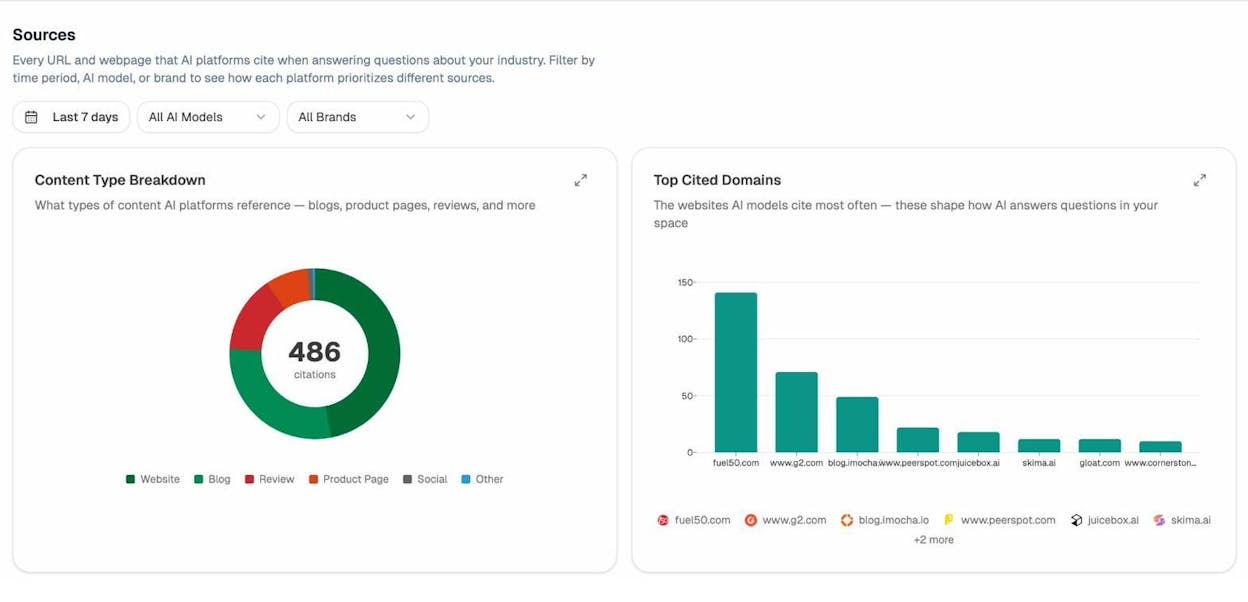
If you’re already tracking your brand’s visibility across AI search engines with Analyze AI, you can cross-reference citation data with your OG tag implementation. You’ll notice a pattern: cited pages tend to have cleaner metadata overall.
Which Open Graph Tags Should You Use?
Facebook’s documentation lists 17 OG tags and dozens of object types. You don’t need most of them. Four tags are required for Facebook to generate a proper preview. A few more are useful in specific situations.
Here’s every tag worth implementing, in order of importance.
og:title
The title of your page as it should appear in social previews.
Syntax:
<meta property="og:title" content="Open Graph Meta Tags: Everything You Need to Know" />
Best practices:
-
Add this to every page you want people to share—blog posts, landing pages, your homepage.
-
Focus on clarity and value. Write it like a headline, not a keyword string. If you need help brainstorming headline angles, Analyze AI’s free Keyword Generator can surface related terms and phrasing ideas that real users search for—useful for crafting titles that resonate.
-
Keep it under 60 characters to prevent truncation on desktop. Aim for 40 characters or fewer if mobile is your primary audience.
-
Use the raw page title without branding. Don’t append ” | Your Company” to the end—og:site_name handles that separately.
-
Front-load the most important words. If the title gets cut off, the beginning still makes sense.
og:url
The canonical URL of the content.
Syntax:
<meta property="og:url" content="https://www.tryanalyze.ai/blog/open-graph-meta-tags/" />
Best practices:
-
Always use the canonical URL—the single, preferred version of the page. This consolidates all engagement metrics (likes, shares, comments) across duplicate URLs that people might share (with or without trailing slashes, with UTM parameters, etc.).
-
Include the full URL with https://. Don’t use relative paths.
-
Don’t use URL shorteners or tracking links here. Those belong in the actual shared links, not in the metadata.
og:image
The URL of the image that platforms display in the preview card. This is the single most important OG tag because the image takes up the most real estate in any social feed.
Syntax:
<meta property="og:image" content="https://www.tryanalyze.ai/blog/images/og-open-graph-guide.png" />
Best practices:
-
Create custom images for every page you expect to be shared: blog posts, landing pages, product pages, your homepage.
-
Use your logo or a branded fallback image for everything else (category pages, utility pages, etc.).
-
Use a 1.91:1 aspect ratio with minimum dimensions of 1200×630 pixels. This is the standard that looks good across Facebook, LinkedIn, X, and messaging apps.
-
Keep critical content (text, logos) away from the edges. Different platforms crop differently, and padding prevents important elements from getting cut off.
-
Avoid images with too much text. Facebook may suppress the reach of posts with text-heavy images.
-
Always use an absolute URL (starting with https://). Relative paths won’t work.
For additional control, specify the image dimensions and alt text so platforms don’t have to guess:
<meta property="og:image:width" content="1200" />
<meta property="og:image:height" content="630" />
<meta property="og:image:alt" content="A guide to Open Graph meta tags showing example code and social preview cards" />
The og:image:width and og:image:height tags are especially useful because they help platforms render the correct preview on the first share—before the platform has had a chance to crawl and cache the image. The og:image:alt tag adds an accessibility layer and provides another text signal for crawlers.
og:type
The type of content you’re sharing.
Syntax:
<meta property="og:type" content="article" />
Best practices:
-
Use article for blog posts, news articles, and guides.
-
Use website for your homepage and any page that isn’t a distinct article or media object.
-
Facebook supports additional types like book, profile, video.movie, and music.song, but for most sites, article and website are all you need.
-
When you use the article type, you can add extra metadata like publish date and author:
<meta property="article:published_time" content="2026-02-19T10:00:00Z" />
<meta property="article:author" content="https://www.example.com/team/author-name" />
<meta property="article:section" content="SEO" />
<meta property="article:tag" content="open graph" />
<meta property="article:tag" content="meta tags" />
These additional article properties help platforms categorize your content more precisely. They’re optional, but they’re low-effort and worth adding to blog content.
og:description
A short description of the page content that appears below the title in preview cards.
Syntax:
<meta property="og:description" content="Learn how to set up, test, and debug Open Graph tags to control your social previews and strengthen AI visibility." />
Best practices:
-
Write it as a complement to the title, not a repetition of it. The title says what the content is. The description says why someone should click.
-
Keep it between 55 and 200 characters. Facebook recommends 2–4 sentences, but most platforms truncate aggressively. Shorter is safer.
-
If your meta description already works well as a social pitch, you can reuse it here. But consider writing a separate OG description if the social audience needs a different angle than the search audience.
og:site_name
The name of your website or brand. This appears alongside the title in some platform previews to give context about where the content lives.
Syntax:
<meta property="og:site_name" content="Analyze AI" />
Best practices:
-
Set this once, sitewide. It should be your brand name—short and consistent.
-
This is separate from og:title. The site name gives brand context; the title describes the individual page.
og:locale
Defines the language and regional variant of the content.
Syntax:
<meta property="og:locale" content="en_US" />
Best practices:
-
Only add this if your content is not in American English. Facebook assumes en_US by default.
-
For multilingual sites, use og:locale:alternate to indicate other available language versions:
<meta property="og:locale" content="fr_FR" />
<meta property="og:locale:alternate" content="en_US" />
<meta property="og:locale:alternate" content="es_ES" />
og:video and og:audio
If your page contains video or audio content, you can specify these with dedicated OG tags.
Syntax:
<meta property="og:video" content="https://www.example.com/video.mp4" />
<meta property="og:video:type" content="video/mp4" />
<meta property="og:video:width" content="1280" />
<meta property="og:video:height" content="720" />
Best practices:
-
Use these on pages where video or audio is the primary content (webinar recordings, podcast episodes, product demos).
-
Facebook and LinkedIn can render inline video previews when these tags are present—significantly increasing engagement compared to a static image.
-
Always specify the MIME type (video/mp4, audio/mpeg) and dimensions so the player renders correctly.
-
If you’re building a video content strategy, Analyze AI’s free YouTube Keyword Tool can help you identify what your audience is searching for on YouTube—useful for deciding which videos deserve dedicated og:video tags and landing pages.
Quick Reference: All OG Tags at a Glance
|
Tag |
Required? |
What It Does |
|---|---|---|
|
og:title |
Yes |
Sets the headline in the preview card |
|
og:url |
Yes |
Defines the canonical URL for engagement consolidation |
|
og:image |
Yes |
Specifies the preview image (the biggest visual element) |
|
og:type |
Yes |
Tells platforms the content type (article, website, etc.) |
|
og:description |
Recommended |
Adds a supporting pitch below the title |
|
og:site_name |
Recommended |
Shows your brand name for context |
|
og:locale |
Optional |
Sets language/region (defaults to en_US) |
|
og:image:width |
Optional |
Specifies image width for faster first-render |
|
og:image:height |
Optional |
Specifies image height for faster first-render |
|
og:image:alt |
Optional |
Alt text for the image (accessibility + crawler signal) |
|
og:video |
Optional |
Links to a video for inline previews |
|
og:audio |
Optional |
Links to audio content |
|
article:published_time |
Optional |
Publication date for article-type content |
|
article:author |
Optional |
Links to the author profile |
|
article:section |
Optional |
Content category |
|
article:tag |
Optional |
Topic tags for categorization |
Open Graph Tags vs. Twitter Cards vs. Schema Markup
These three often get conflated, so let’s clarify what each one does and when you need them.
Open Graph tags control how your link previews appear on Facebook, LinkedIn, Slack, Discord, WhatsApp, iMessage, and most other platforms. They’re the universal standard for social previews.
Twitter Cards are X’s (formerly Twitter’s) own metadata system. They use twitter:card, twitter:title, twitter:description, and twitter:image tags. However, X will fall back to your OG tags if Twitter Card tags are missing. So if you have solid OG tags in place, your X previews will still look good even without dedicated Twitter Card markup. The main reason to add Twitter Cards on top of OG tags is to use a different image or description specifically for X.
Schema markup (JSON-LD or Microdata) is structured data that helps search engines understand what a page is about for rich results—star ratings, FAQ dropdowns, product prices, and so on. Schema doesn’t affect social previews at all.
Here’s the key insight: these three serve different audiences, but they work best together. OG tags handle social sharing. Schema handles search engine rich results. And both provide machine-readable metadata that AI crawlers can parse when indexing your content.
|
Feature |
Open Graph Tags |
Twitter Cards |
Schema Markup |
|---|---|---|---|
|
Primary purpose |
Social media link previews |
X (Twitter) link previews |
Search engine rich results |
|
Where it shows |
Facebook, LinkedIn, Slack, WhatsApp, iMessage |
X (Twitter) |
Google, Bing search results |
|
Affects social previews? |
Yes |
Yes (X only) |
No |
|
Affects search results? |
Indirectly (engagement signals) |
No |
Yes (rich snippets) |
|
Read by AI crawlers? |
Yes (as HTML metadata) |
Yes (as HTML metadata) |
Yes (structured data) |
|
Fallback behavior |
Platforms guess from page content |
Falls back to OG tags |
No fallback |
|
Where to place |
<head> as <meta> tags |
<head> as <meta> tags |
<head> or <body> as JSON-LD |
For most pages, you need OG tags. Add Twitter Cards only if you want X-specific customization. Add schema when you want rich search results. And know that all three contribute to the overall machine-readability of your site—which matters for both traditional SEO and AI search.
How to Set Up Open Graph Tags
Implementation depends on your platform. Pick your CMS below, or skip to the manual setup instructions if you work directly in code.
Setting Open Graph Tags in WordPress
WordPress has the largest plugin ecosystem for OG tag management. Here’s how to set them up with Yoast SEO (the most popular option) and Rank Math (a strong alternative).
Using Yoast SEO:
-
Install and activate the Yoast SEO plugin.
-
Open any post or page in the editor.
-
Scroll down to the Yoast SEO box and click the Social tab, then Facebook.
-
Fill in the custom og:title, og:description, and upload an og:image.
![[Screenshot: Yoast SEO’s social tab in the WordPress editor showing the Facebook preview fields for og:title, og:description, and og:image]](https://www.datocms-assets.com/164164/1774438413-blobid2.jpg?auto=format,compress&w=1248&fit=max)
Yoast automatically handles og:url (using the canonical URL), og:type, og:site_name, and image dimensions. If you don’t set a custom OG image, Yoast uses the post’s featured image as the default—which is fine as long as the featured image meets the 1200×630 minimum.
To set a sitewide fallback og:image (shown when no custom image is set on a specific page), go to Yoast > Settings > Social > Facebook, enable Open Graph, and upload a brand image.
![[Screenshot: Yoast sitewide social settings showing the default og:image upload field]](https://www.datocms-assets.com/164164/1774438417-blobid3.png?auto=format,compress&w=1248&fit=max)
Using Rank Math:
Rank Math works similarly. Open a post, click the Rank Math tab, go to Social, and fill in the Facebook fields. Rank Math also generates Twitter Card tags automatically, so you get both covered in one step.
![[Screenshot: Rank Math’s Social tab in the WordPress editor]](https://www.datocms-assets.com/164164/1774438418-blobid4.jpg?auto=format,compress&w=1248&fit=max)
Setting Open Graph Tags in Shopify
Shopify themes handle most OG tags automatically. The og:title is pulled from the product or page title, and og:image comes from the featured image.
To set a sitewide fallback OG image, go to Online Store > Themes > Customize > Theme settings > Social media and upload your brand image.
If you need to customize OG tags per page, you’ll need to edit the theme’s Liquid template. Go to Online Store > Themes > Actions > Edit code > Snippets > social-meta-tags.liquid. This file contains the OG tag logic, and you can modify it to pull from custom metafields or override default behavior.
![[Screenshot: Shopify’s social media settings in the theme customizer showing the default image upload]](https://www.datocms-assets.com/164164/1774438422-blobid5.jpg?auto=format,compress&w=1248&fit=max)
Setting Open Graph Tags in Wix
Wix automatically generates OG tags from your page’s meta title and description. You can customize the OG title, description, and image for individual pages through the Social share settings in the page editor.
To set a sitewide fallback image, go to Settings > Social Share from the main Wix dashboard. No coding needed.
![[Screenshot: Wix’s Social Share settings panel]](https://www.datocms-assets.com/164164/1774438423-blobid6.png?auto=format,compress&w=1248&fit=max)
Setting Open Graph Tags in Squarespace
Squarespace uses the page title for og:title and the meta description for og:description. To set a custom og:image for a specific page, go to Page Settings > Social Image > Upload.
For full control over OG tags (or to add tags that Squarespace doesn’t generate by default), go to Page Settings > Advanced > Page Header Code Injection and paste the tags manually.
![[Screenshot: Squarespace’s Page Header Code Injection panel]](https://www.datocms-assets.com/164164/1774438427-blobid7.png?auto=format,compress&w=1248&fit=max)
Setting Open Graph Tags in Next.js
If your site is built with Next.js (or another JavaScript framework), you’ll typically manage OG tags in the <Head> component or through the Metadata API (App Router).
App Router example:
// app/blog/[slug]/page.js
export async function generateMetadata({ params }) {
const post = await getPost(params.slug);
return {
openGraph: {
title: post.title,
description: post.excerpt,
url: `https://www.example.com/blog/${params.slug}`,
type: 'article',
images: [
{
url: post.ogImage,
width: 1200,
height: 630,
alt: post.title,
},
],
},
};
}
Important note for JavaScript-rendered sites: OpenAI’s crawlers (GPTBot, OAI-SearchBot) and most other AI crawlers cannot render JavaScript. They only see the initial HTML response from the server. If your OG tags are rendered client-side, AI crawlers—and social platform crawlers—will miss them entirely.
Make sure your OG tags are present in the server-rendered HTML. If you’re using a fully client-side framework (like a single-page app), use server-side rendering (SSR) or a prerendering service to ensure crawlers see your metadata.
Setting Open Graph Tags Manually
If you’re comfortable digging into website code, adding OG tags is as straightforward as pasting them into the <head> section of your page:
<head>
<meta property="og:title" content="Your Page Title" />
<meta property="og:description" content="A compelling description." />
<meta property="og:image" content="https://www.example.com/images/og-image.png" />
<meta property="og:image:width" content="1200" />
<meta property="og:image:height" content="630" />
<meta property="og:image:alt" content="Description of the image" />
<meta property="og:url" content="https://www.example.com/page/" />
<meta property="og:type" content="article" />
<meta property="og:site_name" content="Your Brand" />
</head>
Tools like Mega Tags or OpenGraph.xyz can generate the markup for you and help reduce syntax errors.
How to Test and Debug Open Graph Tags
Setting the tags is half the job. You need to verify they work correctly before sharing your content.
Use these platform-specific debugging tools:
-
Facebook Sharing Debugger — Shows how Facebook reads your OG tags and renders the preview.
-
X Card Validator — Shows your card preview on X (Twitter).
-
LinkedIn Post Inspector — Shows your preview card on LinkedIn.
They all work the same way: paste your URL, and the tool fetches the page, reads the OG tags, and shows you the preview.
![[Screenshot: Facebook Sharing Debugger output showing the fetched OG tags and rendered preview card for a sample page]](https://www.datocms-assets.com/164164/1774438431-blobid8.png?auto=format,compress&w=1248&fit=max)
Step-by-step testing process:
-
Paste your URL into the Facebook Sharing Debugger.
-
Check the preview. Does the title, description, and image look correct?
-
Review the listed OG tags. Make sure none are missing or duplicated.
-
If something looks wrong, fix the tags on your page and click “Scrape Again” to pull fresh data.
-
If the update doesn’t appear after re-scraping, use the Batch Invalidator to clear Facebook’s cache, then try again.
-
Repeat with the LinkedIn Post Inspector and X Card Validator.
Common issues to watch for:
-
Wrong image showing: This is usually a caching issue. Use “Scrape Again” or the Batch Invalidator. Also check that og:image points to the correct URL and that the image file actually exists at that URL.
-
Image looks blurry or cropped badly: Your image is probably too small. Use 1200×630 minimum. Also set og:image:width and og:image:height so the platform doesn’t have to guess dimensions.
-
Title or description missing: The tags are either not in the <head>, they have syntax errors, or (for JavaScript sites) they’re only rendered client-side.
-
Warnings about fb:app_id: You can ignore this. Facebook recommends it for analytics integration, but it’s not required for previews to work.
Note on crawlability: Facebook and LinkedIn crawlers will scrape your OG tags even if your robots.txt blocks them. X’s crawler, however, respects robots.txt directives. So make sure URLs you plan to share on X are not disallowed in your robots.txt.
How to Audit Open Graph Tags at Scale
If you have hundreds or thousands of pages, manually checking each one isn’t feasible. Site audit tools can crawl your entire site and flag OG tag issues in bulk.
Using Screaming Frog
Screaming Frog is one of the most popular site crawlers for technical SEO audits, and it extracts OG tag data by default.
-
Open Screaming Frog and enter your domain URL.
-
Start the crawl.
-
Once complete, go to the “Open Graph” tab to see all OG tags across every crawled page.
-
Filter by issues: missing og:title, missing og:image, duplicate descriptions, images that return 404 errors.
-
Export the results and prioritize fixes based on traffic. Pages that get the most organic traffic are most likely to be shared—fix those first. You can use Analyze AI’s free Website Authority Checker to see your domain’s overall strength and keyword distribution, which gives you a sense of how much exposure your site gets and how many people are likely sharing your content. For a per-page traffic view, the free Website Traffic Checker estimates organic traffic by page—so you know exactly which URLs to prioritize.
![[Screenshot: Screaming Frog’s Open Graph tab showing a list of URLs with their OG tag data and flagged issues]](https://www.datocms-assets.com/164164/1774438432-blobid9.jpg?auto=format,compress&w=1248&fit=max)
Using Analyze AI’s Free Broken Link Checker
Before you even get to OG-specific issues, it’s worth checking whether your pages have broken links or technical SEO issues that would undermine your metadata efforts. Analyze AI’s free Broken Link Checker scans any page for dead links, redirect chains, and page health issues—including broken og:image URLs that return 404 errors.
This is especially useful after a site migration or URL restructure, when old image paths break silently and nobody notices until someone shares a link and the preview looks wrong.
![[Screenshot: Analyze AI’s Broken Link Checker results showing page health score and broken links detected on a sample URL]](https://www.datocms-assets.com/164164/1774438436-blobid10.png?auto=format,compress&w=1248&fit=max)
Using Google Search Console + Free Tools
If you don’t have access to a paid crawler, you can still audit OG tags with a lighter approach:
-
Go to Google Search Console > Performance and sort by clicks to find your highest-traffic pages. If you don’t have GSC set up, Analyze AI’s free Website Traffic Checker estimates any domain’s organic traffic and top pages—no login required.
-
Use Analyze AI’s free Keyword Rank Checker to see which keywords your pages rank for. Pages ranking for high-volume keywords get the most organic exposure and are most likely to be shared.
-
For each high-traffic page, paste the URL into the Facebook Sharing Debugger and check the preview.
-
Run the URL through Analyze AI’s free Broken Link Checker to catch broken og:image URLs or other technical issues on the page.
-
Document issues in a spreadsheet and fix them in order of traffic priority.
This is slower than a full-site crawl, but it ensures you cover the pages that matter most first.
Checking Competitor OG Implementations
It’s worth seeing how competitors handle their OG tags—especially for pages that rank above you in search results. Use Analyze AI’s free SERP Checker to see who ranks for your target keywords, then open each competitor’s page source to inspect their OG tags.
Look for patterns: do the top-ranking pages use custom OG images? Are their titles different from their <title> tags? Do they specify image dimensions? These details can reveal what’s working in your space.
Monitoring Your Content in AI Search
Open Graph tags are one piece of a larger metadata puzzle that includes your on-page SEO, schema markup, and overall content quality. Once all of that is in place, the next question is: how do you know if your content is actually being cited by AI search engines?
Traditional social sharing tools can tell you how your previews look on Facebook and LinkedIn. But they can’t tell you whether ChatGPT, Claude, Perplexity, or Gemini are referencing your pages—or how they’re representing your brand in their answers.
This is where Analyze AI comes in.
At Analyze AI, we believe that GEO isn’t a replacement for SEO—it’s the next transformation of it. Search is expanding from ten blue links to multi-modal, prompt-shaped answers. Quality still governs visibility. Authority still comes from depth, originality, structure, and usefulness. What changes is where that quality must be legible—to crawlers, to models, and to the people asking better questions.
So while OG tags help social platforms and AI crawlers interpret your content, Analyze AI lets you see the downstream impact: which of your pages are actually being cited across AI answer engines, how your brand is being described in AI-generated responses, and where you’re losing visibility to competitors.
Track which pages get cited in AI answers
Inside Analyze AI, the Sources view shows every URL that AI platforms cite when answering questions in your industry. You can see the content type (blog, website, review, product page), whether your brand is mentioned, and how often each source is used across ChatGPT, Perplexity, Claude, Copilot, and Gemini.
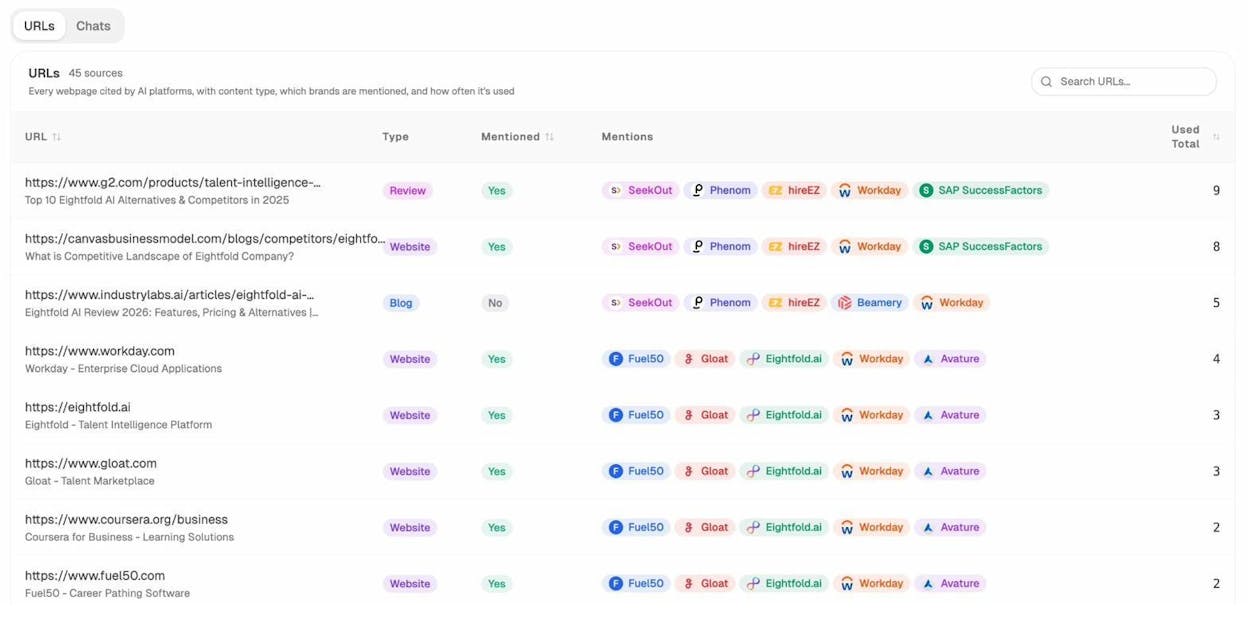
If a page has clean OG tags, solid schema markup, and strong content but still isn’t getting cited, the issue is likely content depth or topical authority—not metadata. If a page with thin metadata is getting cited, that’s a signal that improving its OG tags and structured data could make it even more visible.
See which AI engines send traffic to your site
Analyze AI connects to your GA4 data to show real AI referral traffic—total sessions from AI search engines, broken down by engine (ChatGPT, Claude, Perplexity, Copilot, Gemini, and more), trending over time, with engagement metrics like bounce rate, session duration, and conversions.
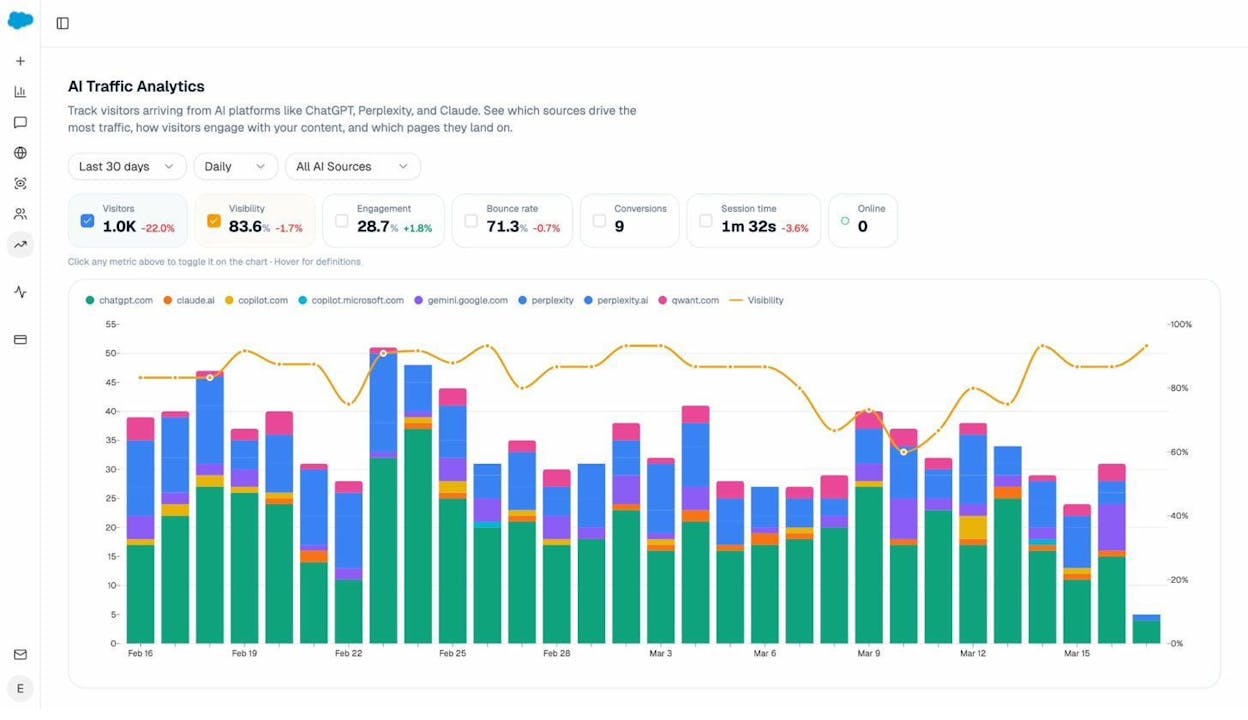
This goes beyond what social debugging tools can tell you. You’ll see not just whether your metadata is correct, but whether that metadata (and the content it describes) is actually driving visits from AI search.
Identify which landing pages AI engines prefer
The Landing Pages view shows exactly which pages on your site receive the most traffic from AI engines, along with session counts, citations, engagement rate, bounce rate, and even which specific prompts drove the traffic.
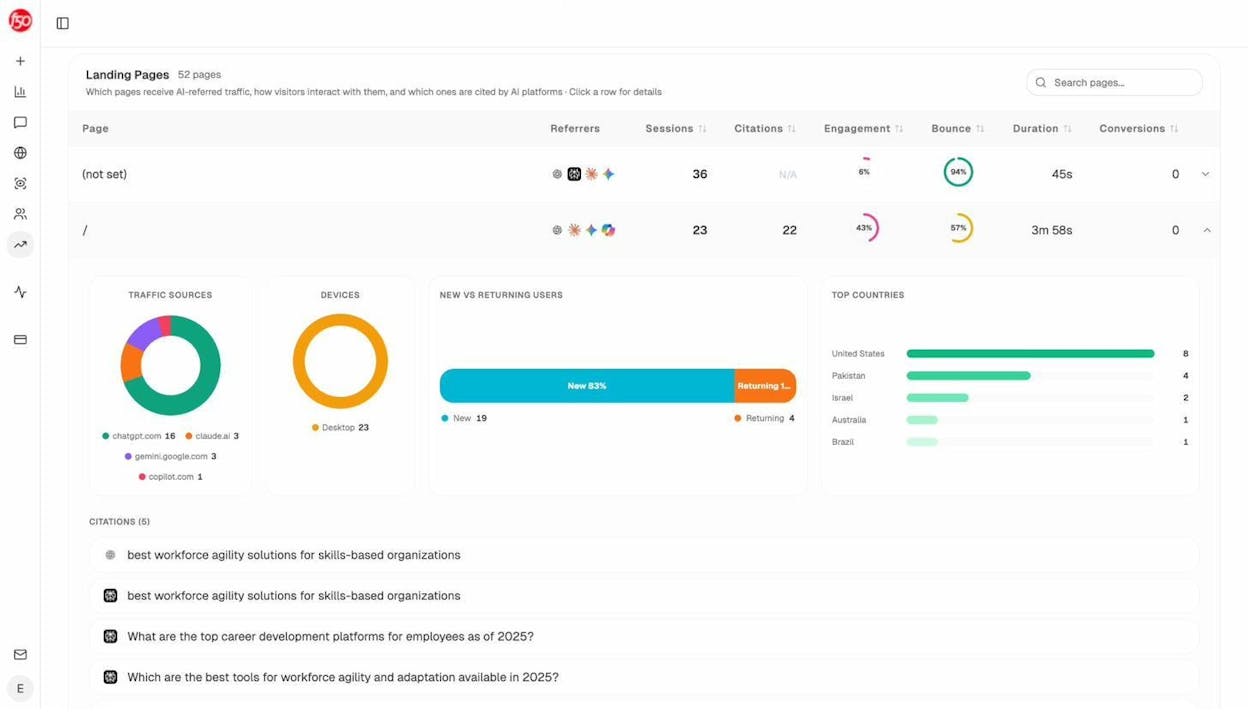
Cross-reference this with your OG tag audit: do the pages with the strongest metadata also receive the most AI traffic? If so, double down on what’s working. If not, investigate what other factors—content structure, topic authority, citation sources—are driving the pattern. This is where you can use Analyze AI’s data to decide which pages deserve the most metadata attention.
Monitor how competitors appear across AI engines
Analyze AI’s Competitor tracking lets you monitor the specific competitors that matter to your business. You’ll see mention counts, last seen dates, and the ability to track or untrack competitors as your competitive landscape changes.
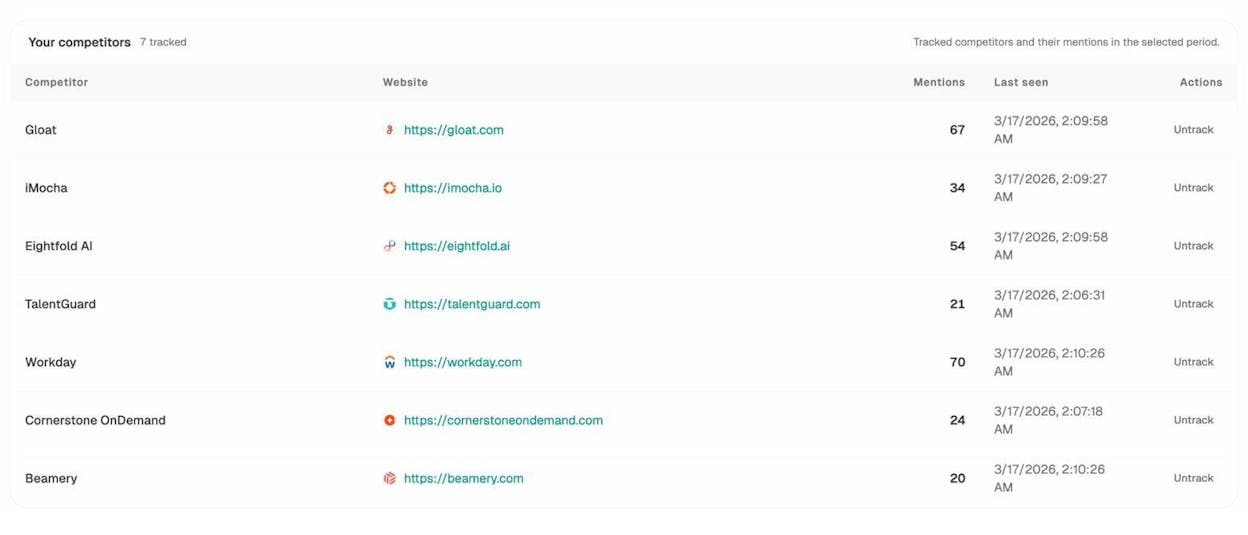
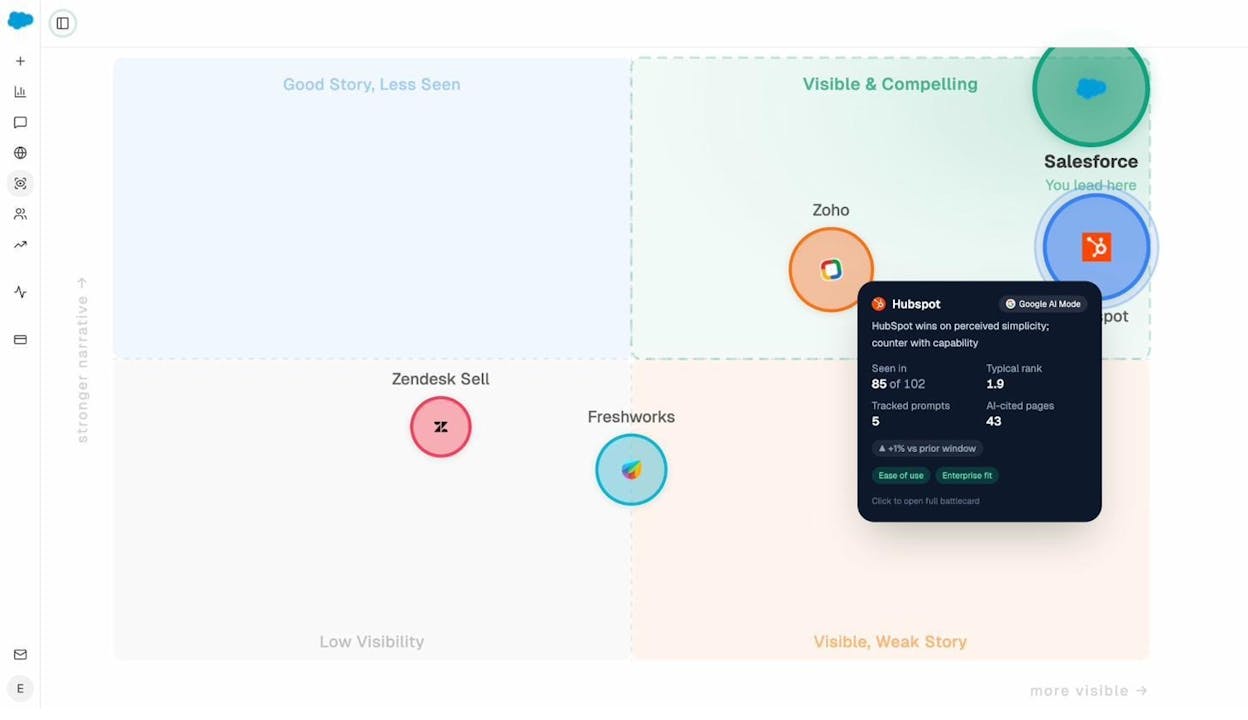
If a competitor is consistently getting cited for topics you also cover, check whether their metadata and content structure are stronger than yours. Use the Perception map to see where you lead and where competitors have stronger narratives—then target those gaps with better-structured, better-tagged content.
Track prompt-level visibility and sentiment
Analyze AI also tracks individual prompts—the exact questions people ask AI engines in your industry. For each tracked prompt, you can see your visibility percentage, sentiment score, position, and which competitors are mentioned alongside you.
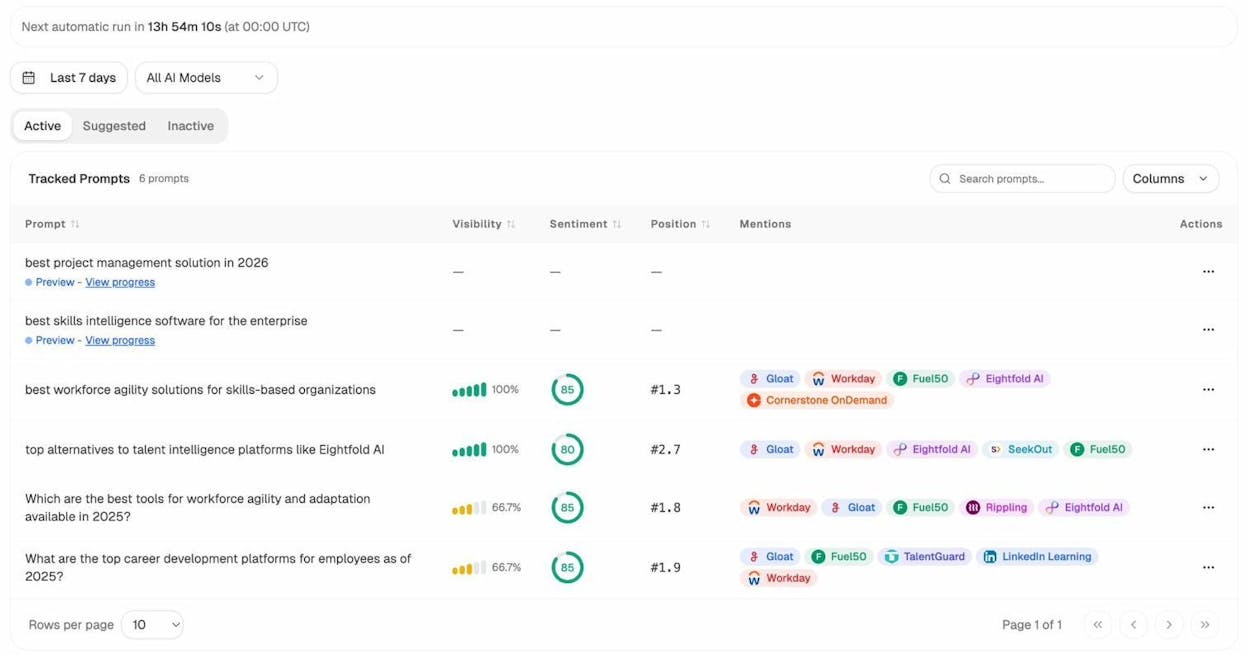
This prompt-level data turns your OG tag audit into a strategic exercise. It’s not just about fixing your tags. It’s about understanding how every signal—metadata, content quality, citation patterns—adds up to visibility across both traditional and AI search.
Common Open Graph Tag Mistakes (and How to Fix Them)
After auditing hundreds of sites, certain mistakes come up repeatedly. Here are the ones that cause the most damage, and how to fix each one.
Duplicate OG tags on the same page
This happens when your CMS generates OG tags automatically and a plugin adds its own set. You end up with two og:title tags, two og:image tags, and so on. Platforms usually read the first occurrence and ignore the rest—but the first one might be the wrong one.
Fix: View your page source (right-click > View Page Source) and search for og:. If you see duplicates, figure out which system is generating each set and disable one of them.
Missing og:image on key pages
This is the single most common issue. Without og:image, platforms either show no image or grab a random one from the page (often a tiny icon or an ad). The preview looks broken, and nobody clicks.
Fix: Set a custom og:image on every page you expect to be shared. At minimum, set a sitewide fallback image in your SEO plugin or CMS settings so no page ever goes without one. Run your key pages through Analyze AI’s free Broken Link Checker to catch og:image URLs that return 404 errors—broken image paths are silent killers that nobody notices until a social share looks wrong.
Using images that are too small
Facebook and LinkedIn need images at least 1200×630 pixels for a high-quality preview. Smaller images render as tiny thumbnails off to the side instead of the large, attention-grabbing card format.
Fix: Create OG images at exactly 1200×630. Use a template in Figma or Canva so you can batch-produce them without spending hours on design.
OG tags rendered by JavaScript only
If your OG tags are injected into the <head> via client-side JavaScript (common with React, Vue, or Angular SPAs without SSR), no crawler will see them. Social platforms, search engines, and AI crawlers all fetch the initial HTML response. JavaScript doesn’t execute for them.
Fix: Use server-side rendering (SSR), static site generation (SSG), or a prerendering service to ensure OG tags are in the raw HTML response.
og:url doesn’t match the canonical URL
If og:url points to a different URL than your <link rel="canonical"> tag, you split engagement metrics and confuse crawlers about which URL is the authoritative version.
Fix: Make sure og:url always matches your canonical URL. If you change one, change the other.
Not updating OG tags after content changes
You redesign a blog post’s featured image, update the title, and publish. But the OG tags still reference the old image and title. Anyone sharing the updated page sees outdated metadata.
Fix: After any major content update, check the OG tags. Then use the Facebook Sharing Debugger and LinkedIn Post Inspector to refresh the cached version.
Free Tools to Support Your OG Tag Workflow
Throughout this article, we’ve referenced several Analyze AI free tools that fit into an OG tag optimization workflow. Here’s the full list and when each one is most useful:
|
Tool |
When to Use It |
|---|---|
|
Audit any page for broken og:image URLs, dead links, and technical SEO health issues |
|
|
Prioritize which pages to fix first by estimating organic traffic per page |
|
|
Find which keywords your pages rank for to identify high-exposure content worth optimizing |
|
|
See who ranks for your target keywords and inspect their OG tag implementations |
|
|
Gauge your domain strength and keyword distribution to estimate sharing potential |
|
|
Brainstorm headline angles and related terms for writing compelling og:title tags |
|
|
Evaluate which content topics are worth creating and optimizing OG metadata for |
|
|
Research video topics when building pages with og:video tags |
|
|
Discover keyword opportunities on Bing, which powers Microsoft Copilot’s AI search results |
|
|
Research product keywords for ecommerce pages that need strong OG tags for social sharing |
Best Practices Checklist
Before publishing any page, run through this checklist:
-
☐ og:title is set, under 60 characters, and doesn’t include site branding
-
☐ og:description is set, between 55–200 characters, and complements (not copies) the title
-
☐ og:image is set with a custom image at 1200×630 pixels minimum
-
☐ og:image:width and og:image:height are specified
-
☐ og:image:alt describes the image content
-
☐ og:url matches the canonical URL
-
☐ og:type is set to article (for posts) or website (for everything else)
-
☐ og:site_name is set sitewide
-
☐ No duplicate OG tags on the page
-
☐ OG tags are present in the server-rendered HTML (not JavaScript-only)
-
☐ Preview tested in Facebook Sharing Debugger, LinkedIn Post Inspector, and X Card Validator
-
☐ Broken Link Checker confirms no 404s on the page (including the og:image URL)
Final Thoughts
Open Graph tags are simple to implement and easy to overlook. Most sites get the basics partially right—a title here, a description there—but miss the image, skip testing, and never audit at scale.
The cost of getting them wrong is invisible: shares that don’t get clicked, previews that look broken, and metadata signals that fail to help crawlers understand your content. The fix is straightforward. Set the tags, test them, and audit them regularly.
And as search continues to evolve beyond ten blue links into AI-powered answers, every piece of clean, structured metadata you add—from OG tags to schema to well-organized content—makes your pages easier for both humans and machines to understand and cite. SEO isn’t dead. It’s evolving. And the marketers who treat AI search as a complementary organic channel—not a replacement for the fundamentals—will compound their visibility across every surface that matters.
If you want to see how your content performs across AI answer engines—not just social media previews—try Analyze AI to track your visibility, citations, and AI-driven traffic in one place.

Ernest

Ibrahim


