



Summarize this blog post with:


In this article, you’ll learn what 301 redirects are, how to set them up on every major server type and CMS, how they affect your rankings in both Google and AI search engines, and how to find and fix every redirect issue that might be costing you traffic. You’ll also learn two advanced strategies for using 301 redirects to consolidate content and grow your organic traffic.
Let’s start with the basics.
Table of Contents
What Is a 301 Redirect?
A 301 redirect is a permanent redirect from one URL to another. The “301” refers to the HTTP status code the server returns when a browser or crawler requests the old URL.
When someone visits a URL with a 301 redirect, they are automatically sent to the new URL. They never see the old page. The browser handles the entire process in milliseconds.
Here is a simple example. If you type blog.example.com into your browser and the site has a 301 redirect to example.com/blog, you land on example.com/blog. The old URL is gone. The new one is where everything lives now.
This matters for SEO because 301 redirects tell search engines that the move is permanent. Google, Bing, and AI search crawlers all interpret a 301 the same way. They update their index to reflect the new URL and transfer the old page’s ranking signals to it.
301 vs. 302 vs. Other Redirect Types
Not all redirects are the same. Choosing the wrong type can confuse search engines and split your ranking signals across multiple URLs.
|
Redirect Type |
HTTP Code |
When to Use |
SEO Signal Transfer |
|---|---|---|---|
|
301 |
Permanent |
Page has moved forever |
Yes, full transfer |
|
302 |
Temporary |
Page is temporarily unavailable |
Partial, signals may stay on the old URL |
|
307 |
Temporary (HTTP/1.1) |
Same as 302 but preserves request method |
Partial |
|
308 |
Permanent (HTTP/1.1) |
Same as 301 but preserves request method |
Yes, full transfer |
|
Meta Refresh |
N/A (HTML-based) |
Avoid for SEO |
Unreliable |
|
JavaScript Redirect |
N/A (client-side) |
Avoid for SEO |
Often not followed by crawlers |
The rule is straightforward. If the move is permanent, use a 301. If it is temporary (like a seasonal sale page redirecting to a placeholder), use a 302. Everything else is an edge case.
Google’s John Mueller has confirmed that JavaScript redirects are problematic because many crawlers do not execute JavaScript. This includes most AI search crawlers, which typically rely on server-side responses when building their indexes.
How to Do a 301 Redirect
The method depends on your server type, CMS, or hosting provider. Here are the most common approaches.
Apache (.htaccess)
Apache is the most common web server, and .htaccess is the file you edit to add redirects. You’ll find it in your site’s root folder.
![[Screenshot: .htaccess file location in a site’s root directory shown in a file manager like FileZilla or cPanel]](https://www.datocms-assets.com/164164/1777644901-blobid1.png?auto=format,compress&w=1248&fit=max)
If you don’t see the file, either you don’t have one yet (create it using a text editor and save as .htaccess with no other file extension) or your site doesn’t run on Apache (check with your web host).
Redirect a single page:
Redirect 301 /old-page.html /new-page.html
![[Screenshot: Terminal or text editor showing a single 301 redirect line in .htaccess]](https://www.datocms-assets.com/164164/1777644910-blobid2.jpg?auto=format,compress&w=1248&fit=max)
Redirect an old domain to a new domain:
RewriteEngine on
RewriteCond %{HTTP_HOST} ^oldsite.com [NC,OR]
RewriteCond %{HTTP_HOST} ^www.oldsite.com [NC]
RewriteRule ^(.*)$ https://newsite.com/$1 [L,R=301,NC]
This redirects every page on the old domain to its equivalent on the new domain. The $1 captures the path, so oldsite.com/about goes to newsite.com/about.
Redirect non-www to www (or vice versa):
Non-www to www:
RewriteEngine on
RewriteCond %{HTTP_HOST} ^example.com [NC]
RewriteRule ^(.*)$ http://www.example.com/$1 [L,R=301,NC]
Www to non-www:
RewriteEngine on
RewriteCond %{HTTP_HOST} ^www.example.com [NC]
RewriteRule ^(.*)$ http://example.com/$1 [L,R=301,NC]
Redirect HTTP to HTTPS:
RewriteEngine On
RewriteCond %{HTTPS} off
RewriteRule ^(.*)$ https://%{HTTP_HOST}%{REQUEST_URI} [L,R=301]
You need an SSL certificate installed for this to work. Free certificates are available from Let’s Encrypt.
Redirect non-www HTTP to www HTTPS (combined):
RewriteEngine On
RewriteCond %{HTTP_HOST} !^www\. [NC]
RewriteRule ^ https://www.%{HTTP_HOST}%{REQUEST_URI} [L,R=301]
RewriteCond %{HTTP:X-Forwarded-Proto} !https
RewriteCond %{HTTPS} off
RewriteRule ^ https://%{HTTP_HOST}%{REQUEST_URI} [L,R=301]
Important: If RewriteEngine on already exists in your .htaccess file, do not repeat it. The order of rules in .htaccess matters. Placing them incorrectly can create redirect chains or loops. Test every change on a staging environment before pushing to production.
Nginx
Nginx uses a different configuration syntax. Redirects go in your server block configuration file (usually in /etc/nginx/sites-available/).
Redirect a single page:
server {
location = /old-page {
return 301 /new-page;
}
}
Redirect an entire domain:
server {
server_name oldsite.com www.oldsite.com;
return 301 $scheme://newsite.com$request_uri;
}
Redirect HTTP to HTTPS:
server {
listen 80;
server_name example.com www.example.com;
return 301 https://example.com$request_uri;
}
After editing, reload Nginx with sudo nginx -s reload.
![[Screenshot: Terminal window showing the nginx configuration file being edited with a 301 redirect rule]](https://www.datocms-assets.com/164164/1777644910-blobid3.jpg?auto=format,compress&w=1248&fit=max)
WordPress
WordPress makes redirects easier with plugins. The Redirection plugin is free and handles most use cases.
Install the plugin, navigate to Tools > Redirection, and add your redirect:
![[Screenshot: WordPress Redirection plugin interface showing a new redirect being added with source URL and target URL fields]](https://www.datocms-assets.com/164164/1777644915-blobid4.png?auto=format,compress&w=1248&fit=max)
You can also redirect directly in WordPress by editing the .htaccess file through Appearance > Theme File Editor, but the plugin approach is safer for non-technical users.
Other CMS platforms have similar options. Shopify has built-in URL redirects under Settings > Navigation. Squarespace has them under Settings > Advanced > URL Mappings. Wix has them under SEO Tools > URL Redirect Manager.
Cloudflare (and Other CDNs)
If your site uses Cloudflare, you can set up redirects through Page Rules or Bulk Redirects without touching your server config.
Go to your Cloudflare dashboard, navigate to Rules > Page Rules, and create a rule with a “Forwarding URL” action set to 301.
![[Screenshot: Cloudflare Page Rules interface showing a 301 forwarding URL rule being configured]](https://www.datocms-assets.com/164164/1777644915-blobid5.png?auto=format,compress&w=1248&fit=max)
This approach works well for large-scale redirects during site migrations because Cloudflare handles the redirect at the edge, before the request ever hits your server. That means faster redirect response times for users worldwide.
Vercel, Netlify, and Modern Hosting
If you deploy on Vercel, add redirects to your vercel.json:
{
"redirects": [
{ "source": "/old-page", "destination": "/new-page", "permanent": true }
]
}
For Netlify, add them to your _redirects file or netlify.toml:
/old-page /new-page 301
These platforms make bulk redirects simple during site migrations.
Do 301 Redirects Affect SEO?
Yes. And the impact has changed significantly over the years.
The PageRank Question
For a long time, 301 redirects were believed to “leak” about 15% of PageRank during the transfer. SEOs avoided redirects when possible because every redirect meant losing some ranking power.
In 2016, Google’s Gary Illyes confirmed that 301 redirects no longer lose PageRank. The redirected page receives the full ranking signals from the original.
This was a major shift. It means you can consolidate pages, migrate domains, and restructure URLs without worrying about losing link equity through the redirect itself.
There is still a correlation between the number and quality of backlinks pointing to a page and that page’s organic traffic. Domain authority and page-level link signals remain important ranking factors. A 301 redirect preserves those signals.
What 301 Redirects Do for SEO
When implemented correctly, 301 redirects do five things:
Transfer link equity. All the backlinks pointing to the old URL pass their value to the new URL. This is the primary SEO benefit of using 301s over simply deleting a page.
Prevent duplicate content. If your site is accessible at both www.example.com and example.com, search engines see two copies of every page. A 301 from one version to the other eliminates the duplication.
Preserve user experience. Visitors who bookmarked the old URL or click an old link from another site land on the right page instead of a 404 error.
Consolidate indexing signals. Google treats the new URL as the canonical version and deindexes the old one, concentrating all ranking signals on a single URL.
Maintain crawl efficiency. Rather than wasting crawl budget on dead URLs, redirects guide Googlebot to the live pages.
When 301 Redirects Hurt SEO
Redirects are not always helpful. They cause problems when:
The redirect points to an irrelevant page. Google treats irrelevant 301 redirects as soft 404s. If you delete a page about “email marketing tools” and redirect it to your homepage, Google will likely drop the ranking signals entirely. The redirect target must be topically relevant.
Redirect chains stack up. Each additional hop in a chain (Page A → Page B → Page C → Page D) adds latency and risks Google abandoning the crawl. Google says to keep chains under five hops, but ideally you want a single redirect from the old URL to the final destination.
Redirects create loops. If Page A redirects to Page B, and Page B redirects back to Page A, both search engines and users get stuck in an infinite loop. The browser returns an error, and Google cannot index either page.
How 301 Redirects Affect AI Search Visibility
This is the part most guides skip.
AI search engines like ChatGPT, Perplexity, Gemini, and Copilot crawl the web to build their knowledge bases. They follow links, read content, and decide which sources to cite in their answers. Redirects play a role in this process, and mishandling them can cost you visibility in AI search just as much as in traditional search.
How AI Crawlers Handle Redirects
Most AI crawlers (GPTBot, PerplexityBot, ClaudeBot, Googlebot for Gemini) follow 301 redirects in the same way traditional crawlers do. They update their index to point to the new URL.
But there are differences.
AI crawlers tend to be less tolerant of redirect chains. Google’s crawler will follow up to five hops. AI crawlers may give up sooner. If your content is behind three or four redirects, some AI engines may never reach it.
AI crawlers also do not always re-crawl on the same schedule as Google. A 301 redirect that Google picks up within days might take weeks to propagate across all AI engines. During that gap, your old URL may still appear in AI answers while the new one is invisible.
Why This Matters for Your Brand
If your pages are cited by AI engines and you restructure your URLs without proper redirects, you lose those citations. The AI engine’s knowledge base still points to the old URL. When it tries to verify or re-crawl that URL and gets a 404, it drops the citation.
This is a real problem for teams that invest in AI search optimization. Every broken redirect is a lost citation opportunity.
The fix is the same as traditional SEO. Use clean 301 redirects with no chains, no loops, and always redirect to a topically relevant page. Then monitor the impact.
How to Monitor Redirect Impact on AI Traffic
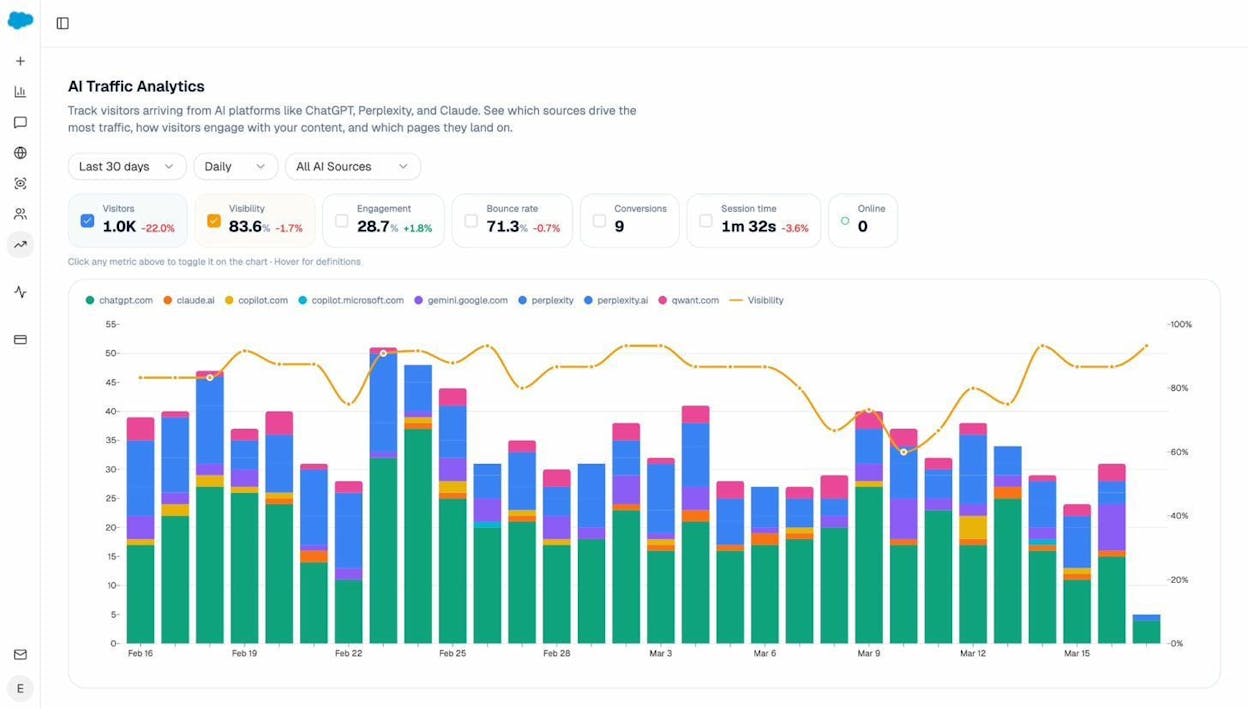
If you use Analyze AI, you can track exactly how much traffic you receive from AI search engines and which pages that traffic lands on.
After implementing redirects, check the AI Traffic Analytics dashboard to see if sessions from ChatGPT, Perplexity, Claude, and Gemini are still flowing to the expected landing pages.
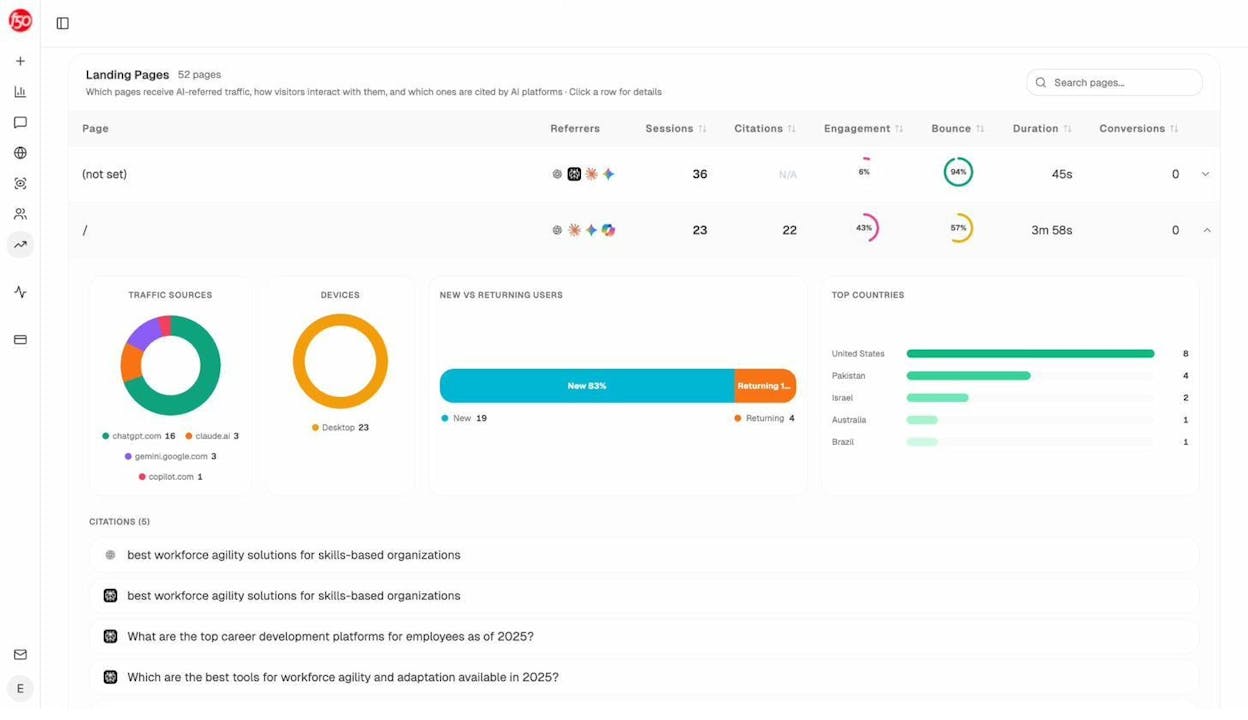
Expand any landing page row to see which AI engines are sending traffic, how users engage, and which AI prompts triggered the citation.
If you see a sudden drop in AI-referred sessions after a migration or URL change, it usually means one of three things: your redirects are broken, they point to irrelevant pages, or AI crawlers haven’t re-crawled yet. Use the AI Visibility Tracking feature to confirm whether your brand still appears in the prompts that matter.
How to Find and Fix 301 Redirect Issues
Here is a practical walkthrough for auditing your site’s redirects and fixing every common problem.
1. Make Sure HTTP Redirects to HTTPS
Every website should use HTTPS. Google uses it as a ranking signal, browsers flag HTTP sites as “Not secure,” and users trust HTTPS sites more.
To check, visit your homepage and look at the URL bar. You should see https:// and a lock icon.
![[Screenshot: Browser address bar showing https:// with a lock icon on a live website]](https://www.datocms-assets.com/164164/1777644927-blobid8.png?auto=format,compress&w=1248&fit=max)
Now change the URL to http:// and hit enter. You should be redirected to the HTTPS version automatically.
If you are not redirected, add the HTTP-to-HTTPS redirect using the code snippets in the “How to Do a 301 Redirect” section above.
Even if your homepage redirects correctly, individual pages or subdomains might not. Run a full site crawl using a tool like Screaming Frog or Sitebulb to catch every page that serves over HTTP.
![[Screenshot: Screaming Frog crawl results filtered to show pages with HTTP to HTTPS redirect issues]](https://www.datocms-assets.com/164164/1777644928-blobid9.jpg?auto=format,compress&w=1248&fit=max)
Fix any issues by applying the proper 301 redirect from the HTTP to HTTPS version of each affected page.
2. Remove Redirected Pages from Your Sitemap
Your XML sitemap tells search engines which pages to crawl and index. If your sitemap includes URLs that return 301 status codes, you are asking Google and AI crawlers to visit pages that no longer exist. That wastes crawl budget and slows down indexing of your real content.
Here is how to find them:
-
Open your sitemap (usually at yourdomain.com/sitemap.xml).
-
Export all URLs.
-
Run them through a bulk HTTP status code checker like httpstatus.io.
-
Filter for 301 status codes.
![[Screenshot: httpstatus.io bulk checker results showing several URLs returning 301 status codes]](https://www.datocms-assets.com/164164/1777644933-blobid10.png?auto=format,compress&w=1248&fit=max)
Any URL that returns a 301 should be removed from your sitemap and replaced with the final destination URL (if it is not already included).
Alternatively, run a crawl with a site audit tool that checks sitemap status codes automatically. Look for “3XX redirect in sitemap” errors.
![[Screenshot: Site audit tool showing a list of URLs in the sitemap that return 3XX redirect status codes]](https://www.datocms-assets.com/164164/1777644934-blobid11.png?auto=format,compress&w=1248&fit=max)
3. Fix Redirect Chains
A redirect chain happens when a URL redirects to another URL that also redirects. Each hop adds latency and increases the chance of search engines (and AI crawlers) giving up before reaching the final page.
Example: /old-post → /renamed-post → /final-post
That is a two-hop chain. It should be a single redirect: /old-post → /final-post.
To find chains, run your site through Screaming Frog or a similar crawler and filter for pages with more than one redirect.
![[Screenshot: Screaming Frog redirect chain report showing the chain of URLs from initial to final destination]](https://www.datocms-assets.com/164164/1777644939-blobid12.jpg?auto=format,compress&w=1248&fit=max)
Fix them by updating each redirect to point directly to the final destination URL. Then go through your internal links and replace any links to the old or intermediate URLs with the final URL. This prevents both crawlers and human visitors from hitting the chain at all.
4. Fix Redirect Loops
A redirect loop is when URL A redirects to URL B, and URL B redirects back to URL A. The browser cannot resolve this and shows an error page.
![[Screenshot: Browser error page showing “This page isn’t working, ERR_TOO_MANY_REDIRECTS”]](https://www.datocms-assets.com/164164/1777644940-blobid13.png?auto=format,compress&w=1248&fit=max)
These most commonly happen when:
-
Conflicting redirect rules exist in .htaccess (one rule sends to www, another sends away from www).
-
A CMS plugin conflicts with a server-level redirect.
-
An HTTPS redirect and a www redirect interact incorrectly.
To find loops, check your site audit tool for “Redirect loop” errors. You can also spot them manually by entering suspect URLs into an HTTP status code checker and watching for “maximum redirects exceeded” responses.
Fix them by reviewing your redirect rules and removing the conflicting one. If you have both a CMS plugin and a server-level redirect managing the same URL, remove one.
5. Fix Broken Redirects
A broken redirect is a 301 that points to a page returning a 4XX or 5XX error. The redirect fires, but the destination is dead.
Example: /old-page (301) → /new-page (404)
Neither visitors nor crawlers can reach the content. From an SEO perspective, the backlinks to /old-page are wasted.
Find these by crawling your site and filtering for redirects where the final destination returns a 4XX or 5XX status code.
![[Screenshot: Site audit report showing broken redirect errors with source URL, redirect URL, and the 404 status code on the destination]](https://www.datocms-assets.com/164164/1777644945-blobid14.png?auto=format,compress&w=1248&fit=max)
Fix them by either reinstating the destination page or updating the redirect to point to a relevant live page.
6. Redirect Important 404 Pages
Not every 404 page needs a redirect. If someone types a random URL that never existed, a 404 is the correct response.
But 404 pages become a problem when they have backlinks or when internal links on your site point to them. In both cases, value is being wasted.
Here is how to prioritize:
-
Crawl your site and export all 404 pages.
-
Check each one for backlinks using a backlink checker.
-
Sort by the number of referring domains.
![[Screenshot: Backlink analysis tool showing a 404 page with multiple high-quality referring domains]](https://www.datocms-assets.com/164164/1777644945-blobid15.png?auto=format,compress&w=1248&fit=max)
For 404 pages with valuable backlinks, redirect them to the most relevant live page on your site. Google’s John Mueller has emphasized that the redirect must point to something relevant. A 301 to an irrelevant page gets treated as a soft 404, and you lose the link equity anyway.
For 404 pages with no backlinks, fix them by either removing the internal links pointing to them or reinstating the content.
If you use Analyze AI, check whether any of your 404 pages were previously cited by AI engines. Navigate to the Citation Analytics dashboard to see which of your URLs AI models reference. If a cited URL is now returning a 404, that citation is effectively dead. Redirect it to the right page before you lose the recommendation.
7. Replace 302s and Meta Refreshes with 301s
If you have permanent redirects implemented as 302s (temporary) or meta refreshes, switch them to 301s.
302 redirects tell search engines the move is temporary. Google may keep the old URL in its index and split ranking signals between the old and new URL. That is the opposite of what you want for a permanent move.
Meta refresh redirects (the ones that show “You will be redirected in 5 seconds…”) are even worse. They are slow, disorienting to users, and Google explicitly recommends avoiding them.
Find both by running a crawl and filtering for 302 status codes and meta refresh tags.
![[Screenshot: Site audit tool filtered to show pages with 302 redirects and meta refresh redirects]](https://www.datocms-assets.com/164164/1777644951-blobid16.png?auto=format,compress&w=1248&fit=max)
Fix them by replacing each one with a 301 redirect if the move is permanent, or by removing the redirect entirely if it is no longer needed.
8. Check for 301 Pages That Still Get Organic Traffic
If a page with a 301 status code is still getting organic traffic, it means Google hasn’t fully processed the redirect yet. The old URL is still in the index and still ranking.
You can spot this by checking Google Search Console. Go to the Performance report and filter for the old URL. If it still shows impressions and clicks, Google is still indexing it.
![[Screenshot: Google Search Console Performance report showing a 301-redirected URL still receiving clicks and impressions]](https://www.datocms-assets.com/164164/1777644951-blobid17.jpg?auto=format,compress&w=1248&fit=max)
To speed up the process, use the URL Inspection tool in Search Console. Paste the old URL and click “Request Indexing.” This asks Google to re-crawl the page and discover the redirect.
Also remove the old URL from your sitemap and resubmit the sitemap through Search Console.
For AI search, the same principle applies. If you are tracking prompts in Analyze AI’s Prompt Tracking, check whether AI engines are still citing the old URL. If they are, the AI crawlers haven’t processed the redirect yet. Give it time, but also make sure the redirect is clean (no chains, no loops).
9. Audit External 301 Redirects
Your site probably links out to dozens of external resources. Over time, some of those external pages get redirected to irrelevant content or even to entirely different websites.
This happens frequently when domains expire and get purchased by someone new. The old resource you linked to becomes a redirect to a spam site or an unrelated product page.
Find these by running a crawl and checking the External pages report for “External 3XX redirect” warnings.
![[Screenshot: Site audit report showing external links that now redirect, with original URL and redirect destination columns]](https://www.datocms-assets.com/164164/1777644957-blobid18.png?auto=format,compress&w=1248&fit=max)
Review the redirect destinations. If the destination is still relevant (like a simple HTTP-to-HTTPS redirect on the same domain), ignore it. If the destination is a different site or a completely different topic, remove or replace the external link on your page.
This is especially important if your content is cited by AI engines. AI models evaluate the quality of your outbound links as a trust signal. Linking to spammy redirect destinations can hurt your credibility in AI search results.
How to Use 301 Redirects to Boost Organic Traffic
Fixing redirect issues stops the bleeding. The strategies below go further. They use redirects proactively to consolidate authority and grow traffic.
Strategy 1: Merge Competing Pages (Content Consolidation)
If you have two or more pages targeting the same keyword, they are competing against each other. This is called keyword cannibalization, and it splits your ranking signals across multiple URLs instead of concentrating them on one strong page.
The fix is to merge the best elements of both pages into one, publish it at the strongest URL, and 301 redirect the other page(s) to it.
Here is the step-by-step process.
Step 1: Find Cannibalization Issues
Search your keyword rankings for cases where two or more of your pages rank for the same keyword.
You can do this in Google Search Console by going to the Performance report, clicking a query, and then clicking the Pages tab. If multiple pages show up for the same query, you have cannibalization.
![[Screenshot: Google Search Console Performance report showing two different URLs ranking for the same keyword query]](https://www.datocms-assets.com/164164/1777644957-blobid19.png?auto=format,compress&w=1248&fit=max)
Alternatively, use a rank tracking tool to export your keyword data and sort by keyword. Look for duplicates in the keyword column with different ranking URLs.
![[Screenshot: Rank tracker export in a spreadsheet with a keyword column sorted alphabetically showing two rows with the same keyword but different URLs]](https://www.datocms-assets.com/164164/1777644963-blobid20.png?auto=format,compress&w=1248&fit=max)
Step 2: Evaluate Which Page to Keep
For each pair of cannibalized pages, check the following:
-
Which page ranks higher? The higher-ranking page is usually the better foundation.
-
Which page has more backlinks? More backlinks means more authority to consolidate. Use a website authority checker or backlink analysis tool to compare.
-
Which page gets more traffic? Check Google Analytics or Search Console.
-
Which page has a better URL? Shorter, cleaner URLs are preferable.
In most cases, you will keep the stronger page and redirect the weaker one to it.
Step 3: Combine the Content
Take the best sections from both pages and merge them into the surviving page. This is not about copying and pasting. It is about creating a better, more complete page than either one was individually.
Look at what each page covers that the other does not. Include both perspectives. Update outdated information. Add examples, data, or visuals that were missing.
Before publishing, check the Anchors report for the page you are redirecting. This shows why people linked to it. Make sure those topics or data points are preserved in the merged content.
![[Screenshot: Backlink anchors report for the page being redirected, showing the anchor text of inbound links to understand what content attracted those links]](https://www.datocms-assets.com/164164/1777644963-blobid21.png?auto=format,compress&w=1248&fit=max)
Step 4: Publish and Redirect
Publish the merged content at the stronger URL. Then set up a 301 redirect from the other URL to it.
If neither URL is a good match for the merged content, create a new URL and redirect both old pages to it.
After redirecting, update any internal links on your site that pointed to the old URL. While the 301 redirect handles traffic from external sources, your own internal links should point directly to the final URL to avoid unnecessary redirects.
Step 5: Monitor the Results
Track your rankings and traffic for the target keyword over the following weeks. You should see the surviving page climb in rankings as Google consolidates the authority from both URLs.
If you are tracking AI search performance, check Analyze AI to see if the surviving page picks up the AI citations that previously went to the redirected page.
Strategy 2: Acquire and Redirect a Relevant Domain
This is the more aggressive strategy. You buy a website or domain in your space and redirect its content to yours, absorbing its backlinks and traffic.
The process works like this:
Step 1: Find a Relevant Domain to Acquire
Look for websites in your industry that are either for sale, inactive, or have expired. The ideal target has strong backlinks, relevant content, and some organic traffic.
You can find these through domain auction sites like GoDaddy Auctions or Flippa, or by checking competitors’ backlink profiles for domains that have gone offline.
![[Screenshot: A domain marketplace listing showing a domain with metrics like referring domains, domain authority, and organic traffic]](https://www.datocms-assets.com/164164/1777644969-blobid22.png?auto=format,compress&w=1248&fit=max)
Step 2: Redirect Content on a Page-by-Page Basis
Do not blindly redirect everything to your homepage. That approach fails because Google treats irrelevant redirects as soft 404s.
Instead, evaluate each page on the acquired domain:
Pages with relevant content and backlinks: Re-home the content on your domain and 301 redirect the old URL to the new one. Update and improve the content before publishing.
Pages with backlinks but no relevant match on your site: If the content is valuable enough, create a new page on your site for it. Then redirect the old URL to the new page.
Pages with no backlinks or traffic: Redirect these to the most relevant existing page on your site. If nothing is relevant, redirect to your homepage as a last resort.
Pages with low-quality or spammy backlinks: Do not redirect these. Leave them as 404s or disavow the bad backlinks first. Redirecting pages with toxic link profiles can hurt your site.
![[Screenshot: A spreadsheet mapping old domain URLs to new domain redirect targets, with columns for old URL, backlinks, traffic, redirect target, and action type]](https://www.datocms-assets.com/164164/1777644969-blobid23.png?auto=format,compress&w=1248&fit=max)
Step 3: Monitor Results
After implementing the redirects, track your organic traffic for the next 3-6 months. The backlink authority from the acquired domain takes time to transfer and compound.
Watch for sudden drops that might indicate Google treating some redirects as soft 404s. If that happens, check that the redirect targets are sufficiently relevant to the original content.
Bonus: Use Content Consolidation to Win in AI Search Too
Here is where traditional SEO strategy and AI search strategy converge.
When you consolidate two thin pages into one comprehensive resource, you do not just improve your Google rankings. You also improve your chances of being cited by AI engines.
AI models prefer to cite authoritative, comprehensive pages. A single 3,000-word guide that covers a topic thoroughly is more likely to be cited than two separate 1,000-word posts that each cover the topic partially.
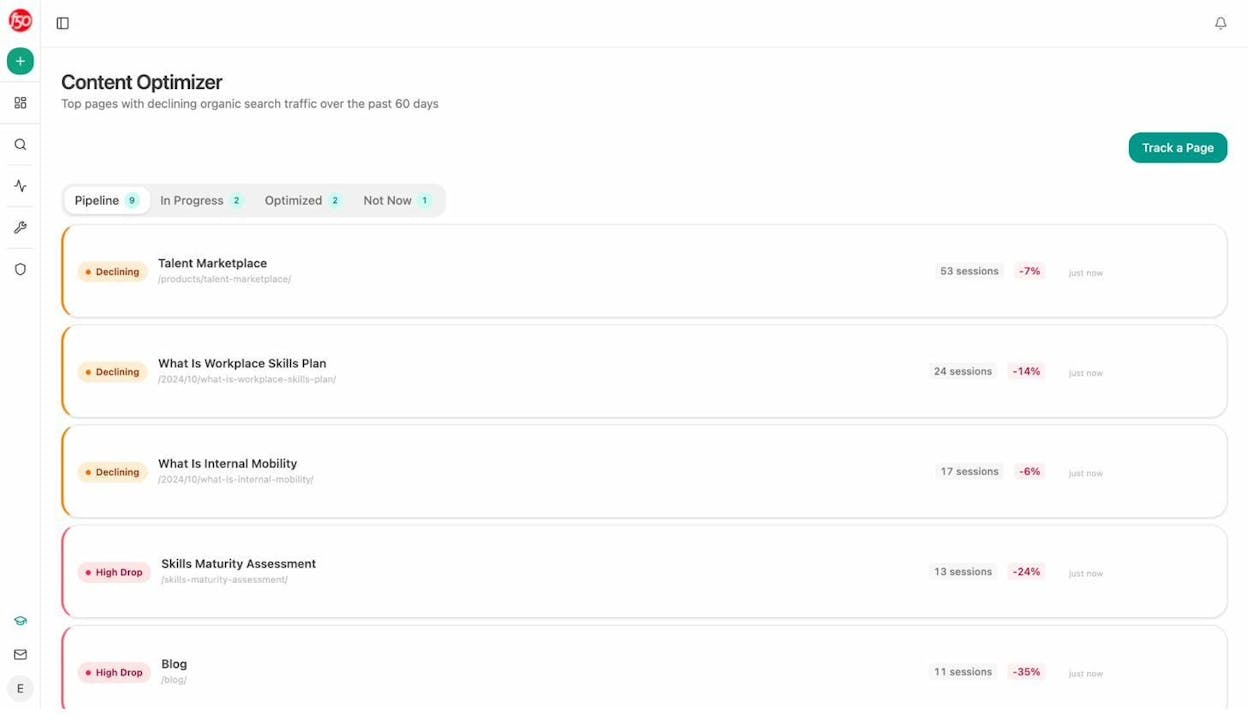
After merging pages, use Analyze AI’s Content Optimizer to check whether the consolidated page is now performing better in AI search. The Content Optimizer shows your top pages with declining traffic and lets you add pages to an optimization pipeline.
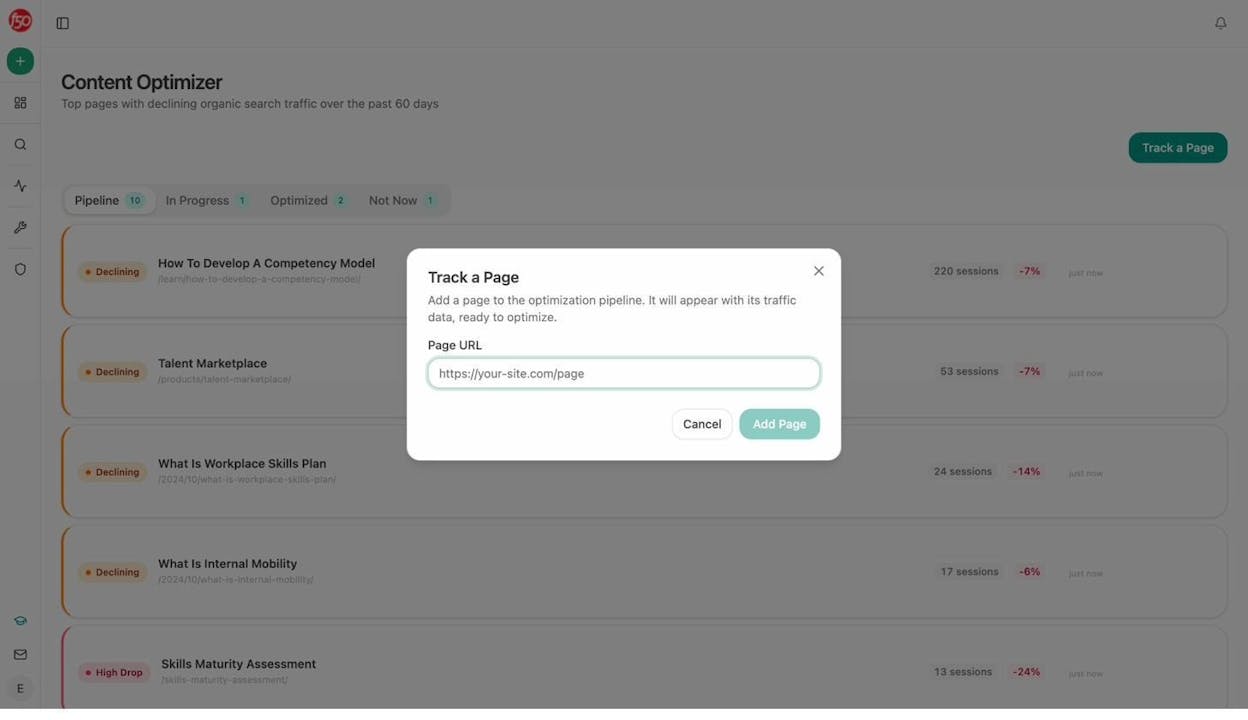
Once you add a page, Analyze AI fetches the content, scores it, and generates line-by-line optimization suggestions based on gaps in your content compared to what AI engines are citing in your space.
You can also check which sources AI engines cite most in your category. If your merged page aligns with the types of content AI models prefer (blog posts, documentation, review pages), you are more likely to earn citations.
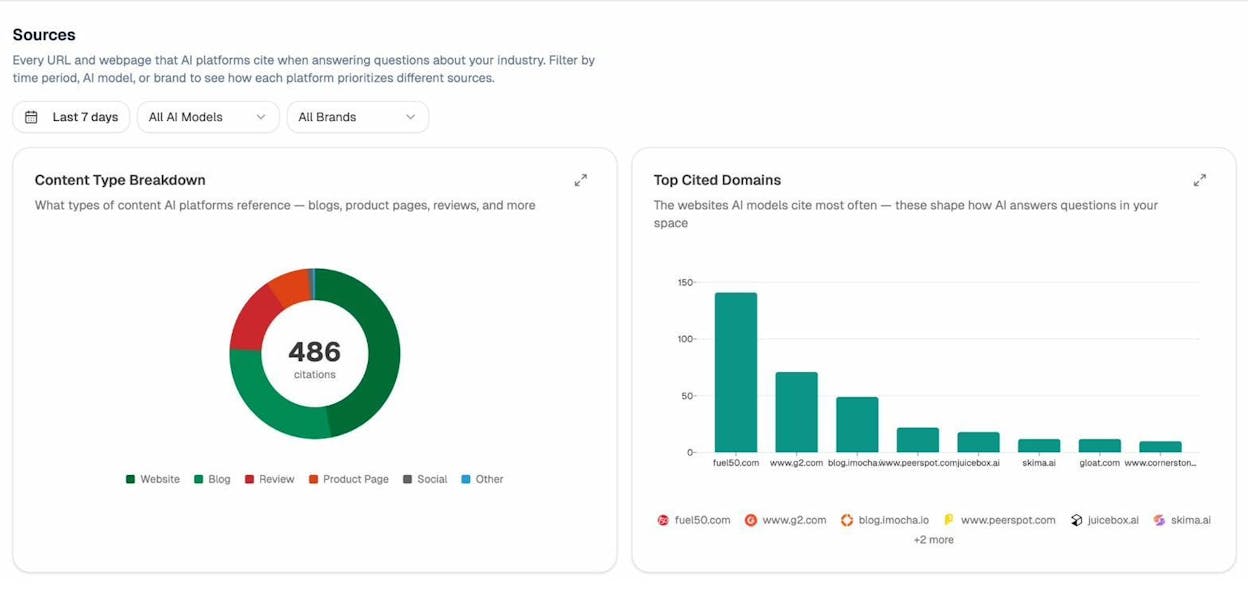
This creates a virtuous cycle. Better content gets more citations. More citations drive more AI referral traffic. More traffic justifies further investment in content quality.
Checklist: 301 Redirect Audit
Here is a quick-reference checklist you can use any time you audit your site’s redirects or plan a migration.
|
Check |
What to Look For |
Fix |
|---|---|---|
|
HTTP to HTTPS |
All pages redirect from HTTP to HTTPS |
Add 301 redirect in .htaccess, nginx config, or CDN |
|
Sitemap cleanup |
No 301 URLs in your XML sitemap |
Remove old URLs, add final destination URLs |
|
Redirect chains |
Any URL with 2+ redirects before the final page |
Replace chain with single redirect to final URL |
|
Redirect loops |
URLs that redirect in a circle |
Remove conflicting redirect rules |
|
Broken redirects |
301s pointing to 404 or 5XX pages |
Update redirect target or reinstate the page |
|
404 pages with backlinks |
Dead pages that still have valuable inbound links |
301 redirect to relevant live page |
|
302s used as permanent |
Temporary redirects used for permanent moves |
Replace with 301 |
|
Meta refreshes |
HTML-based redirects |
Replace with server-side 301 |
|
Redirected pages with traffic |
301 pages still appearing in Google results |
Request reindexing in Search Console |
|
Bad external 301s |
Outbound links redirecting to irrelevant sites |
Remove or update the external link |
|
AI citation impact |
Cited URLs returning 404 after migration |
301 redirect to the relevant replacement page |
Final Thoughts
301 redirects are one of the most powerful tools in technical SEO. They let you move pages, consolidate content, migrate domains, and restructure your entire site without losing the ranking authority you have built over years.
The key principles are simple. Always use 301s for permanent moves. Always redirect to relevant pages. Avoid chains and loops. Clean up your sitemap. And monitor the impact on both traditional and AI search traffic.
If you are going through a migration or restructuring your content, plan your redirects before you move anything. A clean redirect map saves weeks of debugging later.
For tracking how these changes affect your visibility across AI engines, Analyze AI gives you the data you need to see what is working and where you are losing ground. You can start for free and have your first visibility baseline within minutes.

Ernest

Ibrahim


