



Summarize this blog post with:


Google has been indexing PDFs since 2001. They show up in search results with a small [PDF] label, and they can rank for competitive queries. Government agencies, universities, and enterprise businesses rely on the format because it looks the same on every device.
But “can rank” and “should be your strategy” are two very different things.
If you’re creating new content for the web, a standard HTML page will outperform a PDF in nearly every way that matters for SEO. And now that AI search engines like ChatGPT, Perplexity, and Gemini are driving a growing share of organic traffic, the gap between pages and PDFs is even wider.
That said, sometimes you’re stuck with PDFs. Legacy whitepapers, compliance documents, technical specs — some content needs to live in that format. This guide covers both sides: how to optimize PDFs when you must, and why you should build pages when you can.
In this article, you’ll learn how Google handles PDFs, why web pages almost always outperform PDFs in search, seven steps to optimize your PDFs when you have no other option, how to track PDF performance, and how AI search engines treat PDF content differently than Google does.
Table of Contents
How Google Treats PDFs
Understanding how Google processes PDFs helps you decide whether the format is worth the trade-offs.
Google converts PDFs into HTML before indexing them. The text, headings, and links inside the file get extracted and treated much like a regular web page. For PDFs that contain images of text rather than actual text, Google uses Optical Character Recognition (OCR) to read the content. Images embedded in PDFs also appear in Google Image search results.
There are a few important behaviors to keep in mind.
Google prefers pages over PDFs for duplicate content. If you have a web page and a PDF with the same content, Google will consolidate signals to the HTML version and show it in search results. The PDF becomes a secondary copy. This matters because if you’re publishing both formats, the PDF won’t get credit for any backlinks pointing to it — those signals flow to the page.
Embedded PDFs may not get indexed. Embedding a PDF on a page using an iframe or object tag does not guarantee Google will index the PDF content. The URL Inspection tool in Google Search Console often shows the embedded content as missing from the rendered HTML. While Google’s full renderer might handle it differently than the inspection tool suggests, relying on embedded PDFs for indexable content is risky.
PDFs get a visual label in SERPs. The [PDF] tag next to search results can hurt click-through rates for some queries. Searchers looking for quick answers or interactive content will often skip the PDF result in favor of a standard page.
![[Screenshot: Google SERP showing a result with the [PDF] label next to the title]](https://www.datocms-assets.com/164164/1776975225-blobid1.png?auto=format,compress&w=1248&fit=max)
Why PDFs Are a Poor Choice for SEO
Even though Google can index and occasionally rank PDFs, the format has real limitations that web pages simply don’t have.
PDFs are not mobile-friendly. The entire point of the format is visual consistency — the document looks the same on every device. That means no responsive layouts, no text reflow, and no adjustments for smaller screens. Users pinch and zoom through the content, which leads to poor engagement metrics. With mobile traffic making up over 60% of web traffic globally, this is a significant disadvantage.
Navigation is a dead end. Most PDFs have no site navigation, no header menu, no footer links, and no way for readers to explore your other content. Once someone opens a PDF, they’re isolated from the rest of your site. Compare that to a web page where your navigation, internal links, and CTAs keep users moving through your content.
Key SEO attributes are missing. PDFs have equivalents for some on-page SEO elements — titles, descriptions, headings — but they lack others. You can’t add structured data (schema markup) to a PDF. You can’t use individual link attributes like nofollow, UGC, or sponsored tags. You can’t implement Open Graph tags or Twitter cards for social sharing. These missing elements limit how much control you have over how the content appears across platforms.
Crawl frequency drops. PDFs rarely change once published, so Google crawls them less often than pages that get regular updates. If you do update a PDF, it can take longer for Google to pick up the changes.
Tracking is limited. Standard analytics tools like Google Analytics run JavaScript on the page — which doesn’t work inside a PDF file. You can track downloads, but you can’t track how far someone read, which sections they engaged with, or whether they converted after reading.
AI search engines struggle with PDFs even more. This is the part most guides skip. AI engines like ChatGPT, Perplexity, Claude, and Gemini process web content by crawling and reading HTML pages. While they can occasionally extract content from indexed PDFs, the format is significantly harder for large language models to cite and reference compared to well-structured web pages. When an AI engine builds an answer, it strongly prefers content from pages that have clear headings, clean text, and strong internal linking structures. PDFs, with their fixed layouts and limited metadata, rarely make it into AI-generated answers.
If you’re investing in content to be visible in both traditional search and AI search, publishing as a web page is the obvious choice.
|
Feature |
Web Page |
|
|---|---|---|
|
Mobile-friendly |
Yes |
No |
|
Site navigation |
Yes |
No |
|
Structured data |
Yes |
No |
|
Link attributes (nofollow, etc.) |
Yes |
No |
|
JavaScript tracking |
Yes |
No |
|
Regular crawling |
Yes |
Infrequent |
|
Open Graph / social cards |
Yes |
No |
|
AI search citations |
Common |
Rare |
When PDFs Still Make Sense
Despite the drawbacks, there are scenarios where PDFs are the right format:
Compliance and legal documents. Some industries require specific document formats for regulatory filings, terms of service, or official policies. PDFs preserve exact formatting and pagination, which matters for legal review.
Downloadable resources. Whitepapers, research reports, and eBooks that readers want to save and reference offline work well as PDFs. The key is to also create an HTML landing page that contains the same core content (or a detailed summary) and offers the PDF as a download. This way, the page captures the SEO and AI search value while the PDF serves the reader who wants a portable copy.
Print-ready materials. Product catalogs, brochures, and technical spec sheets that need to maintain precise visual formatting for printing belong in PDF format.
The best approach in all three cases is the same: build the web page first, optimize it for search, and offer the PDF as a supplementary download. That way, you get the SEO value from the page and the utility from the PDF.
How to Optimize a PDF for SEO
If you need to keep content in PDF format — whether it’s a legacy document, a required compliance file, or a downloadable asset — here’s how to optimize it for the best possible search performance.
1. Start With Good Content
This sounds obvious, but it’s the most important step. Google’s mission is to organize the world’s information, and that includes information inside PDFs. Some of the best content on the web lives in PDF format — government research papers, technical documentation, academic studies, and industry whitepapers.
The same content quality standards that apply to web pages apply to PDFs. Write for the reader first. Use clear language. Structure your arguments logically. Include original data, expert perspectives, or detailed instructions that make the document genuinely useful.
Avoid creating PDFs that are just repurposed blog posts or sales brochures. If the content works better as a web page, publish it as a web page.
2. Add an Optimized Title
PDFs have a title field in their document properties, and search engines use this title in search results — just like the title tag on a web page. If you don’t set a title, the filename shows up in the SERP instead, which is rarely user-friendly.
Here’s how to set the title in Adobe Acrobat Pro:
-
Open your PDF
-
Click File → Properties
-
Edit the Title field with your target keyword included naturally
![[Screenshot: Adobe Acrobat Pro showing File → Properties dialog with the Title field highlighted]](https://www.datocms-assets.com/164164/1776975236-blobid2.jpg?auto=format,compress&w=1248&fit=max)
Follow the same rules you would for a title tag: keep it under 60 characters, include your primary keyword near the beginning, and make it descriptive enough that a searcher understands what the document covers.
3. Add an Optimized Description
The description field in a PDF’s metadata works like a meta description for a web page. It’s not a ranking factor, but it gives you a chance to influence the snippet that appears in search results.
To edit the description in Adobe Acrobat Pro:
-
Click File → Properties
-
Click Additional Metadata
-
Edit the Description field
![[Screenshot: Adobe Acrobat Pro showing Additional Metadata dialog with Description field]](https://www.datocms-assets.com/164164/1776975237-blobid3.png?auto=format,compress&w=1248&fit=max)
Write a description that summarizes the document’s key value in 150–160 characters. Include your primary keyword and a clear reason for someone to click.
4. Use a Keyword-Rich Filename
The filename becomes part of the URL when your PDF is hosted on your website. Google uses the URL as a minor ranking signal, and searchers see it in search results.
A filename like annual-report-2026.pdf is far more useful than AR_final_v3_revised.pdf.
Best practices for PDF filenames:
-
Use your target keyword in the filename
-
Separate words with hyphens (not underscores or spaces)
-
Keep it short and descriptive
-
Avoid version numbers, dates, or internal naming conventions
To rename your PDF before uploading:
-
Click File → Save As
-
Type a descriptive, keyword-rich filename
-
Save
![[Screenshot: File → Save As dialog showing a keyword-rich filename being entered]](https://www.datocms-assets.com/164164/1776975243-blobid4.png?auto=format,compress&w=1248&fit=max)
You can use the Analyze AI Keyword Generator to find the right keyword to include in your filename if you’re not sure what your audience is searching for.
5. Include Alt Text on Images
Images inside PDFs can appear in Google Image search results, but only if Google can understand what they show. Adding alt text to your images helps both search engines and screen readers interpret the visual content.
To add alt text in Adobe Acrobat Pro:
-
Click the Tags icon in the left sidebar
-
Find the image in the document hierarchy
-
Right-click the image tag
-
Click Properties
-
Add descriptive text in the Alternate Text field
![[Screenshot: Adobe Acrobat Pro Tags panel showing right-click → Properties → Alternate Text field on an image]](https://www.datocms-assets.com/164164/1776975245-blobid5.png?auto=format,compress&w=1248&fit=max)
Write alt text that describes the image’s content and purpose. If the image contains data (like a chart or graph), summarize the key takeaway in the alt text.
6. Use Proper Headings
Just like heading tags (H1–H6) on web pages structure your content for search engines and readers, you can tag text in PDFs as headings. This helps Google understand the document’s hierarchy and can improve how it indexes individual sections.
To set heading levels in Adobe Acrobat Pro:
-
Click the Tags icon in the left sidebar
-
Find the text element in the document hierarchy
-
Right-click the tag
-
Click Properties
-
Select the heading level (H1, H2, H3, etc.) from the Type dropdown
![[Screenshot: Adobe Acrobat Pro Tags panel showing the heading level dropdown being changed]](https://www.datocms-assets.com/164164/1776975249-blobid6.jpg?auto=format,compress&w=1248&fit=max)
Use one H1 for the document title, then H2s for major sections, and H3s for subsections — just like you would on a web page. Include your target keyword and related terms in headings where it’s natural.
7. Include Internal and External Links
Links inside PDFs pass PageRank and provide contextual anchor text, exactly like links on web pages. By adding links from your PDF to other pages on your site, you prevent the document from being a dead end for both users and search engines.
Many high-authority PDFs miss this opportunity entirely. Government and academic PDFs often accumulate thousands of backlinks but don’t link out to any other pages, leaving all that link equity stranded.
To add links in Adobe Acrobat Pro:
-
Click Edit PDF in the right sidebar
-
Click the Link dropdown in the Edit menu
-
Select Add/Edit Web or Document Link
-
Draw a rectangle around the text you want to link
-
Set Link Type to Invisible Rectangle
-
Set Link Action to Open a web page
-
Add your URL
![[Screenshot: Adobe Acrobat Pro Edit PDF mode showing the Link creation dialog]](https://www.datocms-assets.com/164164/1776975256-blobid7.jpg?auto=format,compress&w=1248&fit=max)
When adding links, prioritize:
-
Links to your most important landing pages
-
Links to related content that expands on a topic mentioned in the PDF
-
Links to authoritative external sources that support your claims
You can use the Analyze AI Broken Link Checker to verify that all links inside your PDF are working correctly before publishing.
How to Track PDF Performance
Tracking PDFs is harder than tracking web pages because standard JavaScript-based analytics don’t run inside PDF files. But you still have several options.
Event Tracking
Set up event tracking in Google Analytics to capture clicks on PDF download links. This tells you how many people clicked to open or download the PDF, though it doesn’t tell you what they did after opening it. Google’s documentation on event tracking covers the setup.
Embed the PDF in a Page
If you embed the PDF into a web page using JavaScript or an iframe, you can track analytics on the parent page itself. This gives you pageview data, time on page, and scroll depth — but keep in mind the SEO limitations of embedded PDFs mentioned earlier.
Intermediate Tracking Scripts
A more technical approach: route PDF download requests through a tracking script that logs the click in your analytics system before delivering the file. This captures download data server-side without relying on client-side JavaScript.
Server Logs
Every request for a PDF file gets recorded in your web server’s log files. Tools like Screaming Frog Log File Analyzer or custom log parsing scripts can extract PDF access data from these logs.
Google Search Console
Search Console shows impressions, clicks, and average position for any indexed URL — including PDFs. Filter your performance report by URLs containing .pdf to see which documents are getting search visibility.
![[Screenshot: Google Search Console Performance report filtered by URLs containing .pdf]](https://www.datocms-assets.com/164164/1776975263-blobid8.jpg?auto=format,compress&w=1248&fit=max)
Track AI-Referred Traffic to Your PDF Landing Pages
Here’s what most SEO guides miss: if you’re getting traffic from AI search engines, you need to track that separately from organic search.
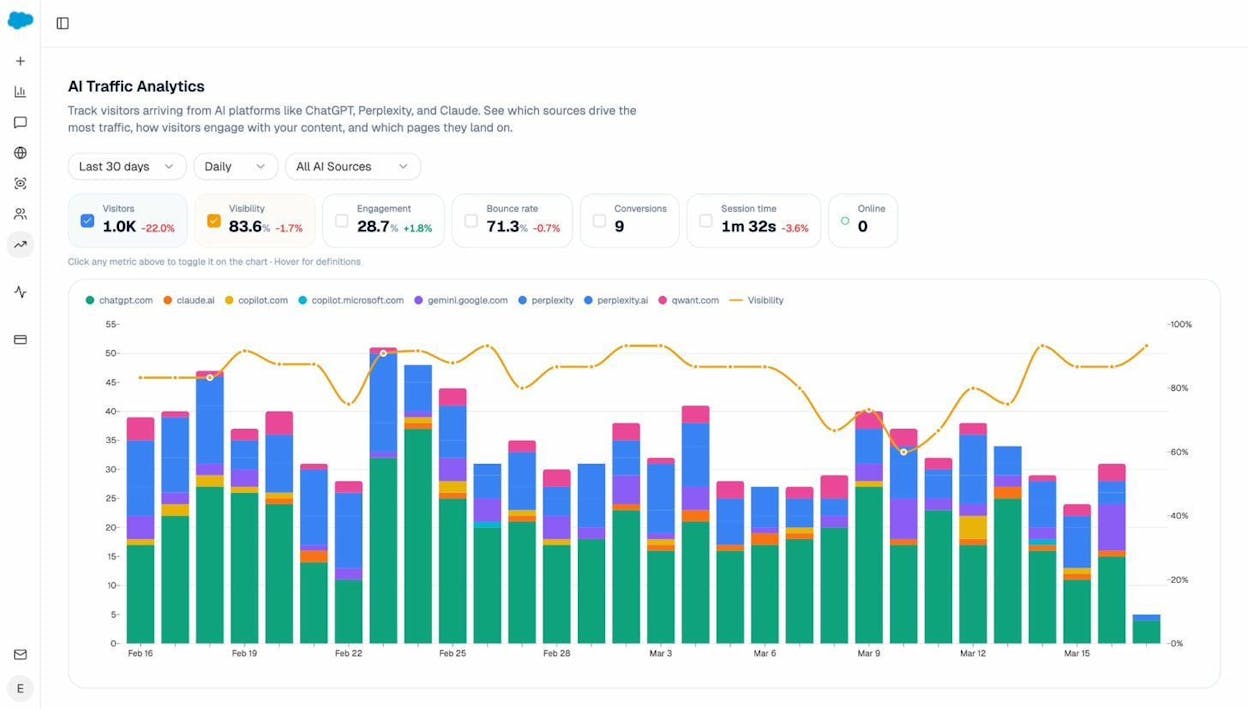
When you build an HTML landing page for your PDF (which you should), Analyze AI can show you exactly how many visitors arrive at that page from ChatGPT, Perplexity, Claude, Gemini, and other AI platforms. The AI Traffic Analytics dashboard breaks down sessions by AI source, shows engagement metrics like bounce rate and session time, and tells you which landing pages attract the most AI-referred visitors.
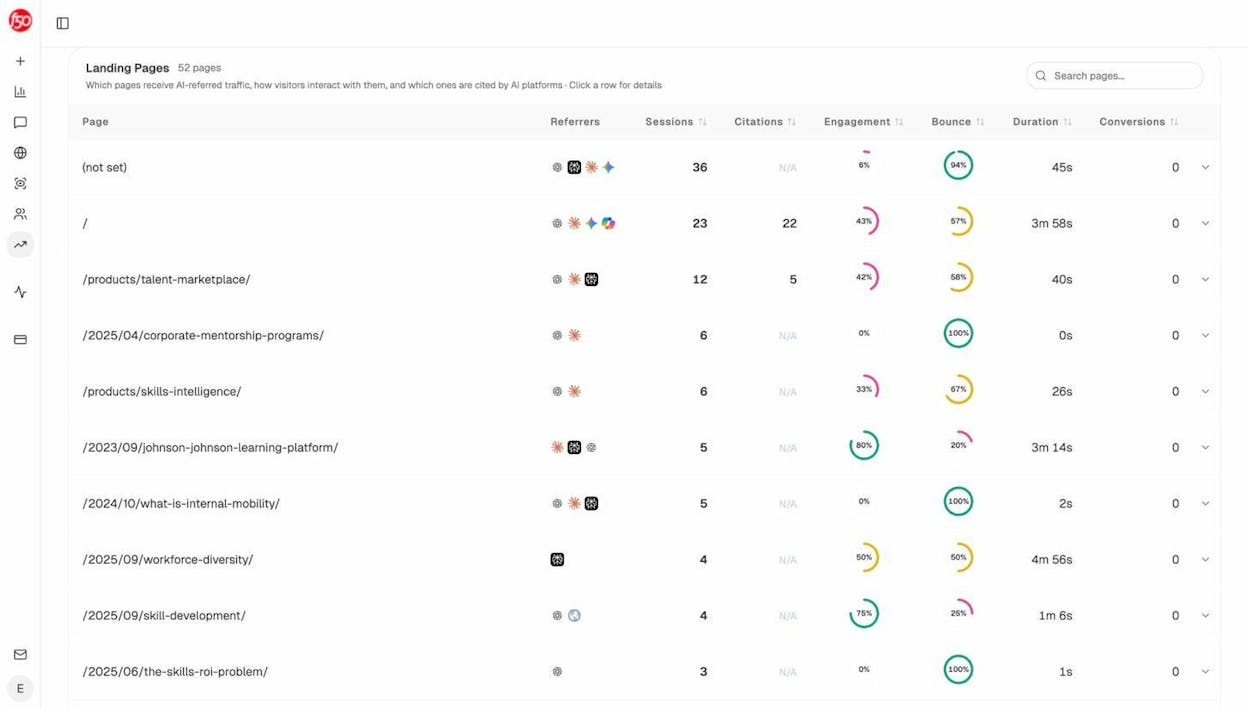
The Landing Pages report takes this further. It shows every page on your site that receives AI-referred traffic, along with the number of sessions, citations, engagement rate, and bounce rate for each page. This lets you identify which content formats and topics AI engines prefer to cite — so you can create more of what works.
You can even drill into individual visitor sessions to see exactly which AI platform referred each visit, which page they landed on, how long they stayed, and whether they engaged or bounced.
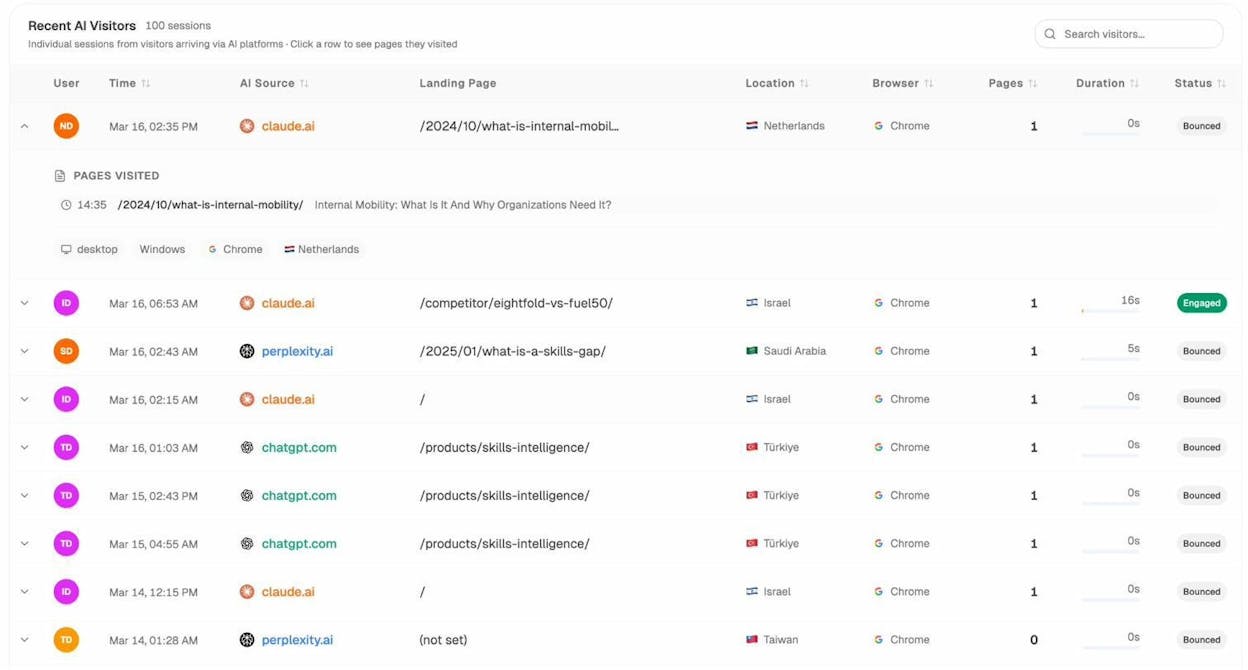
This data is critical for deciding whether to keep content in PDF format or convert it to a page. If your HTML landing page is already getting AI traffic and citations, there’s strong evidence that converting the full PDF content into that page will capture even more visibility.
How AI Search Engines Handle PDFs Differently
Traditional SEO focuses on Google, but a growing share of how people discover content now happens through AI search engines. Understanding how these platforms handle PDFs gives you a strategic advantage.
AI engines like ChatGPT, Perplexity, Claude, and Gemini build answers by pulling from web content they’ve crawled and indexed. They strongly prefer well-structured HTML pages for several reasons:
HTML pages have richer context signals. Title tags, meta descriptions, heading hierarchies, schema markup, and internal linking structures all give AI models more information about what a page covers and how authoritative it is. PDFs lack most of these signals.
AI engines cite specific pages, not documents. When an AI engine includes a citation in its answer, it links to a URL. A web page with a clean URL structure (like /guides/whitepaper-topic) is more likely to be cited than a PDF URL (like /downloads/wp_final_v3.pdf).
Content freshness matters more. AI engines weight recently updated content more heavily. Web pages are easy to update and republish. PDFs are static — updating one means creating and re-uploading a new file, and AI engines may take longer to re-crawl it.
Structured content gets extracted more accurately. AI engines parse HTML headings, lists, and tables directly. The same content inside a PDF requires OCR and format conversion, which introduces extraction errors.
The bottom line: if you want your content to appear in AI-generated answers — whether as a direct mention or as a cited source — publishing it as a web page gives you a significantly better chance than publishing it as a PDF.
How to Check Your AI Search Visibility
If you’re already publishing content (whether as pages or PDFs), you can use Analyze AI to see whether AI engines are citing your brand and content.
The Sources dashboard shows every URL and domain that AI platforms cite when answering questions in your industry. You can filter by AI model, time period, and brand to see which content types get cited most. If your PDFs aren’t appearing but your competitors’ web pages are, that’s a clear signal to convert.
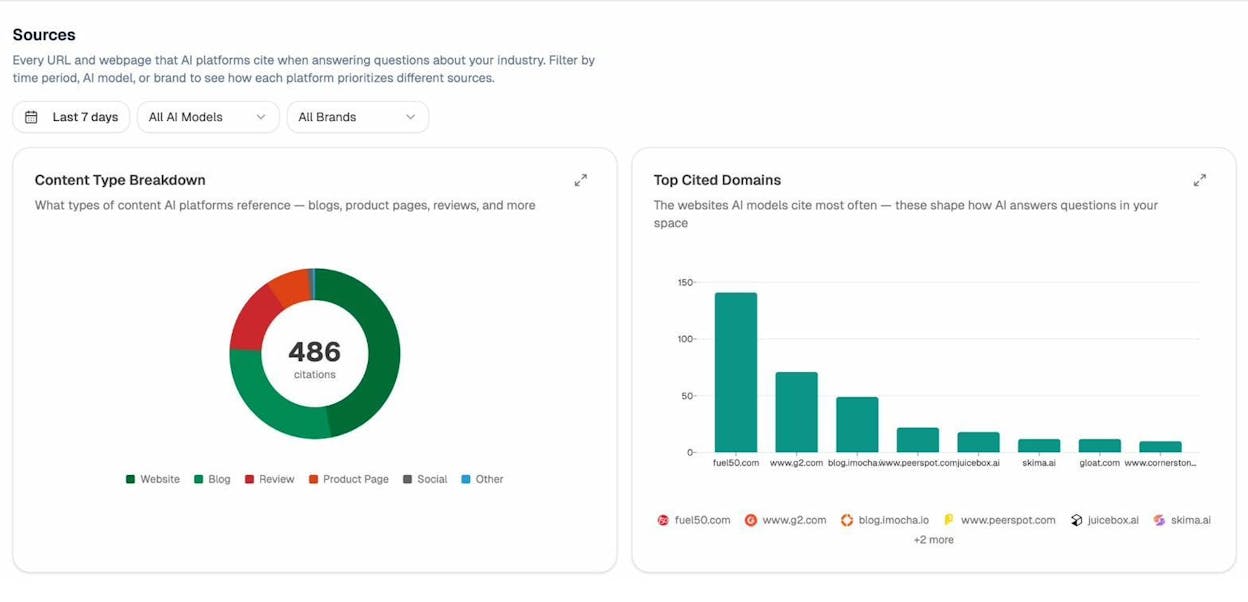
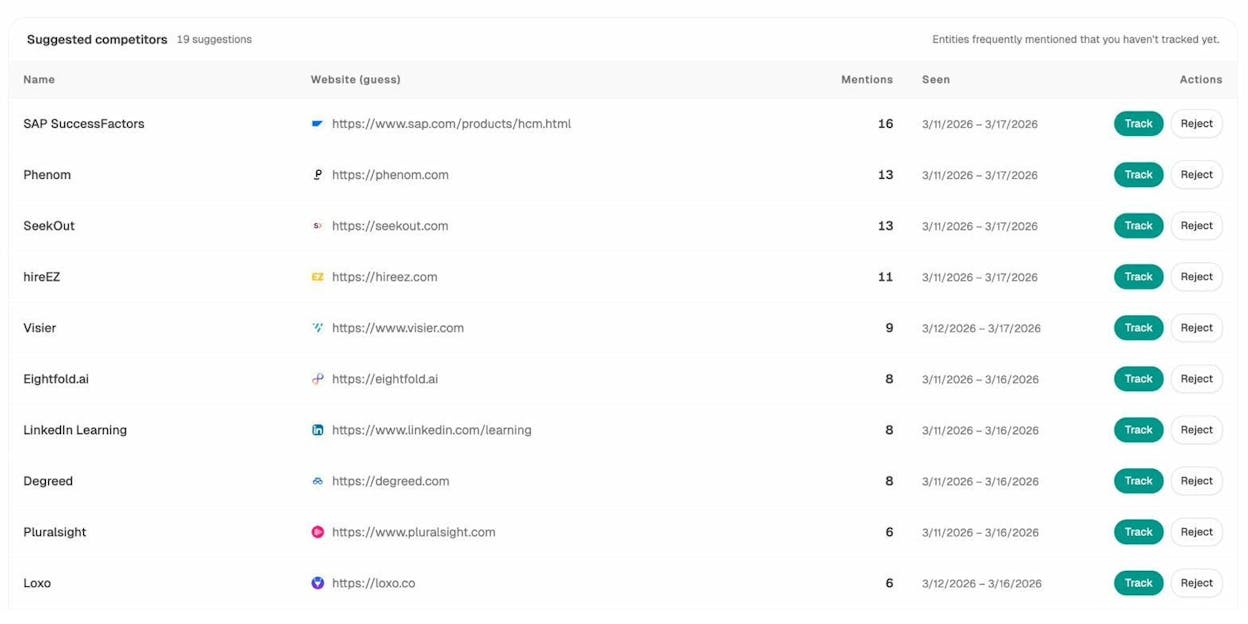
The Competitors view surfaces which brands AI engines mention most often in your space — and how many times. If a competitor’s content is getting cited 16 times while yours appears zero times, you know where to focus your efforts.
Should You Optimize the PDF or Convert It to a Page?
If you have existing PDFs that get organic traffic, you face a decision: optimize the PDF in place, or convert the content into a web page.
There’s no universal right answer. The best choice depends on your resources and the specific situation.
Optimize the PDF when:
-
The document has legal or compliance requirements that mandate the PDF format
-
You don’t have development resources to build a new page
-
The PDF already ranks well and disrupting it carries risk
-
The content is a supplementary download (not your primary ranking asset)
Convert to a page when:
-
The PDF’s content is your primary asset for a valuable keyword
-
You want the content to be visible in AI search answers
-
You need to track engagement with standard analytics
-
The content would benefit from mobile-friendly formatting
-
You want to add navigation, CTAs, or interactive elements
Do both when:
-
The content has high business value
-
You want to rank the page in both Google and AI search while still offering a downloadable version
-
The PDF has accumulated backlinks you want to preserve (use a 301 redirect from the PDF URL to the page, or add a canonical tag via HTTP headers)
Whatever you choose, the trend is clear: web pages outperform PDFs in traditional search, and the gap is even wider in AI search. If you’re creating new content, start with the page. If you’re optimizing existing content, consider the conversion.
Quick PDF SEO Checklist
Use this before publishing any PDF to your site:
|
Step |
Action |
Done? |
|---|---|---|
|
1 |
Content is original, useful, and written for the reader |
☐ |
|
2 |
Title field set in document properties with target keyword |
☐ |
|
3 |
Description field filled with a compelling 150-character summary |
☐ |
|
4 |
Filename is keyword-rich and hyphen-separated |
☐ |
|
5 |
All images have descriptive alt text |
☐ |
|
6 |
Headings are tagged (H1, H2, H3) in the Tags panel |
☐ |
|
7 |
Internal links point to key pages on your site |
☐ |
|
8 |
External links support claims with authoritative sources |
☐ |
|
9 |
File saved as text-based PDF (not image-based) |
☐ |
|
10 |
File size is compressed for fast loading |
☐ |
|
11 |
An HTML landing page exists for the same content |
☐ |
|
12 |
Download tracking (event tracking or server logs) is configured |
☐ |
Final Thoughts
PDFs served the web well for over two decades. They’re reliable, portable, and universally readable. But for SEO and AI search visibility, they’re a compromise at best.
If you’re creating new content, build a web page. You’ll get better crawl frequency, richer analytics, mobile-friendly layouts, structured data support, and a much higher chance of appearing in AI-generated answers.
If you’re stuck with existing PDFs, follow the seven optimization steps above to squeeze as much search value as possible out of them. But also consider building HTML landing pages around your best-performing PDFs — and tracking whether those pages pick up AI-referred traffic using Analyze AI’s AI Traffic Analytics.
The web is evolving. Search is splitting between traditional engines and AI platforms. The content format that works for both is the same one that’s worked for decades: well-structured, well-written web pages.
Want to see how your content performs in AI search? Try Analyze AI free and track your visibility across ChatGPT, Perplexity, Claude, Gemini, and more.

Ernest

Ibrahim


