



Summarize this blog post with:


In this article, you’ll learn what meta tags are, why they matter for both search engines and AI answer engines, and how to use each one correctly. You’ll also get step-by-step instructions for adding them, finding mistakes, and fixing common issues that hurt your rankings. By the end, you’ll know how to set up the seven most important meta tags—and how to check whether AI search engines like ChatGPT and Perplexity are actually picking up your content.
Table of Contents
What Are Meta Tags?
Meta tags are snippets of HTML code that sit inside the <head> section of a web page. They tell search engines and browsers important information about the page—things like what the page is about, how to display it, and whether to index it.
You won’t see meta tags on the page itself. They live in the source code. But the effect they have on your search visibility is hard to overstate. Every time Google decides what snippet to show for your page, or whether to index it at all, meta tags play a role.
Here’s what a basic set of meta tags looks like in HTML:
<head>
<meta charset="UTF-8">
<meta name="viewport" content="width=device-width, initial-scale=1.0">
<title>Meta Tags for SEO: A Simple Guide for Beginners</title>
<meta name="description" content="Learn how to use the most important meta tags for SEO and AI search. Step-by-step guide with best practices.">
<meta name="robots" content="index, follow">
</head>
That small block of code controls how your page appears in Google’s search results, how it renders on mobile devices, and whether search engines crawl your links.
Why Meta Tags Matter for SEO (and AI Search)
Meta tags affect SEO in three direct ways:
They control how your page appears in search results. Your title tag and meta description form the snippet that users see. A clear, compelling snippet gets more clicks. More clicks mean more traffic—even without changing your ranking position.
They tell search engines how to handle your page. The meta robots tag can prevent indexing entirely, or stop Google from following your links. One wrong attribute can erase a page from search results.
They ensure your page renders correctly. The viewport tag determines whether your page looks right on mobile. The charset tag prevents garbled text. Both affect user experience, which affects rankings.
But here’s what most guides miss: meta tags also influence how AI search engines process your content.
AI answer engines like ChatGPT, Perplexity, Claude, and Google’s AI Mode crawl web pages to generate responses. When these models evaluate your content, they rely on structured signals—including meta tags—to understand what your page covers. A clear title tag and accurate meta description make it easier for LLMs to match your content to the right prompts. Pages with broken or missing meta tags are harder for both traditional crawlers and AI models to parse, which means they’re less likely to be cited in AI-generated answers.
This doesn’t mean you need a separate “AI meta tag strategy.” It means getting your meta tags right for SEO also strengthens your presence in AI search. The fundamentals are the same—clarity, accuracy, and structure.
Here are the seven meta tags that matter most:
|
Meta Tag |
What It Does |
SEO Impact |
|---|---|---|
|
Title tag |
Sets the page title shown in search results |
Direct ranking factor; affects click-through rate |
|
Meta description |
Provides a page summary for search snippets |
Not a ranking factor, but affects CTR |
|
Meta robots |
Controls indexing and link crawling |
Can block pages from search entirely |
|
Meta viewport |
Sets how the page renders on mobile |
Affects mobile-friendliness (ranking signal) |
|
Meta charset |
Defines character encoding |
Prevents broken text; affects user experience |
|
Open Graph tags |
Controls how pages appear on social media |
Affects social sharing and referral traffic |
|
Meta refresh redirect |
Redirects users after a delay |
Should be avoided; use 301 redirects instead |
Let’s walk through each one.
Title Tag
The title tag is the page title that appears in search engine results, browser tabs, and social media shares. It’s one of the most important on-page SEO elements you can control.
![[Screenshot: Google search result showing a title tag highlighted in the SERP]](https://www.datocms-assets.com/164164/1774966733-blobid1.png?auto=format,compress&w=1248&fit=max)
Note: Technically, the <title> element isn’t a meta tag—it’s a separate HTML element. But because it sits in the <head> section alongside meta tags and serves a similar purpose, most SEO professionals group them together. We’ll do the same here.
Why It Matters for SEO
Google has stated directly that titles are “critical to giving users a quick insight into the content of a result and why it’s relevant to their query.” The title tag is:
-
A confirmed ranking factor
-
The primary text users see before deciding to click
-
A signal that helps Google understand your page’s topic
A well-written title tag can increase your click-through rate without improving your position. A poorly written one—or a missing one—can tank your traffic even if you rank on page one.
Google doesn’t always show your title tag. It sometimes rewrites it. But setting a strong title gives you the best shot at controlling what users see.
Best Practices
Write a unique title for every page. Duplicate titles across pages confuse search engines and make it harder for users to distinguish between your content. This is especially common on large sites where CMS templates generate the same title pattern for multiple pages.
Keep it under 60 characters. Google truncates titles that are too long. Aim for 50–60 characters to make sure your full title appears in search results. Use a SERP preview tool like SERPSim to check pixel length—it’s more accurate than character count because some letters (like “W”) are wider than others (like “i”).
Put your target keyword near the front. Users scan search results quickly. Leading with your primary keyword helps both Google and searchers understand your page’s relevance at a glance.
Match search intent. If someone searches “how to write meta tags,” they want a tutorial—not a product page. Make sure your title reflects the type of content people expect for that query. Understanding keyword types helps you nail this.
Write for clicks, not clickbait. Your title should accurately represent the page content while being compelling enough to stand out. Misleading titles may get initial clicks, but they increase bounce rates and erode trust.
Use sentence case or title case consistently. Pick one style and stick with it across your site. Sentence case (“Meta tags for SEO”) is cleaner. Title Case (“Meta Tags For SEO”) is more traditional. Either works—just be consistent.
You can generate optimized title tags quickly with Analyze AI’s free SEO Title Generator. Enter your topic and get several options to test.
How to Add a Title Tag
Paste the code below into the <head> section of your page:
<title>Your Page Title Goes Here</title>
If you use WordPress, install an SEO plugin like Yoast or Rank Math. Both add a title tag field to every page and post editor.
![[Screenshot: Yoast SEO plugin showing the title tag field in the WordPress editor]](https://www.datocms-assets.com/164164/1774966742-blobid2.png?auto=format,compress&w=1248&fit=max)
Other platforms like Squarespace, Wix, and Shopify have this functionality built into their page settings—no plugin needed.
How to Find and Fix Title Tag Mistakes
Four common title tag issues can hurt your SEO:
1. Title too long or too short. Titles over 60 characters get truncated in search results. Titles under 30 characters waste valuable real estate. Check individual pages with SERPSim or your SEO plugin.
![[Screenshot: SERPSim tool showing a title tag that’s too long, with the red pixel count indicator]](https://www.datocms-assets.com/164164/1774966744-blobid3.png?auto=format,compress&w=1248&fit=max)
2. Missing title tag. Every indexable page needs a title tag. Without one, Google generates its own—and it’s rarely ideal. If SERPSim pulls no title back for your URL, add one immediately.
3. Multiple title tags on one page. This happens when a CMS adds a title tag and your theme or plugin adds another. Search engines may display an undesirable one. Crawl your site with an SEO audit tool and look for “multiple title tag” errors.
4. Duplicate titles across pages. When multiple pages share the same title tag, Google struggles to determine which one to rank. Run a site crawl, check the duplicate content report, and rewrite affected titles to be unique.
![[Screenshot: SEO audit tool showing duplicate title tag warnings]](https://www.datocms-assets.com/164164/1774966747-blobid4.png?auto=format,compress&w=1248&fit=max)
Meta Description
The meta description is a short summary of your page’s content. Search engines often display it as the snippet text below your title in search results.
![[Screenshot: Google search result with the meta description highlighted]](https://www.datocms-assets.com/164164/1774966752-blobid5.png?auto=format,compress&w=1248&fit=max)
Google doesn’t always use your meta description. Research shows that Google rewrites meta descriptions for the majority of search results. But when it does use yours, it’s your best chance to convince someone to click.
Why It Matters for SEO
Google has confirmed that meta descriptions are not a direct ranking factor. But they influence SEO indirectly:
-
A compelling description increases click-through rate
-
Higher CTR can lead to more traffic (even without ranking changes)
-
Descriptions also serve as the default text for social media shares when Open Graph tags aren’t set
Think of your meta description as an ad for your page. It needs to tell the searcher exactly why your result is the one that answers their question.
Best Practices
Keep it under 160 characters. Google truncates longer descriptions. On mobile, the cutoff is even shorter (around 120 characters). Front-load the most important information.
Summarize the page accurately. Your description should match what the page actually delivers. Misleading descriptions lead to high bounce rates and erode trust with both users and search engines.
Include your target keyword naturally. Google bolds matching keywords in the snippet, which draws the eye. But don’t stuff keywords—write for humans first.
Make it action-oriented. Use phrases that motivate a click: “Learn how to…,” “Discover the…,” “Step-by-step guide to….” Give people a reason to choose your result over the ten others on the page.
Write unique descriptions for each page. Duplicate descriptions across pages are almost as bad as no descriptions at all. If you have hundreds of pages, prioritize your highest-traffic and highest-potential pages first.
Don’t use double quotation marks. Google truncates descriptions at double quotes in the HTML. Use single quotes instead, or avoid them altogether.
Need help writing descriptions at scale? Try Analyze AI’s free Meta Description Generator. It creates search-optimized descriptions based on your page topic.
How to Add a Meta Description
Paste this code into the <head> section:
<meta name="description" content="Your meta description text goes here.">
In WordPress with Yoast or Rank Math, scroll to the SEO section below your post editor and type your description into the field provided.
![[Screenshot: WordPress SEO plugin meta description field with character count indicator]](https://www.datocms-assets.com/164164/1774966755-blobid6.jpg?auto=format,compress&w=1248&fit=max)
Squarespace, Wix, Shopify, and most modern CMS platforms have a dedicated meta description field in their page settings.
How to Find and Fix Meta Description Mistakes
The common issues mirror those of title tags:
1. Too long. Descriptions beyond 160 characters get cut off. Check them with your SEO plugin or a SERP preview tool.
2. Missing entirely. Google will generate one from your page content, but the result is often generic and unconvincing. Check the page source for a <meta name="description" tag. If it’s missing, add one.
3. Multiple descriptions on one page. This usually happens when a plugin and your theme both inject a meta description. Run a site crawl to identify affected pages.
4. Duplicate descriptions across pages. Common on sites that auto-generate descriptions from templates. Check your SEO audit tool’s duplicate content report and rewrite affected descriptions.
How Meta Descriptions Affect AI Search Visibility
Here’s something worth paying attention to: AI answer engines don’t just index your body content. When models like ChatGPT, Perplexity, or Google’s AI Mode crawl your page, the meta description provides a quick summary signal that helps them categorize what your page covers.
A clear, accurate meta description makes it easier for AI models to match your page to relevant prompts. A missing or generic one (“Welcome to our website”) gives them nothing to work with.
You can check whether AI search engines are actually finding and citing your pages using Analyze AI. The Sources dashboard shows every URL that AI platforms cite when answering questions in your industry—including which of your pages get picked up and which don’t.
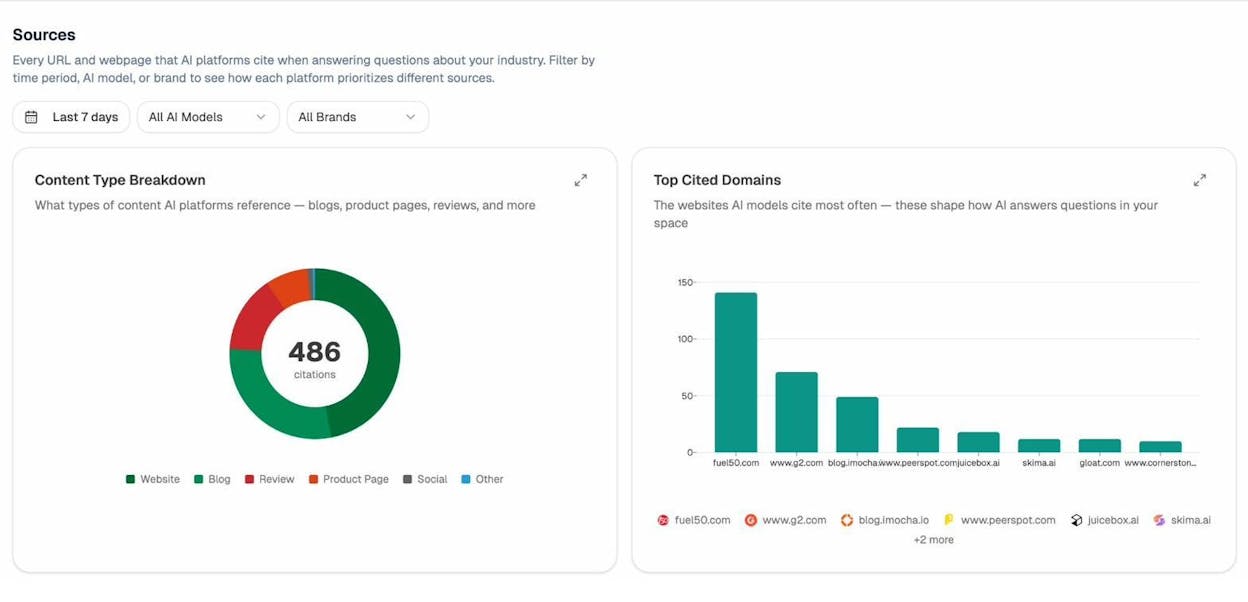
If you notice that certain pages never appear in AI citations despite ranking well in traditional search, weak meta descriptions might be part of the problem. Revisit them. Make sure they accurately summarize the page’s unique value.
Meta Robots
The meta robots tag tells search engines whether to index a page and whether to follow the links on it. It’s a powerful tag—and a dangerous one if used incorrectly.
Syntax
<meta name="robots" content="index, follow">
Why It Matters for SEO
Using the wrong meta robots values can remove pages from Google’s index entirely. One misplaced noindex tag on a key landing page can wipe out all the organic traffic to that page overnight. That makes this the highest-risk meta tag on your site.
Here are the values you can use:
|
Value |
What It Does |
|---|---|
|
index |
Tells bots to include the page in their index |
|
noindex |
Tells bots NOT to include the page in their index |
|
follow |
Tells bots to crawl the links on the page |
|
nofollow |
Tells bots NOT to crawl or pass authority through the links |
|
noarchive |
Prevents search engines from showing a cached version |
|
nosnippet |
Prevents a text snippet from appearing in search results |
|
noimageindex |
Prevents images on the page from being indexed |
You can combine these values:
<meta name="robots" content="noindex, nofollow">
<meta name="robots" content="index, follow">
<meta name="robots" content="noindex, follow">
<meta name="robots" content="index, nofollow">
Using <meta name="robots" content="none"> is equivalent to noindex, nofollow. Omitting the meta robots tag entirely is equivalent to index, follow—search engines assume full permission by default.
Important: Google treats the nofollow attribute as a hint, not a strict directive. It may still crawl those links in some cases.
Best Practices
Only use meta robots when you want to restrict crawling or indexing. If you want Google to index a page and follow its links, you don’t need a meta robots tag at all. Adding index, follow is redundant—it’s the default behavior.
Don’t block pages with meta robots tags in your robots.txt file. If robots.txt blocks a page, Google can’t see the noindex directive on it. The result? Google may still index the page based on external signals (like backlinks), but it won’t know you wanted it excluded.
Use noindex strategically. Common candidates for noindex include internal search results pages, tag/category archive pages with thin content, staging or test pages, and admin pages.
Audit regularly. A rogue noindex tag on an important page is one of the most common technical SEO mistakes. It can go unnoticed for months while traffic silently drops.
How to Add a Meta Robots Tag
Paste the appropriate code into the <head> section of your page:
<meta name="robots" content="noindex, follow">
In WordPress, Yoast and Rank Math provide dropdown menus for setting meta robots values in their “Advanced” settings on each page:
![[Screenshot: Yoast SEO advanced settings showing meta robots dropdown options in WordPress]](https://www.datocms-assets.com/164164/1774966760-blobid8.png?auto=format,compress&w=1248&fit=max)
Most CMS platforms have similar options built in.
How to Find and Fix Meta Robots Mistakes
Three common mistakes can cause serious damage:
1. Noindexed pages blocked by robots.txt. When a page is both noindexed and blocked by robots.txt, Google can’t see the noindex directive. It may index the page anyway. Check the Coverage report in Google Search Console—look for “Indexed, though blocked by robots.txt” warnings under the “Valid with warnings” tab.
![[Screenshot: Google Search Console Coverage report showing “Indexed, though blocked by robots.txt” warning]](https://www.datocms-assets.com/164164/1774966762-blobid9.png?auto=format,compress&w=1248&fit=max)
2. Rogue noindex tags. Pages accidentally set to noindex will get zero organic traffic. In Google Search Console, go to the “Excluded” tab and look for pages “Excluded by ‘noindex’ tag.” Remove the noindex directive from any pages that should be indexed.
3. Rogue nofollow tags. A nofollow meta robots tag prevents Google from crawling links on the page, which can block the discovery of important pages and prevent PageRank from flowing to them. Run a site crawl and check for “Nofollow page” warnings in the indexability report. Remove the tag unless you specifically want to restrict link crawling.
Tip: Pages with noindex tags shouldn’t be in your XML sitemap. If they are, Google gets mixed signals—one file says “index this,” and the page itself says “don’t.” Remove noindexed pages from your sitemap.
Meta Viewport
The meta viewport tag controls how your page renders on different screen sizes—desktop, tablet, and mobile. It tells the browser how to scale the page width to fit the device.
Why It Matters for SEO
Google has confirmed that the presence of a viewport tag signals that a page is mobile-friendly. Since Google has used mobile-friendliness as a ranking factor since 2015, a missing viewport tag can directly hurt your rankings in mobile search.
Here’s what happens without a viewport tag: the browser loads the desktop version of the page and shrinks it to fit the mobile screen. Text becomes unreadable. Buttons become untappable. Users bounce.
![[Screenshot: Side-by-side comparison of a page on mobile with and without the viewport tag—one readable, one shrunken and unreadable]](https://www.datocms-assets.com/164164/1774966766-blobid10.png?auto=format,compress&w=1248&fit=max)
With mobile devices accounting for over 60% of web traffic globally, a page that doesn’t render properly on mobile loses the majority of its potential audience.
Best Practices
Include the meta viewport tag on every page. It should be set once in your site’s template so it applies globally.
Use the standard implementation. Unless you have a specific reason to change it, use the tag exactly as shown below. Custom viewport settings can cause display issues across devices.
How to Add a Meta Viewport Tag
Paste this code into the <head> section:
<meta name="viewport" content="width=device-width, initial-scale=1.0">
This tells the browser to set the page width equal to the device screen width and to render at 1x zoom. It’s the correct setting for virtually all responsive websites.
Most modern CMS themes and templates include this tag by default. But if your site uses a custom-built template or a legacy theme, it may be missing.
How to Find and Fix Viewport Issues
Because most CMS platforms set the viewport automatically, issues are uncommon on modern websites.
To check, use the Mobile Usability report in Google Search Console. If the viewport tag is missing from any pages, you’ll see a “Viewport not set” error.
![[Screenshot: Google Search Console Mobile Usability report showing “Viewport not set” error]](https://www.datocms-assets.com/164164/1774966768-blobid11.jpg?auto=format,compress&w=1248&fit=max)
You can also spot-check your homepage with Google’s Mobile-Friendly Test. Since the viewport tag is typically set at the site level, if it’s missing from your homepage, it’s probably missing everywhere.
Important: Adding a viewport tag alone won’t fix all mobile display issues. Your site also needs responsive CSS. If adding the viewport tag doesn’t resolve layout problems, consult a developer.
Meta Charset
The meta charset tag tells the browser which character encoding to use when rendering text on your page. In simpler terms, it defines how your text characters—letters, numbers, symbols—should be displayed.
Why It Matters for SEO
Using the wrong charset (or no charset at all) can cause text to display as garbled characters. You’ve probably seen this: question marks, boxes, or scrambled symbols where normal text should be.
![[Screenshot: Example of a web page showing garbled/broken characters due to incorrect charset encoding]](https://www.datocms-assets.com/164164/1774966773-blobid12.png?auto=format,compress&w=1248&fit=max)
Character encoding issues create several SEO problems. Users leave the page when they see broken text, which increases your bounce rate. Other sites are unlikely to link to a page that looks broken. And search engines may not understand the content at all, which hurts indexing.
The two most common character encodings are:
|
Encoding |
Description |
Usage |
|---|---|---|
|
UTF-8 |
Supports virtually all languages and special characters |
Recommended by Google; used by 98%+ of websites |
|
ISO-8859-1 |
Supports Western European languages only |
Legacy standard; limited character support |
Google recommends using UTF-8 wherever possible. It handles every language, emoji, and special character. There’s almost no reason to use anything else in 2026.
Best Practices
Include the meta charset tag on every page. Without it, the browser has to guess the encoding—and it may guess wrong.
Use UTF-8. It’s the universal standard and handles any character set you’ll need.
Place it first in the <head> section. The charset tag should appear before any other elements that contain text (like the title tag). Browsers read the charset declaration before rendering text, so placing it late can cause brief display glitches.
How to Add a Meta Charset Tag
For HTML5, paste this code as the first element inside <head>:
<meta charset="UTF-8">
For HTML4 or older, use this format instead:
<meta http-equiv="Content-Type" content="text/html;charset=UTF-8">
Not sure which HTML version you’re using? Check your page source for <!doctype html> at the top. If it’s there, you’re on HTML5.
How to Find and Fix Charset Issues
Most modern websites use UTF-8 by default. But if your site was built on an older platform or uses legacy templates, some pages may use ISO-8859-1 or other encodings.
Run a site crawl and filter for pages where the charset is not UTF-8. Check each flagged page manually for display issues. If characters look broken, switch the page to UTF-8 encoding.
If you don’t set a meta charset tag at all, the browser will attempt to auto-detect the encoding. This usually works—but when it doesn’t, users see garbled text with no obvious explanation. Setting the tag explicitly eliminates the guesswork.
Open Graph Meta Tags
Open Graph (OG) tags control how your page appears when shared on social media platforms like Facebook, LinkedIn, and Twitter/X. They’re technically meta tags, and they belong in the <head> section—but many SEO guides skip them entirely.
That’s a mistake, because social sharing drives referral traffic, builds brand awareness, and generates backlinks. When your page looks polished and professional in a social share, people are more likely to click. When it looks broken—missing image, wrong title, truncated description—they scroll past.
Why Open Graph Tags Matter
Without OG tags, social platforms pull whatever they can from your page—often the wrong image, a truncated title, or a description that cuts off mid-sentence. OG tags let you control the exact title, description, and image that appear in the share preview.
Here’s the basic set of Open Graph tags:
<meta property="og:title" content="Meta Tags for SEO: A Simple Guide for Beginners">
<meta property="og:description" content="Learn how to use the 7 most important meta tags for SEO and AI search visibility.">
<meta property="og:image" content="https://example.com/images/meta-tags-guide.png">
<meta property="og:url" content="https://example.com/blog/meta-tags-for-seo">
<meta property="og:type" content="article">
<meta property="og:locale" content="en_US">
|
Tag |
What It Controls |
Best Practice |
|---|---|---|
|
og:title |
The title shown in social shares |
Can differ from your title tag; optimize for social context |
|
og:description |
The description shown in social shares |
Keep under 200 characters; focus on curiosity and value |
|
og:image |
The preview image for social shares |
Use 1200×630px for best display across platforms |
|
og:url |
The canonical URL of the page |
Should match your canonical tag |
|
og:type |
The type of content (article, website, product) |
Use “article” for blog posts |
|
og:locale |
Language and region |
Use format like “en_US” |
Best Practices
Always set an og:image. Posts with images get significantly more engagement on social platforms. Use a high-quality image sized at 1200×630 pixels for the best display on both Facebook and LinkedIn.
Write social-specific titles and descriptions. Your OG title and description don’t have to match your SEO title and meta description. Social users browse differently than search users—lean into curiosity and benefit-driven language.
Test your tags before publishing. Use Facebook’s Sharing Debugger and Twitter’s Card Validator to preview how your page will look when shared.
Twitter/X Card Tags
Twitter uses its own set of meta tags for share previews:
<meta name="twitter:card" content="summary_large_image">
<meta name="twitter:title" content="Meta Tags for SEO: A Simple Guide">
<meta name="twitter:description" content="Everything you need to know about meta tags.">
<meta name="twitter:image" content="https://example.com/images/meta-tags-guide.png">
If you don’t set Twitter card tags, Twitter falls back to your Open Graph tags. So if you can only implement one set, prioritize OG tags—they cover both platforms.
How to Add Open Graph Tags
In WordPress, Yoast SEO and Rank Math add OG tags automatically based on your page content. You can override the defaults in the “Social” tab of each post.
![[Screenshot: WordPress SEO plugin showing the Social/Open Graph settings with custom title, description, and image fields]](https://www.datocms-assets.com/164164/1774966774-blobid13.png?auto=format,compress&w=1248&fit=max)
For custom sites, paste the OG tags directly into the <head> section of your HTML.
Meta Refresh Redirect
A meta refresh tag tells the browser to redirect the user to a different URL after a set number of seconds. It looks like this:
<meta http-equiv="refresh" content="5;url=https://example.com/new-page">
This would redirect the user to https://example.com/new-page after a 5-second delay.
Why You Should Avoid It
Meta refresh redirects are bad practice for SEO. Here’s why:
Not supported by all browsers. Some older browsers handle meta refresh poorly or not at all.
Confusing for users. A page that suddenly redirects without explanation can feel like a security issue. Users may abandon the page before the redirect even fires.
Slow for crawlers. Search engines have to parse the entire page before discovering the redirect. A server-side 301 redirect is faster and cleaner.
Can cause canonicalization issues. If there’s no canonical tag on the redirecting page, Google may not consolidate the page authority properly between the two URLs.
What to Do Instead
Use a 301 redirect (permanent) or a 302 redirect (temporary) at the server level. These are faster, more reliable, and correctly pass link equity.
If you’re on WordPress, plugins like Redirection or Yoast Premium handle redirects through the admin dashboard—no code needed.
How to Find and Remove Meta Refresh Redirects
Run a site crawl and check the internal pages report for “Meta refresh redirect” errors. Replace each one with a proper 301 or 302 redirect.
If you can’t remove a meta refresh redirect (rare, but it happens with certain legacy systems), make sure the redirecting page has a canonical tag pointing to the destination URL.
What About Meta Keywords?
Some older guides recommend adding a <meta name="keywords"> tag filled with your target keywords. Don’t do this.
Google stopped using the meta keywords tag for rankings back in 2009. The tag was so heavily abused by spammers stuffing irrelevant keywords that Google simply stopped considering it.
Bing went further—they announced in 2011 that they use the meta keywords tag as a spam signal. So if your meta keywords tag is stuffed with terms, it could actually hurt your Bing rankings.
The best move? Remove the meta keywords tag from your site entirely. If your CMS sets a sitewide meta keywords tag, removing that one line of code clears it from all pages at once.
For a deeper dive, read our guide on whether meta keywords still matter.
How to Add Meta Tags to Your Site (Step by Step)
If you’ve never set meta tags before, here’s how to do it on the most common platforms.
WordPress
-
Install an SEO plugin—Yoast SEO or Rank Math are the most popular options.
-
Go to any page or post in your editor.
-
Scroll to the SEO section that the plugin adds below the content area.
-
Enter your title tag in the “SEO title” field.
-
Enter your meta description in the “Meta description” field.
-
Click “Advanced” to set meta robots values (index/noindex, follow/nofollow).
-
Click “Social” to set Open Graph title, description, and image.
-
Save your page.
![[Screenshot: Complete Yoast SEO panel in WordPress showing title, description, advanced, and social tabs]](https://www.datocms-assets.com/164164/1774966780-blobid14.png?auto=format,compress&w=1248&fit=max)
The viewport and charset tags are handled by your theme. If your theme is modern and responsive, both are already set correctly.
Squarespace, Wix, and Shopify
All three platforms have built-in fields for title tags and meta descriptions in their page settings. The viewport and charset tags are handled automatically. For Open Graph tags, check your platform’s SEO settings panel.
![[Screenshot: Squarespace page settings showing the SEO title and description fields]](https://www.datocms-assets.com/164164/1774966783-blobid15.png?auto=format,compress&w=1248&fit=max)
Custom HTML Sites
Add all meta tags directly to the <head> section of your HTML. Place the charset tag first, followed by the viewport tag, then the title tag, then the remaining meta tags:
<head>
<meta charset="UTF-8">
<meta name="viewport" content="width=device-width, initial-scale=1.0">
<title>Your Page Title</title>
<meta name="description" content="Your page description.">
<meta name="robots" content="index, follow">
<meta property="og:title" content="Your Page Title">
<meta property="og:description" content="Your page description.">
<meta property="og:image" content="https://yoursite.com/image.png">
<meta property="og:url" content="https://yoursite.com/page">
</head>
How to Audit Your Meta Tags (Full Site)
Fixing meta tags page by page is fine for a small site. But if you have hundreds or thousands of pages, you need a systematic approach.
Step 1: Crawl Your Site
Use a site auditing tool to crawl every page. This will flag missing title tags, duplicate meta descriptions, rogue noindex tags, multiple title tags on single pages, and other issues.
Check out our list of the best SEO audit tools if you don’t have one set up.
Step 2: Prioritize by Impact
Not all meta tag issues are equal. Fix these first:
-
Rogue noindex tags on important pages (these are killing your traffic right now)
-
Missing title tags on high-traffic pages
-
Duplicate title tags across multiple pages
-
Missing meta descriptions on your top 20 pages by traffic
-
Viewport issues on any page (affects entire mobile experience)
Step 3: Fix in Bulk Where Possible
Many issues are sitewide and have sitewide fixes:
-
Meta keywords tag on every page? Remove it from your CMS template.
-
Missing viewport tag across the site? Add it to your theme’s header template.
-
Duplicate meta descriptions generated by a CMS pattern? Update the template pattern.
Step 4: Check Your SERP Appearance
After making changes, use Analyze AI’s free SERP Checker to verify how your pages appear in search results. You can also use the Keyword Rank Checker to confirm your pages are ranking for the right terms.
![[Screenshot: Analyze AI SERP Checker showing search results preview for a target keyword]](https://www.datocms-assets.com/164164/1774966787-blobid16.png?auto=format,compress&w=1248&fit=max)
Step 5: Monitor Ongoing
Meta tag issues tend to creep back as teams publish new pages, update templates, or migrate content. Set a quarterly cadence to re-crawl your site and check for new issues.
How Meta Tags Influence AI Search Visibility
Everything we’ve covered so far—title tags, meta descriptions, robots directives, viewport settings—these are the fundamentals that have powered SEO for years. But search is evolving.
AI answer engines like ChatGPT, Perplexity, Claude, Google AI Mode, and Copilot now generate direct answers to user queries. When they do, they cite web pages as sources. The pages they cite tend to have certain things in common: clear structure, accurate metadata, strong topical authority, and content that directly answers specific questions.
Meta tags are part of that equation. Here’s how:
Clear title tags help AI models categorize your content. When a model crawls your page, the title tag is one of the first signals it uses to understand the topic. A specific, keyword-rich title like “How to Write Meta Descriptions for Higher CTR” is easier to match to a prompt than “Blog Post #47.”
Accurate meta descriptions provide summary context. AI models use page summaries to decide whether your content is relevant to a given prompt. A well-written meta description acts as a relevance signal.
Proper robots directives ensure your content is accessible. If your page has a noindex tag or is blocked by robots.txt, AI crawlers may not be able to access it—just like Google can’t.
Structured Open Graph data signals content quality. Pages with complete OG tags tend to be better maintained and more authoritative. While AI models don’t use OG tags directly for ranking, the correlation between well-structured pages and high citation rates is well-documented.
How to Track Your AI Search Visibility
You can see exactly how AI engines perceive your content using Analyze AI. The platform tracks which prompts mention your brand, which AI engines cite your pages, and how your visibility compares to competitors.
The Overview dashboard shows your visibility and sentiment across all major AI models—ChatGPT, Perplexity, Claude, Gemini, and Copilot—in one view.
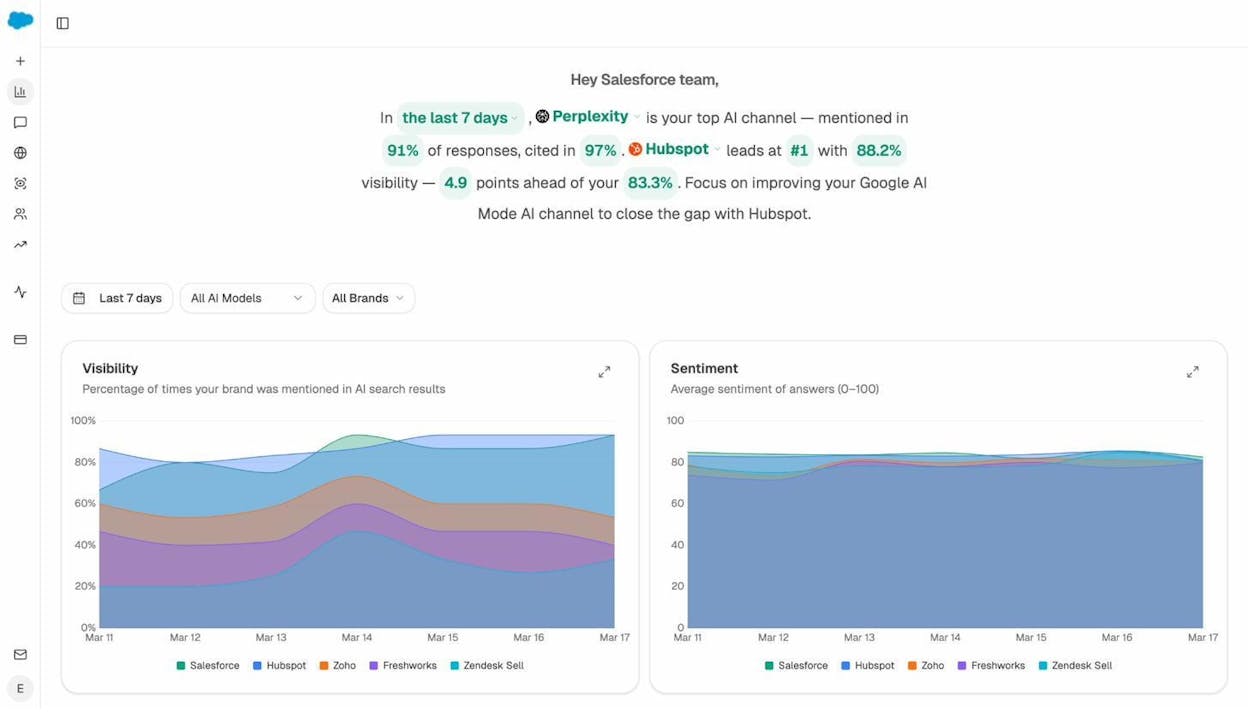
The AI Traffic Analytics dashboard connects to your Google Analytics to show real sessions coming from AI platforms. You can see which engines drive the most visits, what pages they land on, and how those visitors behave on your site.
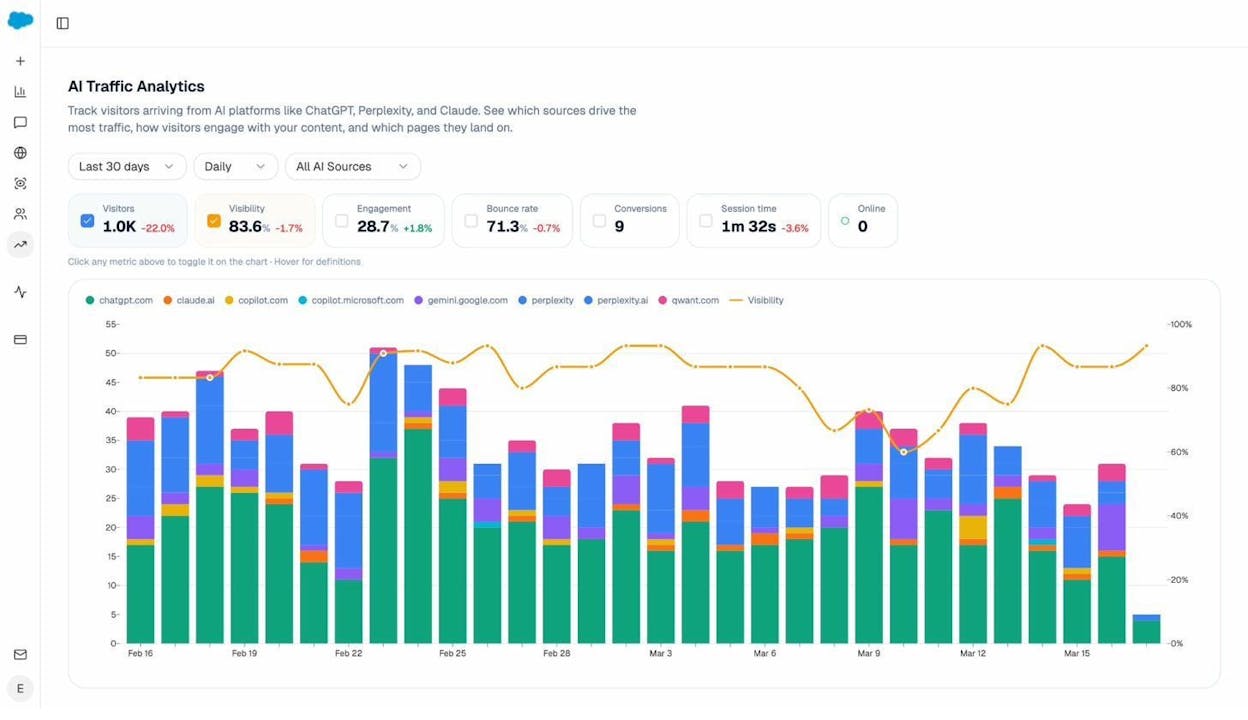
This data helps you connect the dots between your meta tag optimizations and actual AI-driven traffic. If you fix your meta descriptions on key pages and see a bump in AI citations a few weeks later, you know it’s working.
For a deeper dive into optimizing for AI search engines, read our guides on how to rank on ChatGPT and how to outrank competitors in AI search.
Quick Reference: Meta Tags Cheat Sheet
|
Meta Tag |
Required? |
Example |
Common Mistakes |
|---|---|---|---|
|
Title tag |
Yes |
<title>Your Title</title> |
Too long, duplicated, missing |
|
Meta description |
Yes |
<meta name="description" content="..."> |
Too long, duplicated, missing |
|
Meta robots |
Only when restricting |
<meta name="robots" content="noindex"> |
Accidental noindex, robots.txt conflicts |
|
Meta viewport |
Yes |
<meta name="viewport" content="width=device-width, initial-scale=1.0"> |
Missing on legacy sites |
|
Meta charset |
Yes |
<meta charset="UTF-8"> |
Using ISO-8859-1 instead of UTF-8 |
|
Open Graph tags |
Recommended |
<meta property="og:title" content="..."> |
Missing og:image, wrong dimensions |
|
Meta refresh |
Avoid |
N/A |
Use 301 redirects instead |
|
Meta keywords |
Remove |
N/A |
Still present on many legacy sites |
Final Thoughts
Meta tags aren’t complicated. But they’re easy to get wrong—and the wrong setting on the wrong page can quietly kill your traffic.
The good news is that most meta tag issues are straightforward to find and fix. Crawl your site, check for the common mistakes we covered, and fix them in order of impact. Prioritize rogue noindex tags and missing titles first. Then move to duplicate descriptions, charset issues, and Open Graph tags.
As AI search evolves into a significant traffic channel, the same meta tag best practices that improve your SEO also make your content more accessible to AI models. Clear titles, accurate descriptions, proper indexing directives, and clean page structure—these are the signals that both Google and AI engines use to understand your content.
The fundamentals haven’t changed. They’ve just become more important.
Want to see how AI search engines perceive your content? Try Analyze AI to track your brand’s visibility across ChatGPT, Perplexity, Claude, Gemini, and more—and connect it to real traffic and conversions.

Ernest

Ibrahim


