Analyze AI - AI Search Analytics Platform

7 Content Editing Tools Recommended by Our Editors

Written by

Ernest Bogore

Ernest Bogore

CEO

Reviewed by

Ibrahim Litinine

Ibrahim Litinine

Content Marketing Expert

7 Content Editing Tools Recommended by Our Editors

Most editing slows you down not because the draft is bad, but because the friction sits in the places you don’t see — the sentences that feel close but not quite right, the tone that drifts from paragraph to paragraph, the small errors that stack until your whole piece feels heavier than it should. When you write at pace, these gaps hide inside the flow and only show up when you’ve already lost time.

  • You reread the same section five times because one sentence refuses to land cleanly.

  • You fix quick errors but miss deeper clarity issues that make the piece feel uneven.

  • You spend more minutes switching tools than actually sharpening the draft.

We tested the tools that remove that friction instead of adding new steps. We pushed them through real workloads: long-form drafts, fast-moving blog posts, rewriting loops, clarity passes, and multilingual edits. We focused on what actually improves output — precision, clarity, structure, tone.

This overview gives you a focused selection of the seven tools our editors rely on day to day. You’ll see which ones clean early drafts, which reshape weak sections, which improve flow, and which help non-native writers sound confident. And if you want to go further — to understand how LLMs talk about your blog or brand in AI search — we’ve added a small bonus at the end to help you track and measure that too.

Table of Contents

TL;DR

Tool

Best For

What It Does Best

Key Limitations

Ideal When…

Grammarly

Fast everyday checks

Real-time grammar, spelling, tone, and clarity suggestions inside your daily apps

Can make writing sound generic; slows down on long docs; needs stable internet

You want cleaner first drafts across Docs/Word/email without adding editing steps

Hemingway Editor

Clarity and readability

Highlights dense, complex, or passive writing; enforces simple, scannable prose

Weak grammar checking; oversimplifies nuanced or technical content

You need a “readability pass” to cut clutter before deeper edits

ProWritingAid

Deep style, structure, and long-form editing

25+ reports on pacing, repetition, style, flow, and tone; strong rewriting tools

Steeper learning curve; free plan limits; may overwhelm new users

You edit long blogs, reports, or ebooks and need deep structural insight

QuillBot

Rewriting & paraphrasing

Fast paraphrasing, summarizing, tone changes, and content reshaping

Not a structural editor; rewrites can shift meaning; free plan limits

You repurpose content, paraphrase drafts, or shorten long text quickly

LanguageTool

Multilingual grammar & style checks

Grammar, spelling, and clarity fixes across 25+ languages; lightweight and fast

Not deep enough for long-form or high-nuance content

You work in multiple languages or need a simple first-pass proofreader

Wordtune

Sentence-level rewriting & tone changes

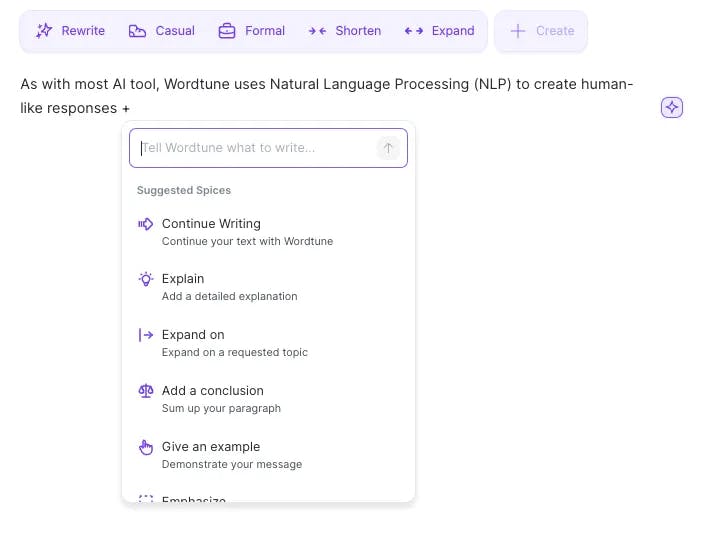
Polishes phrasing, rewrites sentences, adjusts tone (casual/formal/concise)

Can alter meaning; no structural reports; free plan limits

You need clean, smooth phrasing for emails, posts, or marketing copy fast

Ginger Software

Basic grammar + ESL support

Grammar checks, sentence rephrasing, translation, and text-to-speech

Shallow analysis; not suited for long-form or technical content

You are a non-native writer needing simple grammar fixes + natural phrasing help

Grammarly: best content editing tool for fast everyday checks

content editing tools

Key Grammarly standout features

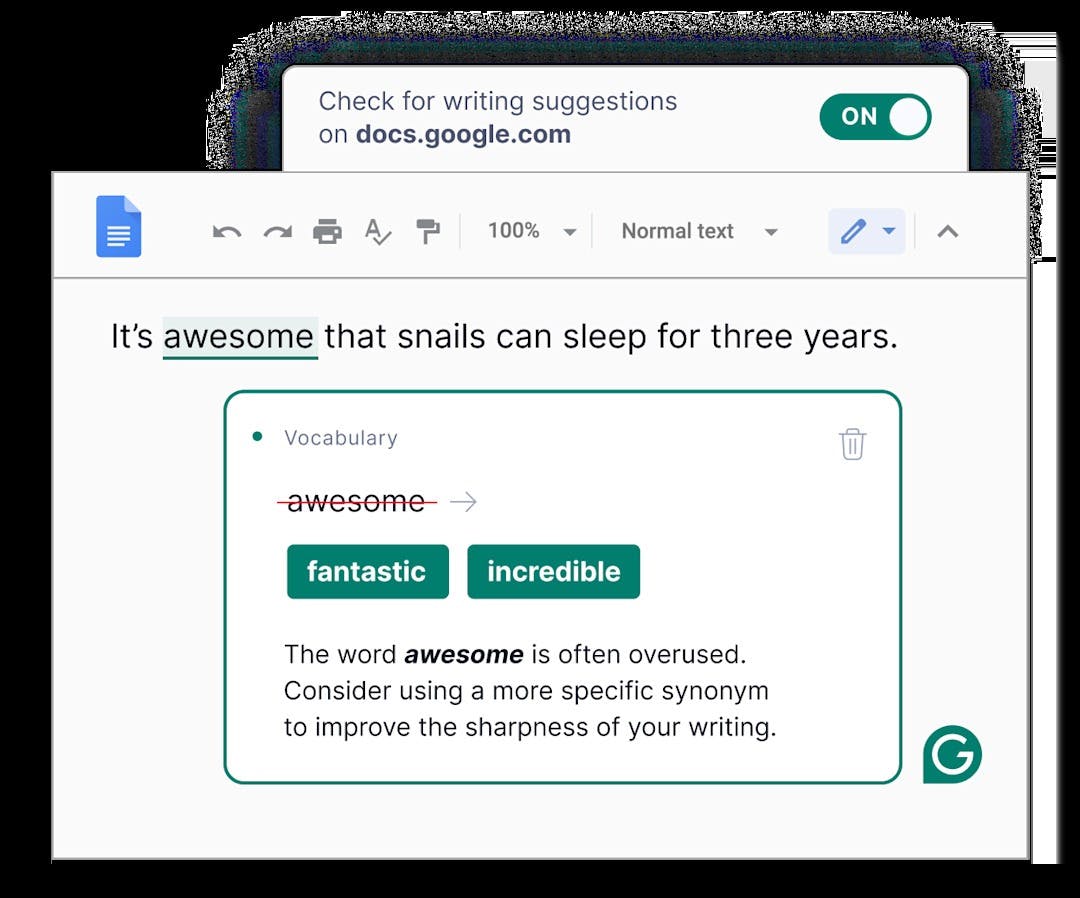
  • Real-time checks for grammar, spelling, and punctuation while you write

  • Clear suggestions that improve sentence clarity and remove awkward phrasing

  • Built-in AI helper that can draft, rewrite, or expand text in your current document

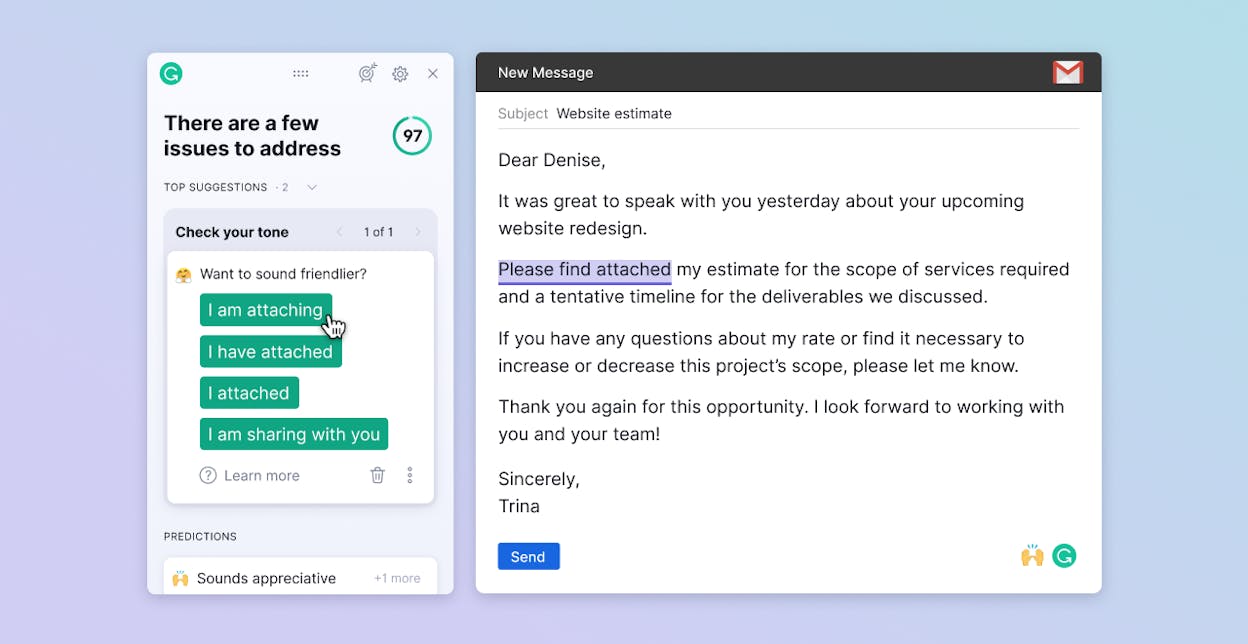
  • Tone detector that shows how your message sounds to your reader before you hit send

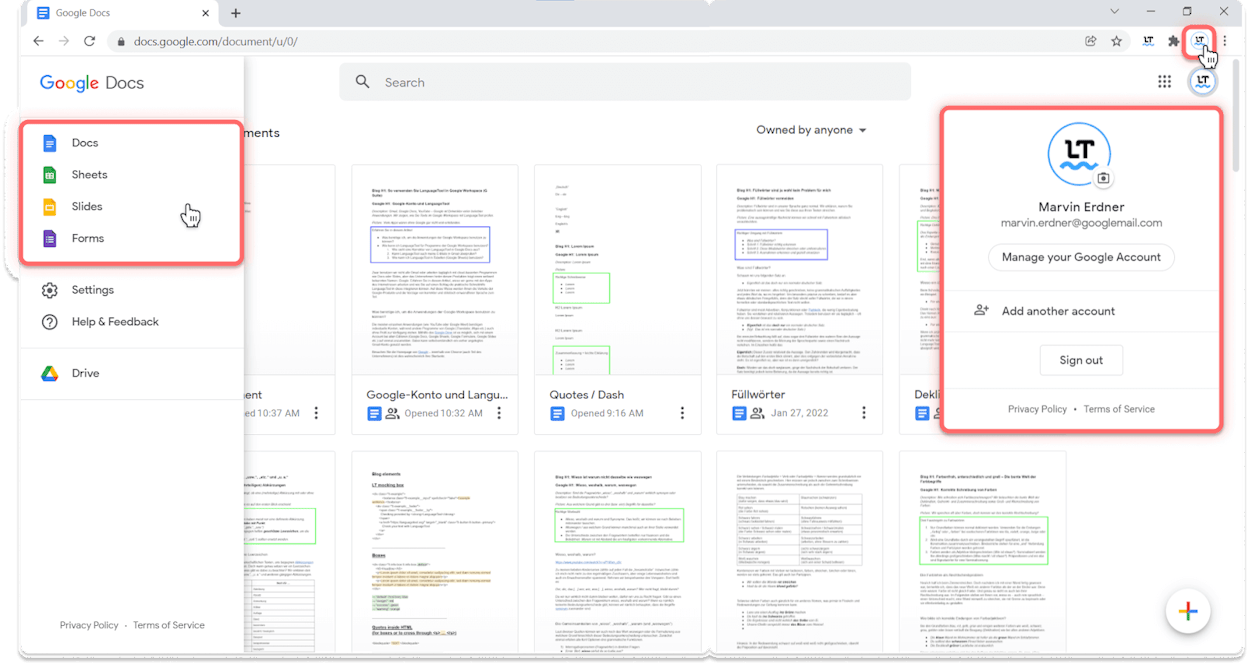
  • Browser, desktop, and app integrations that plug into tools like Google Docs, Word, and email

Grammarly works best when your team needs help while they write and edit in many places during the day. It sits inside your browser and tools like Docs or Word, so writers see problems as they type and do not wait for a separate review step. This real-time loop means fewer small errors reach your editor and more early drafts arrive already clean and easier to shape.

The tool also gives writers fast support when they feel stuck with a sentence or a short section. The AI helper can suggest new versions, offer shorter or longer wording, and help change tone without breaking the core message. Editors can then move faster because early drafts already match the right level of clarity and tone, so they spend more time on structure and story instead of hunting basic issues.

editing tools for writers

Once teams start to trust the tool, some new risks appear and they matter for editing quality. Writers may click “accept” on every suggestion and lose their voice, which leads to copy that feels safe but also dull and very similar across many brands. Grammarly can also push sentences toward simple patterns that read fine but lose nuance or specific flavor when you deal with complex topics or strong brand tone.

The tool also works best with a strong internet link and with common file types, which does not match every editing setup. Long documents with many comments can feel slow, and complex sentences can confuse the system, which forces editors to check flags that do not really need a change. These small frictions add up and mean you still need human judgment on each pass instead of trusting the tool like a full final gate.

Grammarly for content editing: key details at a glance

Aspect

What Grammarly offers

Why it matters for content editing

Core focus

Fixes grammar, spelling, punctuation, and basic style in real time

Editors get cleaner drafts and can focus more energy on structure and message

Clarity and tone support

Flags vague sentences and shows tone (formal, casual, confident, and more)

Helps match brand voice and level of formality across many writers and channels

AI drafting and rewriting

Suggests rewrites, expansions, and shorter versions inside the same document

Speeds up line edits and lets editors test different versions without starting from scratch

Plagiarism and originality

Checks text against a large database on paid plans

Useful when teams repurpose content and want to avoid accidental duplication or weak reuse

Integrations and workflow fit

Works in browsers, Google Docs, Word, email tools, and some CMS environments

Editors do not need a separate app, which keeps the editing flow simple and less disruptive

Customization options

Lets you set English type, basic rules, and tone preferences

Teams can shape suggestions so they match brand rules instead of a generic writing standard

Pricing and plans

Free tier for basics, paid tiers for full style, tone, AI, and plagiarism features

Makes it easy to test on a small scale before rolling out the tool for a larger content team

Best-fit use cases

  • Editors who want cleaner first drafts from writers or freelancers without adding extra tools

  • Content teams that publish blog posts, emails, and landing pages on a fast schedule

  • Non-native English writers who need strong support with grammar and tone in daily work

  • Managers who want a lightweight way to keep brand voice more consistent across many channels

Takeaway

Grammarly gives content teams a strong safety net for everyday writing and line edits, especially when you need speed and coverage across many tools. It does not replace a human editor, yet it cuts busywork and helps your team ship clearer drafts with less friction.

Hemingway Editor: best content editing tool for clarity and readability

best content editors

Key Hemingway Editor standout features

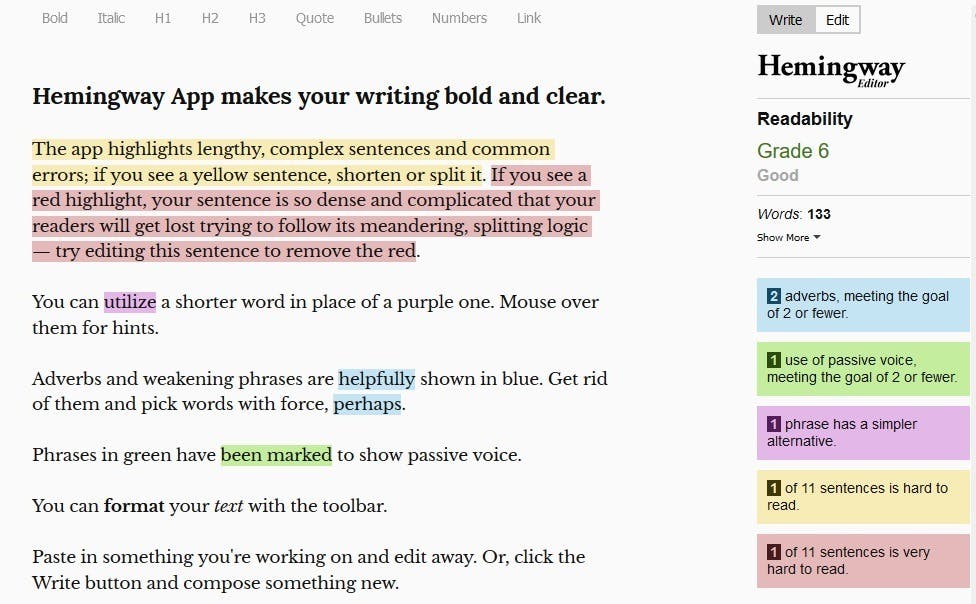
  • Readability analysis that gives each text a grade-level score

  • Highlights long or complex sentences that make ideas hard to follow

  • Flags passive voice, heavy adverb use, and overly complicated phrasing

  • Color-coded feedback that shows problem areas in clear visual blocks

  • “Plus” version with AI rewriting, tone shifts, and stronger grammar support

Hemingway Editor works well when writing needs to be easy to read and easy to scan, because the tool shows exactly where sentences grow heavy or unclear. It gives each piece a grade level that tells you how simple the text feels, and this score helps editors fix sections that slow readers down. It also keeps the interface clean and free of distractions, so writers can build a full draft before turning on the color map that shows where editing should start. This simple flow helps teams focus on clear ideas first and polish later, which makes editing feel more structured and less rushed.

The tool also gives strong visual signals that guide fast cleanup, so editors can improve a paragraph without guessing what needs fixing. Each color highlights a specific problem, and this system helps writers catch long sentences, soft verbs, or complex phrases in seconds. Over time, writers start to build new habits as they see the same types of issues flagged again and again. These habits lead to shorter sentences, more active voice, and clearer word choice, and this makes the final content easier for readers of all levels.

writing editing software

Hemingway Editor still has limits, and some gaps matter when working with more complex or formal content. It does not offer a full grammar or spelling checker, so small mechanical errors can slip through, and this forces editors to use a second tool for accuracy. This also means the tool cannot stand alone for teams that publish long technical content or copy with many rules.

The tool also becomes too strict when the writing calls for nuance or precise wording, because its “simplify everything” lens can remove needed detail. When the topic is technical, academic, or narrative, the tool can push edits that weaken the meaning, and this slows down editors who must fight against oversimplified suggestions. Large documents or structured pieces can feel hard to work with, since the free version offers no import, export, or formatting support, and the editor may drop or change layout when pasting from a CMS. In these cases, the minimal interface becomes a barrier instead of a strength.

Hemingway Editor for content editing: key details at a glance

Aspect

What Hemingway offers

Why it matters for content editing

Readability scoring

Grade-level analysis with clear metrics

Helps writers match tone to audience and fix dense parts quickly

Visual color-coding

Highlights long, complex, passive, or unclear sections

Gives editors fast targets for cleanup without scanning every line

Style and clarity focus

Flags patterns that hide meaning or slow reading

Improves flow and makes online content much easier to scan

Light, distraction-free UI

Minimal interface for writing and editing

Helps writers draft cleanly before tackling edits

AI tools in Plus version

Rewriting, tone shifts, and advanced corrections

Speeds up polishing and reduces manual line edits

Limitations in free version

No deep grammar check, limited formatting and export options

Needs pairing with other tools and suits short to mid-length content best

Pricing and plans

Free online tool with affordable paid upgrade

Low barrier for teams that need a clarity tool without large investment

Best-fit use cases

  • Writers who want to make blog posts, articles, or web copy clearer and easier to read

  • Teams that need a fast, visual tool to fix dense or confusing sections

  • Editors who want to enforce shorter, clearer sentence habits across multiple writers

  • Writers who need a first readability pass before deeper grammar or structure edits

Takeaway

Hemingway Editor helps writers cut clutter and make text clear, simple, and easy to read, and it works best as the first pass in a multi-step editing flow. It does not replace full grammar tools, yet its clarity-first approach gives teams a strong way to improve readability with less effort.

ProWritingAid: best content editing tool for deep style, structure, and long-form polish
editorial tools for content teams

Key ProWritingAid standout features

  • Full grammar, spelling, and punctuation checking across long documents

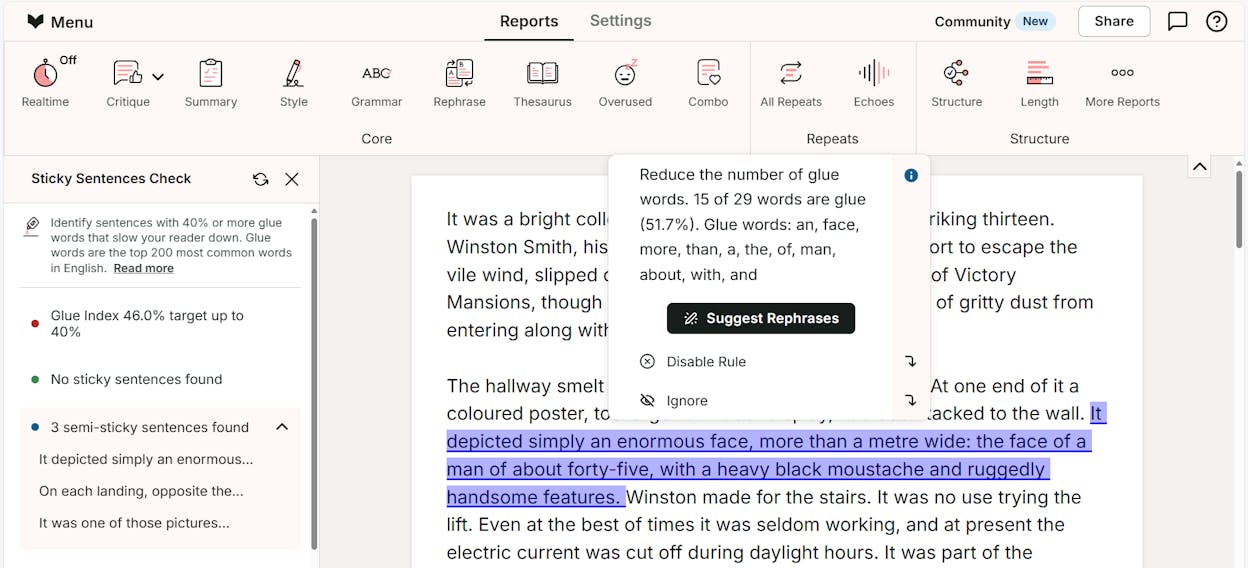
  • More than 25 reports that flag clichés, weak phrasing, pacing problems, and sentence variety issues

  • Custom style guides and writing-type settings for academic, business, creative, and web writing

  • AI rewriting tools — Rephrase, Sparks, and Manuscript Analysis — that smooth awkward lines and fit tone or length

  • Wide integrations with Google Docs, Word, Scrivener, browsers, and its desktop or web editor

ProWritingAid stands out because it treats editing as a full process rather than a quick surface fix, and it helps writers see how every part of the text connects. The tool scans each document with detailed reports that reveal patterns you rarely catch on a fast read, such as repeated words, poor pacing, or shifts in tone. These reports help writers slow down and study how paragraphs link together, which matters when you build long articles or reports that must stay clear from start to finish. The custom style guides also let you match edits to the type of content you create, so the tool reacts differently when you write an academic piece, a marketing page, or a long blog article.

content review tools

The tool also works well for teams because it pairs deep analysis with strong rewriting tools, and this mix helps editors reshape lines without rewriting everything by hand. You can run a full report to find weak areas and use Rephrase or Sparks to improve one line or a whole paragraph. You can also keep everything inside the tools you already use, because ProWritingAid works with Docs, Word, Scrivener, and browser editors. This wide reach helps you stay in the writing space instead of jumping between apps, which makes editing smoother and more focused.

ProWritingAid also has some areas where writers should move with care, since the tool’s depth can become a barrier when you first learn it. The many reports produce long lists of suggestions, and this amount of detail can overwhelm anyone who expects a simple grammar check. It takes time to learn how to balance strict editing rules with your voice, and new users often spend more energy sorting through flags than rewriting the text itself.

AI editing tools

The free version also adds friction when you work on long articles, because the word limit forces you to paste content in small chunks. Many advanced reports and rewriting tools live behind the paid plan, and this matters if you publish content every week and rely on the tool for structure and flow. In rare cases, ProWritingAid also flags sentences that are already solid, and if writers accept every change, the final piece can lose some voice or rhythm. Editors have to guide the tool instead of letting it drive the whole process.

ProWritingAid for content editing: key details at a glance

Aspect

What ProWritingAid offers

Why it matters for content editing

Core editing

Grammar, spelling, punctuation

Keeps drafts clean so editors focus on structure and clarity

Style and readability reports

25+ reports on pacing, clichés, repetition, readability, transitions, and sentence variety

Helps long articles and reports stay smooth and clear from start to finish

Customization and flexibility

Custom rules and writing style settings for each project

Adapts edits to marketing copy, academic writing, blog content, or creative tone

AI rewriting tools

Rephrase and Sparks to rewrite lines or adjust tone and length

Speeds up line edits and lets writers test many versions fast

Workflow integrations

Works in Word, Google Docs, Scrivener, browsers, desktop, web editor

Fits into many setups so writers can edit without switching platforms

Free vs. paid

Free plan with limits; paid plan unlocks full reports and features

Lets teams test early and upgrade when they need deep structural help

Long-form support

Strong at analyzing flow, pacing, and consistency across large documents

Ideal for blogs, reports, ebooks, and any long content you publish

Best-fit use cases

  • Editing long blog posts, white papers, or reports that need strong flow and clear structure

  • Writers or teams who want deeper insight into tone, pacing, repetition, or sentence patterns

  • Projects that need many rewrites or versions, such as SEO refreshes or repurposed content

  • Writers who want to improve their craft and learn from detailed reports

Takeaway

ProWritingAid gives editors and writers a powerful way to improve style, structure, and flow across long documents, and it acts like a writing coach built into your workflow. It works best when you want more than a quick grammar fix and need a full editing partner that strengthens clarity, pacing, and long-form quality.

QuillBot: best content editing tool for rewriting, paraphrasing, and quick content polishing

grammar and style checkers

Key QuillBot standout features

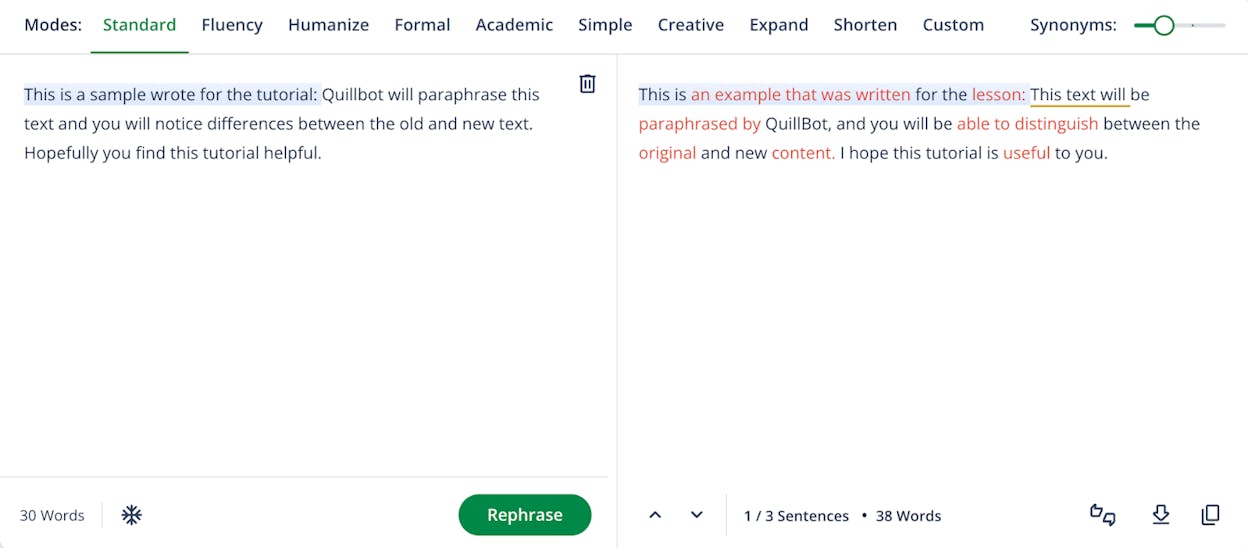
  • AI-powered paraphrasing that rewrites sentences and paragraphs in fresh words or styles

  • A built-in summarizer that condenses long text into shorter, clearer versions

  • Basic grammar and punctuation checking that supports fast cleanup during rewriting

  • Multiple rewriting modes that control tone and strength of edits, like Standard, Fluency, Creative, or Shorten

  • A full writing suite with paraphrasing, summarizing, grammar checks, translation, citation tools, and plagiarism/AI detection

QuillBot works well when you need to take existing text and reshape it fast because the tool focuses on rewriting rather than deep grammar analysis. It gives you a simple way to turn long, heavy text into a clearer version with fewer steps, and this helps when you work across many drafts or need to prepare content for new formats. The different modes also let you test how each sentence can sound without changing the meaning, and this helps you fine-tune tone or voice when you work with mixed audiences.

This tool also becomes helpful when your workflow includes repurposing or adapting content because it lets you summarize or rewrite whole sections without starting from zero. The suite inside QuillBot means you can paraphrase, shorten, check grammar, or even translate text from one place, which keeps your work smooth when switching between tasks. These features make QuillBot a strong support tool for editors who want faster ways to refresh or clarify text before moving into deeper structural editing.

content proofreading tools

QuillBot also has limits that matter when you work with complex or technical writing because its rewrites can shift meaning or soften detail. The tool tries to maintain the core message but may lose nuance in some cases, which means you must check each rewrite and avoid accepting changes in bulk. Editors working with strong brand voice or precise terms need to use careful review so the final piece stays accurate.

The tool also lacks deeper style reports or advanced grammar support, so it cannot replace tools built for structural editing or fine-tuned grammar work. Long content may require multiple passes because the free version includes word limits, and this can slow down teams producing many articles. This also means QuillBot will serve best as a partner tool, not a complete editing system, and writers must balance speed with careful quality control.

QuillBot for content editing: key details at a glance

Aspect

What QuillBot offers

Why it matters for content editing

Paraphrasing & rewriting

AI rewrites sentences and paragraphs

Helps refresh drafts fast and reduce repetition without changing core meaning

Summarization

Condenses long text into short, clear blocks

Useful for preparing summaries, abstracts, or new formats

Basic editing checks

Grammar, spelling, punctuation, translation, citation, plagiarism/AI checks

Gives a quick cleanup layer before deeper edits start

Tone/mode options

Standard, Fluency, Creative, Shorten (plus more on Premium)

Lets you shape tone and strength of edits for different writing needs

Workflow convenience

All rewriting and summarizing tools in one space

Helps keep the editing flow simple when juggling many drafts or content versions

Affordability

Free version with basic features; Premium unlocks more power

Easy to test and useful for small teams or high-frequency rewriting tasks

Best-fit use cases for QuillBot

  • Rewriting or paraphrasing existing content, from blog posts to AI-generated drafts

  • Shortening long paragraphs or research notes before deeper edits

  • Helping non-native writers improve fluency, clarity, and tone

  • Refreshing or repurposing content at scale without rewriting everything by hand

  • Working across languages or formats when you need translation and rewriting in one place

Takeaway

QuillBot gives writers a fast way to rewrite, shorten, and reshape text without heavy setup, and it works best as the first step in polishing draft content. It may shift meaning at times, so you must guide its output, yet its speed and flexibility make it a strong companion for any high-volume editing workflow.

LanguageTool: best content editing tool for multilingual grammar and style checks

copy editing tools

Key LanguageTool standout features

  • Grammar, spelling, and punctuation checking across more than 25–30 languages

  • Style checks that flag repeated words, punctuation issues, inconsistent capitalization, and basic clarity problems

  • Browser extensions and plugins for Google Docs, Word, desktop apps, and most web editors

  • Custom dictionaries and rule-setting controls that let you fine-tune how the tool behaves

  • Lightweight performance that gives fast checks and often costs less than heavier editing tools

LanguageTool helps writers who work across languages or write in English as a second language because it supports many languages without forcing you to switch platforms. The tool keeps the same interface while checking grammar and style in English, French, Spanish, German, Portuguese, and many others, so teams can edit text for different markets without using separate tools. This support matters when you publish content in more than one region, because it gives consistency and saves time when reviewing drafts that mix languages.

The tool also gives simple feedback without slowing down your work, since it focuses on grammar basics and light style checks rather than heavy reports. This makes it a useful first-pass tool that cleans drafts before deeper edits, and writers can fix repeated words, unclear phrasing, or basic punctuation issues quickly. The extensions for Google Docs, Word, and browsers mean writers do not need to switch apps or upload files, which helps keep the writing flow smooth.

online editing tools

LanguageTool also has some limits, and these gaps become clear when you work with long content or with writing that uses complex tone or structure. The tool does not run deep analysis on pacing, sentence flow, readability, or large patterns across a document, so it cannot replace full style or structure tools. This means long articles, SEO-driven content, or brand voice pieces still need a second tool or human review.

The rule-based system can also misread context, and this leads to suggestions that do not fit the meaning of the sentence. Some subtle errors pass through without any flag, and some correct sentences get flagged by mistake. Writers working in technical, creative, or branded voice must be careful and avoid relying only on LanguageTool, since it may miss deeper issues or shift tone by offering suggestions that break the intended meaning.

LanguageTool for content editing: key details at a glance

Aspect

What LanguageTool offers

Why it matters for content editing

Multilingual support

Checks grammar, spelling, and style in 25+ languages

Helps teams create content for international audiences or mix languages in the same workflow

Basic grammar and style checks

Grammar, punctuation, spelling, repeated-word detection, and clarity feedback

Makes fast proofreading easy and improves early drafts before deeper review

Flexibility and custom settings

Personal dictionaries, rule toggles, and a simple interface

Supports brand voice and avoids flags that do not match the content style

Workflow and integration ease

Plugins for browsers, Google Docs, Word, and desktop apps

Fits into daily writing tools without breaking workflow

Affordability and access

Free core version with optional paid upgrades

Gives individuals and small teams a strong tool without high cost

Limits on depth

No deep pacing, readability, tone, or structure analysis

Not enough as a full editor for long-form, SEO, or high-nuance writing

Best-fit use cases for LanguageTool

  • Writers who work across languages or prepare content for multilingual readers

  • Non-native English writers who need reliable grammar and style checks

  • Teams seeking an easy, low-cost grammar tool for daily writing tasks

  • Writers who want a light first pass before moving into more advanced editing tools

  • Workflows where speed and simplicity matter more than deep stylistic analysis

Takeaway

LanguageTool gives fast, simple, multilingual grammar and style checks that fit well into everyday writing tasks, and it helps teams clean drafts without heavy setup. It does not replace deep editing tools, yet it works well as a first-pass check that supports clarity and quality across many languages.

Wordtune: best content editing tool for rewriting, phrasing polish, and sentence-level fixes

content optimization tools

Key Wordtune standout features

  • AI-powered paraphrasing that rewrites sentences and paragraphs in fresh styles

  • Tools to shorten or expand sentences so you can adjust length and flow fast

  • Tone controls that switch text between casual, formal, concise, or more elaborate voices

  • Basic grammar, spelling, and punctuation checks to keep rewritten text correct

  • Browser extensions and an online editor that fit easily into Docs, web editors, and common writing tools

Wordtune helps writers reshape content when a draft needs clearer phrasing, smoother tone, or a more polished voice. Its AI rewriting tools let you transform a sentence in a few clicks, which removes the need to retype lines or try many variations by hand. This speed makes it useful when you build several drafts or versions in a short time, since you can turn rough text into something clean and focused without losing momentum.

The tool also works well for short-form writing and marketing copy because it helps match tone without long editing sessions. You can switch between casual or formal voice, make sentences tighter, or expand lines that feel too thin. These shifts help you produce readable text that feels better suited to its place in an email, blog post, or landing page. The blend of rewriting and light corrections means Wordtune can serve as a simple polish step before deeper editing.

tools for editing blog posts

Wordtune has limits that matter when you work with technical, nuanced, or long-form content. The tool can shift meaning during rewrites because it looks at patterns rather than full context, and this requires a careful human review. Writers should check every rewrite to make sure the tone and intent remain accurate, especially when the subject is complex or precise.

The tool also does not offer detailed reports or broader insights about structure, readability, or pacing. This means you cannot rely on it alone for long articles or SEO-heavy content that demands strong flow and style depth. The free plan limits how many rewrites you can run each day, and teams that use it at scale will feel the need to upgrade for full access.

Wordtune for content editing: key details at a glance

Aspect

What Wordtune offers

Why it matters for content editing

Paraphrasing & rewriting

AI rewriting of sentences and paragraphs

Helps refresh drafts quickly and avoid repetition without retyping

Sentence-level adjustments

Expand or shorten sentences; shift tone across casual or formal settings

Fits writing to the audience and the medium, from posts to emails

Basic grammar & spell check

Fixes punctuation, spelling, and grammar during rewriting

Protects correctness when editing tone or structure

Workflow integrations

Browser extension and web editor that work with many writing tools

Makes it easy to polish text where you already write

Speed & convenience

Fast suggestions and a simple interface

Useful for teams working under tight deadlines or high-volume output

Limitations on depth

No deep structure or style reports; rewrite limits on the free plan

Works best as a polish step, not a full editing solution

Best-fit use cases for Wordtune

  • Rewriting draft text to improve clarity, tone, and flow

  • Polishing short-form content like emails, blog intros, social posts, and marketing copy

  • Adjusting tone for different audiences without rewriting from scratch

  • Repurposing existing content into new formats or shorter summaries

  • Helping non-native writers improve fluency and sentence rhythm

Takeaway

Wordtune gives writers a fast way to smooth and reshape text, and it works best when you want quick, clean phrasing without a long edit. It supports speed and tone control, but because it can change meaning, you should use it alongside a careful human review and deeper editing tools when working on complex pieces.

Ginger Software: best content editing tool for grammar, spelling and easy rewriting — especially for non-native English writers

professional editing tools

Key Ginger Software standout features

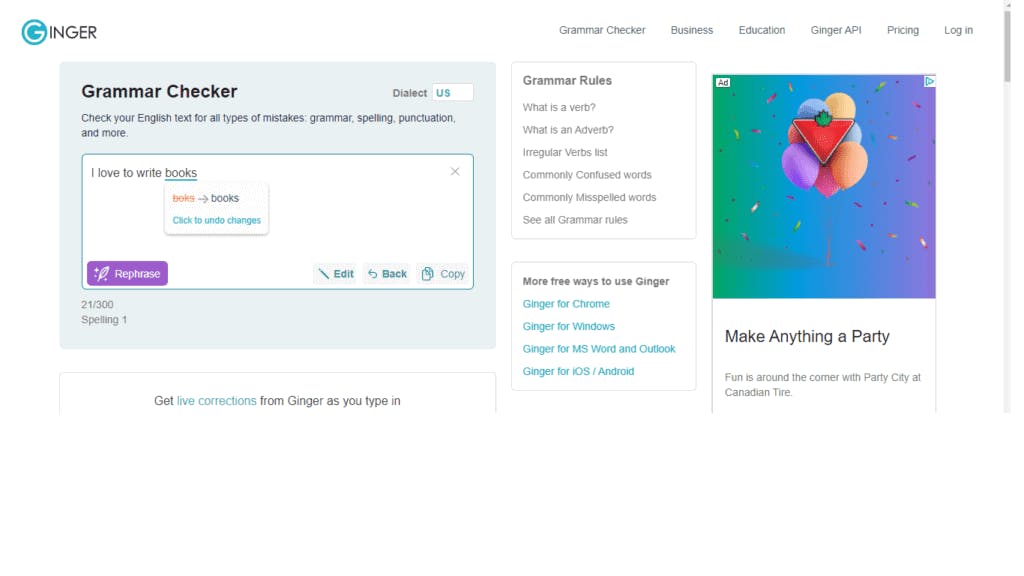
  • Grammar, spelling, and punctuation checking that flags common and contextual errors in full sentences

  • Sentence rephraser that turns awkward lines into smoother and more natural phrasing

  • Text-to-speech and translation tools that support multilingual writers and ESL users

  • Integrations across browsers, desktop apps, mobile apps, MS Word, email tools, and web editors

  • Free core plan with budget-friendly upgrades, making it more affordable than most full editing suites

Ginger Software helps writers catch basic grammar and spelling issues before they become visible mistakes, and it keeps the editing process simple enough for anyone to use. Because Ginger checks full sentences instead of isolated words, it catches errors that non-native English writers often miss, like small verb mistakes or phrasing that feels unnatural. This makes it helpful for daily writing tasks like emails, short blog posts, and web copy where clean, correct language matters. The simple interface also keeps the workflow fast, so writers can edit without digging through complex menus or reports.

When writers need to refine tone or clean up clunky sentences, Ginger’s rephraser offers quick alternatives that make text easier to read. This saves time because you can highlight a line, choose a rewrite, and move on without rewriting entire sections by hand. The read-aloud feature also helps writers hear how the text flows, which can reveal rhythm problems that are easy to miss on the screen. For non-native English writers, these tools act as guidance and support, helping them learn better phrasing and build confidence as they write.

content quality tools

Ginger also has limits that become clear when projects demand deeper editing or more structured workflows. The tool does not give large reports about pacing, readability, tone consistency, or structure, and this means it cannot replace a full editing system for long-form content. Writers working on technical articles, detailed blog posts, or SEO-driven content will still need extra tools to check flow, structure, and clarity at a higher level. In some cases, Ginger also misses subtle grammar details when sentences become more complex, which means a human editor must still guide many corrections.

The free plan, while helpful, restricts how much rewriting or checking you can do at once. Heavy users may feel the limits quickly, especially when working on long content or many drafts. Some integrations — especially older desktop or MS Office add-ins — can require manual setup or experience compatibility issues, which slows down work and adds steps to an otherwise simple workflow. These limits matter if you need a tool that can edit large pieces or support full-team workflows without friction.

Ginger Software for content editing: key details at a glance

Aspect

What Ginger offers

Why it matters for content editing

Core proofreading

Grammar, spelling, punctuation checks with context awareness

Helps writers clean up basic mistakes quickly

Sentence rewriting

One-click rephrasing for smoother and more natural sentences

Makes editing easier for writers who struggle with phrasing or fluency

Support for non-native writers

Translation, read-aloud, and grammar support

Ideal for ESL writers who need help improving tone and clarity

Integration & accessibility

Browser extensions, desktop/mobile apps, MS Word add-in

Fits smoothly into common writing tools and workflows

Cost & accessibility

Free plan with budget-friendly upgrades

Great for individuals and small teams who need affordable editing support

Editing depth

Basic checks only; no deep style or structure reports

Not enough for long-form or polished content; must pair with stronger tools

Best-fit use cases for Ginger Software

  • Writers who are non-native English speakers and need solid grammar and phrasing support

  • Teams producing short- to medium-length content on a limited budget

  • Writers who want a simple, lightweight tool without heavy setup or learning curves

  • Anyone needing fast rewriting, translation, or read-aloud help in one place

  • Writers who need basic grammar support before a more advanced editing pass

Takeaway

Ginger Software offers clear value for everyday writing and ESL support, giving writers simple tools to fix mistakes and polish sentences without complexity. It works best as a first-pass editor that handles basic corrections and quick rewrites, but deeper content still needs a more powerful editing tool or an experienced human review.

writing improvement tools

Analyze AI is not a content editing tool. Content editors help you rewrite sentences, fix grammar, and polish tone inside the document. Analyze AI sits one layer above that workflow by showing how AI answer engines interpret your content, cite it, and send traffic to it, so you can improve what gets surfaced and prove whether that visibility turns into conversions and revenue.

Most tools in this list help your team ship cleaner drafts. Analyze AI helps your team understand what happens after publishing, especially now that buyers increasingly discover brands through AI search. It tells you whether your content is showing up in answers, which prompts trigger those mentions, and whether that exposure results in qualified sessions or empty visibility.

Key Analyze AI features

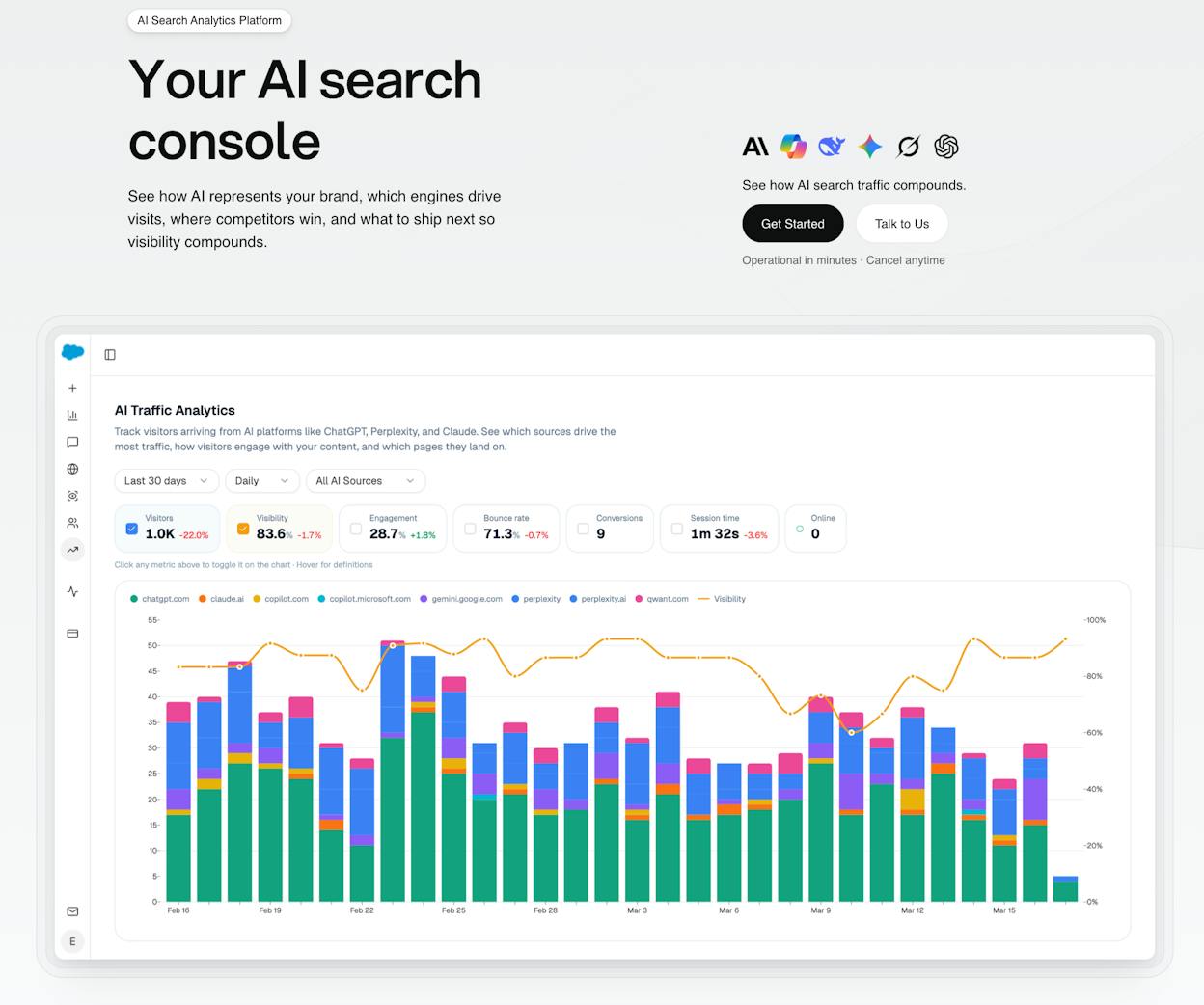
  • See actual AI referral traffic by engine and track trends that reveal where visibility grows and where it stalls.

  • See the pages that receive that traffic with the originating model, the landing path, and the conversions those visits drive.

  • Track prompt-level visibility and sentiment across major LLMs to understand how models talk about your brand and competitors.

  • Audit model citations and sources to identify which domains shape answers and where your own coverage must improve.

  • Surface opportunities and competitive gaps that prioritize actions by potential impact, not vanity metrics.

Here are in more details how Analyze AI works:

See actual traffic from AI engines, not just mentions

editing tools for marketers

Analyze AI attributes every session from answer engines to its specific source—Perplexity, Claude, ChatGPT, Copilot, or Gemini. You see session volume by engine, trends over six months, and what percentage of your total traffic comes from AI referrers. When ChatGPT sends 248 sessions but Perplexity sends 142, you know exactly where to focus optimization work.

SEO content editing tools

Know which pages convert AI traffic and optimize where revenue moves

collaborative editing software

Most tools stop at "your brand was mentioned." Analyze AI shows you the complete journey from AI answer to landing page to conversion, so you optimize pages that drive revenue instead of chasing visibility that goes nowhere.

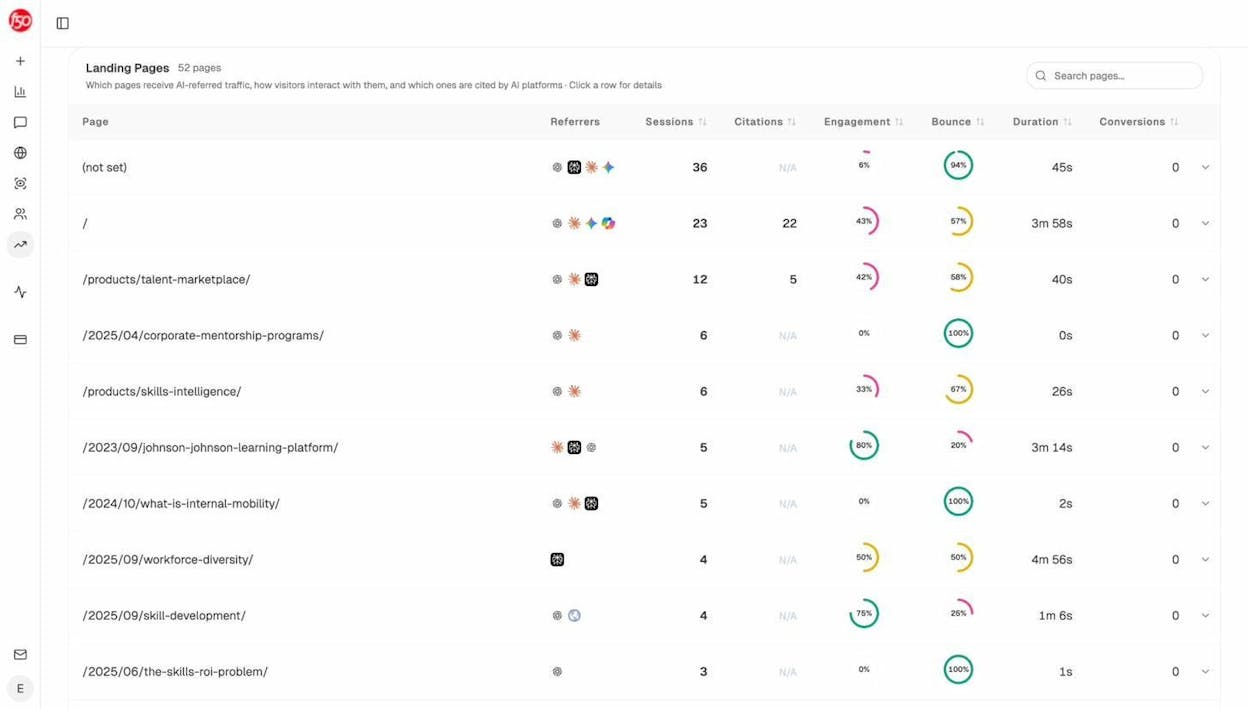
The platform shows which landing pages receive AI referrals, which engine sent each session, and what conversion events those visits trigger. 

For instance, when your product comparison page gets 50 sessions from Perplexity and converts 12% to trials, while an old blog post gets 40 sessions from ChatGPT with zero conversions, you know exactly what to strengthen and what to deprioritize.

Track the exact prompts buyers use and see where you're winning or losing

content polishing tools

Analyze AI monitors specific prompts across all major LLMs—"best Salesforce alternatives for medium businesses," "top customer service software for mid-sized companies in 2026," "marketing automation tools for e-commerce sites." 

editorial workflow tools

For each prompt, you see your brand's visibility percentage, position relative to competitors, and sentiment score.

You can also see which competitors appear alongside you, how your position changes daily, and whether sentiment is improving or declining.

content revision tools

Don’t know which prompts to track? No worries. Analyze AI has a prompt suggestion feature that suggests the actual bottom of the funnel prompts you should keep your eyes on.

Audit which sources models trust and build authority where it matters

writing clarity tools

Analyze AI reveals exactly which domains and URLs models cite when answering questions in your category. 

You can see, for instance, that Creatio gets mentioned because Salesforce.com's comparison pages rank consistently, or that IssueTrack appears because three specific review sites cite them repeatedly. 

AI writing editors

Analyze AI shows usage count per source, which models reference each domain, and when those citations first appeared.

content editing platforms

Citation visibility matters because it shows you where to invest. Instead of generic link building, you target the specific sources that shape AI answers in your category. You strengthen relationships with domains that models already trust, create content that fills gaps in their coverage, and track whether your citation frequency increases after each initiative.

Prioritize opportunities and close competitive gaps

editing software for teams, content consistency tools

Analyze AI surfaces opportunities based on omissions, weak coverage, rising prompts, and unfavorable sentiment, then pairs each with recommended actions that reflect likely impact and required effort. 

For instance, you can run a weekly triage that selects a small set of moves—reinforce a page that nearly wins an important prompt, publish a focused explainer to address a negative narrative, or execute a targeted citation plan for a stubborn head term. 

Tie AI visibility toqualified demand.

Measure the prompts and engines that drive real traffic, conversions, and revenue.

Covers ChatGPT, Perplexity, Claude, Copilot, Gemini

Similar Content You Might Want To Read

Discover more insights and perspectives on related topics

© 2026 Analyze AI. All rights reserved.