



Summarize this blog post with:


In this article, you’ll learn exactly what an XML sitemap is, why it matters for both search engines and AI discovery, and how to create one for any website—whether you use WordPress, Shopify, Wix, Squarespace, or no CMS at all. You’ll also get step-by-step instructions for submitting your sitemap to Google Search Console, fixing common errors that prevent pages from being indexed, and making sure your content is structured for maximum discoverability across traditional search and AI answer engines.
Table of Contents
What Is a Sitemap?
A sitemap is an XML file that lists the important pages on your website. It tells search engines which URLs exist, when they were last updated, and how they relate to each other.
Think of it as a table of contents for your site, except the audience is Googlebot, Bingbot, and other crawlers—not human readers.
Every page you want indexed in search results should be in your sitemap. Pages you don’t want indexed (admin pages, duplicate content, staging URLs) should be excluded.
There are a few practical constraints worth knowing upfront:
|
Constraint |
Limit |
|---|---|
|
Maximum URLs per sitemap |
50,000 |
|
Maximum file size |
50 MB (uncompressed) |
|
File format |
XML (UTF-8 encoding required) |
If your site exceeds either the URL count or file size limit, you’ll need multiple sitemaps organized under a sitemap index file (more on that below).
What Does an XML Sitemap Look Like?
XML sitemaps are built for machines, not people. If you open one in a browser, you’ll see raw code. Here’s a simplified example:
<?xml version="1.0" encoding="UTF-8"?>
<urlset xmlns="http://www.sitemaps.org/schemas/sitemap/0.9">
<url>
<loc>https://www.example.com/</loc>
<lastmod>2026-03-15</lastmod>
</url>
<url>
<loc>https://www.example.com/blog/</loc>
<lastmod>2026-03-10</lastmod>
</url>
</urlset>
Let’s break down each element.
XML Declaration
<?xml version="1.0" encoding="UTF-8"?>
This line tells parsers the file uses XML version 1.0 with UTF-8 character encoding. Every sitemap must start with this declaration. The version should always be 1.0, and the encoding must be UTF-8.
URL Set
<urlset xmlns="http://www.sitemaps.org/schemas/sitemap/0.9">
The <urlset> tag wraps all the URLs in the sitemap. The xmlns attribute specifies the Sitemap 0.90 protocol, which is the standard supported by Google, Bing, and Yahoo.
URL Entries
<url>
<loc>https://www.example.com/blog/</loc>
<lastmod>2026-03-10</lastmod>
</url>
Each <url> block represents one page. The <loc> tag is the only required element—it specifies the full, absolute, canonical URL of the page.
There are three optional tags you can include inside each <url> block:
<lastmod> — The date the page was last meaningfully updated. Use W3C Datetime format (e.g., 2026-03-15 or 2026-03-15T10:30:00+00:00). Google has said they ignore this tag in most cases because too many sites set it to the current date for every page instead of the actual last-modified date. But if you keep it accurate, it can help Google prioritize recrawling.
<priority> — A value between 0.0 and 1.0 indicating how important the URL is relative to other URLs on your site. Google has publicly stated they treat this as noise and ignore it.
<changefreq> — Tells search engines how often the page is likely to change. Valid values include always, hourly, daily, weekly, monthly, yearly, and never. Google’s John Mueller has confirmed this tag no longer plays a meaningful role in crawling decisions.
The bottom line: focus on the <loc> tag and an accurate <lastmod>. Skip <priority> and <changefreq>. They add clutter without adding value.
Types of XML Sitemaps
Most people think of sitemaps as a single XML file listing web pages. But there are actually several specialized sitemap types, each designed to help search engines discover specific kinds of content.
Standard XML Sitemap
This is the one we’ve been discussing. It lists your web pages and is the most common type. If you only create one sitemap, it should be this one.
Image Sitemap
If your site relies heavily on images (ecommerce stores, photography sites, design portfolios), you can include image information directly in your sitemap or create a dedicated image sitemap. This helps Google discover images that might not be found through normal page crawling, such as images loaded via JavaScript.
<url>
<loc>https://www.example.com/products/blue-widget</loc>
<image:image>
<image:loc>https://www.example.com/images/blue-widget.jpg</image:loc>
<image:caption>Blue widget - front view</image:caption>
</image:image>
</url>
According to Google’s documentation on image sitemaps, you can list up to 1,000 images per page in a sitemap.
Video Sitemap
If you host videos on your site, a video sitemap tells Google about the video content, including the title, description, play page URL, thumbnail, and duration. This is especially useful if you embed videos behind tabs or accordions where crawlers might miss them.
<url>
<loc>https://www.example.com/videos/tutorial</loc>
<video:video>
<video:thumbnail_loc>https://www.example.com/thumbs/tutorial.jpg</video:thumbnail_loc>
<video:title>How to Create a Sitemap</video:title>
<video:description>Step-by-step tutorial on creating XML sitemaps</video:description>
</video:video>
</url>
Google’s video sitemap guidelines cover the full list of required and optional tags.
News Sitemap
If you publish time-sensitive content (breaking news, press releases, current events), a news sitemap helps Google discover and index articles faster. News sitemaps should only include articles published in the last 48 hours.
<url>
<loc>https://www.example.com/news/breaking-story</loc>
<news:news>
<news:publication>
<news:name>Example News</news:name>
<news:language>en</news:language>
</news:publication>
<news:publication_date>2026-03-15T10:00:00+00:00</news:publication_date>
<news:title>Breaking: Major Policy Change Announced</news:title>
</news:news>
</url>
Sitemap Index Files for Large Websites
If your website has more than 50,000 URLs or your sitemap exceeds 50 MB, you need to split it into multiple sitemaps and link them together with a sitemap index file.
A sitemap index file looks like this:
<?xml version="1.0" encoding="UTF-8"?>
<sitemapindex xmlns="http://www.sitemaps.org/schemas/sitemap/0.9">
<sitemap>
<loc>https://www.example.com/sitemap-posts.xml</loc>
<lastmod>2026-03-15</lastmod>
</sitemap>
<sitemap>
<loc>https://www.example.com/sitemap-pages.xml</loc>
<lastmod>2026-03-10</lastmod>
</sitemap>
<sitemap>
<loc>https://www.example.com/sitemap-products.xml</loc>
<lastmod>2026-03-12</lastmod>
</sitemap>
</sitemapindex>
Most SEO plugins generate sitemap index files automatically. For example, a WordPress site using Yoast SEO will typically create separate child sitemaps for posts, pages, categories, and other content types—all organized under a single index file.
This approach keeps each individual sitemap under the 50,000 URL limit while giving search engines a single entry point to discover everything.
Why Do You Need a Sitemap?
Google discovers new pages by following links. When Googlebot crawls a page, it finds the links on that page, adds the linked URLs to its crawl queue, and visits them later. If a page on your site has no incoming links—internal or external—Google may never find it.
Sitemaps solve this problem. They give search engines a direct list of every important URL on your site, regardless of whether those URLs are well-linked.
You especially need a sitemap if:
-
Your site is large. Sites with thousands of pages need sitemaps because crawlers can miss deep pages that are several clicks from the homepage.
-
Your site is new. New websites have few or no backlinks. Without external links pointing to your pages, Google relies heavily on your sitemap to discover content.
-
Your pages are isolated. Some pages—like landing pages, orphan pages, or pages behind faceted navigation—may not be reachable through normal internal linking.
-
You publish frequently. If you publish daily or weekly content, a sitemap helps Google find new pages faster.
-
You use rich media. Image and video sitemaps help search engines discover media content that standard crawling might miss.
One thing to be clear about: having a sitemap does not guarantee indexing. Google still decides whether a page is worth indexing based on content quality, crawl budget, and other factors. A sitemap simply ensures Google knows the page exists.
Sitemaps and AI Search Discoverability
Here’s something most sitemap guides skip: the same structural clarity that helps Google discover your pages also influences how AI answer engines find and cite your content.
AI search engines like ChatGPT, Perplexity, Gemini, and Claude pull answers from web pages. They rely on crawlers to build their knowledge bases, and those crawlers behave similarly to search engine bots. A well-structured sitemap makes your content easier to discover across both channels.
But AI discoverability goes beyond just having a sitemap. If you want to track whether AI engines are actually finding, citing, and driving traffic to your content, you need AI search monitoring tools that show you what’s happening across these platforms.
With Analyze AI, you can see which of your pages are getting cited by AI platforms, which engines are driving real traffic, and which pages AI models are sending visitors to.
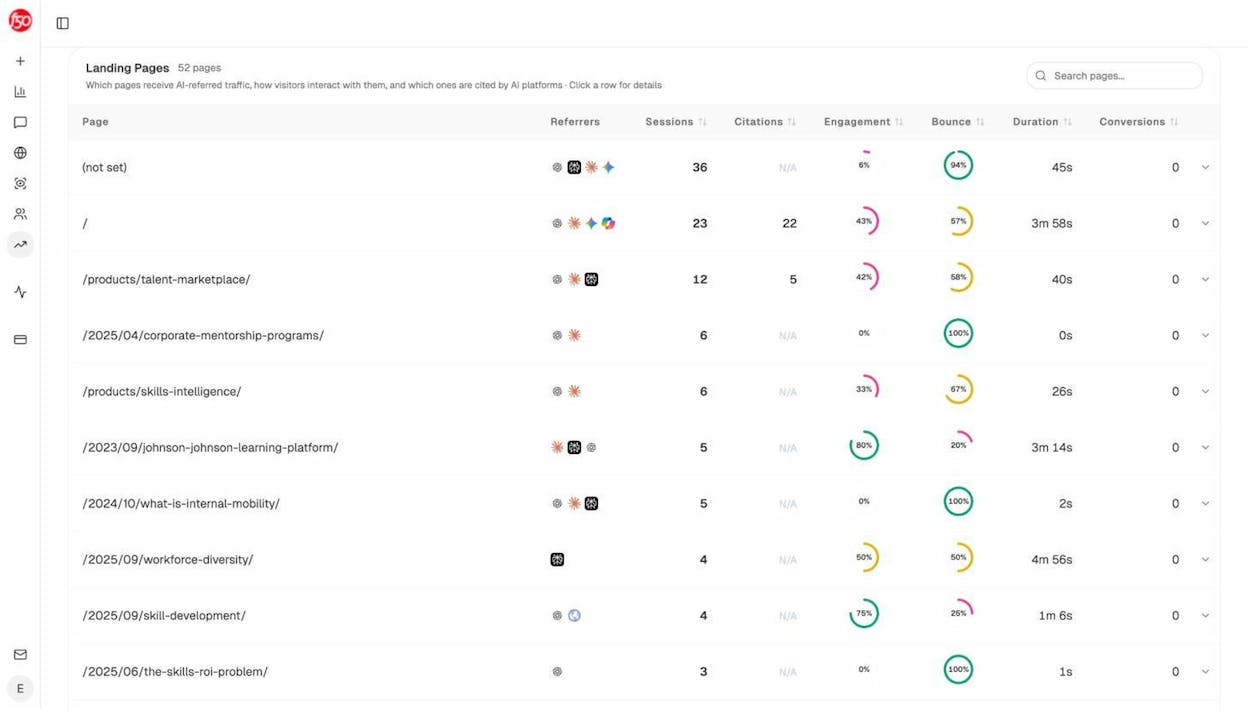
This kind of visibility matters because a page that’s technically discoverable (it’s in your sitemap, it’s indexed by Google) might still be invisible to AI engines. Tracking both channels gives you a complete picture of how your content performs across the entire search landscape.
How to Create a Sitemap
The method you use depends on your content management system. Most modern CMS platforms either generate sitemaps automatically or offer plugins that handle it. If you don’t use a CMS, you’ll need to generate one manually.
Creating a Sitemap in WordPress
WordPress does not generate a comprehensive XML sitemap by default. While WordPress 5.5+ includes a basic built-in sitemap at /wp-sitemap.xml, it lacks the customization and control most SEO strategies need. The standard approach is to use an SEO plugin.
Using Yoast SEO:
Step 1. Log into your WordPress dashboard and go to Plugins > Add New.
![[Screenshot: WordPress dashboard showing Plugins > Add New in the left sidebar navigation]](https://www.datocms-assets.com/164164/1777119612-blobid2.png?auto=format,compress&w=1248&fit=max)
Step 2. Search for “Yoast SEO” in the search bar. Click Install Now on the first result, then click Activate.
![[Screenshot: WordPress plugin search results showing Yoast SEO with the Install Now button]](https://www.datocms-assets.com/164164/1777119612-blobid3.png?auto=format,compress&w=1248&fit=max)
Step 3. Once activated, go to Yoast SEO > Settings > Site Features in the left sidebar. Scroll down to the “APIs” section and make sure the XML sitemaps toggle is switched on.
![[Screenshot: Yoast SEO settings page showing the XML sitemaps toggle in the on position]](https://www.datocms-assets.com/164164/1777119619-blobid4.png?auto=format,compress&w=1248&fit=max)
Step 4. Your sitemap is now live. Access it at yourdomain.com/sitemap_index.xml. You’ll see a sitemap index file that links to individual sitemaps for posts, pages, categories, and other content types.
![[Screenshot: Browser showing a Yoast-generated sitemap index file with links to post-sitemap.xml, page-sitemap.xml, and category-sitemap.xml]](https://www.datocms-assets.com/164164/1777119619-blobid5.png?auto=format,compress&w=1248&fit=max)
Customizing what’s included:
By default, Yoast includes all public post types and taxonomies. To exclude specific content types (like tag pages or a custom post type you don’t want indexed), go to Yoast SEO > Settings > Content Types or Taxonomies and toggle off the types you want to exclude.
![[Screenshot: Yoast SEO Search Appearance settings showing toggle options for including/excluding content types from sitemap]](https://www.datocms-assets.com/164164/1777119624-blobid6.jpg?auto=format,compress&w=1248&fit=max)
To exclude individual posts or pages, open the post editor, scroll to the Yoast SEO meta box, go to the Advanced tab, and set “Allow search engines to show this post in search results?” to No.
![[Screenshot: Yoast SEO meta box in the WordPress post editor showing the Advanced tab with the noindex toggle]](https://www.datocms-assets.com/164164/1777119625-blobid7.png?auto=format,compress&w=1248&fit=max)
Important: Only exclude pages from your sitemap that you genuinely don’t want appearing in search results. If you noindex a page, it will be removed from the sitemap and dropped from Google’s index.
Using Rank Math:
Rank Math is another popular WordPress SEO plugin that handles sitemaps. The process is similar:
Step 1. Install and activate Rank Math from the plugin directory.
Step 2. Go to Rank Math > Sitemap Settings. Rank Math enables the sitemap by default.
Step 3. Use the tabs (General, Posts, Pages, etc.) to customize which content types are included.
Step 4. Access your sitemap at yourdomain.com/sitemap_index.xml.
![[Screenshot: Rank Math Sitemap Settings page showing the module toggle and content type tabs]](https://www.datocms-assets.com/164164/1777119630-blobid8.jpg?auto=format,compress&w=1248&fit=max)
Both plugins handle sitemap index files, automatic updates when content changes, and proper exclusion of noindexed or canonicalized pages.
Creating a Sitemap in Shopify
Shopify generates a sitemap automatically. You’ll find it at yourstore.com/sitemap.xml.
Shopify’s sitemap is actually a sitemap index file that links to child sitemaps for products, collections, blogs, and pages. It updates automatically when you add, edit, or remove content.
![[Screenshot: Browser showing a Shopify-generated sitemap index file at yourstore.com/sitemap.xml]](https://www.datocms-assets.com/164164/1777119631-blobid9.png?auto=format,compress&w=1248&fit=max)
The limitation with Shopify: there’s no built-in way to exclude individual pages from the sitemap. To noindex a page, you need to edit the theme’s .liquid template files directly and add a <meta name="robots" content="noindex"> tag. This requires some comfort with Shopify’s templating language.
For most Shopify stores, the default sitemap works fine. The main concern is making sure you’re not indexing thin product variant pages or empty collection pages—check your sitemap periodically to confirm only valuable pages are listed.
Creating a Sitemap in Wix
Wix creates a sitemap automatically at yourwixsite.com/sitemap.xml. You don’t need to install anything.
To exclude a page from the sitemap, go to the page’s settings, click on the SEO (Google) tab, and turn off “Show this page in search results.”
![[Screenshot: Wix page settings showing the SEO tab with the “Show this page in search results” toggle]](https://www.datocms-assets.com/164164/1777119637-blobid10.png?auto=format,compress&w=1248&fit=max)
Keep in mind that toggling this off also adds a noindex meta tag to the page, which means the page will be excluded from both the sitemap and search engine results entirely.
One known issue with Wix: if you set a canonical URL on a page, Wix does not automatically remove that page from the sitemap. Including canonicalized pages in your sitemap sends conflicting signals to Google (“index this URL” via the sitemap vs. “the canonical version is somewhere else” via the canonical tag). Check your sitemap after setting canonicals to make sure this doesn’t cause issues.
Creating a Sitemap in Squarespace
Squarespace generates a sitemap automatically at yoursquarespacesite.com/sitemap.xml. No configuration is needed.
You can exclude pages from search engines (and the sitemap) by going to the page settings and checking the “Hide from search engines” option under the SEO tab.
![[Screenshot: Squarespace page settings showing the SEO tab with the “Hide from search engines” checkbox]](https://www.datocms-assets.com/164164/1777119637-blobid11.png?auto=format,compress&w=1248&fit=max)
Squarespace doesn’t give you granular control over the sitemap beyond this. For most Squarespace sites, the automatic sitemap is sufficient.
Creating a Sitemap Without a CMS
If you’re working with a static site, a custom-built website, or a CMS that doesn’t generate sitemaps, you have several options.
Option 1: Use Screaming Frog (for sites under 500 pages)
Screaming Frog’s free version crawls up to 500 URLs, which is enough for most small-to-medium sites.
Step 1. Download and install Screaming Frog SEO Spider (free version works).
Step 2. Open the tool and make sure the mode is set to Spider (check under Mode > Spider).
Step 3. Enter your homepage URL in the “Enter URL to spider” field at the top. Make sure you use the canonical version of your homepage (with or without www, https vs http—whichever your site actually resolves to).
![[Screenshot: Screaming Frog interface showing the URL input field with a homepage URL entered]](https://www.datocms-assets.com/164164/1777119642-blobid12.png?auto=format,compress&w=1248&fit=max)
Step 4. Click Start and wait for the crawl to complete.
Step 5. Check the total number of URLs crawled in the bottom-right corner. If it shows fewer than 500, you’re good. If it says “500 of 500,” you’ve hit the free version’s limit and the sitemap will be incomplete.
Step 6. Go to Sitemaps > XML Sitemap. In the settings dialog, uncheck <lastmod>, <changefreq>, and <priority> (Google ignores them anyway). Click Next and save the file.
![[Screenshot: Screaming Frog XML Sitemap export settings with lastmod, changefreq, and priority unchecked]](https://www.datocms-assets.com/164164/1777119643-blobid13.png?auto=format,compress&w=1248&fit=max)
Option 2: Use an online sitemap generator (with caution)
There are many free online sitemap generators, but their quality varies significantly. Some include URLs that shouldn’t be in a sitemap: redirected pages, noindexed pages, or non-canonical URLs.
Here’s a comparison of popular free generators and where they fall short:
|
Generator |
Includes non-canonical URLs? |
Includes noindexed URLs? |
Includes redirects? |
|---|---|---|---|
|
xml-sitemaps.com |
Yes ❌ |
No ✅ |
No ✅ |
|
web-site-map.com |
Yes ❌ |
No ✅ |
No ✅ |
|
xmlsitemapgenerator.org |
Yes ❌ |
No ✅ |
No ✅ |
|
smallseotools.com |
Yes ❌ |
Yes ❌ |
Yes ❌ |
|
freesitemapgenerator.com |
Yes ❌ |
Yes ❌ |
Yes ❌ |
|
duplichecker.com |
Yes ❌ |
Yes ❌ |
Yes ❌ |
None of the generators we tested properly handled canonical URLs. This matters because including both the canonical and non-canonical versions of a page in your sitemap tells Google to index both—which can create duplicate content issues.
If you use an online generator, review the output manually. Remove any URLs that redirect, have noindex tags, or point to non-canonical versions of a page.
Option 3: Build it manually
For very small sites (under 50 pages), you can write the sitemap by hand. Create a file called sitemap.xml with the structure shown in the XML format section above. List each URL in a <url> block with a <loc> tag.
This approach gives you full control but doesn’t scale. Once your site grows beyond a few dozen pages, switch to an automated method.
Option 4: Use a script
If you’re comfortable with the command line, you can generate a sitemap programmatically. Here’s a simple Python script that creates a sitemap from a list of URLs:
urls = [
"https://www.example.com/",
"https://www.example.com/about/",
"https://www.example.com/services/",
"https://www.example.com/contact/",
]
xml = '<?xml version="1.0" encoding="UTF-8"?>\n'
xml += '<urlset xmlns="http://www.sitemaps.org/schemas/sitemap/0.9">\n'
for url in urls:
xml += f" <url>\n <loc>{url}</loc>\n </url>\n"
xml += "</urlset>"
with open("sitemap.xml", "w") as f:
f.write(xml)
This is a starting point. For larger projects, combine this with a crawler that discovers URLs automatically.
How to Submit a Sitemap to Google
Creating a sitemap is only half the job. You also need to tell Google where to find it.
Step 1: Upload Your Sitemap
If your CMS or plugin generated the sitemap, it’s already live on your server. You can verify by visiting yourdomain.com/sitemap.xml (or yourdomain.com/sitemap_index.xml for index files).
If you generated the sitemap manually, upload the file to the root directory of your website via FTP, SFTP, or your hosting provider’s file manager. The sitemap should be accessible at yourdomain.com/sitemap.xml.
You can name the file anything you want, but sitemap.xml is the convention. If you have multiple sitemaps, use a clear naming scheme like sitemap-posts.xml, sitemap-products.xml, or sitemap-1.xml.
Step 2: Submit via Google Search Console
Step 1. Log into Google Search Console.
Step 2. Select your website property.
Step 3. In the left sidebar, click Sitemaps (under the “Indexing” section).
Step 4. Enter the URL of your sitemap (e.g., sitemap.xml or sitemap_index.xml) in the “Add a new sitemap” field.
Step 5. Click Submit.
![[Screenshot: Google Search Console Sitemaps page showing the sitemap URL input field with a submitted sitemap and its status showing “Success”]](https://www.datocms-assets.com/164164/1777119648-blobid14.png?auto=format,compress&w=1248&fit=max)
Google will process the sitemap and show its status. A “Success” status means Google found and read the sitemap. It does not mean every URL has been indexed—it just means Google is aware of the URLs.
After submission, check back in a few days. Google Search Console will show how many URLs were discovered and how many were actually indexed. If there’s a big gap between the two numbers, some of your pages may have quality or technical issues preventing indexing.
Step 3: Add Your Sitemap to robots.txt
In addition to submitting through Search Console, add your sitemap URL to your robots.txt file. This file lives in the root directory of your website (e.g., yourdomain.com/robots.txt).
Open the file and add this line at the bottom:
Sitemap: https://www.yourdomain.com/sitemap.xml
If you have multiple sitemaps, list each one:
Sitemap: https://www.yourdomain.com/sitemap-posts.xml
Sitemap: https://www.yourdomain.com/sitemap-pages.xml
Sitemap: https://www.yourdomain.com/sitemap-products.xml
This gives crawlers a fallback way to find your sitemap even if they don’t visit Search Console. Some crawlers—including those used by AI answer engines—may rely on robots.txt as their primary method for discovering sitemaps.
Step 4: Submit to Bing Webmaster Tools
Google isn’t the only search engine that matters. Bing powers a significant share of search queries and also feeds results into AI tools like Microsoft Copilot.
To submit your sitemap to Bing:
Step 1. Log into Bing Webmaster Tools.
Step 2. Select your site.
Step 3. Go to Sitemaps in the left menu.
Step 4. Click Submit Sitemap and enter your sitemap URL.
![[Screenshot: Bing Webmaster Tools sitemaps page showing the submit sitemap interface]](https://www.datocms-assets.com/164164/1777119648-blobid15.png?auto=format,compress&w=1248&fit=max)
Using the Analyze AI Bing Keyword Tool, you can research which keywords are driving traffic from Bing and make sure those pages are included in your sitemap.
Sitemap Best Practices
Creating and submitting a sitemap is straightforward. Keeping it clean and useful over time takes more attention. Here are the practices that matter most.
Only Include Indexable, Canonical URLs
Every URL in your sitemap should be:
-
Indexable: No noindex tag, no robots.txt block.
-
Canonical: The URL should be the canonical version of the page (self-referencing canonical or no canonical tag).
-
Non-redirecting: The URL should return a 200 status code, not a 301 or 302 redirect.
If a URL in your sitemap redirects, has a noindex tag, or points to a non-canonical version, you’re sending conflicting signals to search engines. You’re saying “please index this” (via the sitemap) while simultaneously saying “don’t index this” or “index the other version instead” (via the tag or redirect).
Use the Analyze AI Broken Link Checker to scan your sitemap URLs for broken links, redirects, and other issues that shouldn’t be present.
Keep Your Sitemap Updated
A stale sitemap is almost as bad as no sitemap. If you add new pages but never update your sitemap, Google won’t know those pages exist (at least not through the sitemap channel). If you remove pages but leave them in the sitemap, Google will keep trying to crawl dead URLs.
Most CMS plugins handle this automatically. But if you’re managing your sitemap manually, set a reminder to regenerate it whenever you publish, unpublish, or redirect content.
Use Accurate <lastmod> Dates
If you include <lastmod> tags, make them accurate. Set the date to when you last made a meaningful content change—not when you ran a sitemap generator, changed a typo, or updated a plugin.
Google largely ignores <lastmod> because most sites get it wrong. But if your site uses it correctly and consistently, it can signal to Google which pages have actually been updated and deserve a fresh crawl.
Don’t Include Every URL
Your sitemap should include pages you want search engines to index. It should not be a comprehensive list of every URL on your site.
Exclude:
-
Admin and login pages
-
Search results pages
-
Filter/faceted navigation pages (e.g., ?color=red&size=large)
-
Paginated archive pages (unless they contain unique content)
-
Staging or development URLs
-
Thank-you and confirmation pages
-
URLs behind authentication
A leaner sitemap focused on high-value pages helps search engines prioritize what matters.
Validate Your Sitemap
Before submitting, validate your sitemap to catch formatting errors. Google offers a sitemaps report in Search Console that flags issues after submission. For pre-submission checks, use a free XML validator like XML Validation to catch syntax errors.
Common validation errors include:
-
Missing XML declaration
-
Relative URLs instead of absolute URLs (e.g., /blog/ instead of https://www.example.com/blog/)
-
Special characters not properly encoded (use & for &, for example)
-
File size or URL count exceeding limits
Fixing Common Sitemap Errors
Google Search Console flags many sitemap-related issues automatically. You’ll see warnings for submitted URLs that are blocked by robots.txt, return 404 errors, or have indexing issues.
But some problems are subtler. Here are the most common ones and how to fix them.
Low-Quality Pages in Your Sitemap
Your sitemap might technically be clean—every URL is indexable and canonical. But that doesn’t mean every page deserves to be there.
Low-quality pages hurt your site in three ways:
They waste crawl budget. Every time Google crawls a thin or duplicate page, that’s a crawl it didn’t spend on a more important page. For large sites, this adds up.
They dilute internal link authority. Internal links pass authority. Links pointing to low-value pages pull authority away from the pages that actually need to rank.
They create a poor user experience. If someone lands on a thin page from search results, they’ll bounce. That sends negative signals back to search engines.
To find low-quality pages, look for:
-
Duplicate and near-duplicate content. Use a site crawling tool to identify clusters of pages with very similar or identical content. This is especially common on ecommerce sites with faceted navigation—hundreds of filter combinations generating thin pages with the same products listed in slightly different orders.
![[Screenshot: A site crawling tool showing a duplicate content report with clusters of near-duplicate pages highlighted]](https://www.datocms-assets.com/164164/1777119653-blobid16.jpg?auto=format,compress&w=1248&fit=max)
-
Pages with thin content. Sort your pages by word count and review the ones at the bottom. Not every short page is low quality (a contact page is fine at 50 words), but if you have hundreds of pages with fewer than 100 words, investigate.
![[Screenshot: A site crawling tool’s on-page report showing a list of pages flagged for low word count]](https://www.datocms-assets.com/164164/1777119656-blobid17.jpg?auto=format,compress&w=1248&fit=max)
-
Pages with zero organic traffic. If a page has been indexed for months but gets zero search traffic, it might not be worth keeping in your sitemap—or on your site at all.
The fix: remove or consolidate low-quality pages. If you delete a page, also remove any internal links pointing to it to avoid creating broken links. Consider running a full content audit to systematically identify and address thin content.
Pages Accidentally Excluded from Your Sitemap
The opposite problem also happens: important pages get excluded from your sitemap by mistake.
This usually happens because of rogue noindex tags. Someone adds a noindex tag during development or testing and forgets to remove it. Your SEO plugin dutifully excludes the page from the sitemap, and the page quietly disappears from Google’s index.
To check for this, use a site audit tool to list all pages with noindex tags. Scan the list for pages that should be indexed. Rogue noindex tags are usually easy to spot because they affect entire sections of a site—all blog posts, all product pages, or all pages in a specific subdirectory.
![[Screenshot: A site audit tool showing the Indexability report with a list of noindexed pages, some flagged as potentially unintentional]](https://www.datocms-assets.com/164164/1777119657-blobid18.png?auto=format,compress&w=1248&fit=max)
Other causes of accidental exclusion:
-
Rogue canonical tags. If a page has a canonical tag pointing to a different URL, most sitemap plugins will exclude it. Check for pages where the canonical tag doesn’t match the actual URL.
-
Robots.txt blocks. If a URL is disallowed in your robots.txt file, it can’t be crawled. Make sure your robots.txt isn’t blocking sections of your site unintentionally.
-
Accidental redirects. If a page redirects to another URL, the original URL won’t appear in the sitemap. Check for redirect chains or loops that might be affecting important pages.
Once you fix the underlying issue (remove the rogue tag, update the canonical, adjust the robots.txt rule), the page should automatically reappear in your sitemap on the next generation cycle.
Non-200 Status Codes in Your Sitemap
Every URL in your sitemap should return a 200 status code. URLs that return 301 redirects, 404 not found errors, or 500 server errors should be removed.
Use the Analyze AI Website Traffic Checker alongside your site crawling tool to identify which of your pages are actually performing. Pages with traffic and good engagement deserve a spot in your sitemap. Pages returning errors need to be fixed or removed.
How to Help AI Engines Discover Your Content
Traditional sitemaps are designed for search engine crawlers. But the crawlers that feed AI answer engines—ChatGPT’s browse tool, Perplexity’s indexer, Google’s AI Mode, and others—often use similar mechanisms to discover content.
Here are concrete steps to improve your discoverability beyond what a standard sitemap offers.
Add an llms.txt File
An llms.txt file is a relatively new standard that helps large language models understand what your site is about and which pages contain the most useful information. It sits in your root directory (like robots.txt) and provides a structured overview of your site for AI crawlers.
You can generate one using Analyze AI’s free LLM.txt Generator Tool.
Unlike an XML sitemap, which is a machine-readable list of URLs, an llms.txt file provides context in plain language—descriptions of your site’s purpose, key pages, and how the content is organized. This helps AI models decide which of your pages to cite when answering user questions.
Structure Content for Citability
AI answer engines prioritize content that directly answers questions in a clear, structured way. Pages that use descriptive headings, concise definitions, step-by-step instructions, and well-organized data are more likely to be cited as sources.
This doesn’t require changing your SEO content strategy. It means doubling down on the same practices that already work for featured snippets and knowledge panels: clear hierarchy, factual depth, and scannable formatting.
For a deeper understanding of how SEO and AI search optimization overlap and diverge, read our guide on GEO vs. SEO.
Use Structured Data
Schema markup helps both search engines and AI models understand the meaning of your content. Adding structured data to your pages—FAQ schema, HowTo schema, Article schema, Product schema—gives crawlers a machine-readable layer of context.
For example, a how-to article with HowTo schema markup makes it easy for both Google and AI engines to extract specific steps and present them in answers. A product page with Product schema helps AI shopping assistants compare features and pricing.
Adding structured data won’t guarantee AI citation, but it removes friction from the discovery and interpretation process.
Monitor Your AI Visibility
The most actionable step is to track whether your content is actually appearing in AI-generated answers. Without measurement, you’re guessing.
Analyze AI tracks your brand’s visibility across ChatGPT, Perplexity, Claude, Gemini, Copilot, and Google AI Mode. You can see which prompts mention your brand, which competitors are winning visibility you’re missing, and which of your pages are getting cited.
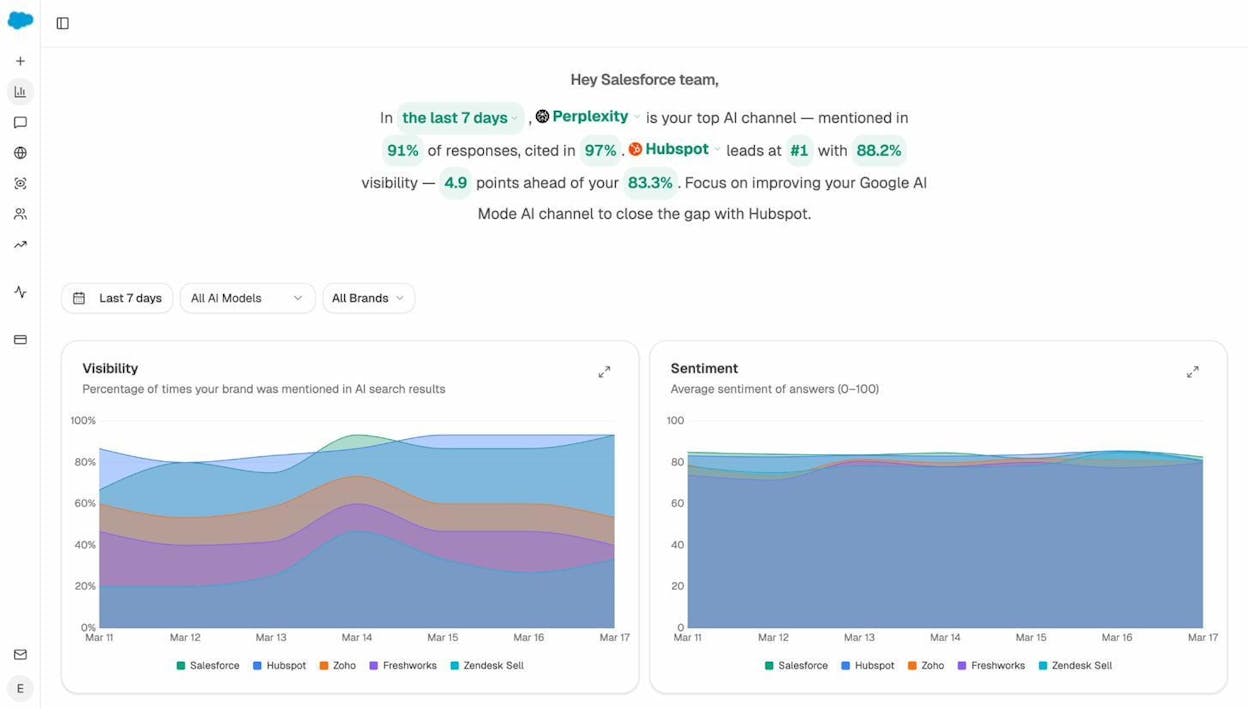
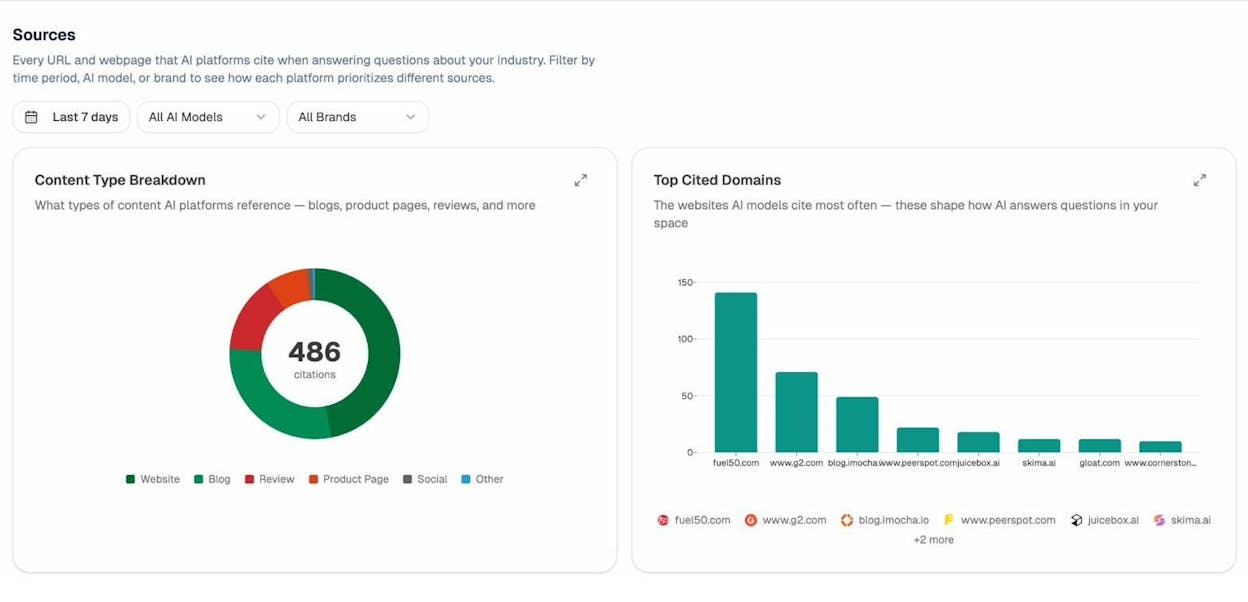
The Sources dashboard shows exactly which of your URLs are being cited by AI engines—and which competitor domains are getting cited instead. This is the AI equivalent of checking which pages rank in Google: you need to know where you stand before you can improve.
If you notice gaps where competitors appear but you don’t, the Competitors dashboard surfaces those opportunities. You can see which prompts your competitors win and your brand doesn’t, then create or optimize content to fill those gaps.
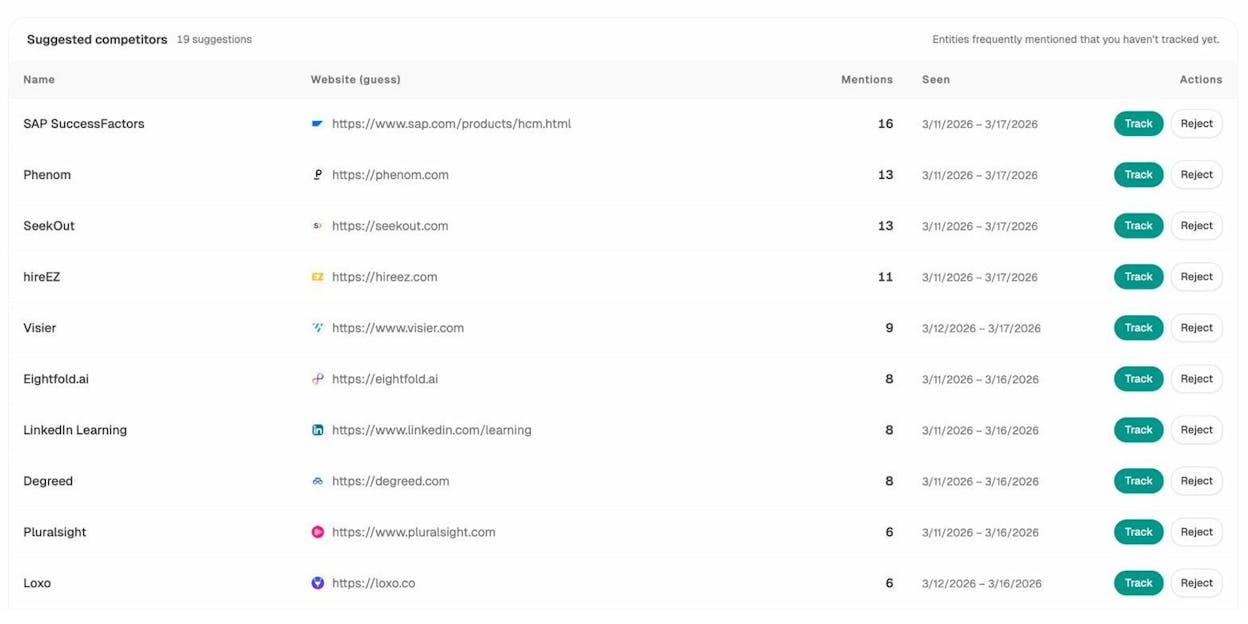
This is the layer that sits on top of your sitemap work. The sitemap gets your pages discovered. AI monitoring tells you whether that discovery is translating into citations, traffic, and conversions.
For more on tracking your performance across AI engines, check out our guide on how to rank on ChatGPT and how to rank on Perplexity.
FAQs
Do I need separate sitemaps for subdomains?
Yes. Each subdomain is treated as a separate website by Google. If you have blog.example.com and shop.example.com, each needs its own sitemap and its own Search Console property. The sitemap for blog.example.com can’t include URLs from shop.example.com.
Can I include URLs from different domains in one sitemap?
No. A sitemap can only include URLs from the same domain (or subdomain) where the sitemap is hosted. If your sitemap is at www.example.com/sitemap.xml, it can only list URLs on www.example.com.
Should I gzip my sitemap?
You can. Google supports gzipped sitemaps (.xml.gz format), and it can reduce file size significantly for large sitemaps. Just make sure your server is configured to serve the file with the correct content type. If your sitemap is well under the 50 MB limit, gzipping is optional.
How often should I regenerate my sitemap?
If you’re using a CMS plugin, the sitemap regenerates automatically whenever content changes. If you’re managing sitemaps manually, regenerate after any significant batch of content changes—new pages published, old pages deleted, or URL structure changes.
Do sitemaps help with rankings?
No. Sitemaps don’t directly affect rankings. They help with discovery and indexing—making sure Google knows your pages exist. Ranking is determined by content quality, backlinks, user experience, and hundreds of other factors. But if a page isn’t indexed, it can’t rank at all, which is why sitemaps matter.
Do I need a sitemap for a small website?
If your site has fewer than 50 pages and a solid internal linking structure, you can probably get by without one. But a sitemap is easy to create and costs nothing to maintain with a CMS plugin. There’s no downside to having one, even for small sites.
Do AI search engines use sitemaps?
AI search crawlers don’t use sitemaps in the same structured way Google does. But many AI crawlers do check robots.txt (where you can list your sitemap) and follow standard web crawling practices. Having a sitemap improves your overall crawlability, which benefits both traditional and AI-driven discovery. To go further, consider adding an llms.txt file alongside your sitemap.
Final Thoughts
Creating an XML sitemap is one of the simplest technical SEO tasks you can do. If you use a CMS like WordPress, Shopify, or Squarespace, a sitemap is either generated automatically or available through a plugin with a few clicks.
The more important work comes after the sitemap is live. Keep it clean by only including indexable, canonical URLs. Audit it periodically for low-quality pages, rogue noindex tags, and broken URLs. Submit it to both Google Search Console and Bing Webmaster Tools.
And if you’re serious about discoverability in 2026, don’t stop at traditional search. The same content quality and structural clarity that helps Google index your pages also helps AI answer engines cite them. Track both channels—use Google’s SEO tools for traditional search, and Analyze AI for AI search visibility—so you have a complete picture of how your content gets discovered, cited, and converted.
Your sitemap is the foundation. What you build on top of it—content depth, structural clarity, keyword strategy, and multi-channel monitoring—determines whether those discovered pages actually drive results.

Ernest

Ibrahim


