



Summarize this blog post with:


In this article, you’ll learn what Largest Contentful Paint measures, how to read your current score, and the exact fixes that move it under Google’s threshold. You’ll also see how page speed shapes whether AI search engines like ChatGPT, Perplexity, and Gemini decide to cite your page over a competitor’s, and how to find the slow URLs costing you the most traffic.
Table of Contents
What is Largest Contentful Paint?
Largest Contentful Paint (LCP) is the time it takes for the largest visible element on a page to fully render. That element is whatever a visitor sees as the main piece of content above the fold. It might be a hero image, a product photo, a video poster, or a block of text.
LCP is one of three Core Web Vitals that Google uses to score real-world page experience. The other two are Interaction to Next Paint (INP), which measures responsiveness, and Cumulative Layout Shift (CLS), which measures visual stability. INP officially replaced First Input Delay (FID) in March 2024, and the three together now make up the page experience signal Google references in its Search Central documentation. Of the three, LCP is the metric most sites struggle with, because it depends on so many moving parts.
Google measures LCP from real Chrome users through the Chrome User Experience Report (CrUX). The clock starts when the page begins loading and stops either when the largest element finishes rendering or when the user interacts with the page, whichever happens first.
What counts as the LCP element
Browsers only consider a few element types when picking the LCP candidate. The list includes:
-
<img> elements
-
<image> elements inside an <svg>
-
The poster image or first frame of a <video>
-
An element with a background image loaded through url() (not a CSS gradient)
-
Block-level elements containing text
Anything outside the viewport is ignored. So is anything covered by another element, anything with zero opacity, and any image that fills the entire viewport (Chromium treats those as backgrounds, not content). Cookie banners and consent overlays are a common gotcha. If they paint last and are large, they can become the LCP element and ruin your score.
What is a good LCP score?
A good LCP is 2.5 seconds or less, measured at the 75th percentile of real-user sessions across both mobile and desktop. The 75th percentile rule means three out of four visits need to load that fast. If only your fastest connections pass, you still fail.
Google groups pages into three buckets:
|
Score |
LCP value |
|---|---|
|
Good |
2.5 seconds or less |
|
Needs improvement |
Between 2.5 and 4.0 seconds |
|
Poor |
More than 4.0 seconds |
![[Screenshot of Google’s LCP threshold visual from web.dev showing the green/yellow/red bar with thresholds]](https://www.datocms-assets.com/164164/1778089361-blobid1.png?auto=format,compress&w=1248&fit=max)
The threshold has held since LCP launched in 2020, but performance teams treat 2.5 seconds as a passing grade rather than a target. A Google and Deloitte study found that a 0.1-second improvement in mobile speed lifts retail conversions by 8.4 percent. Vodafone improved LCP by 31 percent and reported a 15-percent revenue increase. Most teams aim for under 1.5 seconds in the lab to leave headroom for real-world variance.
According to the HTTP Archive’s most recent Web Almanac, only about 55 percent of mobile origins meet the 2.5-second mark. Mobile is harder than desktop, and slow connections make passing nearly impossible without serious optimization. LCP remains the Core Web Vital the most sites fail.
The four sub-parts of LCP
To fix LCP you need to know where the time is going. Google breaks LCP into four sequential sub-parts, and each one is a distinct optimization target.
-
Time to First Byte (TTFB). How long it takes the browser to receive the first byte of HTML from your server. This includes DNS lookup, the TCP handshake, and your server’s processing time.
-
Resource load delay. The gap between TTFB and the moment the browser starts downloading the LCP resource (your hero image, for example). This is dead time. The browser has the page but hasn’t found or prioritized the LCP element yet.
-
Resource load duration. The time the browser spends actually downloading the LCP resource. Bigger files take longer.
-
Element render delay. The gap between the resource finishing its download and the element actually appearing on screen. Render-blocking CSS and JavaScript live here.
Web.dev recommends keeping TTFB under 800 ms, resource load delay close to zero, resource load duration under 400 ms, and element render delay under 200 ms. Add those up and you land well under 2.5 seconds.
Knowing which sub-part is your biggest offender tells you which fix to start with. A site with slow hosting will see most of its LCP time in TTFB. A site with a hero image that isn’t preloaded will spend it in resource load delay. There is no point compressing images if the bottleneck is your server.
Why LCP matters for both SEO and AI search
LCP is a confirmed Google ranking signal. It works as a tiebreaker between pages of similar quality, and on competitive queries that tiebreaker decides the position. Google has steadily increased the weight of page experience signals across recent core updates.
There is also a newer reason to care. AI search engines like ChatGPT, Perplexity, and Google AI Mode crawl your pages to ground their answers in real content. Slow pages get crawled less often and timeout more during retrieval. When a model fetches your page in real time to support an answer, every second above three seconds raises the chance the request gets dropped before your content makes it into the response.
Our analysis of 83,670 AI citations found that the pages most often cited by LLMs share a few traits, and one is being technically clean and quick to load. SEO is not dead, and AI search has not replaced it. The brands winning right now treat organic search and AI search as two channels that share the same content foundation. A fast, well-structured page wins in both. A slow one loses ground in both.
How to measure LCP
There are two kinds of LCP data you’ll work with. Field data and lab data.
Field data comes from real Chrome users through CrUX. This is what Google actually scores you on. It updates as a 28-day rolling average, so changes take roughly a month to fully appear in your dashboards.
Lab data comes from controlled tests run on a single device in a standardized environment. It is not used for ranking, but it is the only way to get fast feedback when you ship a fix. You’ll want both.
Measuring LCP for a single page
Use Google PageSpeed Insights. Drop in any URL and you’ll get field data from CrUX (when available for that URL), a Lighthouse lab test, and a Diagnostics panel that calls out the LCP element and the opportunities to improve it.
![[Screenshot of PageSpeed Insights for a real URL, showing the “Core Web Vitals Assessment” with the LCP gauge in green/yellow/red]](https://www.datocms-assets.com/164164/1778089366-blobid2.jpg?auto=format,compress&w=1248&fit=max)
![[Screenshot of the same PageSpeed Insights report scrolled down to “Diagnostics”, with the “Largest Contentful Paint element” entry expanded to show the highlighted DOM node]](https://www.datocms-assets.com/164164/1778089370-blobid3.jpg?auto=format,compress&w=1248&fit=max)
PageSpeed Insights also gives you origin-level data so you can compare a single page to your site as a whole. If a page is much slower than the origin average, the issue is in the page template. If the entire origin is slow, the issue is in your hosting or shared resources.
Measuring LCP across the whole site
Use Google Search Console. The Core Web Vitals report buckets every URL into Good, Needs improvement, and Poor, and groups similar URLs together so you can see which templates are dragging you down.
![[Screenshot of the Core Web Vitals report inside Google Search Console showing the Good/Needs improvement/Poor breakdown with the trend graph]](https://www.datocms-assets.com/164164/1778089371-blobid4.png?auto=format,compress&w=1248&fit=max)
Clicking into any issue shows the affected URL groups. Because groups usually share a template, you fix the problem once and ship the fix to dozens or hundreds of URLs at the same time. For continuous monitoring and alerts when a page degrades, dedicated tools like DebugBear, SpeedCurve, and Calibre run scheduled checks and store the history. Most modern SEO audit tools also pull CrUX through the PageSpeed Insights API and surface failing URLs alongside the rest of your technical issues.
Real-user monitoring with the web-vitals library
For the most accurate live data on your own site, install the open-source web-vitals JavaScript library from the Chrome team. It captures LCP, INP, and CLS from every visitor and forwards the values to your analytics tool. This lets you correlate scores by page template, country, device, and connection type, which Search Console doesn’t show.
Find your LCP element first
Before you optimize anything, identify the actual element being scored. Guessing wrong wastes hours of work without moving the LCP number.
In PageSpeed Insights, scroll to Diagnostics and click “Largest Contentful Paint element.” The exact HTML node will be expanded.
![[Screenshot showing the expanded “Largest Contentful Paint element” section in PageSpeed Insights, with the highlighted HTML node visible]](https://www.datocms-assets.com/164164/1778089375-blobid5.jpg?auto=format,compress&w=1248&fit=max)
If you’d rather look in the browser, open Chrome DevTools, go to the Performance panel, hit Record, reload the page, then stop. Find the LCP marker on the timing track. Hovering it shows you the element, the time, and the four sub-parts.
![[Screenshot of Chrome DevTools Performance panel with the LCP marker highlighted on the timeline and the Summary panel showing the LCP details]](https://www.datocms-assets.com/164164/1778089376-blobid6.png?auto=format,compress&w=1248&fit=max)
How to improve LCP
The fastest path is to fix LCP sub-part by sub-part. Each section below maps to one of the four sub-parts so you can attack the slowest one first.
Reduce Time to First Byte (TTFB)
If your TTFB is above 800 ms, no amount of front-end work will save you. The browser is waiting for your server.
Three fixes, in order of impact:
Use a CDN. A Content Delivery Network keeps cached copies of your site in data centers around the world. A visitor in Tokyo gets your content from a Tokyo edge node instead of your origin server in Virginia. Cloudflare, Fastly, and Bunny.net all have free or low-cost tiers.
Cache the HTML. For pages that don’t need to be personalized, cache the full HTML response at the CDN edge. The first visitor pays the rendering cost. Everyone after them gets a sub-100-ms response. Set a long TTL and purge selectively when the page changes.
Upgrade your hosting if you have to. Shared hosting and underpowered VPSs frequently produce TTFBs above one second on dynamic pages. Managed WordPress hosts like Kinsta and WP Engine, or modern serverless platforms like Vercel and Cloudflare Workers, will solve this for most sites.
![[Screenshot of a TTFB measurement in the Chrome DevTools Network panel, with the “Waiting (TTFB)” bar highlighted on the main HTML request]](https://www.datocms-assets.com/164164/1778089383-blobid7.png?auto=format,compress&w=1248&fit=max)
Cut resource load delay
This is the gap between the HTML arriving and the browser starting to download your hero image. The fix is to make sure the browser knows about the LCP resource as early as possible.
Add fetchpriority="high" to the LCP image. This is the change with the largest impact you can make for image-based LCP. Google Flights cut their LCP by 700 ms with this single attribute.
<img src="hero.jpg" alt="Hero" fetchpriority="high">
Preload the LCP image if it is loaded by CSS or discovered late by the browser. Add this to your <head>:
<link rel="preload" as="image" href="hero.jpg"
imagesrcset="hero-400.jpg 400w, hero-800.jpg 800w, hero-1600.jpg 1600w"
imagesizes="100vw">
Never lazy-load the LCP image. Lazy loading delays the request until the browser thinks the image is needed. For above-the-fold images, that delay is exactly what you don’t want. Reserve loading="lazy" for images below the fold.
Use rel="preconnect" for cross-origin LCP resources. If your LCP image lives on a different domain (a CDN, a third-party image host), warm up the connection in the <head>:
<link rel="preconnect" href="https://images.example.com">
Cut resource load duration
Once the browser starts downloading the LCP resource, the only way to speed it up is to make the file smaller or to deliver it faster.
Switch to a modern image format. AVIF and WebP are 30 to 50 percent smaller than JPEG at the same visual quality. Most modern image CDNs (Cloudinary, Imgix, Cloudflare Images, Bunny Optimizer) negotiate the best format per browser automatically.
Right-size the image. Serving a 2400-pixel hero on a 400-pixel viewport wastes bandwidth. Use srcset and sizes to ship the smallest version that still looks crisp.
Compress aggressively. For photographic JPEGs and AVIFs, quality levels of 70 to 80 are visually indistinguishable from 100 but save 50 percent or more in file size. Run your images through Squoosh, ImageOptim, or your CDN’s compression pipeline.
Strip metadata. EXIF, color profiles, and other metadata bloat image files for no visual benefit on the web.
![[Screenshot showing a before/after image weight comparison after running through Squoosh, e.g., 1.2 MB JPEG on the left and 180 KB AVIF on the right]](https://www.datocms-assets.com/164164/1778089384-blobid8.jpg?auto=format,compress&w=1248&fit=max)
Cut element render delay
This is the time between the LCP resource finishing its download and actually appearing on screen. The usual cause is render-blocking CSS or JavaScript holding the browser’s main thread hostage.
Inline critical CSS. Take the CSS rules needed to render above the fold and put them directly in the <head> inside a <style> tag. Defer the rest:
<link rel="preload" href="rest.css" as="style" onload="this.rel='stylesheet'">
Defer non-critical JavaScript. Add defer to script tags that aren’t needed immediately. The browser keeps parsing HTML and runs the script after the document is done.
<script src="analytics.js" defer></script>
Use async for independent scripts that don’t depend on anything else. Reserve normal (blocking) scripts for code that must run before the page can render.
Self-host fonts or use font-display: swap. Web fonts loaded from a third party block text rendering until they download. Either self-host them, or add font-display: swap in your @font-face rule so the browser shows a system font first and swaps in the custom font when it is ready.
Trim third-party scripts. Every chat widget, A/B test snippet, heatmap pixel, and tag manager adds main-thread work that delays render. Audit what you actually need.
How LCP fits into your AI search strategy
Most performance guides stop at “fix your scores.” But page speed only matters if the right pages are fast. The pages worth optimizing first are the ones already pulling traffic from search engines and AI engines, because every millisecond of improvement compounds across more visits.
This is where Analyze AI helps. You can see exactly which of your pages are getting cited and clicked on by ChatGPT, Perplexity, Gemini, and Copilot, and prioritize speed work from there.
Find the pages already winning AI traffic
Open the AI Traffic Analytics view to see which pages drive the most sessions from AI search, broken down by engine and over time.
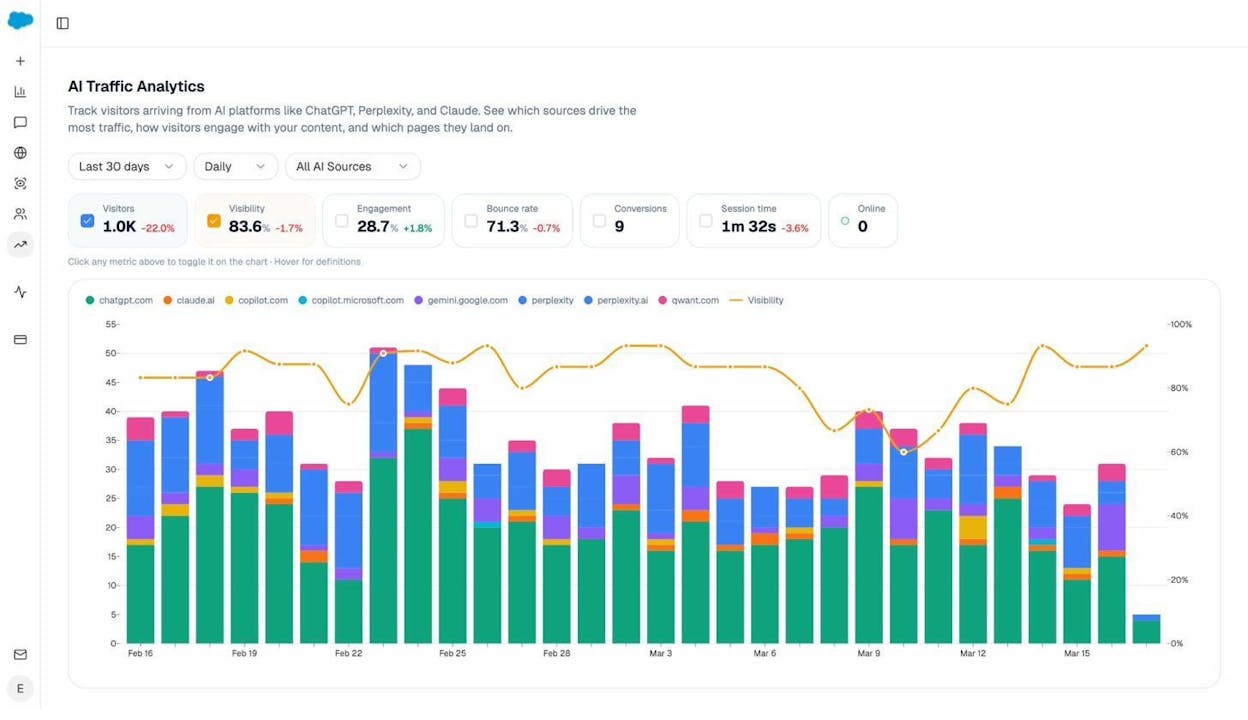
These are your highest-leverage pages for performance work. If a page is already getting cited and clicked, slow load times will quietly cap how much that traffic converts. Run those URLs through PageSpeed Insights first.
Cross-reference AI traffic with bounce rate
The Landing Pages view inside AI Traffic Analytics shows sessions, citations, engagement, bounce, duration, and conversions for every URL receiving AI-referred traffic.
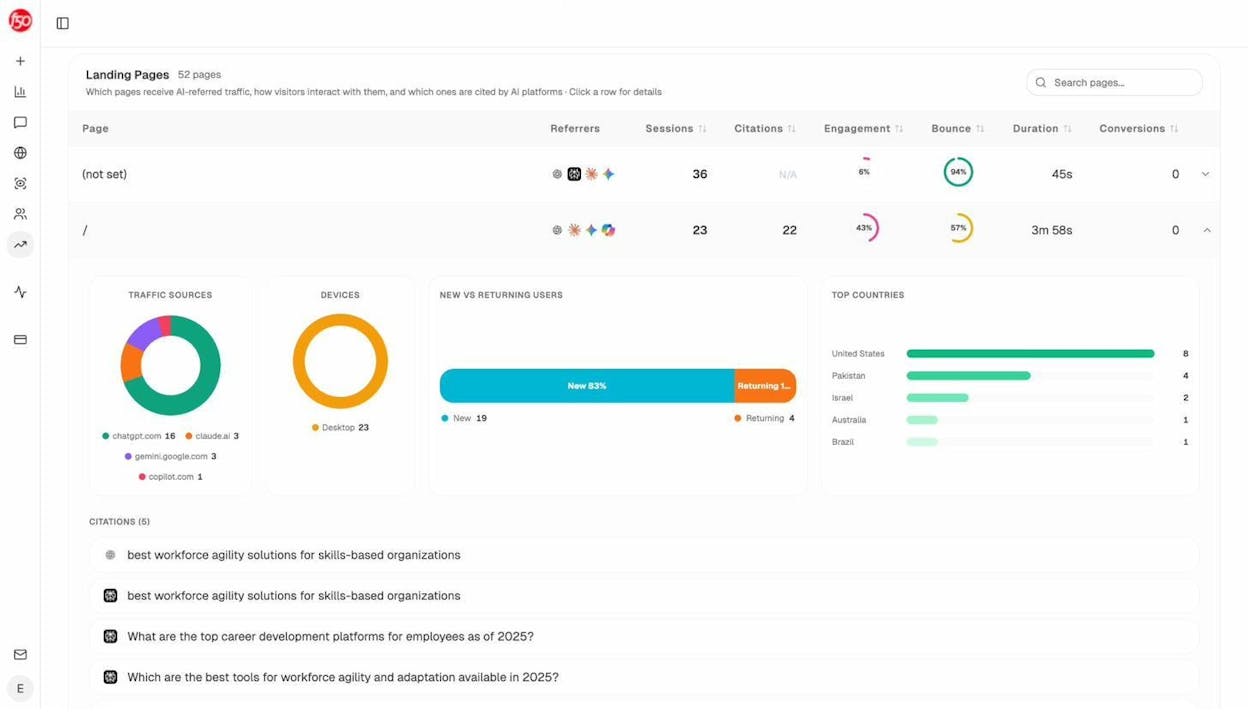
Look for pages with high citations and high bounce. That combination is a tell. The model trusted your page enough to send a visitor, but the visitor left before engaging. Slow LCP is one of the most common reasons. Pull those URLs and audit their speed before anything else.
Use citation patterns to set a performance baseline
Once you know which of your pages get cited most often, look at what they share technically, not just editorially. Page weight, image-to-text ratio, render-blocking script count, and time-to-interactive are all part of why some pages keep getting picked while others with similar content don’t. Use those patterns to set a performance bar for new content. Every new piece you publish should match or beat the LCP of your top-cited URLs.
For more on the kinds of pages AI engines prefer, see our breakdowns of how to rank on ChatGPT and how to rank on Perplexity.
A short LCP optimization checklist
Before you ship, walk down this list:
-
You’ve identified the actual LCP element in PageSpeed Insights, not guessed it
-
TTFB is under 800 ms (CDN, HTML caching, faster hosting if needed)
-
The LCP image has fetchpriority="high"
-
The LCP image is preloaded if it is discovered late
-
The LCP image is not lazy-loaded
-
Images are AVIF or WebP, sized for the viewport
-
Critical CSS is inlined and the rest is deferred
-
Non-critical JavaScript uses defer or async
-
Web fonts use font-display: swap or are preloaded from your own origin
-
Unused third-party scripts are removed
-
You’ve prioritized your highest-traffic AI search landing pages
Final thoughts
LCP rewards a simple discipline. Show the user the most important thing fast, and get out of the way. Most of the work is finding the actual bottleneck on a specific page, then applying the right fix.
To compound the gains, prioritize the pages already driving the most search and AI search traffic. A 0.5-second improvement on a page that gets 50,000 monthly visits matters more than a 2-second improvement on a page no one visits.
For more on growing that traffic, see our guides to SEO content strategy, answer engine optimization, and the 4 pillars of an SEO strategy for AI search.

Ernest

Ibrahim


