



Summarize this blog post with:


In this article, you’ll learn how to perform a technical SEO audit from start to finish. You’ll walk through the eight steps that uncover the most common crawlability, indexation, on-page, and performance issues holding your site back. You’ll also learn how to prioritize fixes by impact, so you spend time on what actually moves rankings. And because SEO is evolving alongside AI search, you’ll see how to extend each step to audit your visibility across AI engines like ChatGPT, Perplexity, and Gemini — not as a replacement for traditional SEO, but as another organic channel worth paying attention to.
Table of Contents
What Is a Technical SEO Audit?
A technical SEO audit is a systematic review of the technical elements that affect how search engines find, crawl, understand, and index your website.
It covers everything from robots.txt configuration and XML sitemaps to page speed, structured data, and mobile friendliness. The goal is to identify issues that prevent your content from appearing in search results — or from ranking as high as it should.
Think of it this way. You could have the best content on the internet, but if Google can’t crawl it, can’t index it, or takes ten seconds to load it, nobody will ever see it. A technical audit catches those invisible blockers.
An audit also catches problems you might not know exist. Hreflang misconfiguration on a multilingual site, canonical tags pointing to the wrong URL, orphan pages sitting outside your internal link structure — these are the kinds of issues that silently bleed traffic.
Recommended reading: 18 Types of SEO: 40+ Techniques to Rank Higher
When Should You Perform a Technical SEO Audit?
Run an audit in these situations:
On any new site. Whether you just built it or inherited it from a client, the first thing you do is audit. You need a baseline before you make any strategic decisions.
On a quarterly schedule. Technical issues accumulate over time, especially on sites that publish frequently. A quarterly audit catches things before they compound.
When rankings drop. If you notice a decline in organic traffic or keyword positions, a technical issue is often the culprit. Run an audit before you assume it’s a content or link problem.
After a migration or redesign. Site migrations are notorious for breaking things — redirects, canonical tags, internal links, and indexation can all go sideways during a redesign.
When expanding to AI search. If you’re starting to track your brand’s visibility in AI engines like ChatGPT, Perplexity, or Gemini, it’s worth auditing whether your technical foundation supports that channel too. More on that throughout this guide.
What Do You Need Before Starting?
If you’re auditing your own site, you’ll need access to Google Search Console and Google Analytics. If you’re auditing a client’s site, request access to both before you begin.
You’ll also want a crawling tool. Screaming Frog, Sitebulb, and Ahrefs Site Audit are popular options. For this guide, we’ll reference multiple tools and show you what to look for regardless of which one you use.
And if you want to audit your AI search visibility alongside your technical SEO, you’ll want a tool like Analyze AI to track how AI engines perceive and cite your brand. We’ll show you where this fits naturally into each step.
How to Perform a Technical SEO Audit in 8 Steps
Step 1. Crawl Your Website
Every technical audit starts with a crawl. A crawl is where software scans your entire site, page by page, to catalog URLs and flag issues — the same way a search engine bot would.
Set up a project in your crawling tool of choice. If you’re using Screaming Frog, enter your domain and hit “Start.” If you’re using a cloud-based tool like Ahrefs Site Audit or Sitebulb, you’ll verify ownership first (usually through Google Search Console or a DNS record) and then configure your crawl settings.
![[Screenshot: Setting up a crawl in your preferred site audit tool — showing the project setup screen with domain entry and verification options]](https://www.datocms-assets.com/164164/1776979827-blobid1.png?auto=format,compress&w=1248&fit=max)
Before running the crawl, check these settings:
Crawl speed. For larger sites (10,000+ pages), increase the crawl rate so it finishes in a reasonable time. Just make sure you’re not overloading your server.
Maximum pages. Most tools default to a page limit. If your site has more URLs than the default, increase it. You want the crawl to cover every page.
User agent. Start with a desktop crawl. You’ll run a separate mobile crawl later (Step 8).
Core Web Vitals. If your tool supports it, enable CWV data collection during the crawl so you don’t need to run it again later.
![[Screenshot: Crawl settings screen showing speed, page limit, user agent, and CWV options]](https://www.datocms-assets.com/164164/1776979837-blobid2.png?auto=format,compress&w=1248&fit=max)
Once the crawl completes, you’ll land on an overview dashboard. This gives you a top-level snapshot: total URLs found, how many are indexable, how many have issues, and typically an overall health score.
![[Screenshot: Crawl overview dashboard showing health score, total URLs, indexable vs. non-indexable counts, and top issues]](https://www.datocms-assets.com/164164/1776979837-blobid3.png?auto=format,compress&w=1248&fit=max)
From this overview, navigate to the “All Issues” or equivalent report. This is where the real audit begins — it lists every problem the crawler found, grouped by category and priority.
![[Screenshot: All Issues report showing a list of errors, warnings, and notices grouped by category]](https://www.datocms-assets.com/164164/1776979844-blobid4.png?auto=format,compress&w=1248&fit=max)
Audit Your AI Search Visibility Too
While your crawl runs, this is a good time to check your AI search baseline. Open Analyze AI and look at your Overview dashboard. This shows how often your brand is mentioned across AI engines, your visibility trend over time, and how you compare to competitors.
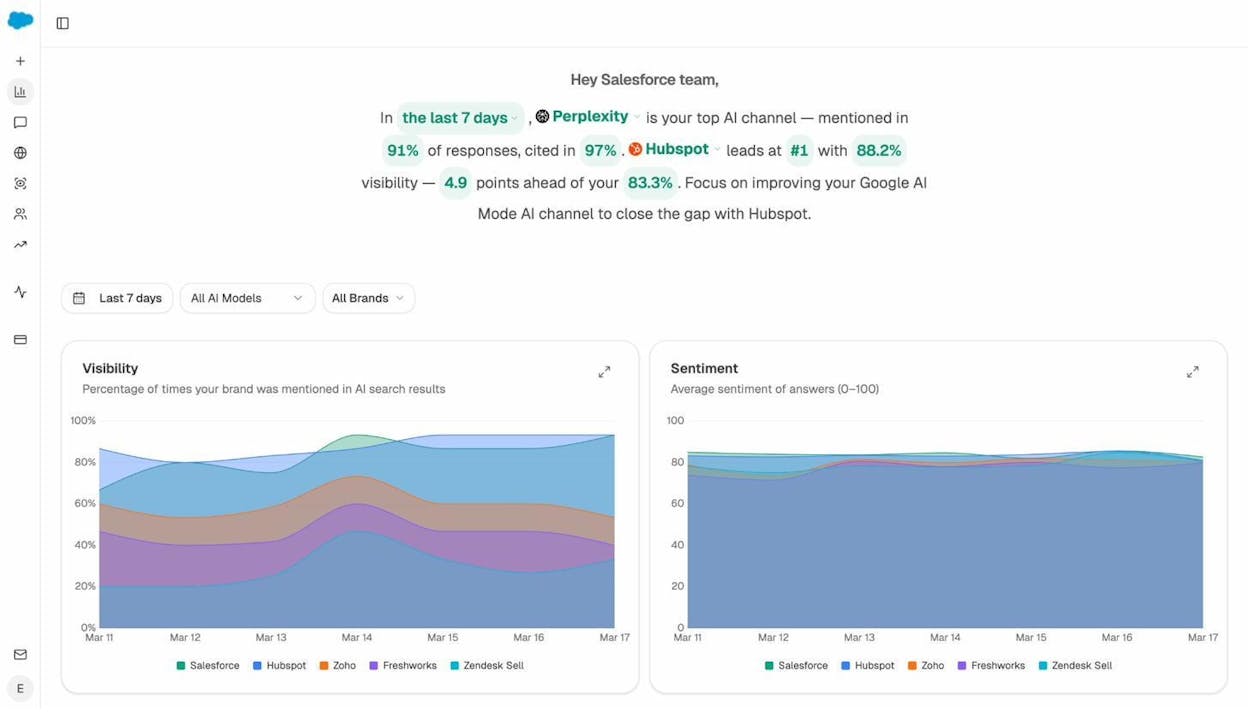
This is your AI search equivalent of a “health score.” If your visibility is declining or a competitor leads in a category where you should be strong, you’ll want to investigate why as you work through the rest of this audit.
You can also check the AI Traffic Analytics dashboard to see which pages on your site are already receiving traffic from AI referrers like ChatGPT, Perplexity, and Claude.
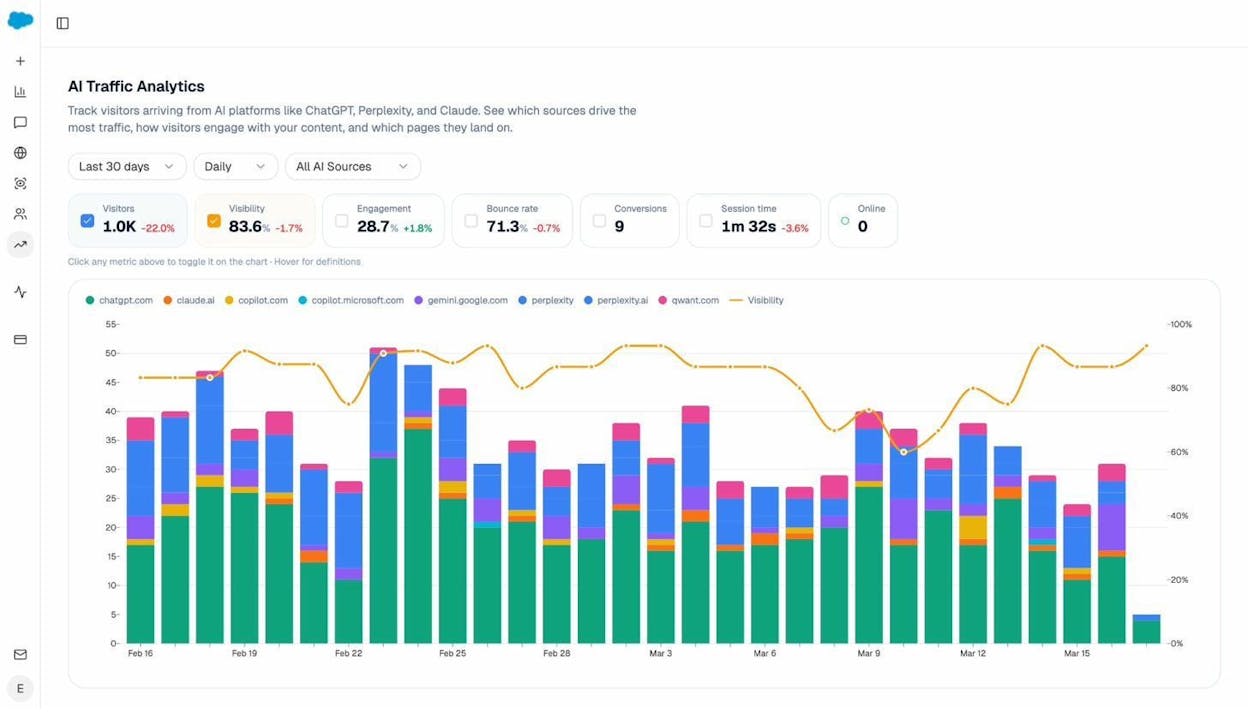
The Landing Pages report within AI Traffic Analytics is especially useful. It shows which of your pages AI engines actually send visitors to, along with engagement metrics like bounce rate and session duration.
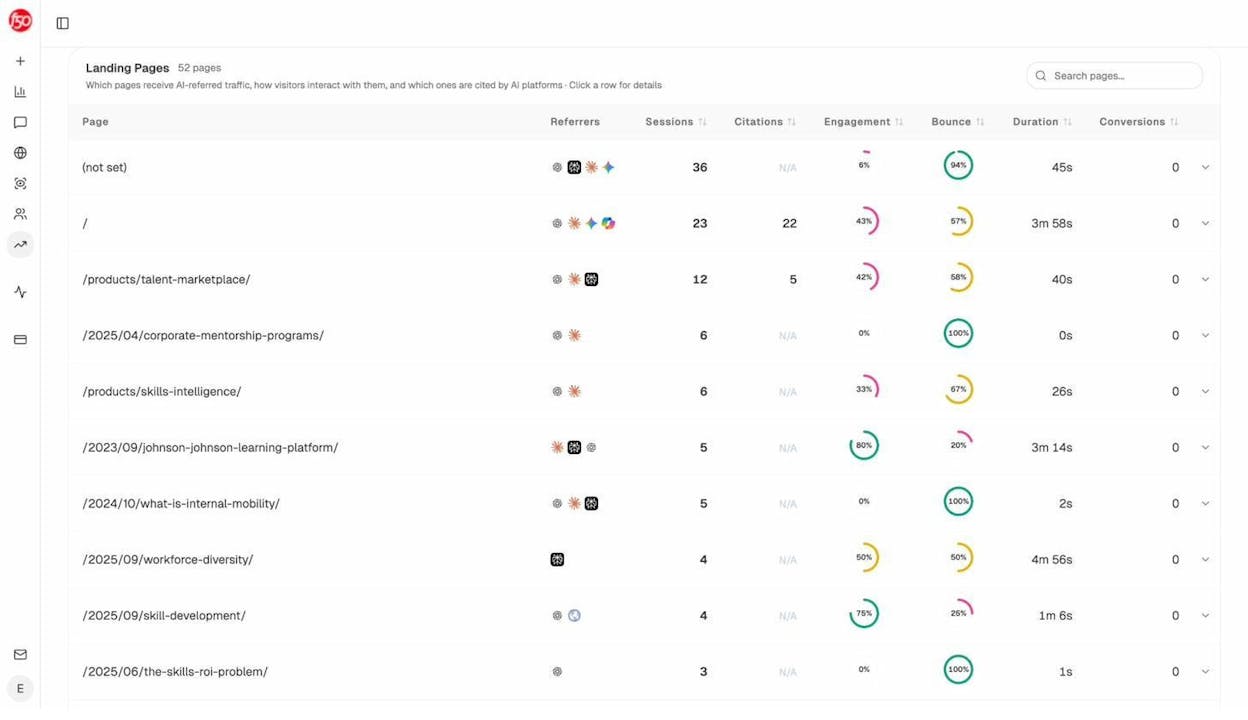
If certain pages consistently receive AI traffic, that tells you something about what AI engines consider useful. As you audit and fix technical issues throughout this guide, pay extra attention to these high-performing pages — make sure they stay crawlable, fast, and well-structured.
Step 2. Spot Crawlability and Indexation Issues
If search engines can’t crawl your pages, they can’t index them. And if they’re not indexed, they don’t exist as far as search results are concerned. This step is about making sure nothing blocks your important pages from being found.
Identify Indexation Issues
Priority: High
Head to Google Search Console and open the Pages report (formerly the Coverage report). This shows you exactly which pages are indexed, which have warnings, and which are excluded — along with the reason for each exclusion.
![[Screenshot: Google Search Console Pages report showing indexed, excluded, and error counts with specific reasons listed below]](https://www.datocms-assets.com/164164/1776979864-blobid8.png?auto=format,compress&w=1248&fit=max)
Common exclusion reasons include “Crawled — currently not indexed,” “Discovered — currently not indexed,” and “Excluded by noindex tag.” Each one requires a different fix.
If pages that should be indexed are showing as excluded, that’s a problem. Start by checking the most common causes below.
Check the Robots.txt File
Priority: High
Your robots.txt file tells search engines which parts of your site they’re allowed to crawl. It lives at yourdomain.com/robots.txt, and it’s one of the most common sources of accidental de-indexation.
The most dangerous mistake is a blanket disallow that blocks the entire site:
User-agent: *
Disallow: /
This tells every search engine to stay away from every page. It happens more often than you’d think — developers add it during staging and forget to remove it before launch.
![[Screenshot: Example of a robots.txt file in a browser, showing User-agent and Disallow directives]](https://www.datocms-assets.com/164164/1776979864-blobid9.png?auto=format,compress&w=1248&fit=max)
To check whether specific pages are blocked, use the URL Inspection tool in Google Search Console. Paste in the URL and it will tell you if the page is accessible and indexed.
![[Screenshot: Google Search Console URL Inspection tool showing indexation status of a page]](https://www.datocms-assets.com/164164/1776979871-blobid10.png?auto=format,compress&w=1248&fit=max)
You can also check your crawl tool’s robots.txt report. Most tools flag pages that are blocked by robots.txt but linked to internally — a clear sign of misconfiguration.
Recommended reading: 5 Best SEO Audit Tools to Grow Traffic Fast
Robots Meta Tags
Priority: High
A robots meta tag is an HTML snippet in the <head> of a page that tells search engines how to handle it. The most important one is noindex, which tells search engines not to index the page:
<meta name="robots" content="noindex" />
Noindex has legitimate uses. You want it on admin pages, staging environments, internal search results, PPC landing pages, and thin pages with no value for organic search.
But accidental noindex tags on important pages are a common audit finding. Check your crawl tool’s report for pages flagged as “noindex” and verify each one is intentional.
|
Legitimate noindex uses |
Accidental noindex to fix |
|---|---|
|
Staging/dev environments |
Product or service pages |
|
Admin and login pages |
Blog posts and articles |
|
Thank-you and confirmation pages |
Category or landing pages |
|
Internal search results pages |
Pages with organic traffic potential |
|
PPC-only landing pages |
Pages you’ve recently published |
Check the XML Sitemap
Priority: High
Your XML sitemap is a roadmap for search engines. It lists the pages you want indexed, and it helps crawlers find pages they might otherwise miss.
Common sitemap problems include:
Missing important pages. If a page isn’t in your sitemap, it might still get indexed through internal links or backlinks, but you’re leaving it to chance.
Including pages that shouldn’t be there. Broken pages, redirected URLs, and noindexed pages in your sitemap confuse crawlers and waste your crawl budget.
Outdated sitemap. If your sitemap hasn’t been updated since you last published content, search engines won’t know about your newest pages.
Most crawl tools flag sitemap issues automatically. Check for discrepancies between the URLs in your sitemap and the URLs the crawler actually found.
![[Screenshot: Sitemap issues report in a crawl tool showing pages in sitemap that return errors or redirects]](https://www.datocms-assets.com/164164/1776979871-blobid11.png?auto=format,compress&w=1248&fit=max)
Check the Crawl Budget
Priority: High (for large websites)
Crawl budget is how many pages a search engine will crawl on your site within a given timeframe. For small sites (under a few thousand pages), this is rarely a concern. For large sites with tens of thousands or millions of pages, it matters.
If Google is spending its crawl budget on low-value pages — duplicates, paginated archives, filtered URLs — it may never get to the pages you actually want ranked.
Use the Crawl Stats report in Google Search Console to see how Google is crawling your site. Look at total crawl requests per day, average response time, and any flagged crawl statuses.
![[Screenshot: Google Search Console Crawl Stats report showing crawl requests per day, response time, and status codes]](https://www.datocms-assets.com/164164/1776979879-blobid12.png?auto=format,compress&w=1248&fit=max)
To improve crawl efficiency, make sure your sitemap only includes indexable pages, use robots.txt to block low-value URL patterns (like filtered search results), and strengthen internal linking to high-priority pages.
Step 3. Check Technical On-Page Elements
Once you’ve confirmed that your pages can be crawled and indexed, the next step is to check how they’re presented to search engines and users. On-page technical elements — title tags, meta descriptions, canonical tags, hreflang, and structured data — all influence how your pages appear in search results and how search engines understand your content.
Page Titles and Title Tags
Priority: Medium
A title tag tells search engines and users what a page is about. It appears as the clickable headline in search results.
![[Screenshot: A Google search result with the title tag and meta description highlighted]](https://www.datocms-assets.com/164164/1776979881-blobid13.png?auto=format,compress&w=1248&fit=max)
Keep title tags under 60 characters. Google rewrites title tags it considers too long, too short, or not descriptive enough. Your crawl tool will flag title tag issues — look for pages with missing titles, duplicate titles, or titles that exceed the character limit.
![[Screenshot: Title tag issues in a crawl tool showing duplicate, missing, and too-long titles]](https://www.datocms-assets.com/164164/1776979889-blobid14.png?auto=format,compress&w=1248&fit=max)
Recommended reading: How to Use Keywords in SEO: 14 Practical Tips
Meta Descriptions
Priority: Low
Meta descriptions don’t directly impact rankings, but they do influence click-through rates. A compelling meta description can be the difference between a click and a scroll-past.
Google generates its own snippet roughly 60–70% of the time, but for your most important pages — homepage, key landing pages, top-performing blog posts — it’s worth writing a custom meta description that sells the click.
Your crawl tool will flag pages with missing or duplicate meta descriptions. Focus on fixing these for your highest-traffic pages first.
![[Screenshot: Meta description issues in a crawl tool showing pages with missing descriptions]](https://www.datocms-assets.com/164164/1776979890-blobid15.png?auto=format,compress&w=1248&fit=max)
Check Canonical Tags
Priority: High
A canonical tag tells search engines which version of a page is the “primary” one when duplicate or near-duplicate versions exist. For example, if the same product page is accessible at three different URLs (with and without parameters), the canonical tag points to the one you want indexed.
<link rel="canonical" href="https://example.com/product" />
Common canonical problems include:
Self-referencing canonicals pointing to the wrong URL. A page at example.com/page has a canonical pointing to example.com/page?ref=123.
Canonicals on noindexed pages. If a page has both a noindex tag and a canonical, that sends conflicting signals.
Missing canonicals on duplicate content. If you have URL variations without canonicals, search engines pick the “canonical” themselves — and they might pick wrong.
![[Screenshot: Canonical tag issues in a crawl tool showing duplicate content without canonicals and conflicting directives]](https://www.datocms-assets.com/164164/1776979898-blobid16.png?auto=format,compress&w=1248&fit=max)
Check your crawl tool’s duplicate content report and resolve any canonical issues it flags.
International SEO: Hreflang Tags
Priority: High (for multilingual/multiregional sites)
If your site serves content in multiple languages or targets different regions, hreflang tags tell search engines which version to show to which audience.
Getting hreflang wrong is one of the most common technical SEO mistakes on international sites. Missing return tags, incorrect language codes, and self-referencing hreflang issues can cause the wrong language version to appear in search results.
![[Screenshot: Hreflang issues in a crawl tool showing missing return tags and incorrect language codes]](https://www.datocms-assets.com/164164/1776979910-blobid17.png?auto=format,compress&w=1248&fit=max)
If your site is in one language targeting one country, you can skip this section. But if you operate internationally, audit hreflang carefully — the errors are subtle and the impact is significant.
Structured Data
Priority: High
Structured data (also called schema markup) helps search engines understand your content at a deeper level. It’s what enables rich results — star ratings on review pages, recipe cards in food searches, FAQ dropdowns, product pricing, and more.
![[Screenshot: A Google search result showing rich results with star ratings, pricing, and availability powered by structured data]](https://www.datocms-assets.com/164164/1776979930-blobid18.jpg?auto=format,compress&w=1248&fit=max)
Use Google’s Rich Results Test or the Schema Markup Validator to check your pages. Your crawl tool may also flag structured data errors.
Common issues include missing required properties, incorrect nesting, and using deprecated schema types. Fix errors on your most important pages first — the ones that could benefit from rich result features in search.
![[Screenshot: Google Rich Results Test showing validation results with errors and warnings]](https://www.datocms-assets.com/164164/1776979930-blobid19.jpg?auto=format,compress&w=1248&fit=max)
What about AI search? Structured data doesn’t just help Google. AI engines also use structured, well-organized content to understand your site. Pages with clean schema markup and clear content hierarchy tend to be cited more often by AI models. So fixing structured data issues benefits both channels.
Step 4. Identify Image Issues
Images affect page speed, user experience, accessibility, and even rankings (through Google Images). An audit should check for the following.
Broken Images
Priority: High
Broken images display a placeholder icon instead of the actual image. This looks unprofessional, hurts user experience, and can make your site seem neglected — especially on pages where trust matters, like product pages or landing pages.
Your crawl tool will list broken images. Fix them by replacing the image file, updating the image URL, or removing the reference entirely.
![[Screenshot: Broken images report in a crawl tool showing URLs with broken image references]](https://www.datocms-assets.com/164164/1776979936-blobid20.png?auto=format,compress&w=1248&fit=max)
Image File Size Too Large
Priority: High
Large images are one of the most common causes of slow page load times. A single uncompressed hero image can add several seconds to your page load, which hurts both rankings and user experience.
Compress images before uploading them. Use TinyPNG or Squoosh for one-off compressions. For WordPress sites, plugins like ShortPixel or Imagify can compress images automatically.
Serve images in modern formats like WebP or AVIF when possible. These formats deliver the same visual quality at significantly smaller file sizes compared to JPEG or PNG.
![[Screenshot: Image file size report in a crawl tool showing pages with oversized images]](https://www.datocms-assets.com/164164/1776979937-blobid21.png?auto=format,compress&w=1248&fit=max)
HTTPS Pages Linking to HTTP Images
Priority: Medium
When an HTTPS page loads an image over HTTP, that creates a “mixed content” issue. Mixed content is a security concern — browsers may block the insecure resource or display a warning to users.
This is especially problematic for ecommerce sites and sites that rely on display advertising, as ad providers often reject pages with mixed content.
Fix this by updating all image URLs to use HTTPS, or by using protocol-relative URLs.
Missing Alt Text
Priority: Low
Alt text describes an image for users who can’t see it — people using screen readers, people with slow connections where images don’t load, and search engine bots.
Alt text also serves as anchor text for image links and helps you rank in Google Images. It’s a small thing that adds up across a large site.
Your crawl tool will flag images with missing alt text. Prioritize adding alt text to images on your most important pages.
Recommended reading: SEO Keywords: How to Find and Use Them to Rank Higher
Step 5. Analyze Internal Links
Internal links are one of the most underrated levers in SEO. They help search engines discover your pages, pass authority through your site, and create a logical content hierarchy for users.
An internal link audit checks for structural problems that weaken these benefits.
4xx Status Codes (Broken Internal Links)
Priority: High
A broken internal link points to a page on your site that returns a 4xx error (usually a 404). These waste link equity — the authority that internal link would have passed is lost — and they frustrate users who click and land on an error page.
![[Screenshot: Broken internal links report showing source pages and their broken target URLs with 404 status codes]](https://www.datocms-assets.com/164164/1776979952-blobid22.jpg?auto=format,compress&w=1248&fit=max)
To fix broken internal links, you have two options. Update the link to point to the correct page. Or, if the destination page was deleted intentionally, set up a 301 redirect to the most relevant alternative.
You can also use the Analyze AI Broken Link Checker to scan any URL for broken links.
Orphan Pages
Priority: High
An orphan page is a page on your site with zero internal links pointing to it. That means users and search engines have no way to find it through your site’s navigation or content.
Orphan pages are a problem for two reasons. First, without internal links, they receive no PageRank — the authority signal that helps pages rank. Second, if the page isn’t in your sitemap either, Google might never discover it at all.
![[Screenshot: Orphan pages report in a crawl tool showing pages with no incoming internal links]](https://www.datocms-assets.com/164164/1776979958-blobid23.jpg?auto=format,compress&w=1248&fit=max)
To fix orphan pages, add internal links from relevant content. If the page doesn’t deserve links — because it’s outdated or low-value — consider whether it should even be on your site.
Redirect Chains
Priority: Medium
A redirect chain happens when a URL redirects to another URL, which redirects to another URL, and so on. Each redirect adds latency and dilutes PageRank. Google will follow up to 10 redirects in a chain, but best practice is to keep it to one hop.
Your crawl tool will flag redirect chains. Fix them by updating the original link to point directly to the final destination URL.
![[Screenshot: Redirect chains report showing URLs with multiple redirect hops]](https://www.datocms-assets.com/164164/1776979961-blobid24.jpg?auto=format,compress&w=1248&fit=max)
How AI Search Changes Internal Linking Strategy
Here’s something most technical audits miss entirely: your internal linking structure doesn’t just affect Google. It also influences what AI engines cite.
AI models like ChatGPT and Perplexity tend to cite content that sits within a well-organized topical cluster. If you have a strong pillar page with supporting content linked together, AI engines are more likely to surface that cluster when answering questions in your domain.
In Analyze AI, you can check the Sources dashboard to see which of your pages AI engines actually cite.
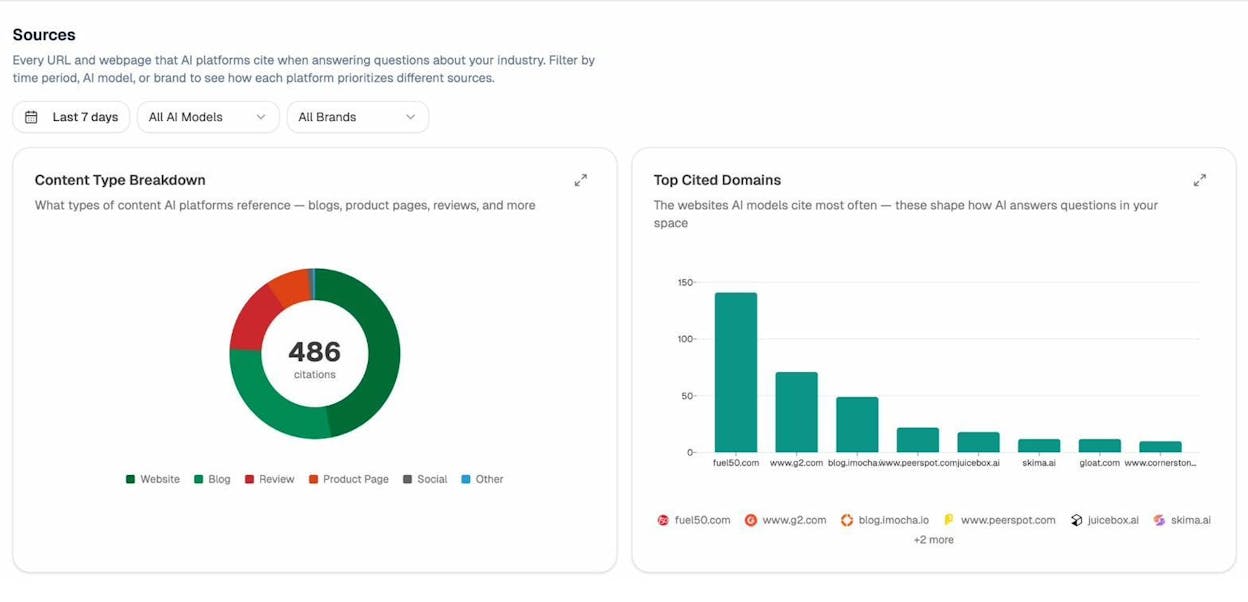
If your most important pages aren’t being cited, check whether they’re well-linked internally and whether they sit within a clear topical structure. Often, the fix is the same as traditional SEO — better internal linking — but the payoff extends to AI search too.
Step 6. Check External Links
External links are links from your pages to other websites. They serve as citations, back up claims with authoritative sources, and help search engines understand your content’s context.
But external links can also create problems if they’re not maintained.
Links to Broken External Pages
Priority: High (for indexable pages)
When you link to an external page that no longer exists (returns a 4xx error), it’s a dead end for users and a negative signal for credibility. Regularly audit your outbound links and update or remove any that are broken.
![[Screenshot: External broken links report showing your pages that link to dead external URLs]](https://www.datocms-assets.com/164164/1776979971-blobid26.png?auto=format,compress&w=1248&fit=max)
Use the Analyze AI Broken Link Checker to scan specific pages for broken outbound links.
Pages With No Outgoing Links
Priority: Medium
A page with zero outgoing links — internal or external — is a dead end. Users have nowhere to go next, and search engines get no signals about how that page connects to the broader web.
Every page should link to at least one other relevant page on your site (internal link) and ideally cite at least one authoritative external source where relevant.
External Link Audit for AI Search
AI engines don’t just look at your content — they also consider the sources your content references. Pages that cite authoritative, well-known sources tend to be perceived as more trustworthy by AI models.
During your external link audit, verify that you’re linking to credible, authoritative sources — especially on pages where you make claims that AI engines might reference in their responses.
Step 7. Audit Site Speed and Performance
Page speed is a confirmed ranking factor. Since May 2021, Google has used Core Web Vitals (CWV) as part of its page experience signals. The three metrics are:
|
Metric |
What it measures |
Good threshold |
|---|---|---|
|
Largest Contentful Paint (LCP) |
How fast the main content loads |
≤ 2.5 seconds |
|
Cumulative Layout Shift (CLS) |
How much the page shifts during loading |
≤ 0.1 |
|
Interaction to Next Paint (INP) |
How responsive the page is to user input |
≤ 200 milliseconds |
Note: INP replaced First Input Delay (FID) in March 2024.
To check your Core Web Vitals, use any of these tools:
Google PageSpeed Insights. Enter a URL and get both lab and field data for each CWV metric, along with specific improvement suggestions.
![[Screenshot: Google PageSpeed Insights results showing LCP, CLS, and INP scores with diagnostic suggestions]](https://www.datocms-assets.com/164164/1776979973-blobid27.jpg?auto=format,compress&w=1248&fit=max)
Google Search Console. The Core Web Vitals report shows page-level CWV data across your entire site, grouped into “Good,” “Needs Improvement,” and “Poor.”
![[Screenshot: Google Search Console Core Web Vitals report showing URL groupings by status]](https://www.datocms-assets.com/164164/1776979983-blobid28.png?auto=format,compress&w=1248&fit=max)
Your crawl tool. Most modern crawl tools include performance data. Check the Performance report for pages with slow load times or poor CWV scores.
![[Screenshot: Performance report in a crawl tool showing page speed data and CWV metrics across pages]](https://www.datocms-assets.com/164164/1776979983-blobid29.png?auto=format,compress&w=1248&fit=max)
Common Speed Fixes
For most sites, the biggest speed gains come from:
Compressing and properly sizing images. This alone can cut page load time dramatically. Serve images at the size they’re displayed, not at their original resolution.
Enabling browser caching. Tell browsers to store static assets locally so returning visitors don’t have to re-download them.
Minimizing render-blocking resources. CSS and JavaScript files that block page rendering are a common LCP problem. Defer non-critical scripts and inline critical CSS.
Using a CDN. A content delivery network serves your static assets from the server closest to each user, reducing latency.
For WordPress sites, plugins like WP Rocket or Perfmatters can handle most of these optimizations without touching code.
Recommended reading: SEO Content Strategy: 10-Step Breakdown
Why Page Speed Matters for AI Search Too
Here’s something worth noting: the same technical foundation that makes your site fast for Google also makes it easier for AI crawlers to access your content.
AI engine crawlers (like Perplexity’s and ChatGPT’s browsing) need to fetch and parse your pages quickly. A slow site may time out or return incomplete data, which means less of your content gets ingested by AI models.
If you’re tracking AI traffic through Analyze AI, you can check whether your fastest, best-structured pages also tend to be the ones getting the most AI referral traffic. In many cases, the correlation is clear.
Step 8. Ensure Your Site Is Mobile-Friendly
Google uses mobile-first indexing, meaning it primarily crawls and indexes the mobile version of your site. If your mobile experience is poor, your rankings will suffer — even if the desktop version is perfect.
To audit mobile friendliness:
Run a mobile crawl. Most crawl tools let you switch the user agent from desktop to mobile. Run a second crawl with the mobile user agent and compare the results. Look for issues that only appear on mobile, like different content, missing elements, or layout problems.
![[Screenshot: User agent selection in a crawl tool showing the option to switch between desktop and mobile Googlebot]](https://www.datocms-assets.com/164164/1776979994-blobid30.png?auto=format,compress&w=1248&fit=max)
Compare desktop and mobile crawls. Your tool should show you what changed between the two crawls — new issues, added issues, and removed issues. Focus on anything that’s broken on mobile but fine on desktop.
![[Screenshot: Crawl comparison report showing differences between desktop and mobile crawl results]](https://www.datocms-assets.com/164164/1776979995-blobid31.png?auto=format,compress&w=1248&fit=max)
Test individual pages. For high-priority pages, use Chrome DevTools to simulate mobile devices and check for layout issues, touch target sizing, and font readability.
![[Screenshot: Chrome DevTools device simulation showing a page rendered on a mobile screen]](https://www.datocms-assets.com/164164/1776980001-blobid32.png?auto=format,compress&w=1248&fit=max)
Check for mobile-specific technical issues. Common mobile problems include viewport not configured, text too small to read, clickable elements too close together, and content wider than the screen.
![[Screenshot: Mobile usability report showing specific mobile issues across pages]](https://www.datocms-assets.com/164164/1776980014-blobid33.png?auto=format,compress&w=1248&fit=max)
Mobile Audit for AI Search
Mobile optimization matters for AI search for a practical reason: many AI-referred visitors arrive on mobile devices. If someone asks ChatGPT a question on their phone and clicks through to your site, the experience they get is the mobile version.
In Analyze AI, you can check the AI Traffic Analytics dashboard to see the device breakdown of your AI-referred visitors. If a significant portion arrives on mobile but your mobile experience has issues, you’re likely losing those visitors immediately.
Extend Your Audit: Check AI Search Visibility
If you’ve completed all eight steps above, you have a solid technical SEO foundation. Your site is crawlable, indexable, fast, and mobile-friendly. That’s the baseline.
But search is no longer just Google. People now get answers from ChatGPT, Perplexity, Gemini, and Copilot. And whether your brand shows up in those answers depends on many of the same technical fundamentals you just audited — plus a few AI-specific factors worth checking.
Here’s how to extend your audit with an AI search visibility check using Analyze AI.
Check Which Prompts Surface Your Brand
Open the Prompts dashboard in Analyze AI. This shows you the specific prompts (queries) where AI engines mention your brand, along with your visibility percentage, sentiment score, and position.
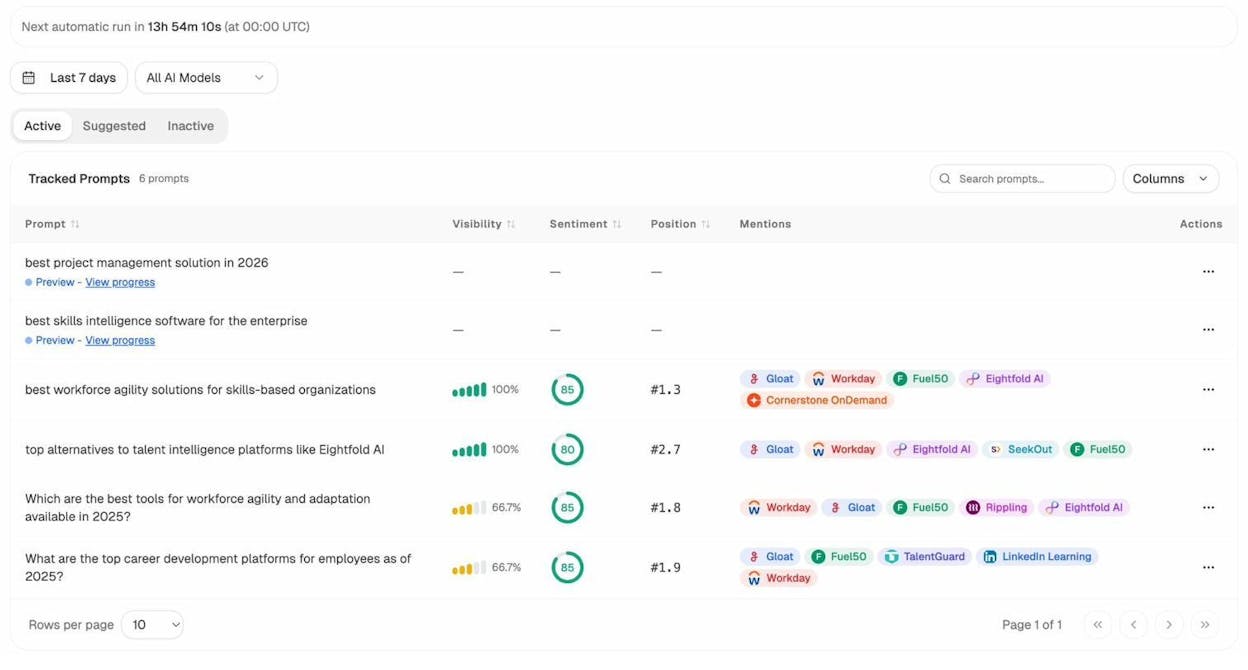
If your brand isn’t showing up for prompts where it should, that’s a visibility gap. Check whether the relevant content on your site is:
-
Technically accessible (no crawl blocks, fast load time)
-
Well-structured (clear headings, structured data, schema markup)
-
Topically comprehensive (covers the topic in depth with original information)
Analyze AI also suggests prompts you might not be tracking yet. Check the Suggested tab for prompt ideas relevant to your industry.
Identify AI Competitor Gaps
The Competitors dashboard shows which brands AI engines mention alongside yours — and which ones appear more frequently.
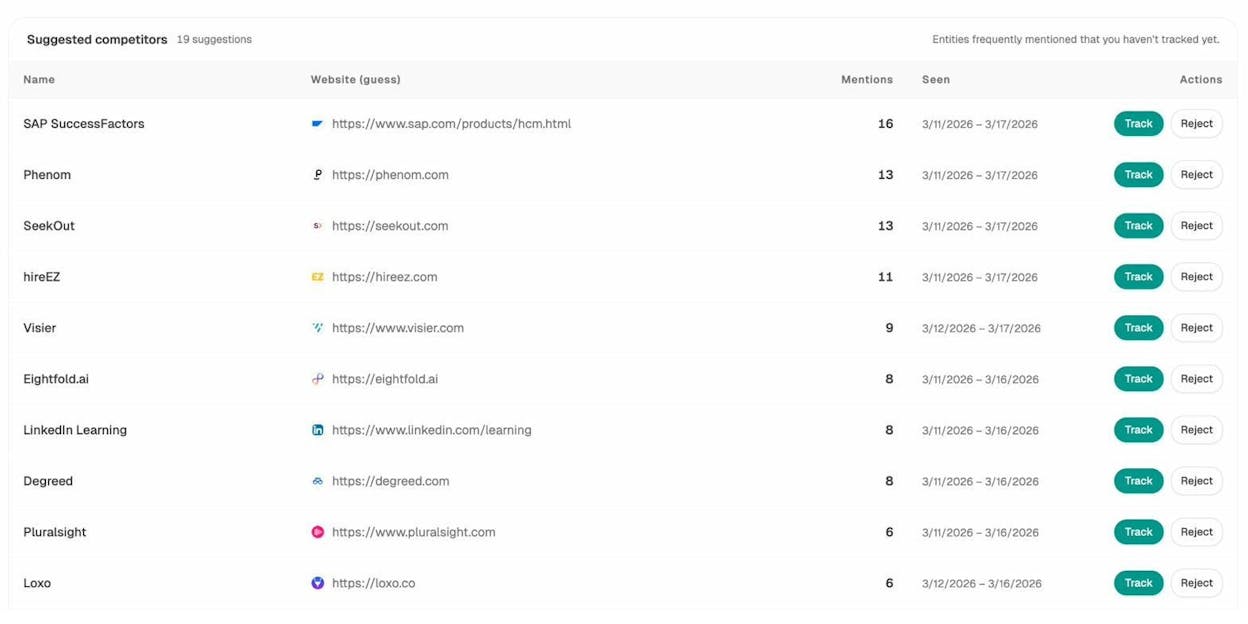
If a competitor consistently outranks you in AI responses, look at what content they have that you don’t. Often, the gap is a technical or content issue you can fix: maybe their page loads faster, has better structured data, or covers a subtopic you’ve missed.
Audit Your AI Citations and Sources
The Sources dashboard in Analyze AI shows every URL and webpage that AI platforms cite when answering questions in your industry.
This data tells you two things. First, which content types AI engines prefer (blogs, product pages, reviews). Second, which specific domains dominate citations in your space.
If your domain isn’t among the top cited sources, that’s your signal to dig deeper. Check whether the technical issues you found in Steps 1–8 might be preventing AI crawlers from accessing or trusting your content.
Monitor AI Search Perception
Finally, check the Perception dashboard. This shows how AI engines describe your brand — the themes, attributes, and language they use when mentioning you.
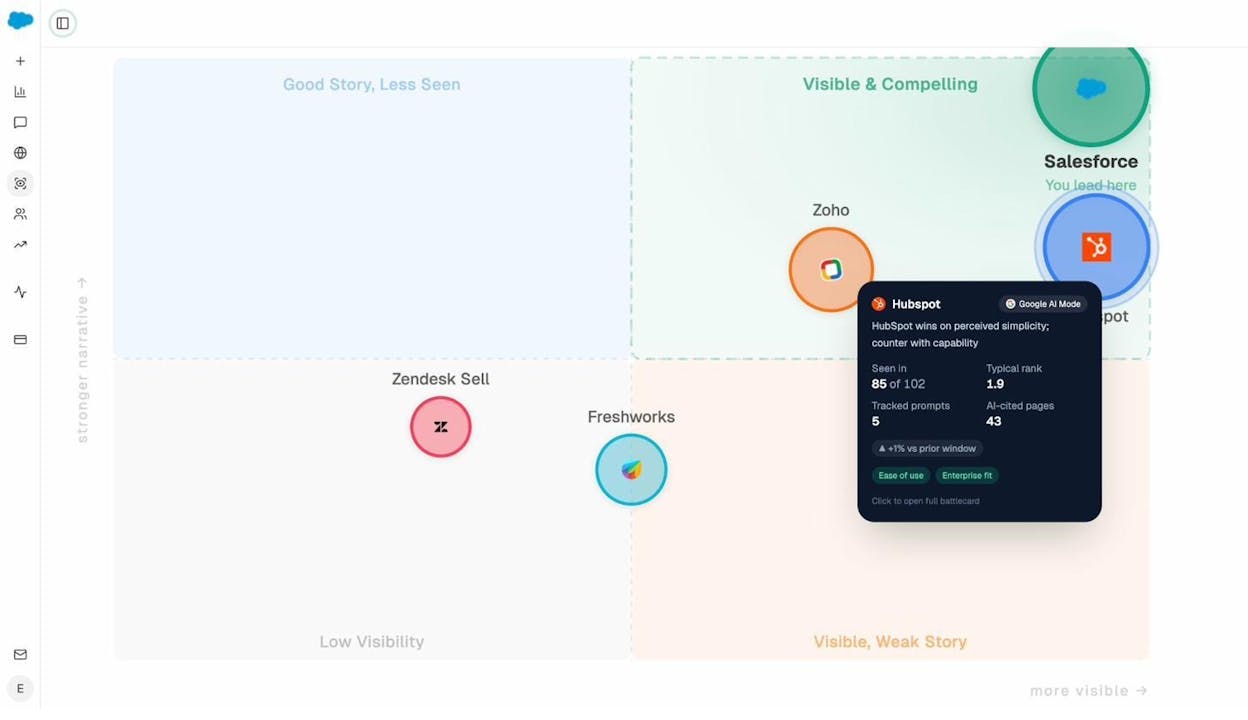
If AI engines are misrepresenting your brand or emphasizing the wrong features, that’s a perception gap you can address by updating your content, structured data, and on-page messaging.
Recommended reading: How to Get Mentioned in AI Search
How to Prioritize Your Audit Findings
After completing all eight steps (plus the AI search check), you’ll have a long list of issues. The key is not to fix everything at once — it’s to fix the right things first.
Use this prioritization framework:
|
Priority |
Issue type |
Examples |
|---|---|---|
|
Fix immediately |
Issues that block indexation entirely |
Accidental noindex, robots.txt blocking, broken sitemap |
|
Fix this week |
Issues that directly affect rankings |
Canonical errors, orphan pages, broken internal links, slow LCP |
|
Fix this month |
Issues that affect user experience |
Missing meta descriptions, broken images, mixed content |
|
Fix when possible |
Housekeeping items |
Missing alt text, minor redirect chains, duplicate meta descriptions |
One more consideration: within each priority tier, focus on the pages that matter most to your business. A canonical issue on your homepage is more urgent than the same issue on a three-year-old blog post with no traffic.
Final Thoughts
A technical SEO audit is not a one-time project. It’s a recurring process. Sites change, search engines evolve, and new issues appear every time you publish content, update a plugin, or migrate a page.
Build a quarterly audit into your workflow. Set up automated crawls on a weekly or monthly schedule so you catch issues early. And as AI search grows as a traffic channel, extend your audit to include AI visibility — because the same technical foundation that supports Google rankings also supports AI citations.
The eight steps in this guide cover the most impactful technical issues. Master them, and you’ll be ahead of most sites competing for the same keywords.
Related resources:

Ernest

Ibrahim


