



Summarize this blog post with:


In this article, you’ll learn how to run a complete SEO audit using only two free tools, plus a third audit layer for AI search that almost no one is doing yet.
Table of Contents
TL;DR
Here is the stack we’ll walk through.
|
Audit layer |
Free tool |
What it covers |
|---|---|---|
|
Google search performance and technical health |
Google Search Console |
Organic traffic, indexability, manual actions, Core Web Vitals, crawl errors |
|
Bing search performance and a free technical crawl |
Bing Webmaster Tools |
Site Scan (technical audit), keyword research, backlinks, AI Performance report |
|
AI search visibility |
A free 4-step playbook with single-purpose utilities |
Prompt coverage, citation sources, AI traffic, perception |
Let’s go through each one.
1. Google Search Console
Google Search Console (GSC) is the only place you can see Google’s own data on how your site performs in search. Click data, impressions, indexing status, and manual actions all come straight from Google. No crawler or third-party tool can replace that. If you only ever use one SEO tool, this is the one.
If you don’t have it set up yet, sign in with your Google account, verify ownership of your site, and submit your sitemap. Verification takes about five minutes and the data starts flowing within 24 hours.
![[Screenshot: GSC welcome / property selection screen showing the option to monitor an entire domain or a specific URL prefix]](https://www.datocms-assets.com/164164/1777806027-blobid1.png?auto=format,compress&w=1248&fit=max)
Once GSC is collecting data, here is what to audit and how.
Check organic traffic and find easy ranking wins
Open the Performance report. The default view shows clicks, impressions, average click-through rate (CTR), and average position over the last three months. Extend the timeframe to 16 months to spot seasonal patterns and slow declines.
![[Screenshot: GSC Performance report with the Queries tab open and clicks, impressions, CTR, and position columns visible]](https://www.datocms-assets.com/164164/1777806035-blobid2.png?auto=format,compress&w=1248&fit=max)
Three filters to apply, in order:
-
Sort queries by impressions, descending. Top queries by impressions are where Google already thinks you’re relevant. If a query has high impressions and low CTR, the page is ranking but not getting clicked. The fix is usually a sharper title tag or a meta description that better matches intent.
-
Filter position to “between 11 and 20.” These are queries ranking on page two of Google. A small content update or a few internal links can often push them onto page one. This is the lowest-effort, highest-return audit move you can make.
-
Sort pages by clicks, descending. The top-clicked pages are your traffic engines. Audit those first when checking for technical issues.
GSC’s Performance data is sampled and capped at 1,000 rows per query. To confirm live position on a specific page, run it through the Analyze AI Keyword Rank Checker, or use the SERP Checker to see what the SERP actually looks like.
Audit indexability and coverage
Open the Pages report (under Indexing). This tells you which pages Google has indexed and which it has chosen not to index, with reasons.
![[Screenshot: GSC Pages report showing “Why pages aren’t indexed” with reasons like Crawled - currently not indexed, Discovered - currently not indexed, Duplicate without user-selected canonical, etc.]](https://www.datocms-assets.com/164164/1777806038-blobid3.png?auto=format,compress&w=1248&fit=max)
The reasons that matter most:
-
Crawled, currently not indexed. Google found the page, looked at it, and decided it wasn’t worth indexing. This usually points to thin or duplicate content. Either improve the page or remove it.
-
Discovered, currently not indexed. Google knows the URL exists but hasn’t crawled it yet. On larger sites, this often signals a crawl budget problem. Improve internal linking to those pages.
-
Duplicate without user-selected canonical. Google found multiple versions of the same content and picked its own canonical. Set canonical tags explicitly to prevent this.
-
Page with redirect and Excluded by ‘noindex’ tag. Confirm these are intentional. A misplaced noindex tag is one of the most common reasons traffic disappears overnight.
Click on any reason to see the affected URLs. Fix the highest-traffic pages first.
Check for manual actions
Manual actions are penalties Google applies when it thinks a site is breaking guidelines. They show up under Security & Manual Actions, with the trigger and the fix.
![[Screenshot: GSC Manual actions report showing “No issues detected”]](https://www.datocms-assets.com/164164/1777806045-blobid4.png?auto=format,compress&w=1248&fit=max)
Most sites will see “No issues detected.” If you do see an action, fix the underlying issue and submit a reconsideration request from inside the report. Don’t ignore this report between audits, since a manual action can wipe out organic traffic for months.
Audit Core Web Vitals and mobile experience
Page experience is a confirmed Google ranking signal. Two reports cover it.
The Core Web Vitals report flags pages with poor Largest Contentful Paint (LCP), Interaction to Next Paint (INP), or Cumulative Layout Shift (CLS) scores, broken out by mobile and desktop. The Mobile Usability report flags pages where text is too small, tap targets are too close, or content overflows the viewport.
![[Screenshot: GSC Core Web Vitals report showing mobile and desktop URL performance grouped by status: poor, needs improvement, good]](https://www.datocms-assets.com/164164/1777806047-blobid5.png?auto=format,compress&w=1248&fit=max)
If a report says “not enough data,” your site doesn’t have enough Chrome user traffic to generate a field measurement. Run individual pages through PageSpeed Insights instead.
Audit a single page in detail
The URL Inspection tool (top of GSC) tells you whether any URL is indexed, when it was last crawled, what canonical Google selected, and whether there are rendering issues. This is the fastest way to debug a single page that isn’t ranking the way you expected.
![[Screenshot: GSC URL Inspection tool showing a page’s index status, last crawl date, canonical URL, and “Test live URL” button]](https://www.datocms-assets.com/164164/1777806051-blobid6.png?auto=format,compress&w=1248&fit=max)
When a page is missing from Google, this is the first place to look.
2. Bing Webmaster Tools
Bing Webmaster Tools (BWT) is the second free tool that should sit next to GSC in every audit. It does three things GSC doesn’t, and it does them all for free.
First, it gives you data from Bing, which still drives a meaningful share of search traffic in B2B and enterprise contexts. Second, it includes a built-in technical site audit called Site Scan that doesn’t exist in GSC. Third, its data feeds into Microsoft Copilot, one of the major AI search engines, so what you see here directly affects how you appear in AI answers.
To set up BWT, sign in at bing.com/webmasters with a Microsoft or Google account, verify your site, and import your settings from GSC if you have it connected. The whole process takes under fifteen minutes.
![[Screenshot: BWT homepage showing “Sign in” with Microsoft, Google, or Facebook options]](https://www.datocms-assets.com/164164/1777806056-blobid7.png?auto=format,compress&w=1248&fit=max)
Run the Site Scan technical audit
Site Scan is BWT’s built-in crawler. It checks your site for technical SEO issues that hurt rankings on Bing and Google alike. Click Site Scan in the left navigation, then “Start new scan.” Pick the scope (full site, sitemap, or selected URLs), set the page limit, and start the crawl.
![[Screenshot: BWT Site Scan setup form showing scan name, scope selector, and page limit field]](https://www.datocms-assets.com/164164/1777806059-blobid8.png?auto=format,compress&w=1248&fit=max)
When the scan finishes, you’ll get a list of issues grouped by severity:
-
Errors: broken links, 4xx and 5xx response codes, missing canonical tags, redirect chains, and pages blocked by robots.txt that shouldn’t be.
-
Warnings: missing meta descriptions, duplicate title tags, missing image alt attributes, multiple H1 tags, and thin content.
-
Notices: smaller issues like long title tags or pages with very few internal links.
Work through errors first. Most can be fixed in a single CMS edit. Then handle warnings, since these are usually content fixes that touch on-page SEO directly. The Site Scan can crawl up to 10,000 pages per site, which is enough for almost any non-enterprise property.
For broken external links specifically, run a fast check with the Analyze AI Broken Link Checker to confirm fixes after publishing.
Audit your backlink profile
BWT’s Backlinks report shows referring domains, anchor text distribution, and the top pages linking to you. Unlike GSC, which shows backlinks at the domain level, BWT lets you see specific URLs and the exact anchors they use.
![[Screenshot: BWT Backlinks report with referring domains, anchor text breakdown, and top linked pages]](https://www.datocms-assets.com/164164/1777806064-blobid9.png?auto=format,compress&w=1248&fit=max)
The Backlinks to Any Site feature lets you compare your profile against up to two competitors side by side. Use it to find domains that link to multiple competitors but not to you. These are warm prospects for outreach.
To get a quick read on whether a referring domain is worth pursuing, run it through the Analyze AI Website Authority Checker before you invest time in outreach.
Use the keyword research tool
GSC tells you what you already rank for. BWT’s keyword research tool tells you what people search for, with monthly volume and related queries. It pulls from Bing’s full search data and is genuinely useful for finding question-based and long-tail keywords.
![[Screenshot: BWT Keyword Research tool showing search volume, related keywords, and trending keyword suggestions]](https://www.datocms-assets.com/164164/1777806068-blobid10.png?auto=format,compress&w=1248&fit=max)
To check difficulty before targeting a keyword, send candidates through the Keyword Difficulty Checker and the SERP Checker to see what kind of pages currently rank. For specific channels, the dedicated Bing Keyword Tool, YouTube Keyword Tool, and Amazon Keyword Tool cover ground GSC and BWT don’t.
Check the new AI Performance report
BWT recently added an AI Performance report (still in beta) that shows how your site appears in Bing’s AI-powered search experiences and in Microsoft Copilot. It’s the first official report from any search engine that surfaces AI search visibility data.
![[Screenshot: BWT AI Performance report showing visibility in Bing AI answers and Copilot citations]](https://www.datocms-assets.com/164164/1777806074-blobid11.png?auto=format,compress&w=1248&fit=max)
This is also where the limits of free tooling become obvious. The report only covers Bing and Copilot. It doesn’t show ChatGPT, Perplexity, Gemini, or Claude, which between them account for most of the AI search traffic landing on B2B sites today. That gap is what the next section is about.
For a wider catalog of free tools beyond GSC and BWT, our roundup of 29 best free SEO tools covers single-purpose utilities for specific audit jobs. For paid options, see our shortlist of the best SEO audit tools.
3. The AI search audit most SEO guides still skip
Here is the part of the audit that almost no one runs.
GSC and BWT show you what Google and Bing see. Neither tells you what ChatGPT, Perplexity, Gemini, or Claude see. And those engines now answer a meaningful share of the queries your buyers run before they ever click a result.
This isn’t a case of AI search replacing SEO. It isn’t. People still use traditional search every day, and the same content quality signals that win on Google also drive citations in AI answers. We’ve written about this in the Analyze AI manifesto and at length in our guide to GEO vs SEO. AI search is an additional organic channel that compounds with the work you already do. A complete audit covers both.
Here is a free four-step AI search audit you can run today.
Step 1: Identify the prompts your buyers are actually using
Pick five to ten queries that someone evaluating your category would type into ChatGPT or Perplexity. Go beyond your branded keywords. Think about category prompts (“best [category] for [use case]”), comparison prompts (“X vs Y for [use case]”), and problem prompts (“how do I [job your product solves]”).
For each one, write down what a “good” answer should include and which brands you’d expect to see named. This list becomes your audit baseline.
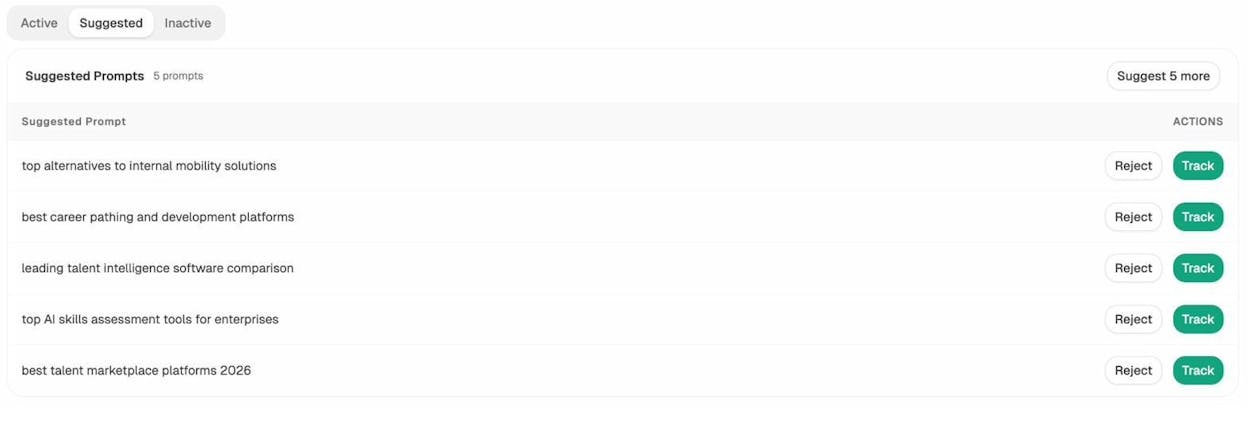
If you want help generating the right prompts, the Analyze AI Prompt Discovery feature surfaces the actual prompts people in your category run. Inside the dashboard, Suggested Prompts pulls from real category activity so you can decide which to start tracking.
Step 2: Run those prompts manually across the major AI engines
Open ChatGPT, Perplexity, Gemini, and Copilot. Run each prompt and record three things:
-
Was your brand mentioned? At what position in the answer?
-
Which competitors were mentioned, and how were they framed?
-
Which sources did the engine cite at the bottom of the answer?
This is slow but free. Doing it once gives you a baseline. Doing it weekly is where the time cost adds up.
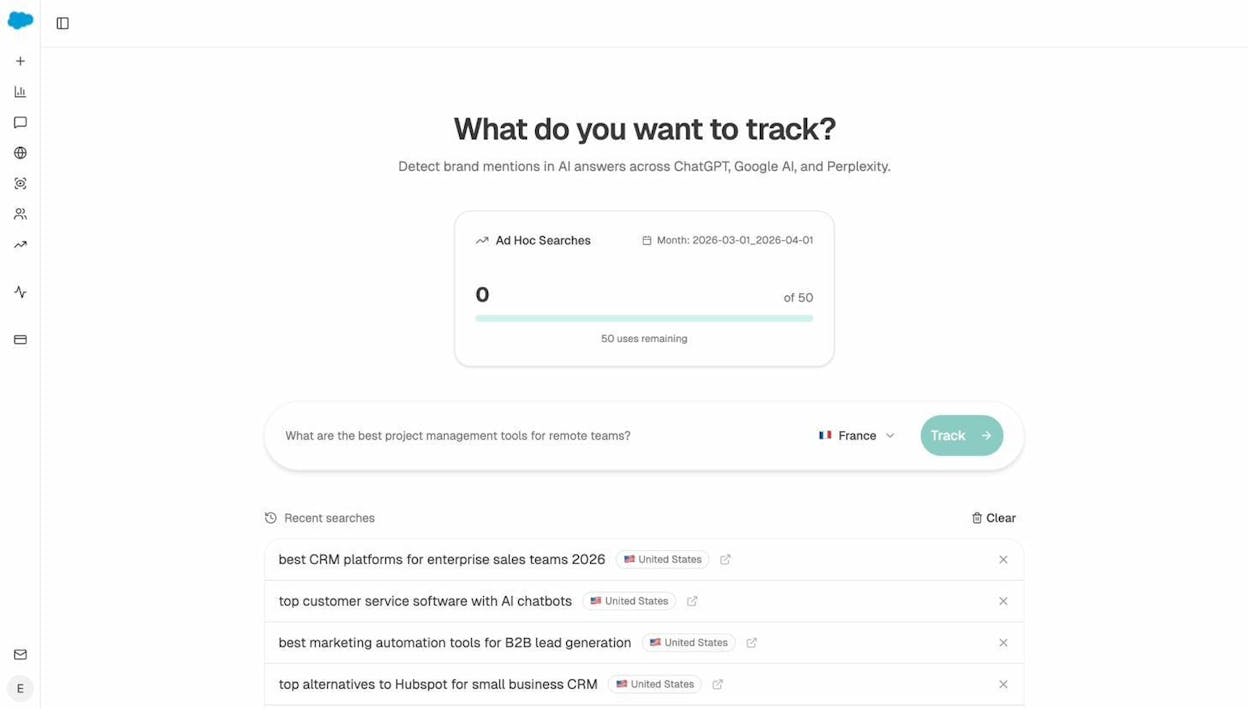
To run one-off checks across multiple engines without juggling tabs, the Ad Hoc Searches feature inside Analyze AI runs the same prompt across all major engines at once and saves the responses.
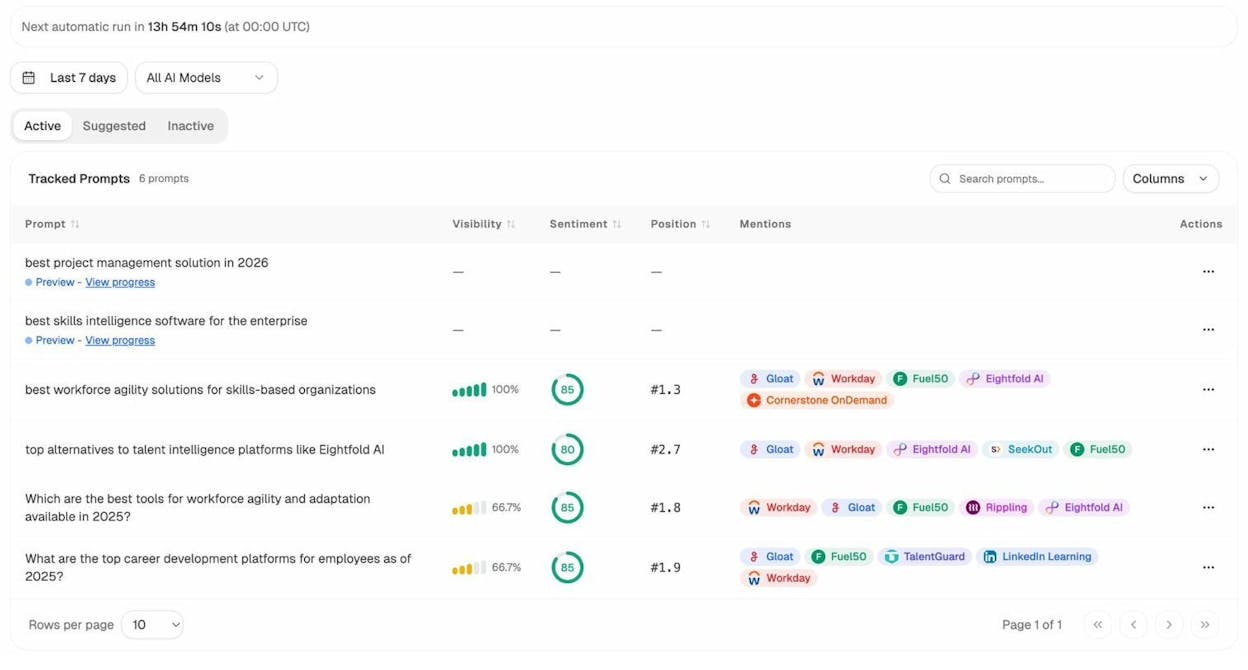
For continuous coverage, Prompt Tracking runs your tracked prompts on a daily cadence and reports visibility, sentiment, position, and which competitors get mentioned.
Step 3: Audit which sources AI engines cite for your category
When an AI engine answers a question, it cites a small set of sources. Earning citations from those sources, or earning citations directly, is how you become part of the answer.
The manual version of this audit is straightforward. Run your category prompts, copy the cited URLs, and tally which domains appear most often. The patterns will be obvious within ten or fifteen prompts. If G2, Reddit, and a handful of category blogs dominate citations, those are the surfaces you need to be present on.
The Analyze AI Citation Analytics feature does this work automatically across every prompt and engine you track, then breaks it down by content type so you can see whether AI engines in your space prefer blogs, product pages, reviews, or documentation.
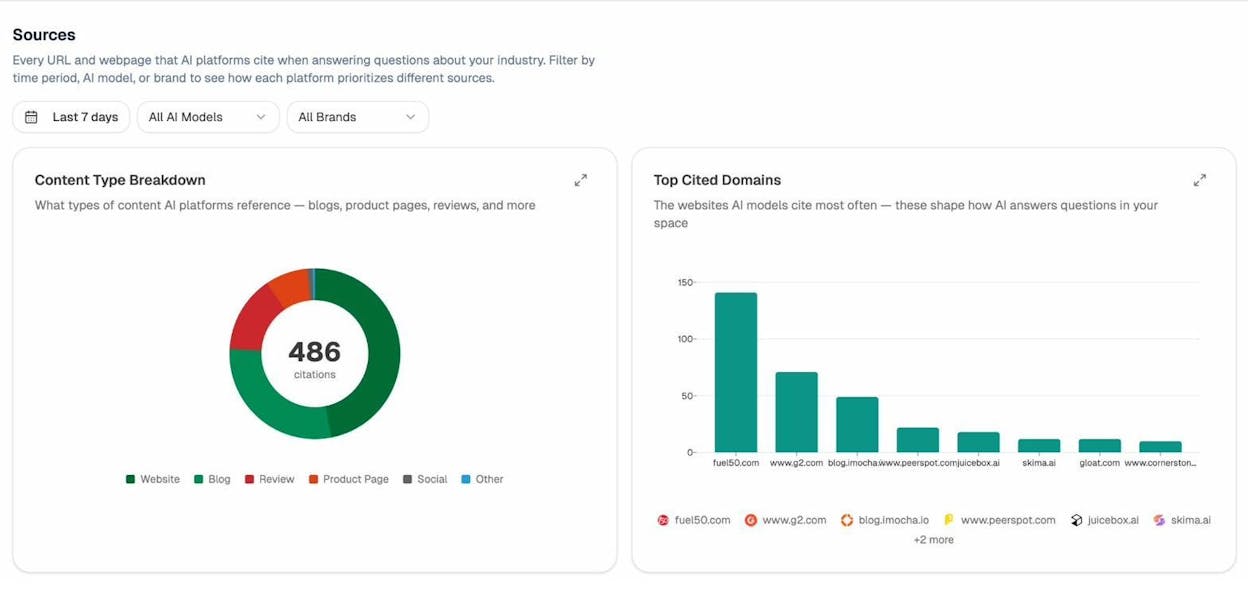
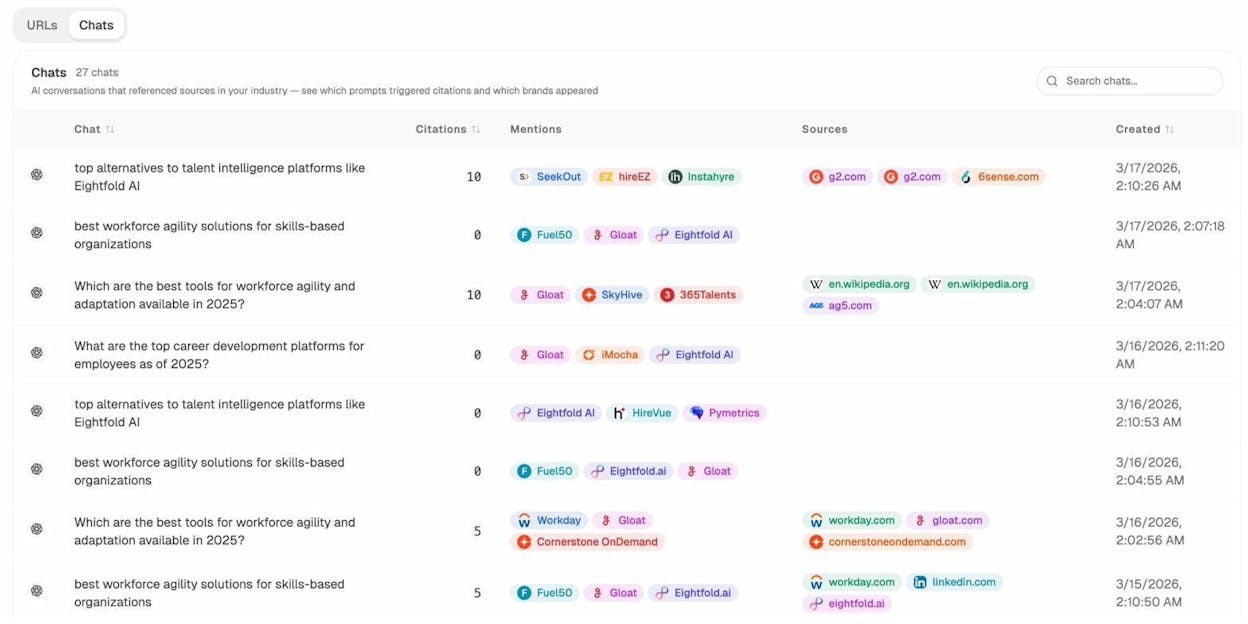
You can also drill into individual chats to see exactly which prompts triggered citations and which sources each engine relied on.
Step 4: Audit AI traffic to your own site
Even if you don’t track AI search visibility yet, you almost certainly have AI traffic landing on your site already. The audit question is which pages are earning that traffic and what to double down on.
Inside GA4, filter sessions where the source contains chatgpt.com, perplexity.ai, claude.ai, gemini.google.com, or copilot.microsoft.com. Look at landing pages, time on page, and conversions. The pages AI engines send traffic to are usually the pages they cite. That’s the signal.
![[Screenshot: GA4 Acquisition report filtered to AI sources showing landing pages and session counts]](https://www.datocms-assets.com/164164/1777806092-blobid17.png?auto=format,compress&w=1248&fit=max)
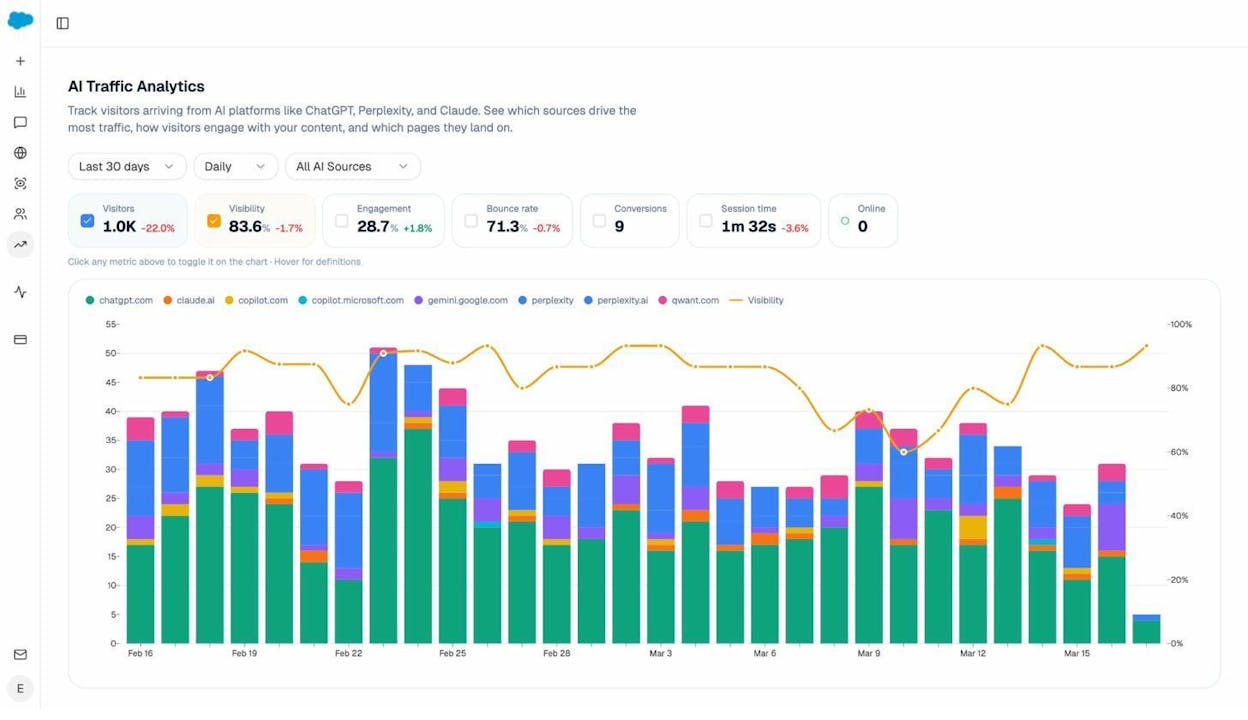
To skip the manual GA4 filtering, the AI Traffic Analytics feature inside Analyze AI breaks AI traffic down by engine, landing page, and engagement metrics in one view.
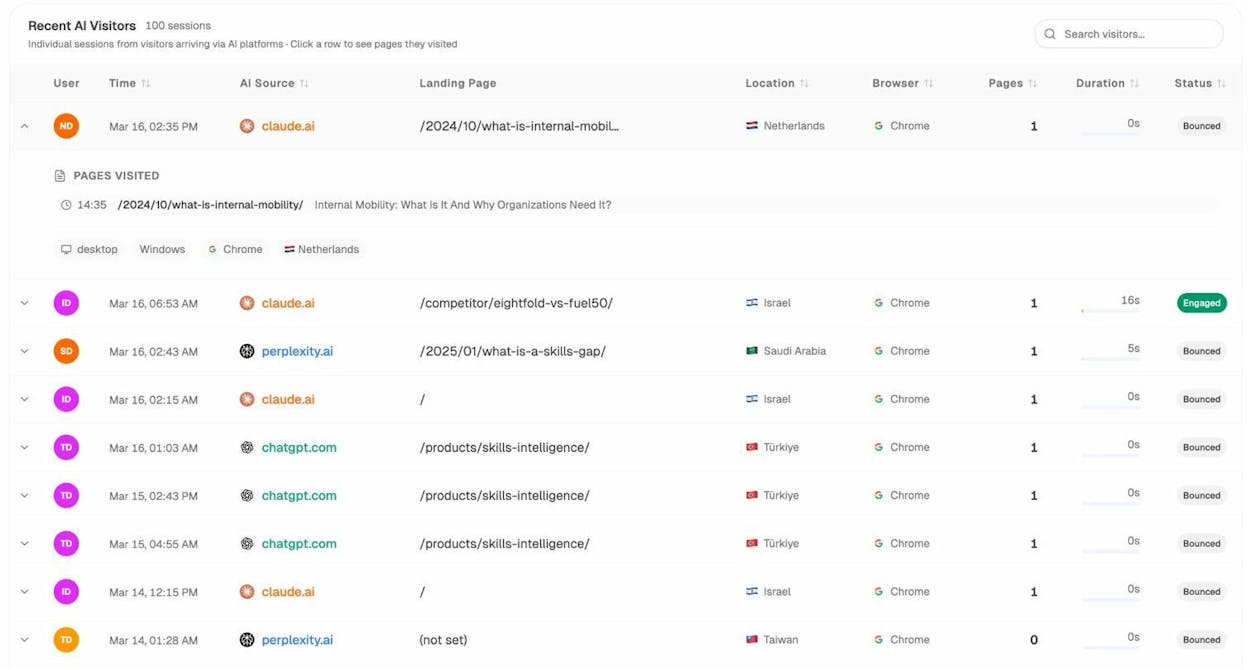
You can also see session-level data with the landing page each AI visitor arrived on, which is what tells you exactly which content is doing the work.
What this audit actually changes
Once you’ve run this AI search audit, three things become obvious:
-
The pages that already win in AI search. Update them more often, expand the sections AI engines cite from, and link to them more aggressively from inside your site.
-
The prompts where competitors win and you don’t. These are your highest-leverage content gaps. Each one is a brief.
-
The publishers you need to be on. If review sites, community forums, or specific category blogs dominate citations, that’s where guest posts, listings, and outreach should focus next.
For the next steps after the audit, our guides on how to rank on ChatGPT, how to rank on Perplexity, and how to outrank competitors in AI search cover the playbook in detail. To publish a file that helps AI engines understand your site, the free LLMs.txt Generator creates one in under a minute.
How the three audit layers connect
The point of running all three audits in the same week isn’t more spreadsheets. It’s noticing where they agree.
A page that GSC says ranks on page two of Google, that BWT says has technical errors, and that doesn’t appear in any AI engine response, is the same page. Fix the technical issues first, then improve the content for both Google and AI search, and you’ll usually see movement in all three places at once. That compounding effect is the reason to do the audit at all.
You can run the full GSC + BWT + AI search audit in an afternoon for a small site, or across a few sessions for a larger one. Schedule it monthly for active sites and quarterly for everything else.
For deeper guides on what to do after the audit, see our walkthroughs on SEO content strategy, SEO competitor analysis, and answer engine optimization. When you’re ready to operate the AI search layer continuously, the Analyze AI Improve suite handles the editorial side, including content gaps, optimization scoring, and page-level rewrites tuned for both Google and AI engines.
Two free tools, one free playbook, and an afternoon. That’s the audit.

Ernest

Ibrahim


