
MCP server
Set up Claude & ChatGPT
Connect Claude, ChatGPT, Claude Code, or any MCP-compatible client to your Analyze AI workspace — a sign-in flow for assistants, an access token for everything else.
Before you start
- The MCP server is included in the Growth plan.
- Any workspace member can connect with read access. Granting write access (creating prompts, triggering runs) is reserved for the workspace owner.
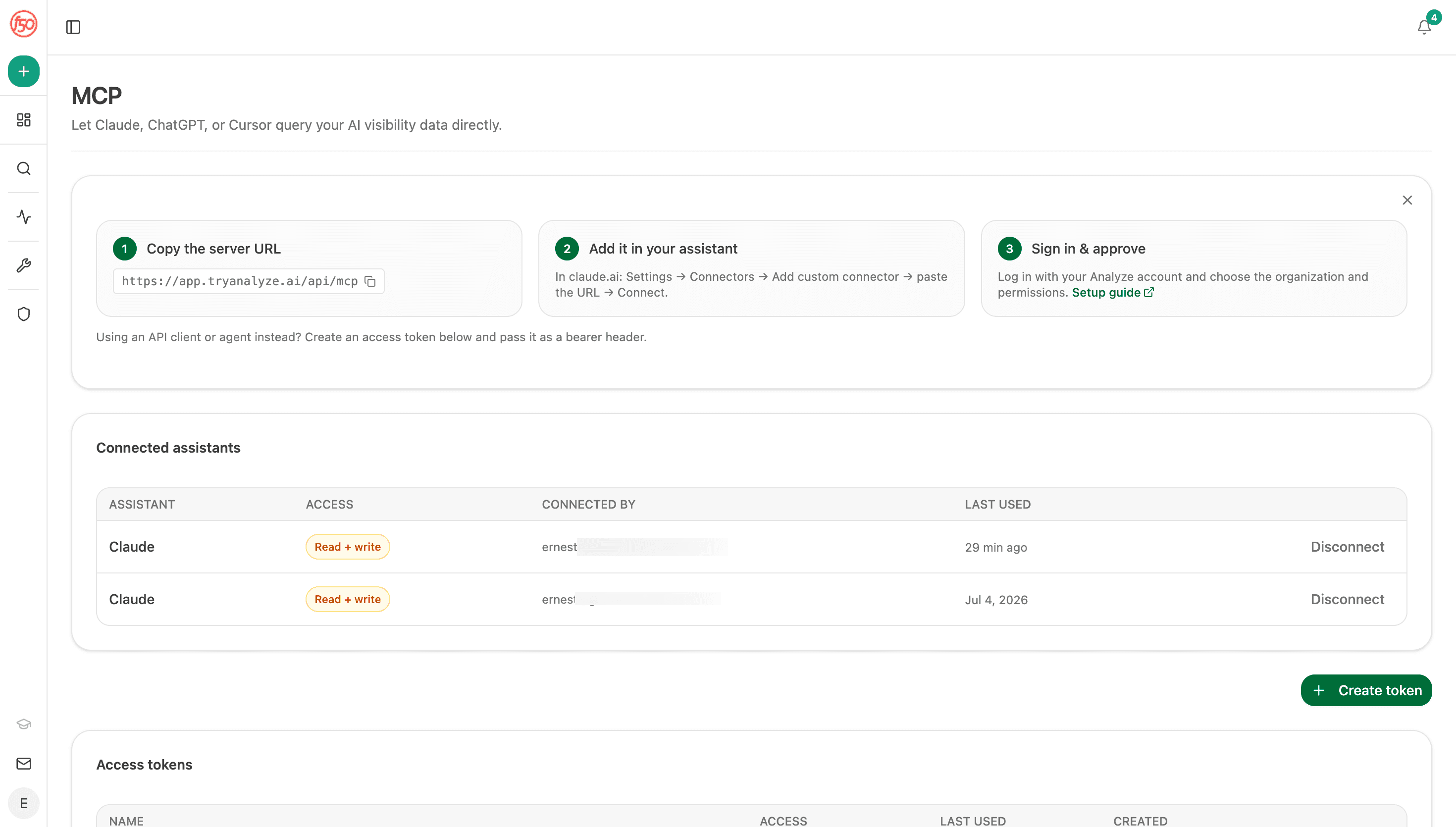
Everything happens on one page: Settings → MCP in your dashboard shows your server URL, the three-step connect flow, every connected assistant, and your access tokens.
Connect Claude or ChatGPT
For assistants with a connector directory (Claude web/desktop/mobile, ChatGPT), setup is a sign-in flow — no keys to copy.
Copy your server URL
It's the first step on Settings → MCP — one click to copy.
Add Analyze AI as a custom connector in your assistant
In Claude: Settings → Connectors → Add custom connector, then paste the URL. ChatGPT follows the same pattern in its connector settings.
Sign in & approve
Your assistant redirects you to Analyze AI. Log in, choose which workspace to connect, and approve the access level — read-only by default.
Ask your first question
Try: "Give me my weekly visibility brief." The first answer takes a moment while the assistant discovers the available analyses.
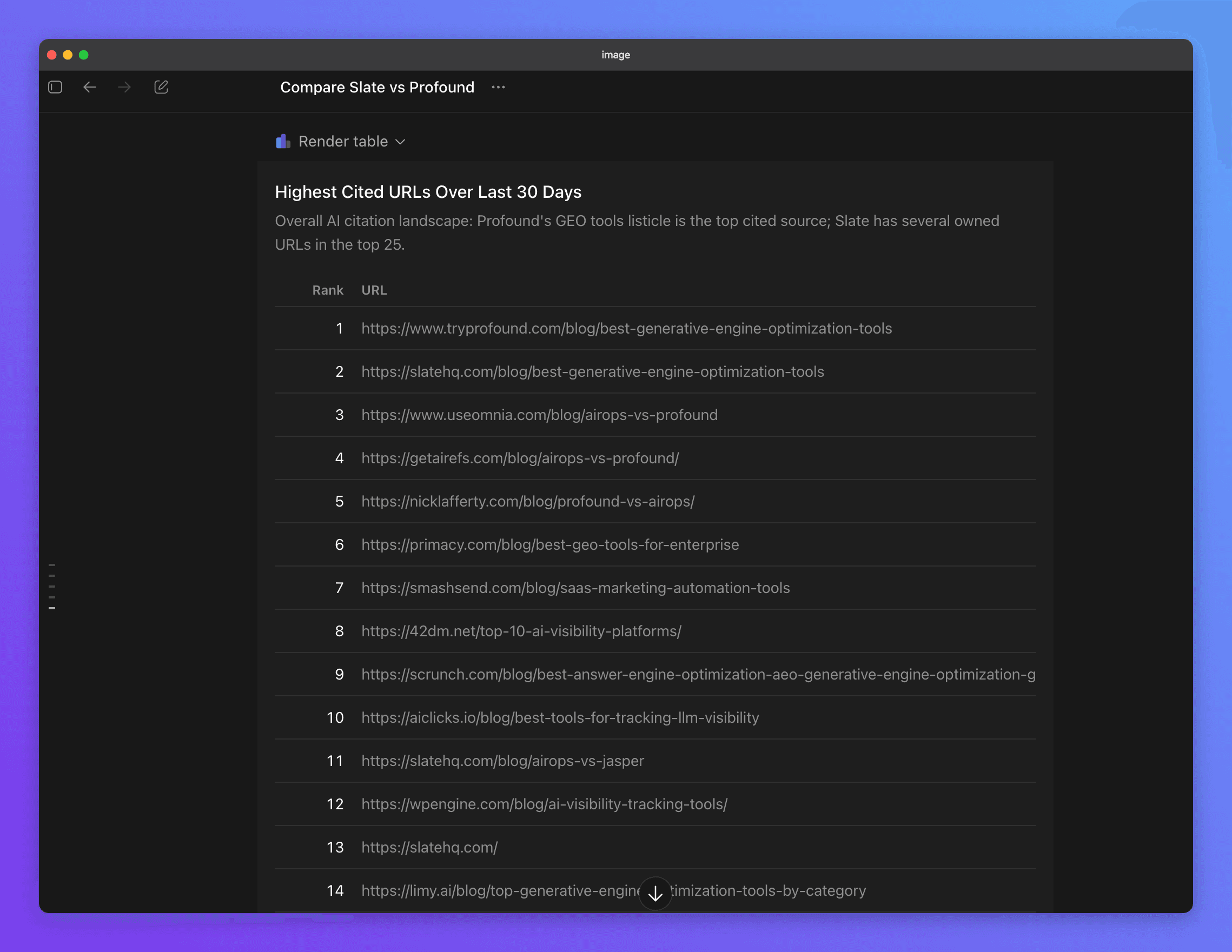
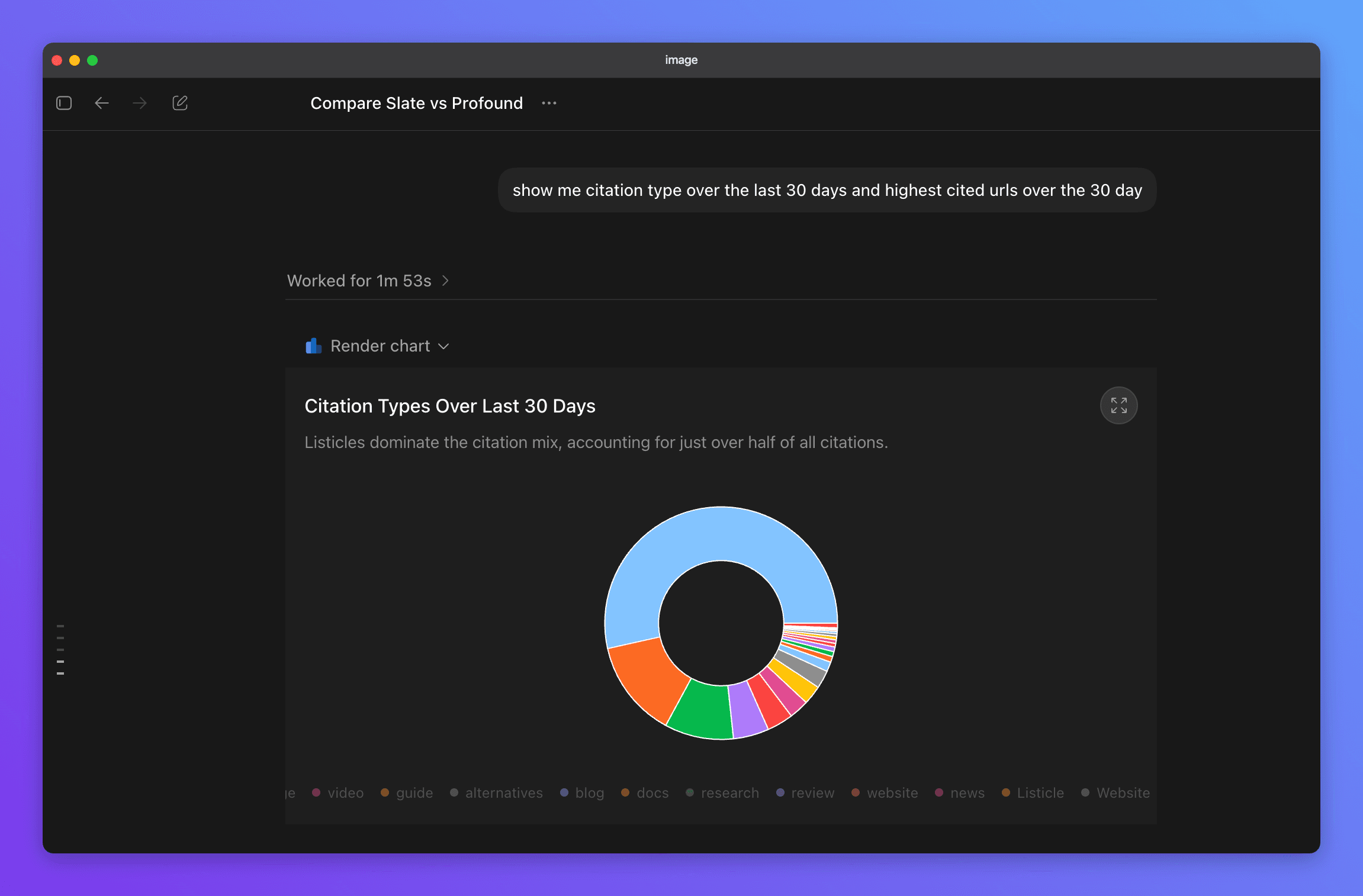
Ask for a breakdown instead and you get charts:
Connect Claude Code and other tools
Developer tools and agent frameworks authenticate with an access token instead:
Create a token
On Settings → MCP, create a token, name it after where it will live ("Claude Code", "n8n"), and copy it — it's shown only once.
Add the server to your tool's MCP configuration
Point it at your server URL with the token as a bearer credential. Any MCP-compatible tool works — see supported assistants & agents.
Schedule it. A recurring task in Claude that runs the weekly-brief playbook every Monday morning turns the MCP server into an automated reporting pipeline — no dashboard visit required.
Access control
- Read-only by default. Standard connections and tokens can analyze data but change nothing.
- Write access is owner-only. Only the workspace owner can grant the ability to create prompts or trigger runs — and runs are rate-limited, so an over-eager agent can't burn your quota.
- Instant revocation. Disconnect any connection or token from Settings → MCP and its access ends immediately, not when a token happens to expire.
- Workspace-scoped. A connection sees exactly one workspace. Leaving the workspace or losing a role updates access on the very next request.