
Competitors & traffic
Connecting your analytics
Link your Google Analytics 4 property in three steps so AI-referred sessions, landing pages, and conversions flow into your visibility data.
What the connection does
AI Traffic Analytics reads AI-referred sessions from your Google Analytics 4 property — read-only, scoped to that property. Connecting takes about three minutes and two pieces of information: Viewer access for a service account, and your Property ID.
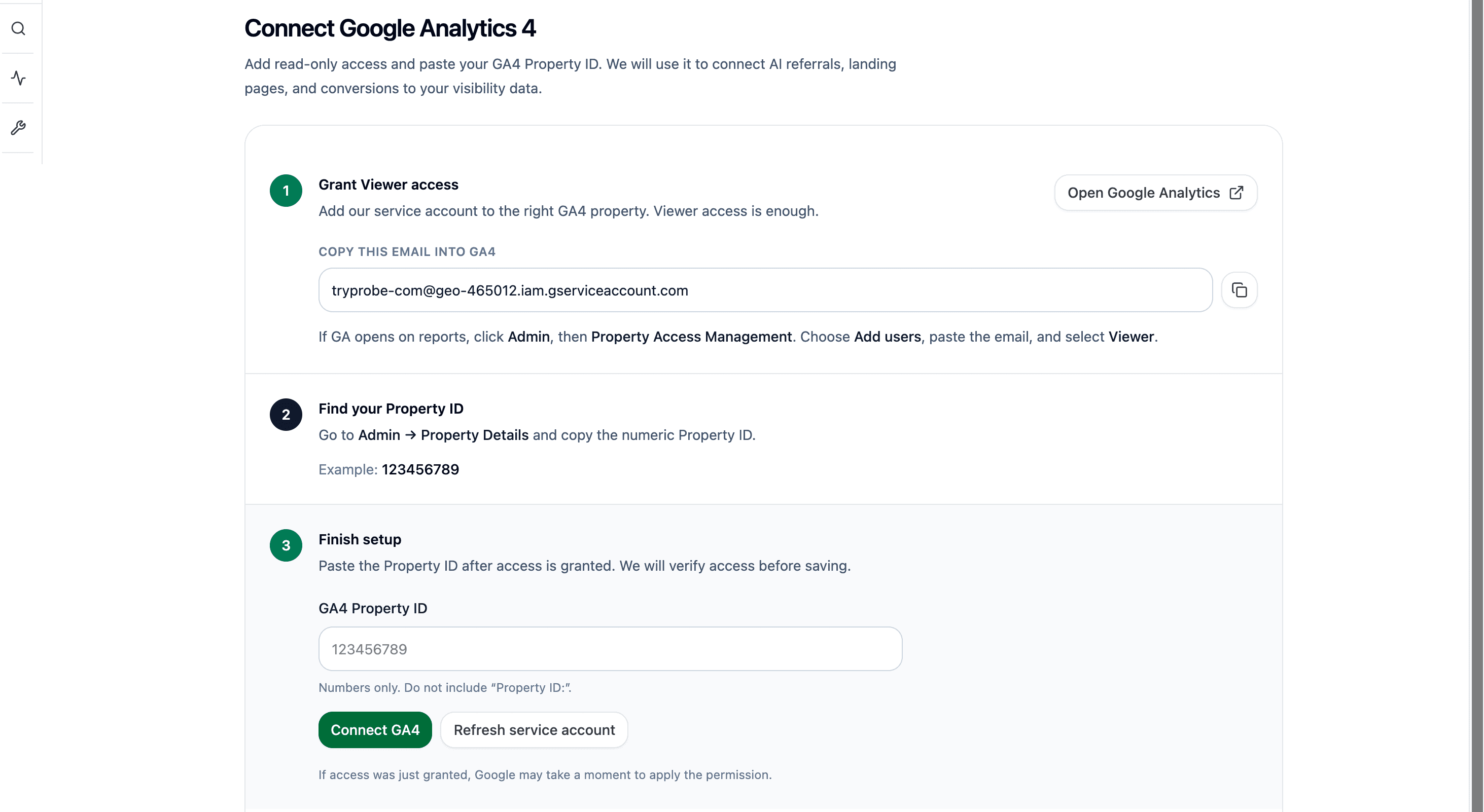
The three steps
Grant Viewer access in GA4
Copy the service-account email shown on the connect screen. In Google Analytics: Admin → Property Access Management → Add users, paste the email, choose Viewer. Viewer is enough — Analyze AI never writes to your analytics.
Find your Property ID
Still in GA4: Admin → Property Details. Copy the numeric Property ID (e.g. 123456789) — numbers only, without the "Property ID:" label.
Connect
Paste the Property ID back in Analyze AI and click Connect GA4. Access is verified before saving, so a typo fails immediately rather than silently.
If verification fails right after you granted access, wait a minute and use Refresh service account — Google can take a moment to apply new permissions.
What flows in once connected
- AI-referred sessions by platform (ChatGPT, Perplexity, Claude, Gemini, Copilot, and the rest), daily.
- Landing pages with engagement, bounce, duration, and conversions for AI visitors.
- Visitor detail — countries, devices, browsers, and individual session paths.
- The visibility-vs-visitors overlay, connecting what AI says about you to what it sends you.